


This article is also available as a PDF download.
Your data is important. In fact, it’s critical to your
business. Entering, storing, and maintaining valid data is the most important
job of any database. When you’re the only one using the database, you can limit
mistakes. However, when multiple users are changing data, a lot can go wrong. You
might want to keep an audit trail of data input changes. In other words, you
might want to know who’s changing data and when. Tracking changes has two
benefits:
-
You can quickly determine which operators are
consistently making mistakes (or not making mistakes). -
You can quickly undo mistakes before your
queries and reports start churning out erroneous data.
The solution in this article is not a true audit solution. That type of
comprehensive tracking requires a major development thrust. You’ll find this
solution easy to implement and more than adequate for most applications. However,
it won’t keep inappropriate users out of your system—you need security for
that. In addition, a sophisticated user will know how to open the table and
remove records that track their mistakes—although the missing primary key
values should be a clue to you that records are missing. The easiest way to
keep users out of the Audit table is to move it to a secure backend and link to
it.
Building the audit components
You don’t need individual tables for each data entry form or
each data table. One table stores every change to any table. Refer to Table A to create a table named Audit.
You can alter the example table to suit your needs. You probably won’t want to
remove any of the example table’s fields, but you might want to add a few new
ones. If you do, remember to update the SQL INSERT INTO statement in the
auditing subprocedure, which you’ll add later.
|
Table A: This table stores data changes. |
|
Field |
Data Type |
Explanation |
|
EditRecordID |
AutoNumber |
Audit’s Primary Key. |
|
EditDate |
Date/Time |
The date and time change is made. |
|
User |
Text |
The user who made the change. |
|
RecordID |
Text |
Value that uniquely identifies the changed record. |
|
SourceTable |
Text |
Table or query. |
|
SourceField |
Text |
The field changed. |
|
BeforeValue |
Text |
The original value before change. |
|
AfterValue |
Text |
The new value after change. |
Close the Audit table and launch the Visual Basic Editor
(VBE). Insert a standard module, and enter the following Const statement and
subprocedure:
Const cDQ As String = """"
Sub AuditTrail(frm As Form, recordid As Control)
 'Track changes to data.
 'recordid identifies the pk field's corresponding
 'control in frm, in order to id record.
 Dim ctl As Control
 Dim varBefore As Variant
 Dim varAfter As Variant
 Dim strControlName As String
 Dim strSQL As String
 On Error GoTo ErrHandler
 'Get changed values.
 For Each ctl In frm.Controls
 With ctl
 'Avoid labels and other controls with Value property.
 If .ControlType = acTextBox Then
 If .Value <> .OldValue Then
 varBefore = .OldValue
 varAfter = .Value
 strControlName = .Name
 'Build INSERT INTO statement.
 strSQL = "INSERT INTO " _
 & "Audit (EditDate, User, RecordID, SourceTable, " _
 & " SourceField, BeforeValue, AfterValue) " _
 & "VALUES (Now()," _
 & cDQ & Environ("username") & cDQ & ", " _
 & cDQ & recordid.Value & cDQ & ", " _
 & cDQ & frm.RecordSource & cDQ & ", " _
 & cDQ & .Name & cDQ & ", " _
 & cDQ & varBefore & cDQ & ", " _
 & cDQ & varAfter & cDQ & ")"
 'View evaluated statement in Immediate window.
 Debug.Print strSQL
 DoCmd.SetWarnings False
 DoCmd.RunSQL strSQL
 DoCmd.SetWarnings True
 End If
 End If
 End With
 Next
 Set ctl = Nothing
 Exit Sub

ErrHandler:
 MsgBox Err.Description & vbNewLine _
 & Err.Number, vbOKOnly, "Error"
End Sub
Save the module as basAuditTrail and close the VBE.
You can call the subprocedure from any data entry form. We used
the AutoForm wizard to create an example form based on the Shippers table in
Northwind (the sample database that comes with Access). You can use any bound
form, as long as it allows edits. To follow our example, open the Shippers form’s
module in the VBE and enter the following statement to call the auditing subprocedure:
Private Sub Form_BeforeUpdate(Cancel As Integer)
 Call AuditTrail(Me, ShipperID)
End Sub
Now, this is where you’ll need to customize the example
procedure to work with your forms. The call passes two object variables to
AuditTrail(): the form as a Form object and the control that contains the data
that uniquely identifies the record, as a Control object. The Me identifier
handles the form. ShipperID is the Shippers table’s primary key (and is an
AutoNumber field). Use a single-field natural primary key or an AutoNumber
field for this purpose.
Once you save your form, you’re
ready to start tracking edits (AuditTrail() doesn’t track new records, just
changes to existing data). With the example form in Form view, change the last
digit in the phone number for Speedy Express from 1 to 6, as shown in Figure A, and press [Tab]. In the next
record, add the word Service to the
shipper’s name, change the last digit in the phone number to 8, and press [Tab].
(You can’t change the ShipperID value because it’s an AutoNumber. In a
production form, users wouldn’t even see this value.)
|
Figure A |
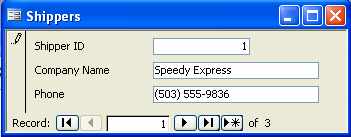 |
| Change an existing value in the example form. |
Pressing [Tab] moves to the next record, which executes the
form’s Before Update event. That event procedure passes the two objects to
AuditTrail(): the form and the data (as a control object) that uniquely
identifies the current record. The For…Each statement cycles through the form’s
Controls collection. When the current control is a text box control, the
procedure compares its old and new values. If the values are the same, there’s
no change to track, and VBA skips to the next control. When the values differ,
the procedure executes an INSERT INTO statement that adds a new record to the
Audit table, tracking that change.
As is, the procedure tracks only changes to text box and
memo controls. If you need to track changes in other types of controls, change
that If statement to a Select Case in the form adding all the controls
necessary:
Select Case ctl.ControlType
 Case acTextBox, acCheckBox, acOptionGroup, ...
You probably noticed that the
procedure passes old and new values as strings, regardless of their data type. That
shortcut makes this procedure easier to implement. After all, you don’t really
need to maintain data types for auditing purposes.
The Debug.Print statement allows
you to see the evaluated INSERT INTO statement in the Immediate window. If you
experience problems, this is a useful debugging tool. Simply copy the evaluated
statement from the Immediate window into the SQL window (Query Design) and run
it. Access will give you much better error clues than VBA.
Our procedure contains a minimum of
error handling. You’ll want to customize the procedure to meet your needs.
Using the Audit table
The table tracks every change, building a historical
perspective of what’s happening to the data. Each record identifies the user
who made the change, the date the user made the change, and the actual change,
as shown in Figure B. The table is
likely to grow quickly, so filters or queries will probably be the most
efficient means of using the tracking records. Usually, you can limit the
result to a specific record or user.
|
Figure B |
 |
| The table tracks changes to the data. |
Susan Sales Harkins is an independent consultant and the
author of several articles and books on database technologies. Her most recent
book is Mastering Microsoft SQL Server
2005 Express, with Mike Gunderloy, published by Sybex. Other collaborations
with Gunderloy are Automating Microsoft
Access 2003 with VBA, Upgrader’s Guide to
Microsoft Office System 2003, ICDL
Exam Cram 2, and Absolute Beginner’s
Guide to Microsoft Access 2003, all published by Que. Currently, Susan
volunteers as the Publications Director for Database Advisors at http://www.databaseadvisors.com.
You can reach her at ssharkins@setel.com.