


If you’ve been working with Active Directory for any length of time, it’s a good possibility that you’re familiar with domains and trust relationships (at least to some degree). Both of these topics are tied directly to Active Directory, which serves as the core repository for a broad range of information in Windows 2000 Server, Windows Server 2003 and Windows Server 2008. There are several tools included in Windows Server to manage Active Directory in all its aspects. In this article, you’ll learn the uses for and the ins and outs of the Active Directory Domains And Trusts Console.
Raison d’etre
Before diving into the Active Directory Domains And Trusts Console, it’s important to understand the purpose served by this administrative tool.
First introduced in Windows 2000 Server, Active Directory has served as a central repository for significant amounts of information in all versions of Windows since. There are lots of bits of information stored in Active Directory, including the following:
- Users and groups
- DNS zones
- Shared printers
- Domains
- Trust relationships
- Objects specific to an application, such as Exchange
When you create a new domain, you do so by installing Active Directory on a server. This process turns that server into the first domain controller in the new domain. In a small organization, you might have a single domain. In larger organizations, however, multiple domains are very commonly used to separate departments, divisions, or resources from users.
Domains are structured into trees and forests. A domain tree is a collection of related domains. A domain forest is a collection of related domain trees. If you’re wondering what in the heck a domain “tree” is, think of it this way: When you think of a domain structure, you need to consider the possibility of child domains that hang off the master/parent domain. These child domains can be thought of as branches. Hence, the tree metaphor. Once your infrastructure grows beyond a single domain, trust relationships come into play. A trust relationship allows one domain to trust objects in another for authentication and for access to resources.
For example, if domain A trusts domain B, a user from domain B can access resources in domain A if granted the necessary access permissions in domain A. In a Windows 2000 or later domain forest, all trust relationships are transitive and bidirectional or two-way. If you remember way back to your college days, remember what you learned in your Logic class with regard to transitive relationships. In a transitive example, if A trusts B and B trusts C, then A also trusts C. The same logic applies to Windows domains. A transitive trust is one that flows from one domain to another and then to another. So if domain A trusts domain B and domain B trusts domain C, then domain A trusts domain C. Make sense?
A two-way trust is one that flows both directions between two domains. For example, domain A trusts domain B and domain B trusts domain A. Trusts under Windows NT were a bit complicated, but in Windows 2000 and later, trusts are automatic; you don’t need to configure trust between a parent and child domain because Windows Server sets up implicit trust relationships.
Finally, consider the question of trusts between forests. Recall that a forest is a collection of domains. You can create trust relationships between separate domain forests to allow domains in one forest to trust domains in the other. In two-way transitive forest trusts, all domains in each forest trust all the domains in the other forest and vice-versa. Forest trusts offer several benefits in large organizations, simplifying administration and authentication.
With all this in mind, what purpose does the Active Directory Domains And Trusts Console serve? First and perhaps foremost, the console lets you manage trust relationships between domains and forests. The console also enables you to set domain and forest functional levels, as well as administer user principal name (UPN) suffixes.
The Active Directory Domains And Trusts Console doesn’t offer the same level of functionality as the Active Directory Users And Computers Console because not as many tasks can be performed globally on domains as opposed to tasks performed within a domain. In general, the Active Directory Domains And Trusts Console lets you accomplish the following tasks:
- Raise the domain functional level: A Windows Server 2008 domain can function in one of three modes: Windows 2000 Native, Windows Server 2003, or Windows Server 2008. These modes are explained in more detail in my post about Windows Server 2008 Domain and Forest Functional Levels.
- Raise forest functional level: Windows Server 2008 supports three forest functional levels, each offering increasing levels of capability, although the Windows Server 208 forest functional level doesn’t actually add additional features. These levels include Windows 2000, Windows Server 2003, and Windows Server 2008. For example, when all domain controllers in a domain are running Windows Server 2008, and each domain has been raised to the Windows Server 2008 functional mode, you can raise the functional level for that domain forest to Windows Server 2008.
- Add UPN suffixes: In a Windows 2000 or later domain, users can log on with the UPN associated with their accounts. A UPN takes the form user@upnsuffix, such as username@example.com. Users can also log on with the pre-Windows 2000 user logon name, which in this example would likely be username (but would not have to be). The UPN suffix generally identifies the domain in which the account resides, but it can be the domain DNS name, the DNS name of another domain in the forest, or an alternative suffix created by the domain administrator solely for the purpose of logon.
- Manage domain trust: There are several tasks you can perform with the console, including verifying or removing a trust and creating shortcut, realm, and external trusts. These trust types will be explained later.
- Manage forest trust: You can accomplish several tasks related to forest trust, including creating a forest trust and managing routing for specific name suffixes.
A look under the hood
To start the Active Directory Domains And Trusts Console, go to Start | All Programs | Administrative Tools | Active Directory Domains And Trusts. When you first open the console, shown in Figure A, you see a relatively simple display that lists the local domain and its child domains, if any.
Figure A

The Active Directory Domains And Trusts Console
The Active Directory Domains And Trusts Console is a standard Microsoft Management Console (MMC) with the usual layout and elements. The left pane shows the domain list, and the right pane shows objects, such as trusts, associated with the selected domain.
Menus
The Active Directory Domains And Trusts Console includes four menu items:
- File: Use the File menu to exit the console. You can also choose Options from the File menu to open a dialog box that lets you delete the files that store the changes you make to the console.
- Action: The Action menu’s contents change according to the object selected in the console. With the Active Directory Domains And Trusts branch selected, you can connect to a domain controller, view or change the domain operations masters, and raise the forest functional level. You can also refresh the view and export the domain list in a handful of delimited text formats. Choosing Properties from the Actions menu lets you add alternate UPN suffixes. You can also open Help from this menu. When you select a domain, you can choose Action | Manage to open the Active Directory Users And Computers Console focused on the selected domain. Selecting the Properties menu with a domain selected enables you to view properties for the domain, manage trusts, and specify the user or contact responsible for managing the domain.
- View: Use the View menu to add or remove columns in the right pane or choose the view mode (small icons, large icons, list, or details). You can also customize the view by adding or removing interface elements such as the toolbar, status bar, Taskpad navigation tabs, and other elements.
- Help: As with other MMC-based consoles, use this menu to access the Help content for the current MMC — in this case, the Active Directory Domains And Trusts Console — as well as the general MMC Help content.
The toolbar
At the top of the Active Directory Domains And Trusts Console shown in Figure A, you’ll notice that there is a toolbar. The toolbar contains the following buttons:
- Back: Navigate back through the console.
- Forward: Navigate forward through the console.
- Up One Level (not always shown): Move to the next higher level in the tree; available only when a domain is selected.
- Show/Hide Console Tree: Toggle the display of the left-hand navigation pane.
- Properties: Open the properties for the selected item.
- Refresh (not always shown): Refresh the current view; available only when the Domains And Trusts branch is selected.
- Export List: Export the selected objects as a delimited list.
- Help: Open the Help content.
Context menus
As is the case with most tools, the console provides a context menu when you right-click on an item in the console tree pane. The commands in the context menu correspond to the menu items in the Action menu when the same item is selected.
Working at the Domains And Trusts level
There are several tasks you can accomplish with the Active Directory Domains And Trusts Console at Active Directory Domains And Trusts level. I won’t cover mundane tasks such as refreshing or customizing the view; instead, I’ll focus on domain and forest management tasks.
Connecting to a domain controller
As you’re working with the Active Directory Domains And Trusts Console — particularly when working from an administrative workstation — it’s likely that you’ll need to change the focus of the console. You do so by connecting to a specific domain controller (DC). To do so, click the Active Directory Domains And Trusts branch and choose Action | Change Active Directory Domain Controller. Or, simply right-click the Active Directory Domains And Trusts branch and choose Change Active Directory Domain Controller.
The console displays the Connect Change Directory Server dialog box (Figure B). Enter the domain name manually in the “<Type a Directory Server name:[port] here> section or click the down arrow next to the Look In This Domain box to locate a different domain controller. After you select a domain, its domain controllers appear in the bottom half of the dialog box. Choose the option Any Writable Domain Controller if you don’t need to work with a specific DC in the domain. Otherwise, select the DC from the list and then click OK.
Figure B

The Change Directory Server dialog box
Setting the domain naming operations master
The domain naming operations master (one of the FSMO roles) ensures that all domains in the enterprise are named uniquely. Only one computer in the enterprise functions as the operations master. By default, the operations master is the first domain controller created.
For a variety of reasons, you might want to move the role of operations master to a different DC. To do so, open the Active Directory Domains And Trusts Console and click the Active Directory Domains And Trusts branch. Choose Action | Change Active Directory Domain Controller. Locate and select the DC that will become the operations master and click OK. Choose Action | Operations Master or right-click the branch and choose Operations Master from the context menu. In the Operations Master dialog box, click Change.
Figure C

Change the server that houses the operations master role
Raising the forest functional level
As mentioned earlier in this article, you can raise the forest functional level to Windows Server 2008 if all domain controllers in the forest have been raised to the Windows Server 2008 level. To raise the forest functional level, click the Active Directory Domains And Trusts branch and choose Action | Raise Forest Functional Level. If all domains in the forest have been raised to the Windows Server 2008 level, the console displays the Raise Forest Functional Level dialog box shown in Figure D.
Figure D

Raise Forest Functional Level
If the domains in the forest have not all been raised to the Windows Server 2008 level, you’ll receive an error message indicating that not all prerequisites have been met for the operation.
Adding UPN suffixes
When you create a domain, Windows offers the name of the root domain and the current domain as the default UPN suffixes. Users can log on with the UPN, such as username@example.com, or with the pre-Windows 2000 logon name, such as username. In some situations, you might want to add other UPN suffixes. For example, maybe your logon domain is example.com, but all user e-mail goes to addresses at woodgrovebank.com. To help users remember their UPNs, you decide to add the UPN suffix woodgrovebank.com to the domain. You can do just that with the Active Directory Domains And Trusts Console.
Open the console, click the Active Directory Domains And Trusts branch, and choose Action, then Properties to open the UPN Suffixes tab. Click in the Alternative UPN Suffixes box and type the suffix to add (such as woodgrovebank.com) and click Add. Repeat the process to add other UPN suffixes to the forest.
Figure E

Add additional UPN suffixes as necessary
Working at the domain level
Some of the tasks you can perform at the domain level with the Active Directory Domains And Trusts Console are similar to those you can perform at the forest level. You can also perform some additional tasks, such as managing trusts.
Managing the domain
When you’re working with the local domain, it’s a simple matter to open the Active Directory Users And Computers Console, which opens focused on the local domain. When you’re working with this console, however, it’s likely that you’ll be working with other domains. When you need to manage objects in those domains and already have opened the Active Directory Domains And Trusts Console, it’s often easier to open and manage the domain from there. To manage a domain, click the domain in the console tree and choose Action, then Manage. The Active Directory Users And Computers Console opens focused on the selected domain.
Viewing and setting general properties
There is only one general property you can set for a domain through the Active Directory Domains And Trusts Console: a description of the domain. The description appears in the console when you open the properties for the domain. The description can help you identify the purpose for the domain or keep track of other helpful information.
To set the description, click the domain and then choose Action | Properties. Click the Description field and type the description. The dialog box also shows other information, such as the domain functional level, forest functional level, and pre-Windows 2000 domain name. See Figure F for a look at this window.
Figure F
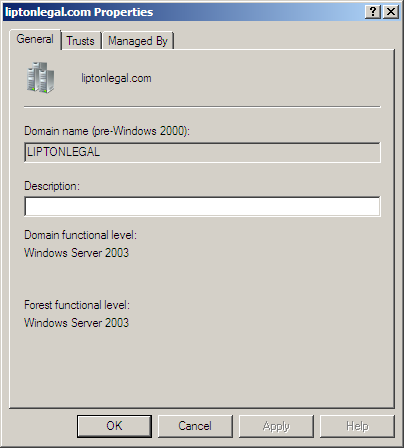
Change a domain label
Managing trusts
One of the key tasks you’ll perform with the Active Directory Domains And Trusts Console is managing trust relationships between domains and forests. For example, you can verify the trust relationships that exist between domains. To do so, click the domain that contains the trust you want to verify and choose Action, then Properties. Click the Trusts tab and click the trust you want to verify. Click Properties to open the properties for the trust. The dialog box in Figure G shows the trust direction and transitivity, and also enables you to validate the trust.
Figure G

Here you can validate the trust.
When you click Validate, the console opens an Active Directory dialog box, which is shown in Figure H. Select Yes, Validate The Incoming Trust if you want to validate the trust relationship from the other domain. Choose No, Do Not Validate The Incoming Trust (the default) if you only want to validate the outgoing trust. If you choose Yes, click in the User Name field and type the user name of an account with privileges in the local domain, enter the corresponding password, and click OK. The console then displays an informational dialog box that indicates the trust status (Figure I).
Figure H

Provide credentials in order to validate the trust
Figure I
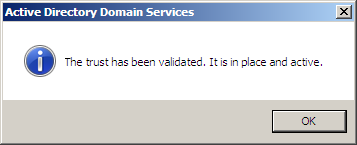
The trust validation was a success.
You can also use the Trusts tab to add new trust relationships. You can create the following trust types:
- Shortcut trust: This is a trust between two non-adjacent domains in the same forest. Shortcut trusts can help improve logon time. Shortcut trusts can be one-way or two-way and are transitive.
- Realm trust: A realm trust enables you to create a trust between a non-Windows Kerberos realm and a Windows Server domain. Realm trusts can be one-way or two-way, transitive or non-transitive.
- External trust: This type of trust connects a Windows Server domain with a Windows NT domain or a domain in another forest for which there is no forest trust. External trusts can be one-way or two-way and are non-transitive.
- Forest trust: Use this trust type to enable resource sharing between forests. Forest trusts can be one-way or two-way and are transitive.
When you click New Trust on the Trusts tab, the Active Directory Domains And Trusts Console starts the New Trust Wizard. After you click Next to get past the obligatory splash page, the wizard prompts for the name of the domain, forest, or realm. If the wizard doesn’t recognize the specified name as a valid Windows domain, it displays the Trust Type page shown in Figure J, which enables you to choose between a realm trust and a Windows domain and enter a different name for the domain.
Figure J

Choose the appropriate type of trust
If you specify a domain that is the root of an external forest, the console gives you the option of creating a forest trust or an external trust. You can create a forest trust only if the local forest level has been raised to at least the Windows Server 2003 level. In fact, if the forest level has not been raised, the console automatically treats the trust as an external trust and does not display the dialog window. If you specify a domain below the root of the remote forest, the console also treats the trust as an external trust.
Next, on the Direction Of Trust page, the wizard prompts for the trust direction — two-way, one-way incoming, or one-way outgoing. Then, you specify where the trust is created, whether locally only or also in the remote domain.
Next, you specify the scope of authentication for the trust. Choose Domain-Wide Authentication if you want Windows to automatically authenticate users from the remote domain for all resources in the local domain. Choose Selective Authentication if you want to grant permissions individually for users in the remote domain to local resources. (You can change the scope of authentication after creating the trust. Open the properties for the trust and click the Authentication tab, then choose the desired scope.)
After you choose the scope of authentication and click Next, you enter and confirm a password that Windows uses to validate creation of the trust. After a confirmation page, the wizard creates the trust, then gives you the option of confirming the trust. If you created a two-way trust, the console gives you the option of confirming trust in both directions.
Managing name suffix routing
When you work with a forest trust, one issue to consider is name suffix routing between forests. Name suffix routing enables authentication requests to be routed to other domains. You’ll find a good summary of name suffix routing, name suffix collision detection, and related topics in Active Directory Domains And Trusts/Concepts/Understanding Active Directory Domains And Trusts/Understanding Trusts/Routing Name Suffixes Across Forests topic in the Help content for the Active Directory Domains And Trusts Console.
When you’re ready to configure name suffix routing, open the Active Directory Domains And Trusts Console and click the root domain of the forest. Choose Action | Properties and click the Trusts tab. Click the forest trust in the trust list and click Properties, then click the Name Suffix Routing tab. Here you can enable or disable specific name suffixes for routing. You can also explicitly exclude name suffixes from routing to a local forest. Click the name suffix in the list and click Edit to open the Edit dialog box. Click Add, type the suffix, and click OK. In the Edit dialog box, you can also change the routing status of a name suffix.
As you can tell, the Active Directory Domains And Trusts Console, while not used as often as Active Directory Users And Computers, is a critical tool in your administrative arsenal.
TechRepublic’s Servers and Storage newsletter, delivered on Monday and Wednesday, offers tips that will help you manage and optimize your data center. Automatically sign up today!