How often must you go into the Terminal to execute a command from a specific folder? Does your work require you to sometimes dive into the command line, or do you prefer to do as much as possible through commands?
Regardless of which camp you’re in, anything that shaves precious seconds off of an IT task will be welcomed with open arms. That’s why this time-saving shortcut is a godsend, especially to anyone who prefers to use the Terminal. Best of all, the shortcut doesn’t require additional software or modifications to macOS–all you have to do is enable a setting, and it will work seamlessly from any Finder window. Let’s review the steps below.
SEE: 20 Terminal shortcuts developers need to know (TechRepublic)
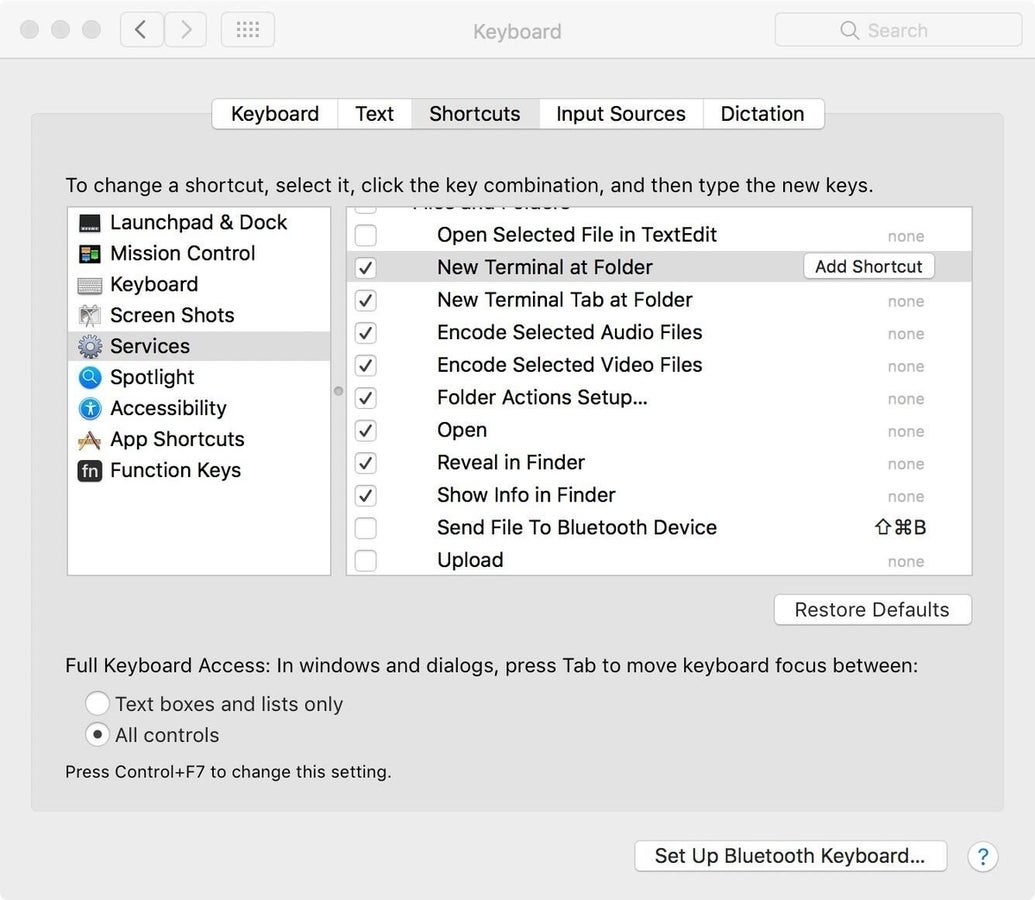
Launch System Preferences and navigate to Keyboard | Shortcuts | Services. Under the Files And Folders category, find New Terminal At Folder and place a check mark in the box next to the selection to enable the service setting (Figure A).
Figure A
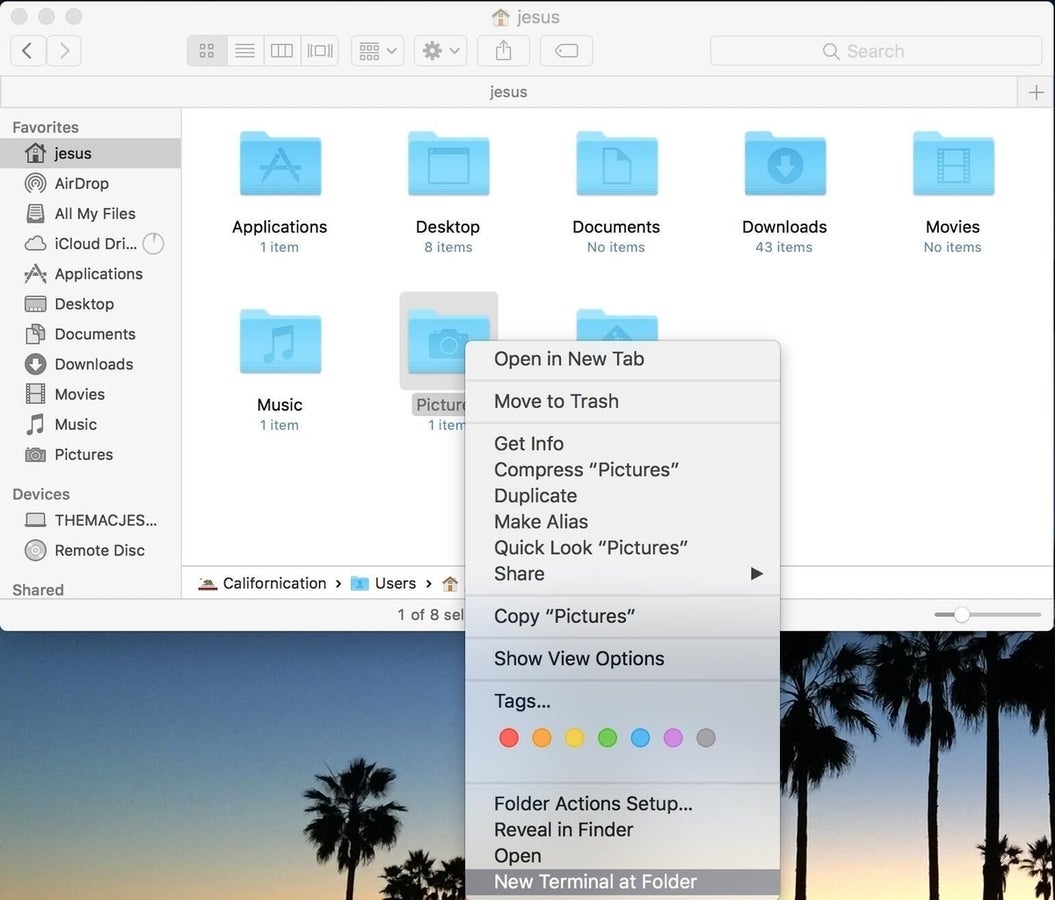
Next, navigate to any folder within the Finder and right-click (Control+Click) to display the context menu. At the bottom of the menu, find the entry titled New Terminal At Folder and left-click on it (Figure B).
Figure B
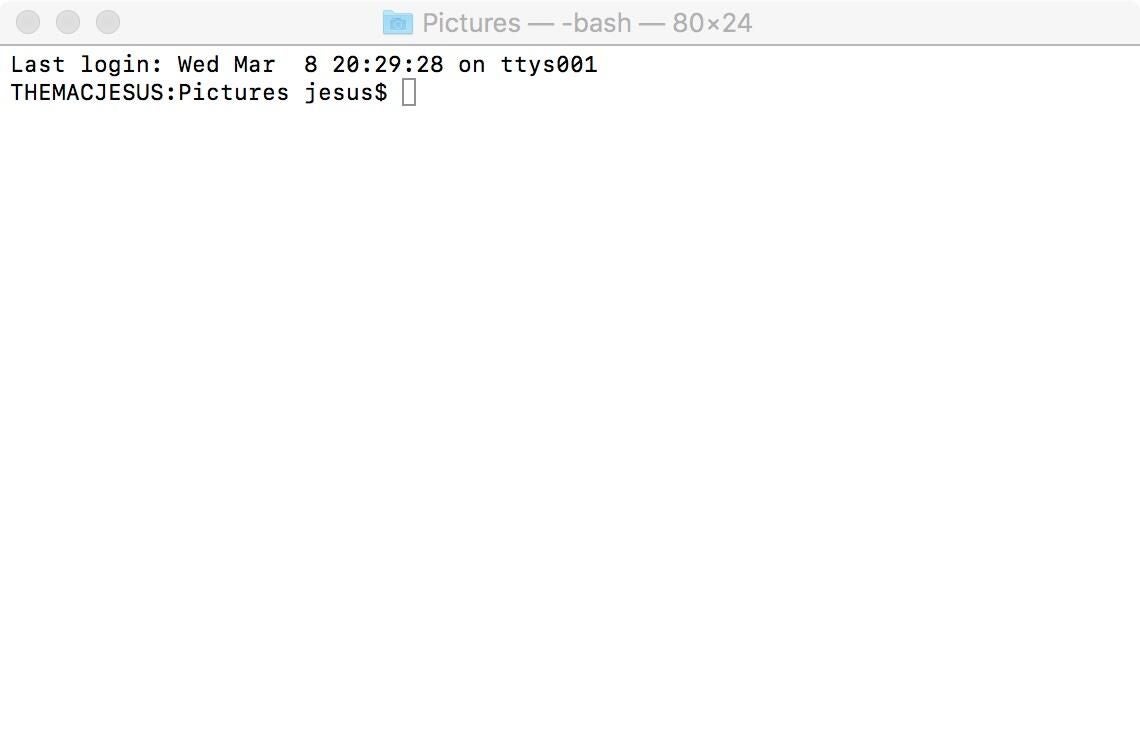
A new Terminal instance will open automatically mapped to the path of the folder you highlighted previously (Figure C).
Figure C
Bonus tip
If you work extensively within the Terminal shell, you’ve no doubt relied on Terminal’s tab feature to toggle Terminal sessions. There is a second setting that can enable the same service setting as above, except it allows for new Terminal windows to be opened in a tabbed window instead of a separate window.
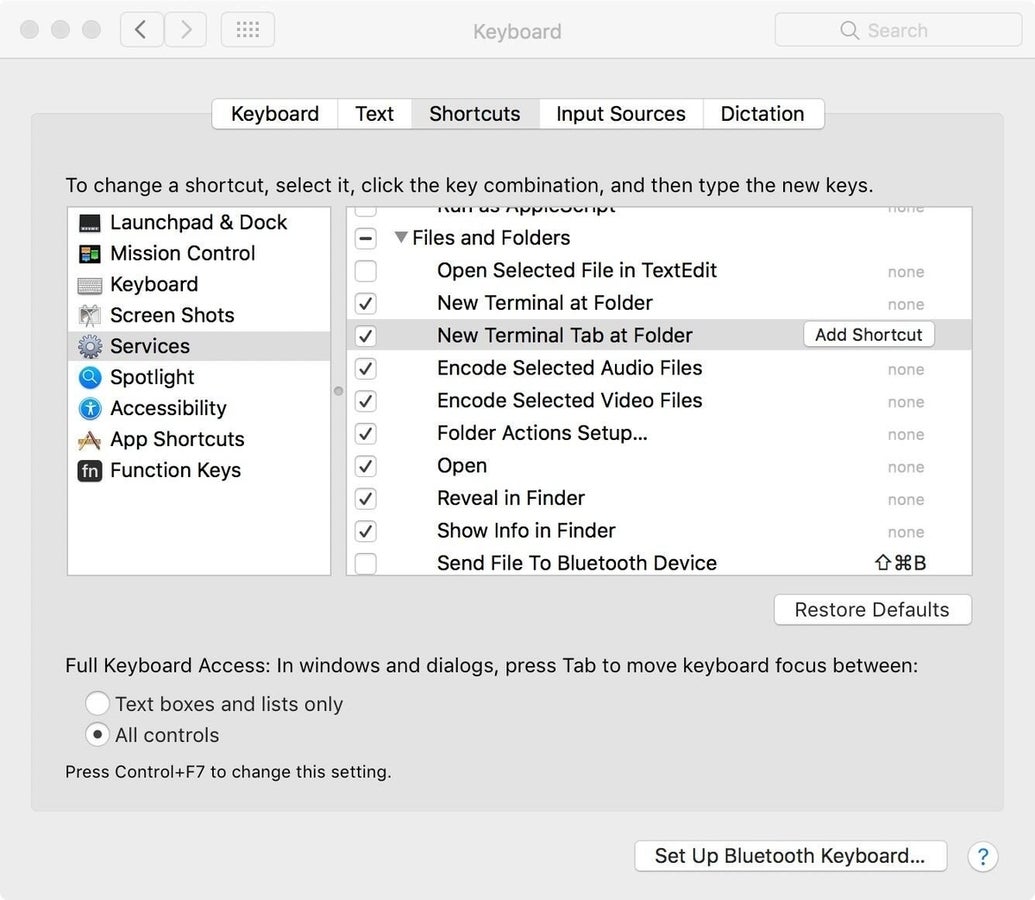
Launch System Preferences and navigate to Keyboard | Shortcuts | Services. Under the Files And Folders category, place a check mark next to the New Terminal Tab At Folder shortcut (Figure D).
Figure D
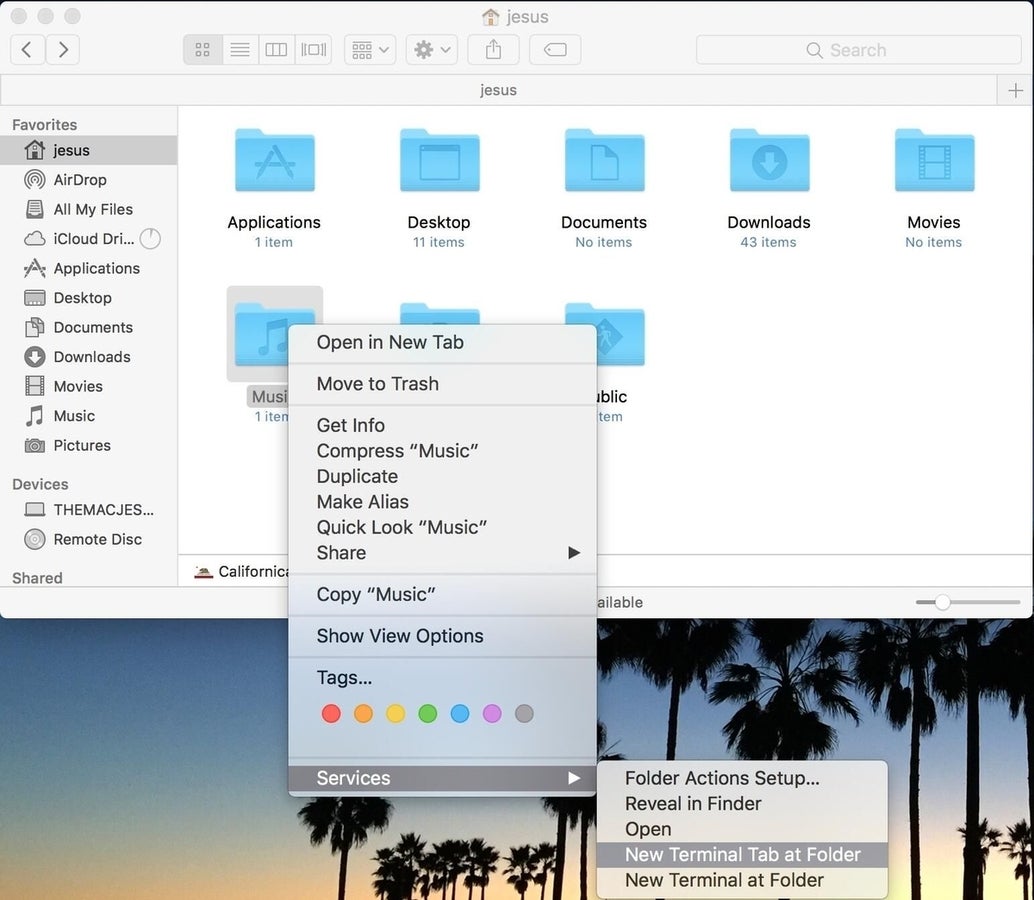
Next, navigate to any folder within the Finder and right-click (Control+Click) to display the context menu. At the bottom of the menu, find a second new entry titled New Terminal Tab At Folder and left-click on it (Figure E).
Figure E
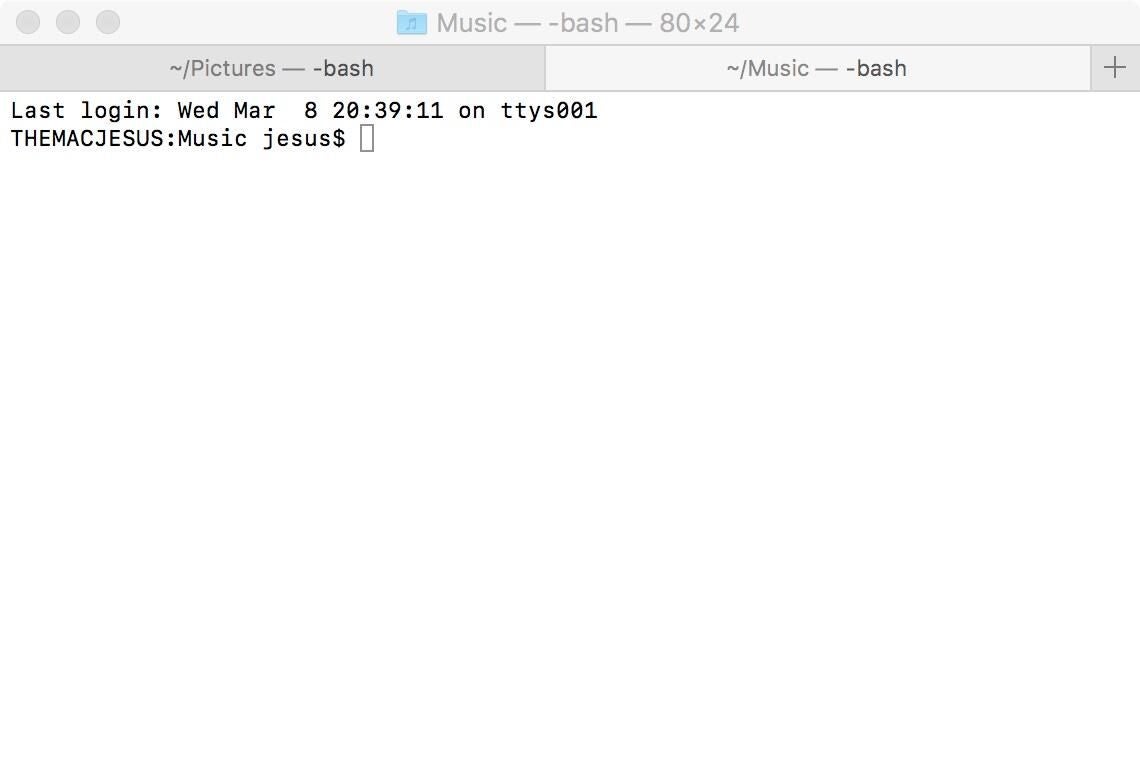
Alongside any existing Terminal instances that are open, a separate tab will be automatically mapped to the path of the folder you just highlighted (Figure F).
Figure F