



Head over to your Google Drive account. See anything missing? You should. Recently, Google removed the quick access button to Google Photos from Drive. For some this isn’t a problem. For those that consider themselves power users, it could add an extra step into your workflow. If that quick access to Google Photos was something you used daily, as did I, you’re probably wishing to get it back.
Fret not, intrepid Google Drive users, getting that quick access to Google Photos is possible. With this back into place, you won’t have to constantly be heading over to photos.google.com to work with images on your Google cloud.
Now, before you do this, I want to point out something. The access you gain to Google Photos from within Google Drive does not nearly give you the same power offered within photos.google.com. From within Google Drive, you can view, download, delete, share, tag, and rename your photos, and not much else. Within the actual Google Photos site, you can do all of that, plus use the Assistant, create albums, and do minor edits to images such as rotate, add filters, and crop.
Of course, for users like myself, the options offered in Google Photos aren’t enough to pull me away from my regular editing tools (such as The GIMP). To that end, I only need quick access to my photos, hence the need to restore the link into Google Drive.
How is that done? Let me show you.
Restoring the link
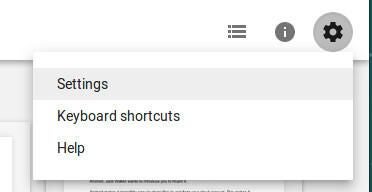
Believe it or not, restoring the Google Photos link is quite easy. Open Google Drive, click on the gear icon, and click Settings (Figure A).
Figure A
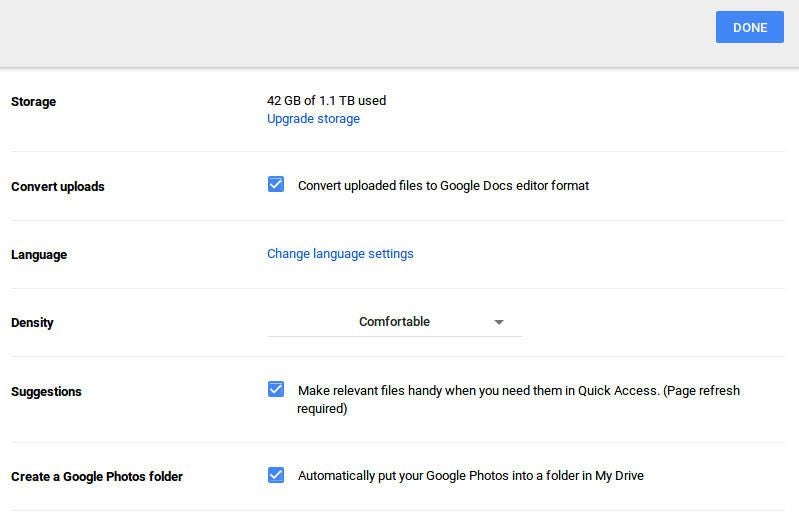
From within the Settings window, check the box for Create a Google Photos folder (Figure B). Once you’ve taken care of that, click DONE.
Figure B
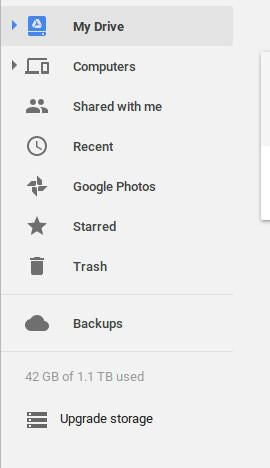
With this finished, head back to Google Drive and you should see the quick access link to Google Photos back in your left navigation (Figure C).
Figure C
Congratulations, you no longer have to fret that Google took away the Photos link from Drive. Although not a deal breaker, for me having this link makes my work flow quite a bit easier. When you constantly go between Docs and Photos, it just makes sense to have that quick access link.
- How to use Files Go as a way to free up space on your Android device and share files (TechRepublic)
- How to gain access to your Google Drive files from Linux (TechRepublic Video)
- How to track Microsoft Office user changes in Google docs (TechRepublic)
- Google launches three experimental photo apps for Android, iOS (ZDNet)