


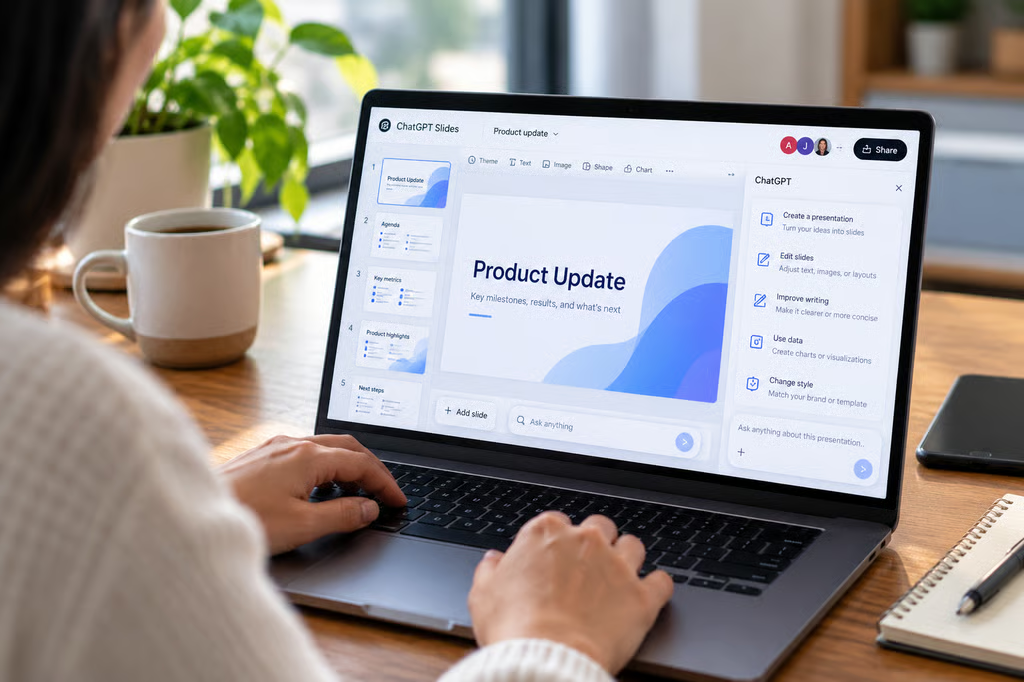
ChatGPT Slides can now build an editable presentation inside ChatGPT, let teammates work on it together, and export the finished deck as a PowerPoint file. OpenAI began rolling the feature out Oct. 16 to eligible Pro, Business, and Enterprise accounts with Space access.
It’s different from the older ChatGPT for PowerPoint add-in. Slides starts in ChatGPT Work or Space, keeps the presentation editable inside ChatGPT, and can present a deck without opening PowerPoint. On the web, you can also export to PowerPoint, PDF, or Google Slides.
According to OpenAI’s Oct. 16 release notes, Slides supports direct editing of text, images, shapes, tables, and charts, along with real-time collaboration and shared comments.
| What you want to do | What ChatGPT Slides supports |
|---|---|
| Create a deck | Start from ChatGPT Work, a conversation, files, an outline, or a template |
| Edit slides | Change text, images, shapes, tables, charts, and layouts |
| Collaborate | Edit with teammates in real time and use shared comments |
| Present | Present directly from ChatGPT |
| Export | PowerPoint, PDF, or Google Slides on the web |
| Continue elsewhere | Open the deck in PowerPoint or Keynote from the desktop app |
How to create and edit a presentation in ChatGPT Slides
The quickest route is through ChatGPT Work. Ask ChatGPT to create a presentation, then give it the audience, purpose, material, and any constraints it should follow.
For example, instead of asking for “a sales presentation,” give it something closer to:
Create an eight-slide sales update for regional managers from the attached Q3 results. Lead with revenue and pipeline changes, include one slide on risks, and finish with next-quarter priorities. Keep each slide to three main points.
You can attach source files or start from an existing conversation. ChatGPT then creates an editable presentation that opens in Space.
You can also start directly in Space by selecting Create > Slide, then choose a blank presentation or a template. If you already have a deck whose style you want to follow, OpenAI says you can provide that presentation as a visual guide.
Clear instructions still help. Specify what should stay unchanged, which slides need work, who will see the deck, and whether numbers must come only from supplied material. The same AI prompting techniques that improve normal ChatGPT output apply here too.
Once the deck exists, you don’t have to regenerate an entire slide to fix one element. Select text, an image, a chart, or another object and choose Request edits, then describe the change. You can also use the prompt bar to make broader revisions across the presentation.
That workflow is more interactive than the earlier ChatGPT agent approach to generating presentation files. Slides keeps the deck open as an editable, collaborative object rather than treating the PowerPoint file as the end product.
How to present or export your slides
You can present a finished deck directly from ChatGPT, so exporting isn’t required just to run a slideshow.
If you do need the file elsewhere, the web version of Slides currently offers three export options:
- PowerPoint: Creates a .pptx file that you can continue editing in Microsoft PowerPoint.
- PDF: Creates a fixed version for sharing or review.
- Google Slides: Moves the presentation into Google’s presentation editor for further work.
In the desktop app, you can open a presentation directly in PowerPoint or Keynote when either application is installed.
OpenAI recommends checking both content and formatting after an export. That’s especially important if the presentation uses detailed layouts, charts, unusual fonts, or a tightly controlled corporate template.
The ability to present and export belongs to ChatGPT Slides itself. That’s different from the separate ChatGPT for PowerPoint add-in, which runs as a sidebar inside PowerPoint and supports a broader range of ChatGPT plans.
What IT should check before rolling it out
Plan eligibility is narrower than it is for the PowerPoint add-in. ChatGPT Slides currently requires Pro, Business, or Enterprise with Space access. It’s still rolling out, so an eligible account may not see it immediately.
Windows also needs extra attention. OpenAI says Windows devices without the required desktop component fall back to PowerPoint files rather than collaborative Slides for local AI creation and editing.
There are two specific limits:
- Windows 10 doesn’t support the required component.
- Windows 11 may need an update or administrator enablement.
Organizations can use ChatGPT on the web or cloud mode for collaborative Slides when the local Windows setup isn’t available.
Collaboration has another launch-day limitation. People with edit access can work on the same presentation simultaneously and use shared comments, but comment-only access isn’t available yet.
Before enabling Slides for a wider group, IT teams should test:
- Whether intended users actually have Slides and Space access.
- Whether Windows devices meet the desktop requirements.
- Which source files users are allowed to bring into presentation workflows.
- How team sharing fits existing access-control rules.
- Whether exported PowerPoint files preserve required fonts, layouts, charts, and branding.
- Who reviews facts, numbers, and final formatting before a deck leaves the organization.
A small pilot is safer than dropping an important board or customer deck into the feature on day one. Use representative source material, build a new presentation, revise an existing one, export both to PowerPoint, and compare the results against the organization’s normal presentation workflow.
ChatGPT Slides can now cover the full path from a source file to an editable deck, collaborative revisions, presenting, and PowerPoint export. The remaining checks are mostly operational: whether the account has access, whether the device supports the workflow, and whether the exported deck survives the organization’s final review intact.
Also read: Microsoft’s updated Copilot experience can also create or update PowerPoint files alongside Word and Excel documents.