


Working in software development requires a tool that can handle the full complexity of modern engineering workflows. In my years working with IT teams, I have seen project management tools range from simple task boards for issue tracking to platforms capable of managing backlogs and development pipelines. In this guide, I break down the top-rated software development project management tools and identify which platform fits your team’s specific delivery model and workflow.
| Jira | |||
| Azure DevOps | |||
| GitHub | |||
| monday dev | |||
| ClickUp | |||
| Notion | |||
| Trello |
- 1. Jira: Best for large product teams
- 2. Azure DevOps: Best for managing the full DevOps lifecycle
- 3. GitHub: Best code-integrated project management tool
- 4. monday dev: Best for cross-department collaboration
- 5. ClickUp: Best customizable, all-in-one workspace
- 6. Notion: Best for solo developers
- 7. Trello: Best for task tracking
- Review methodology
- How to choose project management software for software developers
- FAQs
1. Jira: Best for large product teams
My rating: 4.91 / 5

Why I chose Jira
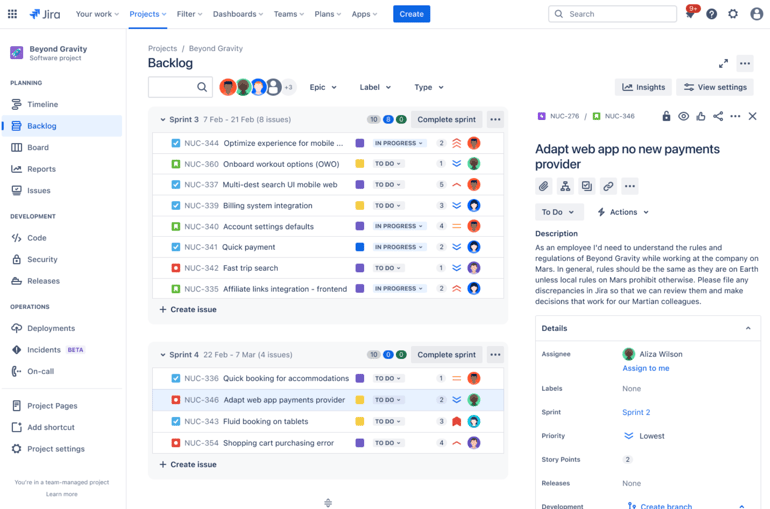
I typically recommend Jira when multiple development teams contribute to the same product. As the number of projects, developers, and backlog items increases, it becomes harder to coordinate work using simpler task management tools.
I’ve used Jira to manage products where developers, testers, and product teams all work from the same backlog. Teams can track work through development, code review, testing, and release while maintaining a shared view of product priorities.
One feature I rely on is the issue hierarchy. It connects epics, stories, and tasks, which helps me understand how day-to-day development work contributes to larger product initiatives. This becomes especially useful when managing large backlogs or planning future releases.
Jira also helps me track dependencies between teams and projects. Roadmaps show how upcoming releases are connected, while custom workflows let me define the stages each task must complete before it reaches production.
| Pros | Cons |
|---|---|
| ✅Easy to build Agile reports | ❌Beginners may struggle with complex admin processes |
| ✅Comprehensive ticketing system | ❌Can be feature-heavy for small teams |
| ✅More robust and scalable for larger teams | ❌ Requires technical training to fully maximize the platform |
Jira pricing
- Free: Up to 10 users — Includes reports, dashboards, unlimited projects, forms, 2GB storage, and project views (backlog, list, board, timeline, and summary)
- Standard: $9.05/user/month — Adds AI assistant, user roles, external collaboration, 250GB storage, and 1700 automation rule runs
- Premium: $18.30/user/month — Adds dependencies, custom approvals, unlimited storage, and 1,000 rule runs per user
- Enterprise: Custom — Adds advanced admin controls and security, cross-product insights, and unlimited automation rule runs
Standout features
- Advanced planning: Manage cross-functional projects by scheduling tasks, allocating capacity, mapping dependencies, and modeling scenarios based on aggregated Jira data.
- DevOps reports: Analyze deployment pipeline performance and release frequency to enhance your product lifecycle.
- Insights: Access insights on sprint commitment and issue type distribution within the context of your backlog.
- Version management: Track versions, features, and progress at a glance, then open each version to view related work items, development activity, and potential issues.
2. Azure DevOps: Best for managing the full DevOps lifecycle
My rating: 4.88 / 5

Why I chose Azure DevOps
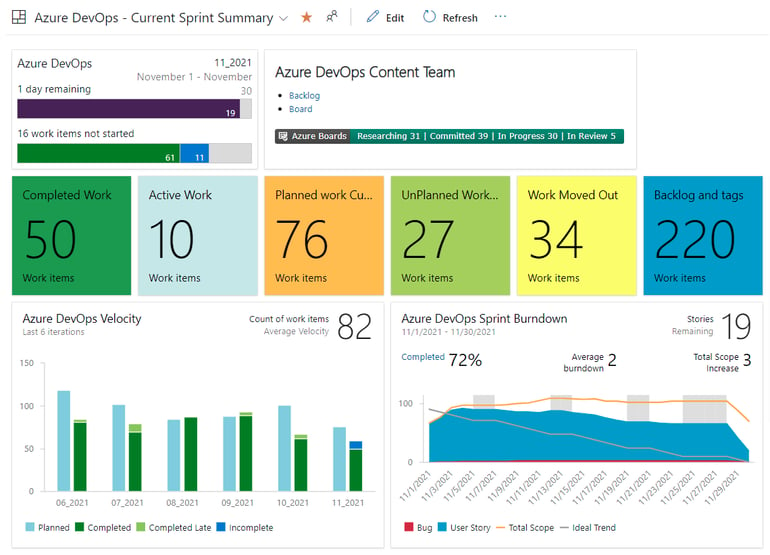
Azure DevOps suits engineering teams that want to manage planning, code repositories, testing, and deployment in one platform. It fits teams building on the Microsoft stack, especially those deploying apps to Azure.
In Azure Boards, I can manage sprint backlogs and link work items to commits, pull requests, and build results. Azure Pipelines handles the product release. It can build, test, and deploy applications through CI/CD workflows, so deployment activity is recorded next to the related development work.
If a production issue appears, I can follow the work item back to the pull request, commit, and build that introduced the change. For teams that need that level of accountability, it removes a lot of the guesswork during incident reviews. Development teams can also manage test cases with Azure Test Plans, which record test runs and defects next to the work items they relate to.
| Pros | Cons |
|---|---|
| ✅Most services are free for small teams | ❌Strong Microsoft ecosystem focus may limit adoption for teams using third-party tools |
| ✅Large teams can opt for a monthly subscription model or pay-per-use model | ❌Permissions are difficult to navigate |
| ✅Robust policy control around code management and pull requests | ❌ High price jump between Basic and Test plans |
Azure DevOps pricing
- Basic Plan: First five users are free, then $6/user/month – Kanban boards, backlogs, sprint planning, portfolio management, work item tracking, feedback request, unlimited Git repositories, CI/CD, approve releases, and 2GB free per org.
- Basic + Test Plans: $52/user/month – Adds test planning, tracking & execution, browser-based tests with annotation, rich-client test execution, user acceptance testing, and centralized reporting
Standout features
- Azure Repos: Manage source code with unlimited private Git repositories or Team Foundation Version Control (TFVC), complete with branch policies, pull requests, code reviews, and seamless integrated development environment (IDE) integration.
- Azure Pipelines: Build applications across any language, platform, or cloud using CI/CD pipelines with support for Kubernetes, Docker containers, and deployments to AWS, Azure, and Google Cloud.
- Azure Artifacts: Manage development packages like npm, Maven, Python, and NuGet with version control, pipeline integration, and access policies.
- Traceability links: Link work items to commits and pull requests to track development changes across the project.
3. GitHub: Best code-integrated project management tool
My rating: 4.87 / 5

Why I chose GitHub
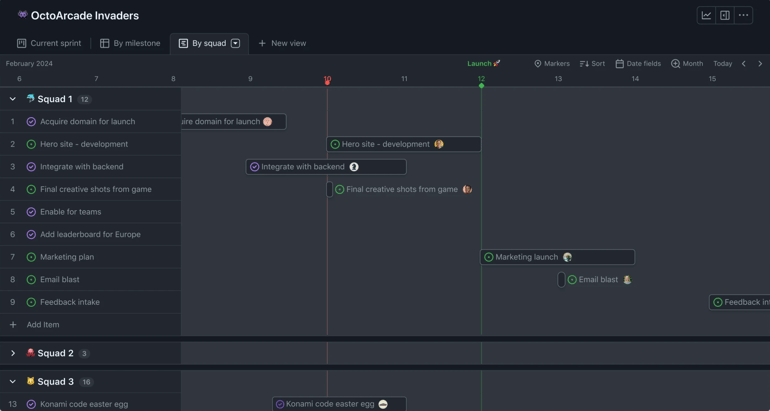
I often recommend GitHub to dev teams that want project tracking built into their coding workflow. I’ve seen it most with teams that manage bugs, feature requests, and dev tasks through repository issues instead of a separate project management software.
Since tasks live alongside the codebase, it’s easier to understand how a feature evolved or why a change was made. When a bug appears, I can review the related issue, pull request, and code changes without checking other tools.
This approach works for teams releasing regular updates while relying on pull requests for code reviews. It follows the same workflow used by many open-source projects, where discussions, issues, and code changes all happen within the repository.
I also use GitHub Issues to track engineering tasks and connect it to dev activity. When a pull request is linked to an issue, GitHub can close the issue automatically after the code is merged
| Pros | Cons |
|---|---|
| ✅Comments support video attachments | ❌A steep learning curve for beginners |
| ✅Extensive keyboard shortcuts enable faster navigation | ❌Difficult to customize for complex project needs |
| ✅Native integration with code workflows | ❌ Repository permissions can be complex to configure |
GitHub pricing
- Free: Includes unlimited public/private repositories, Dependabot security and version updates, 2,000 CI/CD minutes, 500MB of Packages storage, and issues & projects
- Team: $4/user/month — Adds access to GitHub Codespaces, repository rules, multiple reviewers in pull requests, draft pull requests, code owners, required reviewers, Pages & Wikis, Environment deployment branches & secrets, 3,000 CI/CD minutes, and 2GB Packages storage
- Enterprise: $21/user/month — Adds data residency, user provisioning through SCIM, environment protection rules, repository rules, 50,000 CI/CD minutes, 50GB Packages storage
Standout features
- Pull requests: Review and discuss code changes before merging them into a shared branch, so your team can detect issues and maintain code quality.
- Workflow visualization: Visualize the real-time execution of a workflow run to monitor job progress and dependencies at a glance.
- Dependency review: Review dependency changes in a pull request to identify vulnerable or outdated packages before they are merged into your codebase.
- Repository graphs: Visualize your repository’s activity, contributor history, traffic, and dependency data through a set of graphs that give you an overview of how your project is growing and being used.
4. monday dev: Best for cross-department collaboration
My rating: 4.86 / 5

Why I chose monday dev
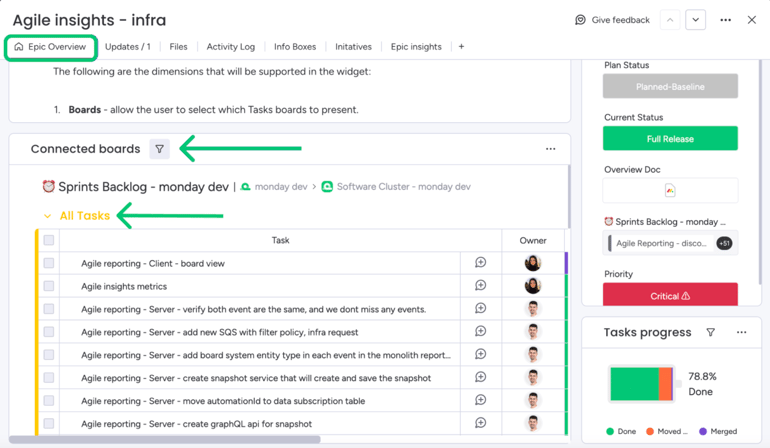
Monday dev works well for product orgs where engineering teams coordinate closely with product managers, designers, marketing, and support staff. I have used it most often in companies preparing feature launches where several departments need to coordinate work around shared deadlines.
Each team can follow the same release from their own view. Engineering tasks remain in dev boards while product and marketing teams monitor progress through timelines and status updates. Roadmap items connect to the dev tasks, so product and engineering teams are always referencing the same deliverables rather than having separate trackers.
I rely on the timeline view to map feature delivery against launch schedules, which helps product managers and marketing teams plan tasks around engineering milestones. When stakeholders need an update, dashboards summarize task status and release progress across multiple boards.
| Pros | Cons |
|---|---|
| ✅Faster onboarding for small teams | ❌Seat-block pricing may force teams to pay for unused licenses |
| ✅Highly visual boards and colorful UI | ❌Customization can feel overwhelming during setup |
| ✅Offers a full project management stack | ❌ Lacks in-depth dev integrations |
monday dev Pricing
- Basic: $9/user/month – Kanban view, backlogs, wiki & documentation, capacity planning, daily stand up, and AI sprint summary
- Standard: $12/user/month – Timeline & Gantt views, sprint management, roadmap with dependencies, and GitHub integration
- Pro: $20/user/month – Hierarchy, private boards, time tracking, Agile reporting, cross-team roadmap, product planning, and request management
- Enterprise: Custom pricing – Advanced reporting & analytics and work performance insights
Standout features
- AI Sprint Summary: Receive a summary at the end of each sprint that analyzes performance, highlights completed and incomplete work, and provides actionable recommendations for the next sprint.
- Agile Insights: Track sprint performance across velocity, scope changes, and burndown progress using built-in charts that help teams forecast capacity and improve planning sprint over sprint.
- Sprint Capacity Planning: Set sprint workload limits per team member by defining their available work days and velocity so you can distribute tasks across your team without overcommitting.
- Retrospective board: Capture discussion points, gather team feedback, and vote on sprint retro topics throughout and after each sprint using a dedicated board.
5. ClickUp: Best customizable, all-in-one workspace
My rating: 4.58 / 5

Why I chose ClickUp
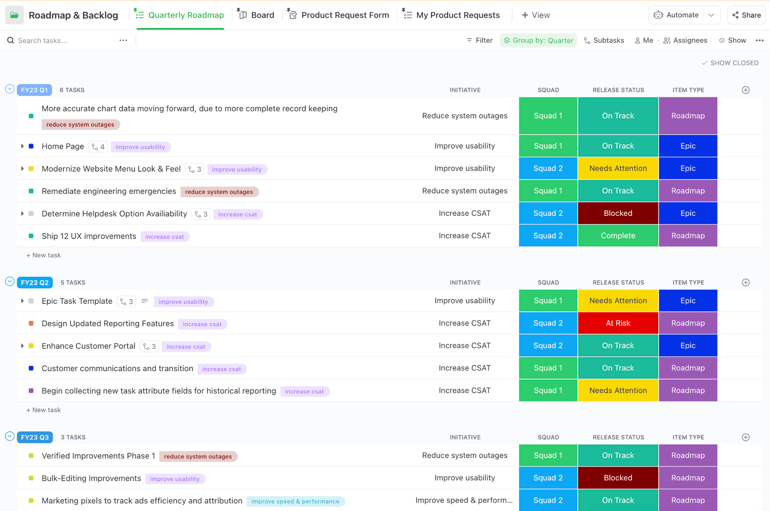
ClickUp works well for software teams that want to manage tasks, documentation, and reporting in one place. I have used it with product teams that would otherwise rely on separate tools for roadmaps, sprint work, and internal documentation. With ClickUp, engineers track development tasks while product managers maintain specifications and planning documents, all connected to the same feature.
One thing I find useful is the ability to set up task hierarchies, fields, and statuses based on my team’s existing development process. I also switch between list, board, timeline, and Gantt views depending on what I need, whether that’s planning a sprint or reviewing a release schedule.
For documentation, ClickUp Docs lets teams write product specifications and internal guides within the platform and link those pages to tasks and projects. Sprint dashboards gather project metrics across lists and folders, which allows product managers to review progress with minimal effort.
| Pros | Cons |
|---|---|
| ✅Centralizes tasks, chat, and docs | ❌Lacks the “native feel" of purpose-built dev tools |
| ✅Supports multi-level task hierarchies | ❌Onboarding can feel overwhelming due to the platform’s wide range of features. |
| ✅Entry-level plan includes sprint management | ❌ Relies on task-level activity streams for build/deployment pipeline dashboard |
ClickUp pricing
- Free Forever: Includes unlimited users, Kanban view, collaborative docs, 60MB storage, in-app video recording, and sprint management
- Unlimited: $7/user/month — Adds integrations, forms, Gantt charts, real-time chat, time tracking, guest permissions, portfolios, and resource management
- Business: $12/user/month — Adds timeline view, activity views, whiteboards, workload management, and sprint points & reporting
- Enterprise: Custom — Adds conditional logic in forms, custom workload capacity, SSO, advanced permission, enterprise API, and custom roles
Standout features
- Sprint automation: Automate repetitive sprint management tasks like creating new sprints, closing completed sprints, rolling over unfinished tasks, and archiving old sprints.
- Sprint task report card: Track sprint scope changes by monitoring tasks that were added, removed, re-estimated, or left incomplete across a current or finished sprint directly from your dashboard.
- Sprint Folder: Organize multiple sprints and task lists side by side within a dedicated folder so each team can manage work across sprints and backlogs in one place.
- Customs sprint duration: Set a unique start and end date for individual sprints without changing the default duration settings across your Sprint Folder or Workspace.
6. Notion: Best for solo developers
My rating: 4.53 / 5

Why I chose Notion
A solo developer building a product usually manages more than code. I have used Notion to track feature ideas, write technical notes, maintain backlogs, and document product specifications.
For feature planning, I can create a page that includes requirements, architecture notes, and a checklist of development tasks. This works well when I need one place to plan a feature before building it.
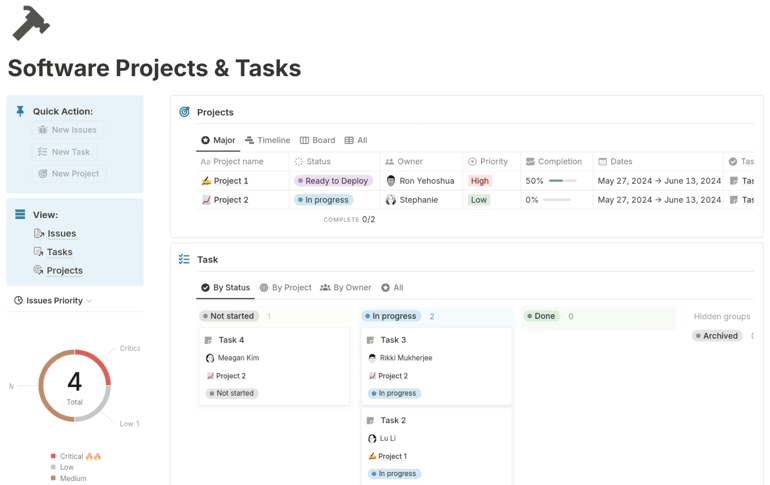
Notion’s database tables also work well for tracking features, bugs, and backlog items. I can add fields for priority, status, or release version, then open each task as its own page for technical notes, design decisions, and related references.
During planning and development, I use different database views depending on the task. A Kanban board helps me review work by status, while filtered tables help me focus on a specific release or backlog category. Linked pages are useful for API references, product specifications, and research.
| Pros | Cons |
|---|---|
| ✅Clean and minimalist interface | ❌Workspace customization takes time and may require skills |
| ✅Flexible to use for building databases and documentation | ❌Doesn’t integrate with Azure DevOps |
| ✅Highly customizable database pages | ❌Lacks a folder-based organization system |
Notion pricing
- Free: Includes basic forms, sites, Notion Calendar & Mail, and databases with subtasks, dependencies, and custom properties
- Plus: $10/user/month — Adds unlimited file uploads, unlimited charts, custom sites & forms, and basic integrations
- Business: $20/user/month -— Adds conditional forms logic, Notion Agent, AI meeting notes, Enterprise Search, and granular database permissions
- Enterprise: Custom — Adds advanced security and controls, audit log, and advanced integrations
Standout features
- Custom agents: Set up AI assistants that route tasks, create status updates, and answer queries using your existing docs and connected apps as context.
- Notion Calendar: Manage your calendar events, deadlines, and appointments by syncing your Notion workspace and third-party calendars.
- Notion Wiki: Create a centralized workspace for your docs, notes, and tasks, with search filters and the ability to link pages and a roadmap in a doc.
- Notion Mail: Manage your Gmail inbox with AI-powered auto-labeling, custom views, reusable email templates, and built-in scheduling.
7. Trello: Best for task tracking
My rating: 4.26 / 5

Why I chose Trello
Small development teams that need straightforward task tracking often choose Trello over more complex project management tools. I have used it to manage bug fixes, internal apps, and short development projects where the work can be tracked on a Kanban board.
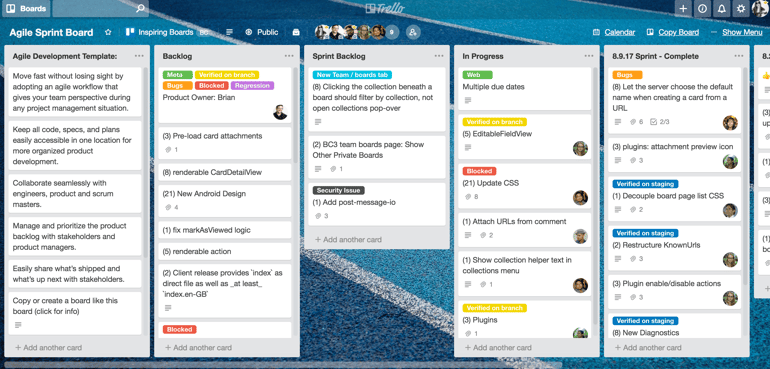
Each task is represented by a card that moves through stages such as backlog, development, review, and completed. This setup makes it easy to see where work stands without managing epics or portfolios.
Most of the information related to a task stays within the card itself. I can add comments, due dates, file attachments, and checklists, then update progress during standups or code reviews by dragging the card to the next stage.
When I need additional functionality, I use Power-Ups to connect Trello with GitHub, create automations, or generate reports. Trello does not offer the same development planning capabilities as tools like Jira, but it works well for teams that want a simple way to track software development work.
| Pros | Cons |
|---|---|
| ✅Generous free plan for solo devs | ❌No built-in documentation tool |
| ✅Easy to use for task tracking and managing basic workflows | ❌Lacks native advanced analytics like velocity or lead/cycle time |
| ✅Offers an AI summary of sprint performance | ❌ Core features like dependencies are not built-in and may require add-ons from third-parties |
Trello pricing
- Free: For up to 10 users, 10 boards, templates, activity log, assignee, and due dates
- Standard: $6/user/month — Planner, card mirroring, unlimited boards, custom fields, advanced checklists, and collapsible lists
- Premium: $12.50/user/month — Unlimited workspace runs, admin and security features, and views: calendar, timeline, table, dashboard, and map
- Enterprise: $17.50/user/month — Unlimited workspaces, multi-board guests, attachment restrictions, and org-wide permissions
Standout features
- Planner: Build your planner by dropping tasks from your Kanban board and sync events from Google Calendar or Outlook with focus time slots.
- Card mirroring: Sync updates on Kanban cards across boards so any edits made in one card automatically appear on all linked versions.
- Inbox: Capture tasks or any information from emails and messaging apps and move those to-dos into the right Kanban boards.
- Advanced checklists: Add subtasks with assignees and due dates directly to a Kanban card to break larger tasks into smaller work items.
Review methodology
To evaluate the best project management tools for software development, I built a scoring rubric around what development teams actually need: the ability to track code-related work, manage sprints, and integrate with the tools developers already use. Here is how I weighted each category:
Pricing (20%) I looked at whether each platform offers a free plan or a time-limited trial, then compared entry and mid-tier pricing based on monthly cost. Annual discounts were factored in, and I considered how much each tier delivers for development teams that are growing or working within a fixed budget.
General features (25%) I reviewed how each tool handles the fundamentals of software project work: task and subtask management, dependency tracking, and sprint or backlog organization. I also looked at built-in views like boards and lists, collaboration features such as task-level comments, and reporting dashboards that give development leads a clear picture of progress.
Advanced and niche features (20%) I focused on features specific to software development workflows, including Git and CI/CD integrations, bug tracking, release planning, and the ability to manage multiple repositories or codebases from one workspace. I also scored automation capabilities that reduce repetitive handoffs between development and QA teams.
Customer service and support (10%) I checked support availability, response times, and the range of channels offered, including chat, email, and phone. I also reviewed each vendor’s documentation and knowledge base, since development teams often troubleshoot independently before reaching out to support.
Ease of use (10%) I assessed how quickly a developer or project lead can get up and running without extensive configuration. Tools that require significant setup before delivering value scored lower, since adoption speed matters in fast-moving development environments. Interface design and navigation clarity were also factored in.
Expert score (15%) I added a professional assessment based on how each tool performs in real development contexts, its standing among software teams, and whether its features justify the price. Standout functionality and day-to-day usability both contributed to the final score.
How to choose project management software for software developers
After years of working with different engineering teams, I have learned that the right PM tool depends on how well it handles your team’s specific delivery model and integrates with your organization’s current tool stack.
Before committing to a platform, here are the five factors that should drive your decision:
- Workflow customization: Large engineering organizations rarely run a single project methodology across every team. Prioritize tools that support custom workflows, multiple project views, and automation rules without requiring admin support every time a process evolves.
- AI integrated into engineering workflows: Evaluate how the platform applies AI to dev tasks beyond writing assistance. Some tools analyze sprint data, identify delivery risks, or detect dependencies between tasks. Others use AI to categorize issues or summarize backlog activity. Platforms that embed AI into planning and development offer more support than tools that add it as a separate feature.
- Integration with DevOps pipelines: A project management tool should reflect what is happening in the development pipeline. Strong platforms connect work items with repositories, builds, deployments, and incident reports. This connection allows teams to trace a feature or bug from a backlog entry to deployment.
- Support for distributed teams: Companies operating across regions must consider data governance and access controls early in the evaluation process. Look for platforms that provide role-based permissions, audit logs, and options for regional data storage. These controls help organizations meet compliance requirements while supporting teams in multiple locations.
- Total cost beyond the per-seat price: The per-user price rarely reflects the full cost of the platform. Factor in the cost of required integrations, add-on AI modules, storage limits, and onboarding. Tools with predictable pricing that bundle advanced features into standard plans have better long-term value than those that gate core capabilities behind premium tiers.
FAQs
What are software development project management tools?
Software development project management tools are platforms that help engineering and product teams plan, track, and deliver software projects. They typically include features like issue tracking, sprint planning, backlog management, and reporting to organize development tasks.
What is the best software development project management tool?
The best software development project management tool depends on your team size and workflow. Jira is the most widely used option for agile and enterprise teams, while tools like monday dev and Trello are popular among startups and mid-size product teams looking for simpler interfaces.
What is the difference between project management tools and software development tools?
General project management tools are built for broad use cases across marketing, operations, and business teams. Software development project management tools are specifically designed for engineering workflows and include features like CI/CD integration, Git integrations, sprint velocity tracking, and developer-specific reporting.