


Most SQL Server databases have a number of users viewing and accessing data, which makes security a major concern for the administrator. The smart administrator will take full advantage of SQL Server security roles, which grant and deny permissions to groups of users, greatly reducing the security workload.
The first step in protecting your client’s data is determining which users need to view which data and then allowing access to only those users. For example, a payroll clerk probably views salary figures for everyone in your company while team managers have access to salaries for team members. Individual employees have no need to view salaries at all.
You must also decide which users can change the data. For example, although someone in fulfillment might need to verify a customer’s address, you may want only an account executive or a specially trained data entry clerk to change that account’s address.
Accommodating a number of users could be a huge task if it weren’t for the Windows security model, which can easily accommodate many users with one role. A role defines what a user can and can’t do within a database, and multiple users can share the same role. I’ll discuss roles and their relationship to Windows groups and show you how a role can grant or deny access to multiple users at the same time.
The benefits of using roles
Roles are a part of the tiered security model:
- Login security—Connecting to the server
- Database security—Getting access to the database
- Database objects—Getting access to individual database objects and data
First, the user must log in to the server by entering a password. Once connected to the server, access to the stored databases is determined by user accounts. After gaining access to an actual database, the user is restricted to the data he or she can view and modify.
The main benefit of roles is efficient management. Imagine a group of 1,000 users suddenly needing to view or modify new data. Using Windows security, you simply select an existing Windows group and assign it to a SQL Server role—instead of modifying 1,000 user accounts. To clarify, Windows groups consist of users with access to the Windows network, but SQL Server roles belong strictly to SQL Server. You’re simply granting permissions to SQL Server data and objects to valid Windows users.
Role types
Server roles are maintained by the database administrator (DBA) and apply to the entire server, not an individual database file. The public role sets the basic default permissions for all users. Every user that’s added to SQL Server is automatically assigned to the public role—you don’t need to do anything. Database roles are applied to an individual database.
Predefined database roles
You may need to create your own, but you have access to several predefined database roles:
- db_owner: Members have full access.
- db_accessadmin: Members can manage Windows groups and SQL Server logins.
- db_datareader: Members can read all data.
- db_datawriter: Members can add, delete, or modify data in the tables.
- db_ddladmin: Members can run dynamic-link library (DLL) statements.
- db_securityadmin: Members can modify role membership and manage permissions.
- db_bckupoperator: Members can back up the database.
- db_denydatareader: Members can’t view data within the database.
- db_denydatawriter: Members can’t change or delete data in tables or views.
Fixed roles
The fixed server roles are applied serverwide, and there are several predefined server roles:
- SysAdmin: Any member can perform any action on the server.
- ServerAdmin: Any member can set configuration options on the server.
- SetupAdmin: Any member can manage linked servers and SQL Server startup options and tasks.
- Security Admin: Any member can manage server security.
- ProcessAdmin: Any member can kill processes running on SQL Server.
- DbCreator: Any member can create, alter, drop, and restore databases.
- DiskAdmin: Any member can manage SQL Server disk files.
- BulkAdmin: Any member can run the bulk insert command.
Assigning roles
Let’s use SQL Server Enterprise Manager to add a Windows group to a Pubs database (a sample database that comes with SQL Server 2000) role. The first step is to create a login for the members of the Guests group, so they can access SQL Server. To do so:
- Launch Enterprise Manager and expand the security folder.
- Right-click the Logins item, and choose New Login from the resulting submenu to open the New Login dialog box shown in Figure A. Note that in this case, Windows Authentication is already selected. If it isn’t selected on your system, select it. We’ll use Windows Authentication Mode as opposed to SQL Server Mixed Mode. (Mixed Mode comprises Windows Security and SQL Server’s own security model. Windows Authentication is the recommended security model when using SQL Server.)
| Figure A |
 |
| We’ll add a new login to the SQL Server. |
- Click the button to the right of the Name control to display the SQL Server Login Properties—New Login dialog box shown in Figure B and select the appropriate Windows group—we’re using the Guests account. Click the Add button, and then click OK to close the SQL Server Login Properties—New Login dialog box.
| Figure B |
 |
| Choose the Guests group. |
- On the General tab, select the Pubs database from the Database drop-down list. The default choice is the Master database, but you shouldn’t grant users access to this database because it manages your installation of SQL Server.
- Click the Database Access tab to view available databases on the current server.
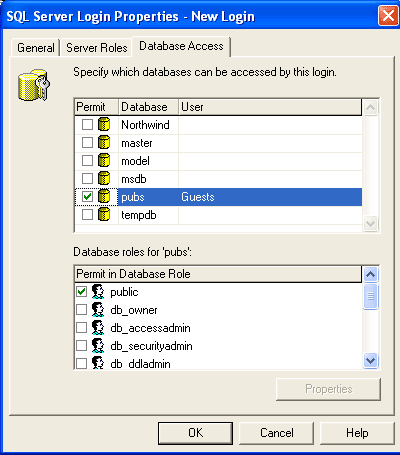
- You must select a default database before SQL Server will enable the database roles. Choose Pubs, as shown in Figure C. The Public role is automatically assigned (remember, I told you that would happen). You could choose any of the roles at this point. (I’ll show you an alternate method in the next section.) In addition, notice that the Guests group is listed in the User column.
| Figure C |
 |
| Select the Pubs SQL Server sample database. |
- Click OK to complete the process. Enterprise Manager will display the new login in the right pane, as shown in Figure D. Now, all the members of the Windows Guests group can sign on to SQL Server.
| Figure D |
 |
| Enterprise Manager displays the new login. |
An alternate method for assigning a predefined role
You could’ve added the Guests group to any of the listed roles for the Pubs database in the last section. In this section, I’ll show you an alternate method—adding the Guests group to the db_accessadmin role within the Pubs database. To do so:
- In Enterprise Manager, expand the Pubs folder.
- Double-click the Roles item.
- Double-click db_accessadmin in the right-hand pane to open the Role Properties dialog box.
- Click the Add button to display a list of users and groups. Choose Guest, as shown in Figure E, and click OK.
| Figure E |
 |
| Choose the Guest login. |
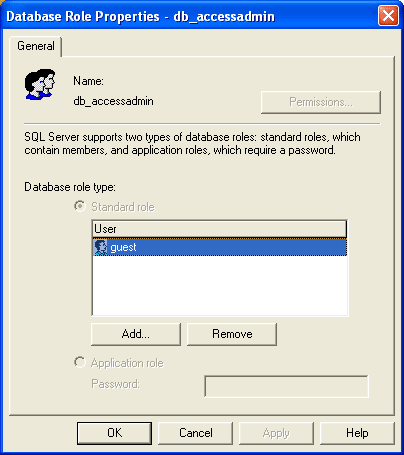
- Figure F shows the Database Role Properties dialog box after adding the Guest login to the db_accessadmin role.
| Figure F |
 |
| We added the Guest group to the db_accessadmin role. |
- Click OK to complete the task.
At this point, you’ve added the Windows Guest group to the SQL Server login and assigned the Guest group to the Pubs database db_accessadmin role. Members of the Guest group will now inherit the permissions in the db_accessadmin role (which are listed above) within the Pubs database.
Creating a new database role
The predefined roles, such as db_accessadmin, won’t always be adequate, but you can create new roles. Let’s add a new role named Purchasing:
- Return to Enterprise Manager, and right-click anywhere in the right pane with the database roles visible.
- Select New Database Role from the resulting submenu.
- Enter Purchasing as the new role’s name in the Name text box, and click the Add button. Note that the Permissions button is disabled. (We’ll come back to that later.)
- Click the Add button to assign users or groups to the role. In this case, we added the Guest group (see Figure E). As you can see in Figure G, we just created a new role called Purchasing for the Pubs database.
- Click OK to exit the dialog box.
| Figure G |
 |
| Create a new role named Purchasing. |
After creating the new Purchasing role for the Pubs database, you must define what the users assigned to the Purchasing role (via the Guest group) can do in the Pubs database. At this point, let’s set a few permissions for the new Purchasing role:
- Reopen the Purchasing role you just created by double-clicking it in the Enterprise Manager’s right pane. The Permissions button will now be enabled.
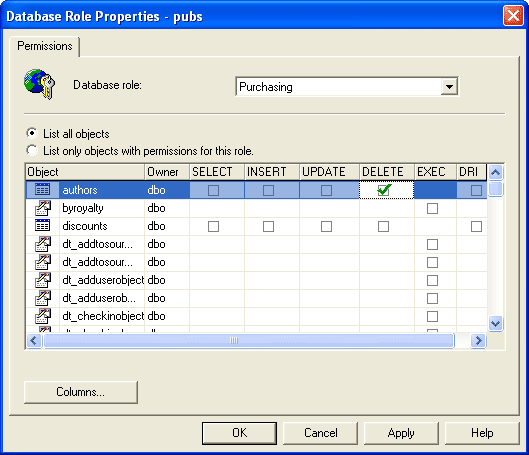
- Click the Permissions button to open the Database Role Properties dialog box. We can set permission on each and every object in the Pubs database. For example, check the DELETE option next to the Authors table as shown in Figure H so all members of this role (members of the Guest group) can delete records from the Authors table.
- Did you notice that selecting the Authors table enabled the Columns button? Click that button now to display the Column Permissions dialog box. Within the table, we can limit access to individual columns. We won’t actually set any column-level permissions, so just click OK twice to add the DELETE permission to the Purchasing role. At this point, members of all groups assigned to the Purchasing role could delete data from the Pubs Authors table. Currently, that’s just the members of the Guest group.
| Figure H |
 |
| Add DELETE permissions to the Purchasing role. |
Server roles
Server roles reach far (see the above list) and, as a general rule, you probably won’t assign users to any of the server roles.Use discretion when assigning server roles because they apply to the entire SQL Server instance, not just individual databases. Server roles are usually reserved for database and server administrators.
You can assign users to a server role in two ways: using the Enterprise Manager or the Query Analyzer.To add the Guest account to the Database Creators server role using Enterprise Manager:
- Expand the Security Folder.
- Double-click the Server Roles item.
- Double-click Database Creators in the right pane.
- To select a Windows group to the role, click the Add button to open the Add Members dialog box.
- Select the Windows Guest group and click OK to close the dialog box, and add the Guest group to the Server Role Properties dialog box shown in Figure I.
| Figure I |
 |
| Add Guest to the Database Creators server role. |
- Note that two tabs are available. Use the General tab to assign a login to the role; use the Permissions tab to choose the SQL commands the server role can execute.
- Click OK to complete the process.
To use the Query Analyzer, run the following system stored procedure, where name identifies the user and role is one of the roles listed above:
Exec sp_addserverrolemember name, role
For instance, the following statement would add Martin Reid to the SysAdmin role:
Exec sp_addserverrolemember “Martin Reid”, “SysAdmin”
Not exactly child’s play
Data is an asset—it has monetary value to most companies and must be protected.Windows Authentication simplifies the process of adding roles to your SQL Server databases. It’s not kid’s play, but Windows can assist you in managing an instance of SQL Server. Familiarize yourself with SQL Server and Windows security before you try to put roles to work.
What’s a system stored procedure?
SQL Server comes with stored procedures that can assist you in managing areas of the server. A full list of procedures can be viewed at Microsoft’s MSDN site.