


Knowing your database system like the back of your hand is good, but only part of the battle. Coming up with an easy-to-use interface that your users can learn quickly is just as critical. Choosing the wrong tool for this process can leave you, the consultant who’s supposed to know all the answers, looking somewhat incompetent. Burn users with a difficult-to-use or slow interface, and they’ll toast your reputation.
You could spend a lot of time reinventing the wheel, or you could use Access—a relational database on its own. Unlike SQL Server, Access also offers a variety of development tools and controls for building a flexible and easy-to-use end product. Lots of developers depend on Access to build their front-end applications. Consider joining the ranks. You’ll save time and your clients will save money. In this article, we’ll discuss some of the advantages of using an Access Data Project as the front end to your SQL Server relational database.
What’s an Access Data Project?
Over the years, Access has proven to be a useful front end for the big databases, even though you were limited to using pass-through queries or linked tables. Now you have the Access Data Project (ADP), which is much cleaner and easier to work with. An ADP is a specific Access file type that stores user objects such as forms, reports, macros, and Visual Basic for Applications (VBA) code modules. All the other objects—the tables, stored procedures, views, and so on—are stored on the database server. ADPs are strictly a Microsoft solution and, as such, won’t function with any other relational database server except SQL Server—at least not directly.
You can continue to use Access with other relational databases using pass-through queries and linked tables; you just can’t use an ADP to link to Oracle or DB2, for instance. A pass-through query allows you to speak to a non-SQL Server database.
Traditionally, a pass-through query is written in the server’s native dialect and then passed to the server. You can often write more powerful queries using the native dialect of the database server being used. However, be careful, because pass-through queries are typically read-only.
When necessary, you can link Access to server tables. Unfortunately, linked tables require Open Database Connectivity (ODBC), which seems to be fading from the Microsoft communication strategy. Choose this option knowing you’ll be using old technology that may not be fully supported in the future. In addition, linked tables return all records to the application, which kind of negates one of the main reasons for using a database server (returning only the data you request).
Why choose an ADP?
Many developers mistake Access for a true server database because you often find an Access database split into two files: one file contains the tables and the other file contains the interface objects. Despite what you see, Access is really a file-based database. Although you can use Access in a client-server environment, it wasn’t designed as a server database.
In contrast to the original MDB file format, an ADP allows you to take advantage of the database server’s power and stability in many ways:
- Rapid Application Development (RAD) is possible using Access’ graphical interface tools to develop the end-user application that interacts with SQL Server. For example, you can use the Query Builder to graphically construct stored procedures, functions, and views that act directly against SQL Server. In addition, you can quickly build your user interface forms using Access’ form design graphical tools.
- Processing is carried out by SQL Server on the database server, not in Access on the client side. As a result, you’ll see a reduction in network traffic (as opposed to a split MDB).
- Stored procedures use execution plans and are stored on the server. That means they’re faster than Access queries.
- Transact-SQL (T-SQL) provides procedural extensions to SQL, allowing you to build more sophisticated queries.
- You can expand security by restricting SQL Server data that users can see and interact with via views or stored procedures.
- SQL Server security is more robust than the security model Access offers. In addition, SQL Server security is inclusive of Windows’ security, whereas Access security is totally on its own.
- A more stable and powerful foundation for your SQL Server applications is provided in the form of Windows 2000 Advanced Server, an industrial-strength operating system (as compared to an MDB running on Windows).
How to create an ADP
You can use an ADP as a front end to SQL Server in three ways:
- Convert an MDB file to an ADP file, which will use SQL Server. All the data will be stored on SQL Server, but you’ll still use Access’ familiar interface to interact with the data. This choice requires a substantial investment in development time because you usually have to manually revamp forms, reports, queries, and so on.
- Keep your MDB file intact, but link to the server tables from inside the MDB. Doing so will use an ODBC link to the newly upsized tables on SQL Server. The resulting arrangement is slower than the previous one.
- Upsize data to SQL Server by creating an entirely new database on SQL Server without making changes to the actual MDB file.
Access provides all the tools you’ll need for all three solutions—the Upsizing Wizard. The key to success, regardless of which route you take, is planning. Before attempting to upsize a database successfully, make a backup. Then, you may need to make a few adjustments:
- SQL Server supports dates from Jan. 1, 1753, to Dec. 31, 9999. Access supports dates from Jan. 1, 100, to Dec. 31, 9999. You can’t upsize Access tables that contain dates earlier than January 1, 1953.
- Use saved queries as opposed to SQL statements as the data sources for Access objects. The wizard will create a corresponding SQL Server object for each saved query.
- Remove spaces from object and field names.
- Add at least one unique constraint or index to every table.
- Some native functions, such as FORMAT(), won’t upsize to SQL Server.
Once you’re ready to begin, launch the MDB file in question, choose Database Utilities from the Tools menu, and then select Upsizing Wizard. The wizard gives you two choices: You can work with the existing database or create an entirely new database. Choosing the latter leaves the current MDB file intact, so you really end up with two databases when you’re done.
The wizard will begin gathering information about the server you want to use, passwords and logins (when required), and the tables you want to upsize. Eventually, you’ll reach the pane shown in Figure A. These three options correspond to the three front-end options we described at the beginning of this section. After making this final choice, you’re done. The new ADP may need some work, but if you prepared properly, you should be up and running quickly.
| Figure A |
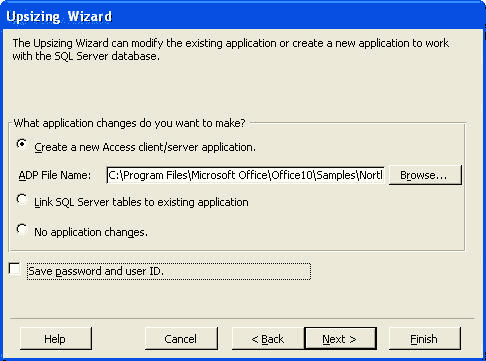 |
| Choose a front-end solution for your SQL Server tables. |
Moving up
Providing an easy-to-use interface is an important part of developing any database application. Using Access, you can reduce the amount of time that process takes and get a flexible and dependable interface up and running quickly. Your users and clients will be impressed with your talents, and when all is said and done, you’ll be impressed with Access.
Susan Sales Harkins is an independent consultant and the author of several articles and books on database and Web technologies. Martin W. P. Reid is an analyst at Queens University Belfast and has been working with databases for several years. They coauthored SQL: Access to SQL Server by Apress. Susan’s latest books are Mastering Dreamweaver MX Databases by Sybex and Absolute Beginner’s Guide to Microsoft Access 2002 by Que. Martin’s latest book, Beginning Access 2002 VBA, is published by Wrox Press.