Five cost-effective FTP clients - TechRepublic

Five cost-effective FTP clients

  • Intro

    Introduction

    The cloud may be taking over as the de facto online storage\r\nsolution, but the need for FTP (file transfer protocol) clients remains a\r\nstandard need for business. Back in the 90s there were few options for FTP\r\nclients\u2500you used one and you were happy. Now, however, when FTP’s popularity\r\nhas waned, plenty of options are available.

    But are their solid free\r\nentries to fill this need?

    The answer to that question is a resounding yes. Let’s take\r\na look at some of the best options to see whether one of them could meet your\r\nFTP needs.

    Note: This gallery is also available as an article.

    Image: iStockphoto.com/gmac84
  • FileZilla

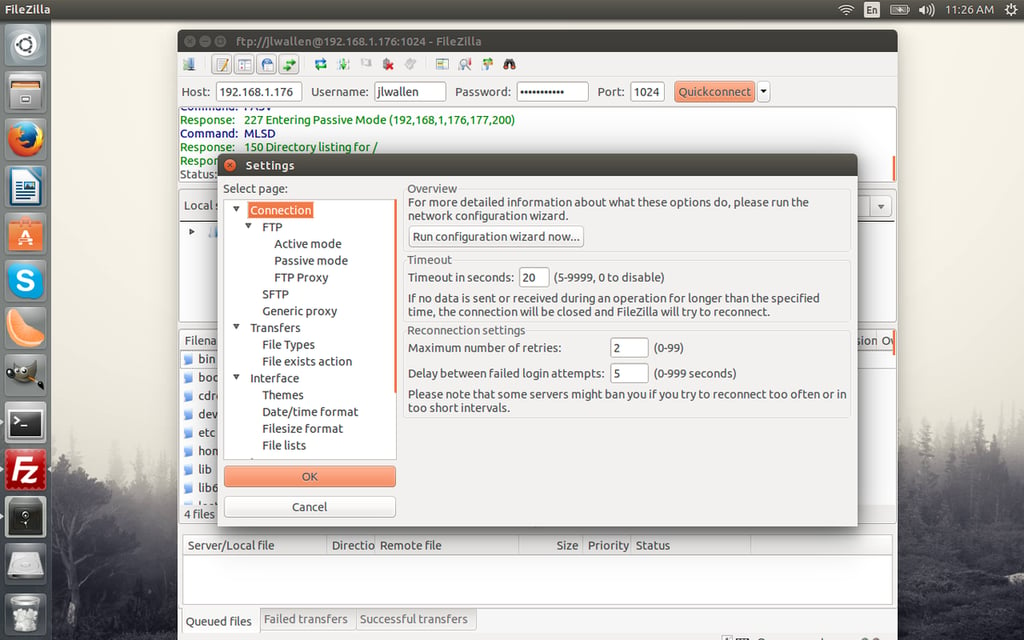
    FileZilla

    FileZilla is available in 47 languages and is in active\r\ndevelopment. If you’re going to be transferring larger files with FileZilla,\r\nyou can configure transfer speeds so you don’t clog up your network and slow\r\nother users down.

  • AndFTP

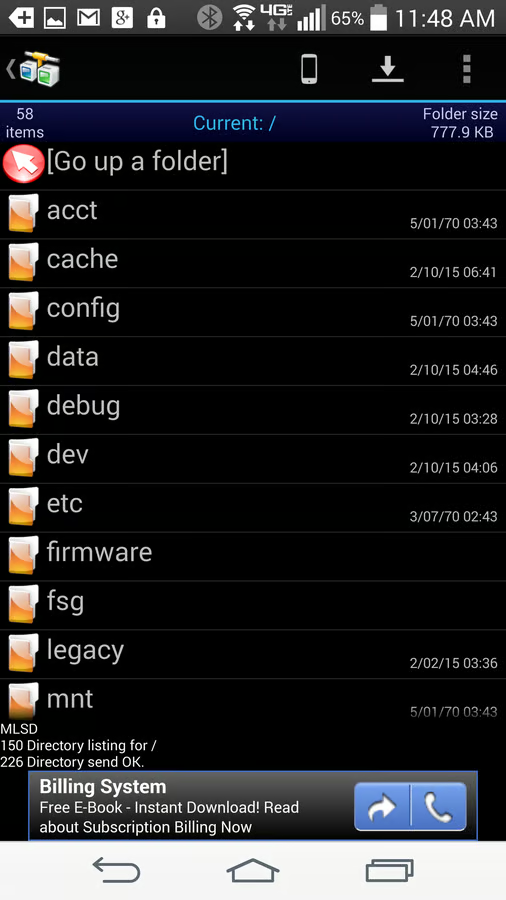
    AndFTP

    The only caveat to using AndFTP is that the interface isn’t\r\nexactly the most efficient UI you will ever use. For example, to upload a file\r\nto a specific folder on the remote server, you must navigate to the destination\r\nfolder, switch to the device browser, locate the file(s), tap to select the\r\nfile(s), and then tap the upload button. If you don’t first navigate to the\r\ndestination folder, the uploads will wind up on the root directory of the\r\nremote server. Other than that little hitch, AndFTP is an outstanding mobile\r\nFTP client.

  • WinSCP

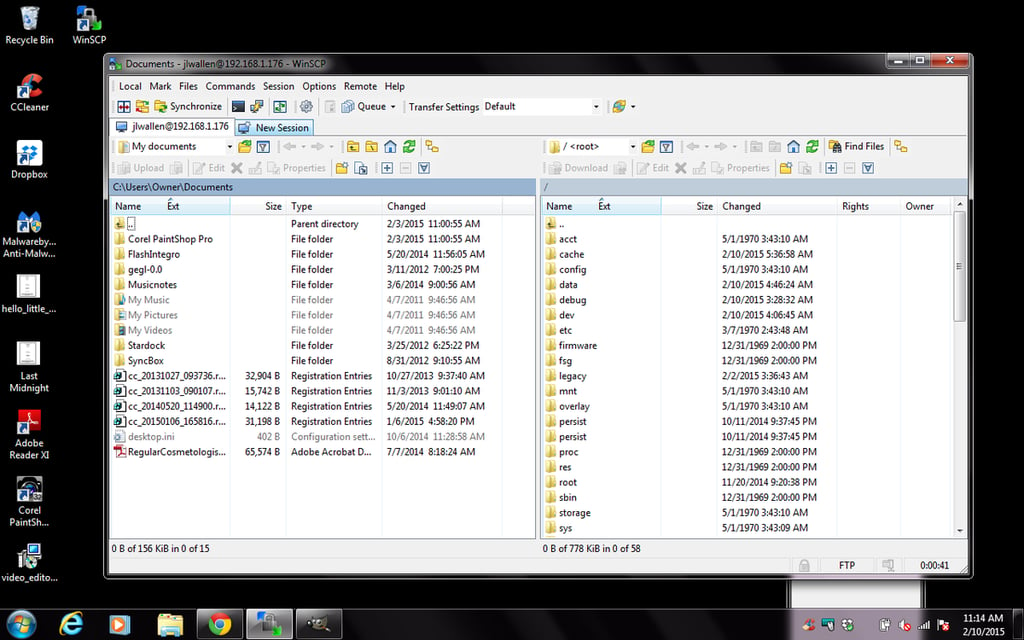
    WinSCP

    WinSCP\r\nis a Windows-only, open source FTP client that supports FTP, WebDAV, and SCP\r\nprotocols. Once it’s installed, you’ll enjoy integration with the Windows file\r\nmanager and jump lists. WinSCP also contains a built-in text editor, which is\r\nhandy when you’re working with remote configuration files and need to do a quick\r\nedit without having to download, edit, and upload.

  • WinSCP

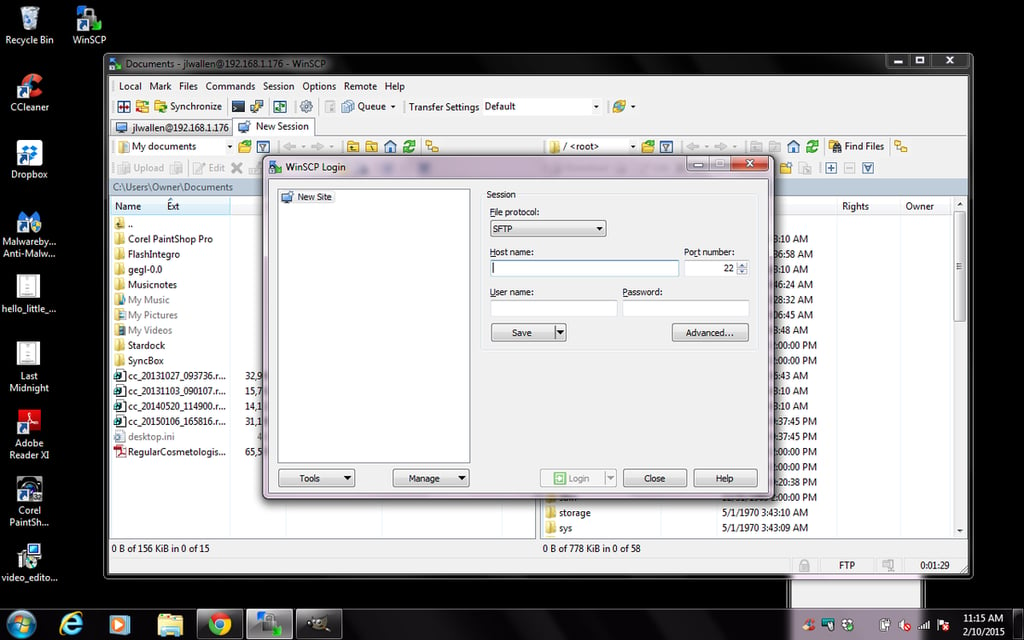
    WinSCP

    With WinSCP, you can protect your stored site information with a master\r\npassword. If you don’t want to install WInSCP on your machine, you can run a\r\nportable version of the app from a USB thumb drive for convenience. For more\r\nprotection, WinSCP supports public key and GSS authentication.

  • sFTP Client

    sFTP Client

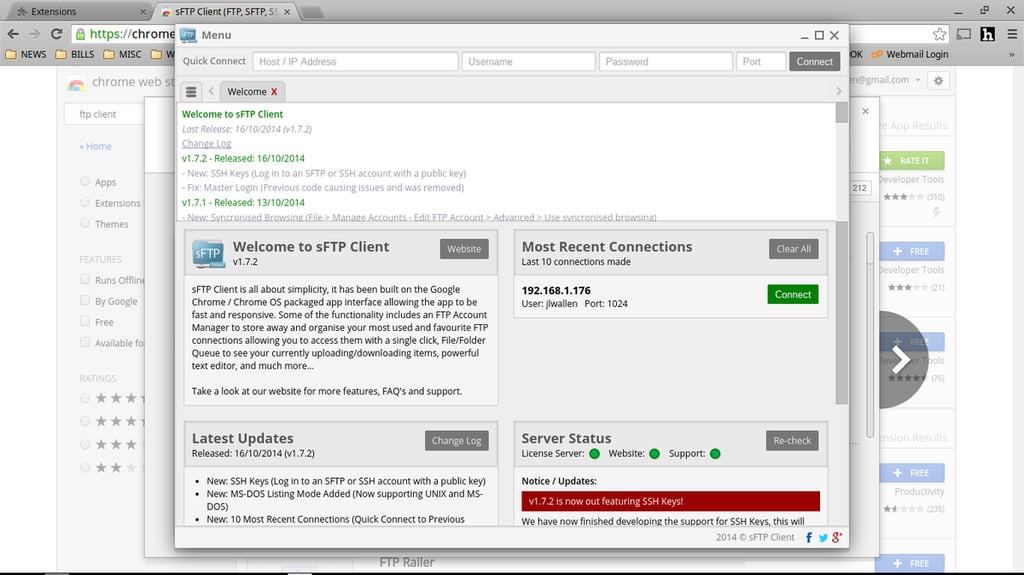
    If you need to try sFTP Client out first,\r\nthere’s a 30-minute trial that covers all services and features. If you’re\r\nlooking to enable your Chromebook for FTP interaction (or would just like to\r\ncontain FTP functionality within your Chrome browser), sFTP Client is an\r\noutstanding tool for the task.

  • Turbo FTP client & SFTP client

    Turbo FTP client & SFTP client

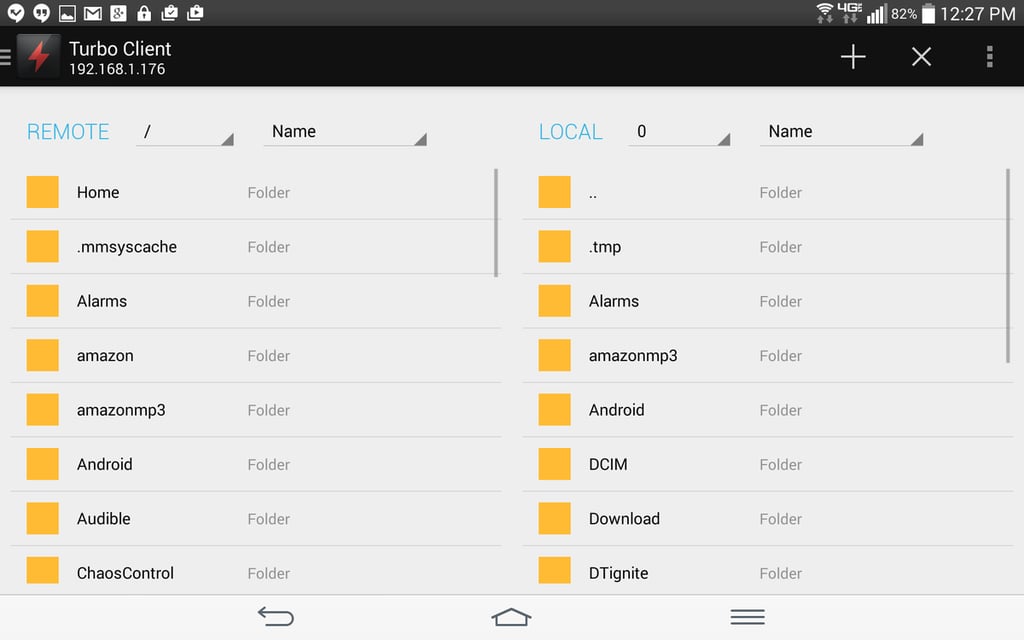
    The only oddity you may run across is that the local/remote panes seem\r\nreversed. It took me a moment to realize the remote FTP server was actually the\r\nleft pane of the interface and the local was on the right. Once you get past\r\nthat, the UI is simple and efficient.

1 of 7
Jack Wallen

Jack Wallen is an award-winning writer for TechRepublic, The New Stack, and Linux New Media. He's covered a variety of topics for over twenty years and is an avid promoter of open source. For more news about Jack Wallen, visit his website jackwallen.com.