Missed Deadline
If the deadline can’t be met, the Indicators column will flag the tasks with a red diamond and an exclamation icon.
At this stage in project schedule development, you’ve built an initial schedule that has a deadline established for the end date. The next step is to refine the schedule and validate that the deadline can still be met.
Step 4: Refine the project schedule
Before you meet with the project sponsor requiring the deadline, you should review the schedule and refine it further to accommodate any additional risks, resource changes, duration changes, dependencies, etc. Once you have a valid project schedule that meets or exceeds the project deadline, you have enough information and proof to validate or reject the project deadline. By watching the Indicator column, you can quickly determine if a project deadline can be achieved.
Step 5: Integrate deadlines, milestones, and baselines
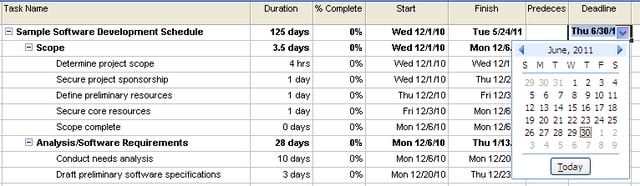
Deadlines can be applied to any task in the project schedule. Once you produce a valid project schedule, I recommend adding deadlines to specific milestones to represent drop dead dates. By analyzing the critical path and key milestones, additional deadlines can be defined. A deadline date doesn’t necessarily need to match a forecasted milestone or be the same as a task’s baseline finish date; a project can still miss its baseline finish date and still not miss its deadline. The Deadline column is just another tool to add a meaningful indicator into your project schedule. You still need to add the appropriate milestones and baselines to the project schedule.
Why not use the Must Finish By Constraint?
You may wonder why the project schedule should use a deadline instead of Microsoft Project’s Must Finish By Constraint. You can assign a Must Finish By Constraint to various tasks across the project schedule, but the problem with this approach is that you lose the ability to develop a dynamic schedule. By establishing a constraint-based schedule, you’ll experience constraint warning messages as you continue to refine the project schedule. You should build the project schedule to be fluid and dynamic. As the project executes, the schedule will change, and the deadline flags will provide the appropriate information without creating constraint problems during schedule development.
Conclusion
By incorporating these “requests” as deadlines in the schedule, you can competently develop a schedule that meets the deadline or provides a realistic project finish date. Once your team reviews a realistic schedule with the project sponsors, you can have meaningful scope or resource discussions that support or extend the desired deadline.
In my next TechRepublic article, I’ll show how to use multiple deadlines to manage your project schedule.
Screenshot by Dr. Andrew Makar for TechRepublic