Make downloading a snap with the help of these five tools - TechRepublic

Make downloading a snap with the help of these five tools

  • Introduction

    Back in the day, we used to take advantage of download\r\nmanagers that would help overcome the slow speeds and get those multiple\r\ndownloads onto a computer without having to take on an overnight babysitting\r\njob. Since speeds are no longer a problem, are download utilities even\r\nrelevant? Of course. Considering the volume of downloads we now do, it’s great\r\nto have an app that can help keep them from getting lost, corrupt, or out of\r\nhand.

    But with today’s blazing network speeds and multiple\r\nplatforms to manage, what tools are the best to have at the ready? I’ve listed five\r\ndownload utilities that might well make your daily download duties hassle free.\r\nLet’s check out these utilities and see if any are worth adding to your current\r\nline up of networking tools.

    Note: This gallery is also available as an article.

    Image: iStock/Photo-Dave
  • uGet

    uGet

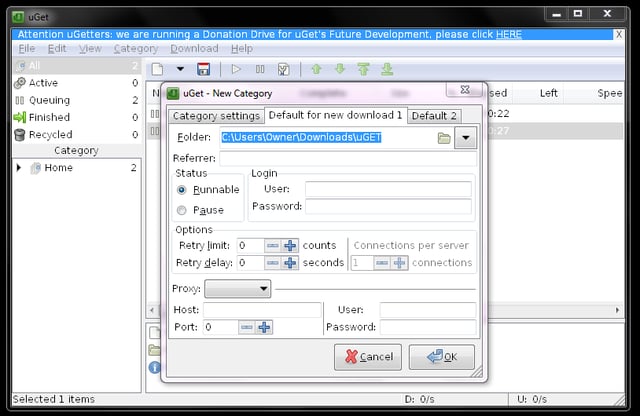
    One uGet feature I particularly like is the ability to\r\ncreate download categories. A category allows you to set certain configuration\r\noptions so you don’t have to always select a specific folder for ISO images,\r\nmusic, video, or documents. You can also set username/password for a category, on\r\nthe off chance a regular download requires authentication.

  • Chrono Download Manager

    Chrono Download Manager

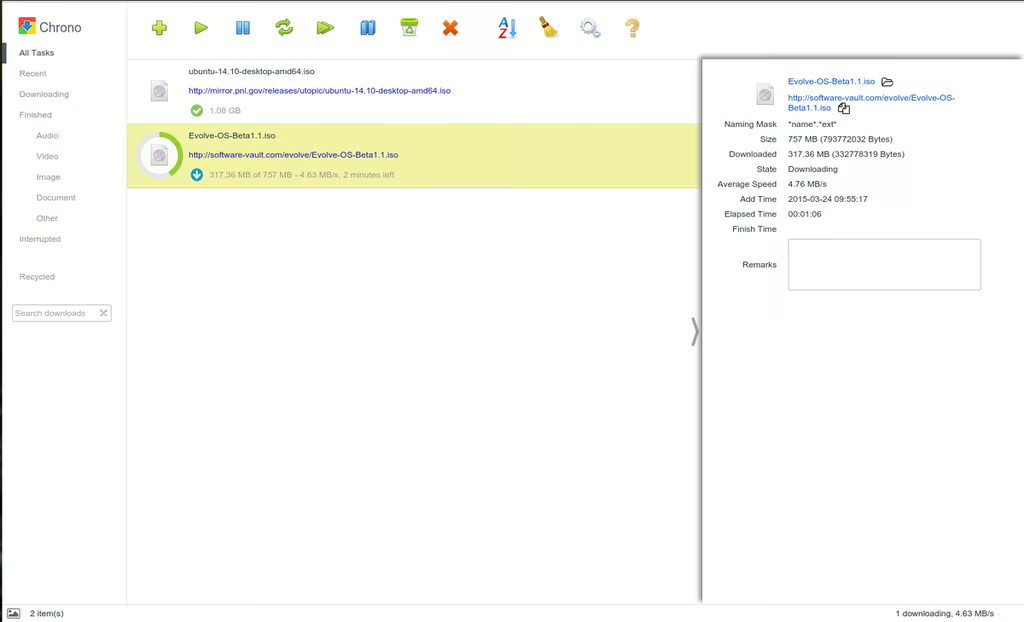
    Once you’ve installed Chrono Download, it does take over as\r\nthe default download manager for Chrome. Like any good Chrome extension, Chrono\r\nDownload Manager also integrates into the desktop notification system (so you\r\ncan remain updated on the status of the download). Chrono Download Manager\r\nworks on all platforms that support Chrome.

  • Advanced Download Manager

    Advanced Download Manager

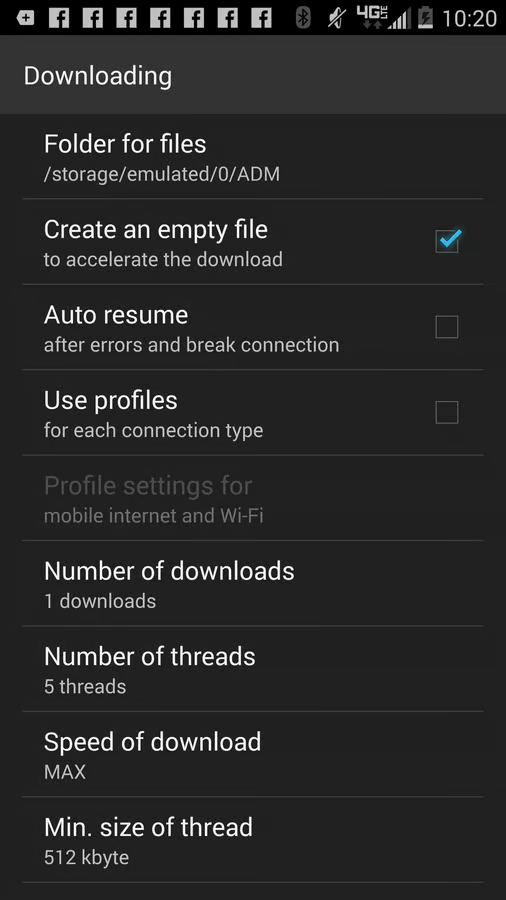
    Beyond importing a list of downloads from a text file, you can enter a\r\nsingle URL for downloading a file. You can also specify where the files are\r\ndownloaded to. (By default they will reside in /storage/emulated/0/ADM.) From\r\nwithin the Settings | Downloads section you can specify the number of threads\r\nADM can use as well as the speed of downloads and the minimum size of a thread.

  • DownThemAll (dTa)

    DownThemAll (dTa)

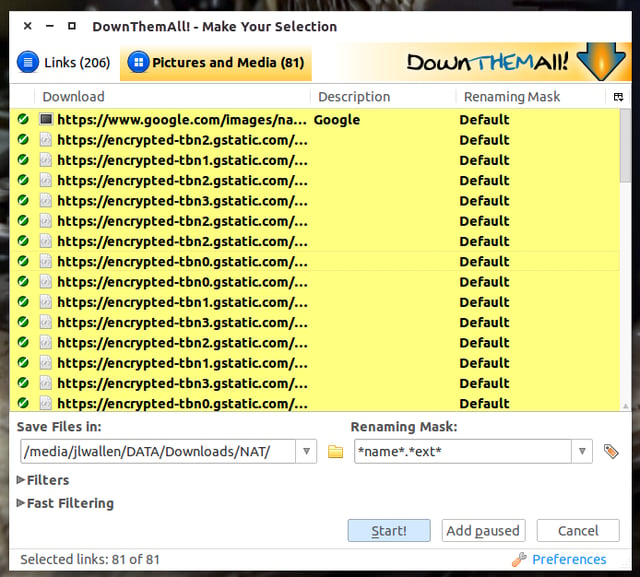
    The one caveat is that you can’t set a default downloads\r\ndirectory from within the dTa Preferences window—it will default to the Firefox\r\nsetting. However, from within the dTa selection window (right-click and select\r\nDownThemAll), you can set a directory that serves as the dTa default for both dTa\r\nand 1-Click. You can change this location on a per-download basis, but only\r\nthrough the dTa selection window. I highly recommend doing this so you don’t\r\nwind up with a lot of unwanted clutter in your default Downloads directory.\r\nDownloadThemAll works on all platforms that support Firefox.

  • FlashGet

    FlashGet

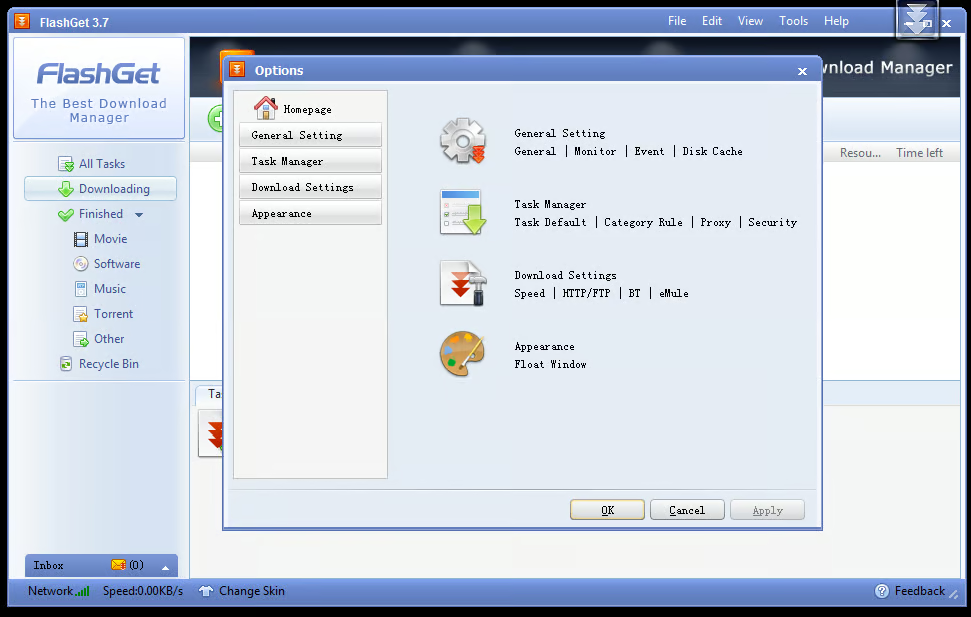
    One of my favorite FlashGet features is its integration with\r\nthe Windows clipboard. As soon as you copy a link from a browser, FlashGet\r\nopens so you can begin downloading that particular file. Surprisingly enough,\r\nthe interface for FlashGet is a bit out of date, though this does not, in any\r\nway, alter the usability of the tool.

1 of 6
Jack Wallen

Jack Wallen is an award-winning writer for TechRepublic, The New Stack, and Linux New Media. He's covered a variety of topics for over twenty years and is an avid promoter of open source. For more news about Jack Wallen, visit his website jackwallen.com.