Replace an Xbox DVD drive - TechRepublic

Replace an Xbox DVD drive

  • Replace an Xbox DVD drive (1 of 13)

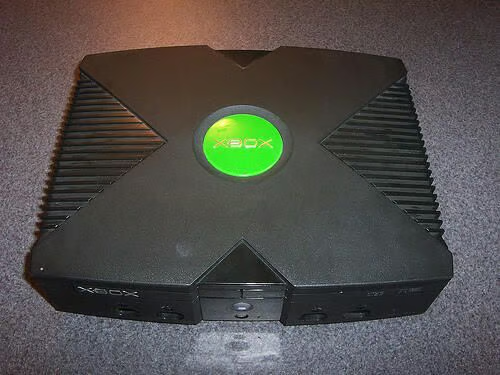
    After suffering intermittent “dirty disc” errors, sMoRTy71 decided to buy a replacement DVD drive for his Xbox. He bought one on eBay for less than $30 shipped. The whole process, which involved removing eights screws and disconnecting IDE and power cables, took less than 10 minutes.\r\n

    \r\nRead sMoRTy71’s personal blog post about his experience replacing the Xbox DVD drive.

    CNET Networks - <a href="http://techrepublic.com.com/5213-6257-0.html?id=2727770" target="_blank">sMoRTy71</a>
  • Opening the case

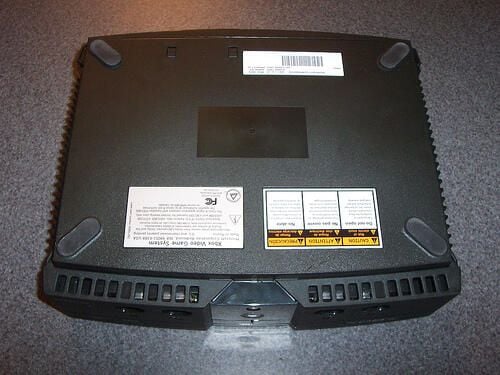
    \r\nTo begin, you’ll need to remove six #20 Torx screws from the bottom of the case. Four are hidden under the padded feet and two are hidden under stickers.

  • Remove the screws

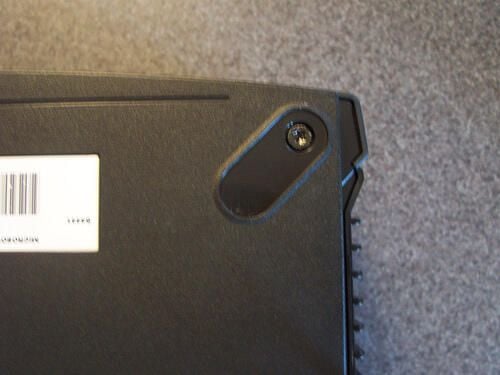
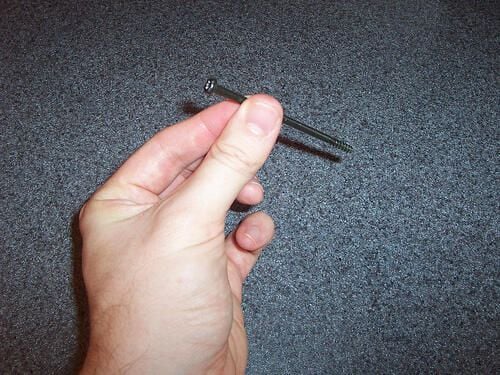
    \r\nA close-up view of the #20 Torx screw hidden under the rubber pads.

  • Screws hiding under stickers

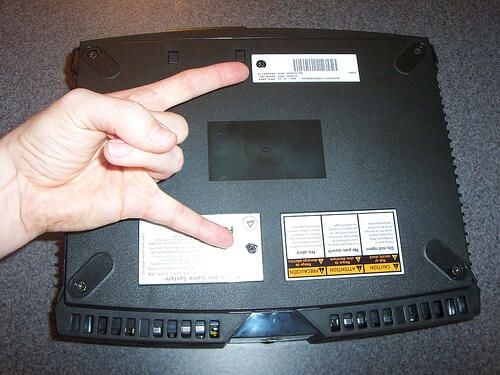
    \r\nMicrosoft hides two of the Torx screws under stickers.

  • #20 Torx screw

    \r\nAnother close-up of the screws that hold the Xbox case in place.

  • Xbox case top

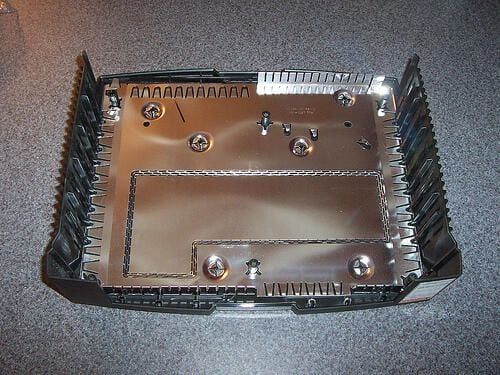
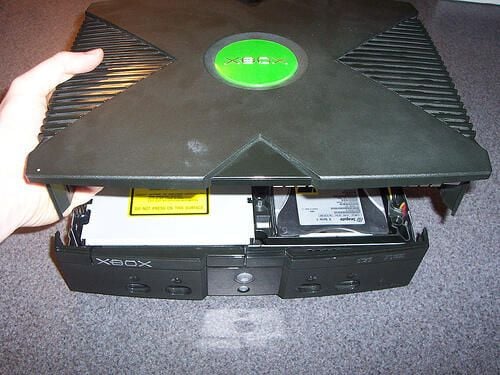
    \r\nWith the screws removed you can set the Xbox case’s top aside.

  • Xbox opened

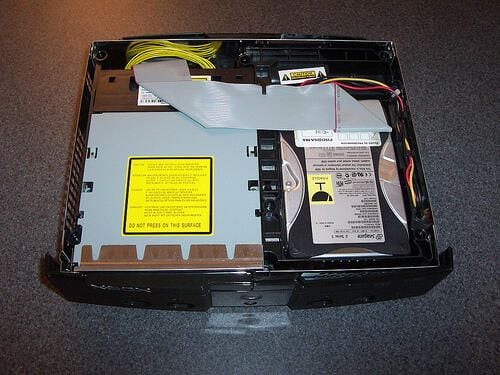
    \r\nWith the top removed, the Xbox’s DVD drive is easily accessible.

  • Removing the DVD drive

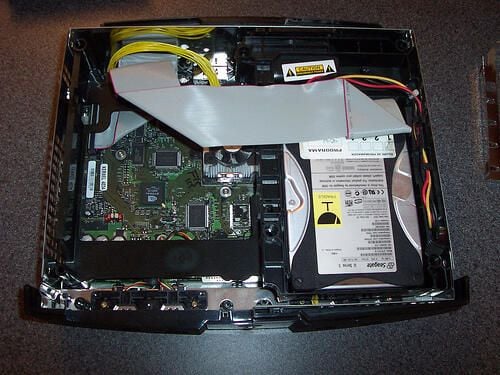
    \r\nRemove two #10 Torx screws from the plastic bracket attached to the DVD drive. Then, push in the plastic tab and gently pull up to remove the drive.

    Disconnect both the IDE and power cables from the drive.

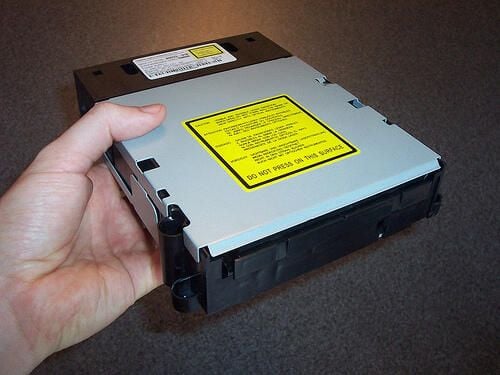
  • The new drive

    \r\nYou are now ready to install the new Xbox DVD drive.

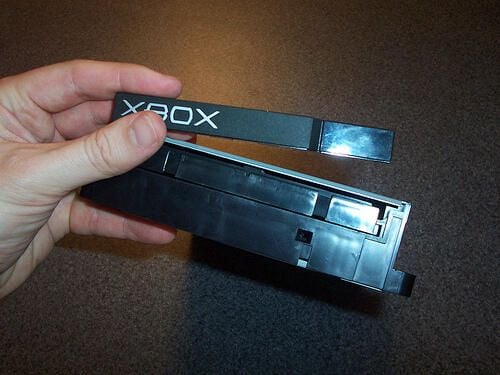
  • Replace the drive’s faceplate

    The Xbox DVD drive has a plastic faceplate. You will need to remove the faceplate from the old drive by pulling out slightly then up. The process for adding the faceplate to the new drive is the reverse. Slide the faceplate down from the top of the drive door.

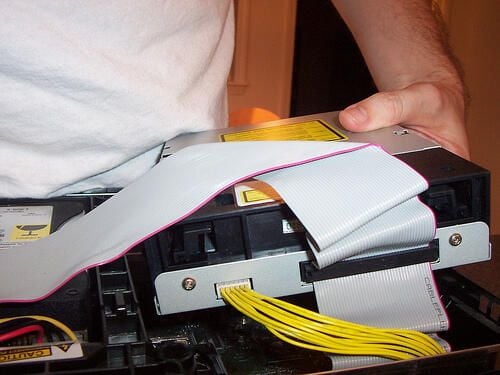
  • Install the new DVD drive

    Securely attach the IDE and power cables to the new drive, then slip the drive into place. You should hear a click when the bracket snaps into place.

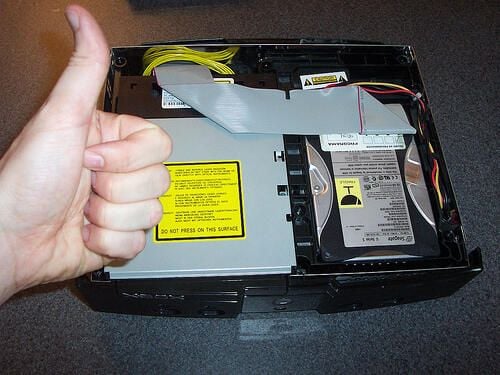
  • Secure the new drive

    Reattach the two #10 Torx screws to secure the drive.

  • Replace the Xbox case’s top

    Reattach all six Torx screws in the case and the rubber feet. You’re all done!

1 of 13
BD

Bill Detwiler is the Editor for Technical Content and Ecosystem at Celonis. He is the former Editor in Chief of TechRepublic and previous host of TechRepublic's Dynamic Developer podcast and Cracking Open, CNET and TechRepublic's popular online show. Previously, Bill was an IT manager in the social research and energy industries. He has bachelor's and master's degrees from the University of Louisville, where he has also lectured on computer crime and crime prevention.