Screenshots: Keep your Android device backed up with these five apps - TechRepublic

Screenshots: Keep your Android device backed up with these five apps

  • Intro

    Introduction

    Most Android users already enjoy a solid backup plan–whether\r\nthey know it or not. Because the device is connected to a cloud account, much\r\nof the data is already backed up. Couple that with using a Gmail or IMAP email\r\naccount, and email backup is just an account setup away.

    But there are still bits and pieces of your device that may\r\nnot get backed up. For example, the built-in backup process doesn’t collect\r\nyour phone-stored contacts, your SMS or phone history, some app data, or files\r\nstored on your device. When you have backup needs that default Android can’t\r\ncover, where do you turn?

    Here are five free apps that can easily pick up the slack.

    Note: This gallery is also available as an article.

    Image: Jack Wallen
  • App Backup & Restore

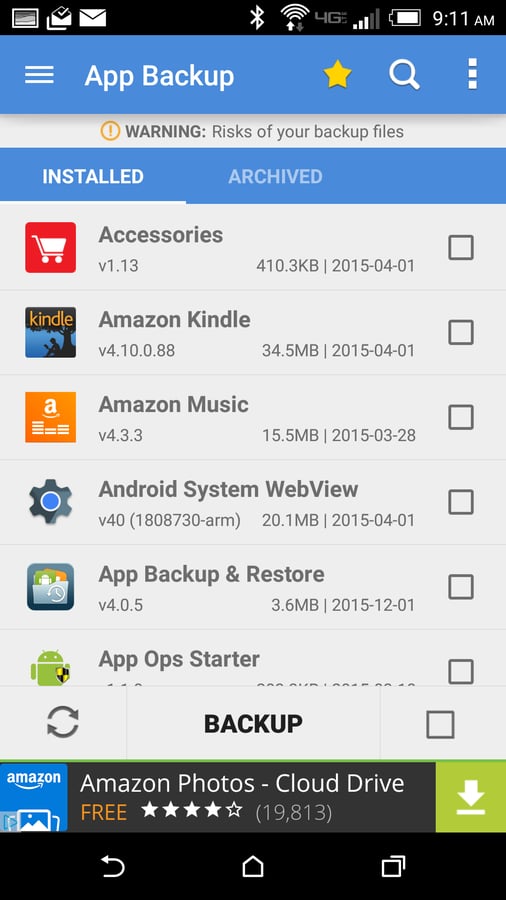
    App Backup & Restore

    If your device doesn’t support external SD card storage, you\r\ncan always back up to internal, non-removable storage and then copy the folder\r\nto a cloud account. When it’s time for restoring, copy the file back to\r\ninternal storage and use the app to restore all your apps. App Backup &\r\nRestore is free, but it does include ads. There is an in-app purchase ($2.69\r\nUSD) to remove the ads from the app.

  • CM Backup

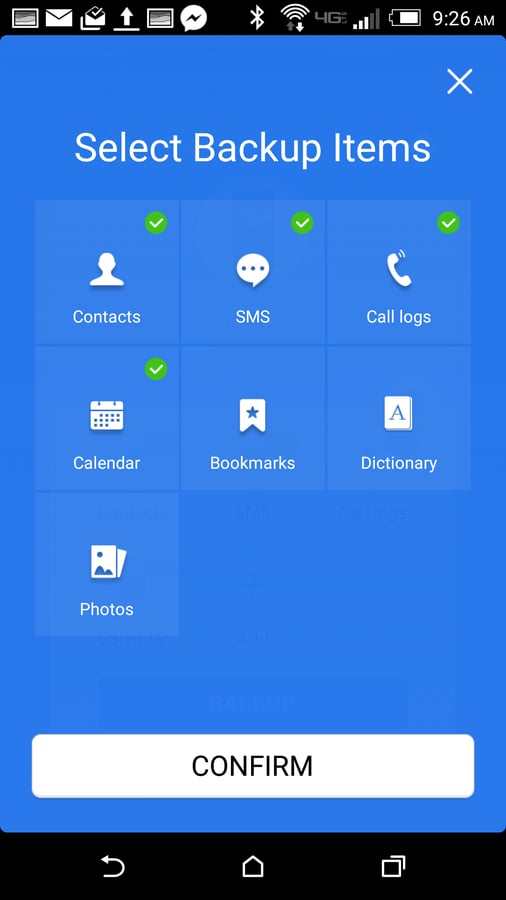
    CM Backup

    Once you’ve signed up (via the app), you will be treated to\r\na well-designed home screen that lets you quickly see what’s available for\r\nbackup. You can tap into a category and select exactly what you want to back up\r\n(if you don’t want everything). You can also tap the Add button and back up a\r\nfew extra pieces to the default (such as bookmarks, dictionaries, and photos).\r\nCM Backup is an outstanding choice if you don’t mind backing up to a\r\nthird-party cloud solution. Both the app and 5 GB of storage are free.

  • Easy Backup & Restore

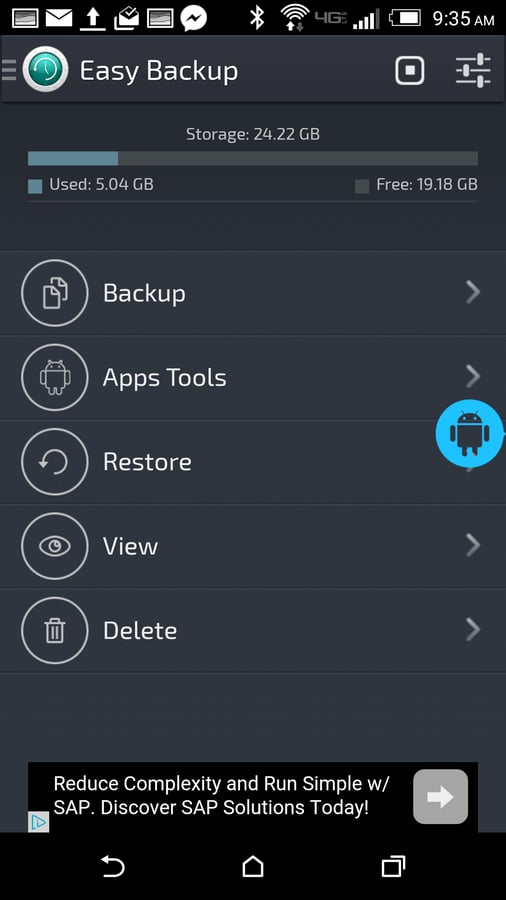
    Easy Backup & Restore

    Easy Backup & Restore is a simple backup solution. It can back up apps, SMS,\r\nselected folders, MMS, call log, calendar, bookmarks, user dictionary, and\r\ncontacts. You can set up scheduled backups, which will save the backed up file\r\nto a cloud account or external SD card–or the file can be emailed. (You must\r\nset up an IMAP account to use this feature.)

  • G Cloud Backup

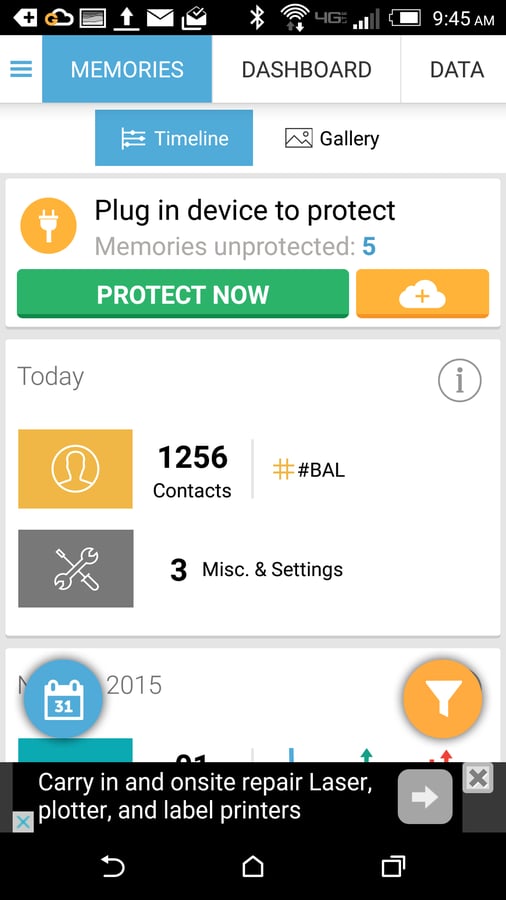
    G Cloud Backup

    The interface is easy to use and offers what the app calls\r\nMemories. These are snapshots created and ready to be uploaded. These Memories\r\nwill show you exactly what you’ve backed up and when. You can view Memories by\r\ndate or even filter them by data type. Once a Memory is created, you must go to\r\nthe Dashboard tab and tap Run Now to back up the Memory to your cloud account.\r\nThis means you can back up any snapshot of your device you like. G Cloud Backup\r\nis free, but you can opt out of the ads with an in-app purchase (tap the X\r\nassociated with an ad to be prompted for removal).

  • Super Backup: SMS & Contacts

    Super Backup: SMS & Contacts

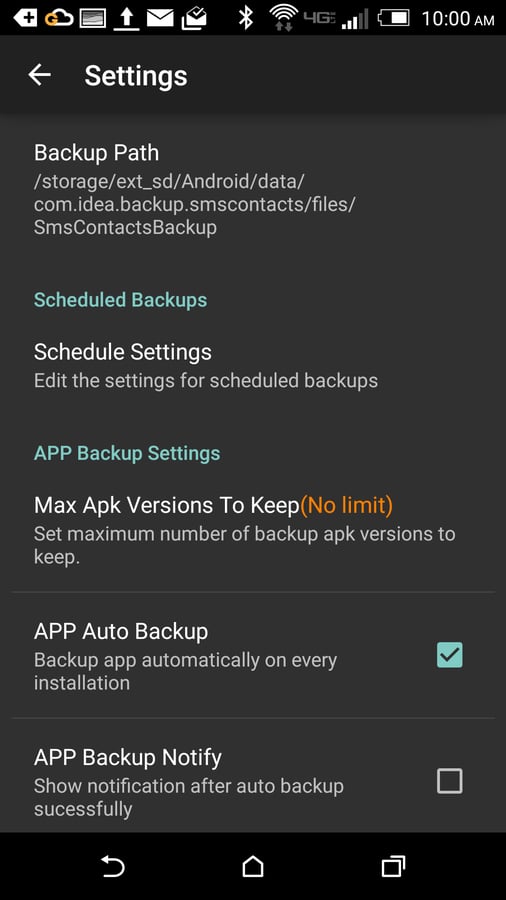
    Manual backups (and restores) are as simple as a single tap\r\non one of the data types to be backed up. Super Backup is fairly basic, so\r\nanyone can use it. It does include ads, but offers an in-app purchase of $1.99\r\nUSD to remove them.

1 of 6
Jack Wallen

Jack Wallen is an award-winning writer for TechRepublic, The New Stack, and Linux New Media. He's covered a variety of topics for over twenty years and is an avid promoter of open source. For more news about Jack Wallen, visit his website jackwallen.com.