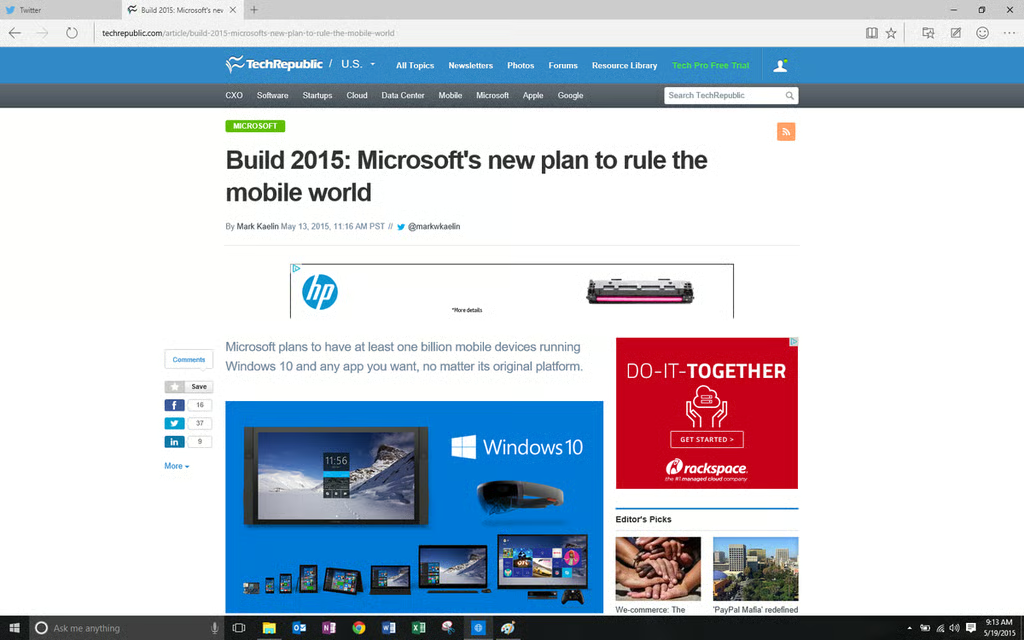
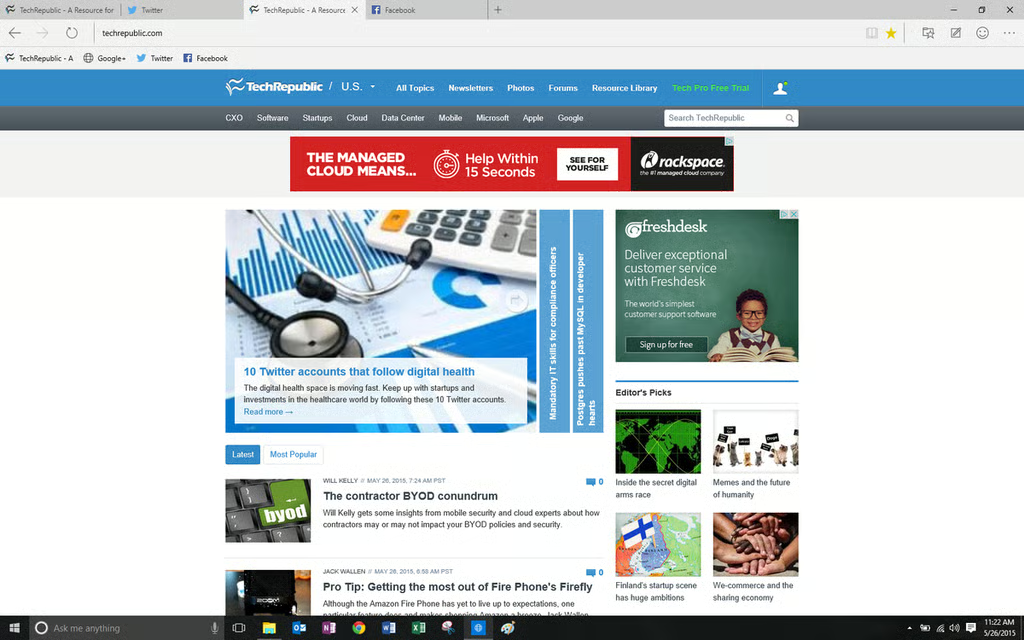
Microsoft Edge is the company’s new default web browser for\r\nWindows 10. Featuring completely new and modern rendering technologies when\r\ncompared to the old Internet Explorer, Edge will be superior is just about\r\nevery way a web browser can be.
As you’ll see in these images, Edge borrows heavily on the minimal design characteristics of other web browsers like\r\nChrome. This is particularly important for Edge because it is designed to be a\r\nprototype UniversalWindows Platform app.
In practical terms, that means Edge will adapt and\r\nrun on any device running Windows 10, whether it is a desktop computer, a\r\nsmartphone, or something in between.
Image: Mark Kaelin
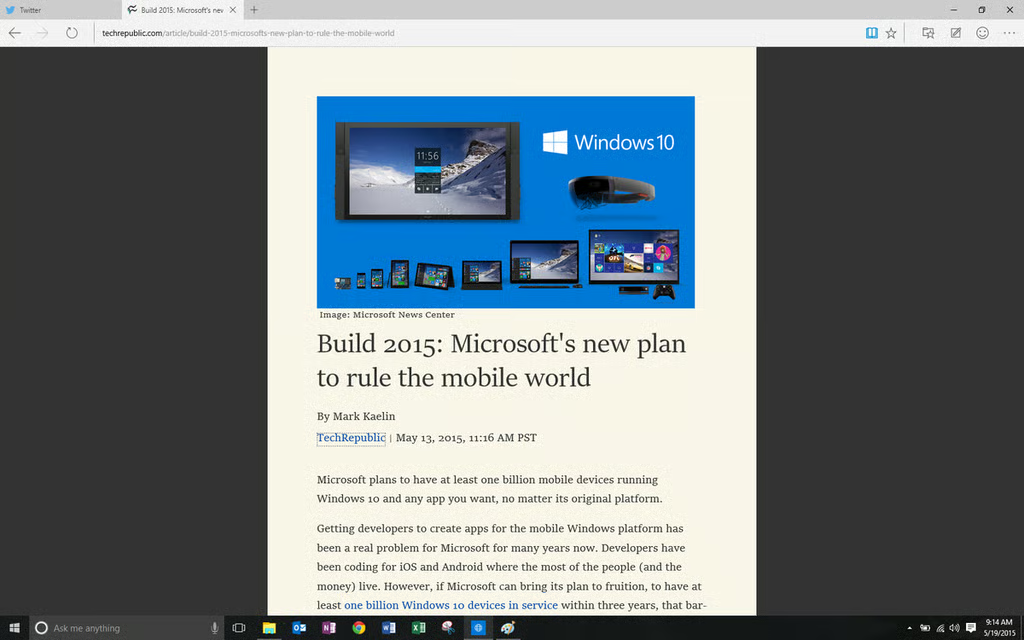
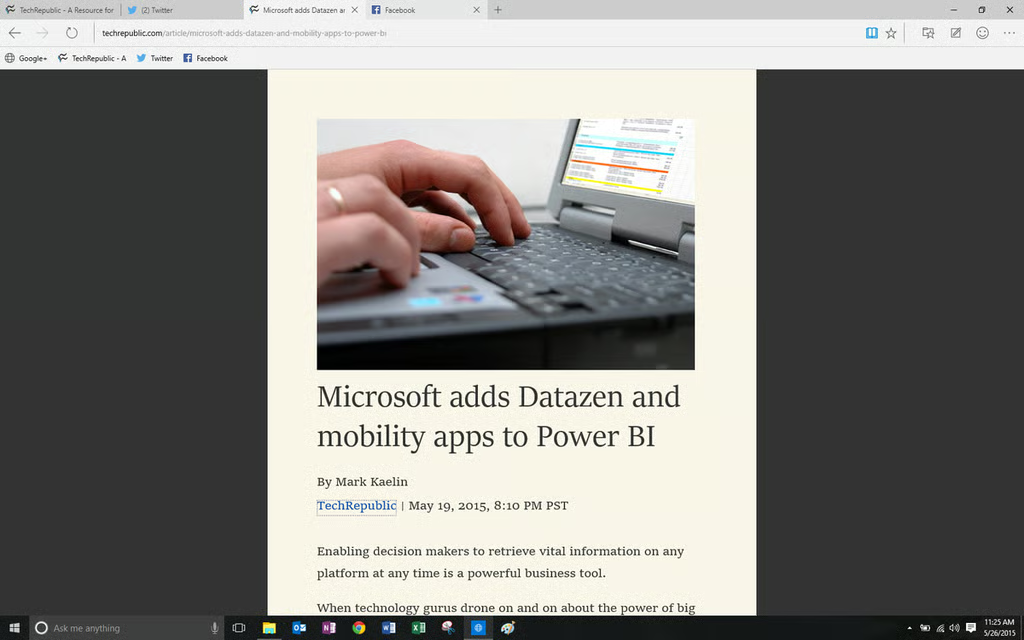
Reading Mode
The feature I’m most excited about is called the\r\nReading Mode, which will strip away all of the excess navigation and, dare I\r\nsay it, advertising from an article, leaving only the text you actually want to\r\nread behind.
Image: Mark Kaelin
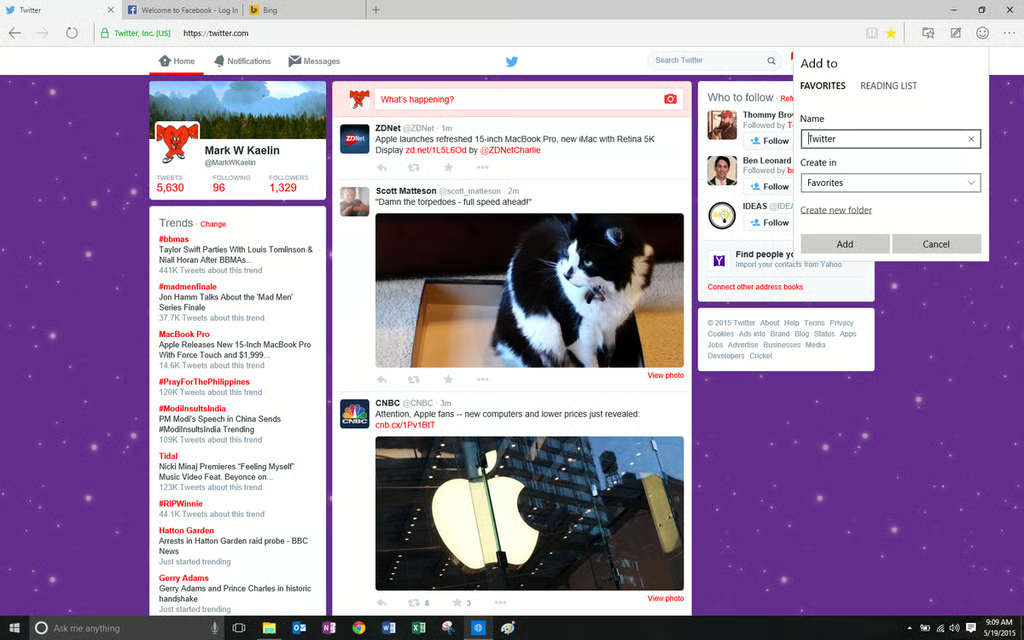
Edge has standard features
From a pure display perspective, Edge looks a lot\r\nlike Chrome to me. Of course, Edge has standard features like Favorites.
Image: Mark Kaelin
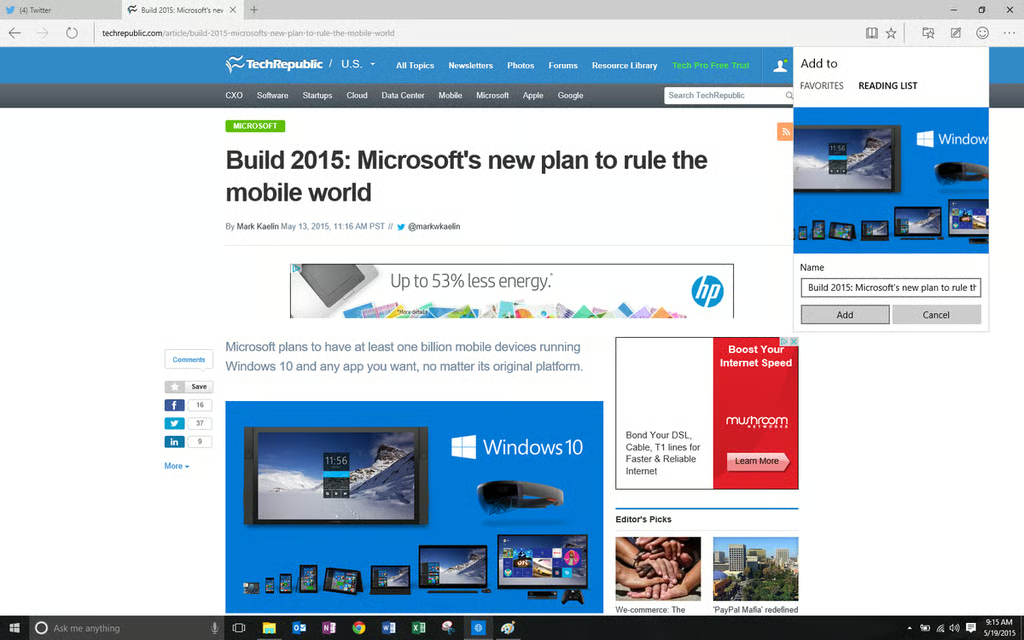
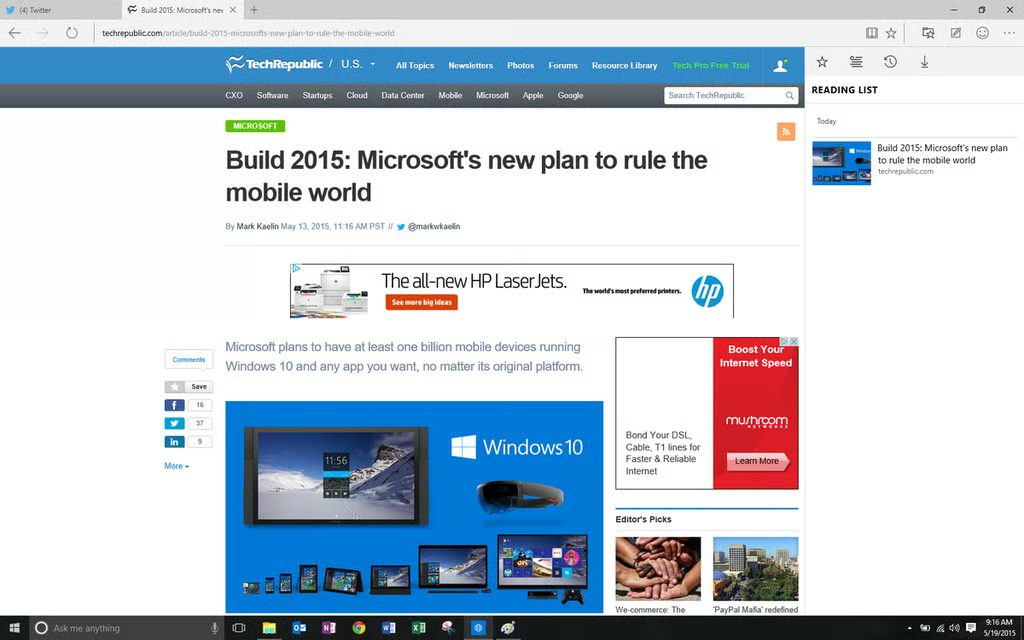
Reading Lists
Edge also features Reading Lists, where you\r\n”favorite” a specific web page or article for reading later.
Image: Mark Kaelin
Reading Lists usefulness
For those of you who like apps like FlipBoard,\r\nReading Lists may provide you with an adequate built-in alternative.
Image: Mark Kaelin
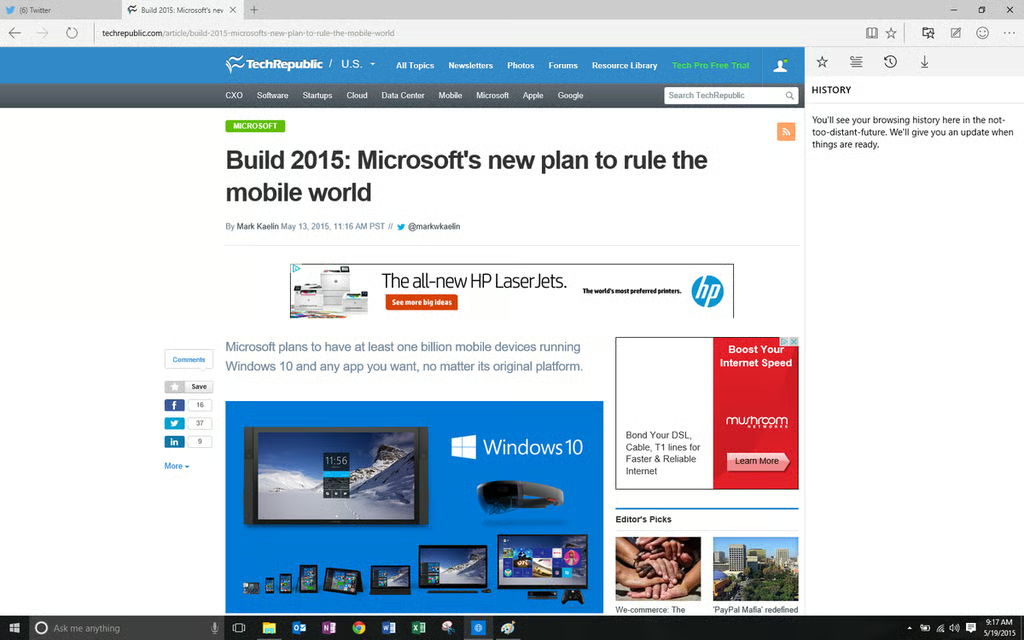
History feature
As expected, there is a History feature.
Image: Mark Kaelin
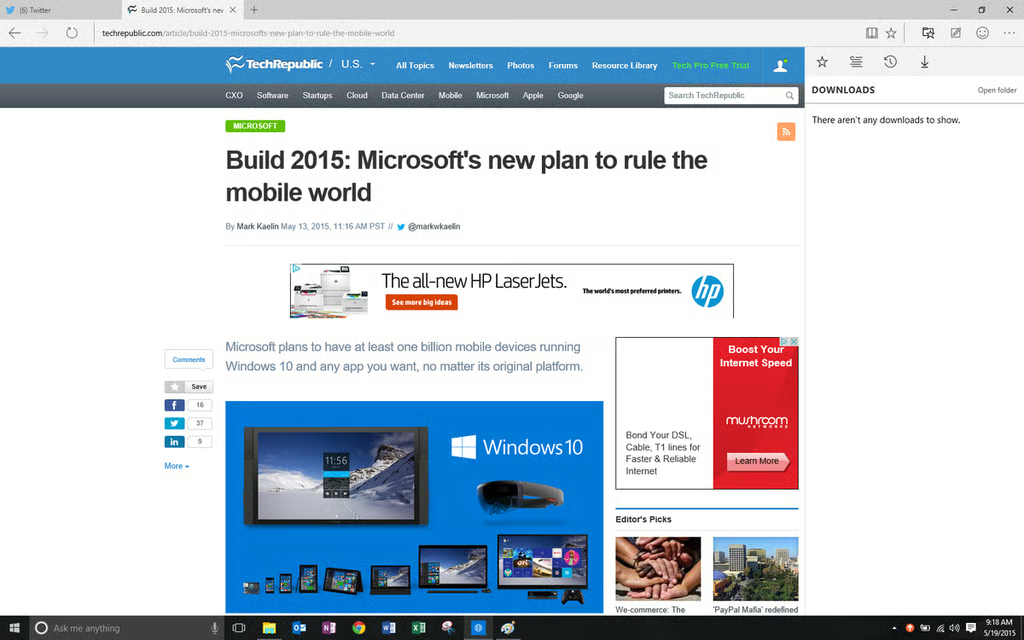
Downloads feature
Also as expected, there is a Downloads feature.
Image: Mark Kaelin
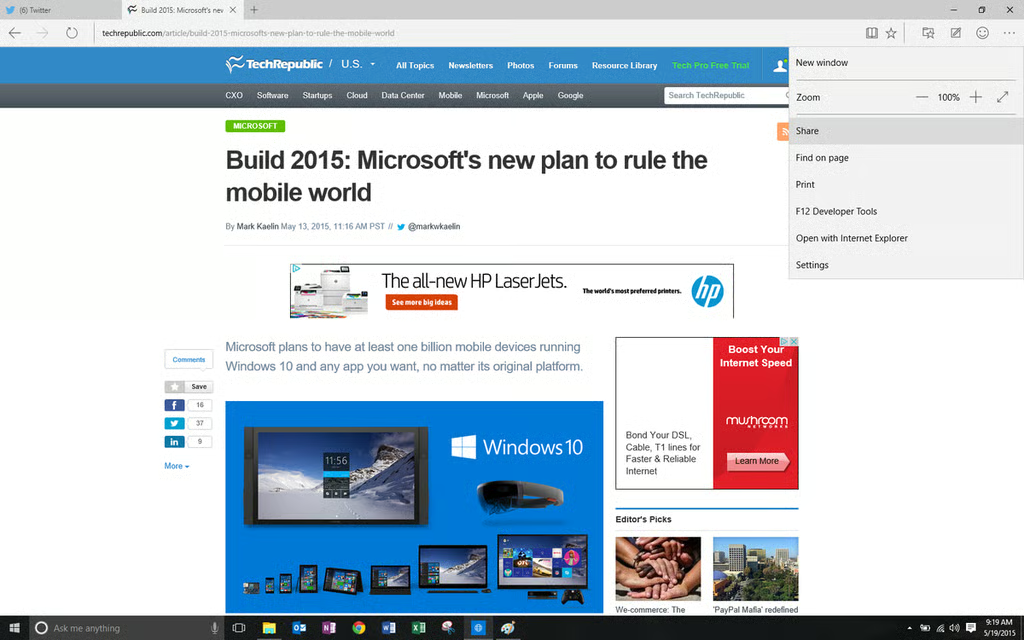
Microsoft Edge control panel
Keeping with the minimalist theme, the control\r\npanel for Microsoft Edge is sparsely populated. Notice how the click area for\r\nthose few choices are rather large. This is part of the universal platform\r\ndesign. On a smartphone, someone’s fat fingers are going to have to find a much\r\nsmaller active button area.
Image: Mark Kaelin
Adding and subtracting Favorites
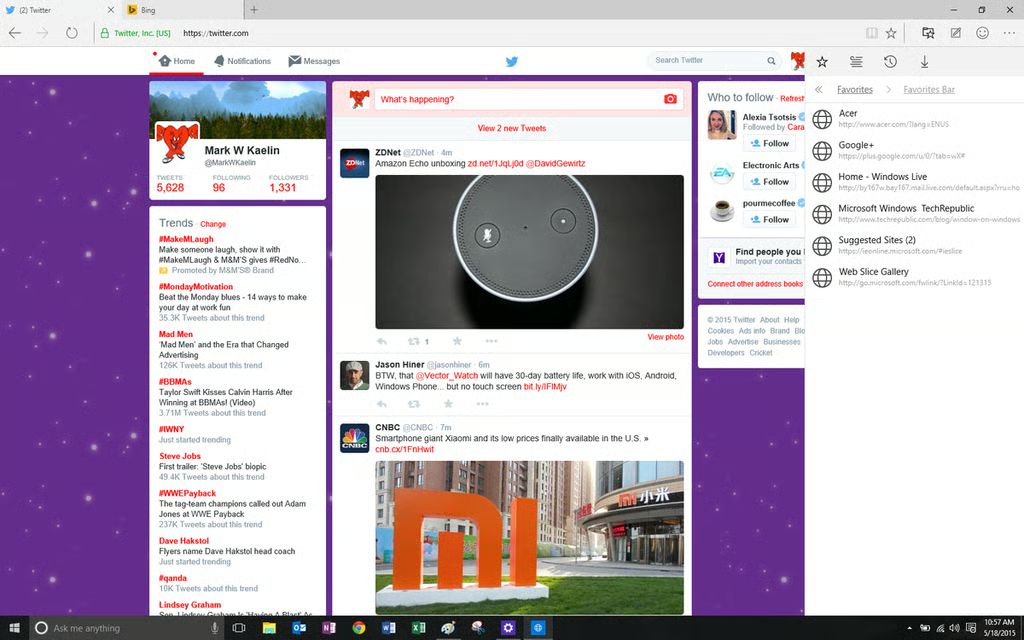
Adding and subtracting from your Favorites list and\r\nthe Favorites Bar is about as straightforward and familiar as it gets. I did\r\nfind it strange that my initial Favorites Bar was seeded with a link to Acer. Not sure why that happened.
Image: Mark Kaelin
How to try Microsoft Edge
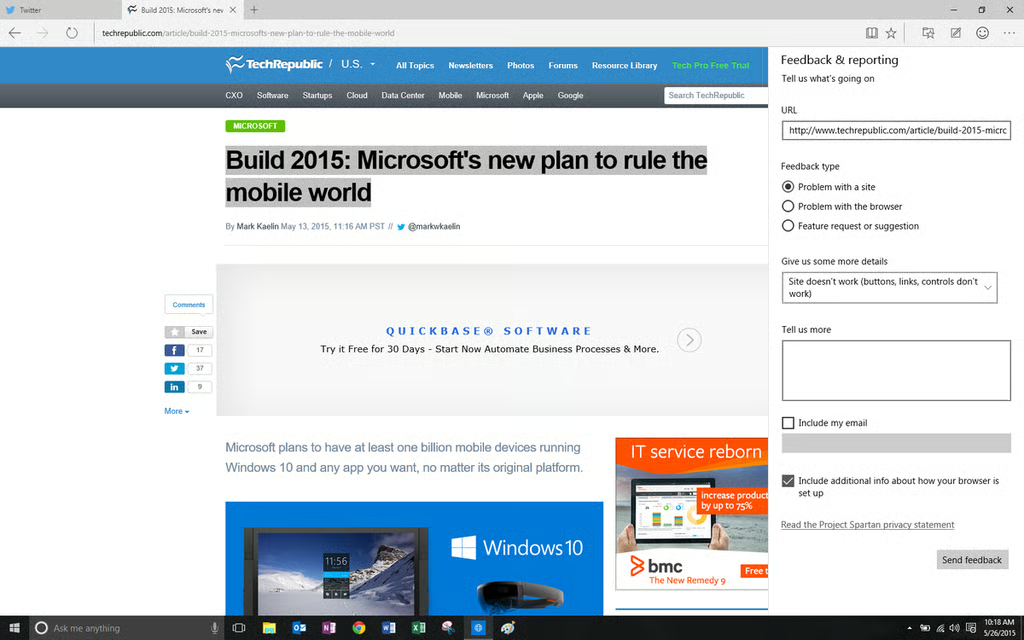
You can try Microsoft Edge for yourself by\r\ndownloading the preview version of Windows 10. As you try it out, you can send\r\nyour feedback to Microsoft.
Image: Mark Kaelin
Developers Tools feature
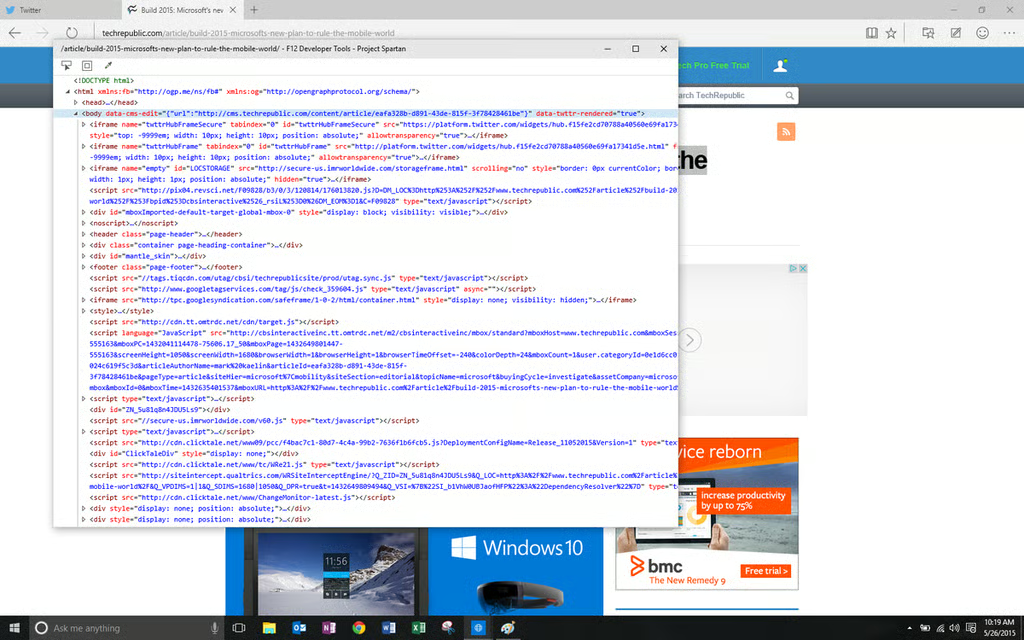
Microsoft Edge is an extensible web browser like\r\nChrome and Firefox. That means third-party developers can program add-ons,\r\nextensions, and other widgets for Edge. To make that easier, there’s a\r\nDevelopers Tools feature.
Image: Mark Kaelin
Edge styling is minimalistic
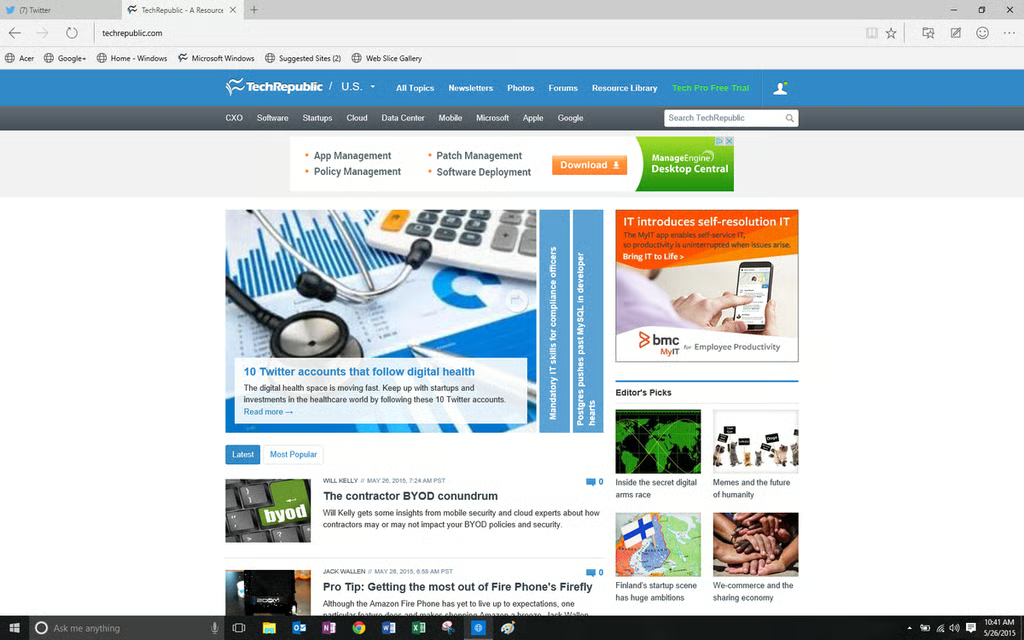
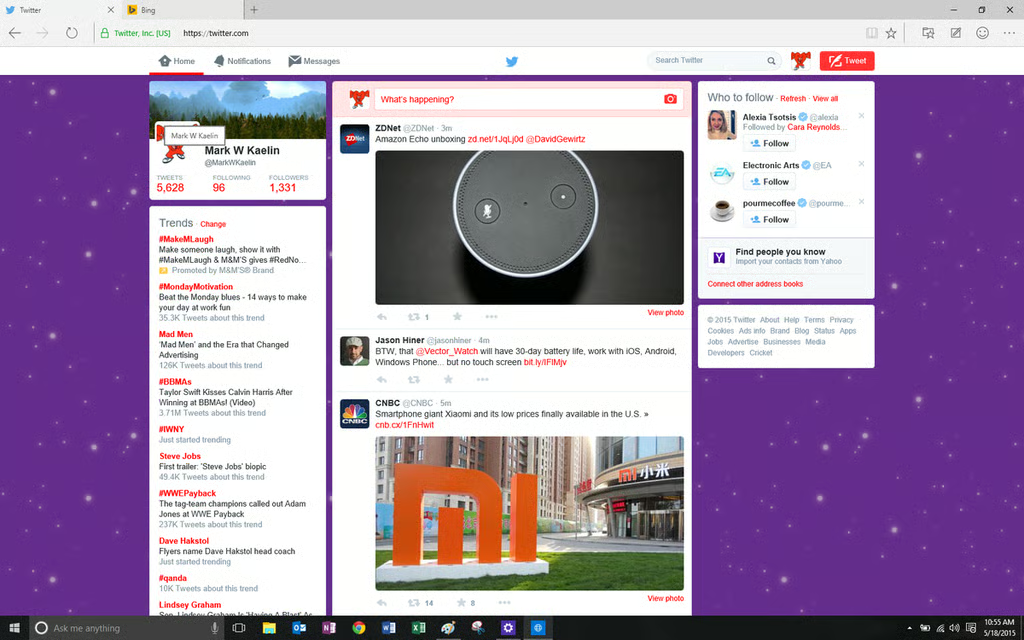
This a fairly typical view of what the Microsoft\r\nEdge browser looks like in a normal situation. As you can see, the styling is\r\nminimalistic and slips to the background, bringing the website to the\r\nforeground, as it should be.
Image: Mark Kaelin
Edge's built-in annotation tools
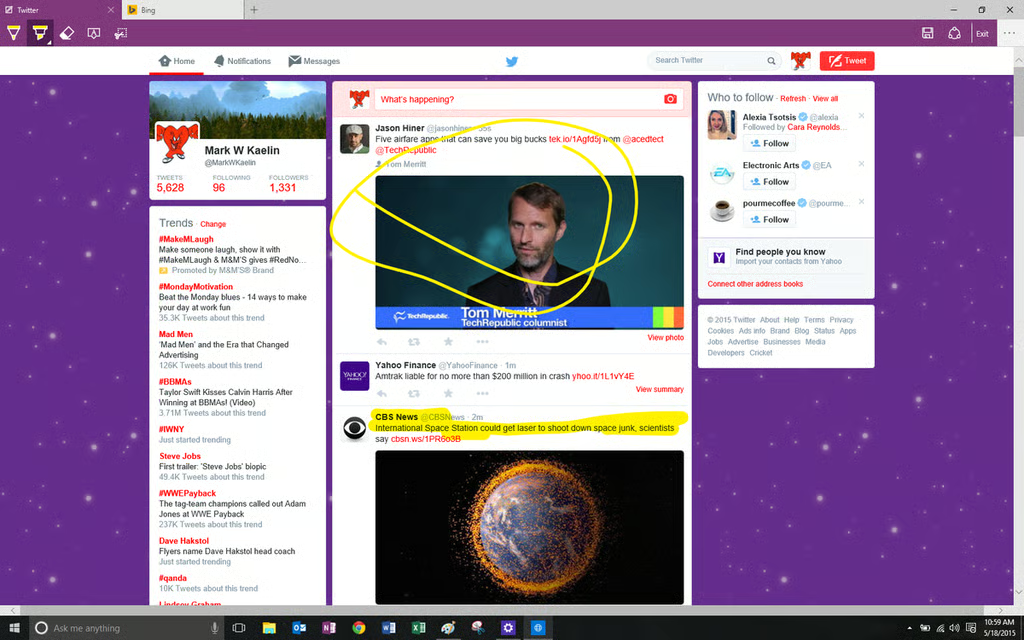
Another typical normal situation, only this time we\r\nare going to use Edge’s built-in annotation tools to emphasize our point.
Image: Mark Kaelin
Edge markup tools
The markup tools found in Edge allows you to\r\nhighlight parts of a web page. I did my markups with a mouse, which is bit\r\nclunky, but I suspect this features works much better when you use a finger on\r\na touch display.
Image: Mark Kaelin
Edge notes
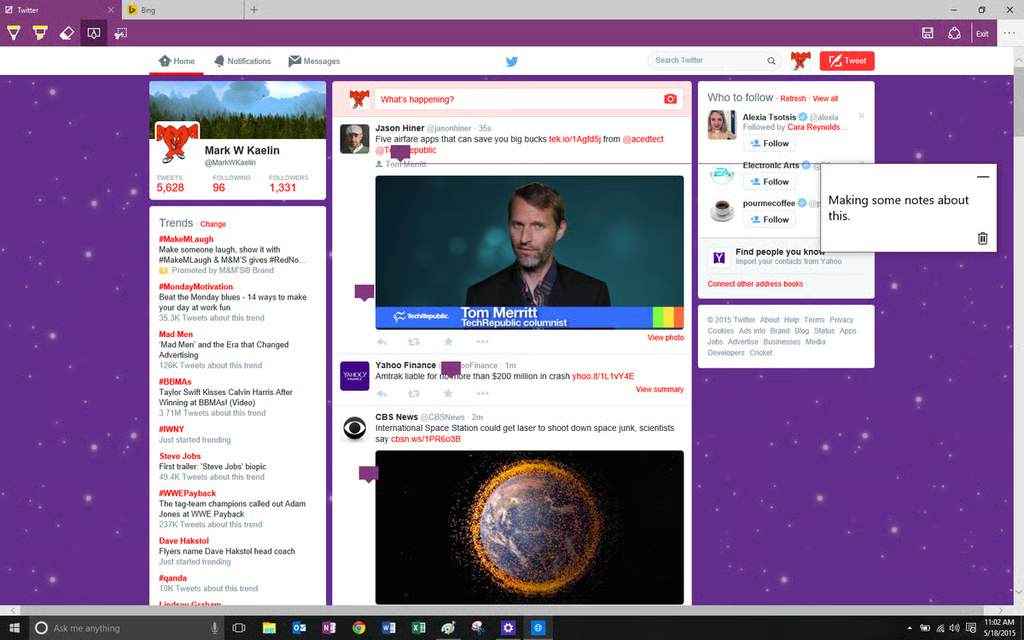
You can also make notes, either for yourself or to\r\nshare with friends, or with colleagues in a business setting.
Image: Mark Kaelin
Share annotations
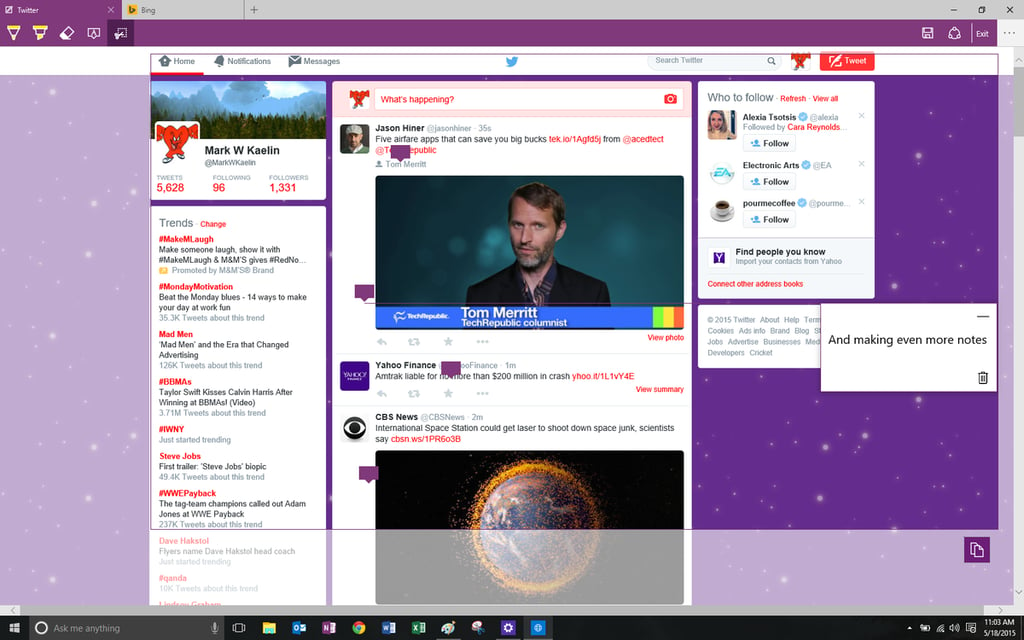
Once you are done with your annotations, you can\r\ncut them out and share them.
Image: Mark Kaelin
Edge is much better than IE
From the user’s initial perspective, the Microsoft\r\nEdge browser is nothing spectacular. It works like it’s supposed to and does\r\nit well, so there’s very little to complain about. However, that is a bit\r\nmisleading, because the real power of Edge is what happens behind the user\r\ninterface.
The underlying technologies incorporated into the\r\nEdge browser mean that it will be more compatible, more secure, and more\r\nextensible than the old Internet Explorer ever could hope to be.
Image: Mark Kaelin
The Reading View is a killer feature
For someone like me, who spends many hours reading\r\narticles with a web browser, the ability to reduce the visual noise on a web\r\npage with the Reading View is a killer feature. When Windows 10 is released, I\r\njust may have to switch my default browser.
Mark W. Kaelin has been writing and editing stories about the information technology industry, software, hardware, gaming, finance, accounting, and technology geekdom for more than 30 years.