Screenshots: Safeguard your site with one of these free backup tools for WordPress - TechRepublic

Screenshots: Safeguard your site with one of these free backup tools for WordPress

  • WordPress built-in backup

    WordPress built-in backup

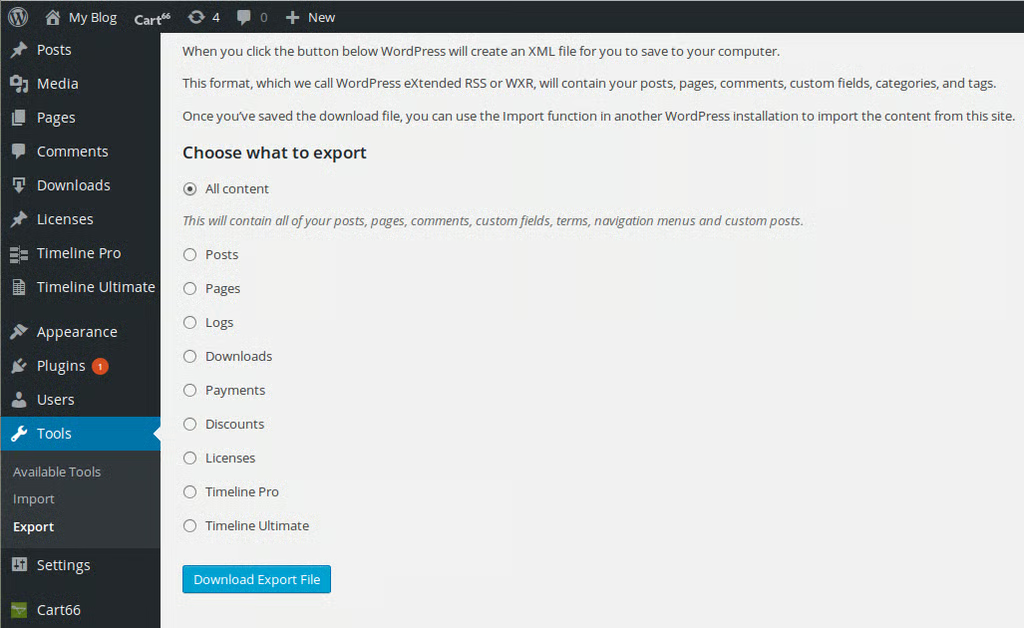
    You probably didn’t even know that WordPress has its very\r\nown built-in backup tool. If you go to Tools | Export you can easily select\r\nwhat you want to back up (posts, pages, comments, custom fields, categories,\r\nand tags). Make your selections, click Download Export File, and save the .xml\r\nfile somewhere safe.

  • WordPress built-in backup

    WordPress built-in backup

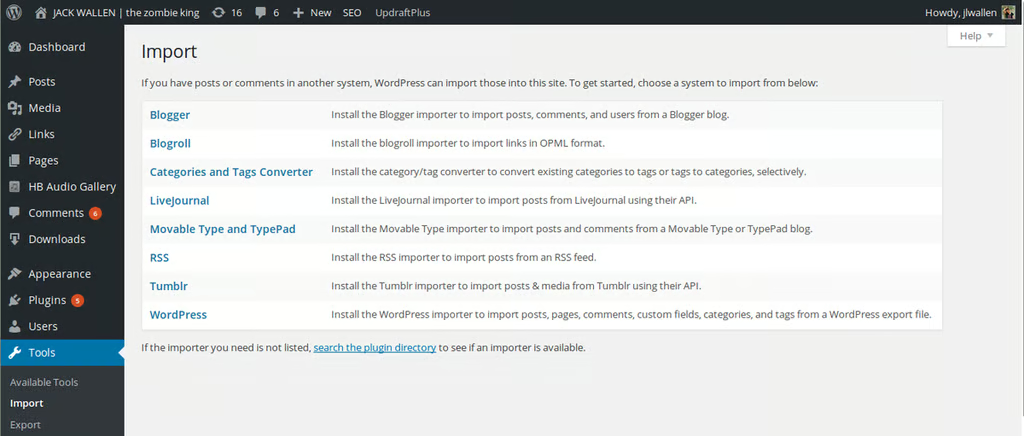
    When you need to recover the backup, you simply use the\r\nImport tool and import those settings. The only caveat here is that the\r\nbuilt-in tool won’t save your settings or themes. For that, you’ll have to do a\r\nbit of extra work. Even so, the single most important bits (your content) will\r\nbe saved. Do note that you must install the WordPress Importer to import that saved file.

  • BackWPup Free

    BackWPup Free

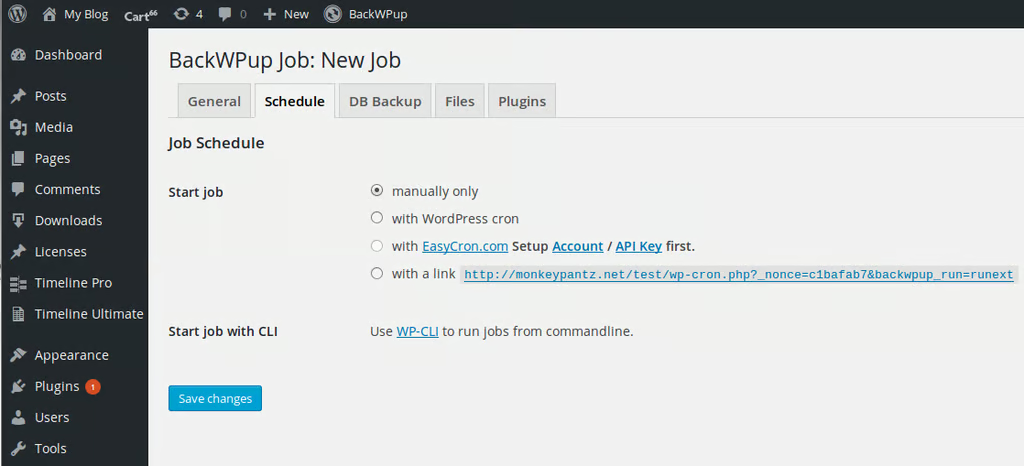
    You can save backups as xml, zip, tar, or BZip2. BackWPup\r\nFree also allows you to select what tables to back up from your site database\r\nand even include attachments to your backup. If you want more features than the\r\nfree version offers, there is also a Pro edition that will set you back $75.00 USD.

  • UpdraftPlus

    UpdraftPlus

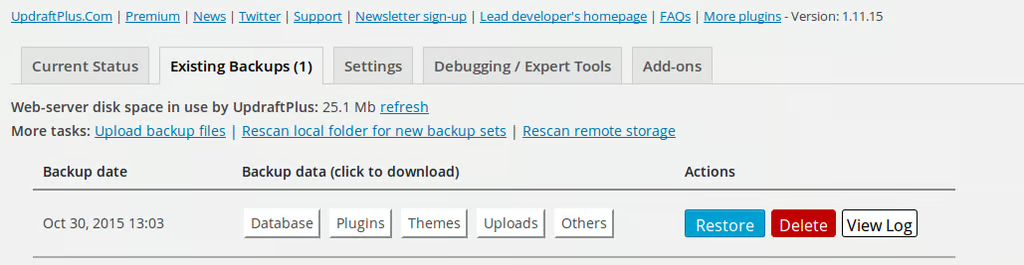
    Once you have backups available, you can select what you\r\nwant to back up (from Database, Plugins, Themes, Uploads, and Others). You can\r\nalso purchase a Premium edition of UpdraftPlus that gives the\r\ntool additional features (such as a free 1 GB Updraft Vault, migrate/clone\r\nwebsites, and no ads).

  • Duplicator

    Duplicator

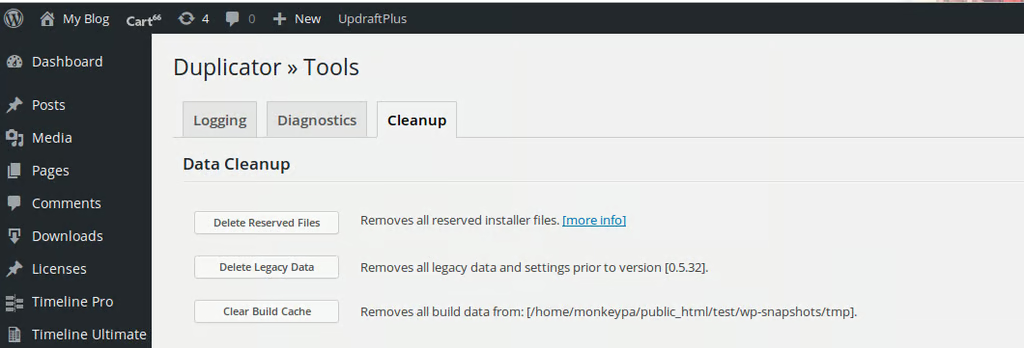
    However, it’s important to note that you do need an above\r\naverage technical understanding to make this tool work. Duplicator works by\r\ncreating packages you build by walking through a wizard. Once you’ve created a\r\npackage, you can download it as either an installer or an archive. Prior to do\r\nthis, you should work through the Tools section, where you can view logs, check\r\ndiagnostics, and use cleanup tools.

  • CYAN Backup

    CYAN Backup

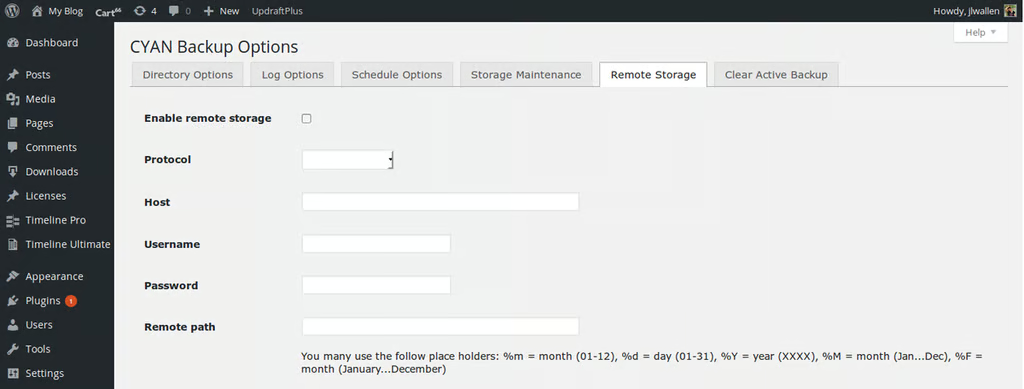
    Although CYAN doesn’t enjoy cloud support, it does include\r\nFTP, FTPS, and SFTP. So if you have an FTP site available, you can set up CYAN to\r\nautomatically back up your WordPress installation to that destination. Once you\r\nhave it set up, click Backup Now! to kick off your first backup. You can also\r\nset up a simple schedule for automated backups.

1 of 6
Jack Wallen

Jack Wallen is an award-winning writer for TechRepublic, The New Stack, and Linux New Media. He's covered a variety of topics for over twenty years and is an avid promoter of open source. For more news about Jack Wallen, visit his website jackwallen.com.