Windows 10: What's in the new Start menu and other Creators Update features - TechRepublic

Windows 10: What’s in the new Start menu and other Creators Update features

  • desktop-1.png

    The evolution of Windows 10

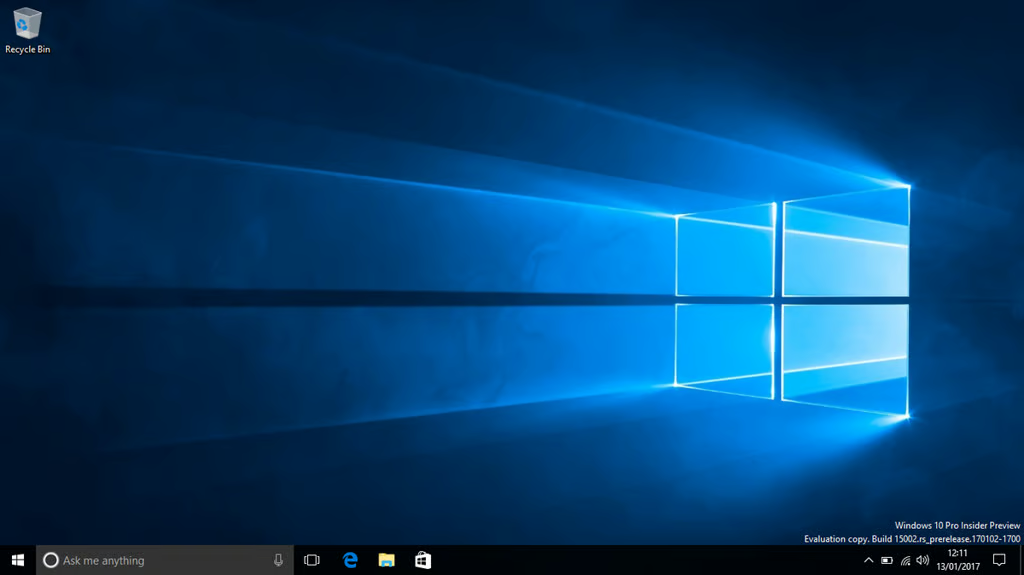
    Windows 10 will soon be getting a new look and feel, courtesy of the forthcoming Creators Update.

    The extent of those tweaks is starting to become apparent from the early builds of Windows released under the Insider program.

    Here’s how the Windows 10 will change after the update arrives in April, beginning with tweaks to the Start Menu.

    This gallery is also available as a single-page article.

    <p>The next major update to Windows 10, the forthcoming Creators Update, will once again change the look and feel of Microsoft's OS. </p>
  • windows10folder.png

    Start menu folders

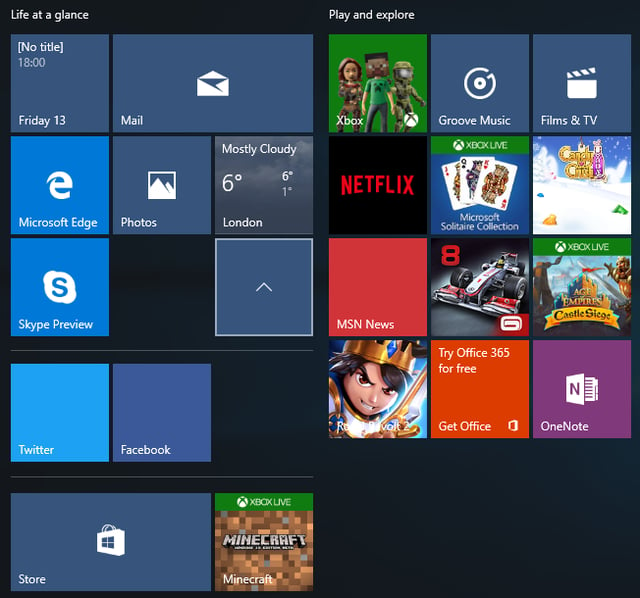
    This new look Start menu allows users to group tiles into folders, providing a new way to organize and personalize the menu.

    Clicking on these new Start menu folders creates a drop down panel that shows the tiles inside, as seen here with the Twitter and Facebook tiles.

    Image: Nick Heath / TechRepublic
  • start-folder-2.png

    Drag and drop

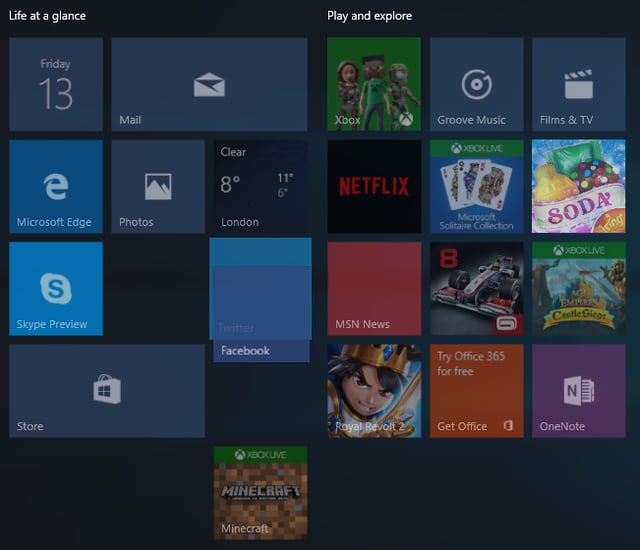
    Tile folders are created by dragging and dropping tiles on top of each other, as seen here.

    Image: Nick Heath / TechRepublic
  • tab-preview.png

    Tab preview

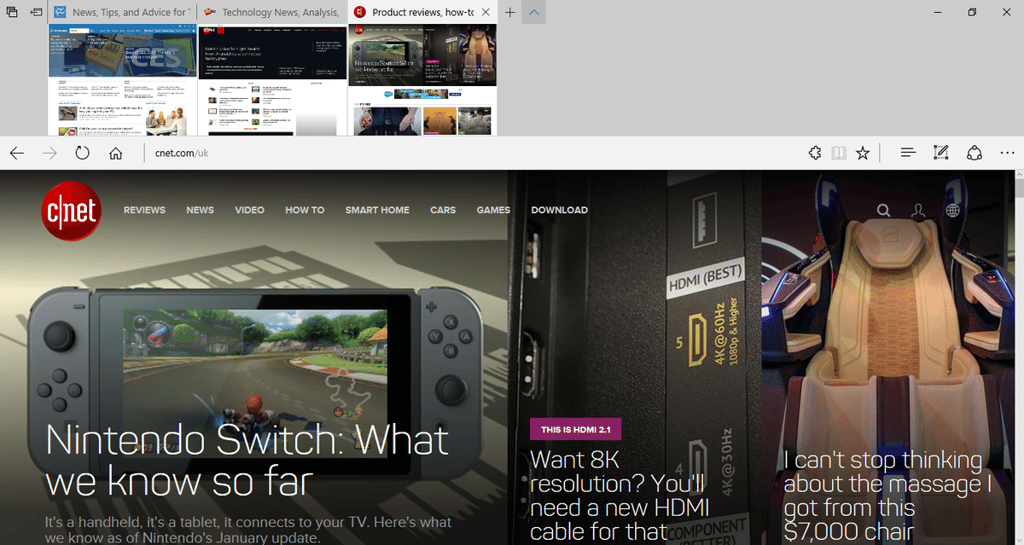
    The Tab preview bar in the Edge browser gives users more information about the tabs they have open.

    The horizontally scrollable bar presents each open tab as a thumbnail image. The preview bar drops down when the user clicks the chevron icon next to the tabs.

    Image: Nick Heath / TechRepublic
  • tabssetaside.png

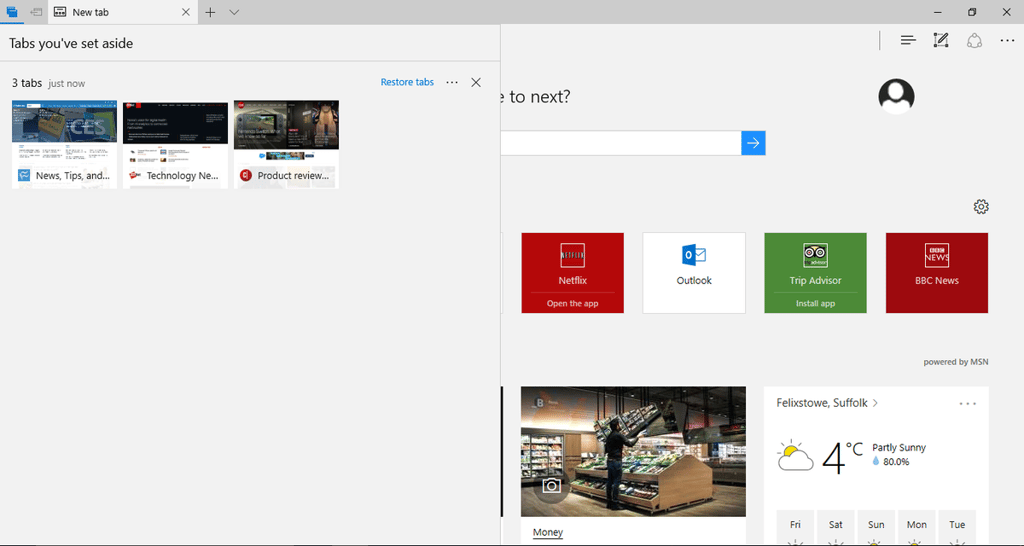
    Set tabs aside

    To help keep track of tabs in the Edge browser, tabs can now be set aside with a click of a button, and then restored from a side menu at a later time. These tabs can also be shared with other apps via the ‘Share tabs’ option in the side menu.

    Image: Nick Heath / TechRepublic
  • edge-ink.png

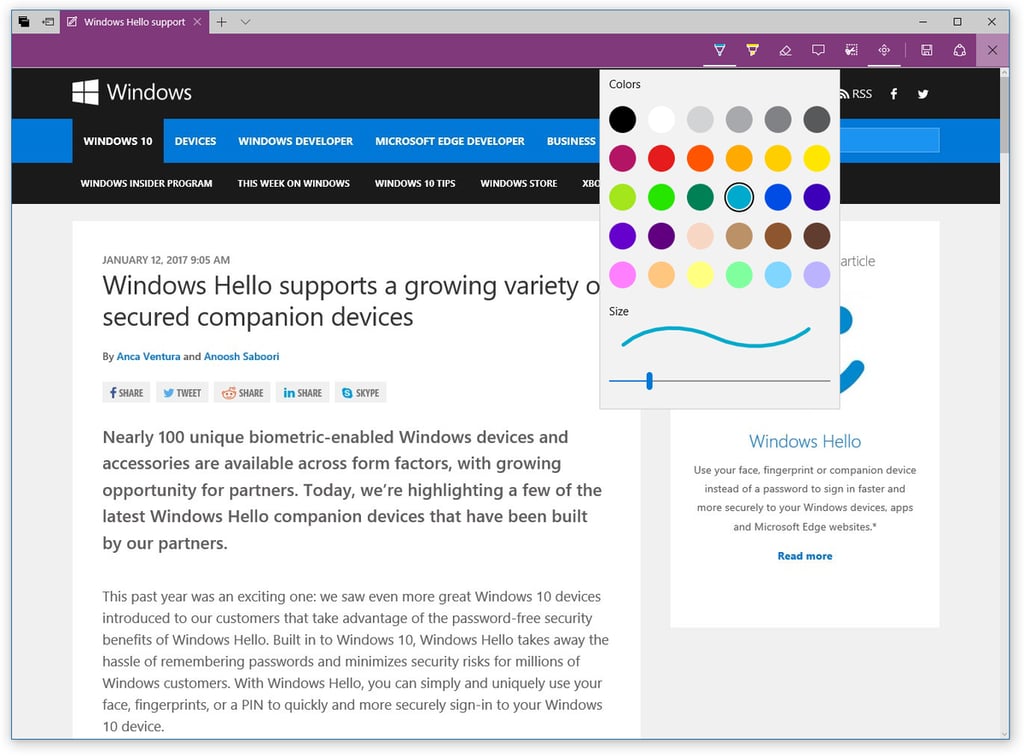
    Better Web Notes

    For those wanting to scribble on and otherwise annotate web pages in Microsoft Edge, the browser’s Web Note feature now includes the full set of Windows Ink colors, as well as the new slider.

    Image: Microsoft
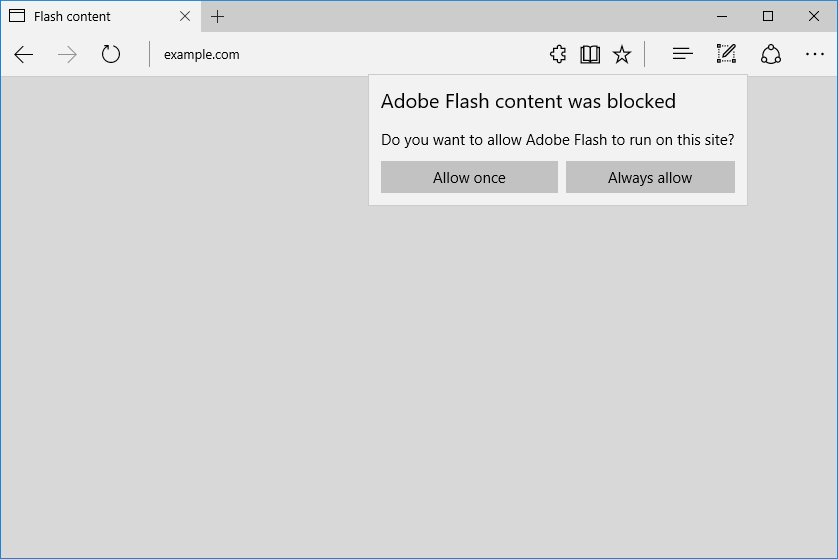
  • Flash blocking

    Microsoft Edge will block Flash content running on untrusted websites, with users now having to click to run Flash from these sources. Users will also be able to choose to have Flash always play on specific sites.

    The move is aimed at improving security, stability and performance and echoes moves made by other major browser makers.

    Image: Microsoft
  • edge-import.png

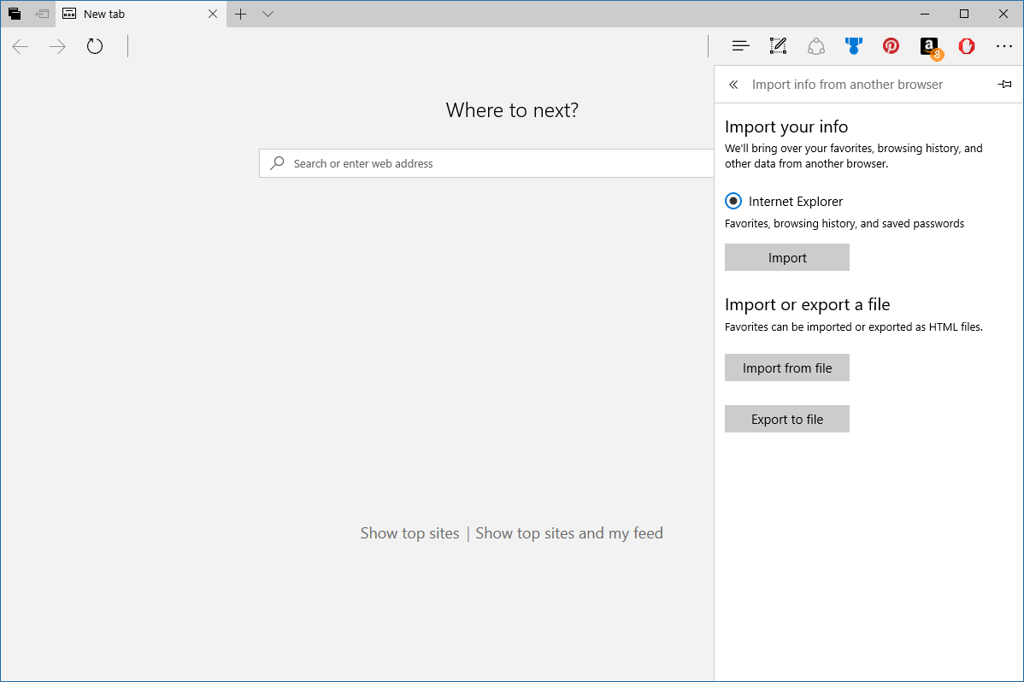
    Import from other browsers

    Not many people may be moving to Windows 10’s Edge browser, but in case it takes your fancy, you’ll now be able to choose “Import from another browser” button in Edge’s Settings menu.

    The feature will bring across your favorites, browsing history, saved passwords, and other data.

    Image: Microsoft
  • walletui.png

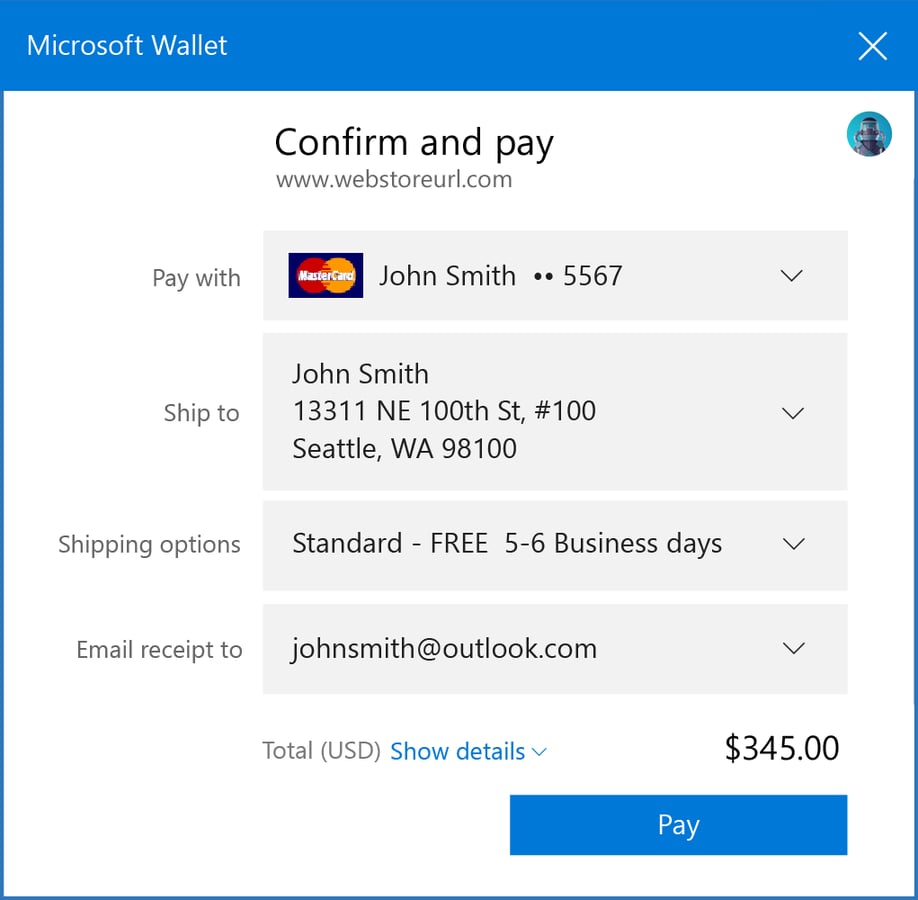
    Microsoft Wallet

    Microsoft Edge includes preview support for the new Payment Request API, which will allow shopping sites to retrieve a user’s payment and shipping information from Microsoft Wallet.

    However, the feature is currently in a preview state for developers and will not process payment information until a future release.

    Image: Microsoft
  • edge-jumplist.png

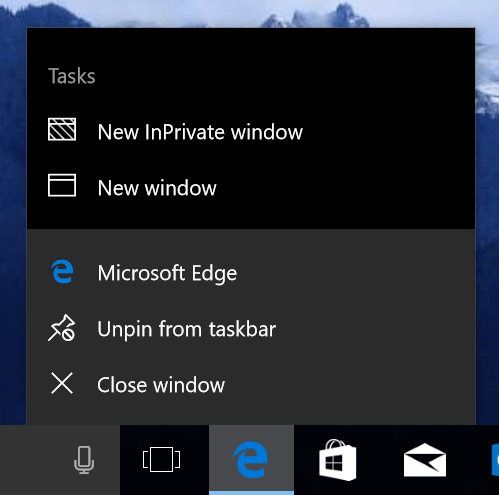
    Edge jumplist

    Those wanting to launch a new window for Microsoft Edge can now do so by right clicking on the Edge icon in the Taskbar.

    Image: Microsoft
  • store-themes.png

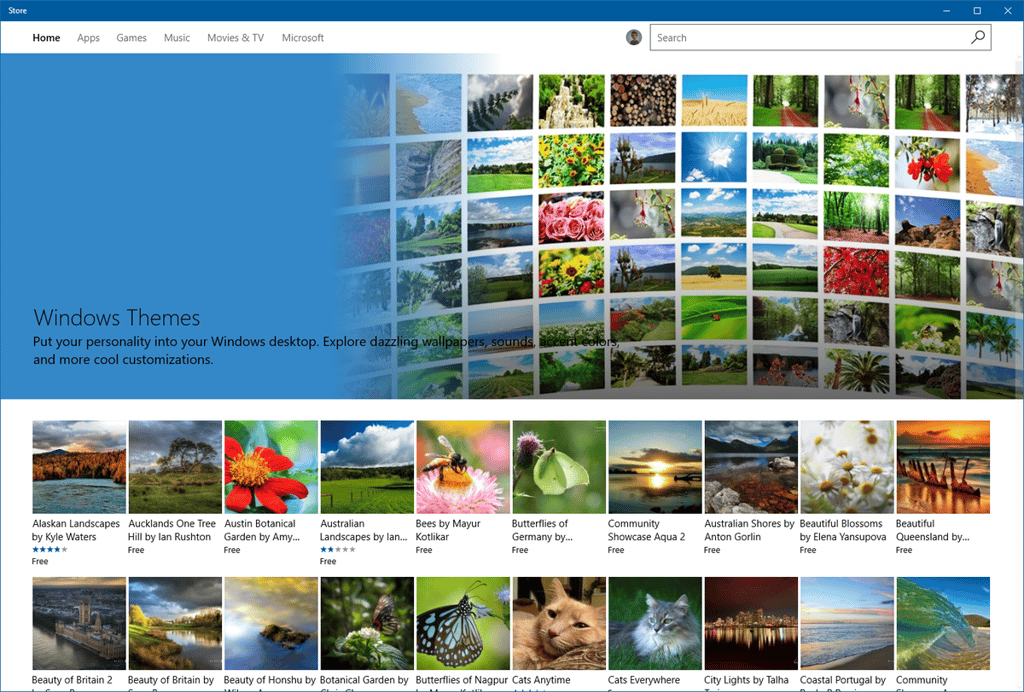
    Windows themes

    Following the Creators Update, it will be easier to add a theme to your Windows 10 desktop.

    A large number of themes will be available to download from the Windows Store, and themes will be able to be managed via the Personalization section of the Settings menu.

    Image: Microsoft
  • new-oobe.png

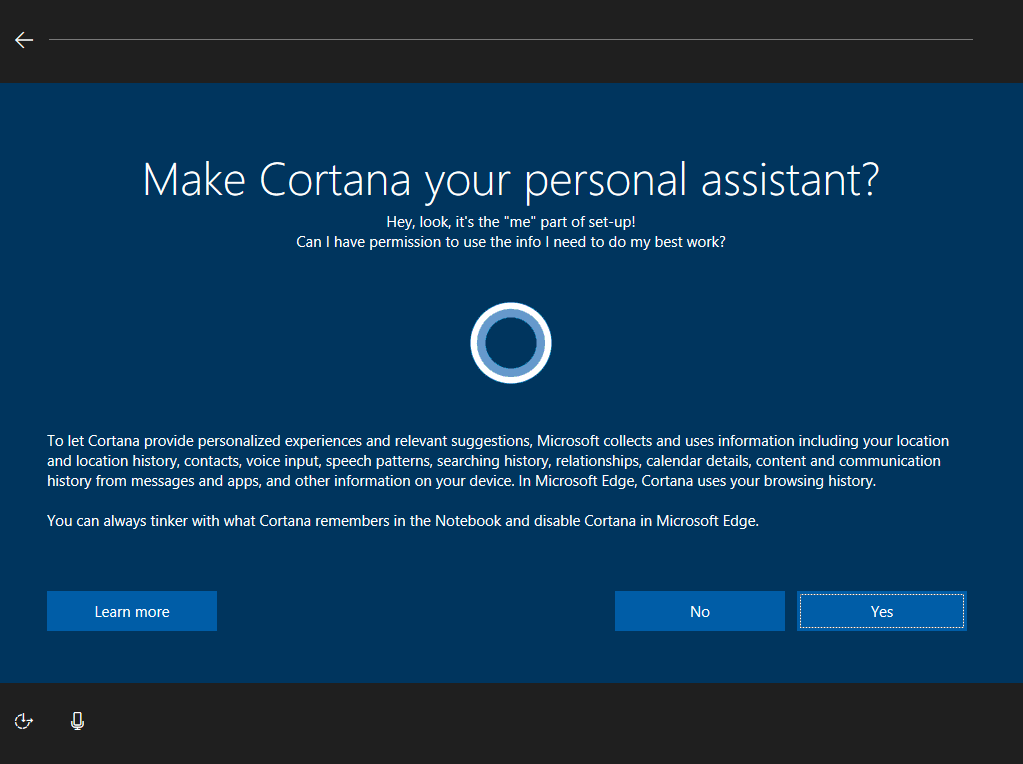
    More Cortana

    In an effort to simplify the process of getting a Windows 10 PC up and running, users will be able to set up their machine by answering questions from the virtual assistant Cortana.

    Swapping between Windows 10 machines and picking up where you left off will also become easier.

    For example, when swapping between a laptop and desktop, Cortana will display quick links in the Action Center to the Microsoft Edge websites and SharePoint, or other cloud-based, documents you used most recently.

    Image: Microsoft
  • cortana-using-headers-205x300.png

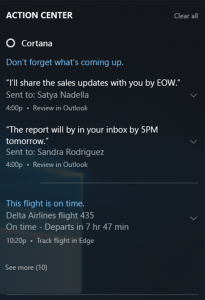
    Clearer notifications

    The Action Center has also undergone various changes to make notifications clearer.

    Notifications from apps and services can now be subdivided into groups under separate headers, to help users distinguish between messages related to different topics, for instance between Cortana notifications related to emails and those mentioning upcoming flight times.

    Apps can now also display a progress bar in the notifications panel, showing information such as download completion.

    Image: Microsoft
  • ethernet-metered.png

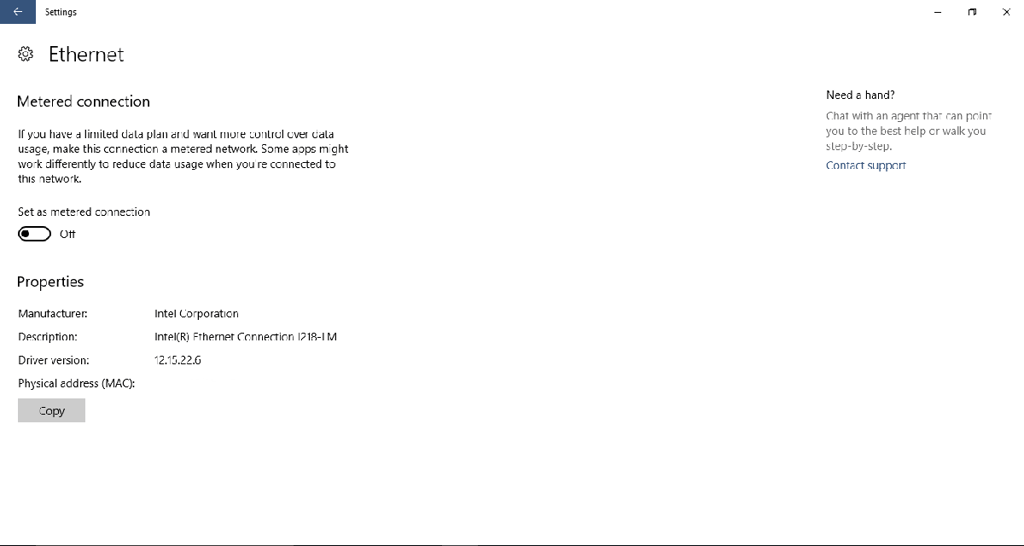
    Metered Ethernet

    Those worried about the amount of data being consumed by Windows 10 frequent updates can now restrict downloads by selecting the ‘Metered connection’ option for PCs connected to the internet via Ethernet.

    Image: Nick Heath / TechRepublic
  • bluelight.png

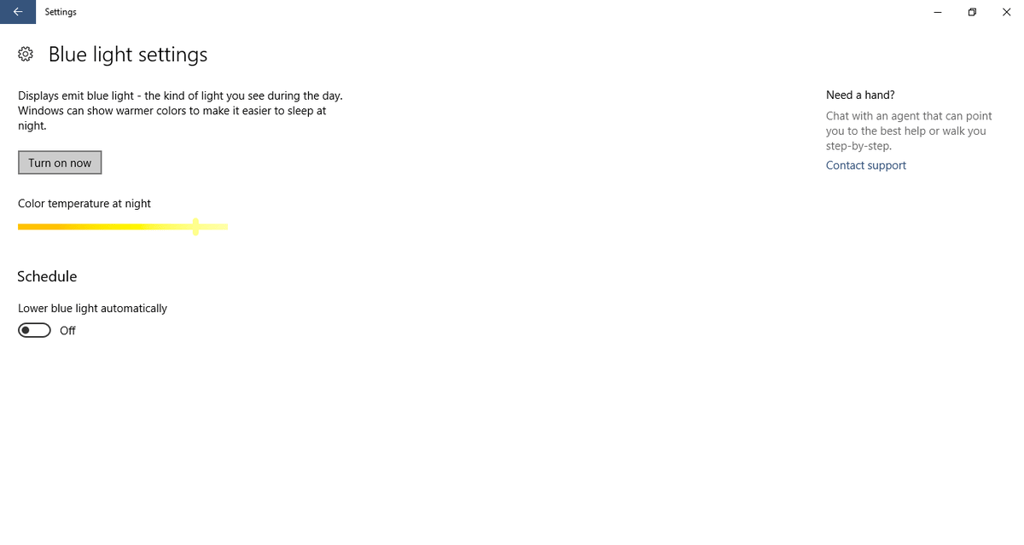
    Blue light reduction

    Exposure to blue light from computer screens late at night can supposedly interfere with the body’s sleep cycle.

    To counter this, Windows will allow users to lower the amount of blue light emitted from the PC at night, set their own schedule for reducing blue light via Settings -> System -> Display or manually tweak levels via Settings->Notifications & actions.

    Image: Nick Heath / TechRepublic
  • display.png

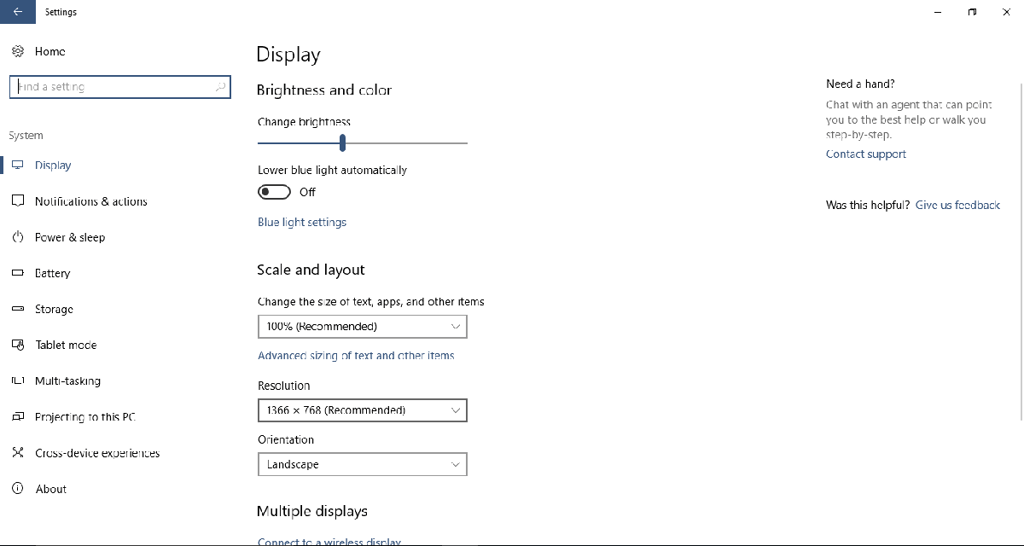
    Revamped Display settings

    The Display Settings page has been refreshed to make the layout clearer and easier to use, with the ability to change resolution from the Display Settings page.

    Image: Nick Heath / TechRepublic
  • lunar-calendar.png

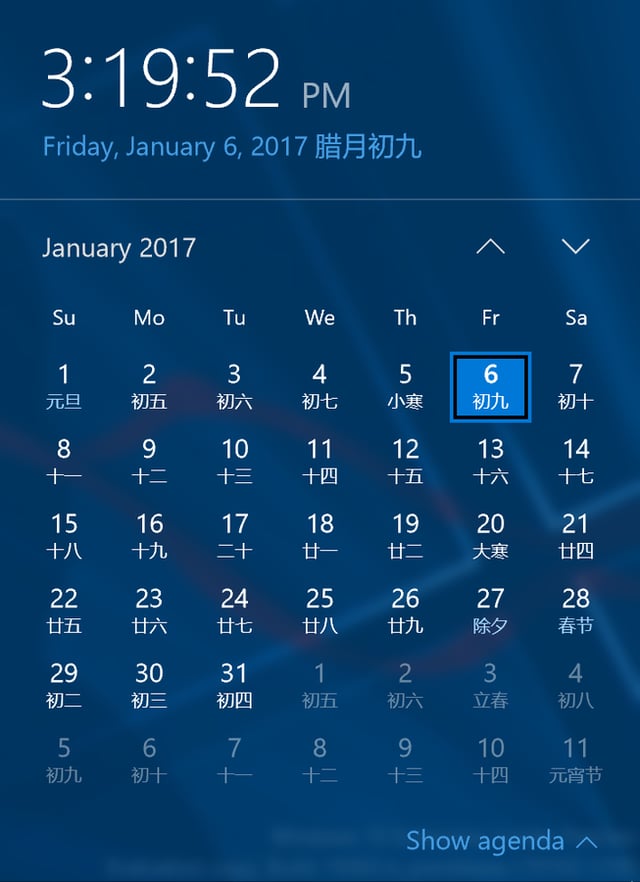
    Chinese lunar calendar

    The Taskbar calendar can now be configured to show the Chinese lunar calendar alongside the Gregorian date. This can be enabled via Settings > Time & Language > Date & Time.

    Image: Nick Heath / TechRepublic
  • devices.png

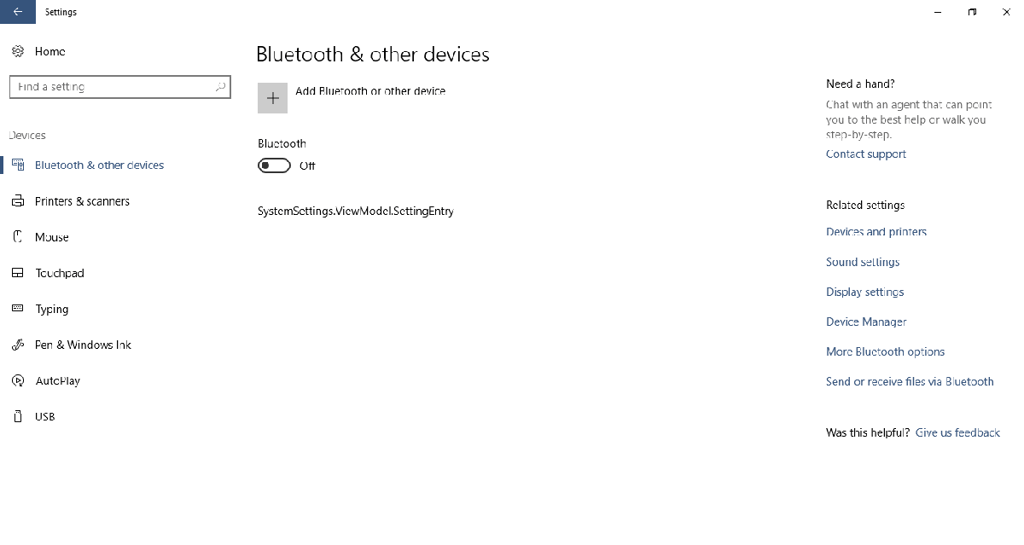
    All devices together

    The new Device Settings page groups together Bluetooth and connected devices page to provide a single menu for managing devices and peripherals.

    Image: Nick Heath / TechRepublic
1 of 18
Nick Heath

Nick Heath is a computer science student and was formerly a journalist at TechRepublic and ZDNet.