


(billed annually) |
||
|---|---|---|
Why you can trust TechRepublic
I’ve spent the past four years testing nearly 20 project management platforms, and some of them have become part of my workflow. Writing dozens of PM software guides for businesses of all sizes taught me what individuals and teams need from these tools beyond the marketing pitch. I also build custom scoring rubrics for each review to ensure fairness and that selected platforms get evaluated on the same criteria.
Marianne Sison
Senior Staff Writer for Project Management
- 1. ClickUp: Best all-in-one AI workspace
- 2. Asana: Best task management
- 3. monday work management: Best for visual project tracking
- 4. Wrike: Best for managing high-volume projects
- 5. Smartsheet: Best for spreadsheet users
- 6. Jira: Best bug & issue tracker
- 7. Zoho Projects: Best for affordability
- 8. Notion: Best personal goal tracker
- How I evaluated the best project management software
- How to choose the best project management software
- FAQs
1. ClickUp: Best all-in-one AI workspace

My rating: 4.88 out of 5
Why I chose ClickUp
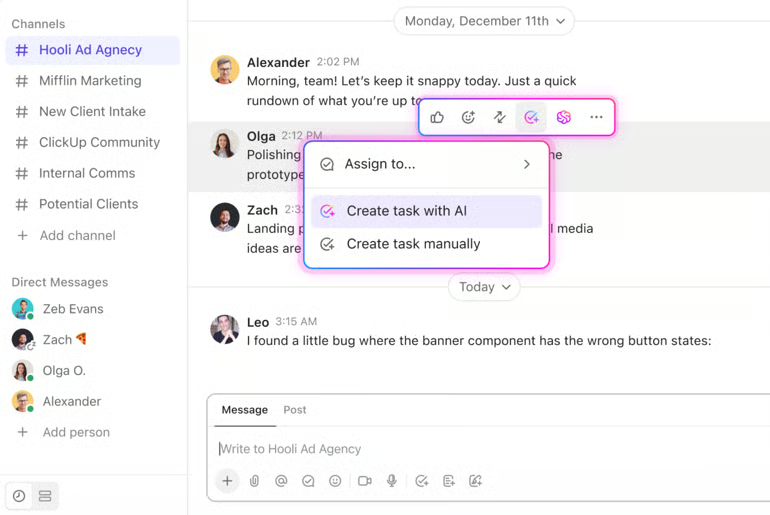
ClickUp earns my top recommendation for tech-savvy teams that want a single AI workspace running across tasks, docs, chat, and calendar. The subscription includes leading chatbot models, including GPT and Claude, and it switches between them based on the request. For teams that manage most of their work in ClickUp, Brain² references workspace activity instead of treating each interaction as a separate session.
Brain² remembers a user’s role and communication preferences, then applies that context to later tasks and conversations. Multiplayer mode adds this context across the teams so that responses can reference shared workspace history. Users can also ask Brain² to create deliverables such as slide decks and dashboards using workspace data.
Advanced AI tools, including Super Agents and AI automations, require ClickUp’s Everything AI plan at $28 per user per month. Additional usage draws from a metered credit pool, which can make AI spending less predictable as adoption increases. In this aspect, Zoho Projects is more affordable, with Zia AI included in paid plans starting at $4 per user per month and no separate metering for standard AI use.
| Pros | Cons |
|---|---|
|
|
Pricing
- Free plan: Includes unlimited tasks and collaborative Docs, with Kanban boards for basic project tracking
- Unlimited: $7/user/month – Adds unlimited storage and Gantt charts, plus time tracking for project control
- Business: $12/user/month – Adds advanced dashboards and workload management with 5,000 monthly automation actions
- Enterprise: Custom pricing – Adds SAML SSO and audit logs, with expanded automation capacity for larger organisations
AI pricing note: Brain AI costs $9/user/month, while Everything AI costs $28/user/month with additional capabilities and credits.
Standout features
- Visualize project schedules through customizable List and Gantt charts.
- Monitor portfolio performance through real-time dashboards with interactive reporting cards.
- Use ClickUp Brain to generate tasks from project documents or team conversations.
- Convert ideas from ClickUp Whiteboards into project tasks.
2. Asana: Best task management

My rating: 4.82 out of 5
Why I chose Asana
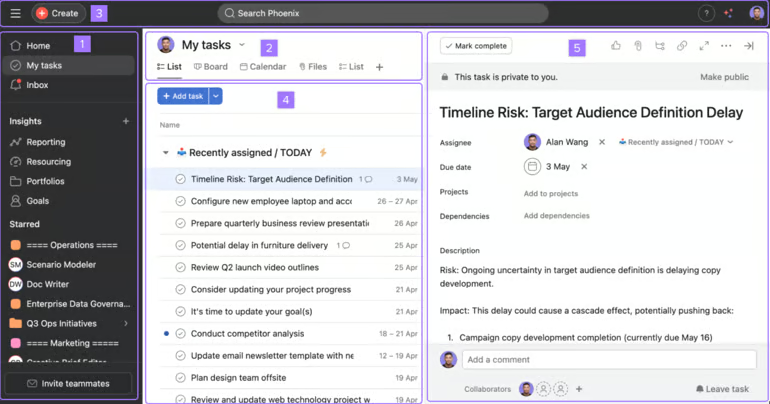
Asana is well suited to teams that want AI embedded in task workflows rather than confined to a separate chat interface. With AI Studio, users can describe what they need in plain language and have Asana create tasks with drafted titles and descriptions, suggest due dates, or prioritize work according to deadlines and blockers.
For automated workflows, AI Teammates can participate in projects alongside employees and accept assigned tasks. AI Studio, on the other hand, handles recurring processes such as status updates and approval routing once the appropriate triggers are configured.
The main consideration with Asana is cost as AI usage increases. AI Studio uses a metered credit pool included with each plan, and teams with heavier automation volumes may need to purchase a higher credit tier after exhausting their allowance.
Smartsheet is a good Asana Alternative that takes a simpler approach to automation costs because unlimited automations are included in the per-user fee, with no additional automation credits required as usage increases.
| Pros | Cons |
|---|---|
|
|
Pricing
- Free plan: Supports two users with unlimited tasks and projects across list or board views
- Starter: $10.99/user/month – Adds Gantt planning and reporting dashboards with unlimited automation rules
- Advanced: $24.99/user/month – Adds portfolios and workload management for projects across departments
- Enterprise: Custom pricing – Adds SAML authentication and capacity planning with central workflow controls
- Enterprise+: Custom pricing – Adds data residency and audit logs for stricter compliance requirements
AI pricing note: AI Studio Basic is included with paid plans
Standout features
- Deploy AI Teammates to complete assigned work within existing project permissions.
- Connect organisational goals to the projects responsible for delivering them.
- Build repeatable processes through visual workflows with conditional logic.
- Review team capacity through workload views before reallocating task assignments.
3. monday work management: Best for visual project tracking

My rating: 4.74 out of 5
Why I chose monday work management
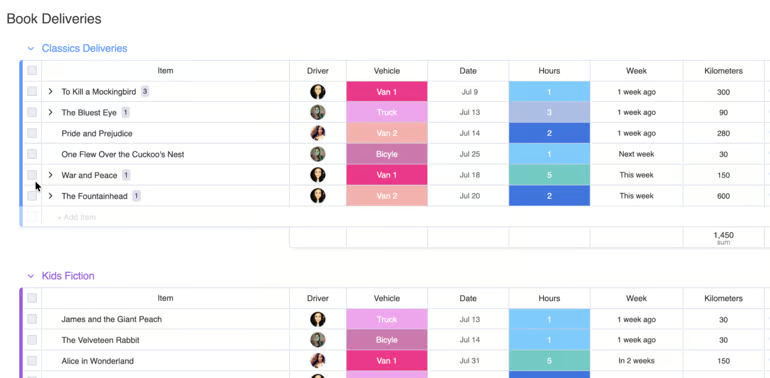
monday work management works well for teams that prefer to monitor projects visually before examining individual task details. A single board can support up to 100 views, with each view presenting the same project data in a different format. For example, a product launch can use a Gantt chart to review the schedule, then switch to Kanban when the team needs to track work by status.
For faster setup, monday’s AI assistant, Sidekick, can create a new view from a plain-language request, although this capability is limited to supported widget types. Once a team settles on a preferred view, the board owner can lock it against edits or pin frequently used views for quicker access. Dashboards support progress reviews by combining project data across multiple boards into a visual summary.
Export options are more restrictive. Only table views can be exported to Excel, and the exported file does not retain settings such as grouping or sorting. Other view types cannot be exported to Excel. Smartsheet handles spreadsheet-based reporting differently because its grid-based project data can be exported to Excel with formatting preserved.
| Pros | Cons |
|---|---|
|
|
Pricing
- Free plan: Includes up to two seats, three boards, and three collaborative documents
- Free trial for paid plans: 14 days for the Pro plan
- Basic: $9/seat/month – Adds unlimited work items and viewers with 1,000 monthly AI credits
- Standard: $12/seat/month – Adds Gantt planning and guest access with 250 monthly automation actions
- Pro: $19/seat/month – Adds private boards and time tracking with 25,000 monthly automation actions
- Enterprise: Custom pricing – Adds portfolio management and advanced permissions with expanded automation capacity
AI pricing note: Paid plans include monthly AI credit allowances. Additional credits are available for purchase.
Standout features
- Consolidate data from multiple boards into executive-level dashboards.
- Automate routine updates through trigger-based recipes without writing code.
- Create specialized AI agents that monitor projects or prepare status reports.
- Collect internal requests through WorkForms that populate connected boards.
4. Wrike: Best for managing high-volume projects

My rating: 4.63 out of 5
Why I chose Wrike
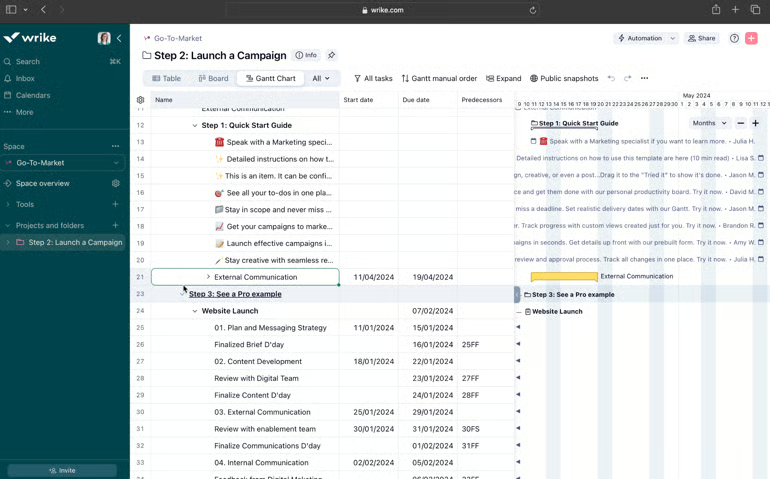
Wrike’s enterprise project platform is ideal for managing a high volume of projects across several teams or clients. With unlimited folders and projects, teams can organize work into tasks and subtasks without changing how they manage projects as volume increases.
To reduce repeat setup, Wrike Blueprints let teams save a project configuration and reuse it whenever the same type of work comes up. For tracking labor-intensive tasks, workload charts show when someone has too much assigned work, which gives managers time to redistribute tasks. Dynamic request forms also help with intake because new requests are sent automatically to the appropriate queue.
Scaling with Wrike can be costly due to the seat-block pricing. The Business plan requires seats to be purchased in blocks of 25, with annual-only billing and no monthly option. Zoho Projects uses a more straightforward per-user pricing, so teams can add seats one at a time as headcount changes.
| Pros | Cons |
|---|---|
|
|
Pricing
- Free plan: Includes task management through board and table views
- Free trial for paid plans: 14 days
- Team: $10/user/month – Adds interactive Gantt charts and shareable dashboards for up to 15 users
- Business: $25/user/month – Adds reusable workflows and AI agent actions for up to 200 users
- Pinnacle: Custom pricing – Adds capacity planning and project budgeting with advanced reporting
- Apex: Custom pricing – Adds higher AI allowances and cross-platform workflow connections
AI pricing note: AI Essentials are included with Team. Business and higher plans include AI Elite actions. Additional AI Elite action packs use custom pricing.
Standout features
- Use Work Intelligence to identify project risks and produce progress summaries.
- Standardize work intake through dynamic request forms with conditional questions.
- Review creative assets through visual markup with version comparison.
- Analyze project performance through interactive business intelligence reports.
5. Smartsheet: Best for spreadsheet users

My rating: 4.58 out of 5
Why I chose Smartsheet
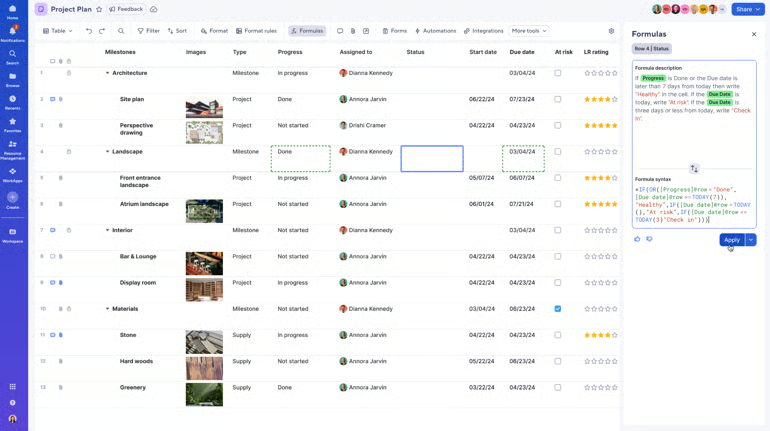
Smartsheet is designed for teams accustomed to working with rows, columns, and spreadsheet formulas. Its formulas use cell references and familiar operators such as + and <, while standard functions such as SUM and AVG work much like they do in Excel. For hierarchical project data, Smartsheet also provides functions such as CHILDREN and ANCESTORS, which reference information across parent and child rows.
For calculations that apply across an entire field, users can create a formula in one cell and convert it into a column formula. Smartsheet then applies the calculation to existing rows and automatically extends it to new ones. Absolute references use a dollar sign to keep a specific cell fixed as the formula carries down the column. Enterprise users can also ask its built-in AI to generate formulas from plain-language instructions.
One thing to note is that formulas must be created and edited within the sheet, while reports and dashboards can only display their results. Certain fields, including Start Date and Predecessors, cannot contain formulas on any plan. Notion handles formulas differently by attaching them to database properties, so the calculation remains available across views that reference the same database.
| Pros | Cons |
|---|---|
|
|
Pricing
- Free plan: Not available
- Free trial for paid plans: 30 days
- Pro: $9/member/month – Adds unlimited sheets and project views with 250 monthly automation actions
- Business: $19/member/month – Adds workload tracking and administrative controls with unlimited automations
- Enterprise: Custom pricing – Adds portfolio management and SAML SSO with central plan administration
- Advanced Work Management: Custom pricing – Adds portfolio provisioning and controlled data sharing across business systems
AI pricing note: Conversational AI capabilities are included from the Pro plan.
Standout features
- Manage project data through a spreadsheet-style interface with cell-level formulas.
- Switch to Gantt view to examine dependencies and identify the critical path.
- Ask Smart Assist to summarize project health or recommend follow-up actions.
- Generate stakeholder dashboards from project data through natural-language prompts.
6. Jira: Best bug & issue tracker

My rating: 4.43 out of 5
Why I chose Jira
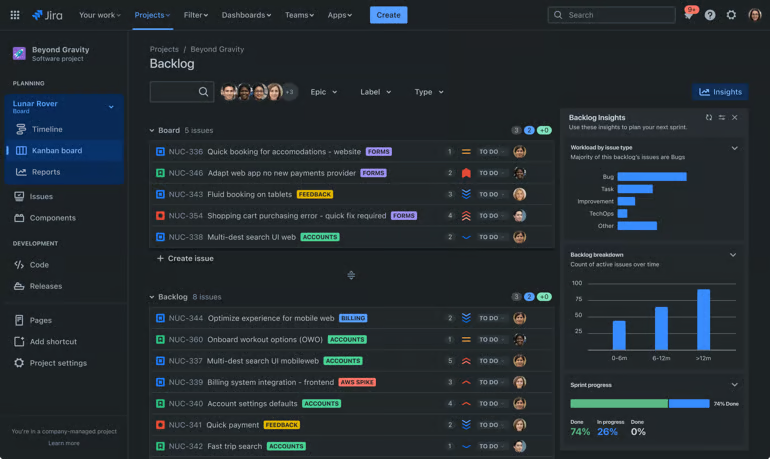
Jira is well suited to engineering teams that need bug reports for recording diagnostic information, such as severity and affected version, alongside steps for reproducing the issue. Each work item type can also follow its own custom workflow, so bugs can move through a different set of statuses than feature requests within the same project.
Once a bug enters the backlog, teams can drag it into the to-do queue when it is ready for development. Automation rules can handle the initial assignment based on a component or label, and Jira provides a prebuilt rule template for this process. Development activity can then remain connected to the original ticket. For example, a developer can create a Bitbucket branch from Jira, while the ticket reflects progress as the code moves through pull request, merge, and deployment.
However, automation limits become more restrictive as rule volume increases. Jira Standard includes 1,700 rule executions per month across the site, while Premium increases the allowance to 1,000 executions per paid user each month. Zoho Projects provides a larger automation allowance at a comparable price point, with 50,000 monthly credits on Enterprise and 500,000 on Ultimate.
| Pros | Cons |
|---|---|
|
|
Pricing
- Free: Up to 10 users — Includes reports, dashboards, unlimited projects, forms, 2GB storage, and project views (backlog, list, board, timeline, and summary)
- Standard: $9.05/user/month — Adds AI assistant, user roles, external collaboration, 250GB storage, and 1700 automation rule runs
- Premium: $18.30/user/month — Adds dependencies, custom approvals, unlimited storage, and 1,000 rule runs per user
- Enterprise: Custom — Adds advanced admin controls and security, cross-product insights, and unlimited automation rule runs
AI pricing note: Rovo and Jira’s integrated AI capabilities are included with Standard and higher plans.
Standout features
- Set up Scrum boards based on software issue types
- Automate issue transitions through rules based on project events.
- Use Rovo agents to search project information or support automated workflows.
- Evaluate sprint performance with agile reports that show real-time project data.
7. Zoho Projects: Best for affordability

My rating: 4.13 out of 5
Why I chose Zoho Projects
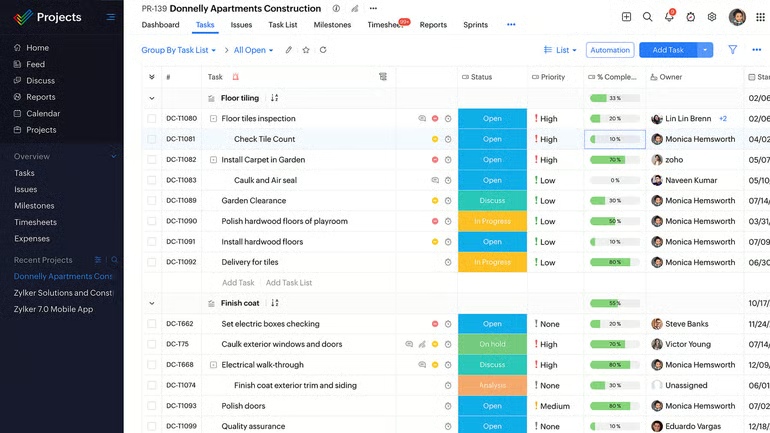
Zoho Projects stands out for its low entry cost, especially for smaller teams with limited budget. Its free plan supports five users and three projects with 5GB of storage, while paid plans start at $4 per user per month. Compared with many competing platforms, teams can move to a paid plan without a substantial jump in per-user costs.
At $4 per user per month, Premium includes unlimited projects and timesheets, plus workload reporting and Zia AI features. Organizations that need strict admin controls can move to Enterprise for $9 per user, which adds SSO, two-factor authentication, and custom domains. Automation allowances vary by tier, however, with monthly limits ranging from 5,000 actions on Premium to 500,000 on Ultimate. Teams that expect frequent automated workflows should estimate their usage before selecting a plan.
Some project controls require a higher subscription. Critical path analysis, baselines, and custom fields become available on Enterprise and above, while more extensive reporting also requires an upgrade. For teams that prioritize resource management at a similar price point, ClickUp Unlimited includes native time tracking and custom automations.
| Pros | Cons |
|---|---|
|
|
Pricing
- Free plan: Supports five users and three projects with 50 monthly workflow executions
- Free trial for paid plans: 15 days
- Premium: $4/user/month – Adds unlimited projects and timesheets with 5,000 monthly workflow executions
- Enterprise: $9/user/month – Adds portfolio reporting and project baselines with 50,000 monthly workflow executions
- Ultimate: $14/user/month – Adds resource management and custom dashboards with 500,000 monthly workflow executions
AI pricing note: Zia capabilities are included with Premium and higher plans. The Free plan includes Zoho MCP Server access.
Standout features
- Design task processes through the drag-and-drop Blueprint editor.
- Use Zia to summarize discussions or generate tasks from project context.
- Record billable hours through time logs with approval workflows.
- Monitor project health through portfolio dashboards with budget reporting.
8. Notion: Best personal goal tracker

My rating: 3.98 out of 5
Why I chose Notion
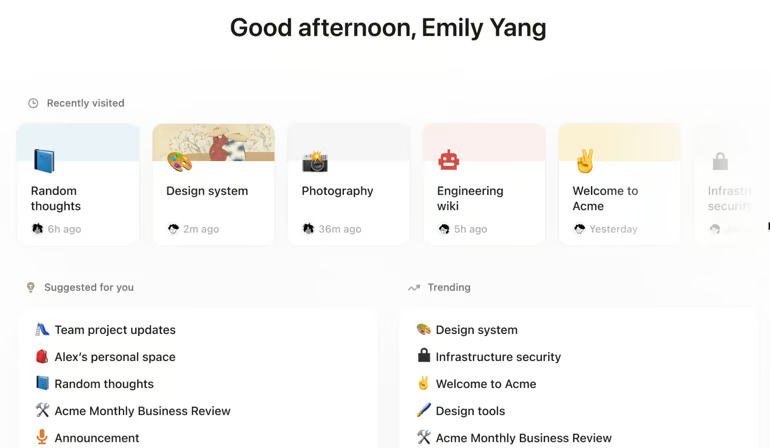
Notion works well for individual goal tracking because you can build a dashboard based on how you organize your work. For simple goals, basic to-do blocks may be enough. If you need deadlines, subtasks, or priority sorting, a database gives you more control. Properties such as Status, Date, and Select let you track progress and categorize goals without forcing you into a fixed template.
What gives Notion more appeal for solo users is the amount of context you can add into the same dashboard. Linked databases can surface company or team objectives alongside your own goals, so you can see how your work connects to broader priorities. Link previews can also pull updates from third-party tools such as Jira, Asana, or GitHub.
The downside is that Notion does not provide native progress bars for goals, OKR scoring, or automated check-in reminders. You have to build and maintain those elements yourself. monday.com may be a better choice if you want dedicated goal tracking with automatic progress percentages and milestone tracking already built in.
| Pros | Cons |
|---|---|
|
|
Pricing
- Free plan: Includes unlimited pages for individuals with basic task databases and 10 guests
- Plus: $10/member/month – Adds unlimited file uploads and database automations with custom forms
- Business: $20/member/month – Adds Notion Agent and AI Meeting Notes with SAML SSO
- Enterprise: Custom pricing – Adds SCIM provisioning and audit logs with zero AI data retention
AI pricing note: Notion’s main AI capabilities are included with Business and Enterprise. Free and Plus receive limited trials. Custom Agents cost $10 per 1,000 monthly Notion credits.
Standout features
- Manage project work through databases with configurable properties and relational records.
- Use Notion Agent to create or update project pages from workspace context.
- Automate recurring processes through Custom Agents that operate on a schedule.
- Search workspace content and connected applications through Enterprise Search.
How I evaluated the best project management software
To compile this list of the best project management software, I took into account a range of factors, from features and cost to user experience. I conducted testing to better understand each platform’s unique features and gain a firsthand understanding of their functionality, strengths, and weaknesses.
General features (25%): I started with core task management capabilities, such as subtasks, dependencies, and task commenting. I also reviewed reporting tools, dashboards, and the range of project views to see how each platform adapts to different project layouts.
Pricing (20%): I looked at whether each platform offers a free-forever plan or only a time-limited trial. I then compared entry and mid-tier monthly subscription costs, factoring in annual discounts and included features.
Advanced and niche features (20%): I examined resource and capacity planning alongside portfolio management to see how each platform handles multiple projects. I also tested each vendor’s integration with CRMs and video conferencing platforms, along with AI and automation capabilities.
Expert score (15%): I applied a professional assessment based on project performance, overall value, and user popularity. Each platform’s standout capabilities and usability informed the final rating.
Customer service and support (10%): I checked support availability by hours of operation and the range of support channels, including chat and phone. I also reviewed the vendor’s security practices and the depth of their knowledge base.
Ease of use (10%): I considered setup requirements and the technical skill needed to get started. For usability, I checked how users can quickly complete certain tasks such as adjusting workloads, defining task dependencies, configuring task automations, and linking multiple tasks.
How to choose the best project management software
To choose the best software for project management, start by shortlisting platforms that support your team’s workflows and required capabilities. Prioritize ease of adoption and long-term scalability, then confirm that the software provides suitable resource controls and security at a sustainable cost.
Below are the factors to evaluate when choosing the best project management software for your needs:
- User-friendliness: Look for an intuitive interface that your team can navigate with minimal training. Drag-and-drop functionality and visual layouts reduce the learning curve and speed up adoption.
- Customization: Prioritize tools that let you modify dashboards, task boards, and automation rules to match your workflows.
- Scalability: For growing teams, choose a platform that can handle larger datasets and more complex projects without affecting load times.
- Communication: Built-in chat, comment threads, and real-time notifications bring communication within the context of each task. If you regularly work with external contributors, confirm the platform supports guest access.
- Resource management: Match the tool to your use case. Resource allocation, time tracking, and workload management features vary widely across platforms, so identify which ones your team will use.
- Security and reliability: At minimum, look for data encryption, two-factor authentication, and access controls. If your team handles sensitive data, verify that the platform meets any compliance requirements relevant to your industry.
- Cost-effectiveness: Compare pricing plans across tiers and check for hidden costs such as charges for additional users or premium support. Customer reviews and case studies can help you assess whether the price reflects the actual value.
FAQs
What is the best project management software?
The best project management software depends on your team’s workflow. For example, monday work management appeals to beginners due to its visual layout, while Jira serves software delivery teams. Other options include ClickUp for AI-powered project tracking and Smartsheet for spreadsheet users.
How much does project management software cost?
Mainstream paid plans generally start at about $4 to $12 per user each month with annual billing. Advanced plans often cost $19 to $25 per user. Enterprise editions usually require a sales quote. Check seat minimums and usage allowances because AI credits or add-ons can increase the final cost.
Is free project management software enough?
Free project management software can support individuals or very small teams with basic task tracking. Most free plans restrict automation allowances or project reporting. A paid plan becomes more ideal when several departments share work, managers need portfolio oversight, or administrators require access controls.