

Asana is a task management application that helps business users organize their work. The app allows users to create projects, tasks, share updates and create archives of the entire process.
Asana is a great way to keep track of all your tasks, assign them to other people and then check on their progress. In this step-by-step article, you’ll learn how to create workflows in Asana. We’ll also show you how to create a project, add tasks and sections, and set due dates.
How to create customized workflows in Asana
Step 1: Sign in to your Asana account
Once you’ve installed the Asana app on your mobile device or opened the app on your web browser, sign in using the email address and password associated with your account. You can also sign up for an Asana account if you don’t have one yet.
SEE: Feature comparison: Time tracking software and systems (TechRepublic Premium)
The first screen will display your dashboard if you’re signed in or prompt you to log into your account if it’s been a while since you last logged in.
Step 2: Create a new project in Asana
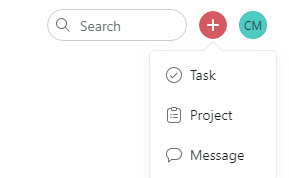
Click On the + Icon to Create A Project, A Task, Or A Message (Figure A).
Figure A
Enter the Project Title and click Create Project.
To start building a workflow, first, create a project. When you create a project, Asana will automatically create a task list inside of that project.
Click on Create Project and name it. Then select Create Task List.
3. Choose the default view for your new project in Asana
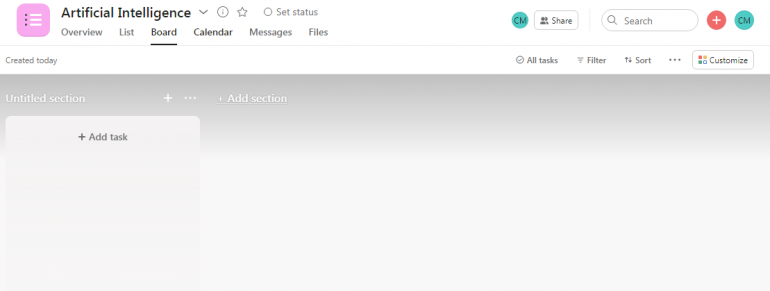
Select the default view for the new project from the list of options and click Save. You can choose the list or board option, as shown in Figure B and Figure C.
Figure B
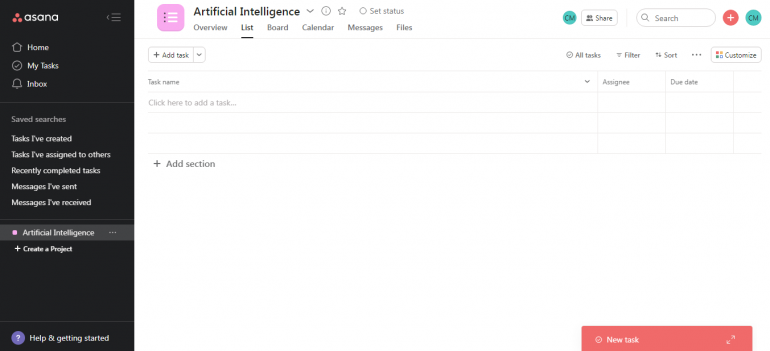
Figure C
Must-read developer coverage
- What Powers Your Databases? Take This DZone Survey Today!
- Microsoft’s Historic 6502 BASIC Code is Now Open Source
- TIOBE Index: Top 10 Most Popular Programming Languages
- TechRepublic Exclusive: AWS Says Entry-Level Workers Need ‘Curiosity’ In the Age of AI
Step 4: Create tasks and add them to your task list in Asana
In this step, you will create tasks within the task list created in Step 1. Once you develop the tasks for each activity or job, click on the gear icon in the top right corner of the screen and select Move Tasks In Progress To New Task List.
It will move all completed tasks into their task list so that they do not clutter up your main task list while still being accessible if needed later.
Step 5: Add sections in Asana
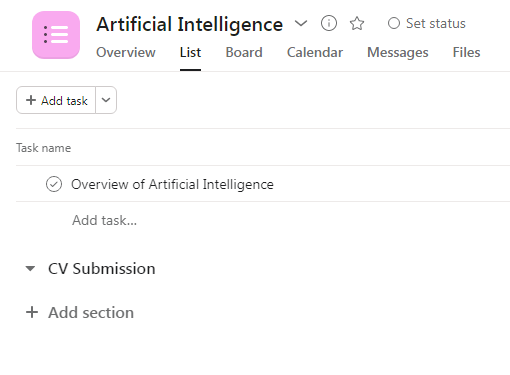
Add tasks for each section of your workflow, adding details and assigning them to people as needed. For example, if you want people to submit a CV as part of their application process, you can create a section called “CV” and add tasks like “Submit CV” and “Review CVs.”
You can also add due dates for each task so that everyone knows when they need to complete the task (Figure D).
Figure D
Step 6: Add dependencies in Asana
To start, you will have to set up your workflow with dependencies. This allows you to ensure that tasks happen in order of priority and do not get skipped.
When you add dependencies, it is necessary to allocate a number to each task. You can then use this number for other conditions or notifications within the same workflow.
Step 7: Add conditions in Asana
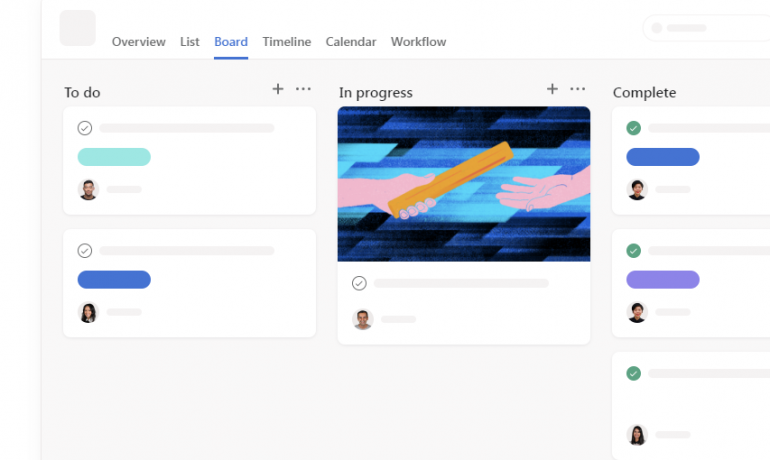
Conditions enable the project manager to validate the completion of a task before proceeding to the next stage of your process (Figure E).
For example, verifying the receipt of critical information from a customer before proceeding with a project. There are many different types of conditions – some are required fields and others are optional but recommended sectors when creating tasks within a project board.
Figure E
Step 8: Set due dates in Asana
Set due dates for each task by clicking on the three dots next to it and select Add Due Date from the drop-down menu that appears (Figure F).
Figure F

Step 9: Set up notifications in Asana
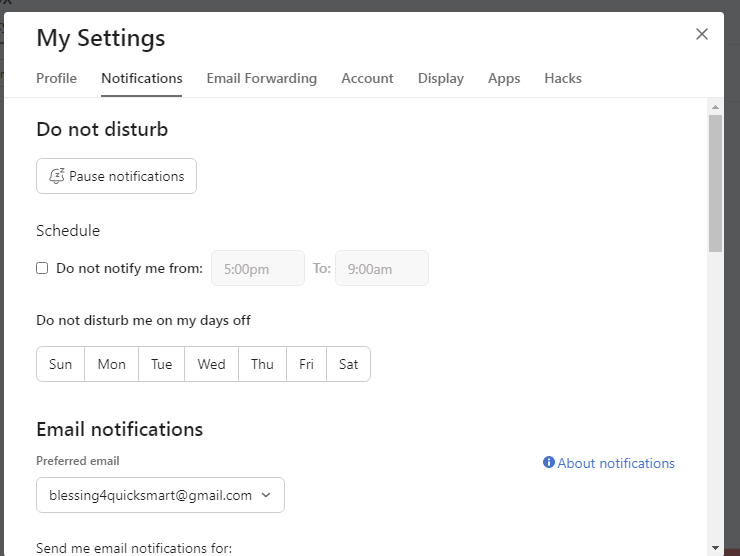
Notifications are messages sent out to team members once certain conditions have been met within a workflow.
By default, notifications are sent via email but this can be changed by clicking on Manage Notifications in the right-hand menu when creating or editing (Figure G).
Figure G
Step 10: Make your workflows in Asana available to others in your organization
If you want to share the task list with others in your company, ensure they are collaborators on the project. Then, select Organize from the project menu and choose Make A Copy from the drop-down menu (Figure H).
Figure H
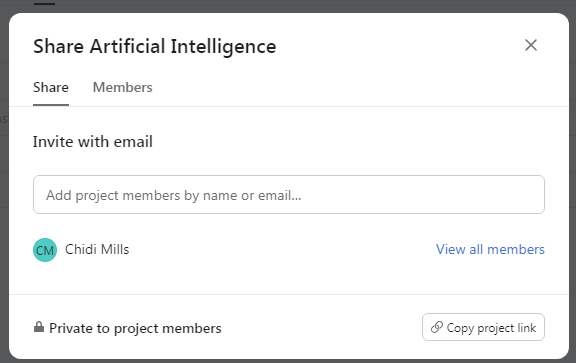
You can then give this copy a new name such as “Operations Team.” This will create a new version of the task that is only visible to people with access to it.
Conclusion
Getting your team on the same page is essential for ensuring you are all working towards the same goal. Whether you are managing a project for work or trying to get your homework assignment done, it is necessary to keep track of who is doing what. Because looking up every single member’s information can be tedious and take valuable time, setting up a workflow in Asana is necessary. Once you do, there are some triggers you can set to make things run more smoothly.
Read more about Asana with this comprehensive software review and a comparison with monday work management.