


Let me set the stage for you. You’re on vacation and you get the call: “There’s something wrong with the web server! You’ve got to do something!” All you have with you is your Android smartphone, and the web server isn’t attached to a remote tool such as TeamViewer. What do you do?
If you’re dealing with a LAMP server, you’re in luck. You install a secure shell app on your phone, connect to that server, and troubleshoot. First, you have to install an SSH tool on your device, and I’ve found one of the easiest to use telnet/SSH clients available. No bells and whistles — just Telnet or SSH connections in either landscape or portrait mode. That’s it. There are no settings, no configurations… nothing. But even without the extra features (it does, however, remember the last 10 commands used, once connected), this client makes connecting to your SSH-enabled server a snap.
Let’s walk through the process of installing Telnet/SSH Simple Client and connecting to an SSH-ready server.
Installation
The installation of this app is quite simple:
- Open the Google Play Store from your Android device
- Search for telnet ssh client
- Locate and tap the entry for Telnet / SSH Simple Client (by Advanced Planning Corp)
- Tap Install
- Read the permissions listing
- If the permissions listing is acceptable, tap Accept
- Allow the installation to complete
You should now find a launcher on your home screen. If not, open up your app drawer and locate a launcher labeled Telnet.
Usage
As I’ve mentioned, using this SSH client is quite easy. Once the app is opened, you’ll be greeted by a simple interface (Figure A).
Figure A
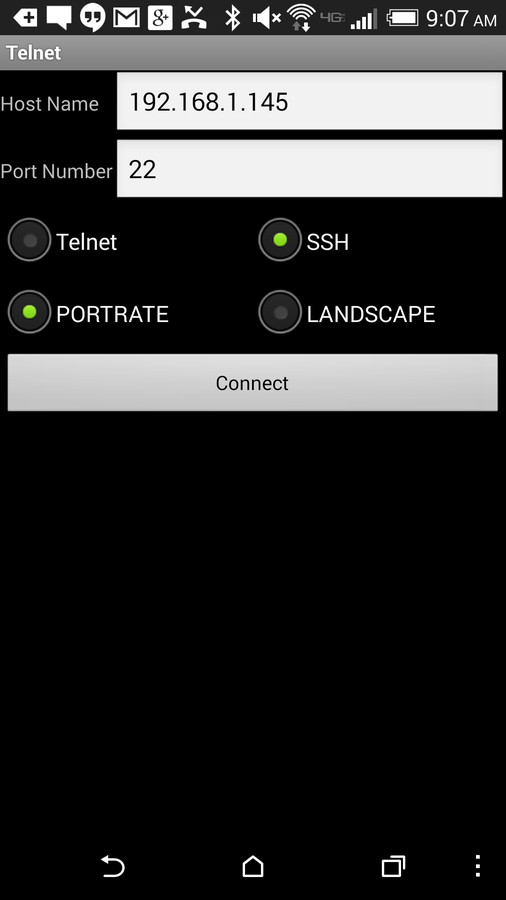
Telnet/SSH Simple Client running on a Verizon-branded HTC M8.
Connecting to an SSH server is easy. All you have to do is fill out the Host Name (or IP address), select the port number, select either Telnet or SSH, and choose portrait or landscape mode. You should notice, when you tap either Telnet or SSH, the port number does not automatically change. You have to manually change that. In case you’re unsure, Secure Shell’s default port is 22 and Telnet’s default port is 23.
Once you tap Connect, you’ll be prompted for a username and password (Figure B).
Figure B
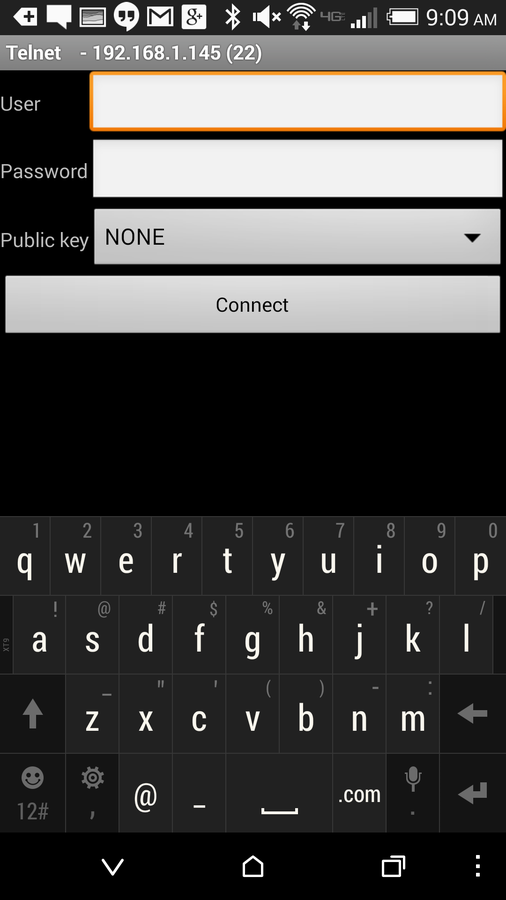
Entering the credentials for the server.
Tap the Connect button again, and you should find yourself at the server’s terminal prompt (Figure C).
Figure C
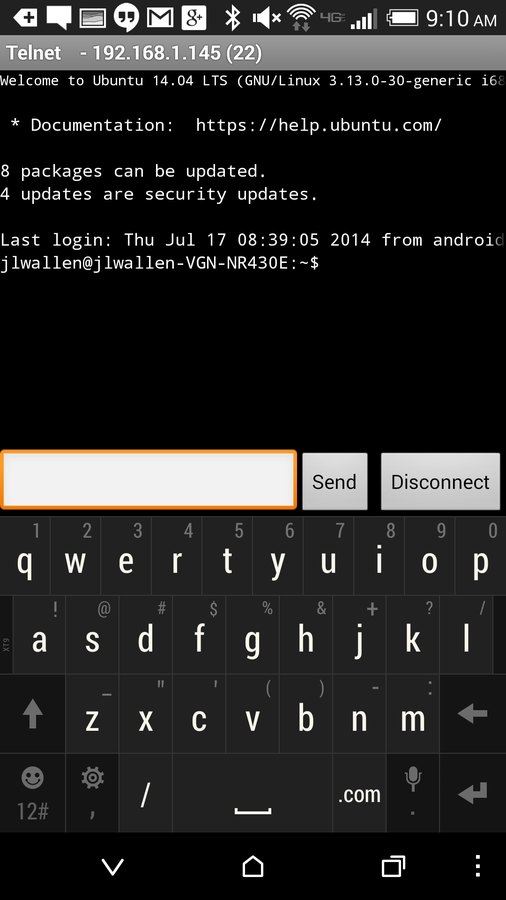
Connected to the server through the SSH client.
Once at the terminal prompt, you can send commands as you’d expect — type the command out and tap the Send button. The only caveat to this tool is that you won’t find a [Ctrl] button that enables you to send escape commands. You also want to make sure to disconnect to the server. If you just tap the device home button, you’ll remain connected, which could gobble up your battery or your data. Outside of that, you should now be able to troubleshoot that LAMP server while basking on the warm, sandy beach during the waning moments of your vacation.
Life is good.
How do you remotely handle your servers when you’re out on vacation? Do you have a standard plan, or do you leave it up to your staff to care and feed that server farm? Share your experience in the discussion thread below.