


With the advances in technology, faster data access (SSD), and slimming hardware footprints, legacy technologies are typically the first cuts made to get these devices thinner and lighter while making them more powerful and efficient.
Installing OS X has never really been a particularly difficult task, but try doing that on a MacBook Air or a system with a broken optical drive. Not so easy anymore is it? Even downloading the OS from the Mac App Store wouldn’t do when the hard drive needs replacing or the Recovery Partition is corrupt. Luckily, Macs have a couple of options, specifically USB booting, and since most have an SD card slot, we can use those as well.
Creating a USB Installer for Apple OS X 10.7-10.8
Before proceeding, we’ll need the following items to complete the process:
- 8GB USB Flash Drive (or SD Card)
- Install OS X Mountain Lion.app (installer downloaded from Mac App Store)
- Apple computer with Mac App Store (OS X 10.6.8+)
- User Account with Administrative privileges
Follow these steps:
1. Using a Mac with at least OS X 10.6.8 installed, access the Mac App Store and download the Lion (10.7) or Mountain Lion (10.8) app installer.
2. Insert the USB drive into the Mac and launch Disk Utility.
3. Click on the USB drive from the left-hand menu and select the Partition tab.
4. Click the drop-down menu, selecting 1 partition.
5. Select Mac OS Extended (Journaled) for the format-type from the drop-down menu. (Figure A)
6. Click on the Options button and select the radio button for GUID Partition Table and click OK. (Figure B)
7. Upon completion of the USB formatting, locate Install Mac OS X Mountain Lion.app (downloaded in step #1 to the Applications folder, by default). Right-click the file and select Show Package Contents. (Figure C)
8. Navigate the file structure Contents | Shared Support and drag the InstallESD.dmg file to the desktop. (Figure D)
9. Go back to Disk Utility and click on the newly formatted USB Drive in the menu, then click on the Restore tab.
10. In the Source textbox, click the Image button and select the InstallESD.dmg file on your Desktop. For Destination, drag & drop the partition created on the USB drive onto the textbox. (Figure E)
11. Upon verifying that the fields are correct, click the Restore button and select Erase from the application, if prompted to do so. (Figure F)
12. The process may indicate in excess of one hour, but in my experience the process takes significantly less time to complete. (Figure G)
Creating a USB Installer for Apple OS X 10.5-10.6
The process is nearly identical, with a few alternate items to complete the process:
- 8GB USB Flash Drive (or SD Card)
- Apple OS X Install DVD*
- Apple computer with (OS X 10.5+)
- Built-in or USB Optical Drive
- User account with Administrative access
*Note: Install DVD must be the original DVD from Apple and not a Restore DVD that came with earlier model Apple computers & laptops. The process has not been tested with Restore DVDs and may not yield a reliable, OS X Installer USB.
- Insert Apple OS X Install DVD into Optical Drive.
- Launch Disk Utility and click on the OS X Install DVD from the left-hand menu.
- Click on the Restore tab and verify that the Mac OS X Install DVD appears in the Source text box.
- Drag & drop the formatted USB drive partition to the Destination textbox. (If you did not format the USB drive, please follow steps #2-6 from the 10.7/10.8 tutorial above) then continue on to step #5 below. (Figure H)
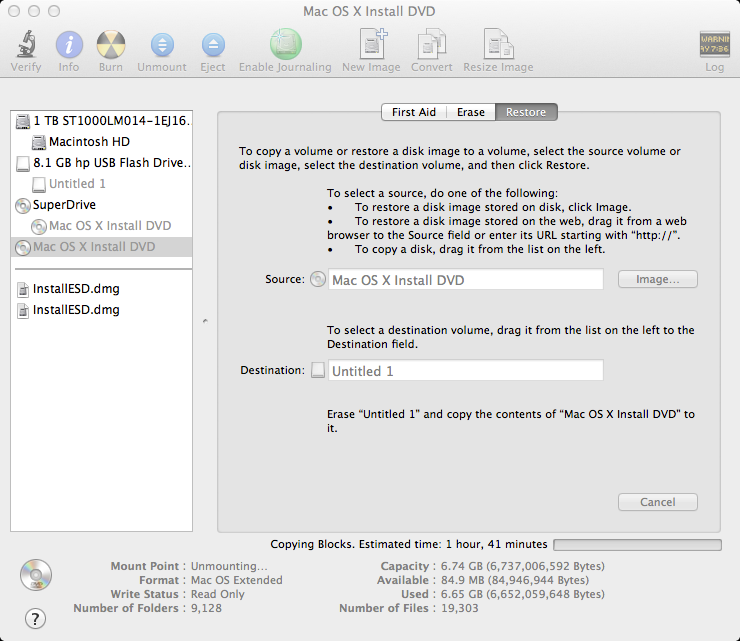
- Upon verifying that the fields are correct, click the Restore button. Select Erase from the confirmation box, if prompted to do so.
- If asked to authenticate, enter credentials that have administrator access and click OK to proceed.
- Since this scenario requires reading data from the optical drive, it may perform slower than reading files that are located on the hard drive.
Once completed, the USB drive will be bootable and have the full installation of OS X on there to install from scratch and update systems, as needed. Remember, this being a writable drive offers some additional perks over read-only media with a few caveats as well.
Pros:
- Include additional resources on the drive that are required by your organization, such as Combo Updaters, applications or settings.
- Backup directories prior to initializing the HDD and/or reinstalling OS X.**
- Include multiple versions of OS X on the same drive.**
Cons:
- Writable means live data can be subject to accidental deletion or corruption.
- Read/Write speeds vary wildly depending on the make/model of the USB drive. Choose the highest read and write speeds for your particular application to minimize this bottleneck.
- Loss/theft of USB drives and any additional data, such as configurations, passwords, etc. that may be contained therein. Be careful!
**Note: Feel free to include any additional files or folders to the existing drives, so long as the original file hierarchy is not modified in any way. This is important as the OS X installer is looking for specific files at specific locations during installation. A missing, modified or corrupt file could result in an unreliable installation.
Multiple OS X versions on the same USB/SD card (Bonus)
While writing this article, I found myself in a predicament – I only had a 8GB USB drive! But luckily, I found a 16GB drive I’d lent my wife awhile back and decided to try to get the two versions of OS X encountered most frequently (10.7 & 10.8) onto the same 16GB USB drive.
And it worked! To achieve this, you’ll want to have a USB/SD card capable of holding all the OSs on drive. This means about 8GB of storage space per version of OS X. The steps are identical to the Creating a USB Installer for Apple OS X 10.7-10.8 tutorial listed above, except for two key differences.
- Instead of selecting “1” partition in step #4, you’ll be selecting a number equal to the number of versions of OS X you’ll be copying over. (Ex. If housing 10.5/10.6/10.7/10.8; 8GB x 4 versions of OS X = 32GB total; 4 partitions will then need to be created).
- The copying process (steps #9-12) will now need to be repeated once for each version of OS X being stored.
Tip: By default, Disk Utility names the partition identical to the source “Mac OS X Install DVD” in my case. While thoughtful, if working with multiple partitions, each will have the same name making them indistinguishable from the others. To resolve this, once the entire copy process has completed for all versions of OS X, the Finder will mount them all on the Desktop. Go through each to identify which version of OS X is contained, then simply rename it to a common name, such as 10.7 for the Lion installer; 10.8 for Mountain Lion, etc. When booting to the USB/SD card by holding the Option key during start-up, the drives will mount with their new names making them easier to identify.