


Let’s say you’ve written a bash script that scans all of your Linux servers in your data center for uptime. Such a file could contain the following contents:
ssh $1 "uptime"
When you run your script, it may get foiled by an issue where it is stopped by a server that has yet to have its SSH key fingerprint added to the known_hosts file. When this happens, your script is rendered useless.
SEE: How to View Your SSH Keys in Linux, macOS, and Windows (TechRepublic)
SSH key fingerprint
What is an SSH key fingerprint? Simple: The key’s fingerprint is verified when you try to log in to a remote computer using SSH. When you log into an SSH server for the first time, you’ll see something like that shown below.
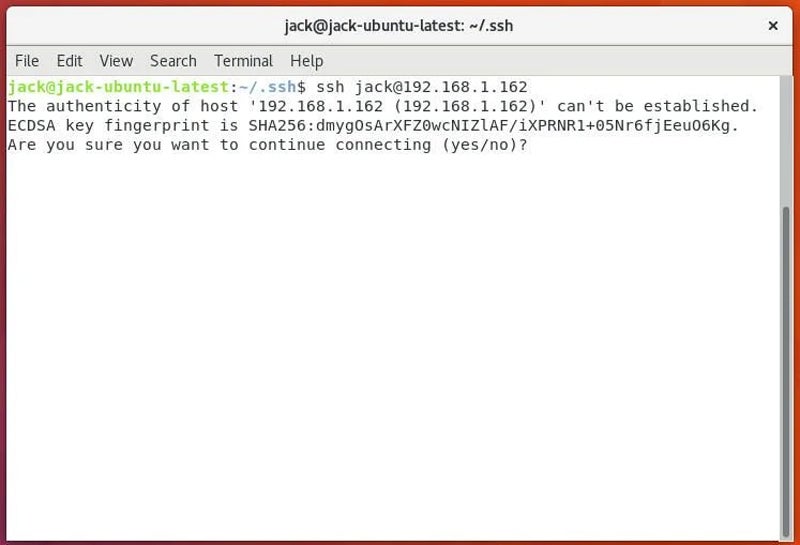
If you don’t accept the fingerprint, the connection will be immediately broken. So what happens when you’re working with a bash script that cannot accept input in order to okay the addition of the remote SSH fingerprint?
Fortunately, the developers of SSH thought of this and added a command that allows you to easily add SSH fingerprints to the known_hosts file.
SEE: How to Create and Copy SSH Keys with 2 Simple Commands (TechRepublic)
Open source: Must-read coverage
- Debian vs Ubuntu: Which Linux Distro Fits Your Needs Best?
- Ubuntu Server: A Cheat Sheet
- Llama 3 Cheat Sheet: A Complete Guide for 2024
- CISA Report Finds Most Open-Source Projects Contain Memory-Unsafe Code
Adding the fingerprint
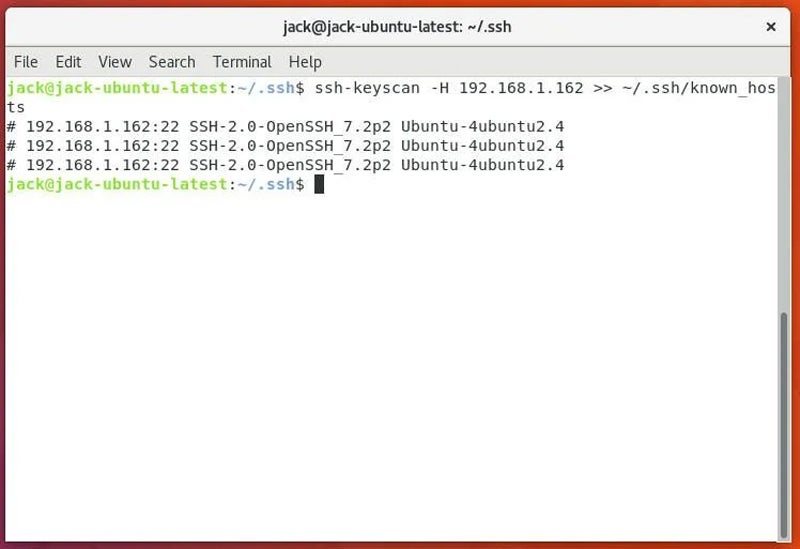
I’ll demonstrate adding the fingerprint from a remote server to a local machine. Let’s say the remote server is at 192.168.1.162. To add that fingerprint, the command would be:
ssh-keyscan -H 192.168.1.162 >> ~/.ssh/known_hosts
The command will run and add the remote SSH fingerprint to the local machine without your input, as shown below.
So an addition to the bash script could look like:
ssh-keyscan $1 >> ~/.ssh/known_hosts
The above addition would take the argument from the command (say, for example, ./script 192.168.1.118) and add the fingerprint to ~/.ssh/known_hosts before it then moves to the next line — thereby avoiding the missing SSH fingerprint issue. Of course the above would only work properly if you have ssh key authentication setup. Otherwise, you’d have to enter the remote machine’s password.
SEE: How to Mount Remote Directories with SSH (TechRepublic)
The simple things
Sometimes, it’s the simple things that trip up our bash scripts. If that key fingerprint issue has been causing you headaches with your scripts, you can now avoid the issue.