For the longest time I suffered through feeling my phone warming up in my pocket or hearing the muffled sound of dialing coming from the hidden recesses of my pants or coat. I’d pull out my device to see that my pocket had been mysteriously attempting to phone home. Who was it calling? I’ll never know. However, I do know how to curtail that issue with a simple configuration option.
This option is available on the OnePlus devices. It has also popped in and out of Android over the years, but at the moment there are limited options for non-OnePlus devices. I’ll first demonstrate how to enable this feature on the OnePlus device and then offer up a couple of options for other smartphones.
OnePlus
OnePlus has made this incredibly easy, by building the feature into the settings. Once you enable Pocket Mode, there will be no more phoning home for your Android. Here’s how to enable it.
- Open up Settings
- Locate and tap Advanced
- Tap to enable Pocket mode (Figure A)
Figure A
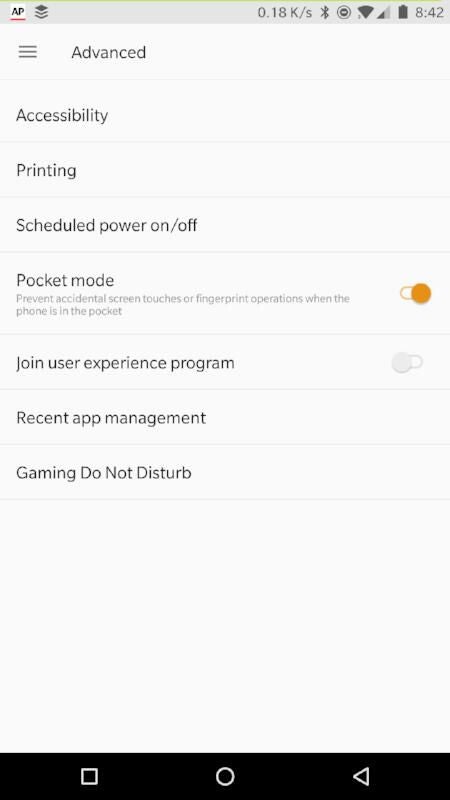
That’s all there is to it. No more pocket dialing.
Now, let’s see what we can do about non-OnePlus devices.
Smart Lock
Way back in Android 5.0 a new feature, called Smart Lock, was introduced. The big to do about this feature was that you could associate third-party devices to an Android device such that it would always remain unlocked, when the two devices were within close proximity to one another. This worked great if, say, you attached Bluetooth headphones to your device and wanted to make sure your smartphone was always unlocked while listening. However, there is an option within Smart Lock, called On-body detection, that will keep your device unlocked while it’s on you. This particular feature can be the cause of those random pocket dials.
To disable On-body detection, do the following:
- Open up Settings
- Locate and tap Security
- Locate and tap Smart lock
- Enter your PIN/password/pattern
- Tap On-body detection
- Tap the slider to disable (Figure B)
Figure B

On-body detection is disabled by default. You may have enabled it, thinking it might make life easier for you. Once you disable it, your pocket dialing will be drastically reduced.
Pocket Lock
If that doesn’t solve your problem (or if, for whatever reason, you device doesn’t offer either Pocket Mode or On-body detection), there’s one other option–an app. The app in question is Pocket Lock. The app does one thing and one thing only–locks your device when you slip it into your pocket and unlocks it when you pull it out.
That’s actually two things, but who’s counting?
To install Pocket Lock, do the following:
- Open up the Google Play Store on your device
- Search for Pocket Lock
- Locate and tap the entry by Will X
- Tap Install
- Allow the installation to complete
Once installed, locate the Pocket Lock launcher (you’ll find it on your home screen or your App Drawer). From the main window (Figure C), tap the STOPPED button to start the app.
Figure C

Since this is the first time you’ll be starting the app, you’ll be taken to a different window where you must activate the device administrator for the app (Figure D). Tap Activate this device administrator and Pocket Lock will start up, taking you back to the Pocket Lock main window.
Figure D

Slip your device into your pocket and it’ll lock. Pull it out and it will wake. Pocket Lock does not bypass the lock screen, so you still have to enter your PIN/password/pattern to gain access to your device.
No more pocket dials
And there you have it: Three methods for preventing the dreaded pocket dial. Hopefully one of these options will keep you from feeling that heat in your pocket or hearing those dial tones chiming.