


There are many instances when I need to be able to log into a remote server via SSH. Sometimes I’m at a desktop or laptop and can handle that easily, and other times the only tool I have available is an Android device. There are plenty of SSH clients available for this, but many of them are simply not worth your time and effort.
And then there’s JuiceSSH. This particular SSH client stands heads above the competition. Why? It has a great connection manager, doesn’t box you into reading from a tiny command prompt, and offers the following features:
- Plugin system
- Full color terminal
- Pop-up keyboard with special characters for Ctrl, Alt, Tab, etc.
- Telnet and local Android terminal support
- One-click SSH connection
- Key import/export/generation
- ZLib compression
And that’s just the free version. If you pony up $5.00 (USD) for the paid version, you’ll also receive these features:
- Home screen widget for quick connections
- Local, remote, and dynamic port forwarding
- Store connections and scripts as snippets (you can even auto-run snippets upon connection)
- Auto backup of connections
and much more.
Of all the SSH clients I’ve used, JuiceSSH is the best. Let’s install it and see just how good this tool works.
Installation
We’ll install the free version of JuiceSSH, so you can give it a test run and see if it meets (or exceeds) all of your needs. Here’s how:
- Open the Google Play Store on your Android device
- Search for JuiceSSH
- Tap Install
- Read through the permissions listing
- If the permissions listing is acceptable, tap Accept
- Allow the installation to complete
Once it’s installed, you should find a launcher located on your home screen or in your app drawer (or both). Tap that launcher to fire up JuiceSSH.
Usage
When you first fire up JuiceSSH, you’ll be required to set an encryption password. This password is used to secure connections with AES-256 encryption. When prompted, enter and confirm an encryption password. Once you’ve saved your encryption password, you’ll find yourself on the JuiceSSH main window (Figure A).
Figure A
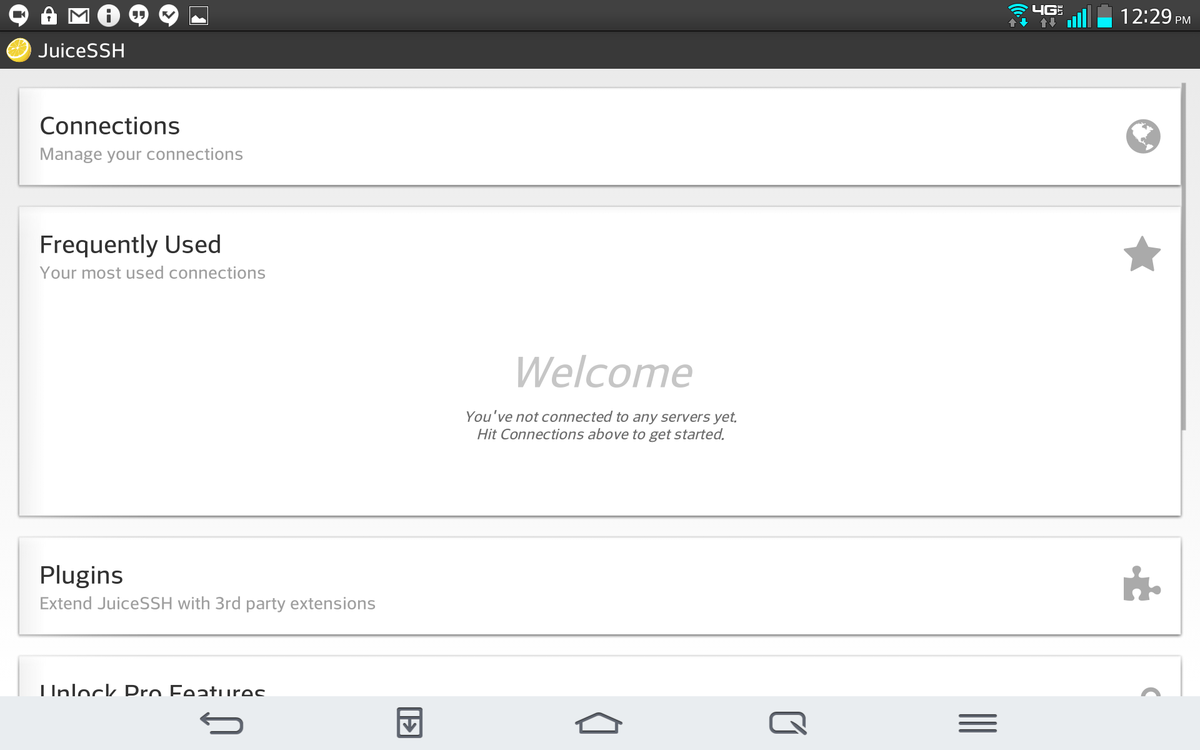
JuiceSSH running on a Verizon-branded LG G Pad.
You’re now ready to create a quick connection to a remote SSH server. Follow these steps:
- From the main window, tap Connections
- Tap Quick Connect
- Enter the information for the connection (Figure B)
Figure B
- Tap OK
- Tap Accept to accept the host key fingerprint
- Enter the password for the connection, and tap OK
At this point, you’ll be presented with a quick tutorial that shows you how to change the font size (volume buttons), open the pop-up keyboard (tap the terminal), and copy/paste/share (long-press the terminal for the copy, paste, and share options). Tap the OK — I’ve got it! button to dismiss the tutorial, and you’ll find yourself at the command prompt of your remote server. Tap the terminal once to open the special pop-up keyboard (Figure C).
Figure C
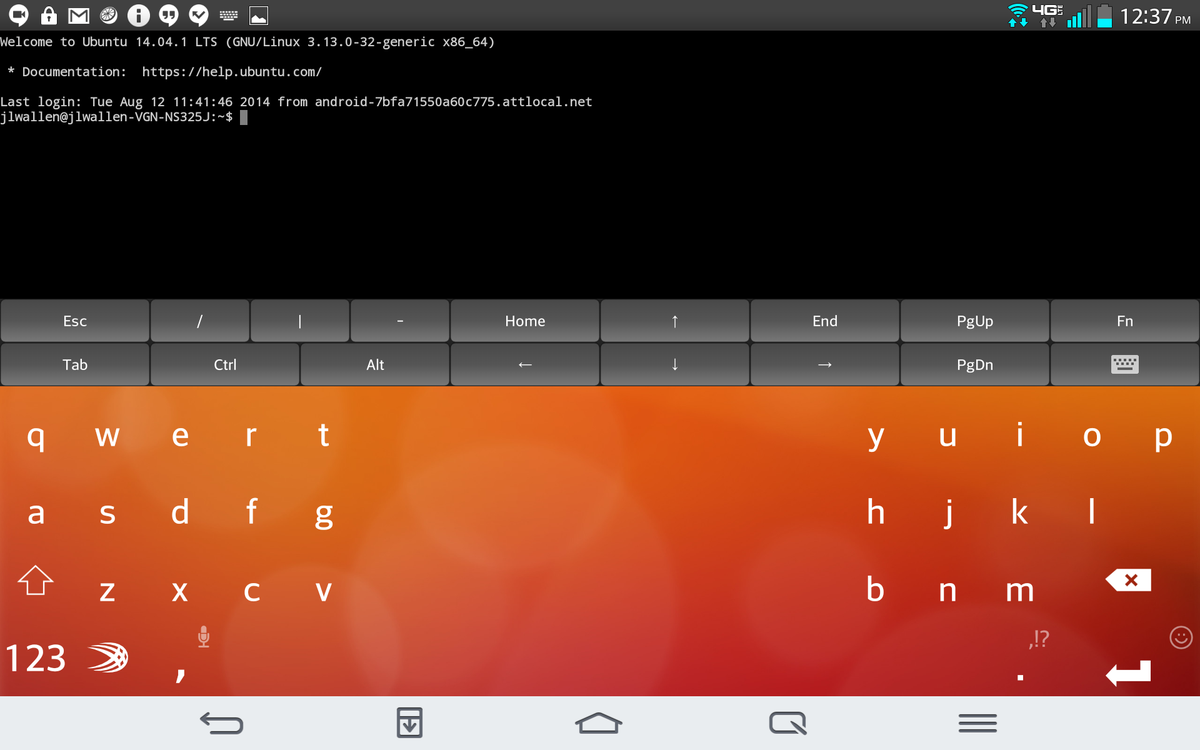
Logged into a remote SSH server with JuiceSSH.
At this point, you should be able to work with your remote server as you would with any SSH client. When you log out, your Quick Connect connections will be saved in the Connections window. The identity you used (the username/password) will also be saved under the Identity tab. If you happen to manage multiple remote servers, and they use different credentials for logging in, you can create different identities. With multiple identities created, you can select from those identities (via a drop-down list) when connecting to a server. This means that you don’t have to always enter the username for the server. You can also save the identity password and even set a private key for the identity.
To create a new identity, follow these steps:
- Swipe the main window to the left to reach the Identities tab
- Tap the New Identity button
- Enter the information for the Identity (Figure D)
- Tap Save
Figure D
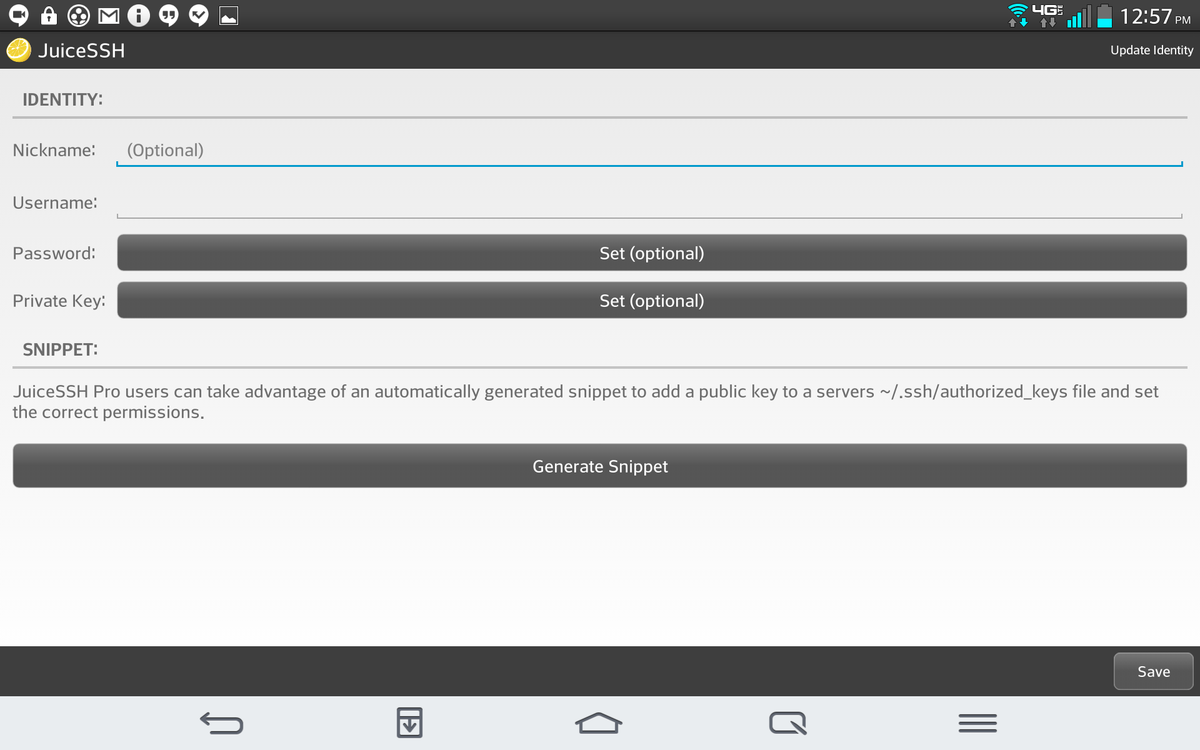
Creating a new identity with JuiceSSH.
Now, when you create a new connection (not a Quick Connection), you can select the identity to use from the drop-down list (Figure E).
Figure E
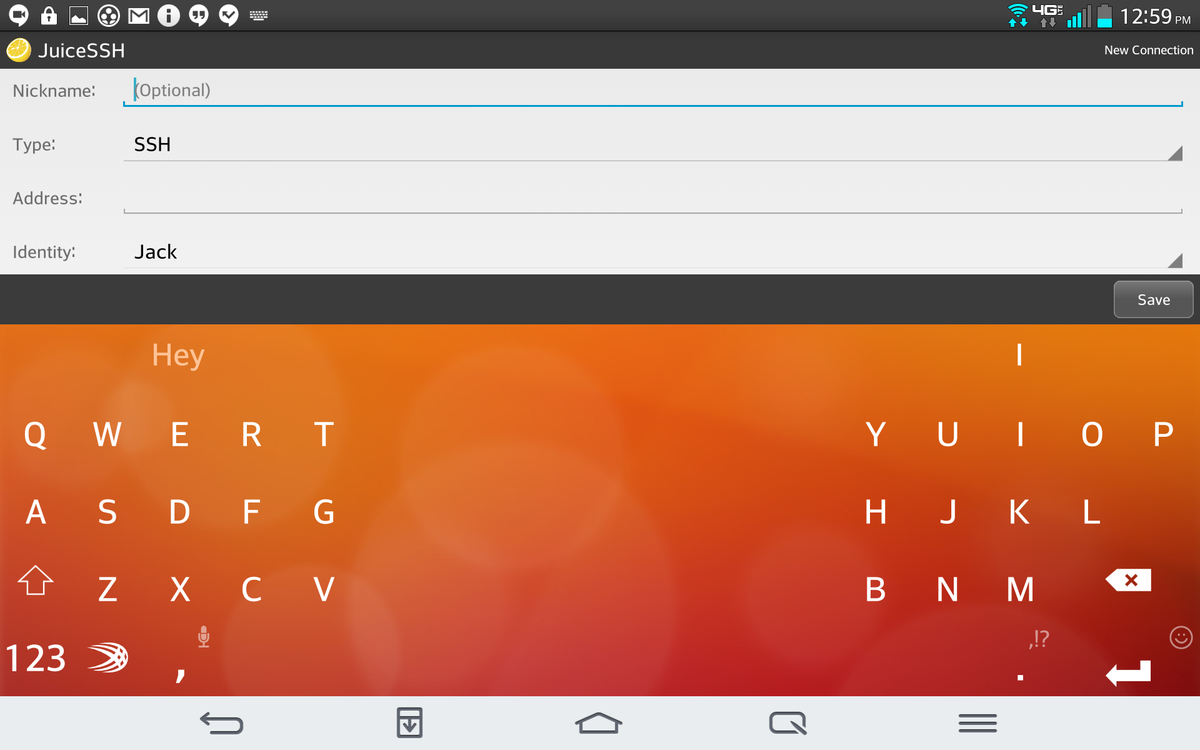
Selecting an identity for a connection.
If you’re looking for the best Android SSH client, run — don’t walk — to the Google Play Store and install JuiceSSH. After you use it once, you’ll forget about all the other clients.
Do you administer SSH-enabled servers remotely? If so, do you trust doing so over wireless or 4G with your Android device? Which client do you recommend? Share your opinion in the discussion thread below.