


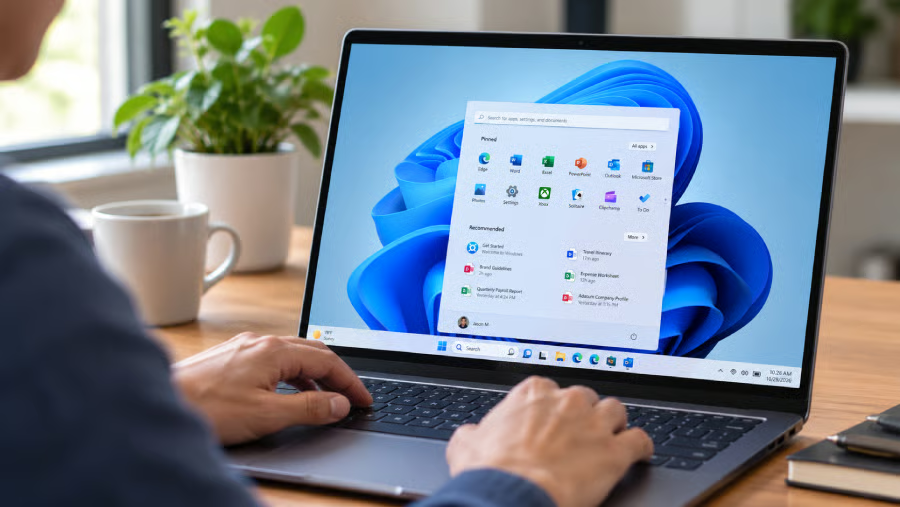
A Windows 11 PC that refuses to start may no longer need a USB installer to get back up and running. Microsoft has introduced Cloud rebuild, a recovery feature that downloads a fresh Windows image and device drivers from Windows Update, even when the existing operating system cannot boot.
Microsoft introduced Cloud rebuild in its Oct. 28 optional preview update, KB5127936, for Windows 11 versions 25H2 and 26H2. The gradual rollout gives users and IT administrators another way to recover PCs that won’t start. However, Cloud rebuild erases local files, applications, accounts, and settings, so users should check their backups and explore less disruptive recovery options before proceeding.
Cloud rebuild reinstalls Windows 11 without a USB drive
When a Windows 11 PC fails to start, reinstalling the operating system may require a bootable USB drive or recovery files stored on the device. Cloud rebuild provides another option by downloading a fresh Windows image and compatible device drivers directly from Windows Update.
Reset this PC already offers a Cloud download option. Cloud rebuild provides a separate recovery workflow that downloads both Windows and device drivers from Windows Update, without requiring USB media or a custom image.
In its October update announcement, Microsoft said, “No USB media or custom image is required.”
Cloud rebuild is accessible through the Windows Recovery Environment (WinRE), which operates separately from the main Windows installation. As a result, users can initiate a reinstall even when the operating system is too damaged to reach the sign-in screen.
For home users, this removes the need to create recovery media on another computer. For IT help desks, it offers an alternative to preparing USB installers or maintaining custom recovery images when dealing with PCs that no longer start normally.
5 steps to recover a Windows 11 PC using Cloud rebuild
If your laptop keeps restarting, gets stuck during startup, or never reaches the Windows sign-in screen, Cloud rebuild may offer a way to reinstall the operating system without creating a bootable USB drive on another computer.
Before starting, confirm that Cloud rebuild is available on the device and that WinRE has a compatible networking driver and internet access. A healthy recovery environment is required even when Windows itself cannot start.
Cloud rebuild deletes locally stored data. If important files have not been backed up, contact your IT department or consider professional data recovery assistance before proceeding.
According to Microsoft’s recovery guide, the process involves five steps:
- Access Windows Recovery Environment. After several failed startup attempts, Windows should open WinRE automatically. If the PC can still start normally, go to Settings > System > Recovery and select Rebuild PC instead.
- Find Cloud rebuild. On the recovery screen, select Troubleshoot > Cloud rebuild. Depending on the recovery interface, the option may appear under Recovery and uninstall. If it isn’t available, the feature may not have reached your device yet.
- Connect to the internet. Use Ethernet or select a Wi-Fi network when prompted. Cloud rebuild needs an internet connection to download Windows and the required drivers. Keep the PC plugged into power throughout the process.
- Choose a data-removal option. Select Remove files if you plan to continue using the computer. Choose Remove & sanitize if you’re returning, recycling, or giving away the device. Sanitization takes longer and is designed to make deleted data harder to recover.
- Review and confirm your chosen option. For Remove files, check the Windows version, edition, and language, acknowledge the data-loss warning, and select Continue. For Remove & sanitize, choose the Windows disk or all disks if prompted, review the summary, and select Sanitize and install.
Once confirmed, Windows downloads the installation files and drivers, reinstalls the operating system, and may restart several times. Avoid shutting down the PC during this process, as an interrupted rebuild could leave Windows unable to start.
After installation, you’ll need to set up Windows again, sign in to your accounts, restore backed-up files, and reinstall applications.
Cloud rebuild removes local files, apps, and settings
Microsoft’s support documentation warns that “Cloud rebuild removes everything on your PC,” including locally stored files, accounts, applications, and settings.
Files already saved to OneDrive or another cloud service are unaffected. However, documents that were never backed up or synchronized may be lost.
Cloud rebuild is intended for problems that less disruptive recovery methods cannot resolve. Users should first consider Reset this PC with Keep my files, or Point-in-Time Restore, where available. Keep my files preserves personal files but removes apps and settings.
The sanitization option is intended for devices being sold, returned, or reassigned. It uses the storage hardware’s erase capabilities and is irreversible. Windows cannot independently verify that the hardware erased the data correctly, so organizations with disposal or compliance requirements should confirm manufacturer support before relying on it.
More Microsoft news
- Inside Microsoft’s Real-Time War Against Cybersecurity Threats
- Project Ire: Microsoft Tests AI That Autonomously Detects Malware
- Microsoft Targets ‘Critical AI Talent’ from Meta to Dominate Next AI Breakthroughs
- Windows 10 Support Ends Soon, Though Extended Security Updates Offers Are Available
IT teams should verify backups and recovery requirements
For businesses managing dozens or hundreds of Windows 11 devices, Cloud rebuild could make recovering an unbootable PC easier. Instead of preparing installation media or rebuilding a custom Windows image, support teams can download a fresh operating system directly from Microsoft.
However, administrators should treat the feature as a complete device reinstallation, not a routine troubleshooting step. Before adding it to their recovery procedures, IT teams should address four areas:
- Verify recovery and network readiness. Confirm that eligible devices have received the feature and can access WinRE. On a working PC, administrators can use the reagentc /info command to check whether WinRE is enabled.
They should also verify that compatible networking drivers are available in the recovery environment and that the device can reach Windows Update. Without a working connection or required drivers, Cloud rebuild may fail before installation begins.
- Protect files and recovery information. Check whether OneDrive or another backup service has synchronized important documents, especially files stored locally in Downloads, Desktop, or application-specific folders.
Administrators should also make sure BitLocker recovery keys are accessible in case another recovery method requires them. Once Cloud rebuild removes local data, unsynchronized files may be unrecoverable.
- Review remote recovery controls. Microsoft’s Cloud rebuild documentation describes Recovery CSP settings that allow administrators to control available rebuild options and initiate recovery remotely.
Organizations should test these controls and establish approval procedures before allowing a destructive reinstall on managed devices.
- Prepare devices for setup after recovery. Reinstalling Windows is only part of the process. On properly configured Microsoft Entra-joined devices registered with Windows Autopilot and managed through Intune, company applications and policies can be redeployed during setup.
IT teams should still confirm that required software, user settings, and access to business resources can be restored. Include a review of Windows 11 privacy settings in the checks performed after setup.
Administrators should also test Cloud rebuild on non-production devices before wider deployment. Microsoft’s recovery guidance identifies missing network connections and unavailable drivers as possible causes of failure, so maintaining an alternative recovery method remains important.
For help desks, the practical opportunity is to reduce the work involved in preparing recovery media. Evaluate that benefit across the full recovery process: how long it takes to reinstall Windows, restore business applications, reconnect the employee to company systems, and confirm that essential files are available.
A useful pilot should therefore follow a representative employee device through recovery and back into everyday work. Check that the employee can sign in, open required applications, access business resources, and retrieve backed-up documents. Use the results to document who can authorize a rebuild and when support staff should choose another recovery method.
That preparation should happen while devices are working. If backups are incomplete or the recovery environment cannot connect, downloading a fresh copy of Windows will not resolve the employee’s entire problem. Treat Cloud rebuild as one part of a tested recovery procedure, with clear escalation steps when it cannot complete.
Read more: Recovery readiness also belongs in your upgrade plan — compare Windows 11 26H2 and 25H2 to understand the deployment differences and checks to complete before a wider rollout.