


It’s funny how certain things can slip between the cracks — the seemingly inconsequential that wind up causing us a fraction of a second throughout the day. Those fractions add up and often lead to frustration in a “Why haven’t I done this yet?” Such is the case with those extra pages on your home screen. You know, the ones that live on the edges of your home screen with nothing on them, doing nothing other than taking up real estate and tricking you into thinking they have something productive to offer.
It’s a lie. They don’t.
So, how do you get rid of those extra pages on your home screen? You’d think that you could simply long-press the page and select “remove,” but that’s not the case. In fact, with many home screens, the process is different. I’ll show you how to remove pages from three of the more popular home screens: Nova Launcher, HTC Blinkfeed, and Samsung’s Touchwiz.
Nova Launcher
Nova’s process is quite simple:
- While you’re on the home screen (not in the app drawer or in an app), tap the home button
- When all pages appear (Figure A), tap and hold the page to be removed
- Drag the page to the top of the screen (to the X)
That’s it.
Figure A
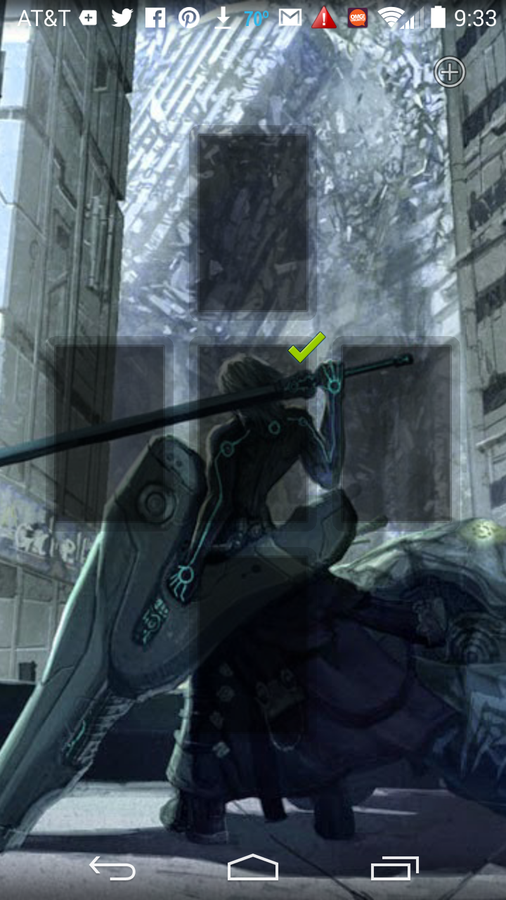
Removing a page from Nova Launcher.
HTC Blinkfeed
This time, the process is almost as you might expect.
- Find a blank spot on your home screen
- Long-press the home screen
- Tap Manage home screen panels (Blinkfeed calls pages “panels”)
- Swipe until you see the panel to be removed
- Tap REMOVE (Figure B)
Figure B
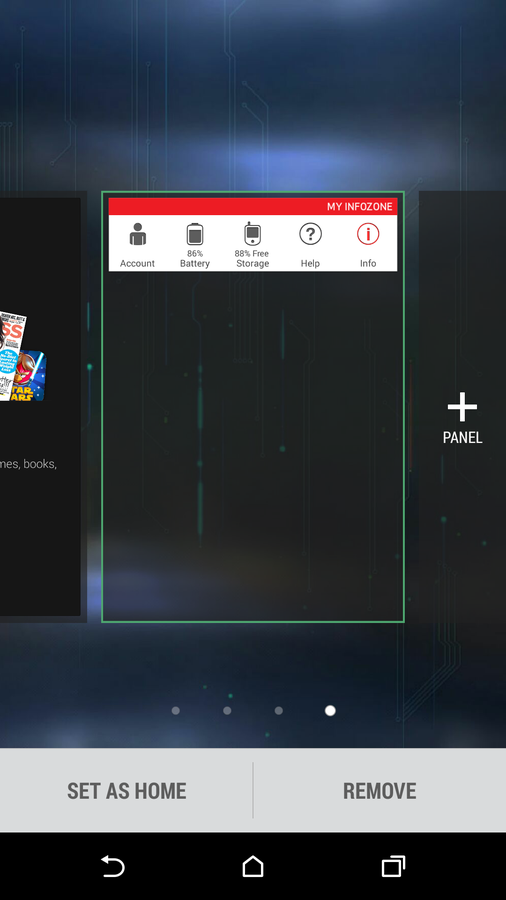
Removing a page from a Verizon-branded HTC M8’s Blinkfeed.
Touchwiz
Samsung’s default home screen takes a similar approach to that of Nova Launcher — with one slight variance. Instead of tapping the device home button twice, do the following:
- Tap the home button to make sure you’re on the home screen
- Use the pinch gesture (as if zooming out — fingers move toward one another)
- Tap and hold the page to be removed
- Drag the page to the X at the top of the screen (Figure C)
Figure C
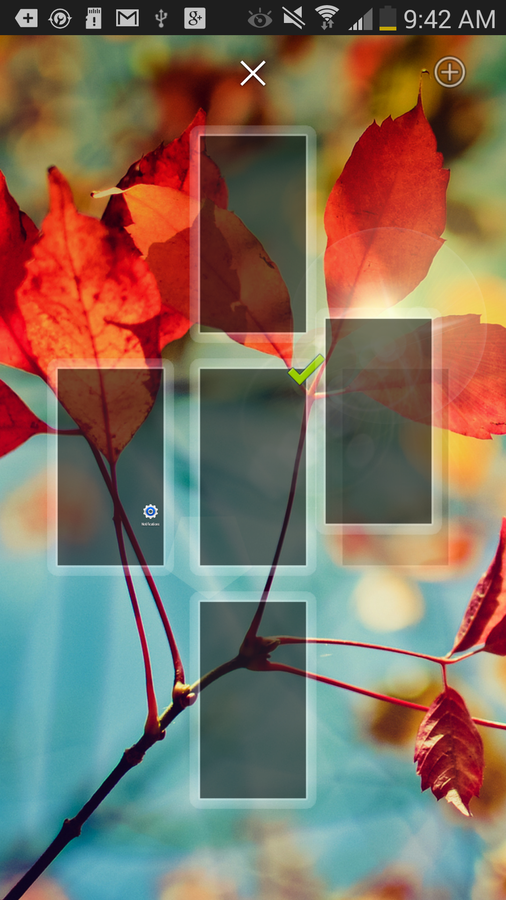
Removing a page from a Verizon-branded Samsung Galaxy S4.
This process isn’t terribly challenging, but the steps aren’t always intuitive. You now know how to remove those unwanted pages from your home screen, making it more efficient.
How do you use your Android home screen? Is it filled with launchers and widgets, or do you keep it minimal and mostly use the app drawer to launch your apps? Share your experience in the discussion thread below.