This\r\ngallery is also available as a TechRepublic article.
Virtualization\r\nis still one of the top buzz words in IT. It is immediately associated with\r\nsystems like VMware, Citrix, and even Microsoft Remote Desktop Services. However,\r\nthese aren’t the only systems existing under the umbrella of virtualization. There\r\nare, of course, various systems for managing virtual environments, systems for\r\ndesktop virtualization, applications for building virtualized apps, and even\r\nother virtualized host systems. In this edition of Five Apps, we take a look at\r\nfive systems in these various categories.
\r\n\r\nCredit: Images by Wally Bahny for TechRepublic
\r\n\r\n
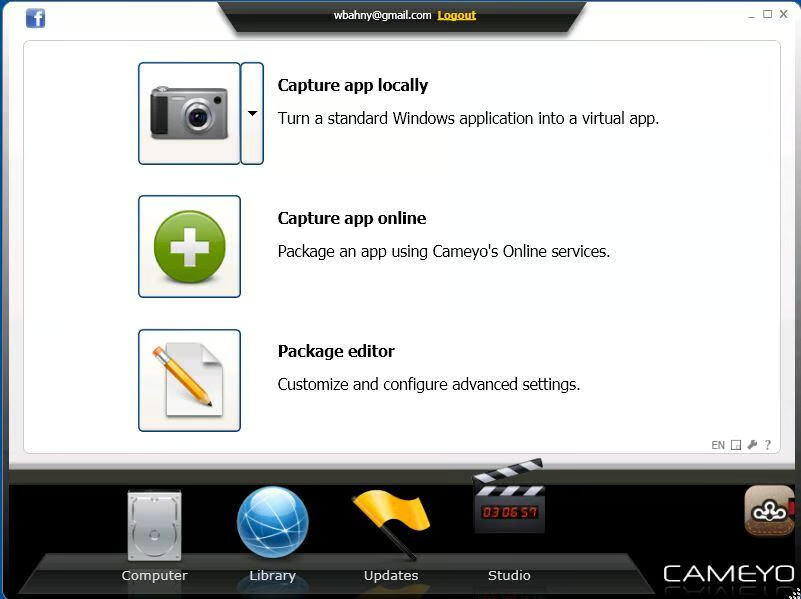
\r\n\r\nCameyo is a simple app that packages any\r\napplication that requires installation into an application that can be run with\r\na single EXE. This is accomplished by capturing a system image before and after\r\nthe application is installed one time. Then, the package can be tweaked using\r\nvarious options, including the ability to add and remove files and registry\r\nentries, and distributed to users as a simple EXE. The package runs in a\r\ncontrolled container, not altering the system it is run on. Cameyo is free for\r\nup to 50 machines; larger environments can request a quote.
Cameyo allows you to examine the system changes\r\nan application install makes and builds an executable app that allows you to\r\nrun without needing to install the app on another system.
\r\n\r\nCredit: Images by Wally Bahny for TechRepublic
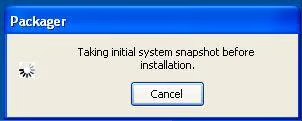
Cameyo takes a snapshot before and after the installation.
\r\n\r\nCredit: Images by Wally Bahny for TechRepublic
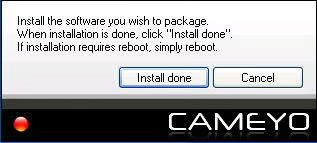
Cameyo waits while you install the app.
\r\n\r\nCredit: Images by Wally Bahny for TechRepublic
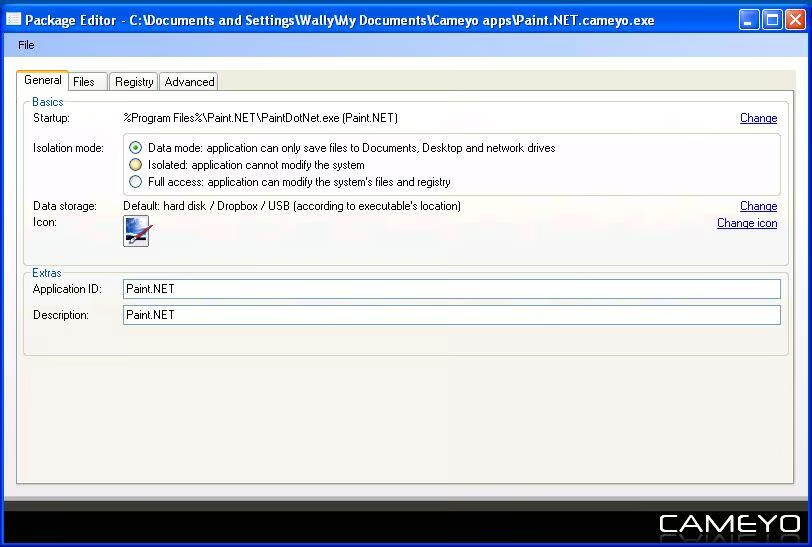
Once the package is built, you can then edit\r\nvarious settings.
\r\n\r\nCredit: Images by Wally Bahny for TechRepublic
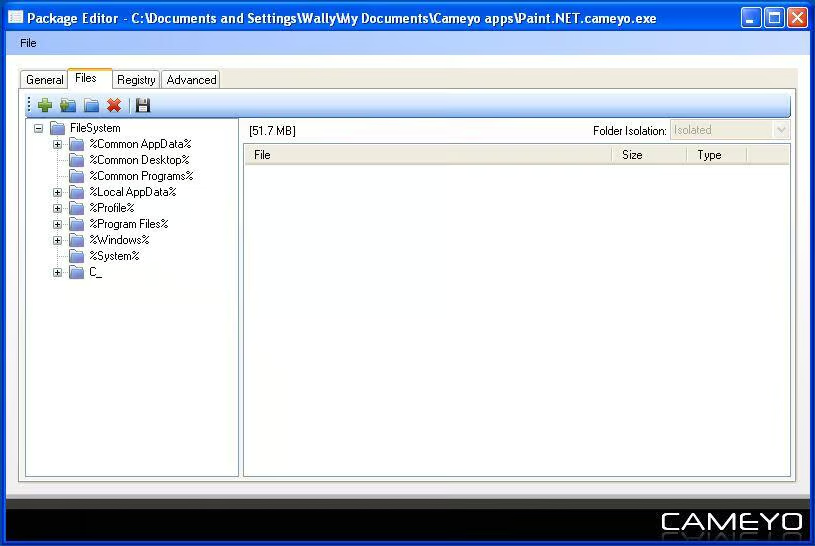
This tab allows you to adjust which files the\r\npackage includes. Occasionally, there\r\nare extraneous files in the package that are not part of the app (say, if other\r\nsystem tasks are occurring at the same time). \r\nYou can use this screen to remove those files. Cameyo actually recommends you create a\r\nvirtual machine to build your app packages from to reduce the chance of\r\nextraneous files and registry entries.
\r\n\r\nCredit: Images by Wally Bahny for TechRepublic
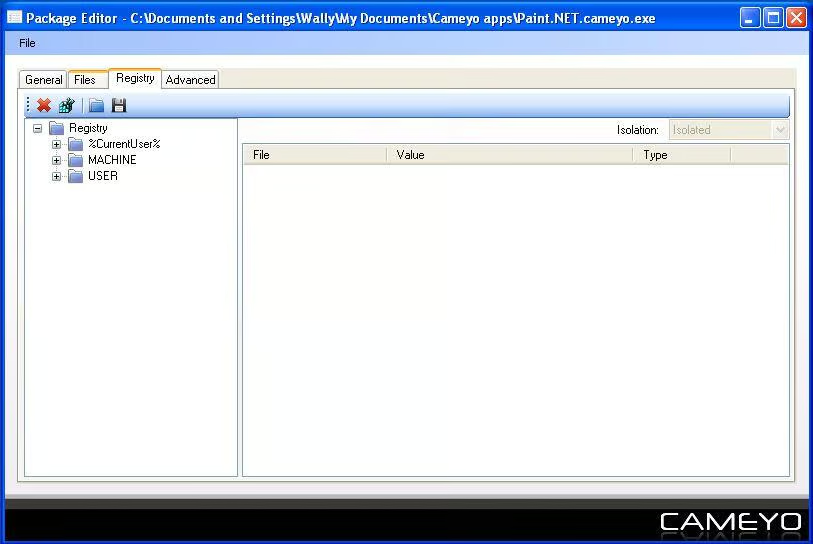
Like the Files tab, and with the same\r\ndiscussions as on the previous slide, the Registry tab keeps track of the\r\nchanges the application install makes to the registry.
\r\n\r\nCredit: Images by Wally Bahny for TechRepublic
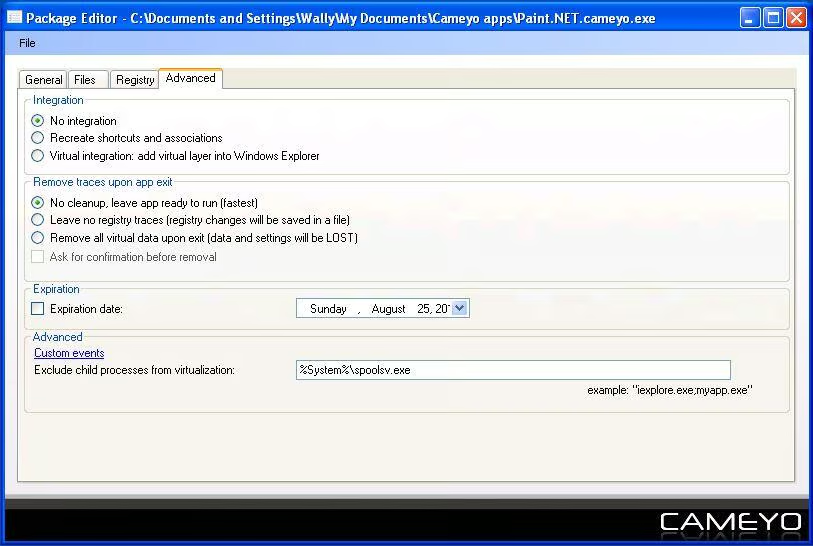
The Advanced tab contains several more options\r\nfor the package.
\r\n\r\nCredit: Images by Wally Bahny for TechRepublic
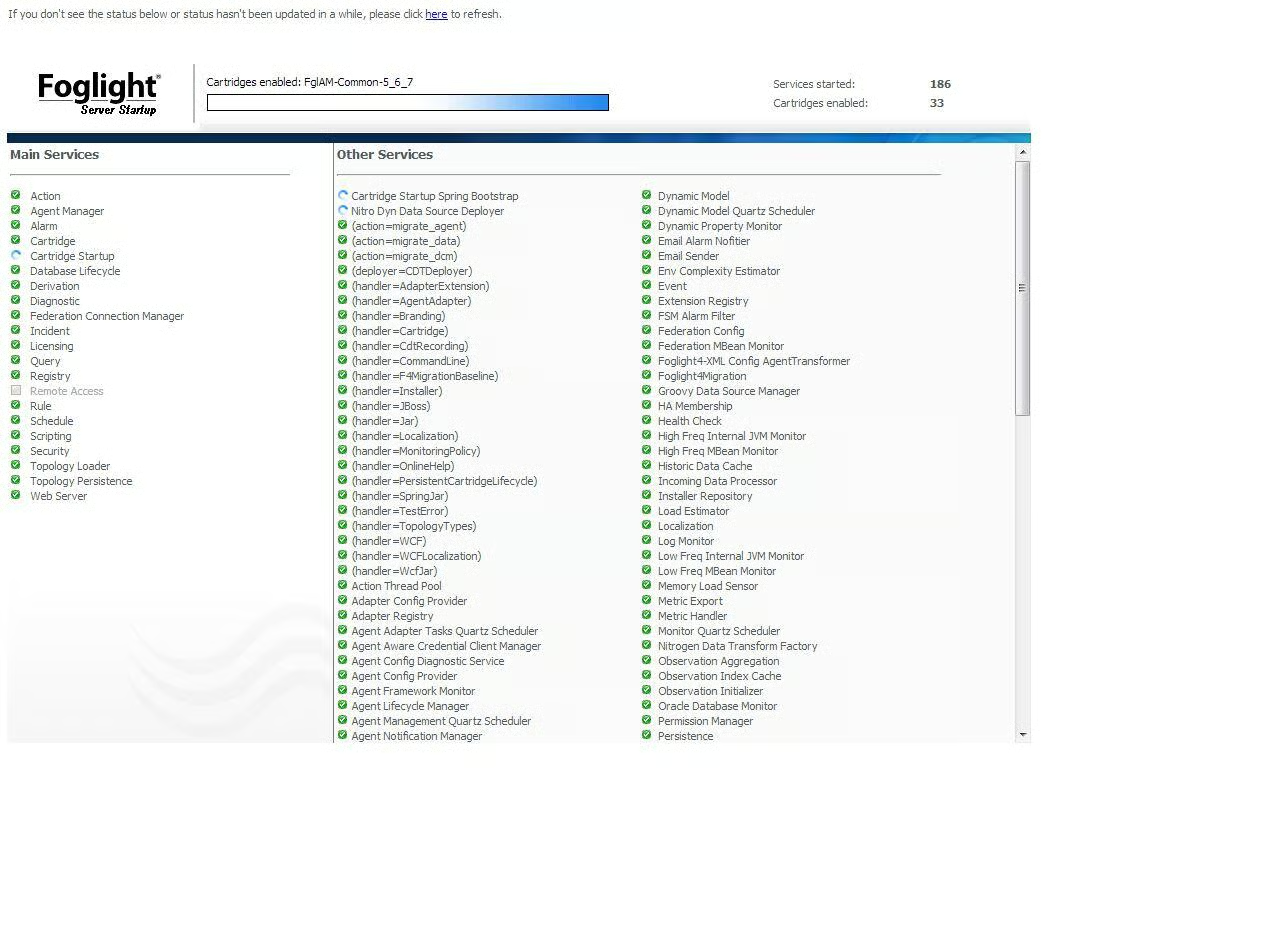
\r\n\r\nFoglight is a\r\nhighly-configurable system that can monitor and administer various enterprise\r\nsystems, including virtualization platforms like VMware and Citrix. Foglight’s\r\nmonitors are referred to as “cartridges”, each of which is\r\npurchasable separately. Foglight’s administration capabilities are performed\r\nvia various applications created for single virtualization systems or tasks. Each\r\nFoglight component is detailed and downloadable for evaluation at the Quest Software Virtualization page.\r\nPricing is available by contacting Dell’s Quest Software division sales.
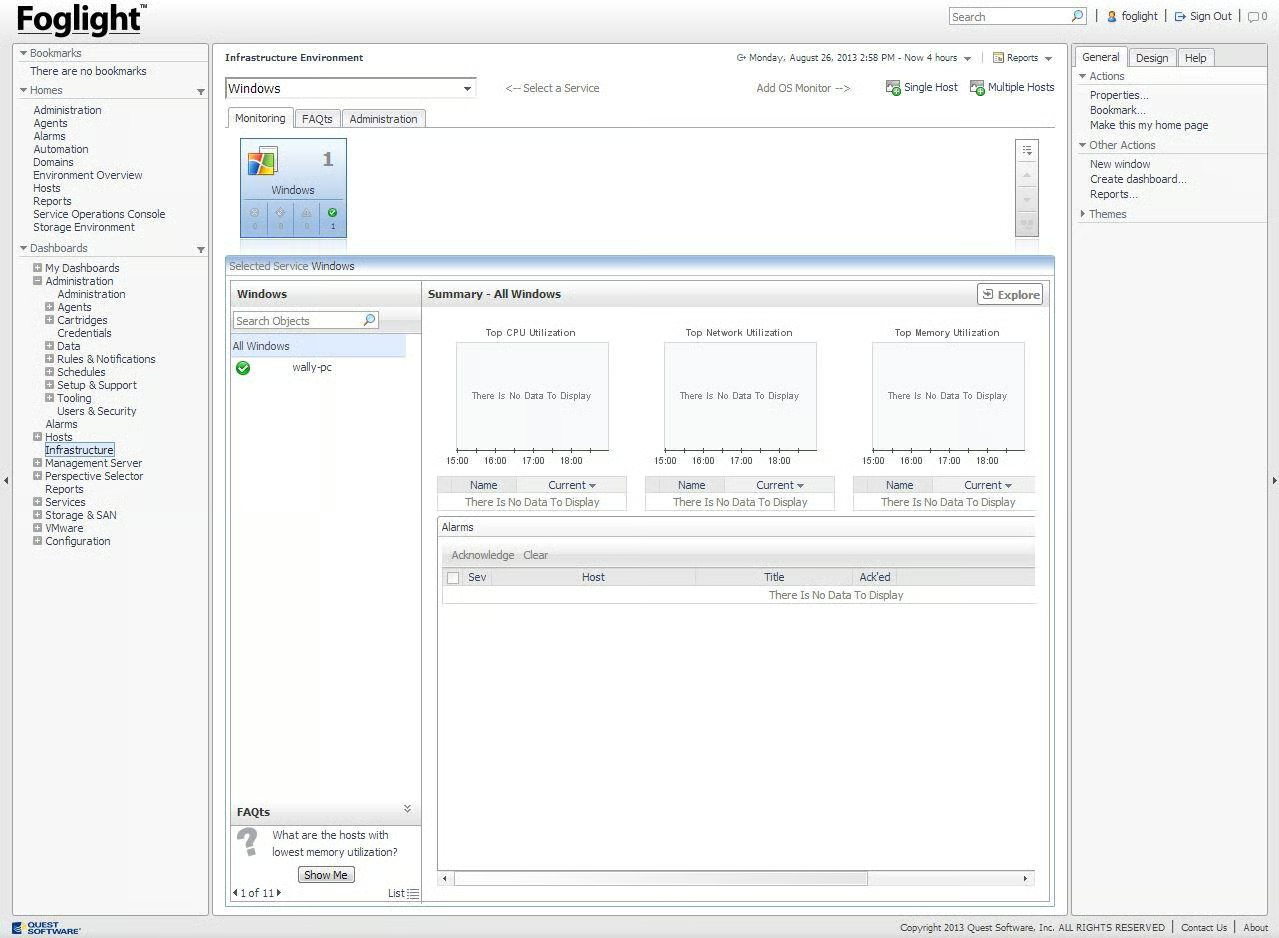
Foglight is a highly extensible app that can\r\nmonitor and keep track of many various systems, including hypervisors. Each system monitor is referred to as a\r\n\u201ccartridge\u201d.
\r\n\r\nCredit: Images by Wally Bahny for TechRepublic
Once you are monitoring systems, there are many\r\ncustomizable dashboards to summarize your environment as well as alarms to\r\nnotify you of system trouble.
\r\n\r\nCredit: Images by Wally Bahny for TechRepublic
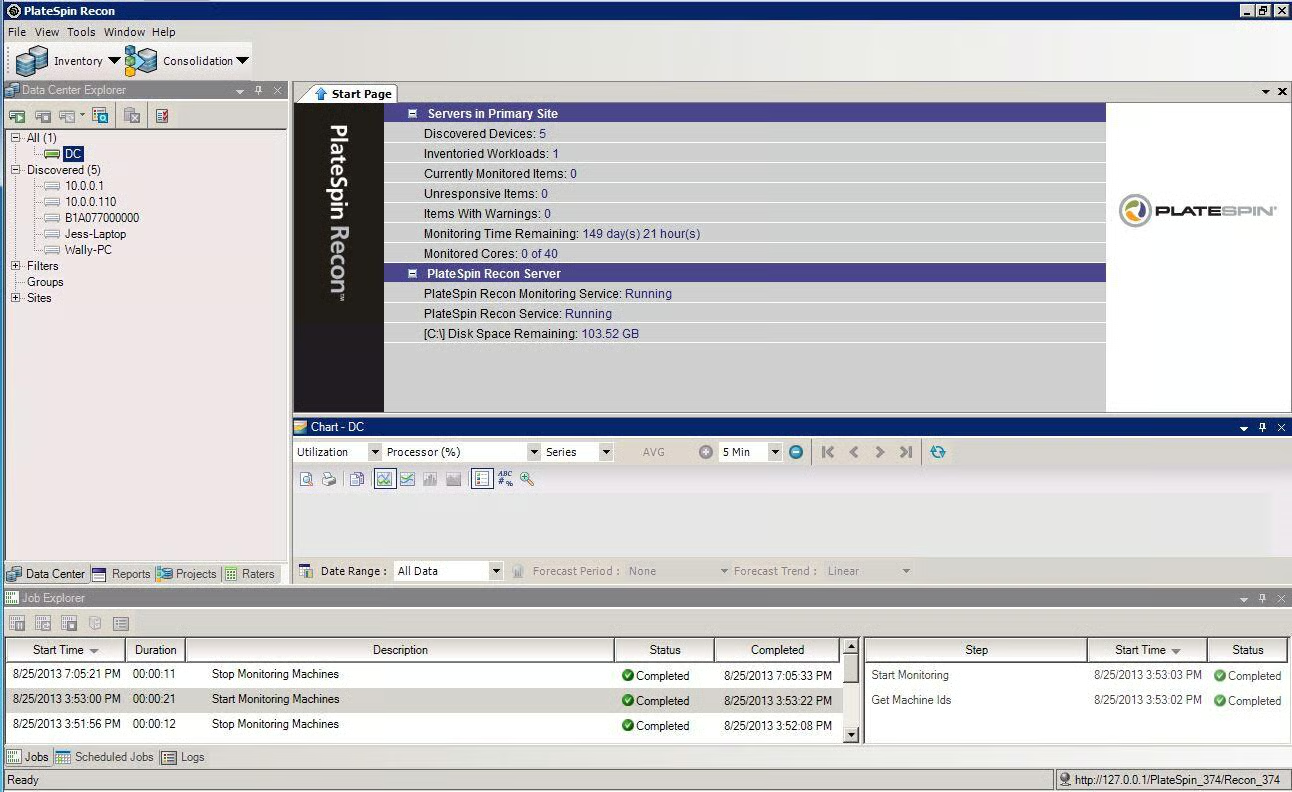
\r\n\r\nPlateSpin Recon is also a\r\nmonitoring system but, instead of just allowing you to monitor virtual systems,\r\nit actually focuses on assisting administrators in determining which physical\r\nservers can be combined into new virtualized environments. PlateSpin Recon\r\ntracks nearly every system measure and statistic, allows you to group systems\r\ntogether, and then allows you to produce graphs and charts by system or group\r\nto monitor those systems or evaluate them for future virtualization projects. Pricing\r\nis available by contacting NetIQ sales.
\r\n\r\nCredit: Images by Wally Bahny for TechRepublic
PlateSpin is another monitoring system that also\r\nallows you to group systems together to evaluate them for consolidation into a\r\nvirtual environment. This main screen\r\nallows you to look at a summary for the currently-selected system, including\r\nrunning graphical reports.
\r\n\r\nCredit: Images by Wally Bahny for TechRepublic
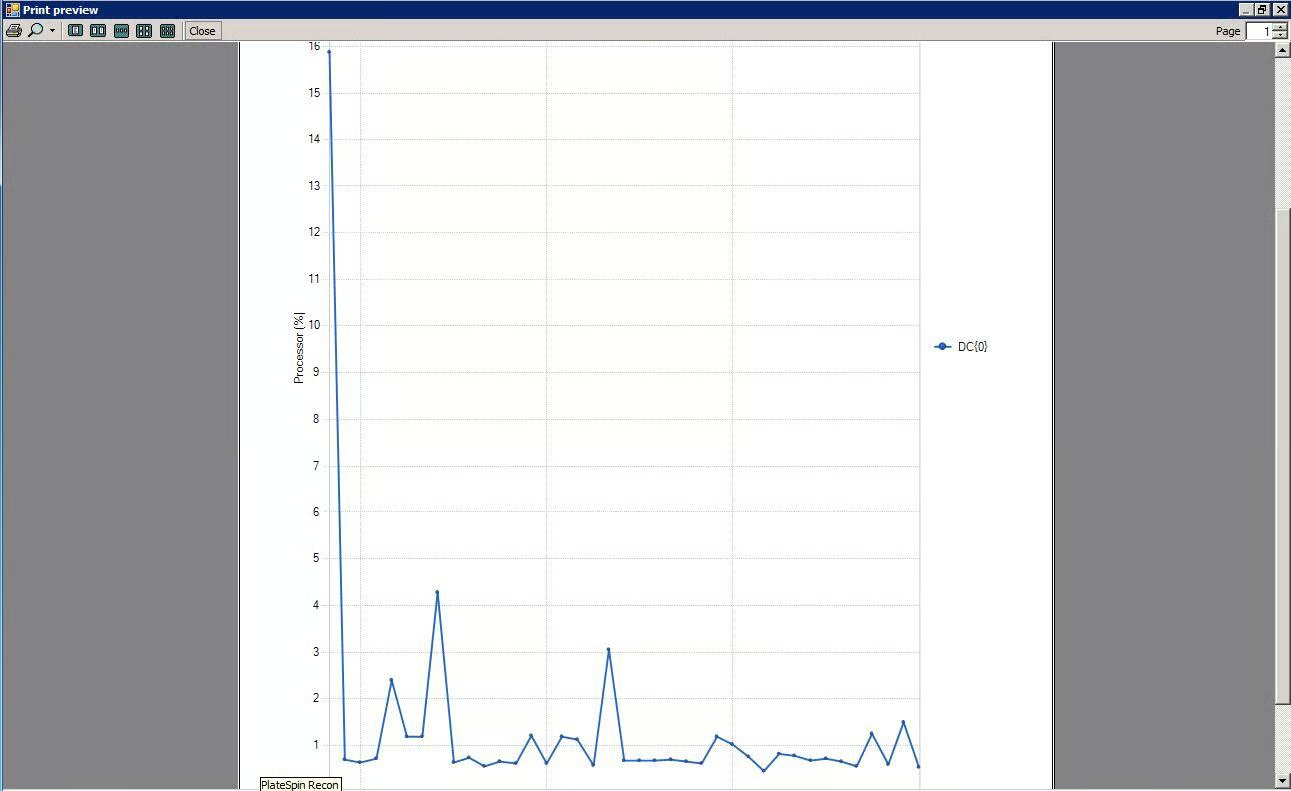
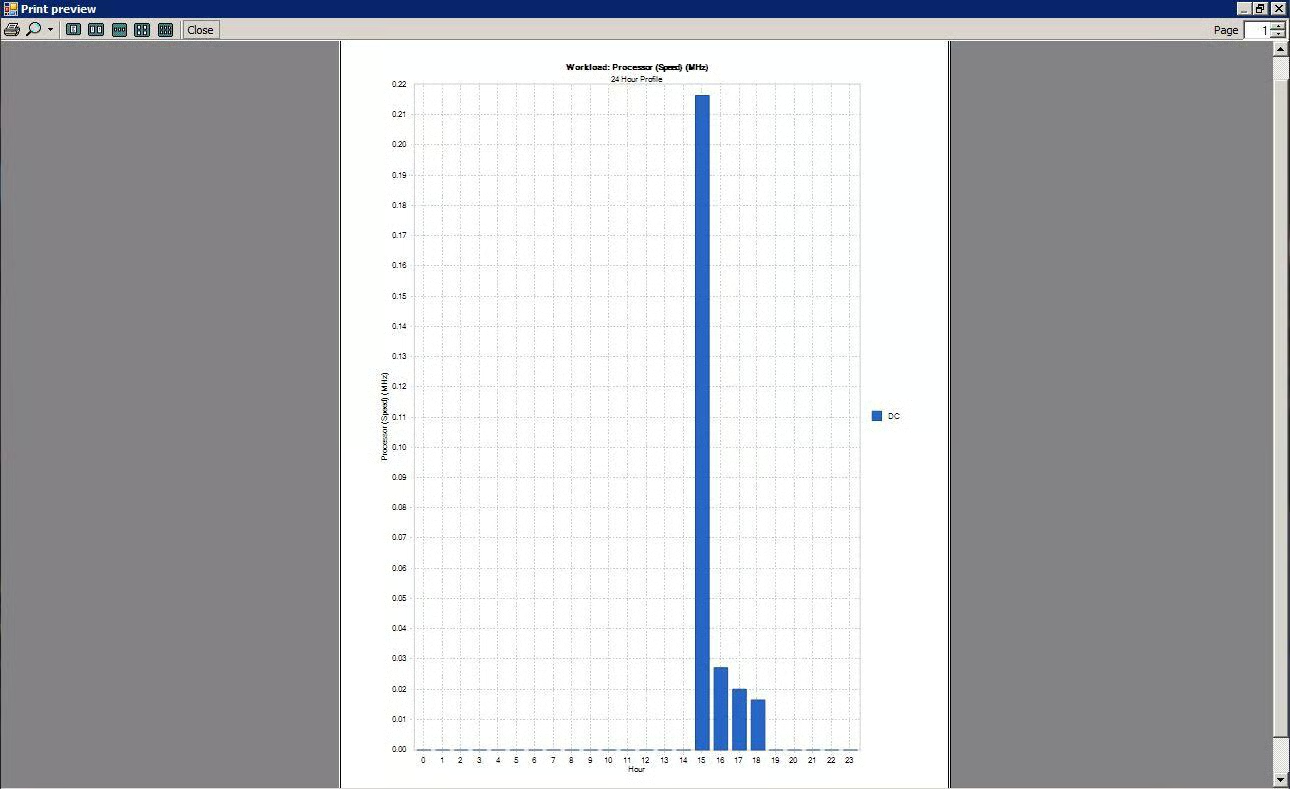
An example graph of the processor utilization on\r\nmy demo system.
\r\n\r\nCredit: Images by Wally Bahny for TechRepublic
\r\n\r\nUlteo OVD is an open source, enterprise\r\nvirtual desktop solution. It also allows users to run published apps as if they\r\nare installed locally on their dedicated machine via the Portal view. Ulteo OVD\r\nis an Ubuntu Linux-based system that is easily installed and configured; it can\r\nbe up and running in just fifteen minutes. Ulteo comes with many built-in apps\r\nand others can be added via the administration console. Ulteo is free for use,\r\nhowever support and training are offered on an annual subscription basis;\r\npricing is available by contacting Ulteo sales.
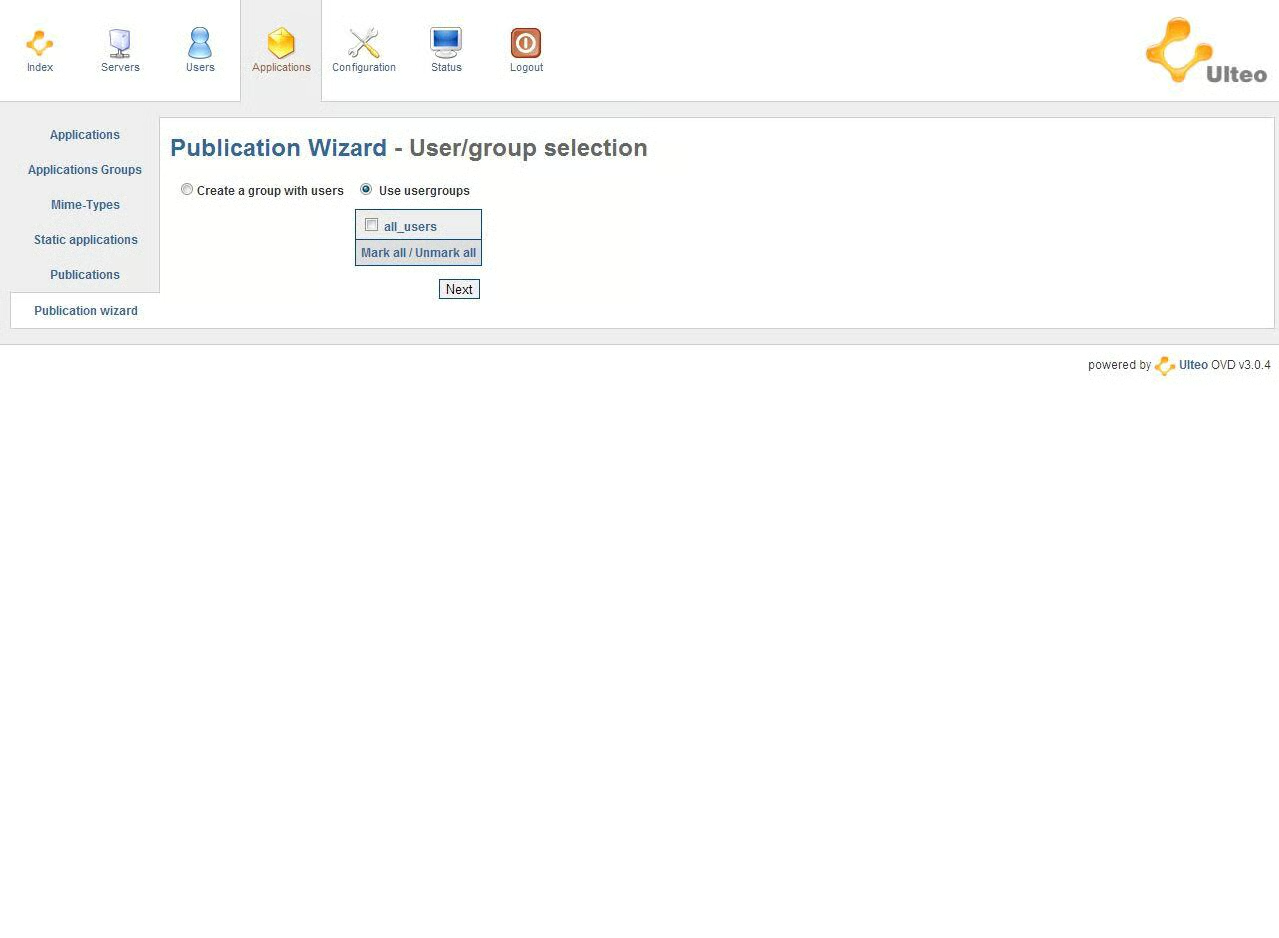
Ulteo is a virtual desktop system based on\r\nUbuntu Linux. The installation is quick;\r\nconfiguration is pretty easy as well. \r\nThe Publication Wizard helps you link a group of users to a group of\r\npublished applications.
\r\n\r\nCredit: Images by Wally Bahny for TechRepublic
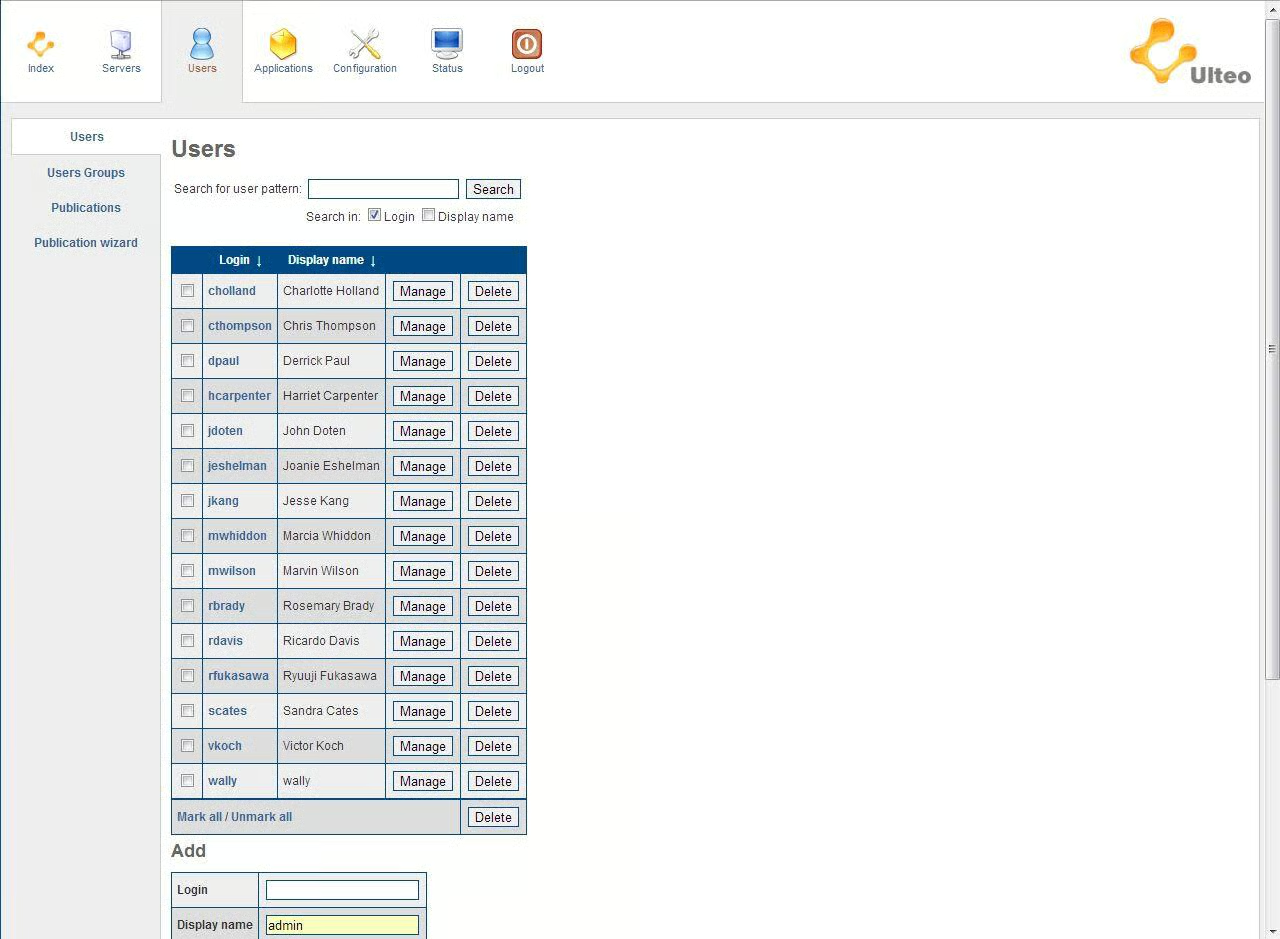
The system comes with several sample users, but\r\nyou can add your own as well.
\r\n\r\nCredit: Images by Wally Bahny for TechRepublic
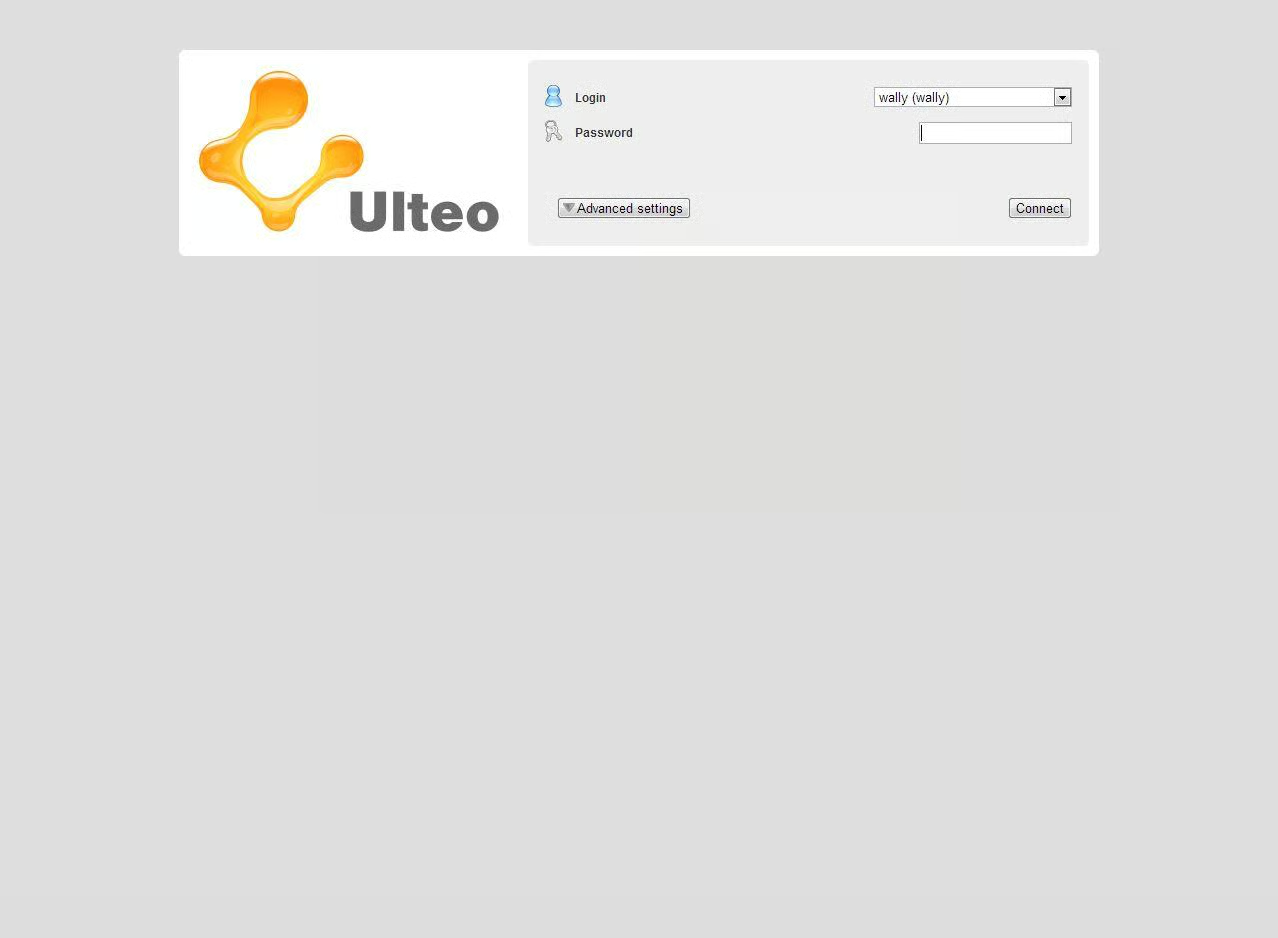
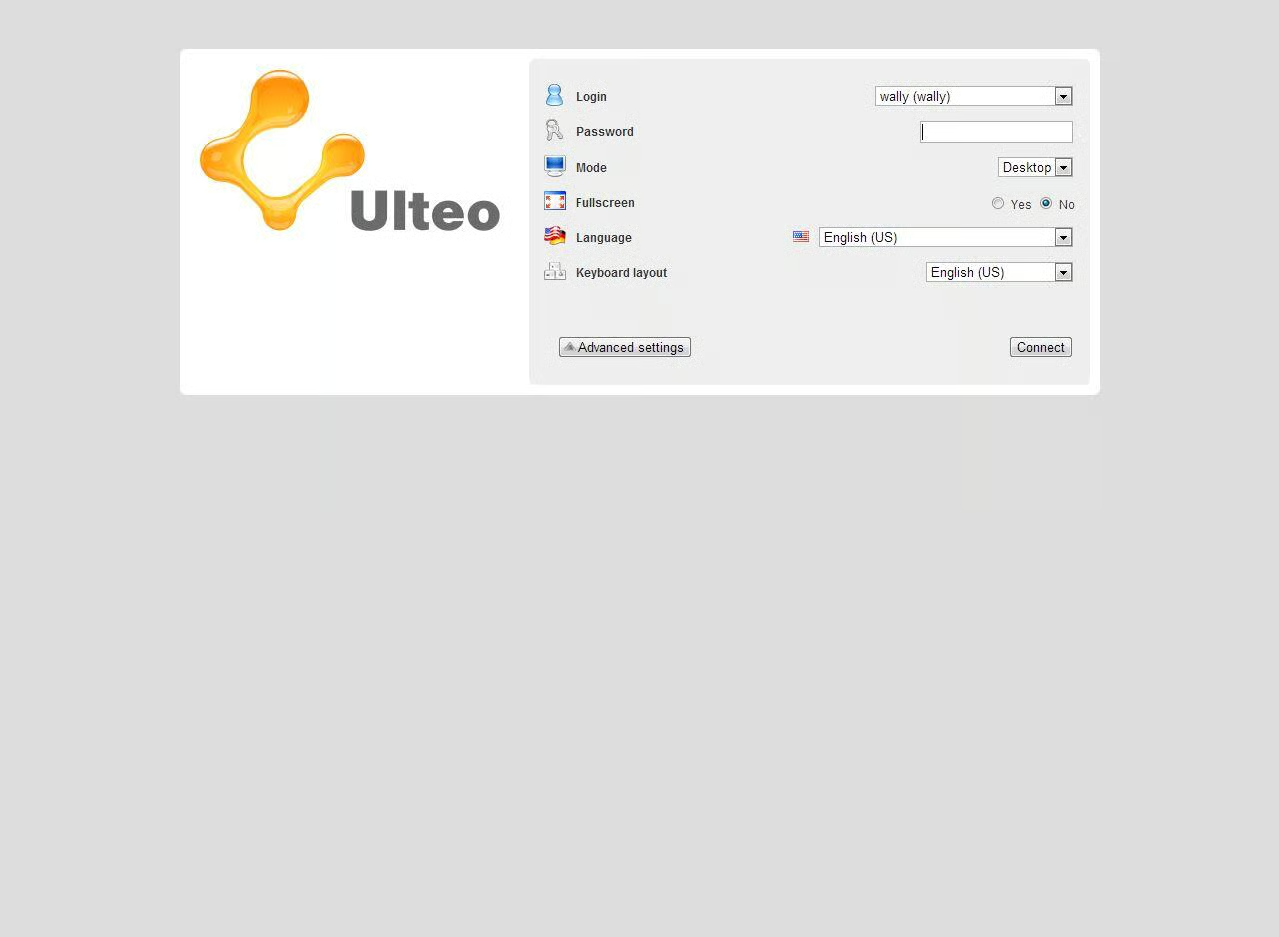
Users login via a web page.
\r\n\r\nCredit: Images by Wally Bahny for TechRepublic
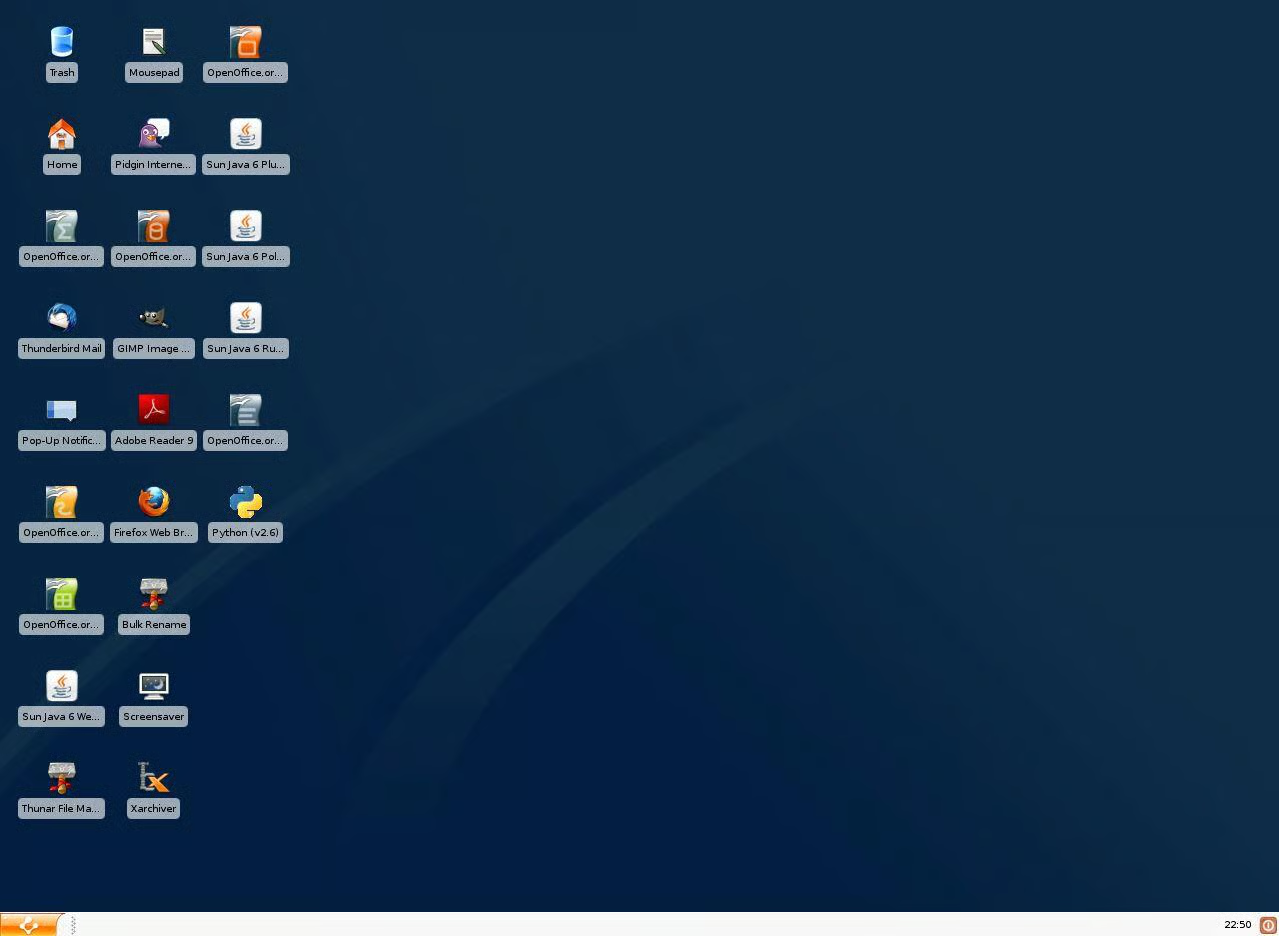
The default settings launch the user into a\r\npublished desktop with desktop shortcuts for each published app. There is also\r\na link for each app in the menu at the bottom left.
\r\n\r\nCredit: Images by Wally Bahny for TechRepublic
Advanced login settings include the ability to\r\nswitch to a portal view, enable full screen desktop, and change the default\r\nlanguage and keyboard layout.
\r\n\r\nCredit: Images by Wally Bahny for TechRepublic
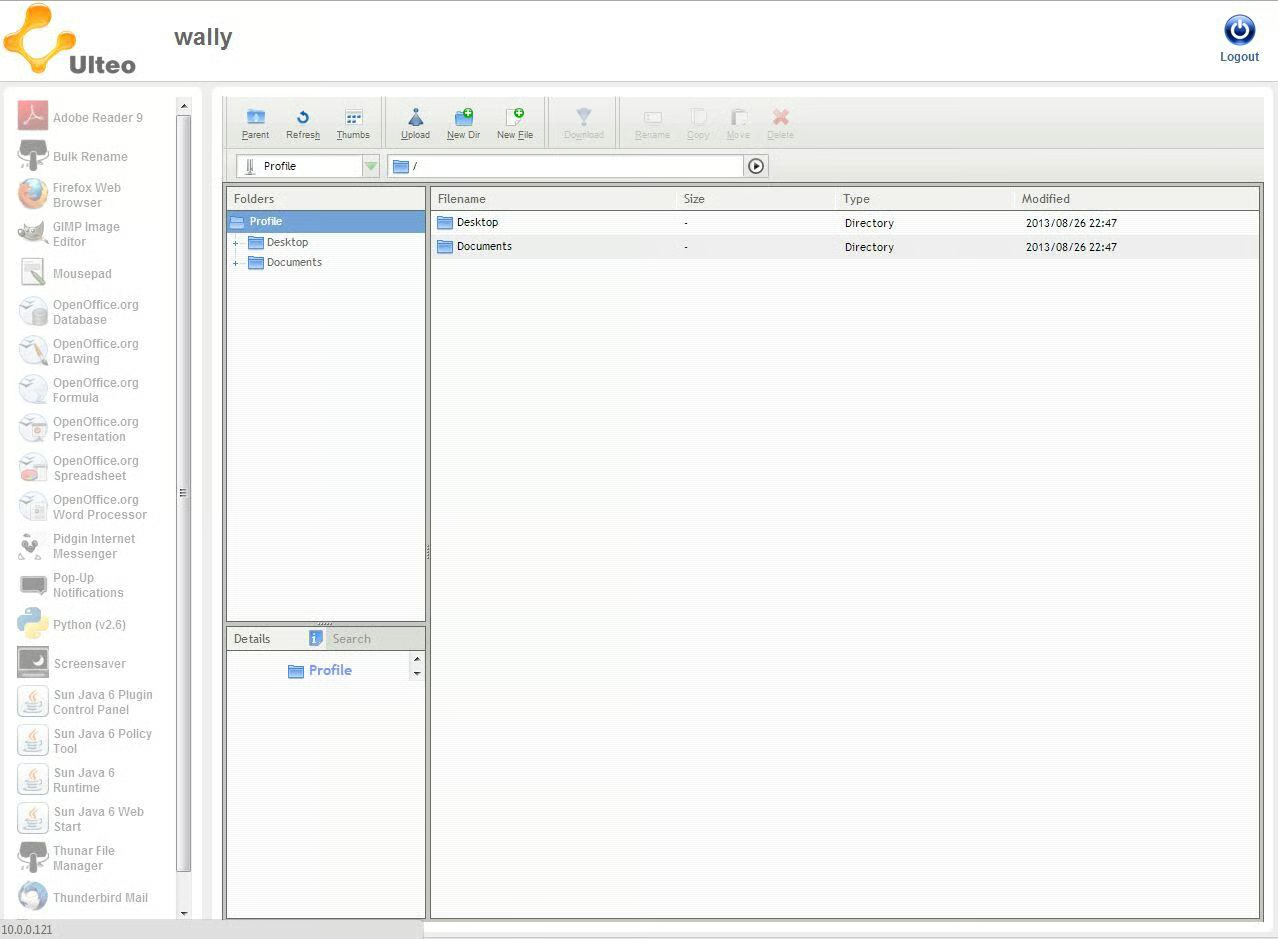
The portal view is a list of the apps as well as\r\naccess to some profile folders.
\r\n\r\nCredit: Images by Wally Bahny for TechRepublic
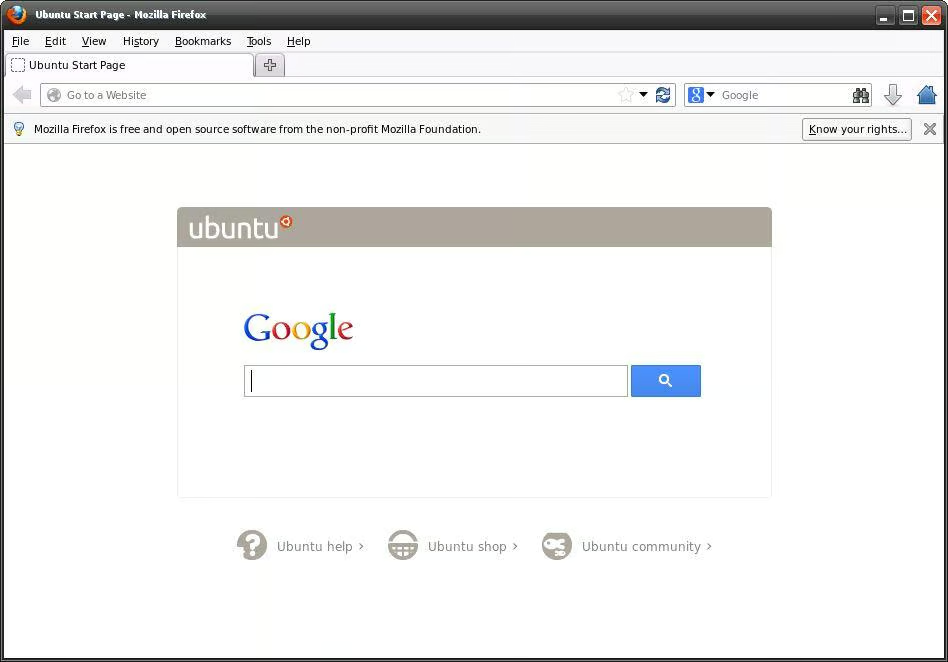
Launching apps in portal mode runs the apps as a\r\nwindow within your current system. This Firefox\r\nbrowser window appears within my Windows 7 desktop.
\r\n\r\nCredit: Images by Wally Bahny for TechRepublic
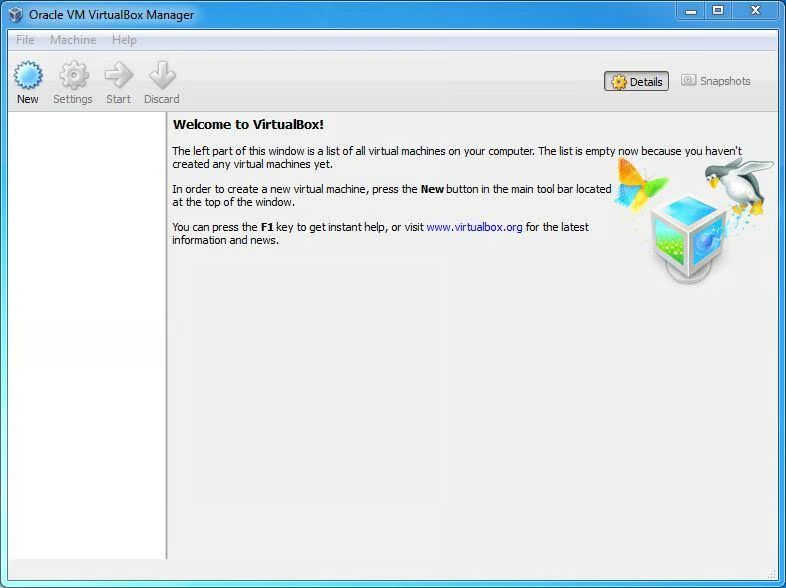
\r\n\r\nVirtualBox is a virtual machine host\r\nenvironment that is able to be run on Windows, OS X, Linux, and Solaris. Is has\r\na very easy to use interface to get you up and running with new virtual systems\r\nquickly and easily while still offering many advanced configuration options. VirtualBox\r\nsupports many guest\r\noperating systems – as a matter of fact, I was able to install Ulteo as a\r\nguest OS in VirtualBox. Depending on the guest OS, you can even turn on and use\r\nvarious integration features like a shared clipboard and drag-and-drop. VirtualBox\r\nis a free package, however developers are encouraged to write extensions for\r\nit, some of which may have a price.
VirtualBox is an easy to use virtual machine\r\nhosting environment.
\r\n\r\nCredit: Images by Wally Bahny for TechRepublic
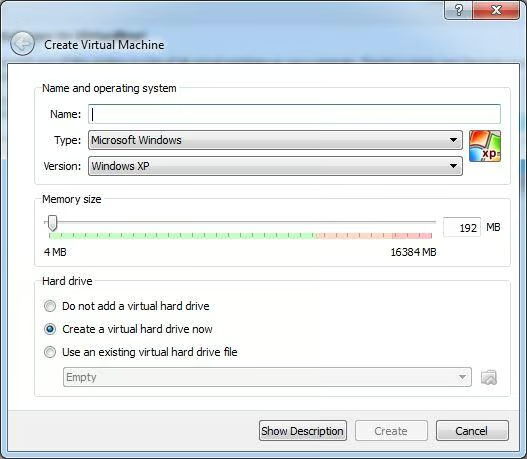
Creating a virtual machine is easy \u2013 simply\r\nselect the type and version of the operating system, choose the amount of\r\nmemory to dedicate to the system, and decide what virtual hard drive to use.
\r\n\r\nCredit: Images by Wally Bahny for TechRepublic
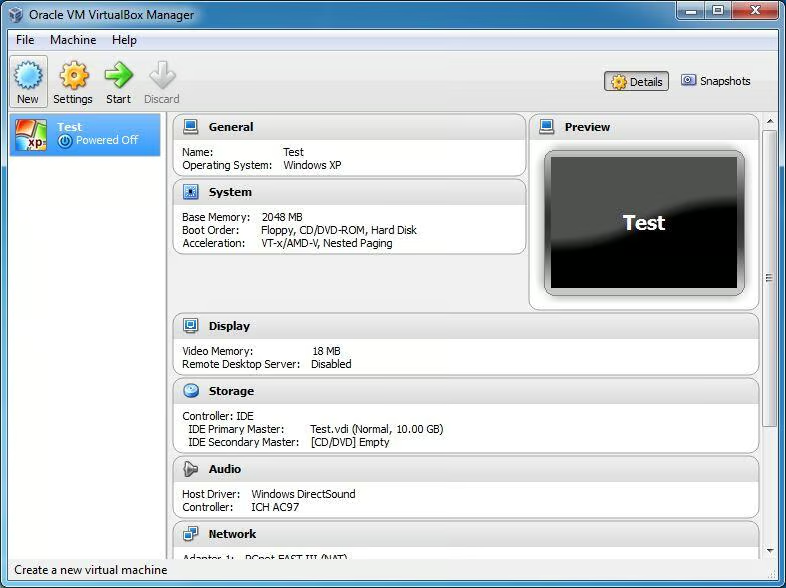
Once the virtual machine is set up, the\r\nVirtualBox Manager shows the configuration of the system. You can also alter those settings and start\r\nthe machine.
\r\n\r\nCredit: Images by Wally Bahny for TechRepublic
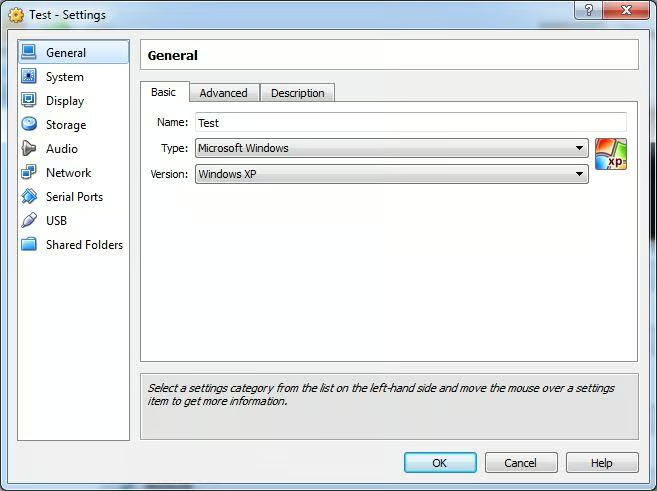
There are many settings available, grouped into\r\ncategories.
\r\n\r\nCredit: Images by Wally Bahny for TechRepublic