Mitch Ratcliffe continues his examination of the strengths and weaknesses of Windows Vista and Mac OS X. In this gallery, see how Vista has made strides in providing simple management of wireless connections.
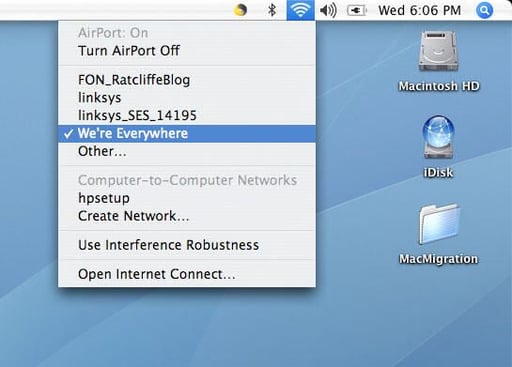
A click on the radio icon in the upper right corner of the Mac OS X Desktop reveals a list of all available wireless networks in range. Changing networks is simple, just click a network’s name and the connection switches. For many years, this has been the standard for ease of use in wireless management.
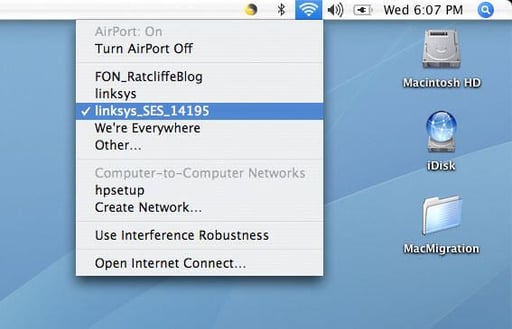
Here’s the Mac OS X wireless connection seconds later, after the system has switched network connections. The other way to reach the network connections in range is by selecting the “Open Internet Connect” option in the pop-up menu displayed here.
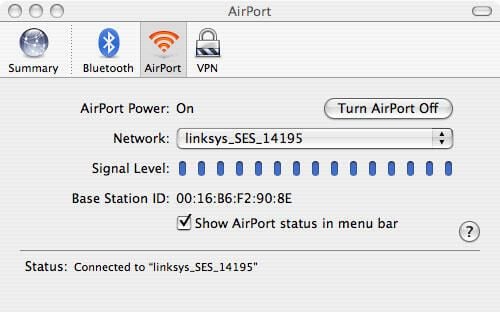
Internet Connect provides more detailed information about the network to which the system is currently connected. And, by selecting from the pop-up menu, the ability to switch to another wireless network.
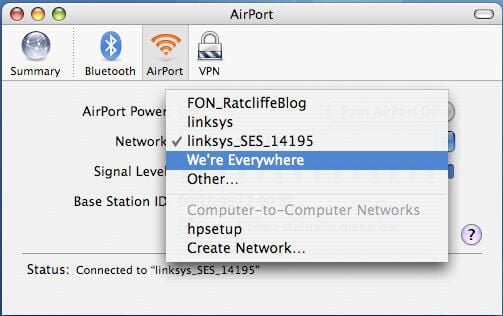
Here’s the pop-up list of networks in range in Mac Internet Connect. Switching is quick and easy.
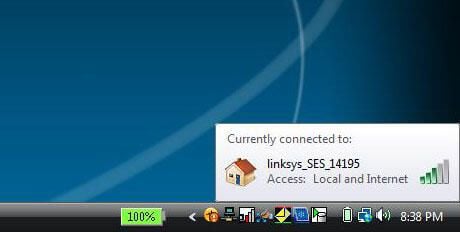
In Microsoft’s XP operating system, mousing over the wireless icon in the Tray revealed information about the connection. Vista’s view is richer….
On mouse-over, Vista shows a richer picture, but no more information about the current connection. The improvements lie deeper, where the Mac’s wireless preferences lose touch with how network connections relate to other system functions.
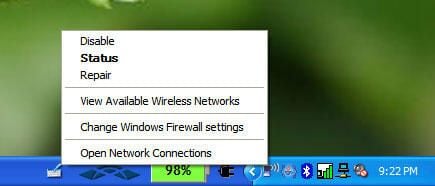
Again, back to Windows XP for a look at the past. When right-clicking on the wireless icon in the Tray, several options appeared, including the ability to browse available networks, repair or disable the current connection and open the firewall settings for the system.
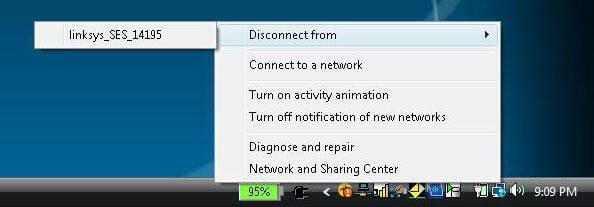
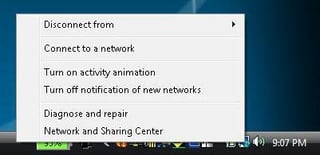
Right-clicking the wireless icon in the Vista Tray reveals a different set of options, some recognizable from XP, but others that open new services associated with the wireless connection.
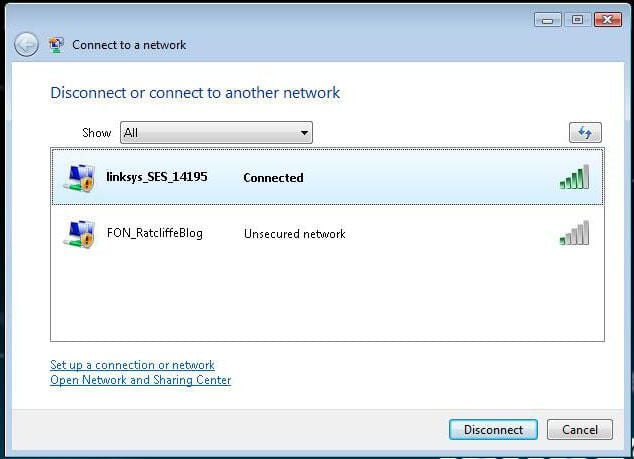
You can still disconnect from the current network or repair a problem with that connection. Connect to a network opens a list of available networks similar to that in XP.
The interesting improvements in Vista’s wireless support are behind the Network and Sharing Center option.
The network list in Vista is prettier than that it XP, but essentially identical.
Let’s move on to what’s much improved.
That last option, Network and Sharing Center, in the menu displayed when right-clicking the wireless icon links to preferences and network information that helps the user stay on top of the risks of, and services available through, a Internet Protocol network.
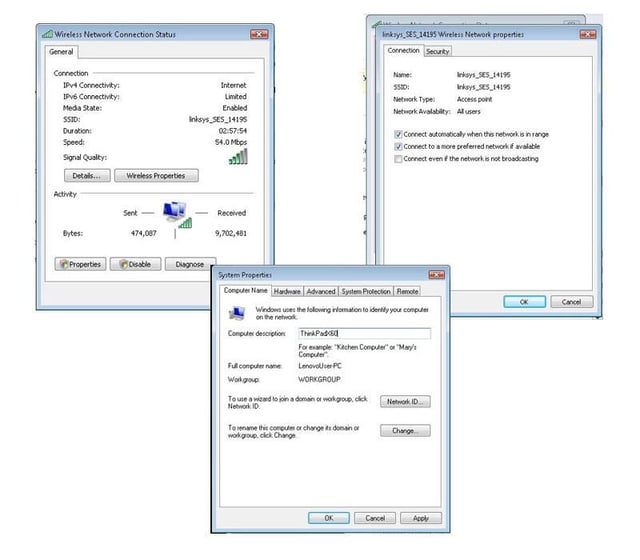
Vista’s Network and Control Center presents a series of familiar windows that display connection status, wireless properties and to the system properties related to network collaboration.
Nothing particularly new, but easier to find than before.
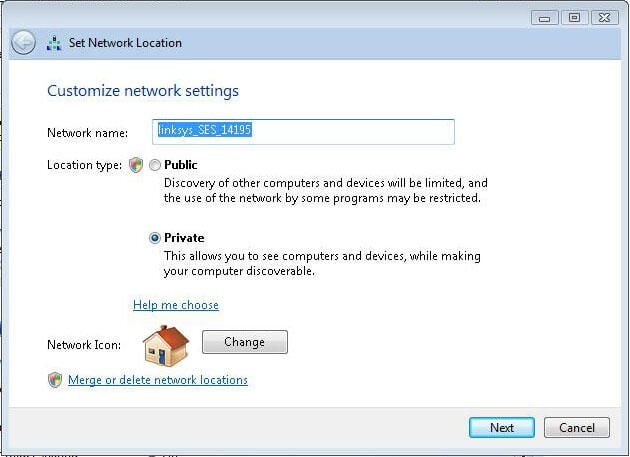
From the Network and Sharing Center, you can create network profiles for specific networks as “public” and “private.” A public network setting makes the system relatively closed, preventing discovery by other computers. On a private network, somewhat confusingly, the computer will be open to discovery, because the network is presumably better trusted than a public one.
After naming the custom network profile, you are asked to click Next.
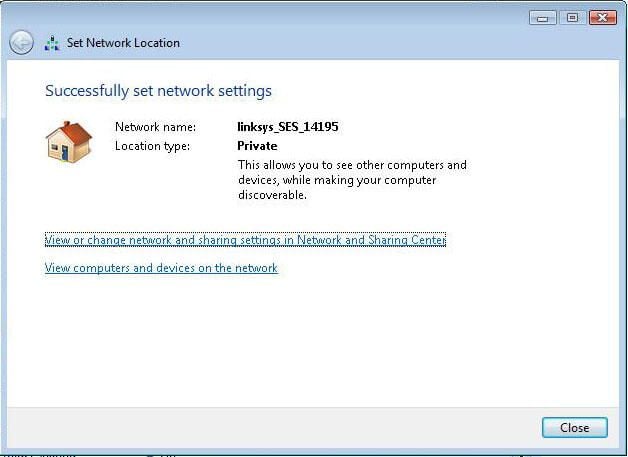
There isn’t really a good reason for this screen when you consider that Vista doesn’t provide this kind of confirmation for other settings in the Network and Sharing Center.
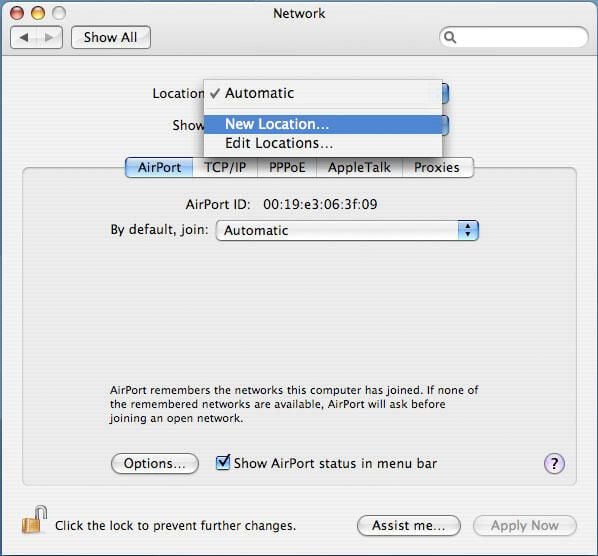
Let’s do remember that Apple doesn’t do everything gracefully. The Network Location profiling tool in Mac OS X carries many of the vestiges of a purely technical view of networking. For users wanting to understand their options, this is not simple stuff.
Vista makes the first step in this process clearer by offering a “customize” option by the name of the network in the Network and Sharing Center. In Mac OS X, one is presented this option as part of a generic network preferences pane.
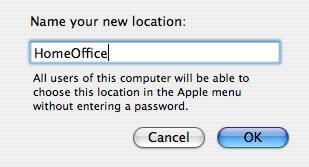
Suddenly, after choosing to create a new location, OS X presents a dialog asking for a name for the new location. And the cryptic—from a security perspective—that “All users of this computer will be able to choose this location in the Apple menu without entering a password.”
That doesn’t explain what this means for general security, only to other Mac users. Apple needs to take this aspect of its OS much further.
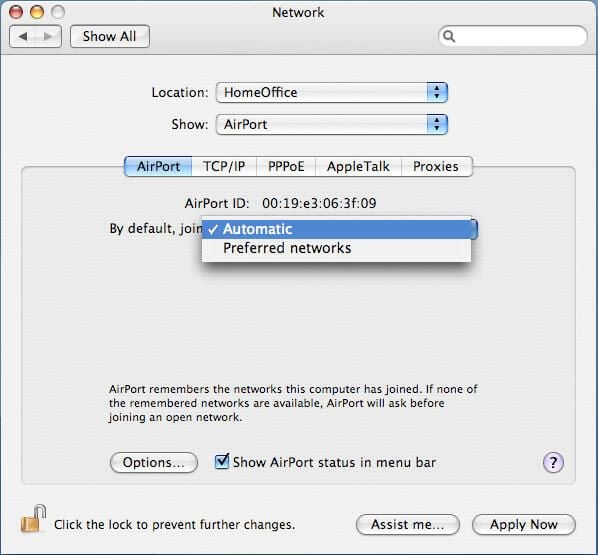
Here’s the next step in customizing a network profile. It asks whether the Airport Wi-Fi connection can connect to any available network or only to specified networks, though it would be hard to tell from the options “Automatic” and “Preferred networks.”
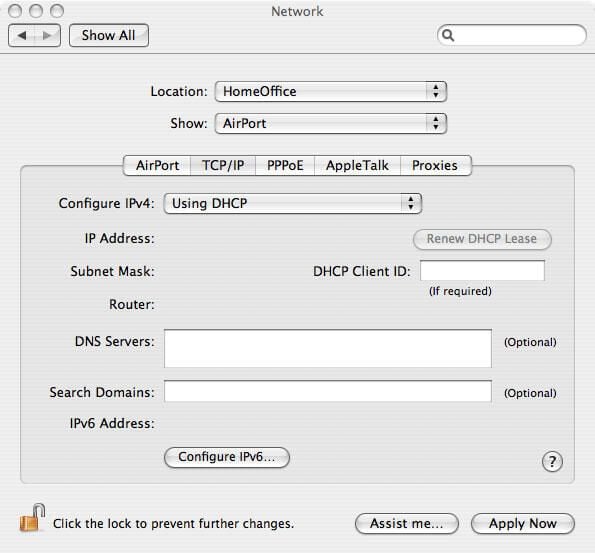
Look, I was networking editor of MacWEEK way back before the Mac OS had any Internet Protocol capability. But 15 years later, Apple should be doing more for the network naive user than asking for the DNS server addresses in the first screen for a connection. Airport Extreme is a sophisticated system that should mediate between the user and the network better than this. It’s the kind of intelligence that Mac people pay a premium to get from a system.