Screenshots: Google Search App for Windows 8 - TechRepublic

Screenshots: Google Search App for Windows 8

  • google-search-v1.jpg

    Quick Tip: Use Google's Search app on Windows 8

    This\r\ngallery is also available as a TechRepublic article.

    Wikipedia states that\r\n”60 million Windows 8\r\nlicenses have been sold” as far back as January of 2013. Furthermore,\r\naccording to Alex Wilhelm of techcrunch.com, Windows 8 reached 8\r\npercent market share in September of 2013. With these figures in mind, I’ve\r\nbeen doing some testing with Windows 8 to get more familiar with the operating\r\nsystem. Nobody at my business has deployed it yet and we’re happily running\r\nWindows 7 at my house, so this was the first time I really got a hands-on look\r\nat Microsoft’s new OS.

    \r\n\r\n

    Credit: Images by\r\nScott Matteson for TechRepublic.

  • a_smatteson_search_win8.png

    Figure A

    Challenges

    \r\n\r\n

    My verdict? The interface has some challenges \u2013 if you approach it from\r\nthe expectation that it will work in the same manner as prior Windows versions.\r\nAt first I was harshly critical of Windows 8 due to the missing Start button (frankly,\r\nI missed the train on the whole “pinning apps to the Taskbar” concept,\r\nsince I like things tucked away neatly until I need them) and the way-too-busy Metro\r\nscreen which reminds me of the flashy Las Vegas Strip. There is also the fact\r\nthat navigating to familiar functions involves some seemingly tedious and\r\nunnecessary changes. Swipes, hotkeys and other non-intuitive procedures bogged\r\nme down. Furthermore, I have some concerns about the quality of the functions\r\nrunning underneath the interface as well (see “A word about the Windows\r\nStore” below).

    \r\n\r\n

    I approach new technology from the mindset that if it’s well-designed I\r\nshould be able to mind-meld with it and figure things out on my own. However,\r\nto be fair, one size doesn’t always fit all. It’s impossible to really judge the\r\nWindows 8 interface without reading instruction guides, any more than you might\r\ntry to fly a helicopter by playing with the collective or the pedals. Articles\r\nsuch as “The\r\n10 most useful Windows 7 and Windows 8 keyboard shortcuts” and “A\r\nlook at some Microsoft Windows 8.1 highlights” can help prepare you\r\nfor the new OS, and a detailed\r\nvideo by Scott Hanselman can also be educational. These brought me to a\r\npoint of semi-comfort where I could limp along to find the functions I needed.

    \r\n\r\n

    Search application

    \r\n\r\n

    Fortunately, add-ons are also there to help improve the experience and\r\nallow you to be more productive so you spend less time spinning your wheels. Classic Shell, for instance, can help\r\nrestore familiarity to the Windows interface so you can get work done. On that\r\nsame note, Google provides a search application which can be useful for Windows\r\n8 users. Not only can you perform traditional search functions, but the program\r\nlinks you to other Google services such as Gmail, Calendar, Maps and Drive. Let’s\r\nsee how it works.

    \r\n\r\n

    (Note: A Microsoft account is required for this process. I tested the\r\nsteps below on the standard Windows 8 release; I think the process and\r\noperation of the add-on should be the same for Windows 8.1 but if you try it\r\nand find out otherwise please let me know in the Comments section).

    \r\n\r\n

    You can find the Google Search app by opening the Windows Store tile\r\nfrom the Metro screen, pressing Win-Q to bring up the search box (Figure A) and\r\nentering “Google Search” (if you take this route, skip down to the “Figure\r\nB” screenshot).

    \r\n\r\n

    An easier method is to access\r\nthe Google Search app installation page directly in your browser.

    \r\n\r\n

    Credit: Images by\r\nScott Matteson for TechRepublic.

  • b_smatteson_search_win8.png

    Figure B

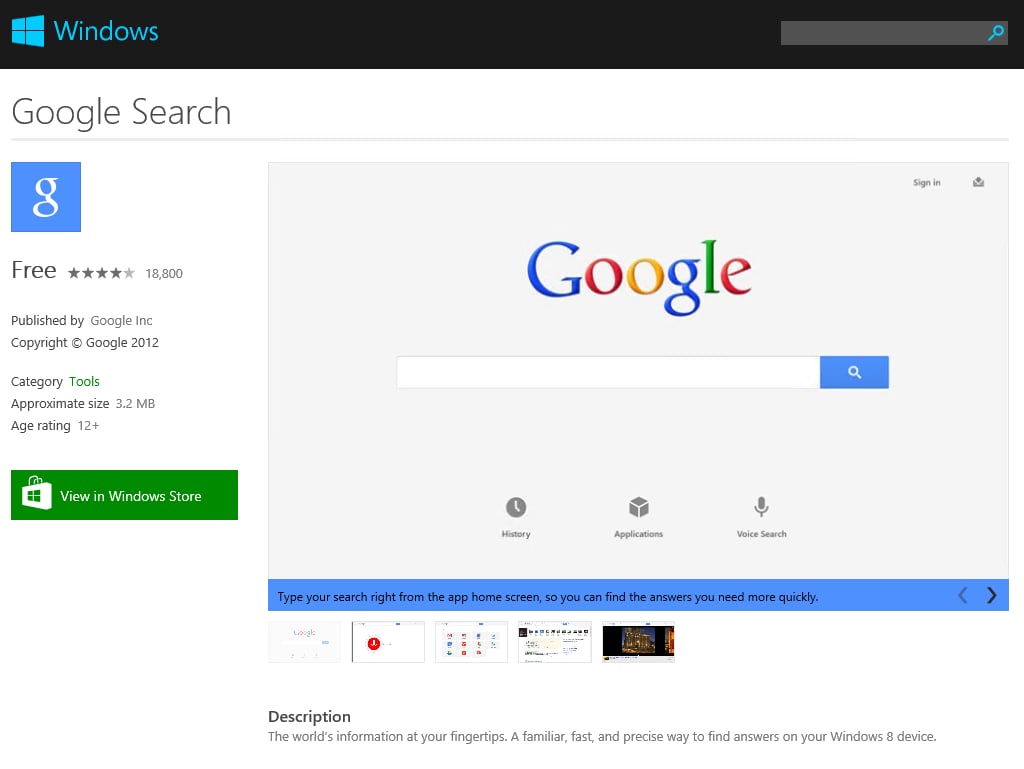
    Click “View in Windows Store.”

    Credit: Images by\r\nScott Matteson for TechRepublic.

  • c_smatteson_search_win8.png

    Figure C

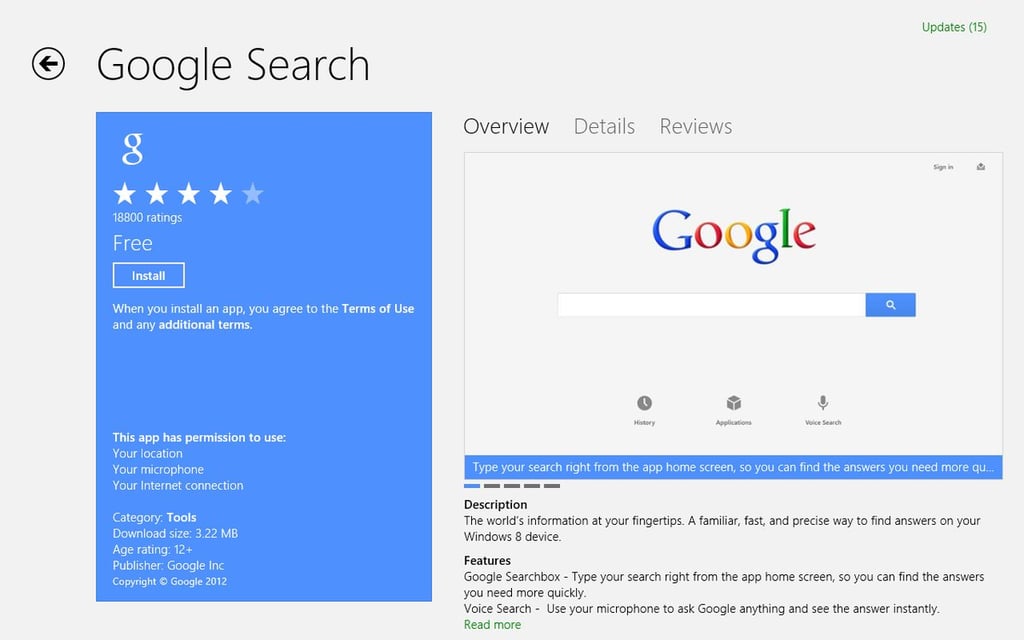
    Click the “Install” box and the installation will proceed (if\r\nprompted enter your Microsoft account credentials during this process).

    \r\n\r\n

    The text “Installing Google Search” should be displayed in the\r\nupper right. When the process has completed a box will notify you that the\r\ninstallation has finished.

    \r\n\r\nReturn to the main Metro screen and you will see\r\nthe new Google tile, (Figure C)

    \r\n\r\n

    Credit: Images by\r\nScott Matteson for TechRepublic.

  • d_smatteson_search_win8.png

    Figure D

    A word about the Windows Store

    \r\n\r\n

    The above process is easy – assuming Windows 8 will allow you to access\r\nthe Windows Store. I had some frustrating issues which I eventually\r\nstraightened out, and they are as follows:

    \r\n\r\n

    -I couldn’t open the Store on my test Windows 8 virtual machine due to an\r\nerror stating “We weren’t able to connect to the Store. This might have\r\nhappened because of a server problem or the network connection timed out.\r\nPlease wait a few minutes and try again.” The Internet connection was\r\nconfirmed to be fully functional. Recommendations I found online to make sure\r\nthe date/time were correct and confirm the proxy server settings did not help. I\r\nthink the issue was related to the fact I couldn’t sign into my Microsoft\r\naccount on this system using the “Charms bar / Settings / Change PC\r\nSettings / Users” option; I kept getting the error that “This service\r\nisn’t available right now – please try again later.”

    \r\n\r\n

    -I switched from my test Windows 8 VM to a physical Windows 8 laptop,\r\nlogging in as the local administrator since the laptop was not on my domain. However,\r\nI still couldn’t access the Windows store due to an error that “Store can’t\r\nbe opened using the built-in administrator account. Sign in with a different\r\naccount and try again.”

    \r\n\r\n

    -I joined the laptop to the domain and signed in with my domain account.\r\nI was still unable to access the Store because of an error stating: “Your\r\nPC isn’t connected to the Internet.” Once again, the Internet connection\r\nwas confirmed functional; the issue seemed to have been a refusal on the part\r\nof the Store app to use my proxy server.

    \r\n\r\n

    -Finally I connected the laptop directly to the Internet via a wireless\r\nconnection then tried again. I was told I needed to enable User Account Control\r\nto get to the Store. Summoning what remained of my patience, I did so, rebooted,\r\nand then logged back into Windows. At long last, after I accessed the Store and\r\nlogged in with my Microsoft account, I was able to proceed with the\r\ninstallation of the Google Search app. Then I went to find some champagne.

    \r\n\r\n

    In a word: unacceptable. Hopefully your results with the Windows Store have\r\nbeen better.

    \r\n\r\n

    Back to our regularly scheduled programming

    \r\n\r\n

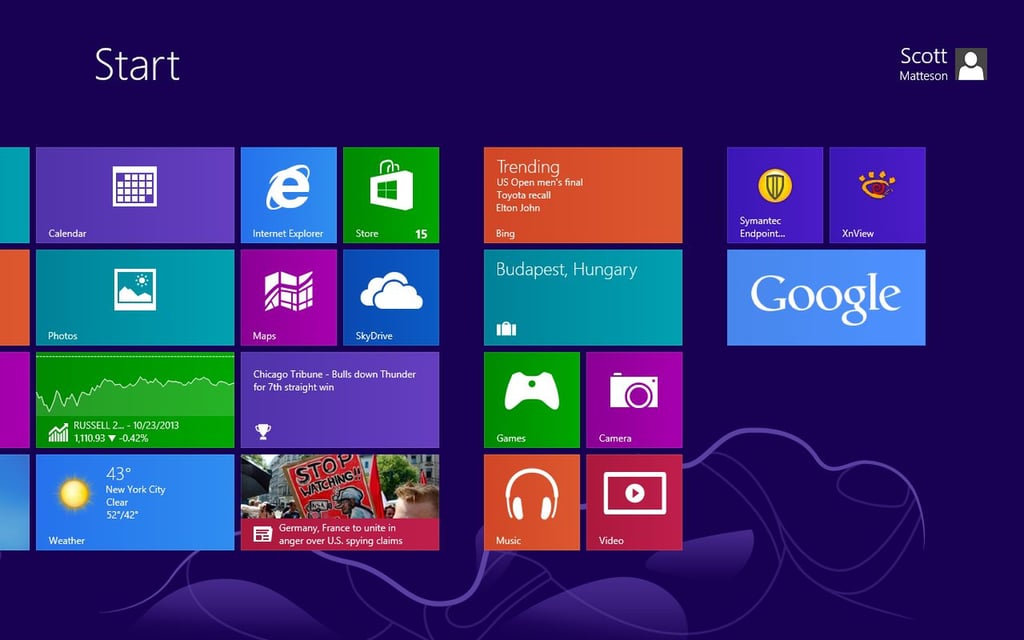
    Now that the Google Search tile is present in your Metro screen, click “Google”\r\nand the following tutorial will load (assuming you’re running this for the\r\nfirst time). (Figure D)

    \r\n\r\n

    Credit: Images by\r\nScott Matteson for TechRepublic.

  • e_smatteson_search_win8.png

    Figure E

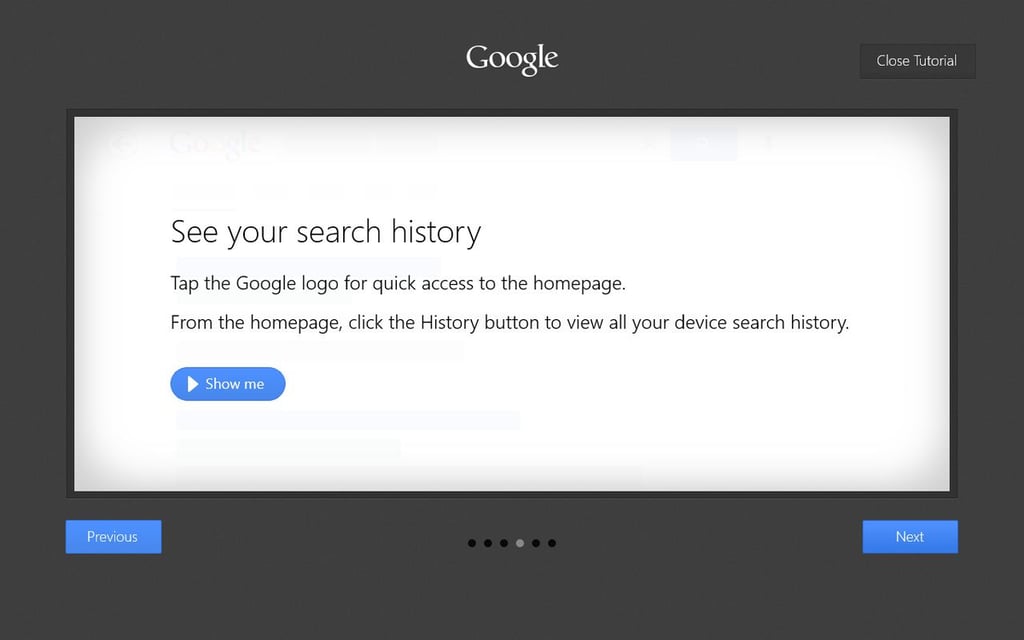
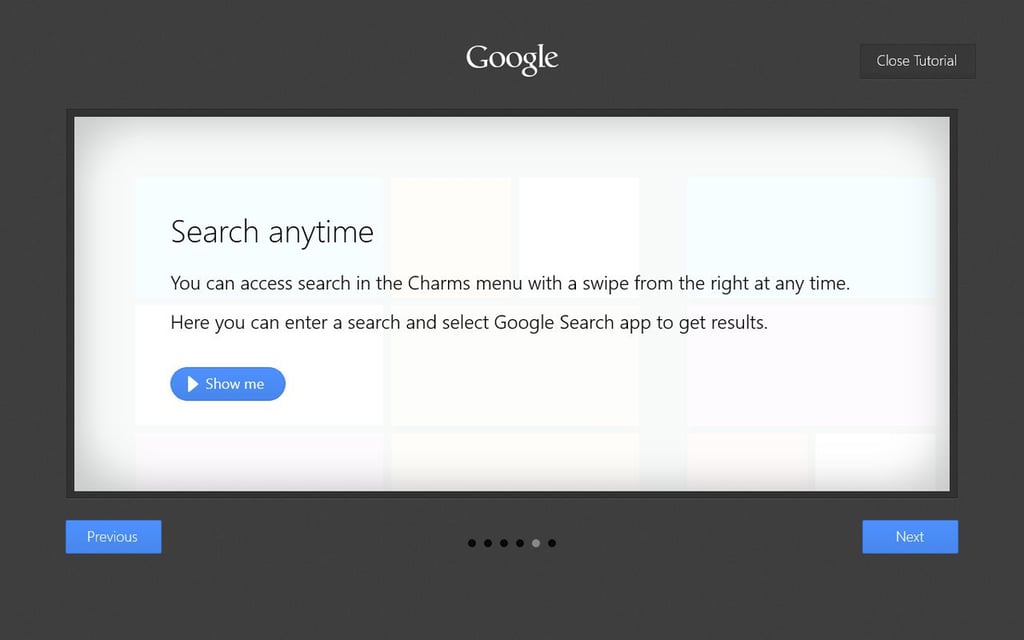
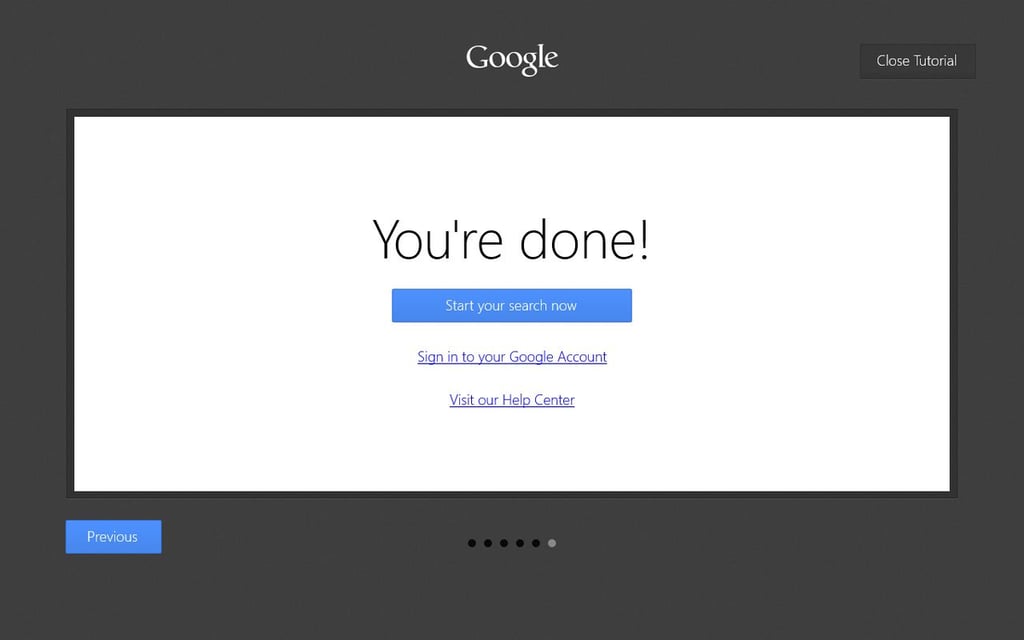
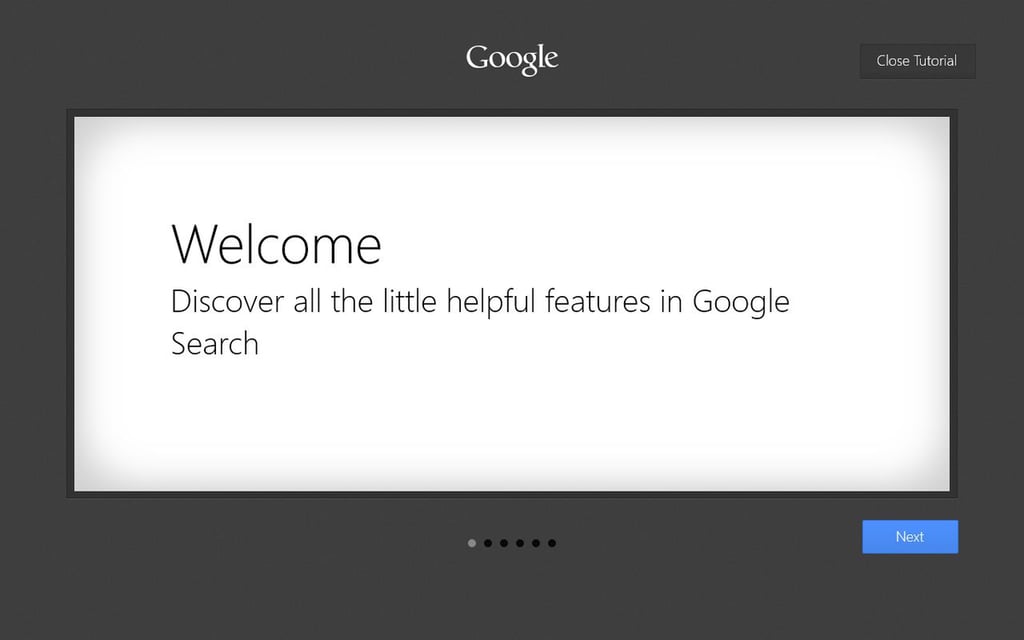
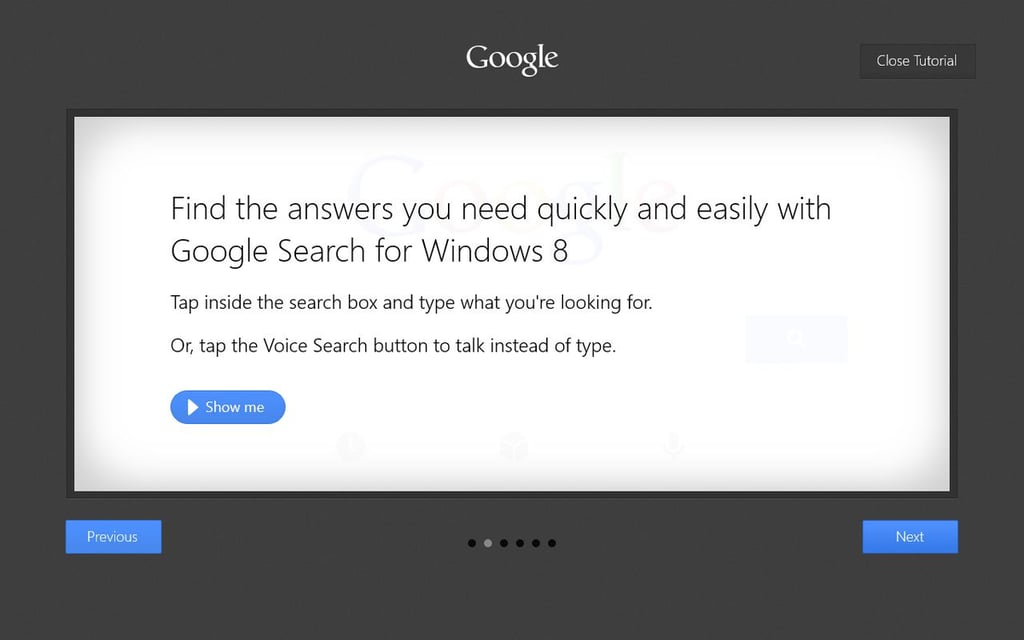
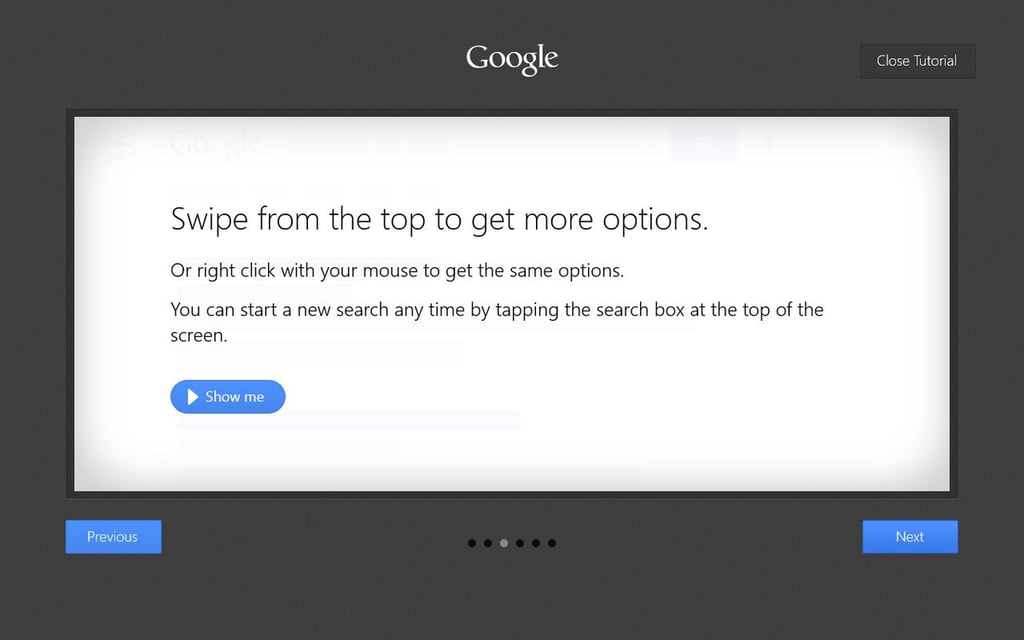
    You can click “Close\r\nTutorial” to start using the app right away, but if you click “Next”\r\nthe tutorial will take you through the following helpful screens. (Figures E,\r\nF, G, H, and I)

    \r\n\r\n

    Credit: Images by\r\nScott Matteson for TechRepublic.

  • f_smatteson_search_win8.png

    Figure F

    Credit: Images by\r\nScott Matteson for TechRepublic.

  • g_smatteson_search_win8.png

    Figure G

    Credit: Images by\r\nScott Matteson for TechRepublic.
  • h_smatteson_search_win8.png

    Figure H

    Credit: Images by\r\nScott Matteson for TechRepublic.

  • i_smatteson_search_win8.png

    Figure I

    Credit: Images by\r\nScott Matteson for TechRepublic.
  • j_smatteson_search_win8.png

    Figure J

    Once you get to the final screen I recommend clicking “Sign in to\r\nyour Google Account” since you’ll need to do this to get the most benefit\r\nfrom the Search app.

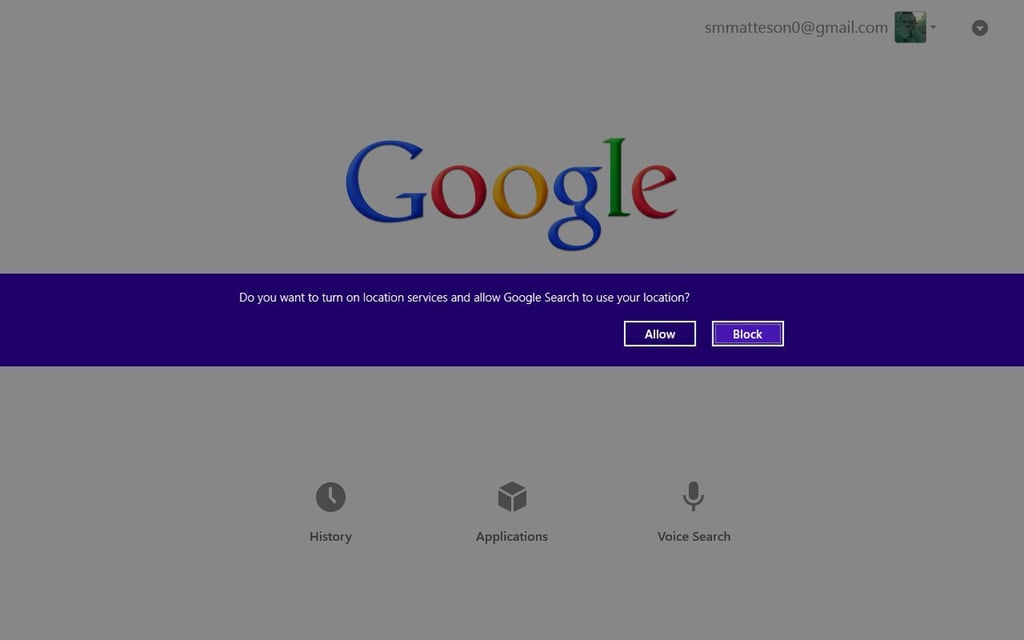
    \r\n\r\nOnce you’ve signed in, you will receive the\r\nfollowing prompt. (Figure J)

    \r\n\r\n

    Credit: Images by\r\nScott Matteson for TechRepublic.

  • k_smatteson_search_win8.png

    Figure K

    Choose “Allow” or “Block” depending on your\r\npreference.

    \r\n\r\n

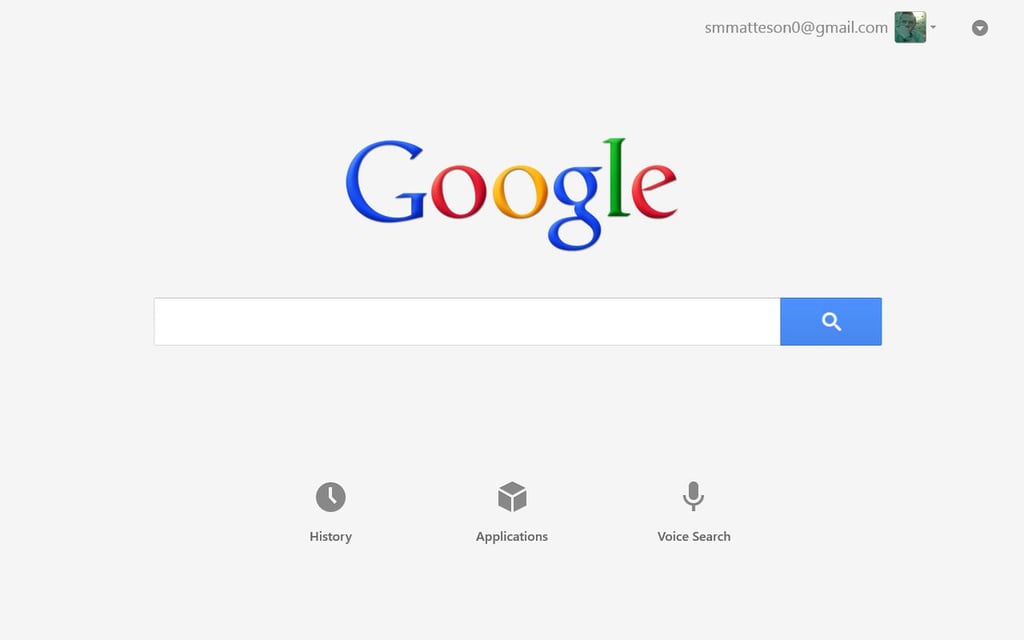
    At last you will see the Google Search app interface, shown in Figure K.

    \r\n\r\n

    Credit: Images by\r\nScott Matteson for TechRepublic.
  • l_smatteson_search_win8.png

    Figure L

    From this portal you can conduct a web search, view your History, access\r\nyour Google Applications or use the Voice Search function.

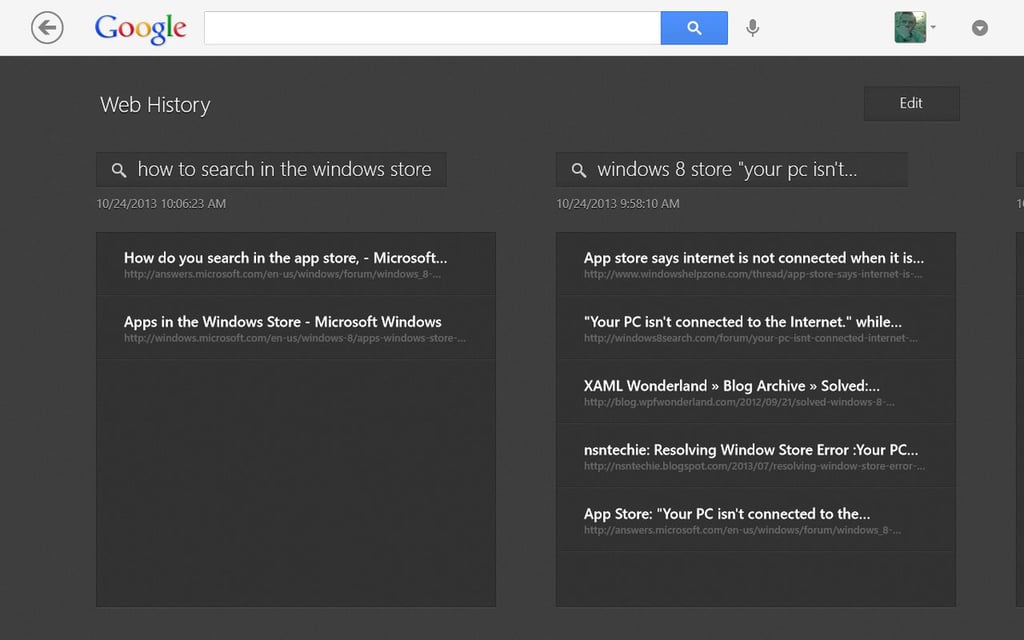
    \r\n\r\nFor instance, when I clicked “History”\r\nmy recent web searches showed up right away. (Figure L)

    \r\n\r\n

    Credit: Images by\r\nScott Matteson for TechRepublic.

  • m_smatteson_search_win8.png

    Figure M

    (OK, I’ll admit it \u2013 even us system admins consult the Google for tips\r\non things like searching in the Windows app store)

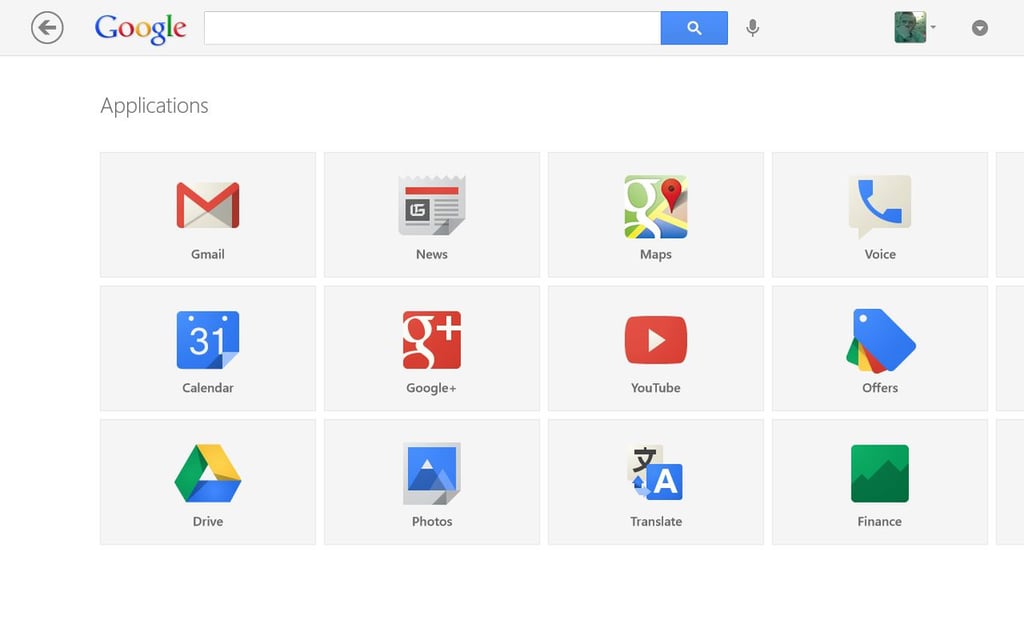
    \r\n\r\nClicking the “Applications” icon\r\ndisplayed the following icons. (Figure M)

    \r\n\r\n

    Credit: Images by\r\nScott Matteson for TechRepublic.
  • n_smatteson_search_win8.png

    Figure N

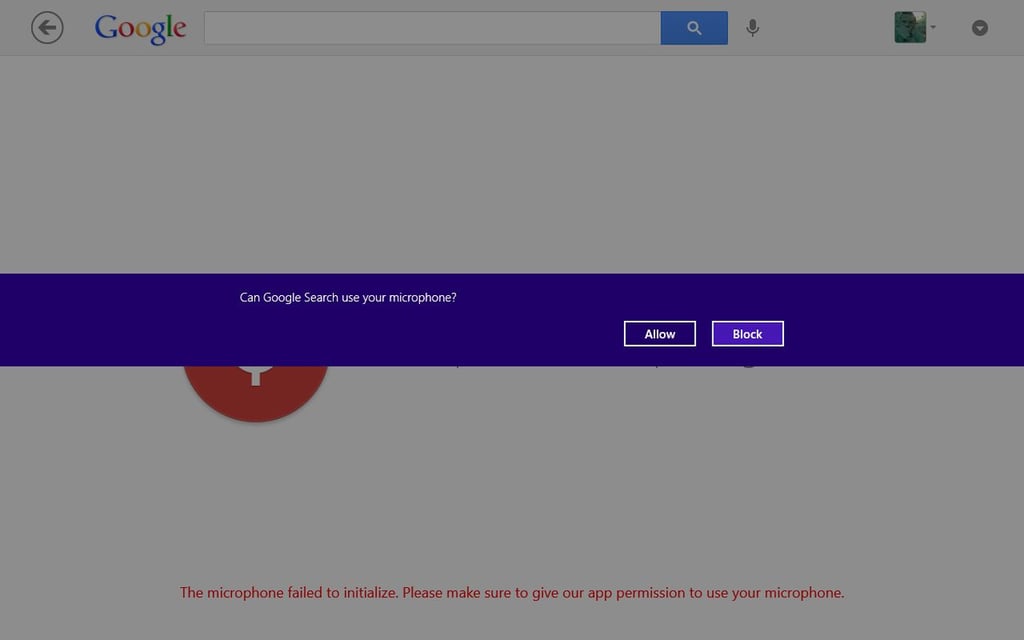
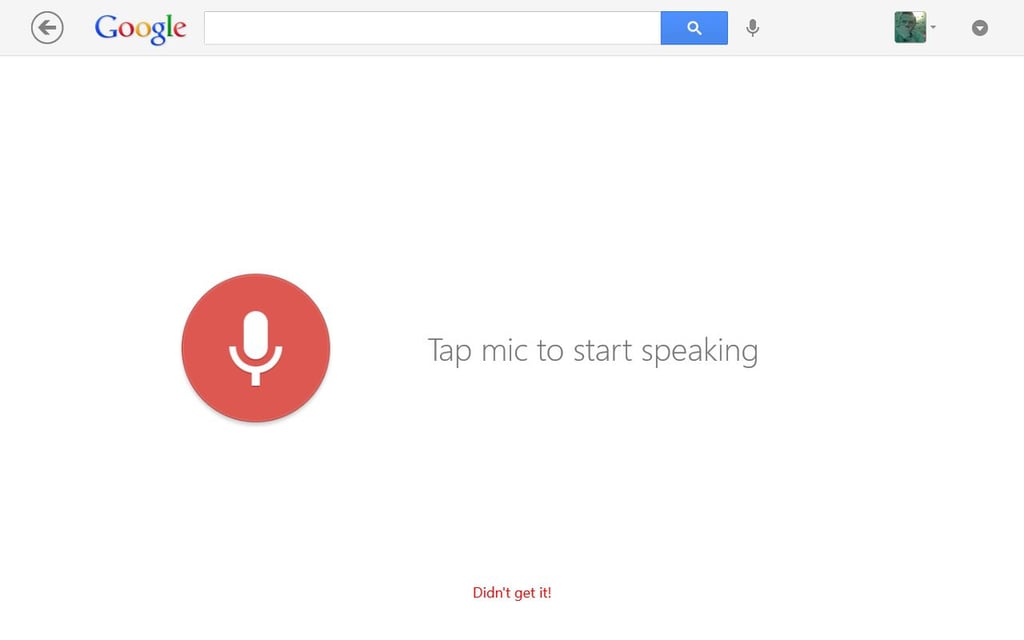
    And finally, when I accessed the “Voice Search” function I was\r\nprompted whether Google Search could use my microphone. (Figure N)

    \r\n\r\n

    Credit: Images by\r\nScott Matteson for TechRepublic.

  • o_smatteson_search_win8.png

    Figure O

    I clicked “Allow” and then the feature was available. (Figure\r\nO)

    \r\n\r\n

    Credit: Images by\r\nScott Matteson for TechRepublic.
  • p_smatteson_search_win8.png

    Figure P

    Simple and straightforward

    \r\n\r\n

    The singer Morrissey recorded a song titled “You’re gonna need someone on\r\nyour side” for his album “Your Arsenal,” released in 1992. The\r\nsong came to mind during this process because I found the Google Search app a\r\nfriendly addition to an otherwise complex environment that didn’t always want\r\nto play nicely.

    \r\n\r\n

    The cool thing about this program is that it’s laid out intuitively with\r\nno surprises or potholes. Of course, you can get to these same functions via\r\nyour browser, but it’s handy to have these shortcuts for direct access.

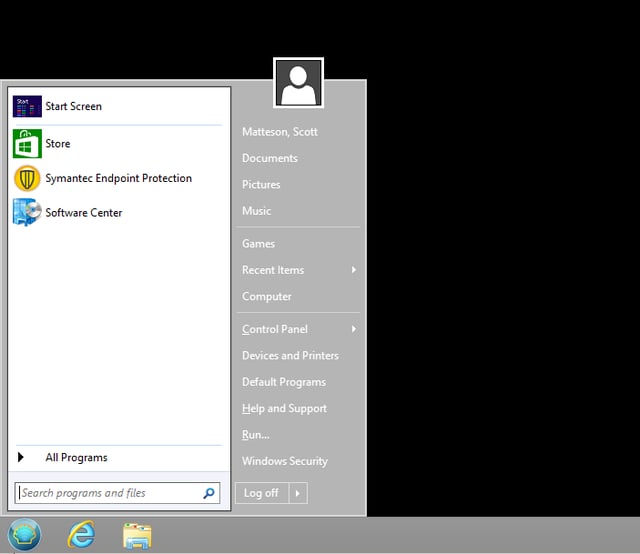
    \r\n\r\nOn last thing to point out: I mentioned the free\r\nadd-on “Classic Shell“\r\nwhich can bring the traditional start menu back to Windows 8. (Figure P)

    \r\n\r\n

    Credit: Images by\r\nScott Matteson for TechRepublic.

  • q_smatteson_search_win8.png

    Figure Q

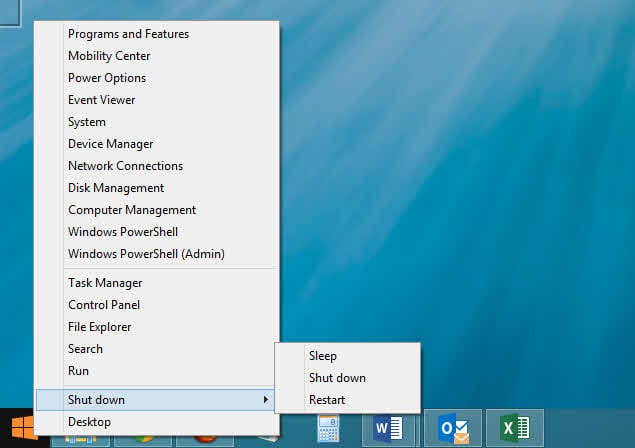
    Windows 8.1 has a start button of sorts, which resembles the following.\r\n(Figure Q)

    \r\n\r\n

    Regardless of what your choice may be (or whether the default interface\r\nworks fine for you), it’s nice to have choices, period.

    \r\n\r\n

    Credit: Images by\r\nScott Matteson for TechRepublic.
1 of 18
Scott Matteson

Scott Matteson is a 30 year senior systems administrator with experience in Windows, Linux and VMWare, and an 11 year technical writer who also performs consulting work for small organizations. He resides in the Greater Boston area with his family and pets.