By David Politis
\r\n\r\n
This\r\ngallery is also available as a TechRepublic article.
At BetterCloud, we\r\nusually consider ourselves to be on the bleeding edge of adoption when it comes\r\nto all things Google, so it was slightly surprising that up until last month,\r\nwe were still using email distribution lists as our form of an internal social\r\nnetwork. It wasn’t until we fully realized the power – and privacy – of Google+\r\nCommunities that we saw this feature as a viable replacement for those outdated\r\nlists.
\r\n\r\n
\r\n\r\n
For any business operating on the Google Apps platform,\r\nusing a Google+\r\nCommunity as your enterprise social network (ESN) should be a no brainer.\r\nEmployees already spend the majority of their work day in their inbox, so why\r\nnot give them an interactive tool with notifications surfaced in Gmail – and\r\nelsewhere like Google Calendar, Google search results, and Google Drive? While\r\nother providers like Jive and Yammer require users to get used to yet\r\nanother new product, Google+ integrates seamlessly with the rest of the Google\r\nApps suite.
\r\n\r\n
Moreover, we’ve found that the actual Community fosters\r\nsharing. In the past, we experimented with domain-only sharing on Google+, but\r\nfound that internal posts were getting lost in the Google+ feeds of our\r\nemployees. Instead, the Community provides a singular place for all updates,\r\nmilestones, announcements and news items to be shared, commented on and\r\ncelebrated.
\r\n\r\n
Credit: Images by\r\nDavid Politis for TechRepublic
\r\n\r\n
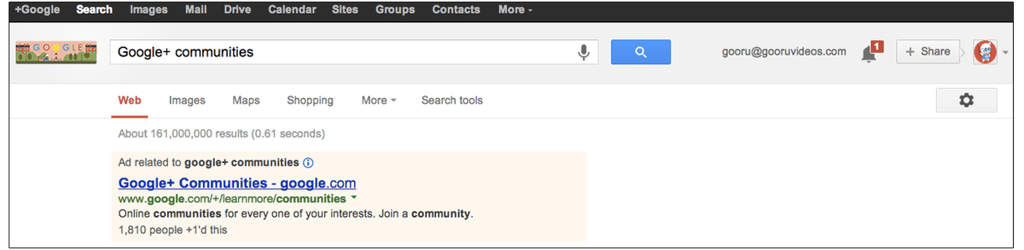
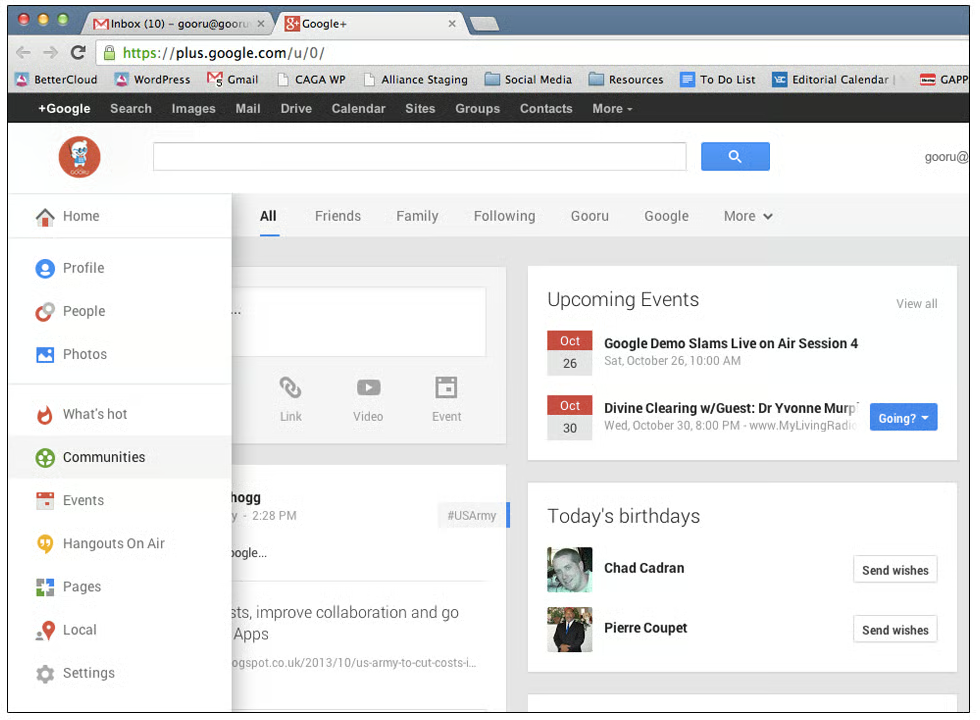
To get started with Google+ Communities, simply visit\r\nGoogle+, either by clicking +Name at\r\nthe top of your inbox or by visiting plus.google.com.\r\n
\r\n\r\nOnce there, click the Home tab, then scroll down to and click Community.
\r\n\r\n
Credit: Images by\r\nDavid Politis for TechRepublic

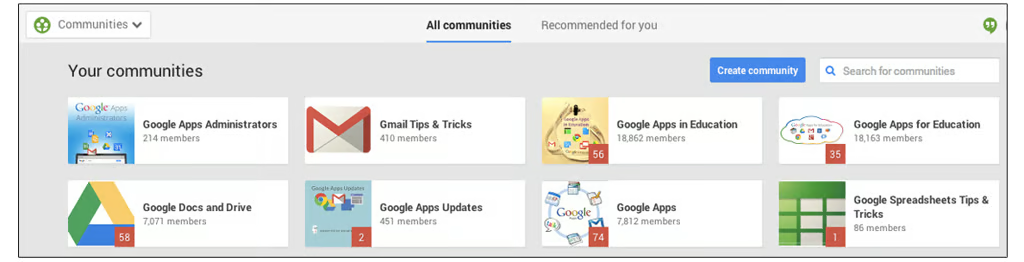
Next,\r\nclick the button marked Create Community.
\r\n\r\n
Credit: Images by\r\nDavid Politis for TechRepublic
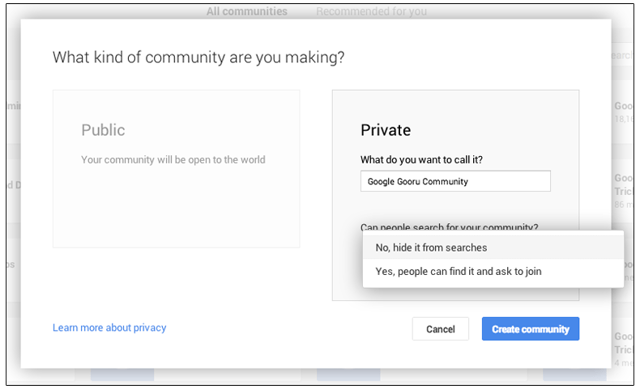
Choose\r\nwhether you’d like your Community to be public or private. Of course, if you\r\nplan to use the Community as an ESN, make the Community private and then choose\r\na name. We also suggest hiding the Community from search results. This is a\r\nprivate network that may contain sensitive company information. It’s important\r\nto keep its contents as well as the actual Community private.
\r\n\r\n
Credit: Images by\r\nDavid Politis for TechRepublic
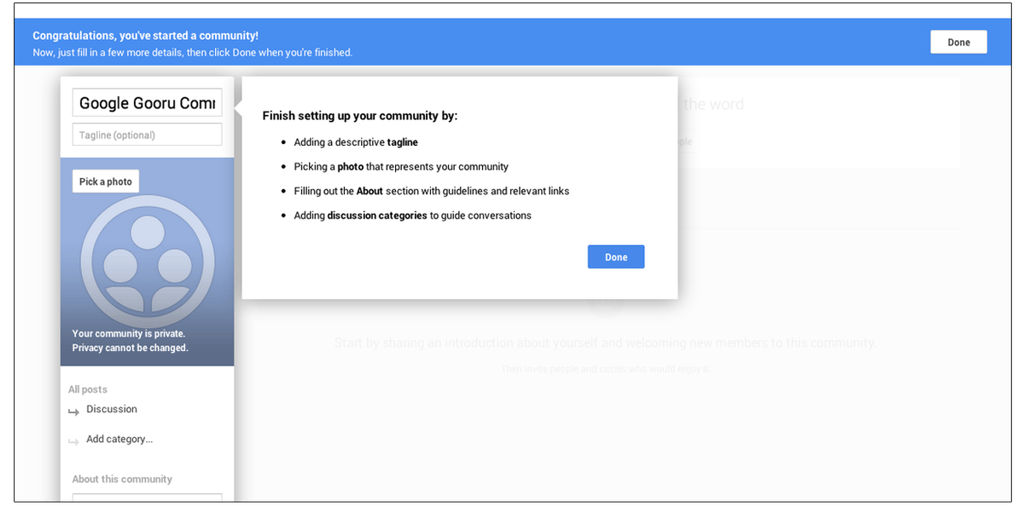
Now\r\nthat you’ve created the Community, you can begin to customize it by adding a\r\nprofile picture, description, and topic categories. Categories are very\r\nimportant as your users will be able to filter posts in the Community later on.\r\nYou should consider creating different categories for different office\r\nlocations or departments.
\r\n\r\n
Credit: Images by\r\nDavid Politis for TechRepublic
After customizing the community, invite your employees. Once\r\na member has joined, you can upgrade their status from member to moderator or\r\nowner if you wish. An owner can:
\r\n\r\n
\r\n
\r\n
\r\n
\r\n
\r\n\r\n
A moderator has all of the above\r\ncapabilities except they cannot add additional moderators or delete the\r\nCommunity. You might consider giving additional rights to your CEO or an HR\r\nmanager.
\r\n\r\n
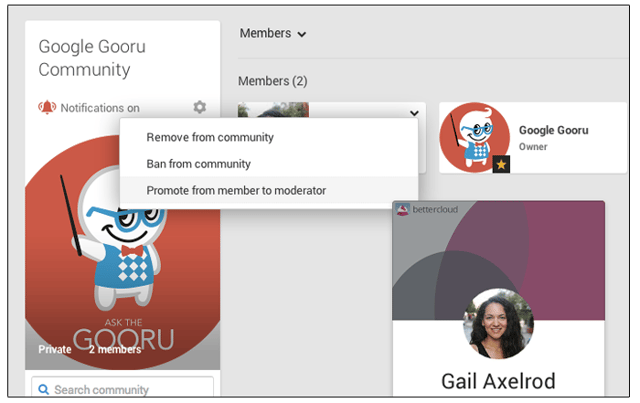
To make a member a moderator wait until they’ve joined the\r\nCommunity, then view your members. Select the desired member and choose Promote from member to moderator from\r\nthe dropdown menu. Once a member has been promoted to moderator, you can\r\npromote them again to owner if you wish.
\r\n\r\nYour Community is now up and running. Kick things\r\noff by sharing your first post.
\r\n\r\n
Credit: Images by\r\nDavid Politis for TechRepublic
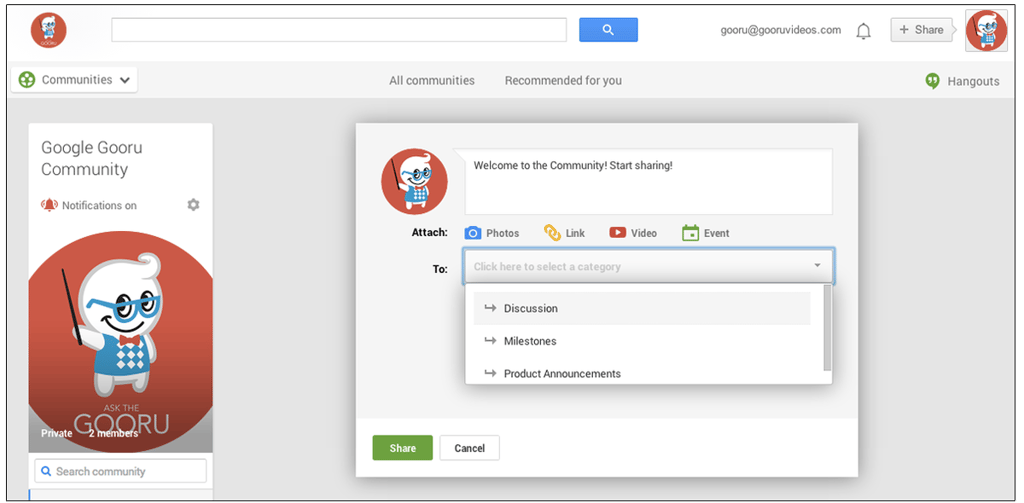
\r\n\r\nTo post in the Community, you have a few\r\noptions. You can go directly to the Community and post there. To do so, go to\r\nyour Google+ profile then click Home,\r\nselect Communities and click into\r\nyour organization’s ESN. Next, write your message and select the appropriate\r\ncategory, then hit Share.
\r\n\r\n
Credit: Images by\r\nDavid Politis for TechRepublic
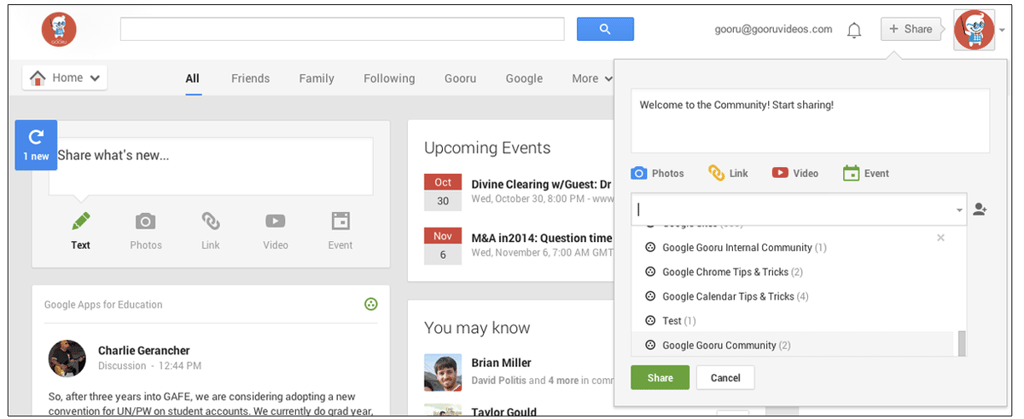
You\r\ncan also post from your Google+ feed, which will save you some time. To post\r\nthis way, head to Google+, then hit Share\r\nat the top of the page. Next, write your post, select the Community you’d\r\nlike to share with from the drop down and press Share.
\r\n\r\n
Credit: Images by\r\nDavid Politis for TechRepublic
Regardless\r\nof how you share, once you do submit a post, Community members will receive a\r\npost notification and hopefully visit the Community to join in.
\r\n\r\n
Credit: Images by\r\nDavid Politis for TechRepublic
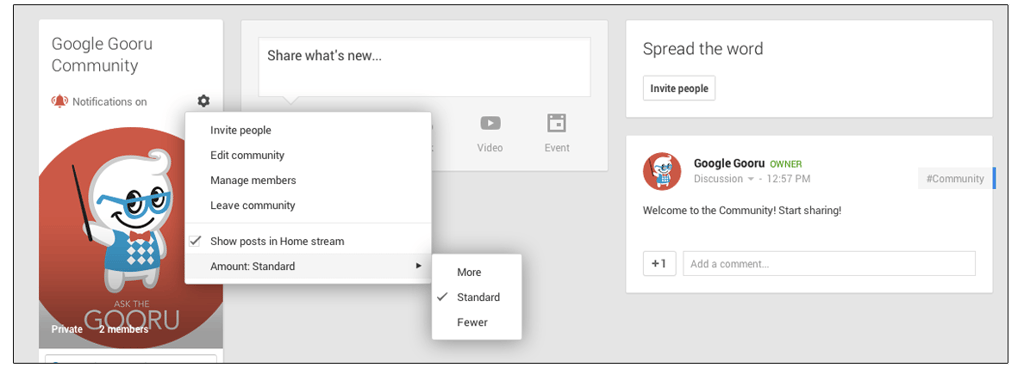
Users\r\ncan also alter notification settings to change the number of notifications they\r\nreceive: standard, more or fewer. Note that users can turn off notifications\r\naltogether. There is no way for a Community owner or moderator to enforce a\r\nspecific notification rule.
\r\n\r\n
Credit: Images by\r\nDavid Politis for TechRepublic
\r\n\r\n
Now that your employees are hopefully sharing and visiting\r\nthe Community regularly, make sure you’re taking full advantage of everything\r\nCommunities have to offer.
\r\n\r\n
For instance, you can directly share and embed Google\r\nPresentations in a Community post. This ensures that your employees have access\r\nto and view the presentation.
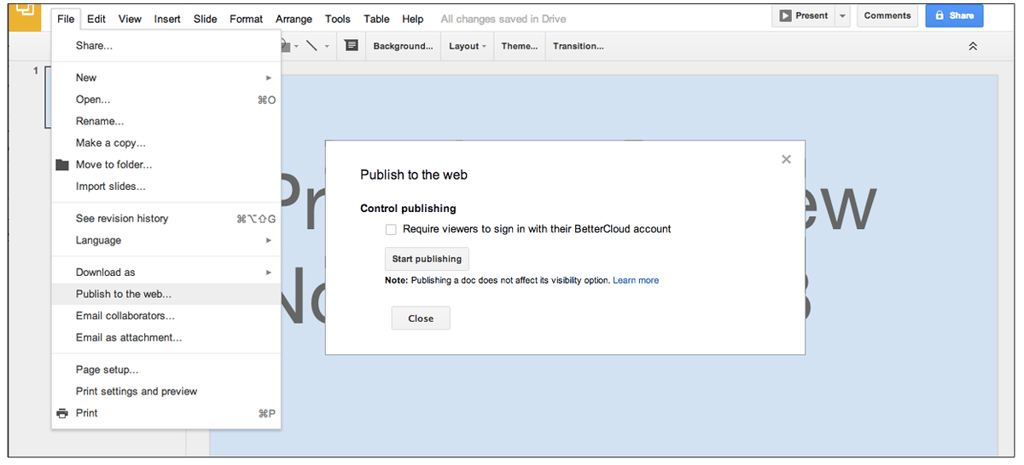
\r\n\r\nTo share a Google Presentation in a Google+\r\nCommunity you need to first publish the Presentation to the web. To do so, go\r\ninto File | Publish to the web, and then\r\nselect Start publishing.
\r\n\r\n
Credit: Images by\r\nDavid Politis for TechRepublic
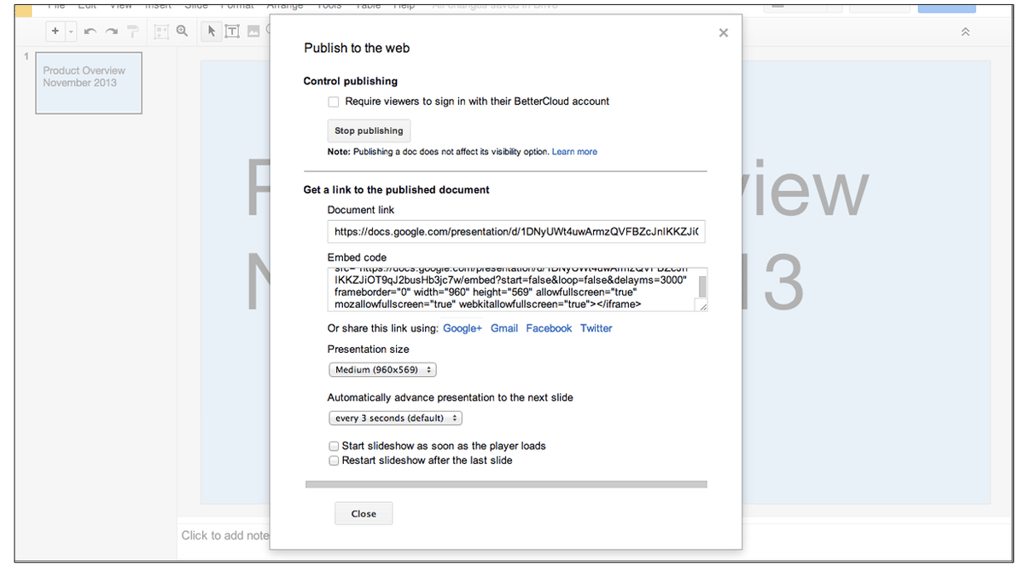
After you hit Start publishing, a window with embed codes\r\nand options will appear. Click the Google+ link where it says Share this link using.
\r\n\r\n
Credit: Images by\r\nDavid Politis for TechRepublic
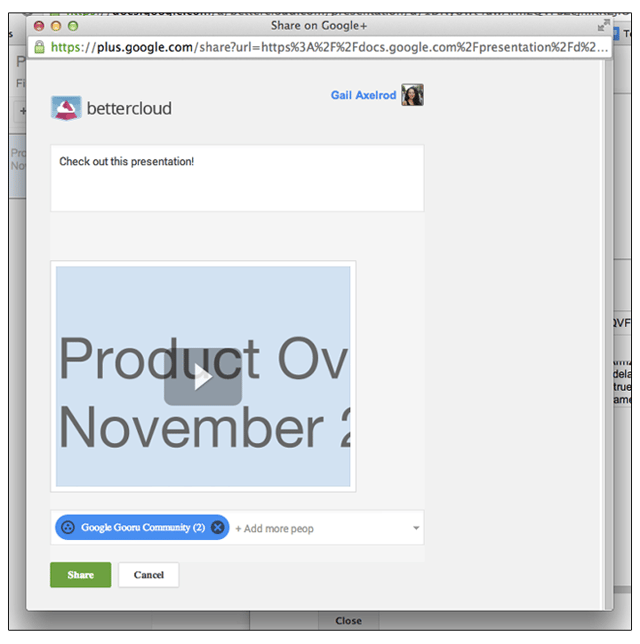
A Google+ sharing widget will pop up giving you the\r\nopportunity to add a custom note and select where you’d like to share the\r\npresentation.
\r\n\r\n
Credit: Images by\r\nDavid Politis for TechRepublic
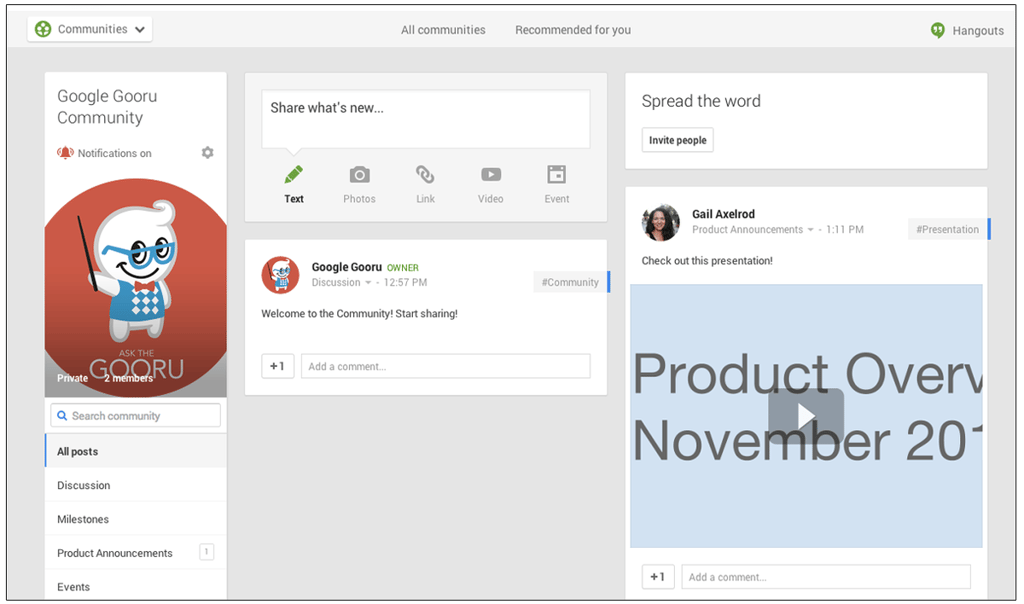
Once you press Share\r\nthe post with embedded Presentation will appear in the Community.
\r\n\r\n
Communities also offer new employees great insight into your\r\ncompany’s culture and past milestones. Encourage new hires to scroll through\r\nthe Community to gain a sense of your culture, past achievements and events. It’s\r\na great way for a new employee to get up to speed and settled in quickly.
\r\n\r\n
\r\n\r\n
While it’s always hard to institute something new, we’ve\r\nfound the transition from email lists to a Google+ Community to be fairly\r\nseamless. Of course, if you need to share something extremely urgent that you\r\nknow will be read almost immediately, there’s really no replacement for email.\r\nBut, if you’re looking to create a collaborative environment to bring together\r\ndisparate offices or teams, Google+ Communities is your answer.
\r\n\r\n
David Politis is the\r\nfounder and CEO of BetterCloud, the maker of FlashPanel, the number one management and security tool for cloud-enabled organizations, and the\r\nGoogle Apps resource site AsktheGooru.com. Follow BetterCloud on Google+ at bettercloud.com/plus.
\r\n\r\n
Credit: Images by\r\nDavid Politis for TechRepublic