This gallery is also available as a TechRepublic article.
Apple’s iWork applications — long secondary players to\r\nindustry-leading behemoth Microsoft Office’s Word, Excel, and PowerPoint — are\r\nshowing life. Cross-platform iOS, OS X, and Windows web-based compatibility,\r\ncombined with new collaboration features, make Pages, Numbers, and Keynote (now\r\nfree with new iOS devices and Macs) compelling competitors. Learn more about\r\niWork applications’ new look and features within this comprehensive gallery.
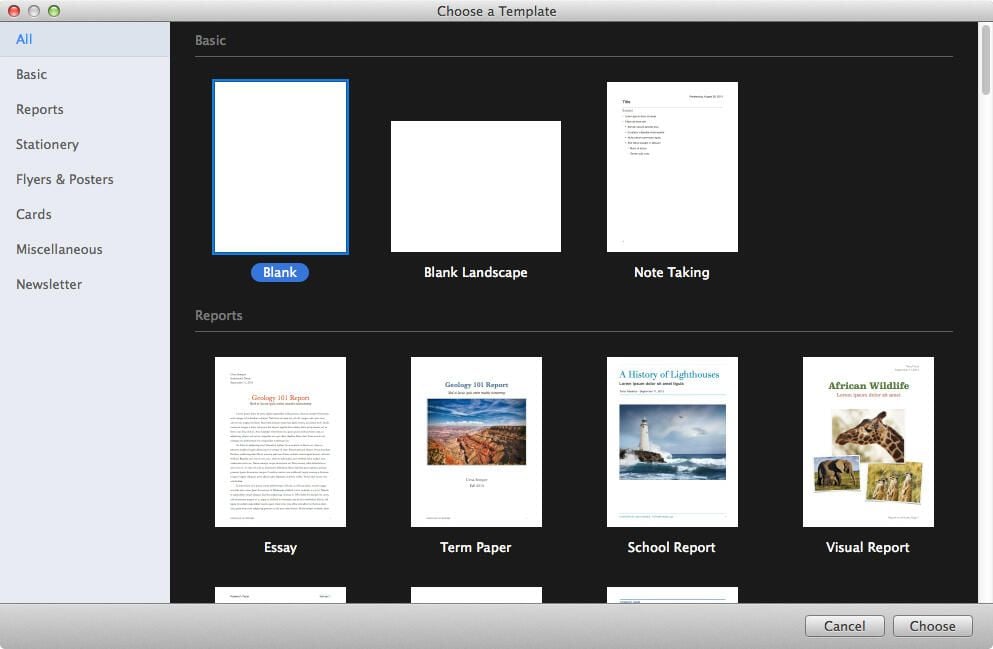
Users can access Pages, Apple’s word processing application, using a\r\nweb-based interface, an iOS device, or a Mac. The application includes several\r\ntemplates, including the blank portrait, blank landscape, and note-taking\r\nconfigurations shown here, as viewed when using the application on a Mac.
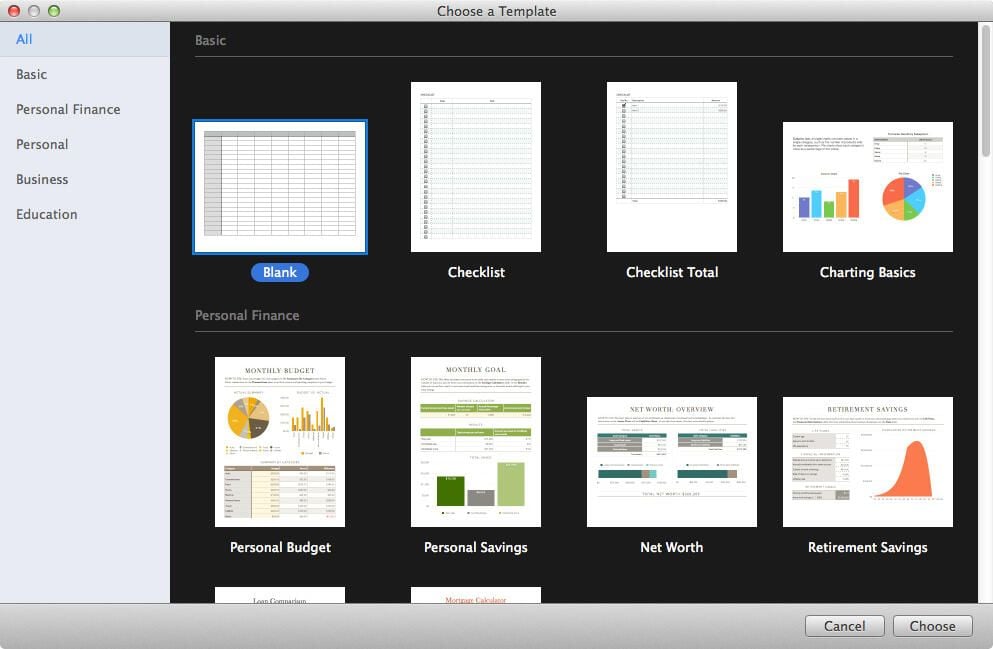
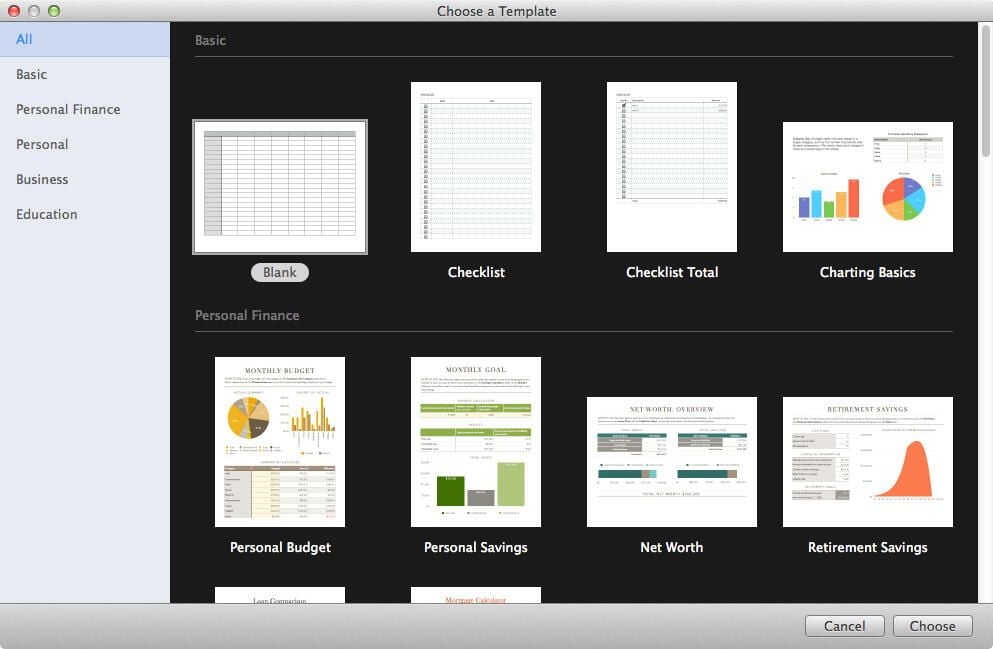
Numbers, the iWork spreadsheet tool, includes a blank template,\r\nchecklist configuration, and charting basics layout, among other options. This\r\nscreenshot captures the template view using the application within OS X.
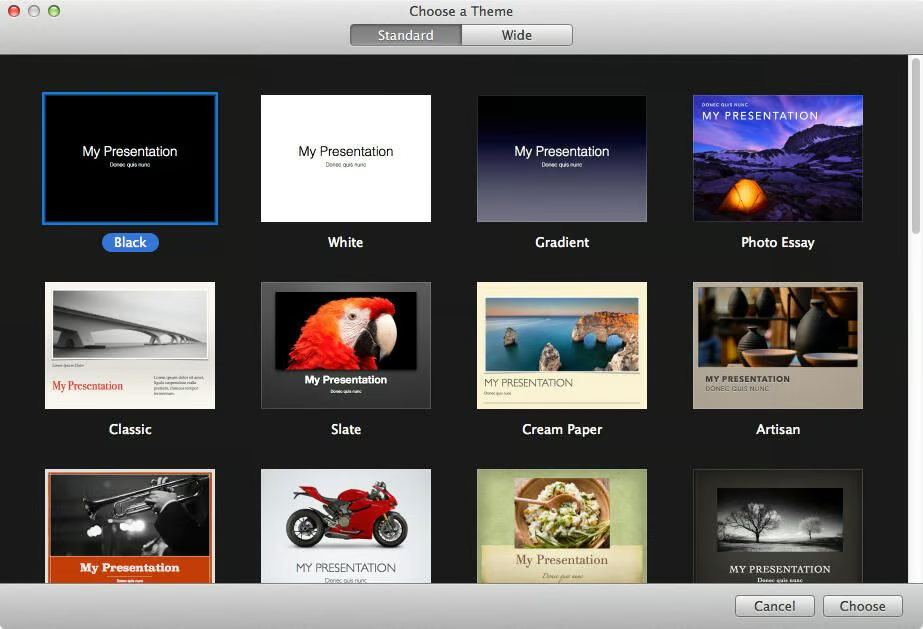
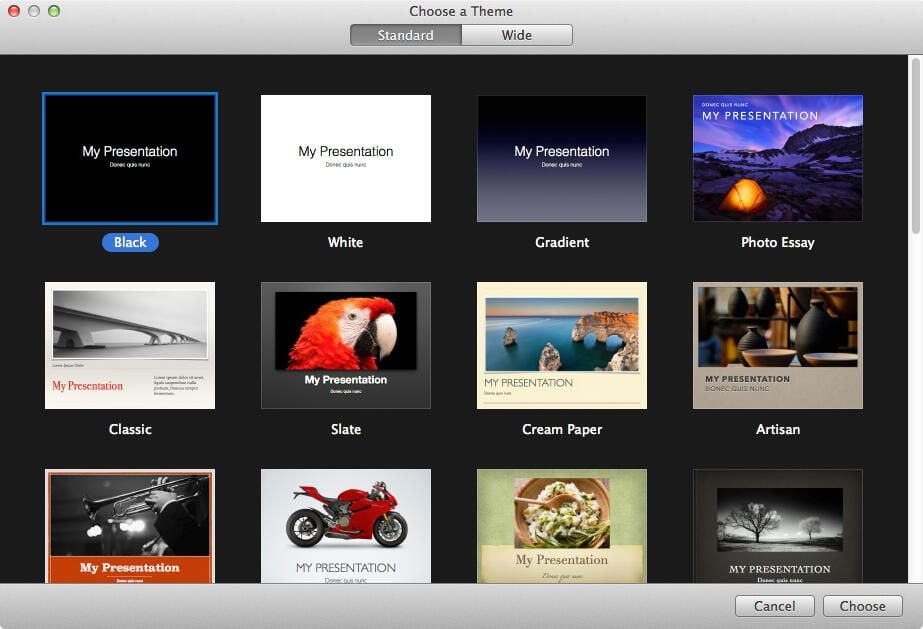
Keynote, iWork’s presentation application, includes\r\nseveral preconfigured templates. OS X users receive this default screen when\r\ncreating a new presentation. Note: The template choices include either standard\r\nor widescreen display options.
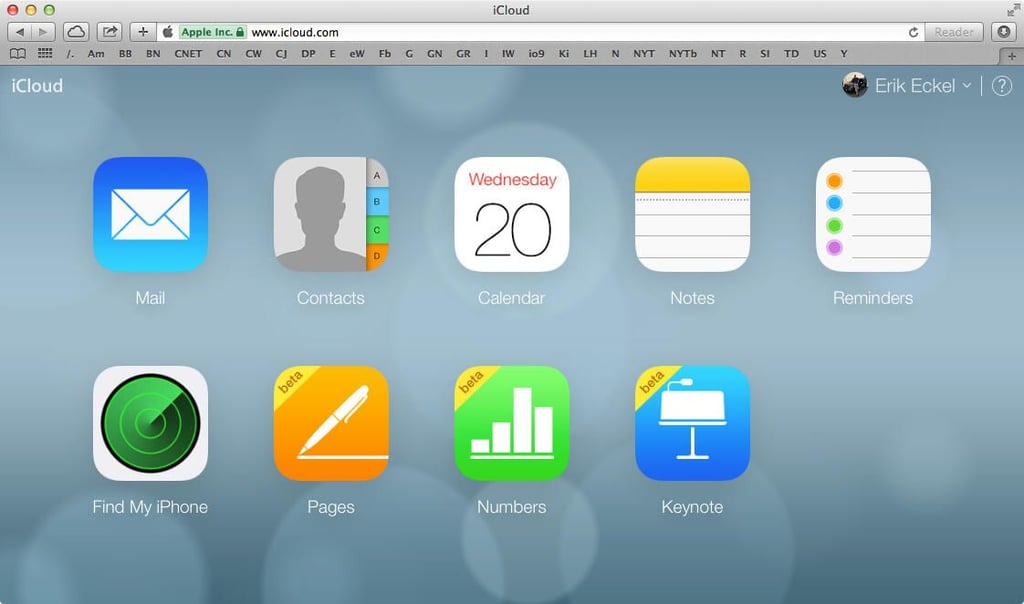
iWork applications can also be accessed on the web. Here is the\r\nstandard view that greets an iCloud user when logging in to his or her account.\r\nPages, Numbers, and Keynote are all largely functional, although still in beta\r\nat the time of this late fall 2013 writing.
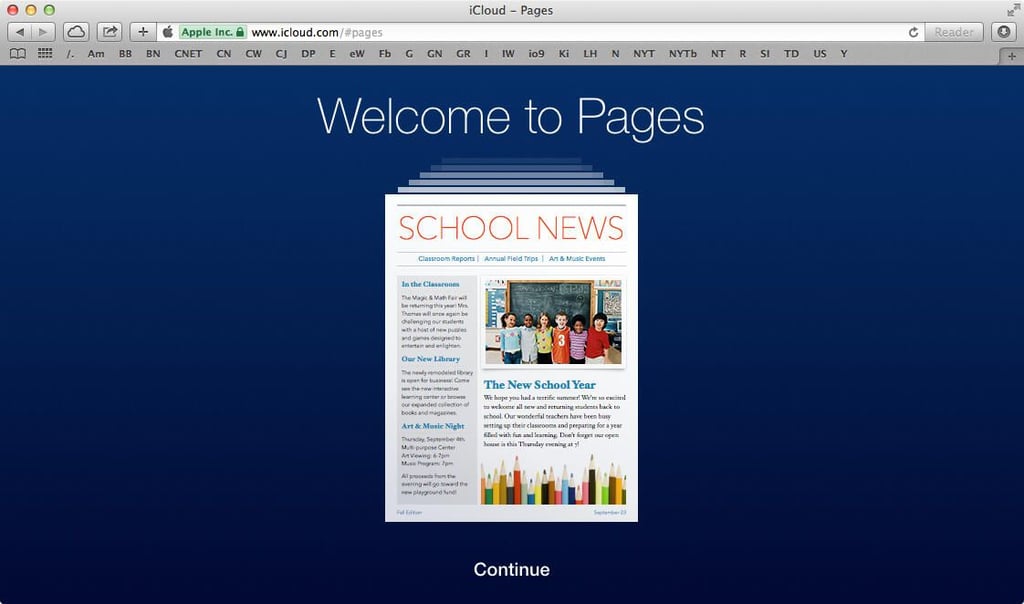
Whether accessing Pages on an iOS or OS X device or from a web\r\nbrowser, Apple includes quick tutorials. This Pages screen greets web-based\r\nusers of the iWork app.
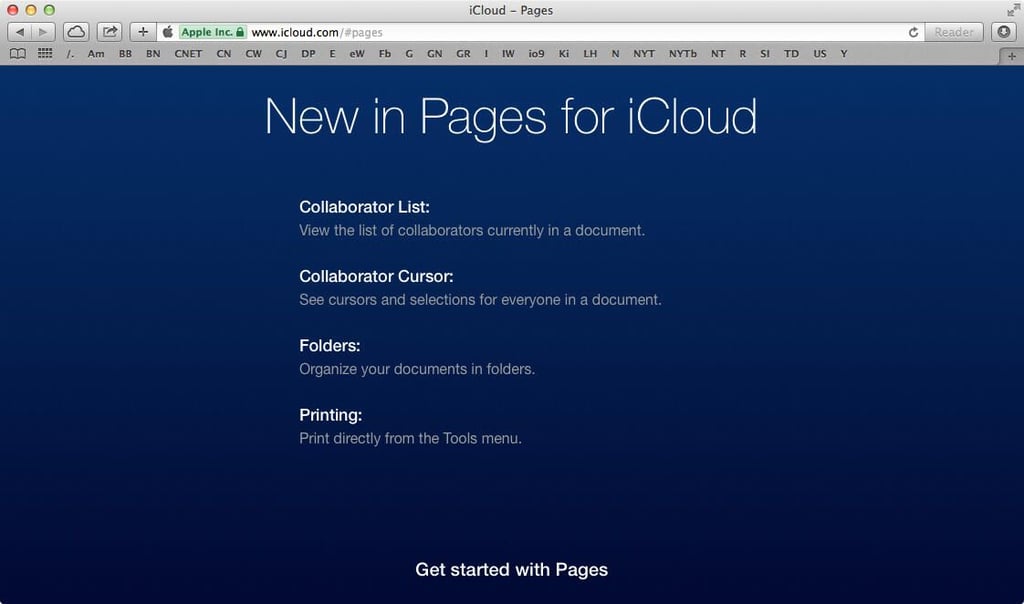
Apple recently added collaboration features to its iWork\r\nprograms. The web-based introduction, shown here, lists some of Pages’ new\r\nfeatures, including collaboration components. By using Pages, Numbers, and\r\nKeynote, business users can now share files with colleagues and team together\r\nto make edits and updates to documents, spreadsheets, and presentations.
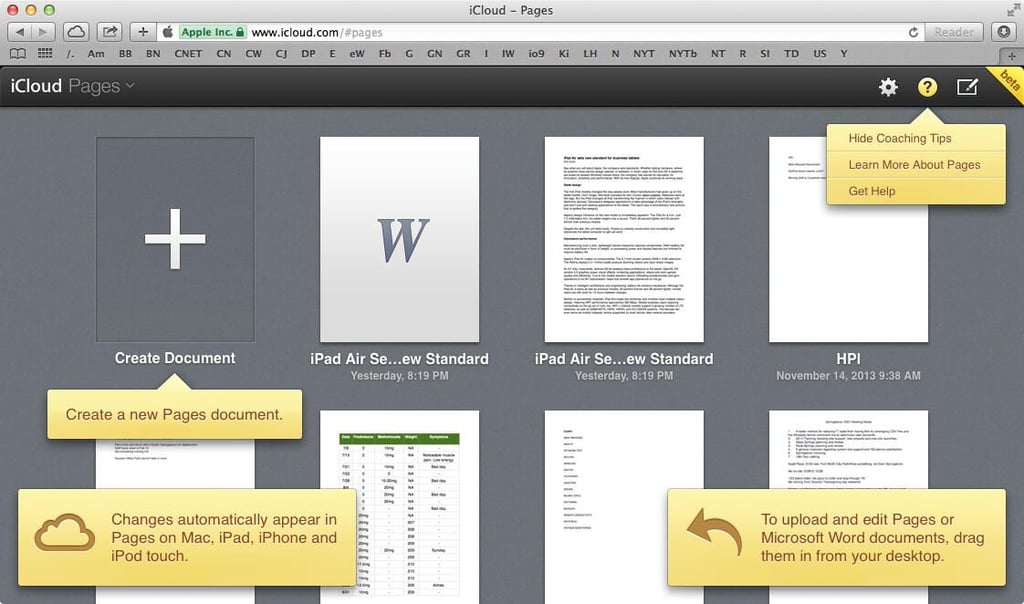
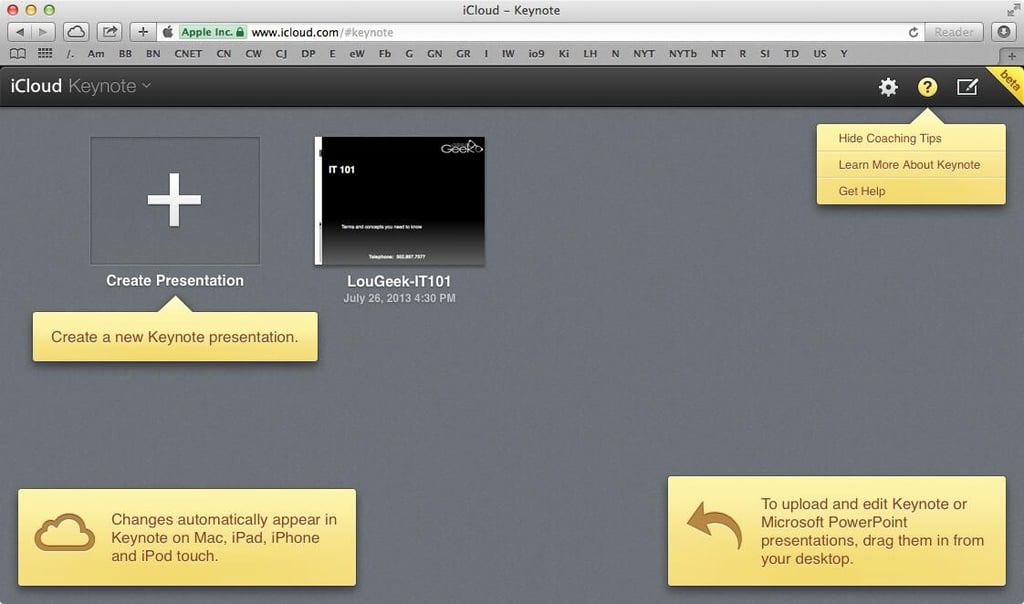
Apple includes helpful, time-saving tips to familiarize users\r\nwith Pages’ new features. These Coaching Tips can be hidden simply by clicking\r\nthe Hide Coaching Tips option at the top right of the page. This screenshot\r\nalso captures the Pages home page, which lists previous documents the user has\r\ncreated and stored within his or her iCloud account. Thanks to iCloud\r\nsynchronization, edits made to the file using the web will also appear within\r\nthe file when the document is accessed using an iOS device or OS X computer (and vice versa).
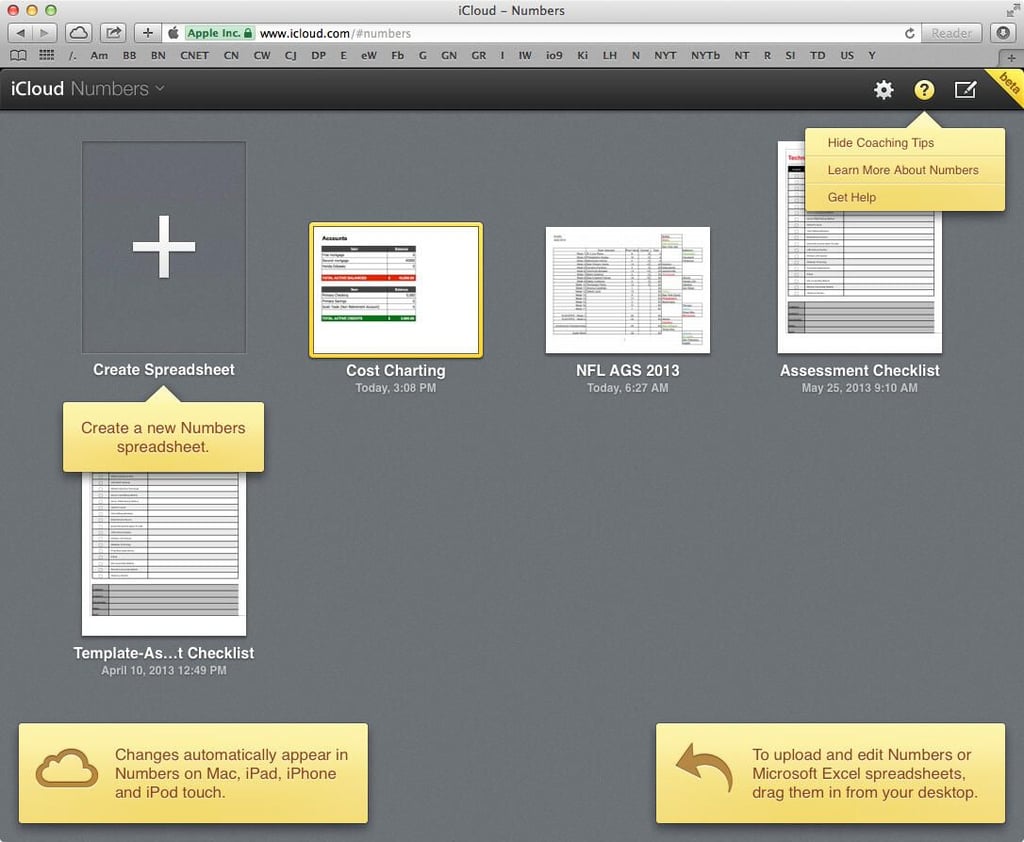
Numbers includes the same Coaching Tips as Pages. Using\r\niCloud, Numbers’ spreadsheets can be accessed from the web, an iOS device, or OS\r\nX.
As with Pages and Numbers, Keynote’s default web view displays Coaching\r\nTips. Presentations can be created and edited using the web-based interface,\r\nand — as with Pages and Numbers — changes made to the iCloud-based files are then\r\nsynchronize across the user’s iCloud account to other iOS devices\r\nand OS X computers.
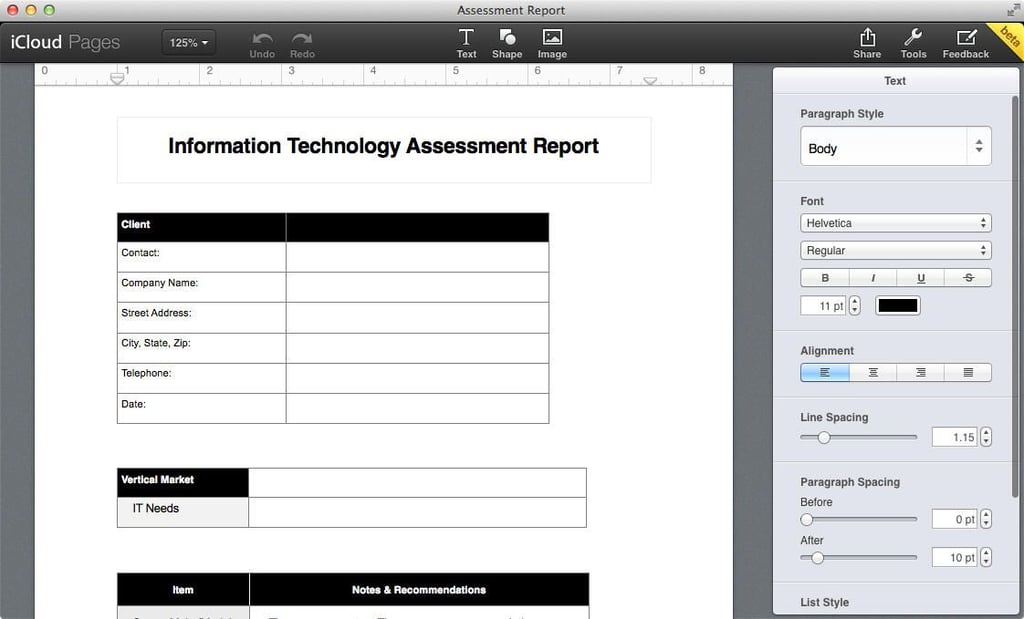
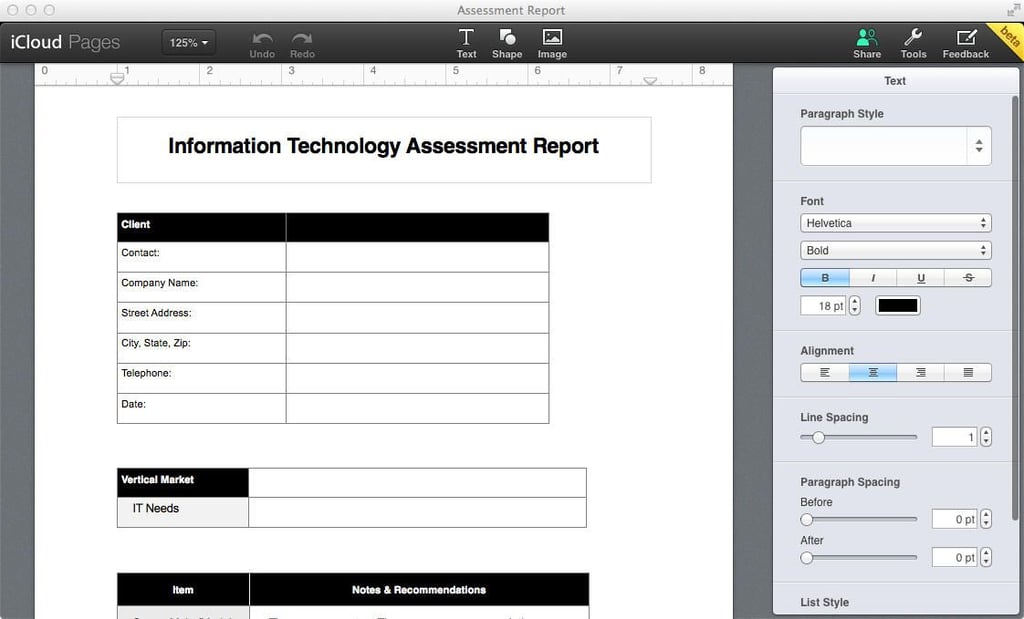
Although in beta, the web-based Pages program offers powerful\r\ndocument creation and editing features. This screenshot shows a sample report, which demonstrates the\r\nsimplicity of the web-based tools that’s used to create and edit documents.
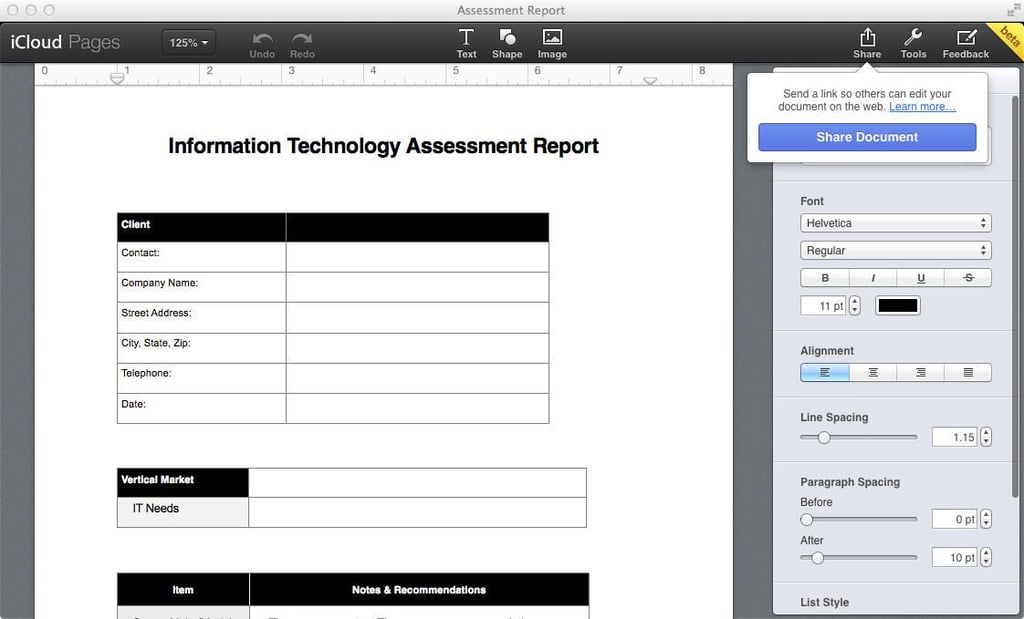
Users wishing to share iWork files using iCloud need only click\r\nthe Share icon. Doing so reveals the Share Document button, which — upon being\r\nselected — prepares the file for shared collaboration.
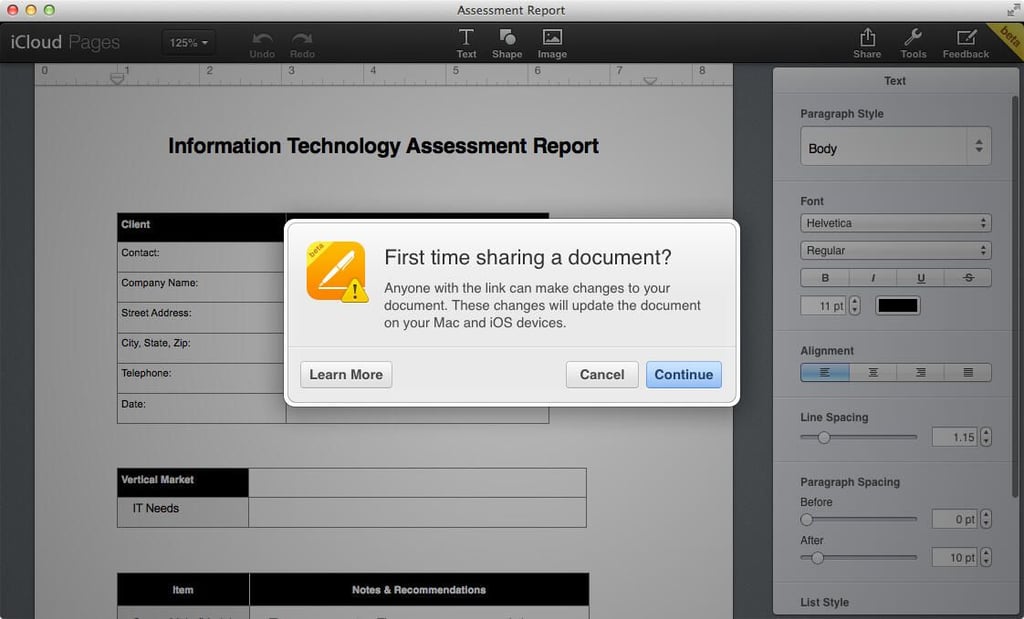
When users choose to share an iWork file, the application asks\r\nthe user to confirm the sharing action. Users can also click the Learn More\r\nbutton to obtain additional information regarding iWork’s sharing and\r\ncollaboration features.
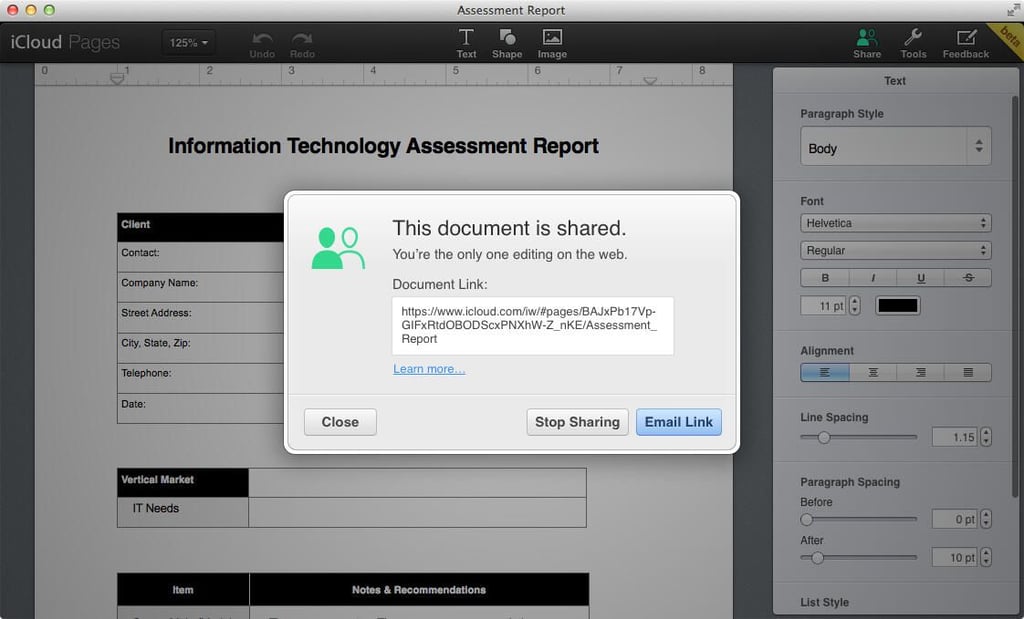
Once iWork has prepared a file for sharing, the user receives\r\nthis confirmation screen that includes a handy URL. Users can click the Email\r\nLink button to distribute the file sharing link with colleagues. Alternatively,\r\nusers can select the Stop Sharing button and suspend sharing for the iWork\r\nfile.
Once an iWork document, spreadsheet, or presentation is shared\r\nwith others, the Share icon changes from white to green. The green icon alerts\r\nand reminds users the file is shared with others.
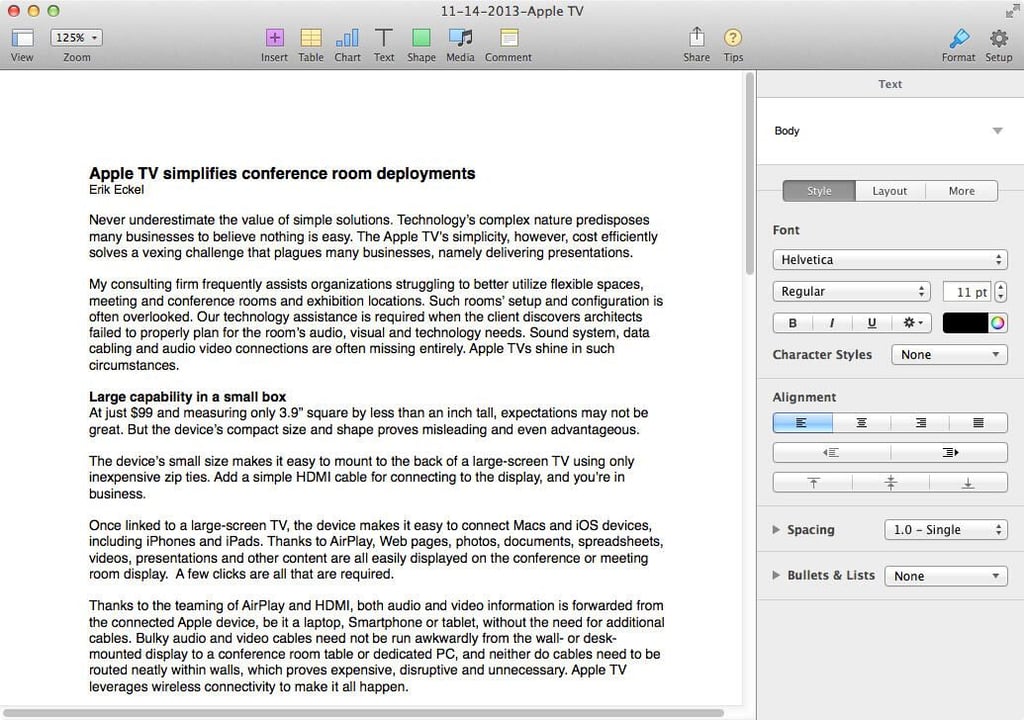
The Pages’ OS X interface is similar to the same view users\r\nreceive when accessing the application from the web. One notable difference is\r\nthe addition of the toolbar across the top of the screen.
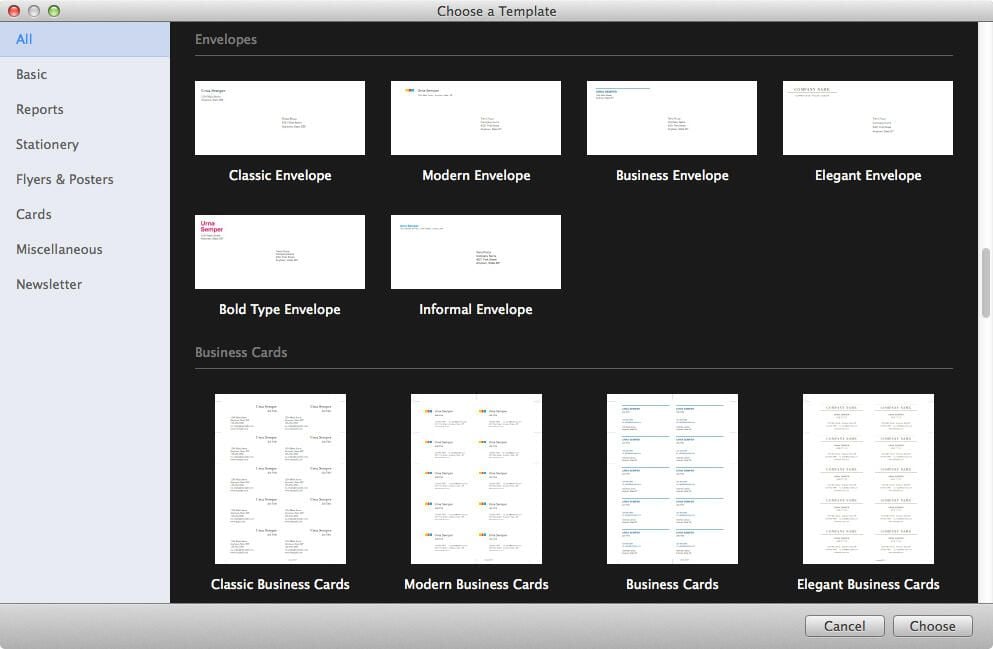
Pages includes several templates, as mentioned earlier. In\r\naddition to typical document templates (like resumes, reports, etc.),\r\nPages also includes envelope and business card configurations. Users receive templates for posters, advertising flyers, cards, newsletters, and\r\nmore.
Despite its simple interface, clean lines, and plentiful white\r\nspace, Pages can create complex documents. As users interact with the program,\r\nthe sidebar changes to provide contextually related tools. Thus, if a user\r\nplaces the cursor within text, text-based tools appear within the sidebar,\r\nmaking it easier to change fonts, styles, alignment, and spacing.
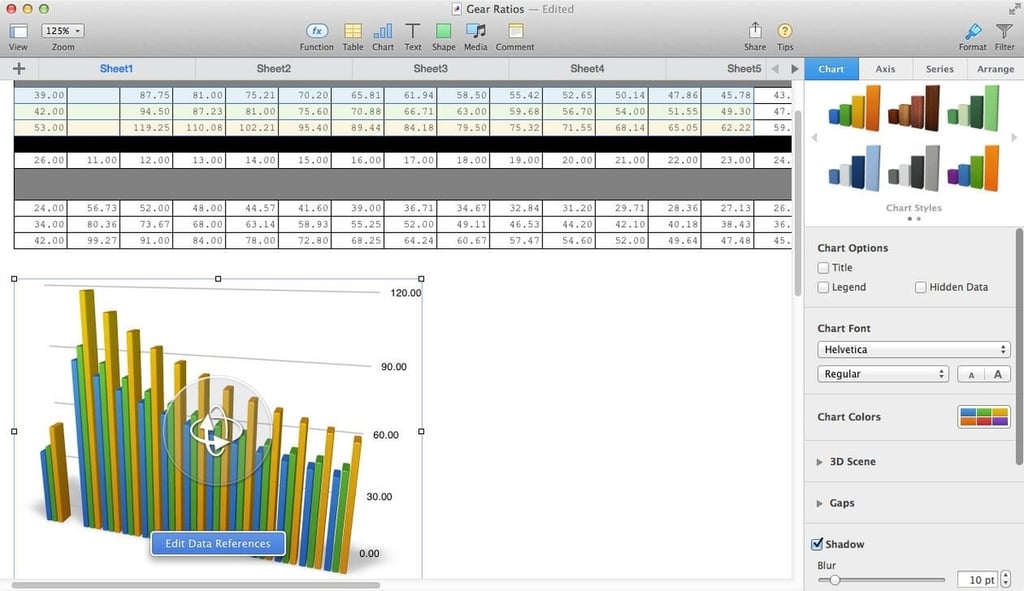
Numbers makes it easy to build complex spreadsheets and charts.\r\nAs with Pages (and Keynote), sidebars provide contextual information based on\r\nthe cursor’s location and the actions the user is performing (such as\r\nadding graphics, editing text, or building a table or chart).
Numerous spreadsheet templates are available when using Numbers\r\non a Mac. In addition to blank templates, other options include personal\r\nfinance tools, business functions, and pre-formatted budgets.
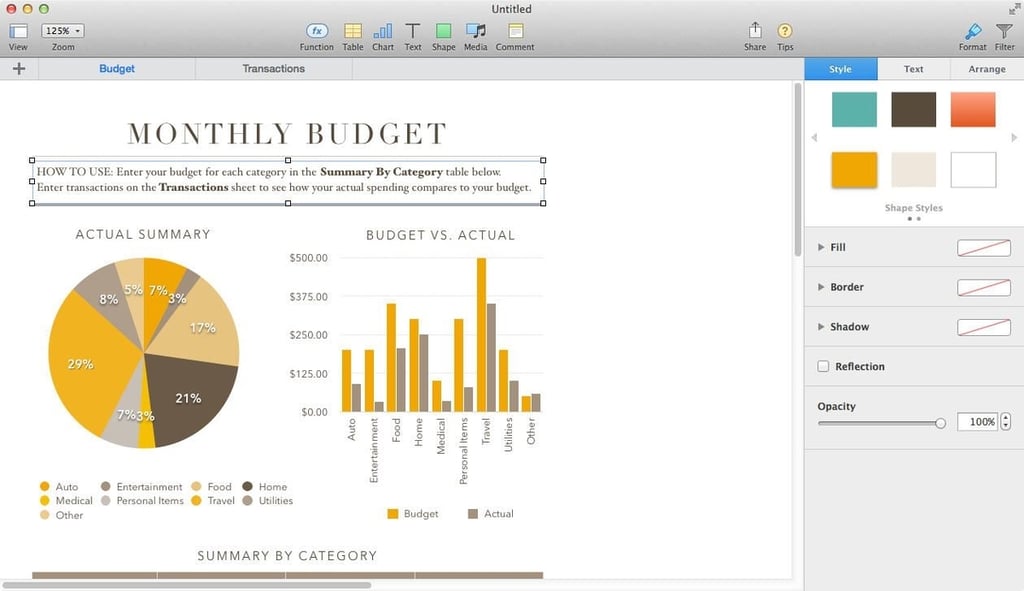
Apple hasn’t just created simple spreadsheet templates. As this\r\npersonal budget template demonstrates, Apple’s worked to create attractive\r\nspreadsheets that include powerful tools and graphics to help make quick sense\r\nof complicated information.
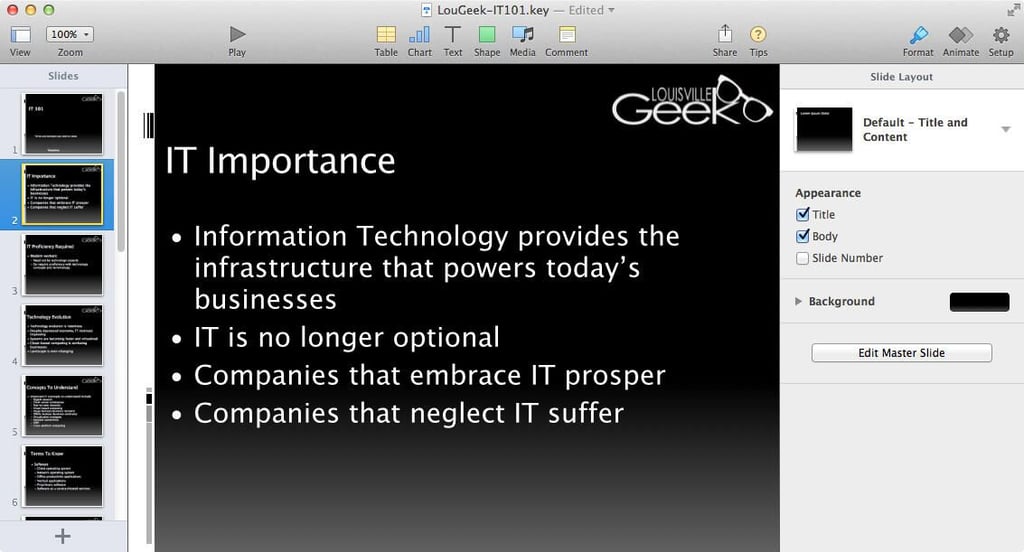
Keynote, seen here on a Mac, includes a left-hand sidebar that\r\ndisplays each slide. The slide itself appears within the main window, while\r\ncontextual tools appear within the sidebar on the right side of the\r\npage.
As with the web-based interface, Keynote, when run on OS X,\r\npresents the user with a multitude of pre-formatted templates.
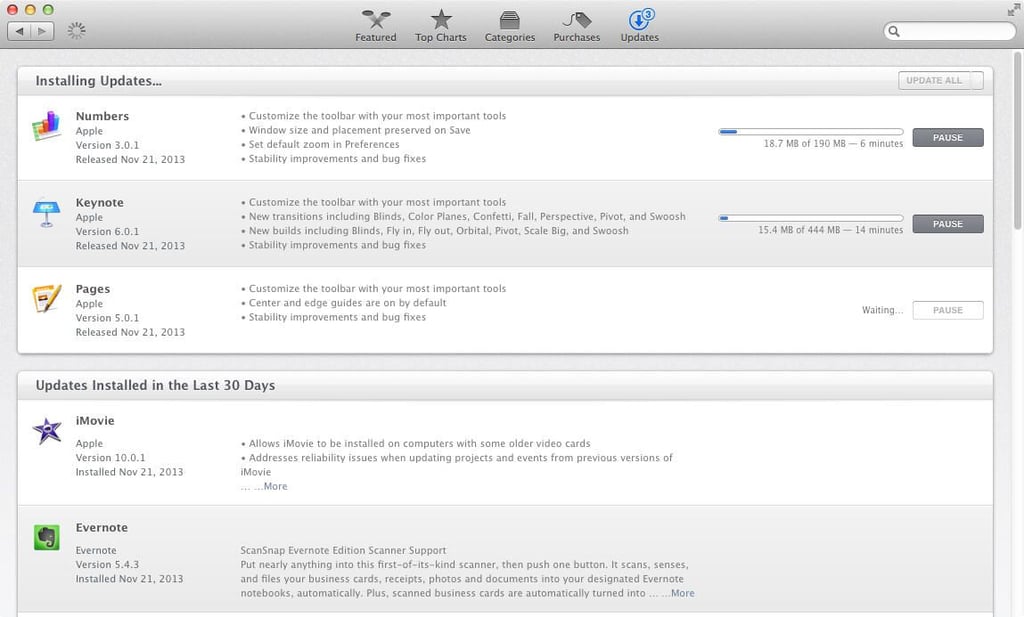
Pages, Numbers, and Keynote are loaded and updated using the iOS\r\nand OS X App Store, as are other programs. Maintenance is easy, because users no\r\nlonger need to check for iWork application updates separately from other\r\nprograms. The App Store updates entries, shown here on a Mac, also list the\r\nupdate’s\r\nsize, version, date, and details.
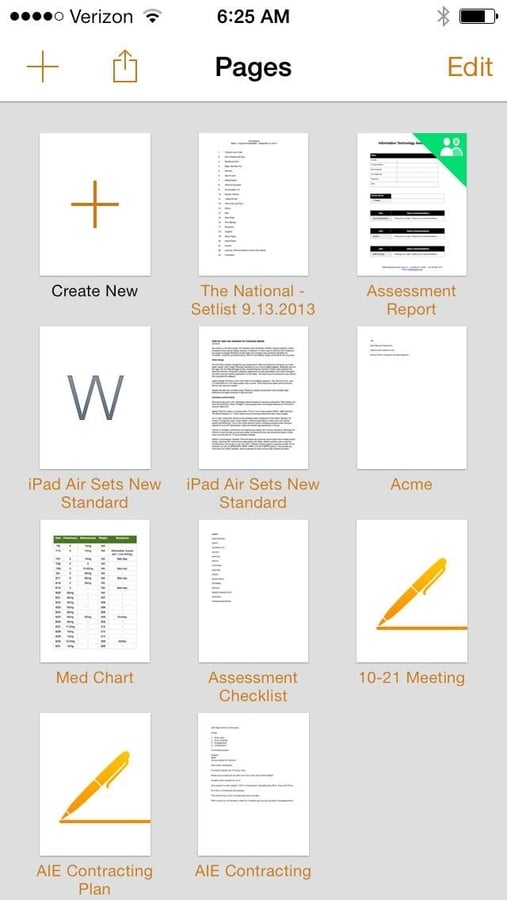
Pages, Numbers, and Keynote can all also be accessed on an iPhone.\r\nHere you can see how the iPhone formats Pages.
By using iCloud, users can access and edit documents on an iPhone\r\nand even create new files. Changes synchronize throughout the user’s\r\niCloud account using either the smartphone’s Wi-Fi or cellular data network.
Users may find they have to use gestures to read an entire\r\ndocument on an iPhone’s smaller screen, but pinching reduces the document\r\nsize so that entire pages can be seen on the display, as shown here.
When viewed full-size on an iOS device, documents can become\r\nunwieldy. Yet, edits can be made using the default iOS onscreen keyboard.
Spreadsheets can also be created and edited using an iOS devices.\r\nAs with web-based and OS X interfaces, the iOS Numbers version also includes\r\ntutorials and templates.
Numbers spreadsheets can be edited using an iOS device. Changes synchronize\r\nthroughout the devices connected to the user’s iCloud account.
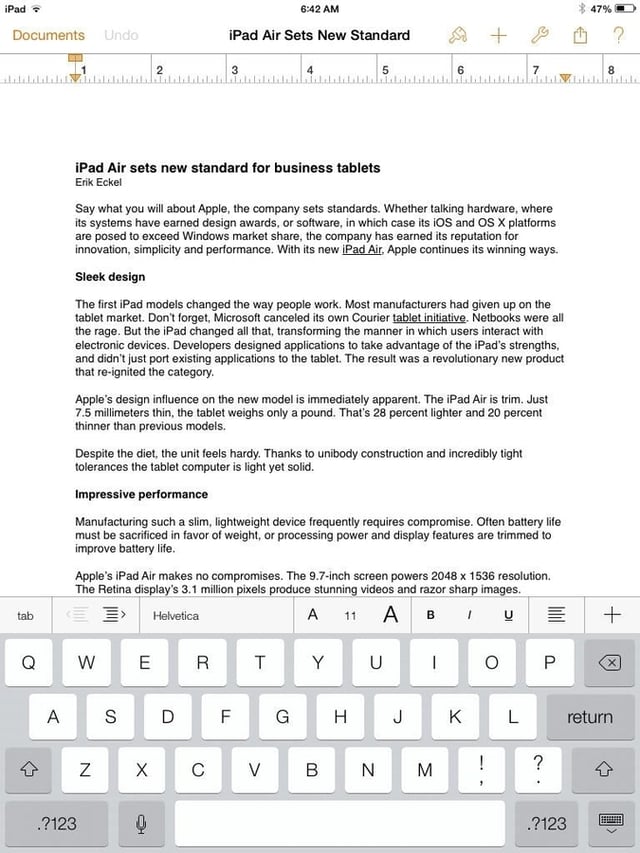
Moving to an iPad from an iPhone provides additional real\r\nestate to view and edit a file. This screenshot shows a Pages document on an iPad mini with the onscreen keyboard displayed. This Pages iPad view also\r\ndemonstrates the iPad interface and corresponding toolbar complete with tool\r\nicons.
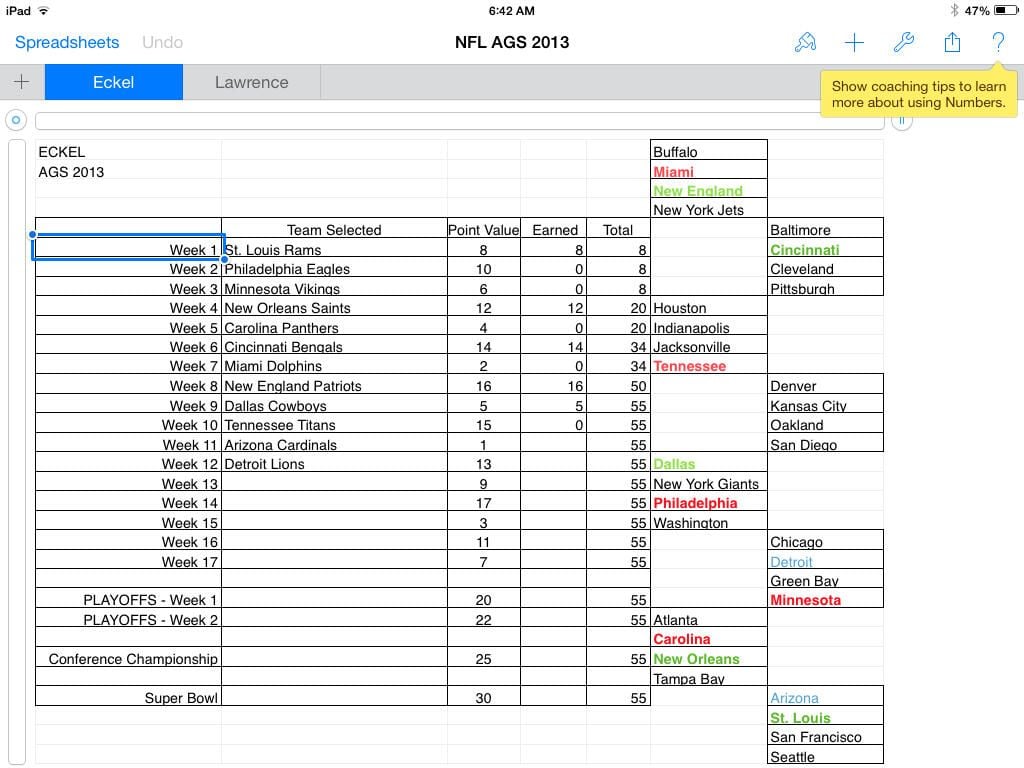
Spreadsheet edits become easier when using an iPad over an\r\niPhone, thanks to the larger display. Coaching Tips are also available when using an iPad. The iPad view shows how the Numbers toolbar mimics both Pages and Keynote.
Turning an iPad sidewise and triggering landscape mode enables users to view and edit many spreadsheets in their entirety.
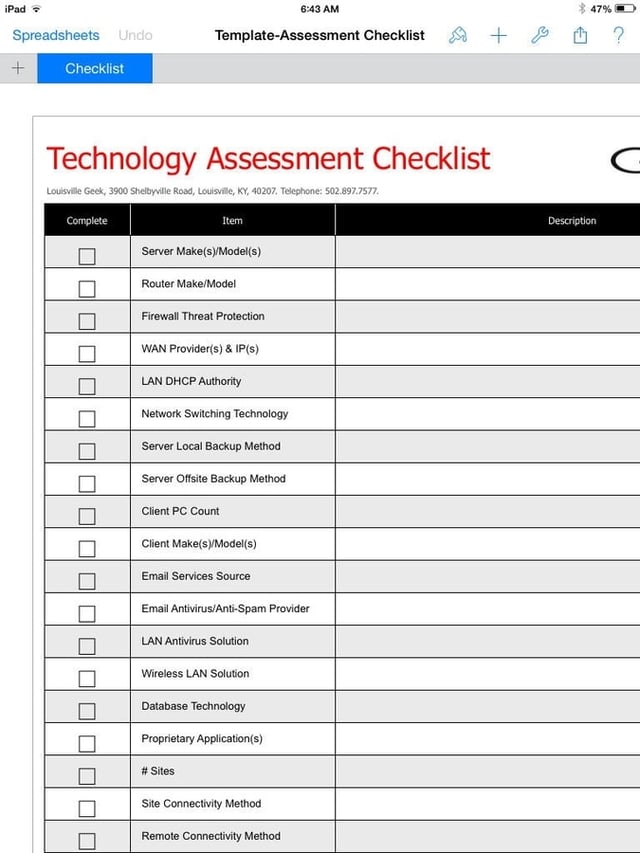
Checklists, budgets, and numerous other spreadsheets can be\r\naccessed and updated using Numbers on an iPad. Performing the pinching gesture\r\non this spreadsheet would enable viewing the file in its entirety onscreen.
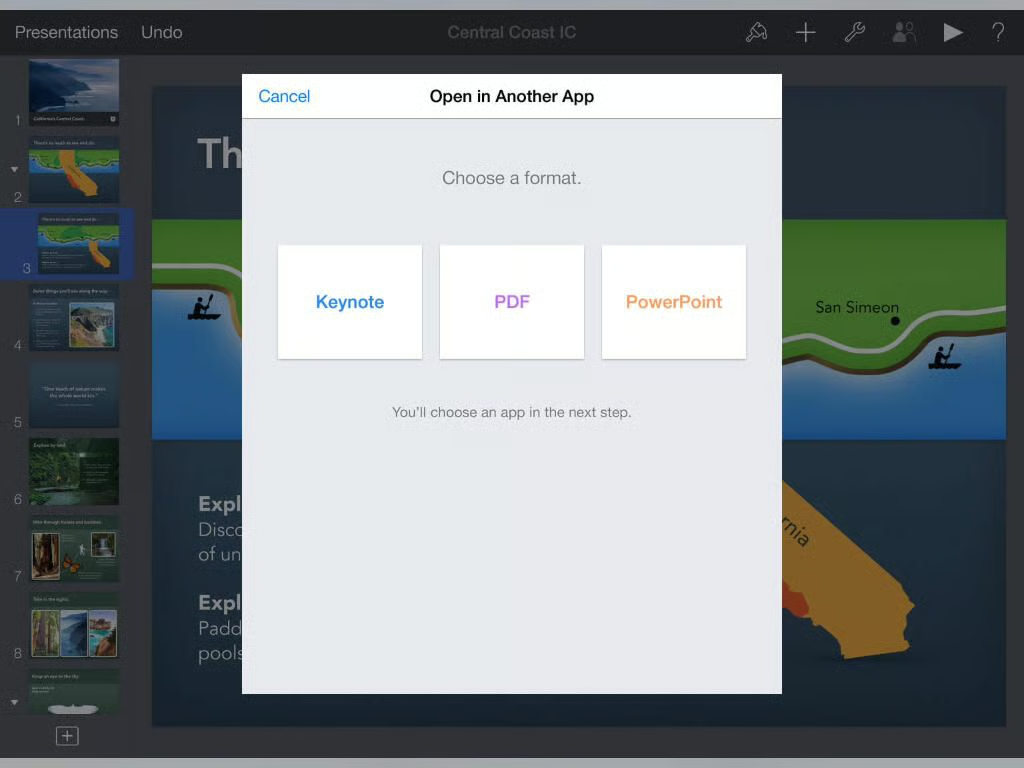
Keynote on an iPad also presents the ability to create, access, and edit presentations. As with Numbers and Pages, the application’s\r\ntoolbar appears along the top of the screen. Using Keynote, users can opt to\r\nleverage several formats, including Keynote presentations, PDF files, and\r\nMicrosoft PowerPoint presentations, as shown within this Apple App Store\r\npreview.
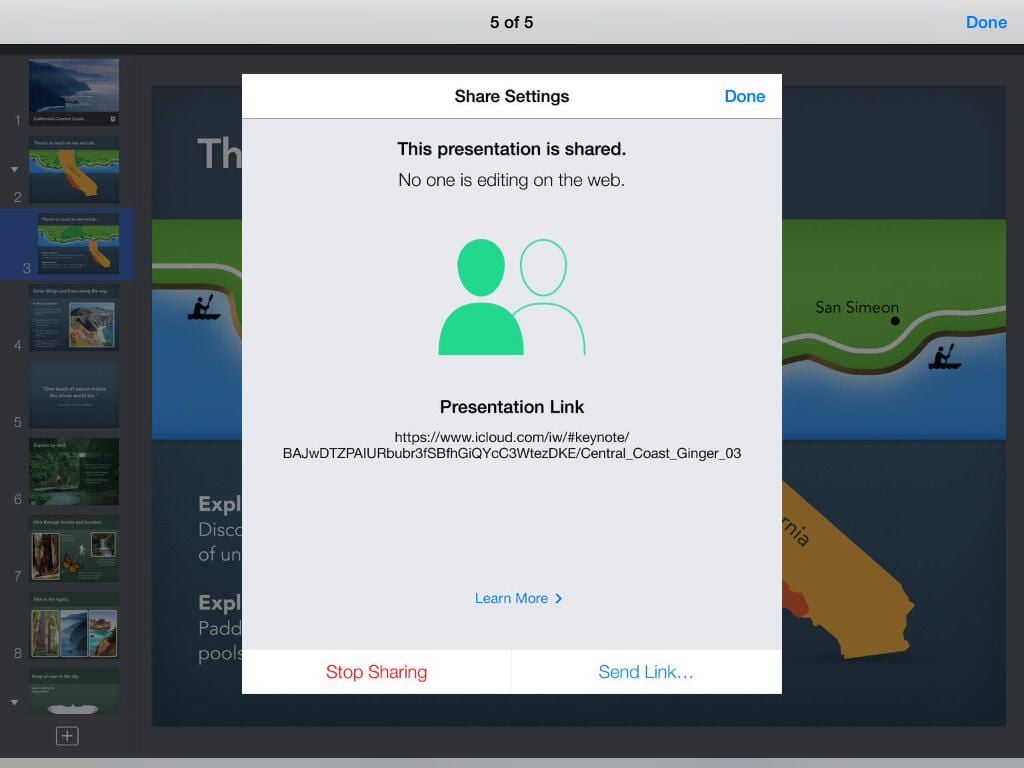
Keynote’s presentation-sharing features are important for business\r\nusers, who frequently must collaborate upon projects. Apple touts the sharing\r\ncapabilities, as can be seen here. This Keynote iPad App Store preview screenshot also demonstrates how the iPad version makes it possible to easily send\r\npresentation links to colleagues.
Erik Eckel is a managing partner at Louisville Geek and president of Eckel Media Corp. He previously served as Executive Editor at TechRepublic. He received Microsoft Engineer accreditation from Sullivan University and earned his Bachelor's Degree in English from the University of Louisville. He's earned Network+, Windows NT 4.0 MCP+I and MCSE, and Windows 2000 Professional MCP accreditations.