


Most system administrators deploy Group Policy Objects (GPO) as a way to control and limit user activity on Windows based PCs. This is a very useful management tool as it provides granular control into the operations on the workstations. As any system admin will tell you, GPO ends up being a valuable tool because of the ease and time saving features.
Google offers a Chrome MSI installer and a GPO template to help admins automate widespread installation and control of Chrome. A MSI installer is one that can be pushed down to Windows clients and run silently without the user’s knowledge, or interaction. GPO templates define settings that affect how a Windows or a specific program, in this case Chrome, functions.
Getting started
To get started, download the MSI and download the policy templates (Zip file). There are two different types of templates ADM and ADMX. ADM is for Windows Server 2003 domains and ADMX is for Windows Server 2008 domains. For this article, we will be creating a GPO in a Server 2003 domain. This GPO will require the MSI installer to be located in a network share. To do so, create a folder called MSI, assign share permissions for the Domain Computers group of ‘Read’ and assign security permissions of ‘Read/Execute’ for the Domain Computers group. Place the MSI within this folder.
GPOs can be applied to machines or to users. For Chrome, it is best to create the GPO for the machines rather than the users. This way Chrome is available to any user that logs onto any machine.
On your domain controller, open Group Policy Management and right-click on the OU that contains the PCs in your domain, typically “Domain Computers”. Select “Create and Link a GPO Here” and enter a name for the GPO, such as “Chrome Installer”. The new GPO will appear in the list.
Double-click the GPO to edit the settings. Under the ‘Security Filtering’, we want to add the machines this GPO will apply to. The most efficient way is to use a group, rather than individual machines. By default Active Directory places all domain computers (except domain controllers) into the Domain Computers group. Click ‘Add’ and then type in “domain computers” and click ‘OK’. Remove anything else that is listed there, such as user accounts or groups. (Figure A)
Figure A

Click on the ‘Settings’ tab, which displays all the actions the GPO will take. Since this is a new GPO, nothing is listed. To edit these settings, right-click anywhere in the section and choose “Edit”. The Group Policy Object Editor opens with two sections: Computer Configuration and User Configuration. Since we want this GPO to perform actions on the machines, we are going to edit the Computer Configuration. Expand ‘Software Settings’ and select ‘Software Installation’. In the empty pane, right-click and select ‘New’ | ‘Package’. Navigate to the network share. It is very important to use the UNC path, for example “\\server1\folder”. Once you select the MSI, it will appear in the pane. (Figure B)
Figure B

To add the templates, select ‘Administrative Templates’ and click the file menu ‘Action’ | ‘Add/Remove Templates’. Click ‘Add’ and browse to the template’s location and navigate the folder structure “windows\adm\en-US” and select “chrome.adm”. Then the template will appear under Administrative Templates as “Google”. Expand the hierarchy of folders to see all the policies in the templates. There are a variety of policies, everything from controlling the startup page, to more advanced policies (Figure C). Notable policies are:
- Set Chrome as Default Browser
- Specify a list of plugins that a user can enable or disable
- Import bookmarks from default browser on first run
- Block access to a list of URLs
- Allow access to a list of URLs
- Set user data directory
- Configure the home page URL
- Enable the password manager (which should always be disabled)
- Action on Startup
Figure C

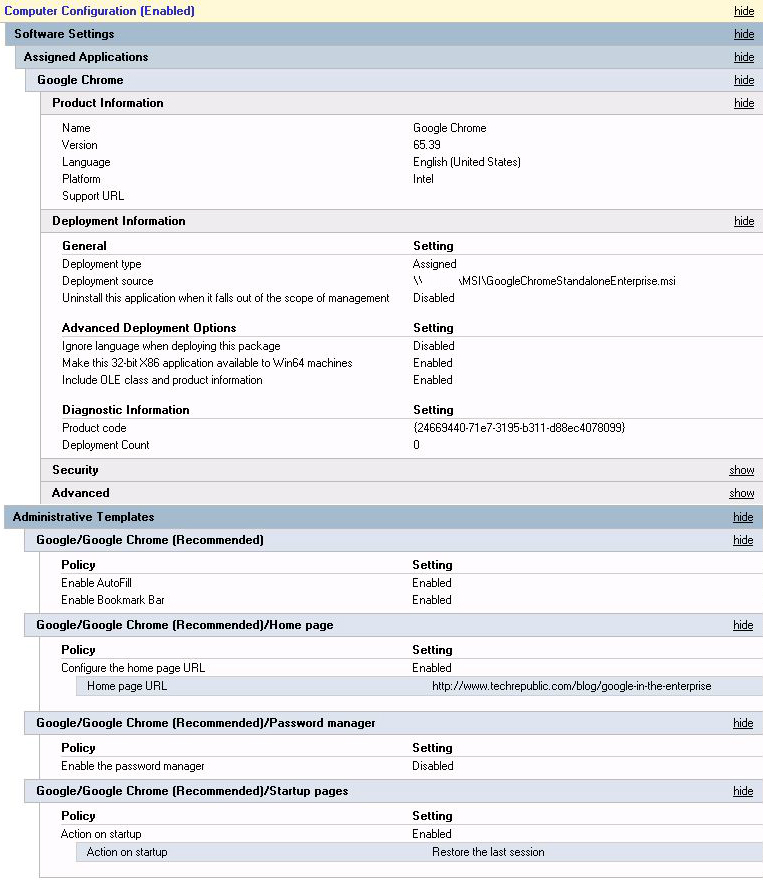
Make changes to the policies as you see fit. When finished, close the Group Policy Object Editor window. Review the settings by clicking on ‘Show All”. (Figure D)
Figure D
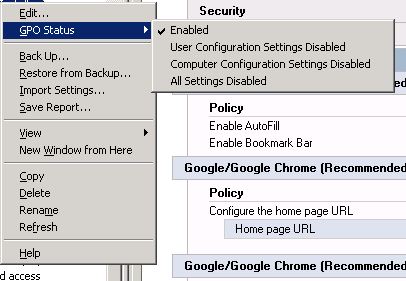
Then, right-click the GPO in the list on the left and select ‘GPO Status’ to ensure ‘Enabled’ is checked. (Figure E)
Figure E
Finally, reboot the machines in order to apply the GPO, which will install Chrome and the templates.