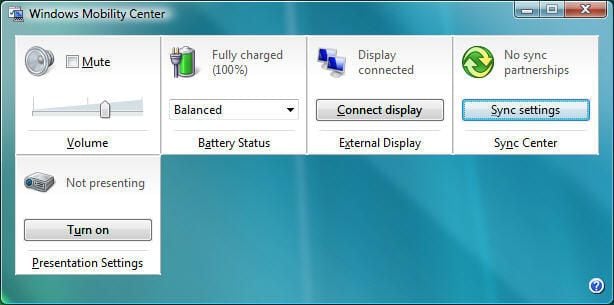
This gallery gives you an overview on how to configure a dual desktop display in Windows Vista. Learn more about this process by reading the related post in the Window on Windows blog.
You can easily connect a dual monitor configuration by using the Windows Mobility Center. Simply click Connect Display and the detection wizard appears.
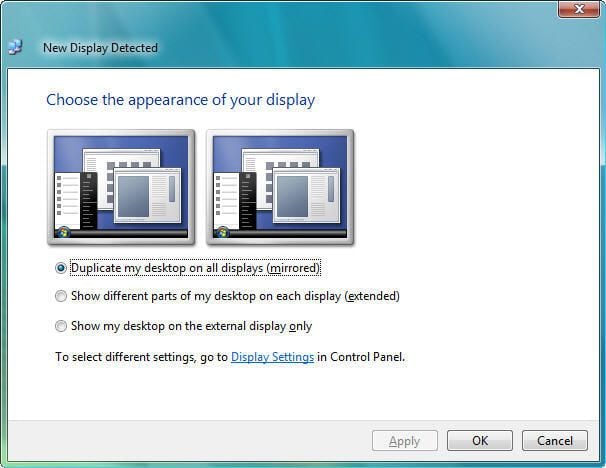
A dual desktop display is automatically detected in Windows Vista.
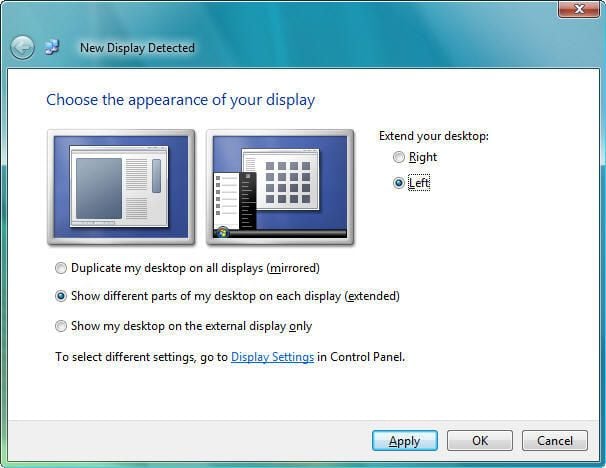
A dual desktop display is automatically detected in Windows Vista.
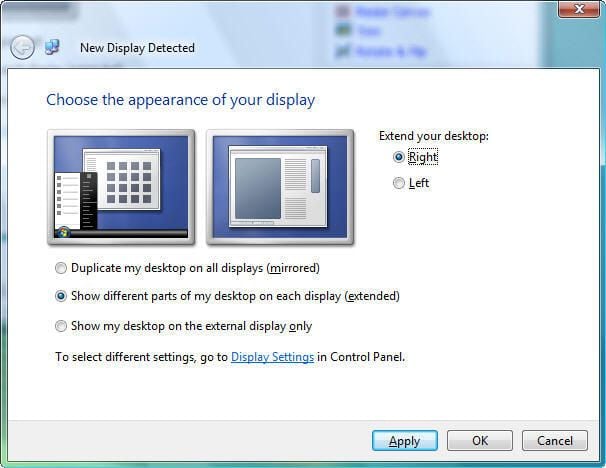
A dual desktop display is automatically detected in Windows Vista.

Steven S. Warren is a popular author residing in Winter Haven, Florida with his wife and 2 children. As a columnist on such well-known IT web sites as Techrepublic.com, CNET, and ZDNET, Steven has published numerous articles. Additionally, Steven holds the following certifications: MCDBA, MCSE, MCSA, CCA, CIW-SA, CIW-MA, Network+, and I-Net+. You can visit his web site at http:\\\\www.stevenscottwarren.com. \ \ He is also a Microsoft Most Valuable Professional and has book on VMware Workstation 5 forthcoming.


