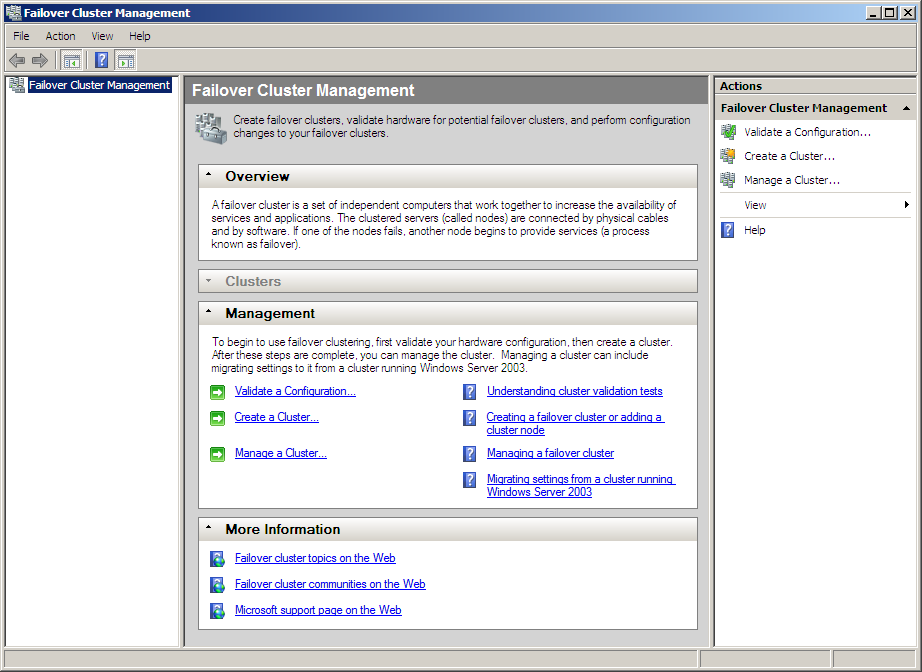
Although all editions of Windows Server 2008 include Network Load Balancing, only the Enterprise Edition and Datacenter Edition include failover clustering capabilities to achieve higher levels of availability. A cluster allows you to establish high availability for general services or for specific applications. The tool included with Windows Server 2008 that enables you to create and manage clusters is the Failover Cluster Management tool. Here’s how you do some common tasks with it. Here’s what it looks like.
\nRun the Failover Cluster Management console by going to Start | Administrative Tools | Failover Cluster Management. On first execution, you will get a screen like the one shown here that does yet have any clustered servers configured.
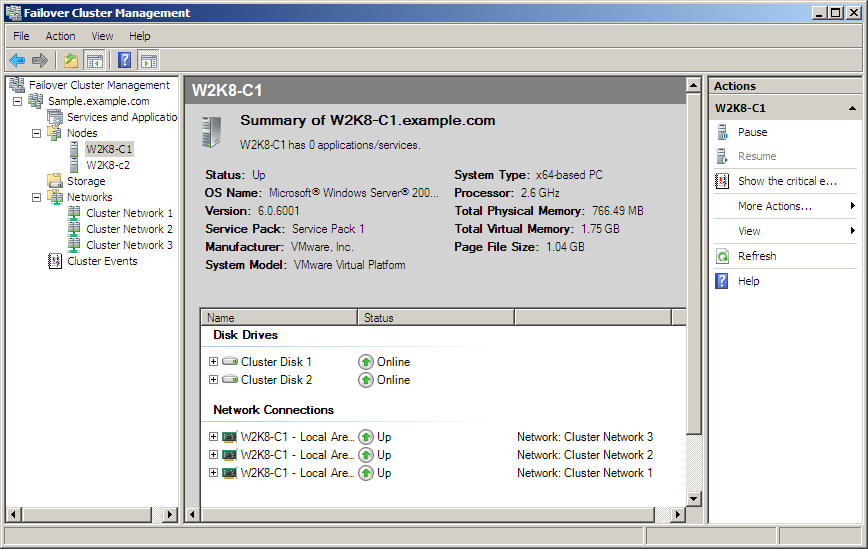
Each node in the cluster is represented in the console tree underneath the Nodes option. When you select a node, all of the details for that node appear in the work pane in the middle of the screen. If you want to add a disk to the cluster, right-click this option and, from the shortcut menu, choose Add Node.
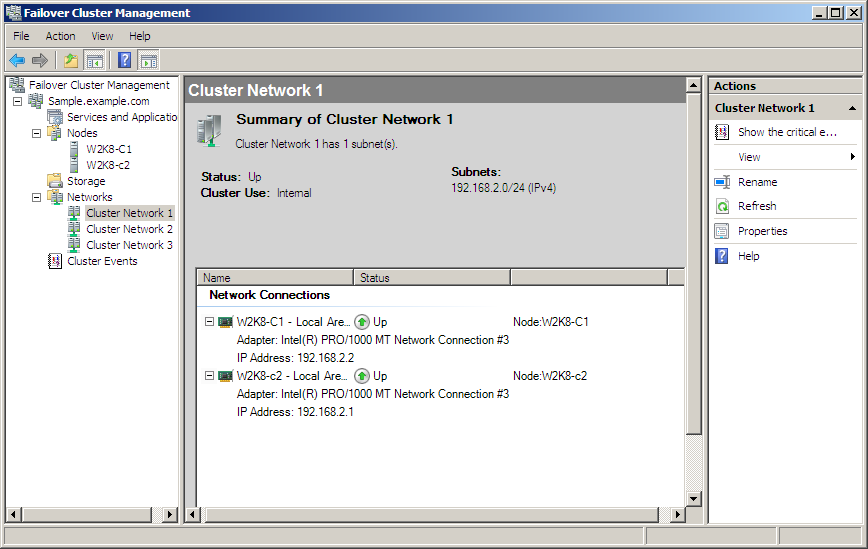
Each network in the cluster is represented in the console tree underneath the Networks option. When you select a network, all of the details for that network appear in the work pane in the middle of the screen
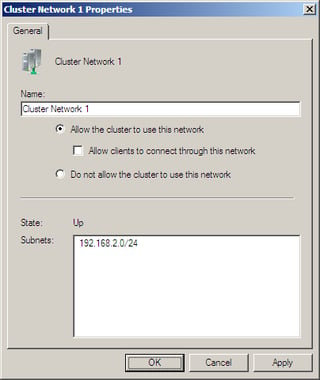
You can indicate whether or not the cluster should use a particular network by right-clicking an individual network entry and, from the shortcut menu, choosing Properties. On the Properties page, select the option next to Allow the cluster to use this network.
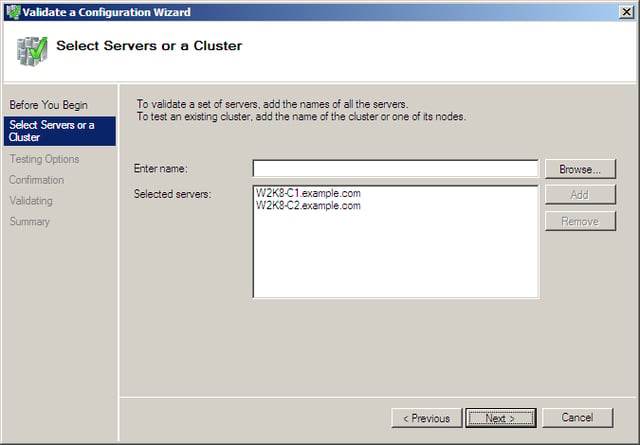
Before you create a cluster, you should examine your infrastructure to make sure it’s ready to support your new high availability configuration. The first screen of the wizard is simply informational. Click the Next button to continue. Enter the names of the servers that will take part in the cluster.
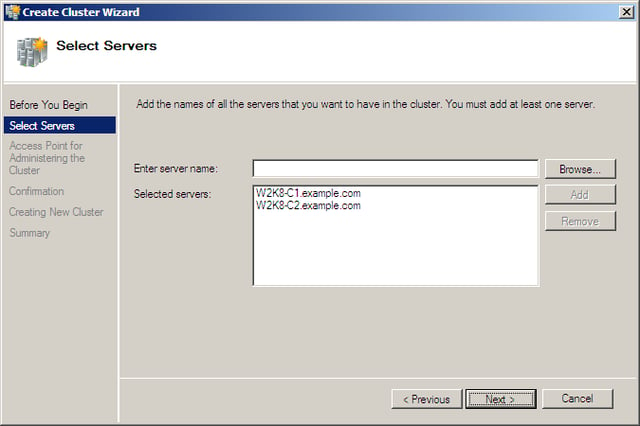
The goal of your management efforts is to cluster your servers. Microsoft provides a wizard to move your down this path. There are a number of ways to start the cluster creation wizard.
\nAs is the case with most wizards, the first screen of the wizard simply provides an overview. Click the Next button to proceed.First, choose the servers that will comprise the cluster. Use the browse button to browse Active Directory for servers.
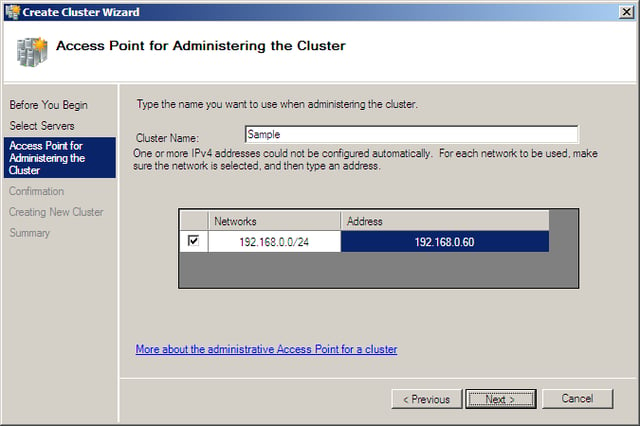
Provide the name of the new cluster and, when requested, provide the IP address that will be used to address the cluster. Remember, although individual servers retain their IP addresses, the cluster gets an IP address, too.
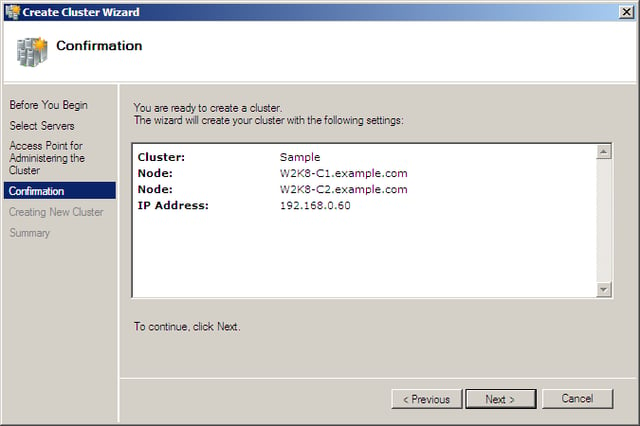
Confirm your selection.
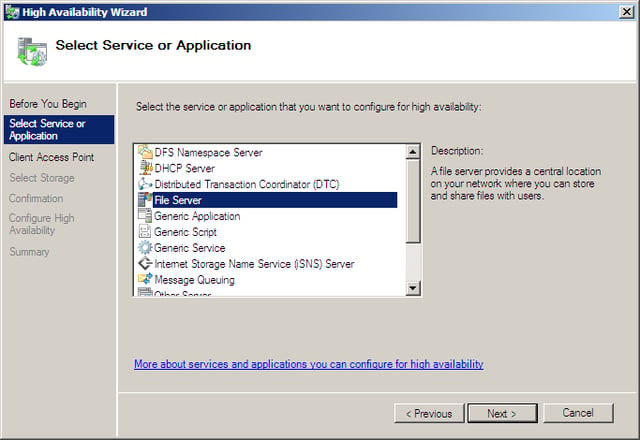
After the introduction page of the wizard, you’re asked to choose the service or application that you want to make highly available. Check with your software vendor to determine cluster compatibility. The next steps of the wizard will change depending on what you select on this page.
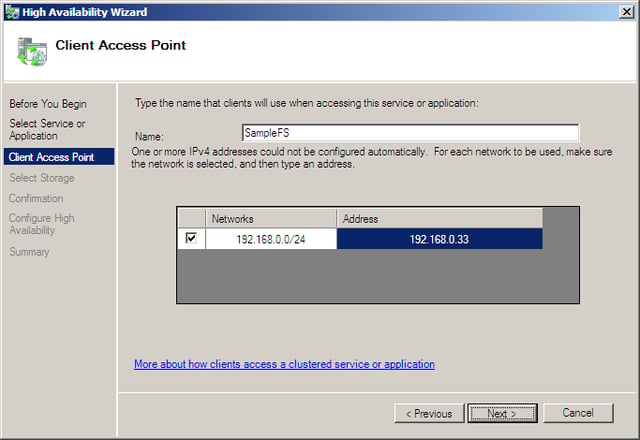
For each service you configure, you must specify how clients will access the service. Remember that the clustered service will appear as a single entity to client computers. Name the service and provide the service with a unique IP address.
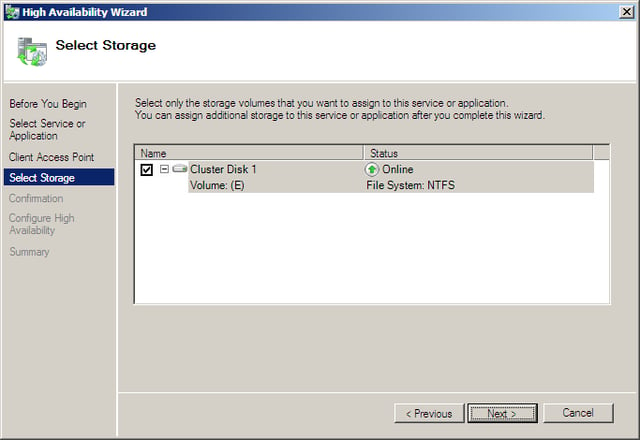
Next, choose the shared storage device that will be used by the chosen service.
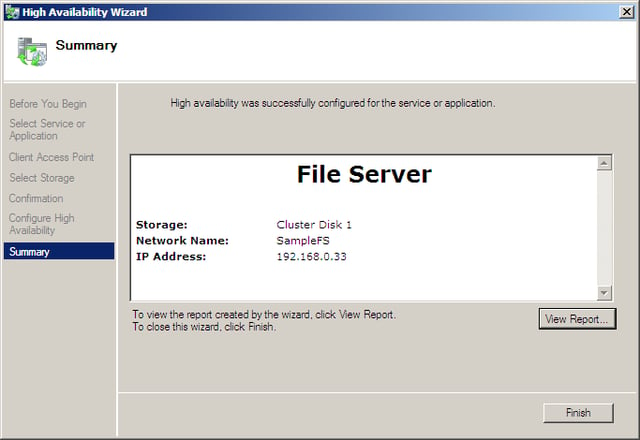
Once you make this selection, you have the opportunity to confirm your selections. Afterwards, the wizard will make the selected service highly available on your network.

With close to twenty years of experience in Information Technology, Scott has experience across the board in the industry. Recently, Scott left his position as Vice President and CIO for a small private college to launch a consultancy -- The 1610 Group -- aimed at the SMB space and K-12 and higher education.


