In late April 2007, Microsoft released the Beta 3 version of Microsoft Server, code named Longhorn. The evaluation copy is our best indication yet of what features will be included in the next official release of Microsoft Server. In this first look gallery, we show you the basic installation and configuration screens found in Beta 3.
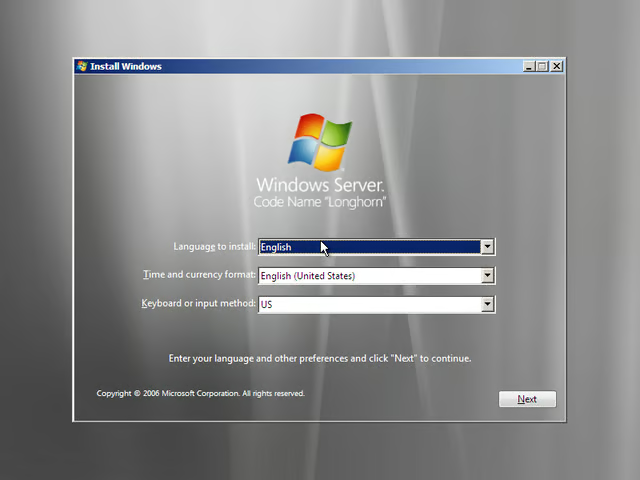
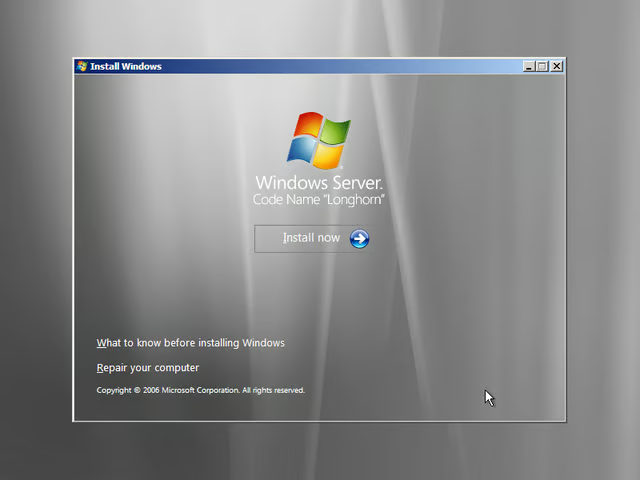
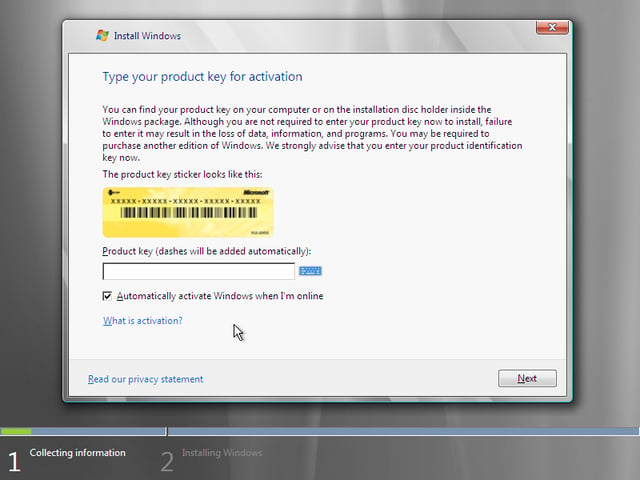
We obtained our Product Key from MSDN.
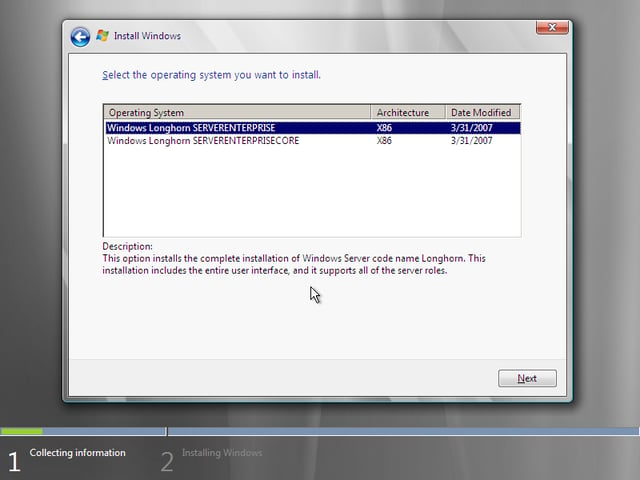
You can install everything or just the core elements. We went for the kitchen sink.
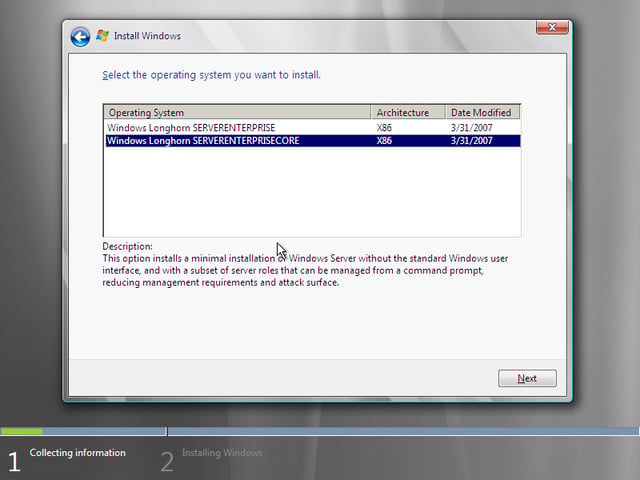
No minimum for us.
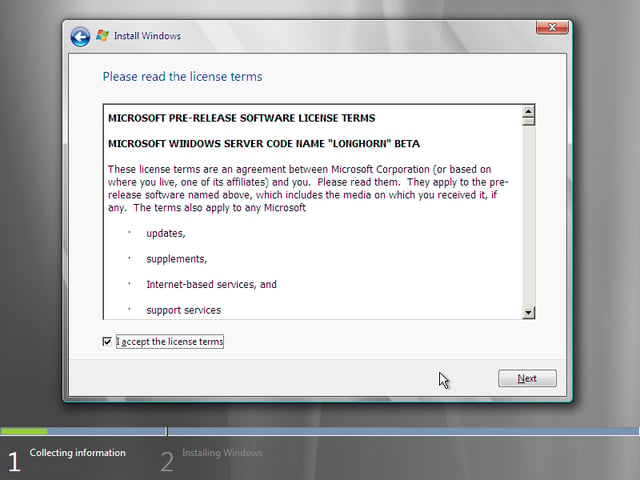
What’s the worst that can happen.
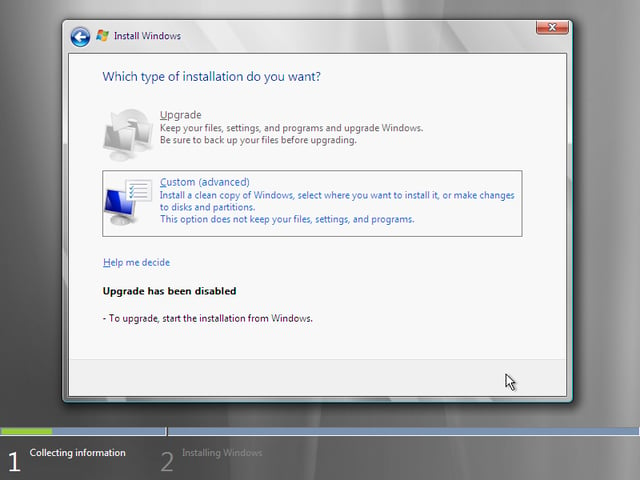
No previous operating system to upgrade, but if there were, you would have that option. Of course, I don’t recommend that, ever.
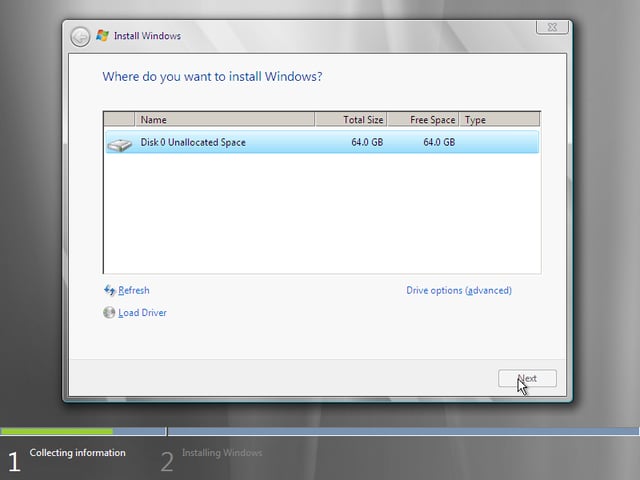
With VirtualPC there isn’t much choice.
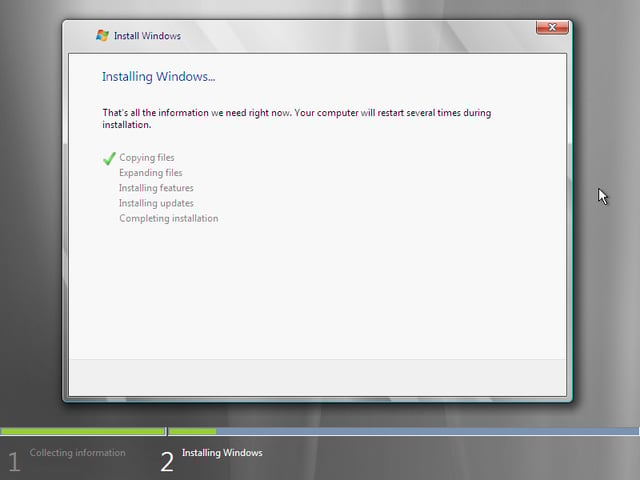
Time for lunch. The installation process took quite a while. And required several reboots to complete.
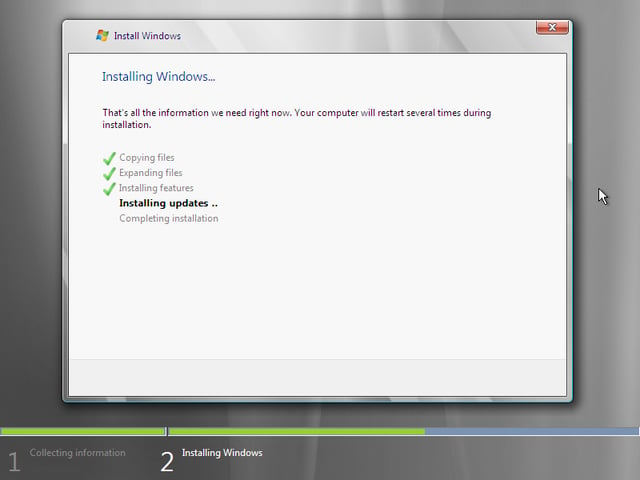
Be sure to allocate some time for this process — or you are setting yourself up for frustration.
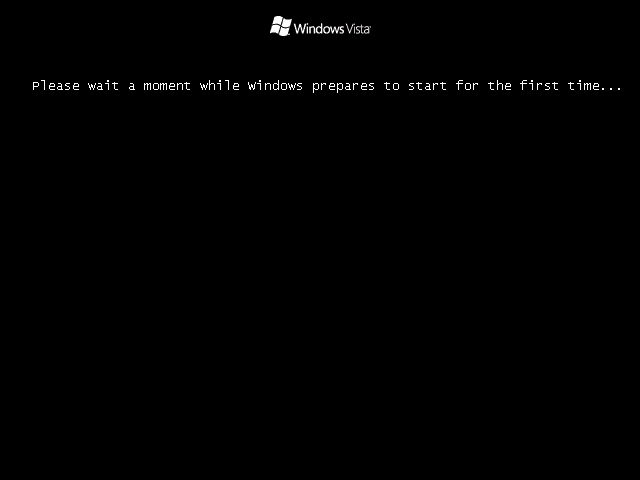
Progress, but another reboot is coming — but you knew that didn’t you.
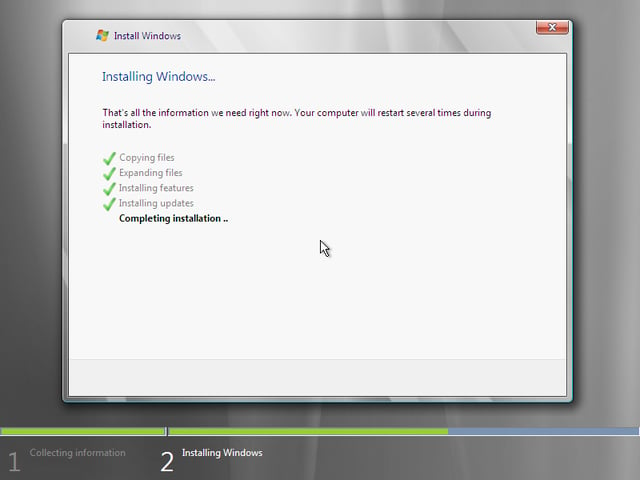
After three reboots, I think we may be almost finished.
This screen stayed up for a good 10 minutes. It may have been because of the virtualization I was using for the installation, but it took some real patience to keep from shutting it down.
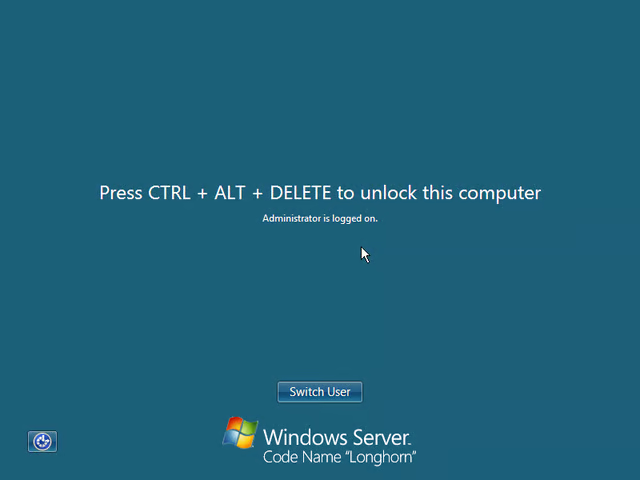
The Longhorn logon screen finally.
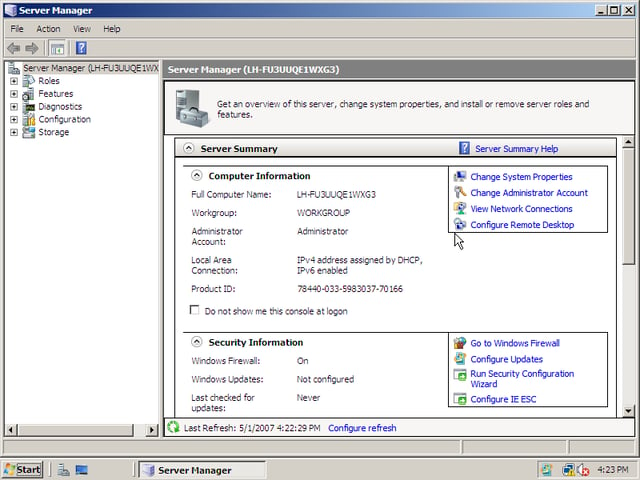
Here is the Summary page of the Server Manager. Net admins will be spending plenty of time in this tool, I suspect.
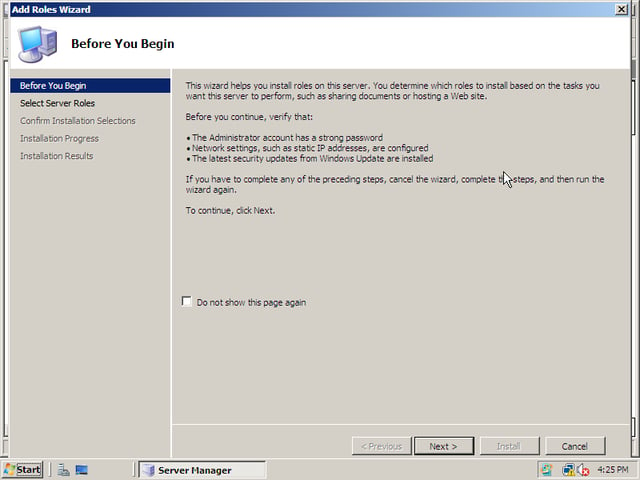
Much of the configuration in Longhorn is performed via a Wizard.
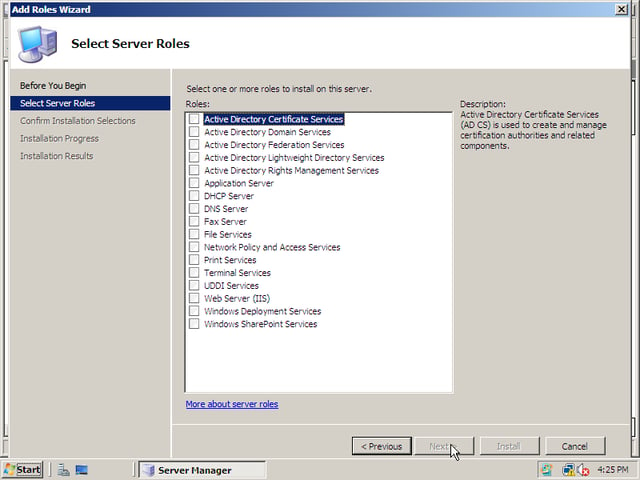
Plenty of server roles to choose from.
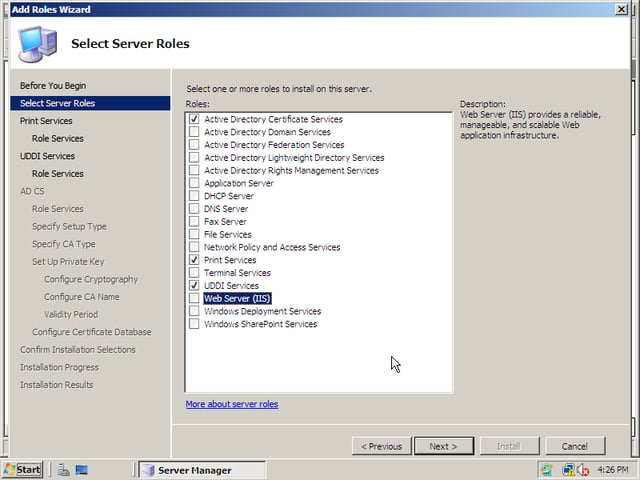
Just click off your desired roles and the Wizard takes care of the rest.
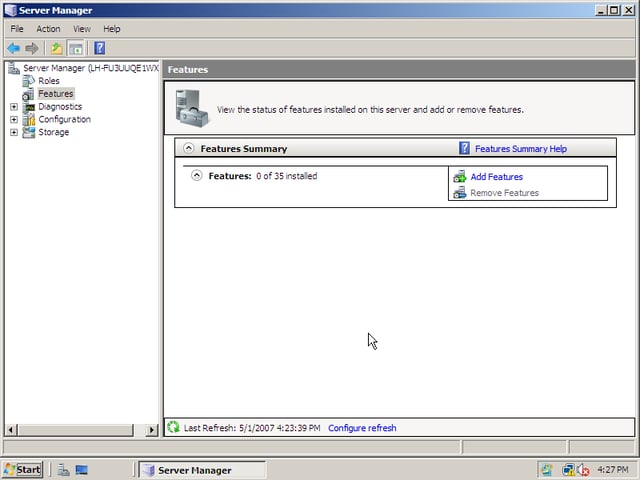
You will have to add features as you need them.
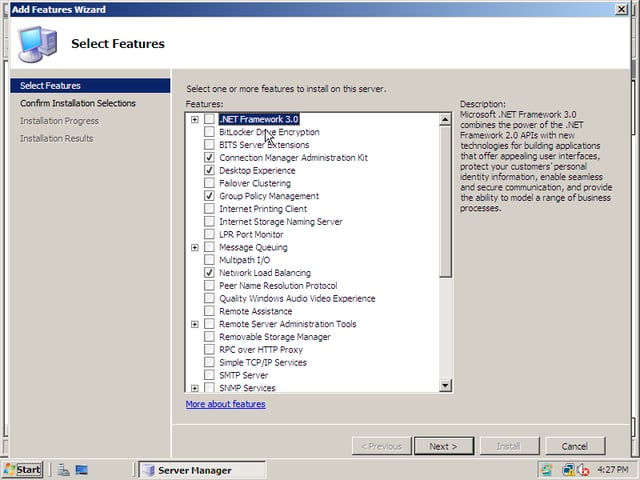
There are many more features than you will ever want to install.
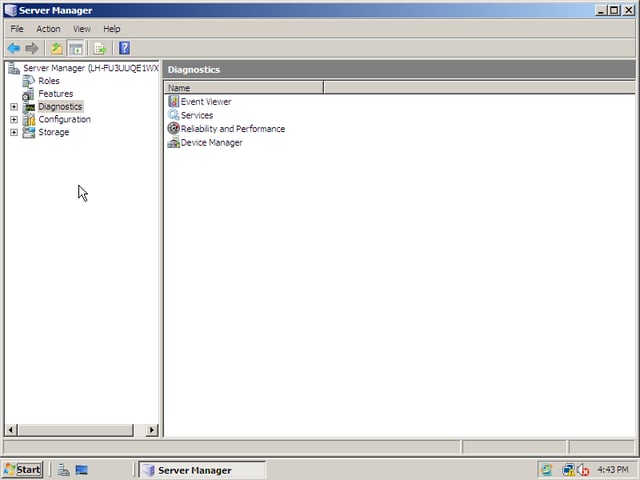
Diagnostics are always important for effective server administration. Longhorn Beta 3 offers some basic diagnostic tools.
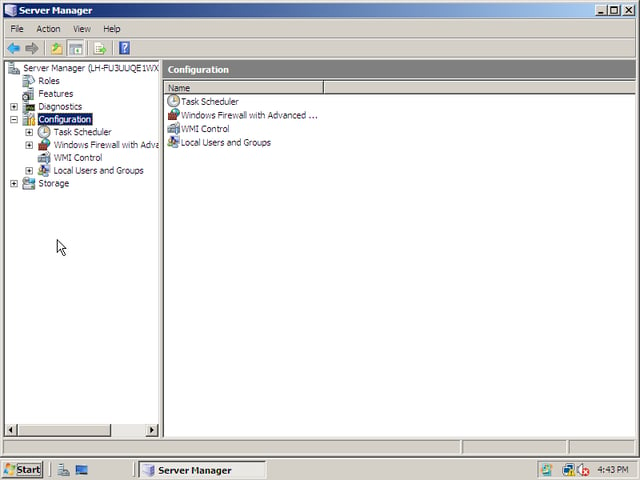
This is where you can tweak more configuration settings.
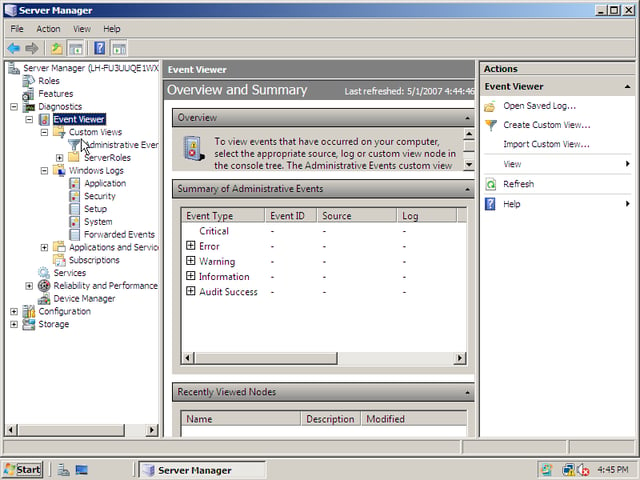
Sometimes you can’t tell what is going on without checking a log. Longhorn Server Beta 3 event log files are accessed from this screen in the Server Manager tool.
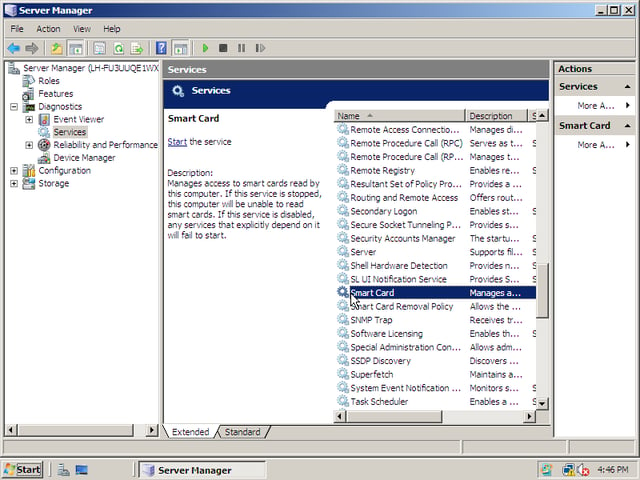
This screen in the Server Manager is where admins can get down to the nitty-gritty of their server operation.
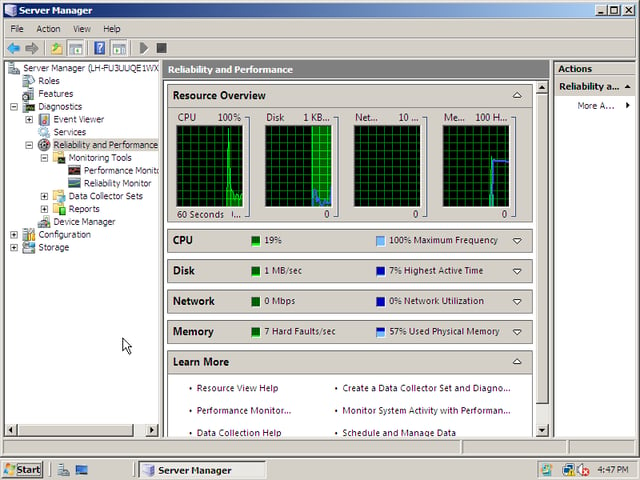
Longhorn Server provides some basic performance and reliability monitoring tools.
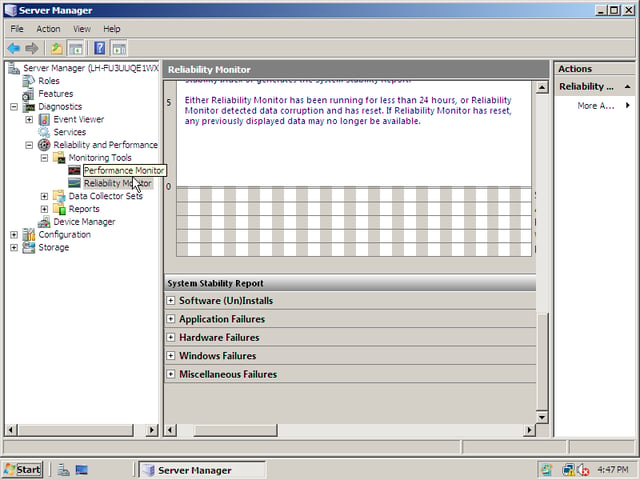
A server isn’t much good if it is not reliable.
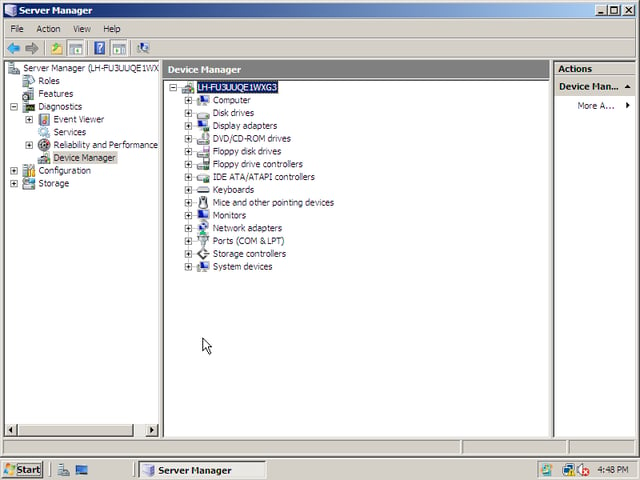
This screen is familiar to almost everyone using a Windows operating system. Troubleshooting a bad-acting device usually leads here.
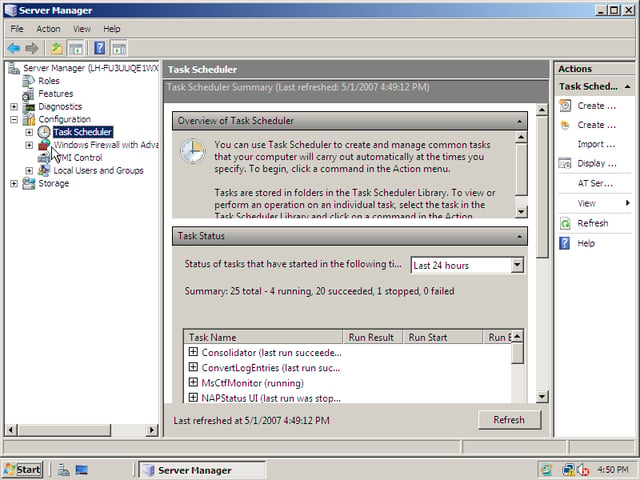
Automated and scheduled mean you can actually spend time with the family.
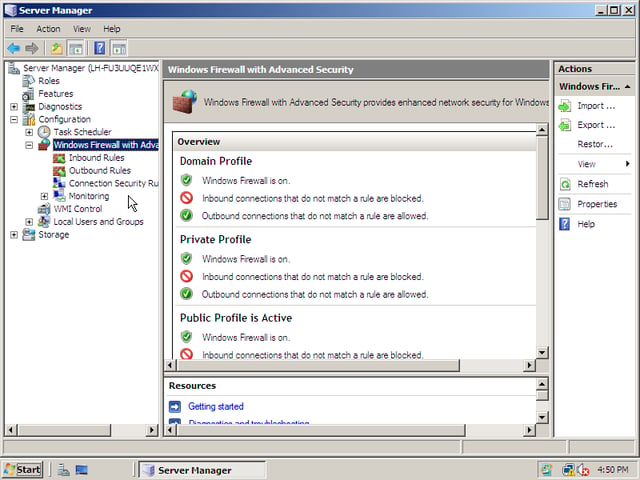
This screen in the Server Manager is where admins configure the built-in firewall to conform to their specific environment.
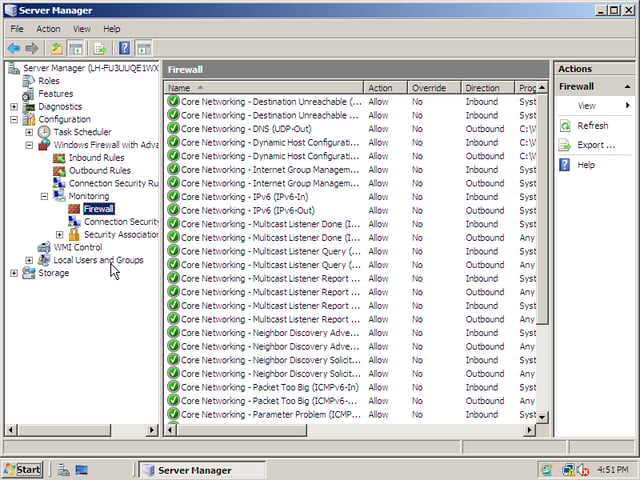
You may have to check out who is trying to break through your firewall.
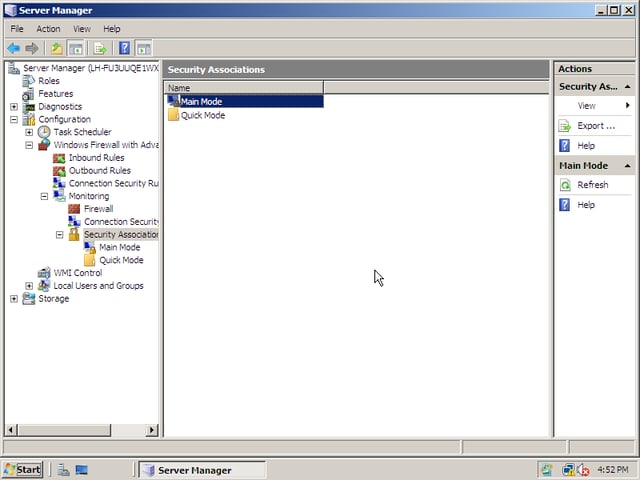
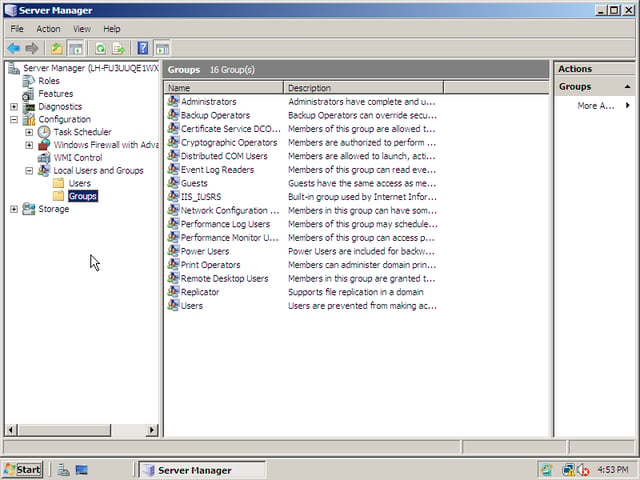
The Server Manager Configuration tree is where you set establish your group policies and settings.
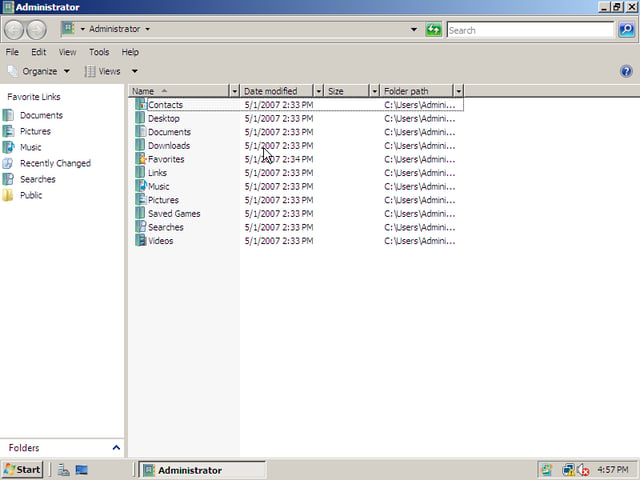
The Administrator dialog is also similar to Windows Vista. Should a server have Music and Saved Games folders?
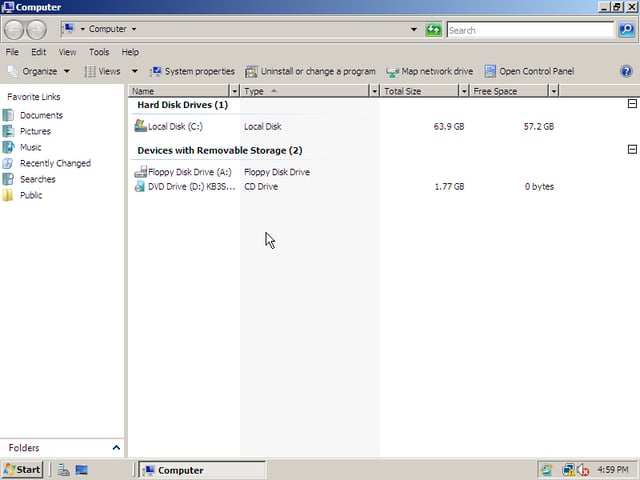
The Computer dialog, reached via the Start Menu, is much the same.
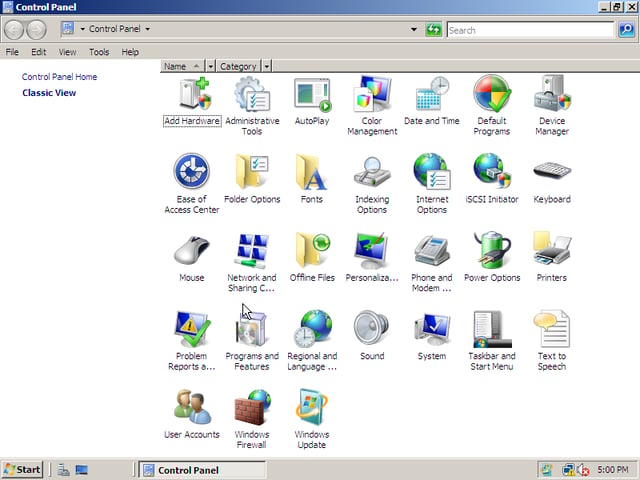
The Control Panel is also very familiar — perhaps a few less icons.
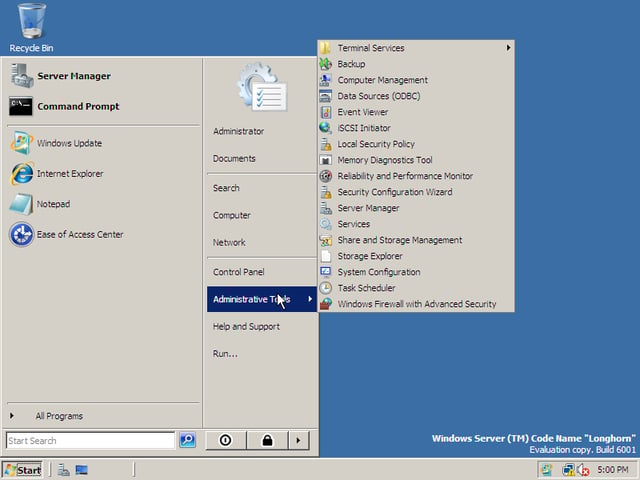
Many of the configuration tools we saw in the Server Manager can also be reached by navigating the Start Menu.
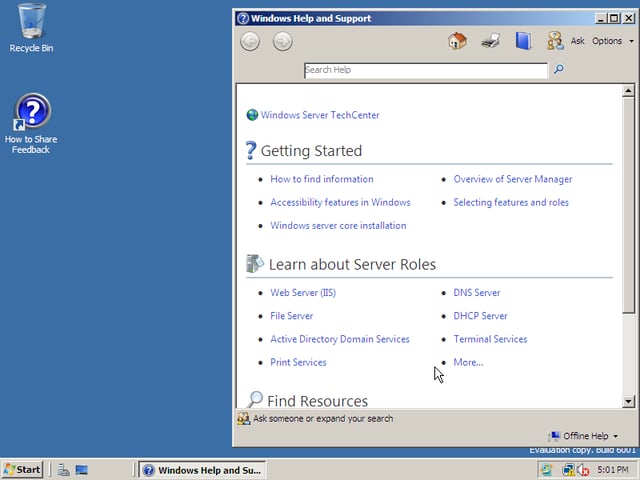
Help files are available.
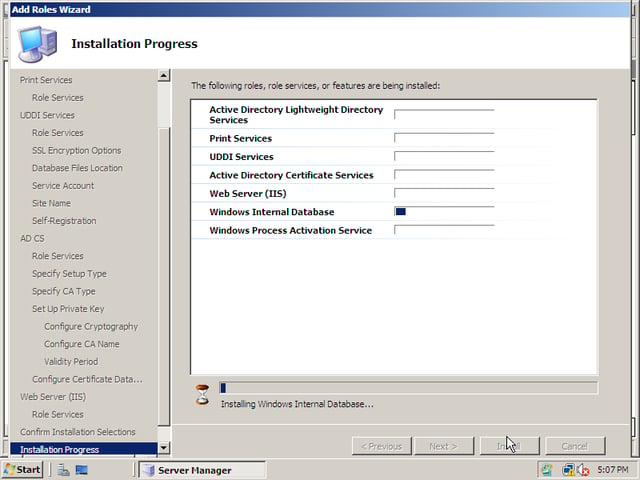
I decided to install a few server roles to see how the process worked. This is the Wizard progress screen.
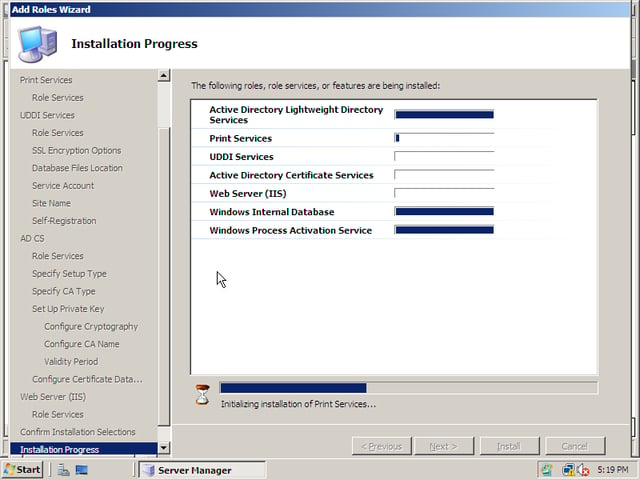
I am making progress, but it is not a quick process.
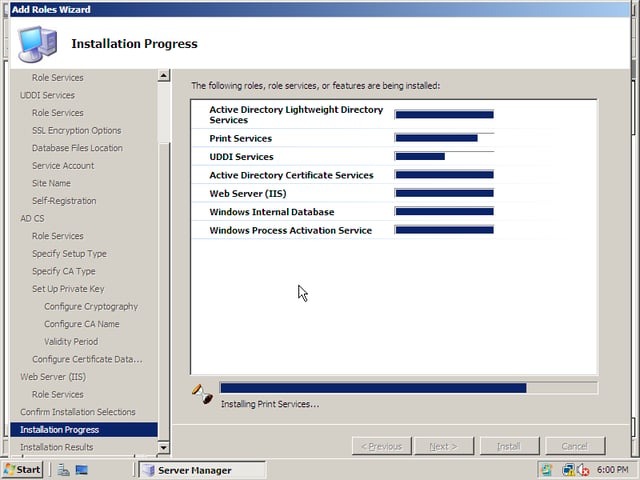
More progess and light at the end of the tunnel. The system has rebooted itself a couple of times in the interim.
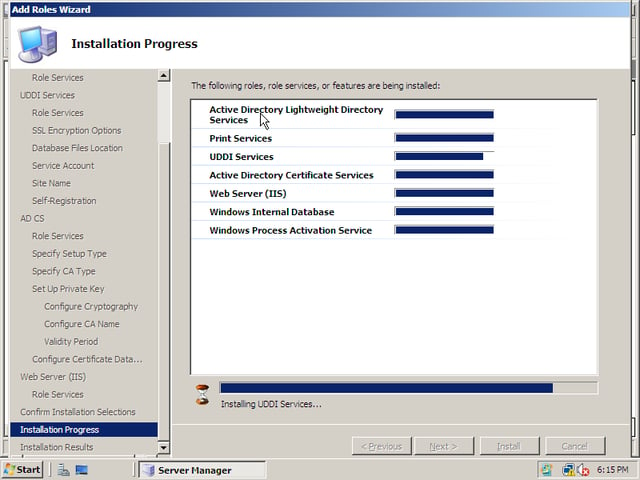
Another reboot and I am almost done.
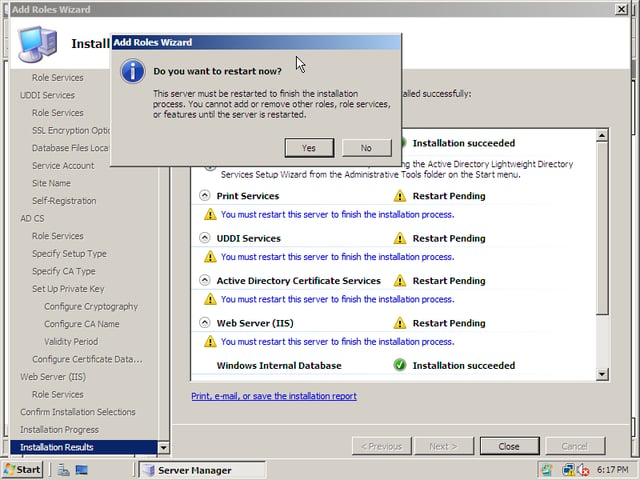
Oh look, another restart.
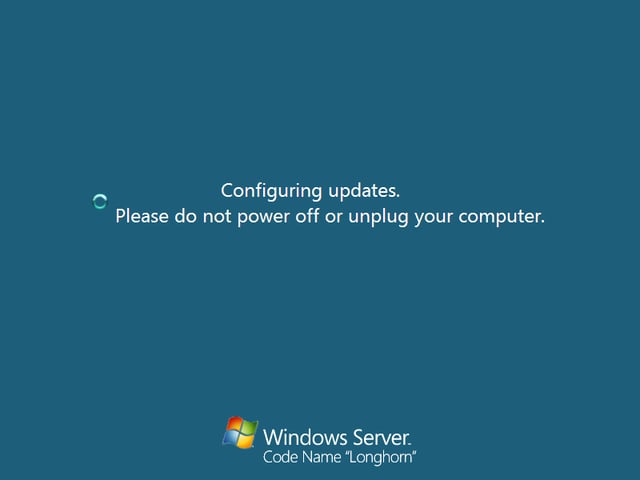
This message appeared more often then I care to remember. No wonder network administrators and IT professionals get frustrated. Granted, I was working with a virtual machine, but even on a dedicated fast server, the configuration process is going to take awhile to complete.
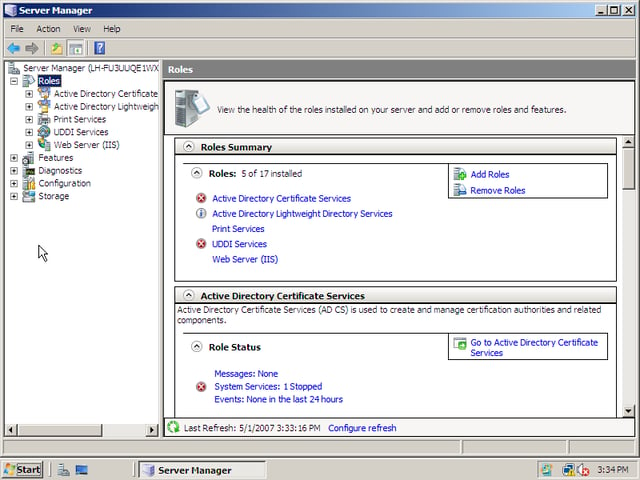
Now there are some roles to see in the Server Manager.
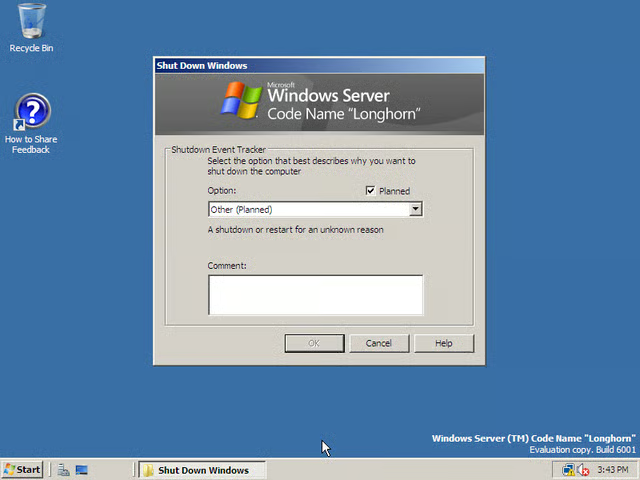
As a server, you really can’t just pull the plug on Longhorn. A graceful exit requires a comment.
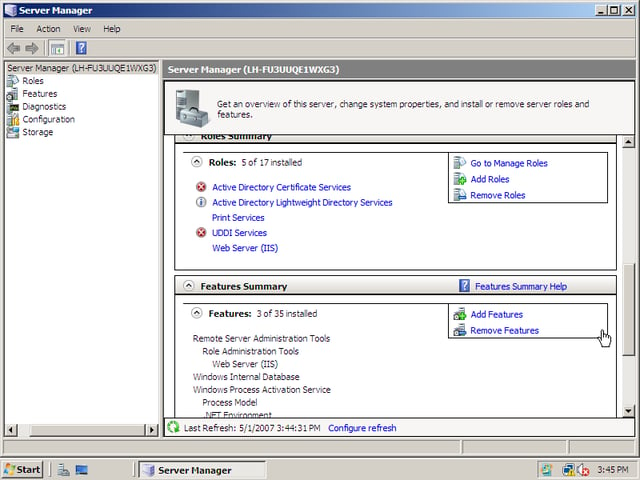
Roles and Features are now installed and I am ready to start serving.

Mark W. Kaelin has been writing and editing stories about the information technology industry, software, hardware, gaming, finance, accounting, and technology geekdom for more than 30 years.


