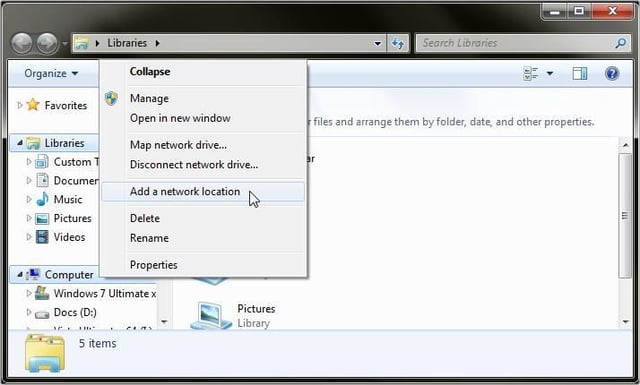
If you are not already connected to the Internet do so now. Open Windows Explorer. Right-click on Computer in the left pane and select Add a network location.
Image created by Alan Norton for TechRepublic.

The Add Network Location Wizard should open. Click the Next button.
Image created by Alan Norton for TechRepublic.

Select Choose a custom network location. Click the Next button.
Image created by Alan Norton for TechRepublic.
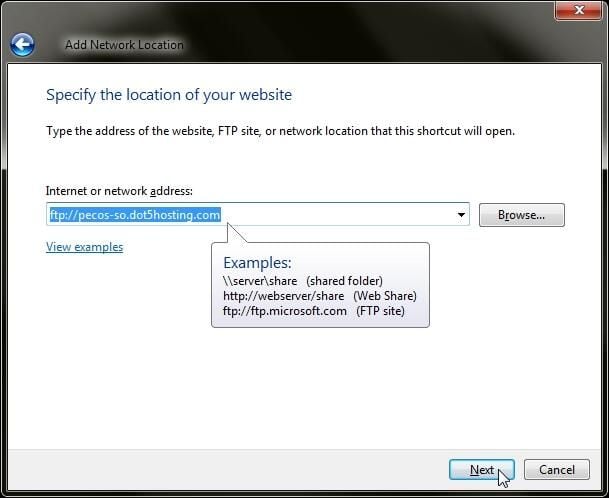
Type the FTP site name in the Internet or network address: text box and click the Next button.
Image created by Alan Norton for TechRepublic.
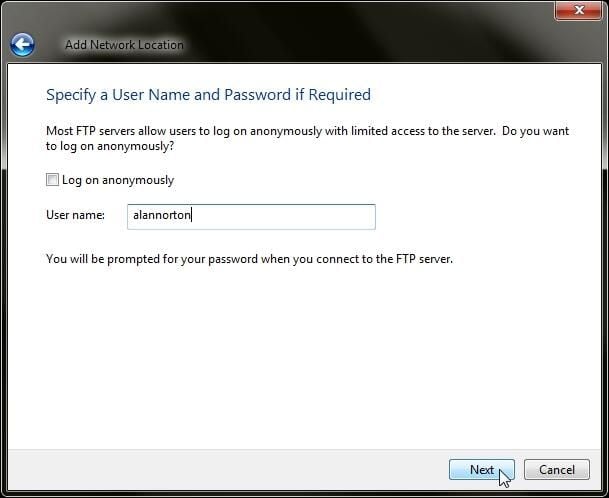
Log on anonymously should be checked by default. Most FTP server access requires a login ID and password for full access. Unchecking the Log on anonymously check box will enable the User name: text box. Type in your user name and click the Next button.
Image created by Alan Norton for TechRepublic.
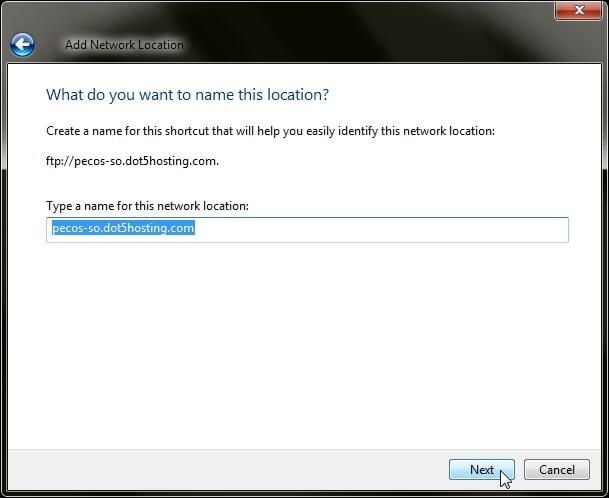
Next, provide a name. I am accepting the default name in this example. Click Next when done.
Image created by Alan Norton for TechRepublic.
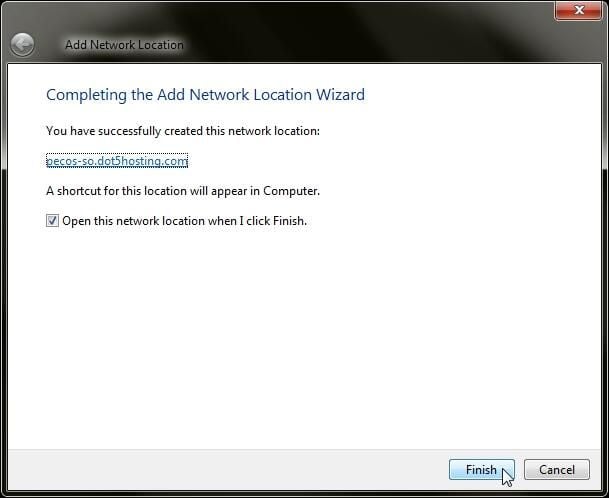
Click Finish to open the new network location.
Image created by Alan Norton for TechRepublic.
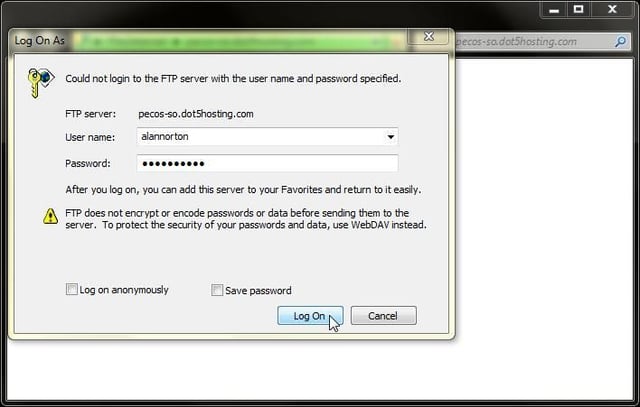
?The user name should already be entered. Type the password and click the Log On button when done. You can optionally save the password but be aware of the security consequences before doing so.
Image created by Alan Norton for TechRepublic.
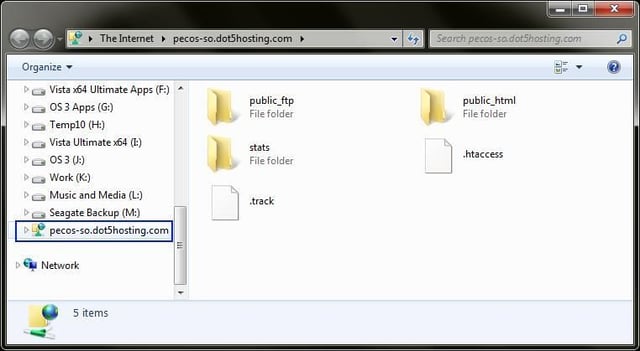
If you are logged in successfully you should see and have full access to the remote directories. Note the link to the remote FTP server that has been added to the navigation pane.
Image created by Alan Norton for TechRepublic.
Two plus ways to transfer files via FTP in Windows
Image created by Alan Norton for TechRepublic.

You can contact me at mail@pecos-softwareworks.com. I began my career as little more than a data retrieval and reporting person. Early in my career I did whatever I could to be productive, creating spreadsheets in Framework and charts in GraphWriter. I was PC oriented and soon learned how to tap into the data on the mainframe to produce the charts via a data download to the PC. I found a niche building client/server systems where I was responsible for each phase of the project life cycle. \ \ I am fortunate to have enjoyed a broad background in IT including interfacing PC's and shop floor insertion machines to the mainframe database. I have also been an independent contractor, perhaps the most satisfying part of my career. I transitioned several mid-frame systems to a PC network based Access/Visual Basic system in the contract position and learned what it takes to be successful on your own. \ \ My last position was an analyst/programmer for a large IT service provider in support of their global help desk reporting team including a role as project lead. \ \ I consider myself lucky to have been in at the beginning of the personal computer revolution. I am currently semi-retired and learning a new skill, professional writing.


