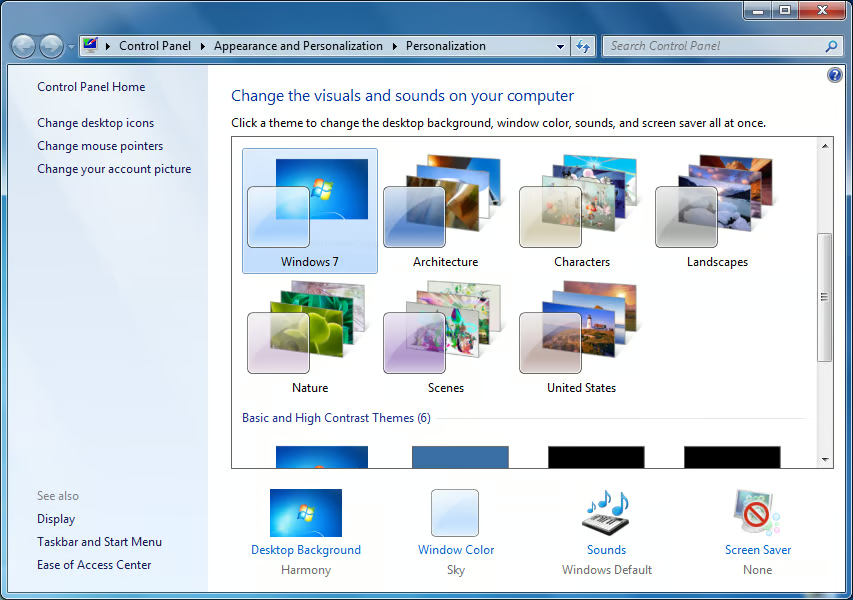
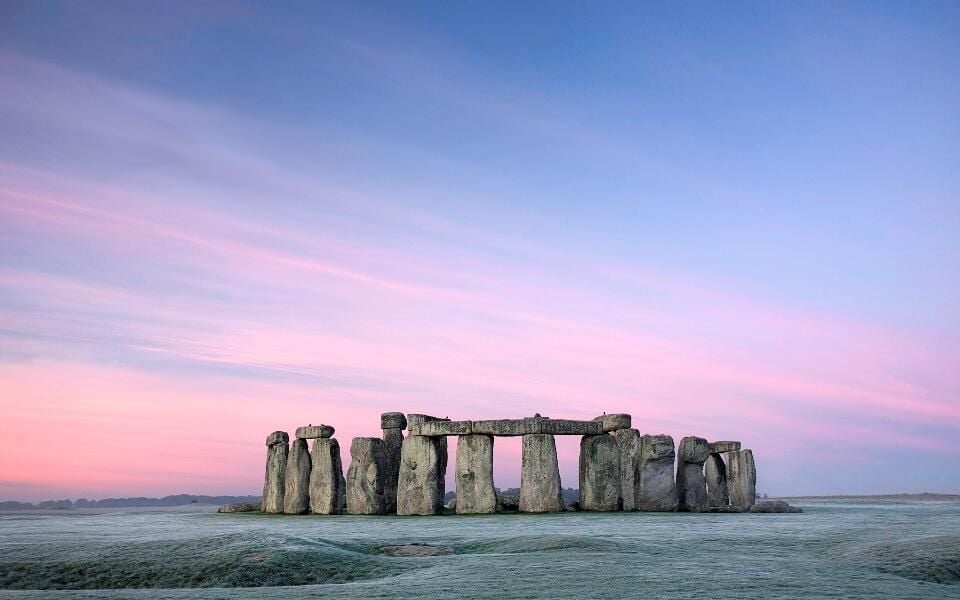
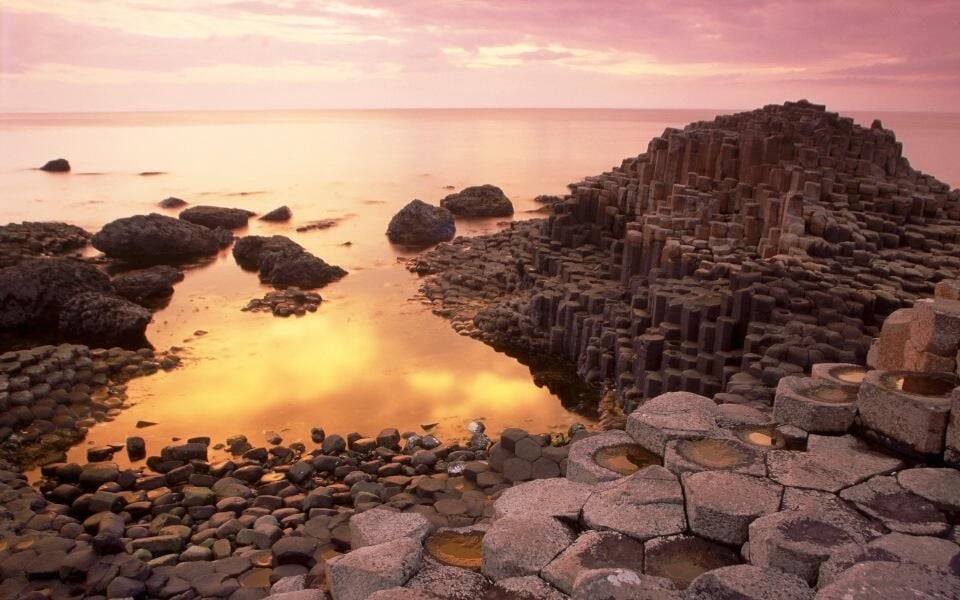
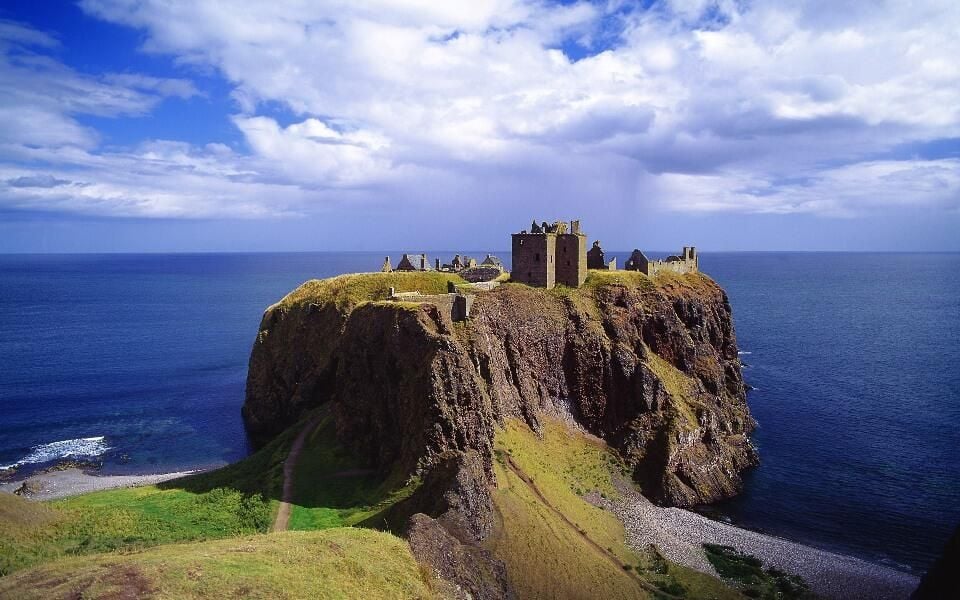
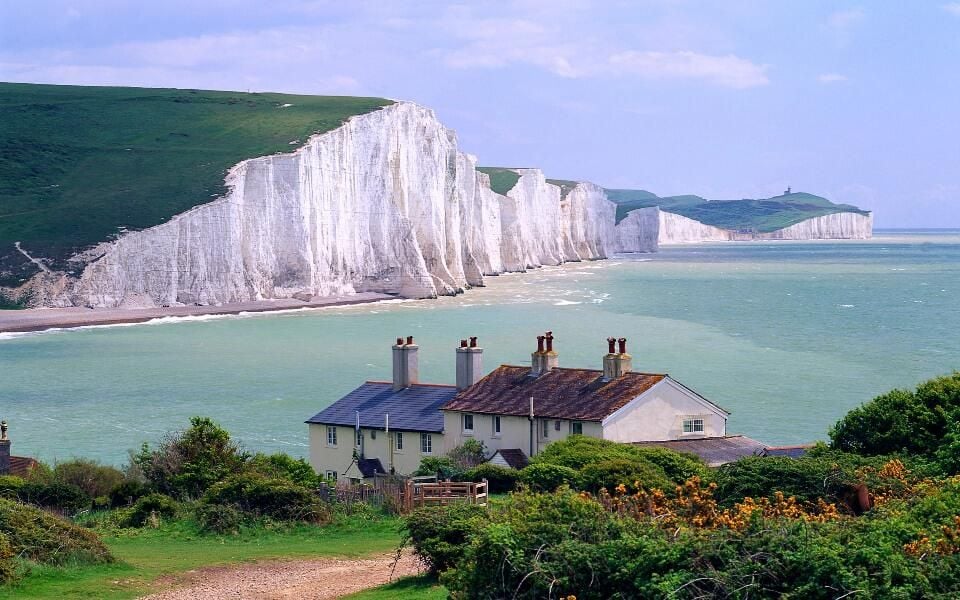
\n\tIn the past, I have not been a big fan of the personalization features of Microsoft Windows. I found most of the Windows themes to be clunky, resource hogs, ugly, or all of the above. However, Windows 7 and the Aero interface is different, especially for those of us lucky enough to have a high definition resolution LCD monitor. Some of the included themes are quite elegant and engaging. In particular I like the image slideshow that serve as the background setting for many of the themes.
\n\t
\n\tBut there are several hidden international themes that do not appear as choices in the conventional United States-based installation of Windows 7. When you told Windows 7 that you were a resident of the U.S., the operating system hid the other international choices, but I don’t like having my choices arbitrarily limited. There is a relatively simple way to add them to your list of available themes in the Personalization section of the Control Panel and it starts with a search.
\n\t
\n\tScreenshots created by Mark Kaelin for TechRepublic from Microsoft Windows 7. The gallery was originally published in May 2010.
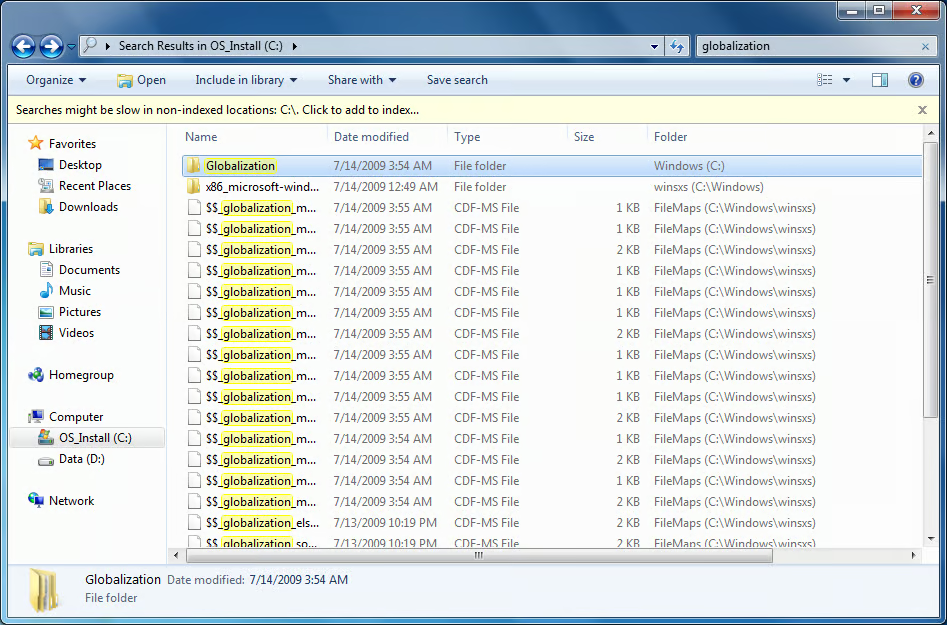
First, start Windows Explorer and type “globalization” in the search box located in the upper right corner. You will get a lengthy list of folders and files but we are only interested in the Globalization folder.
Screenshots created by Mark Kaelin for TechRepublic from Microsoft Windows 7.
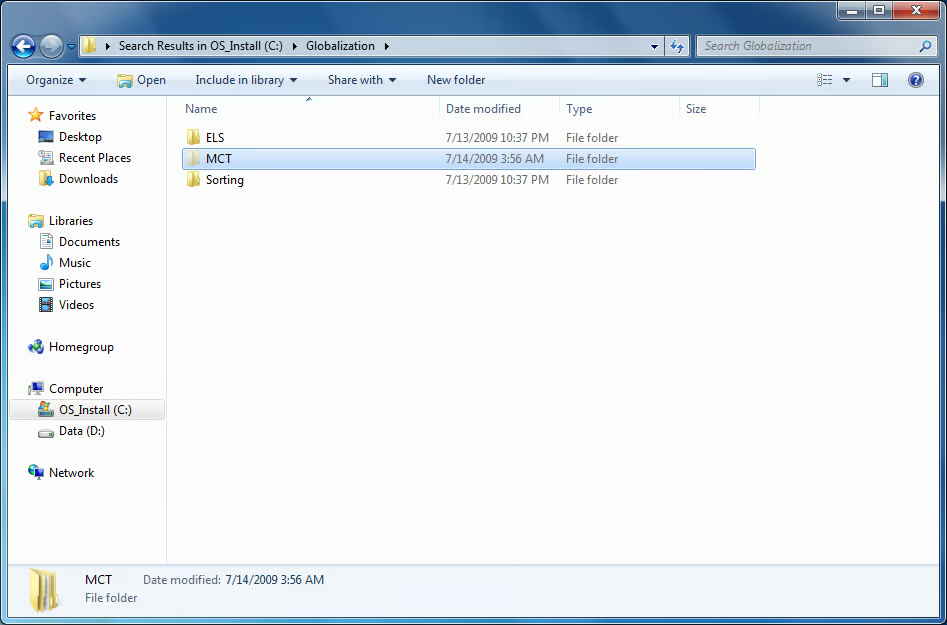
Double clicking the Globalization folder reveals three more folders. We are interested in the MCT folder.
Screenshots created by Mark Kaelin for TechRepublic from Microsoft Windows 7.
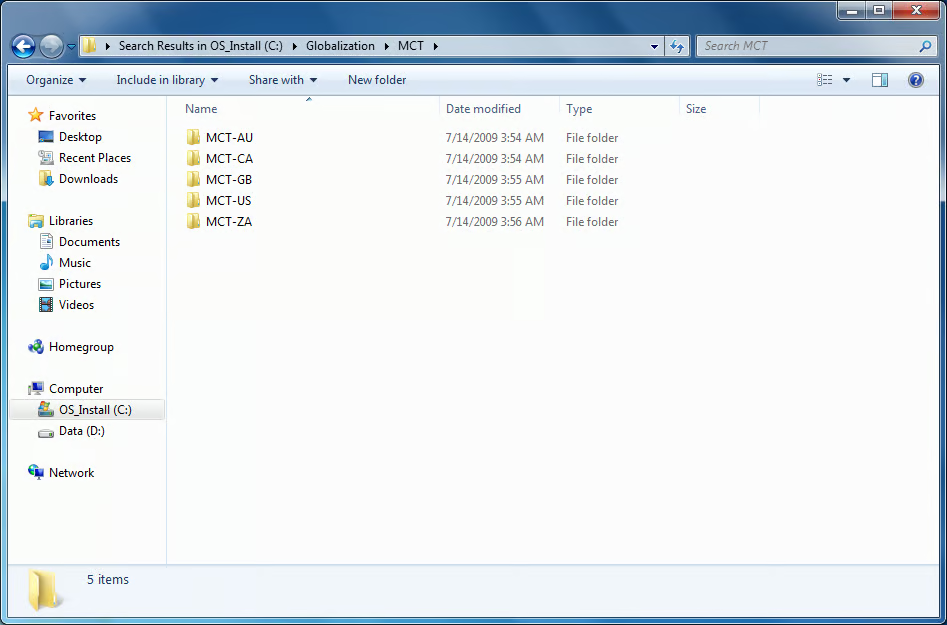
Double clicking the MCT folder reveals several more folders. In my case, there are folders containing themes for Australia, Canada, Great Britain, and South Africa.
Screenshots created by Mark Kaelin for TechRepublic from Microsoft Windows 7.
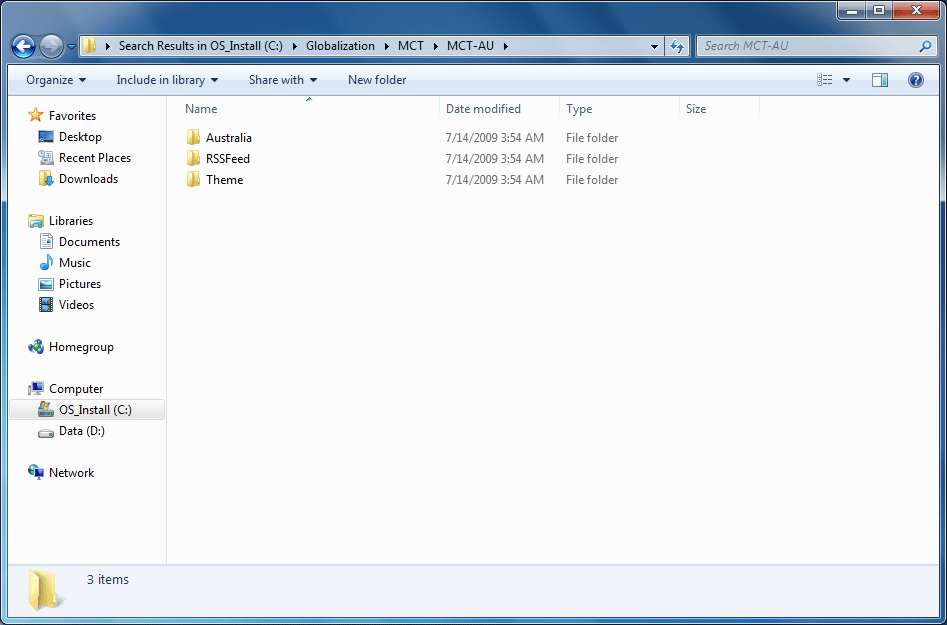
Double click on the MCT-AU folder, for example, to reveal three more folders, all associated with the Australian Windows Desktop Theme.
Screenshots created by Mark Kaelin for TechRepublic from Microsoft Windows 7.
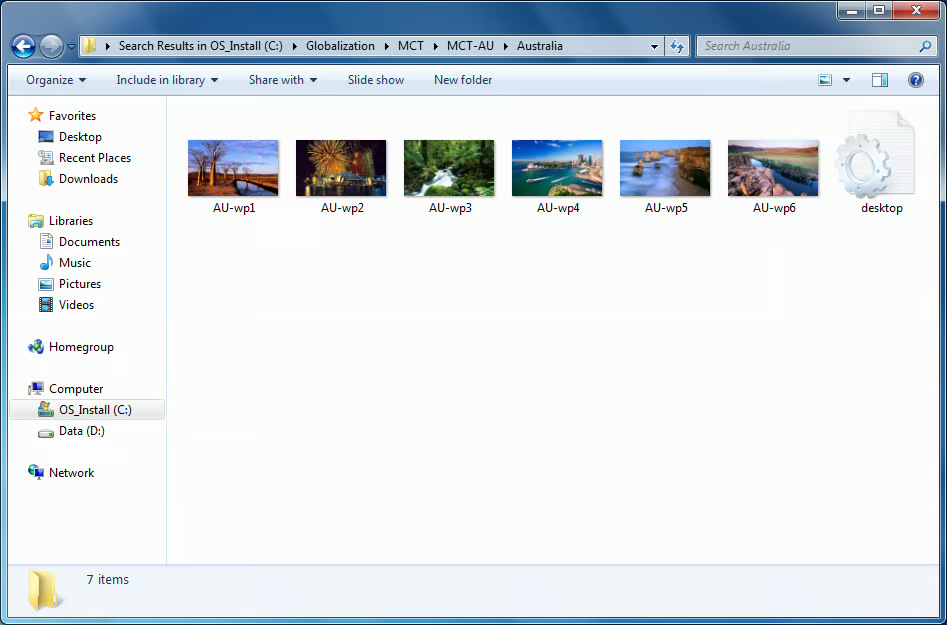
To see the thumbnail images of the Australian theme, click the Australia folder.
Screenshots created by Mark Kaelin for TechRepublic from Microsoft Windows 7.
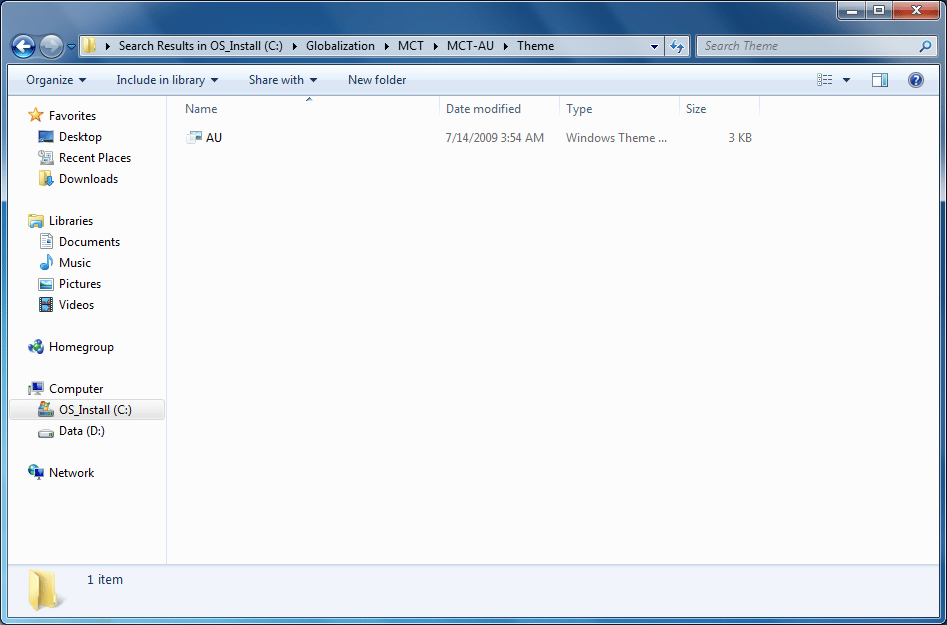
To add the Australian theme to the list of themes displayed in the Personalization section of the Control Panel, click the Theme folder to reveal the Australian theme application.
Screenshots created by Mark Kaelin for TechRepublic from Microsoft Windows 7.
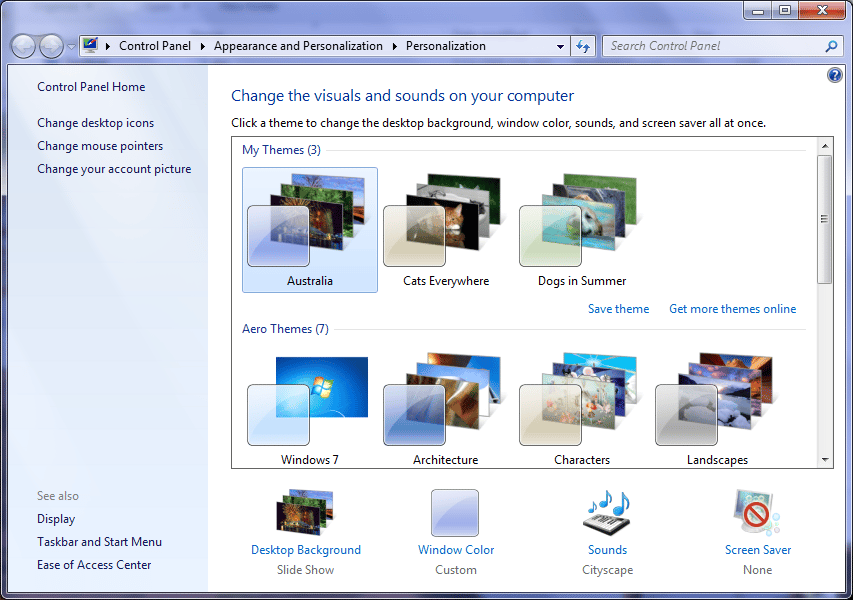
Double click the file and the Australian theme will become your new active theme and it will be entered as a choice on the Personalization page.
Screenshots created by Mark Kaelin for TechRepublic from Microsoft Windows 7.

Screenshots created by Mark Kaelin for TechRepublic from Microsoft Windows 7.

Screenshots created by Mark Kaelin for TechRepublic from Microsoft Windows 7.

Screenshots created by Mark Kaelin for TechRepublic from Microsoft Windows 7.
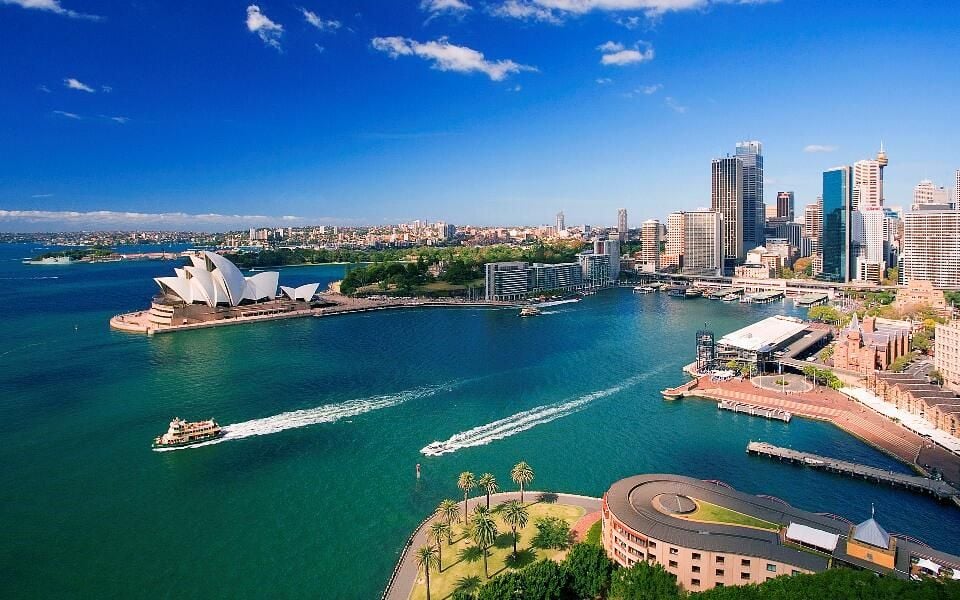
Screenshots created by Mark Kaelin for TechRepublic from Microsoft Windows 7.
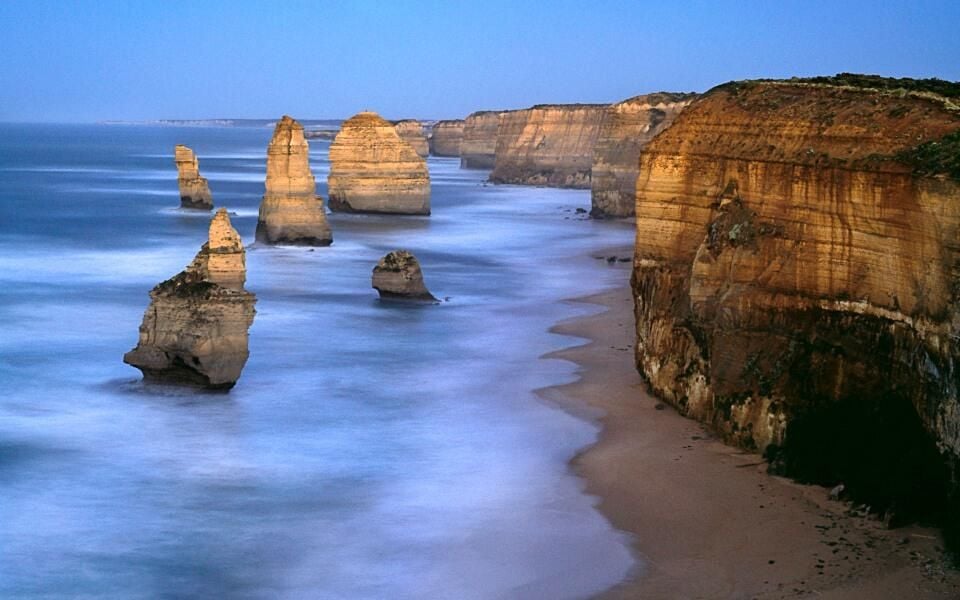
Screenshots created by Mark Kaelin for TechRepublic from Microsoft Windows 7.
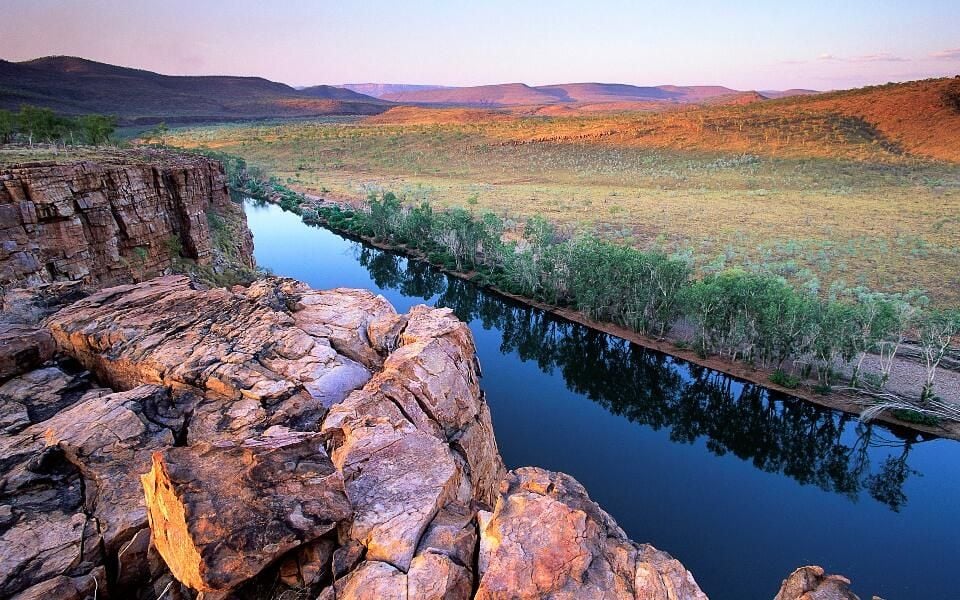
Screenshots created by Mark Kaelin for TechRepublic from Microsoft Windows 7.
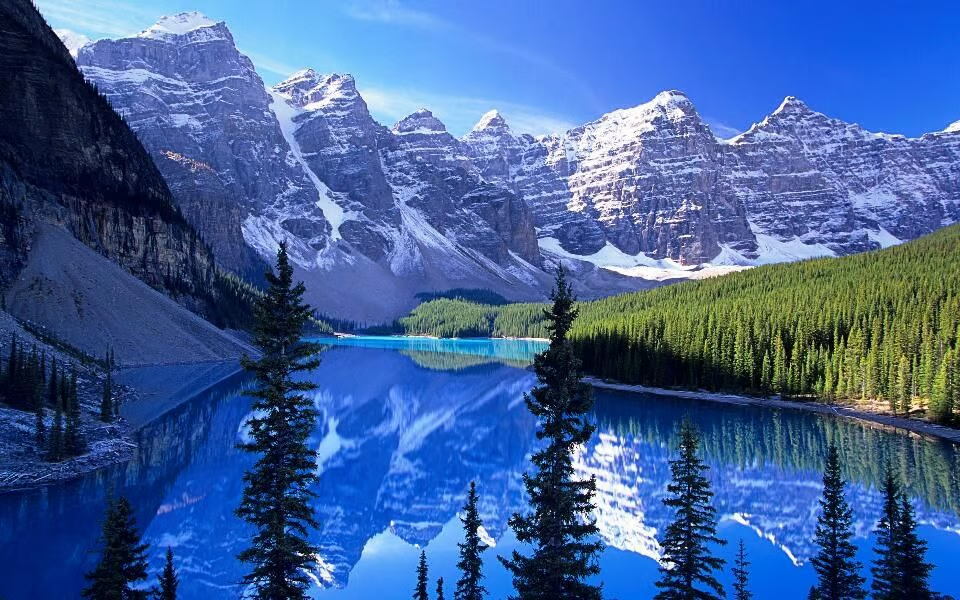
Screenshots created by Mark Kaelin for TechRepublic from Microsoft Windows 7.

Screenshots created by Mark Kaelin for TechRepublic from Microsoft Windows 7.

Screenshots created by Mark Kaelin for TechRepublic from Microsoft Windows 7.

Screenshots created by Mark Kaelin for TechRepublic from Microsoft Windows 7.

Screenshots created by Mark Kaelin for TechRepublic from Microsoft Windows 7.

Screenshots created by Mark Kaelin for TechRepublic from Microsoft Windows 7.
Screenshots created by Mark Kaelin for TechRepublic from Microsoft Windows 7.

Screenshots created by Mark Kaelin for TechRepublic from Microsoft Windows 7.

Screenshots created by Mark Kaelin for TechRepublic from Microsoft Windows 7.
Screenshots created by Mark Kaelin for TechRepublic from Microsoft Windows 7.
Screenshots created by Mark Kaelin for TechRepublic from Microsoft Windows 7.
Screenshots created by Mark Kaelin for TechRepublic from Microsoft Windows 7.

Screenshots created by Mark Kaelin for TechRepublic from Microsoft Windows 7.

Screenshots created by Mark Kaelin for TechRepublic from Microsoft Windows 7.
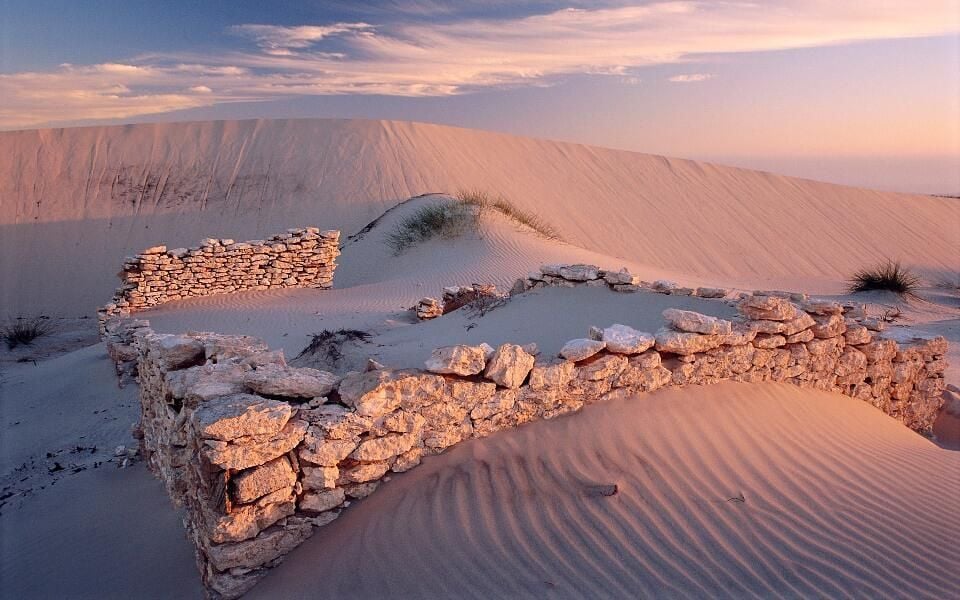
Screenshots created by Mark Kaelin for TechRepublic from Microsoft Windows 7.

Screenshots created by Mark Kaelin for TechRepublic from Microsoft Windows 7.
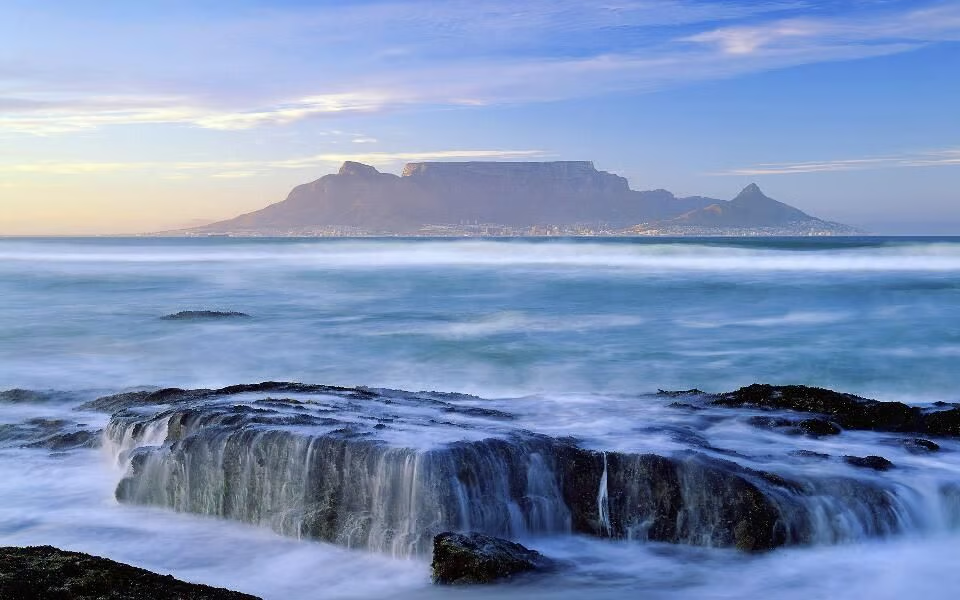
Screenshots created by Mark Kaelin for TechRepublic from Microsoft Windows 7.


Mark W. Kaelin has been writing and editing stories about the information technology industry, software, hardware, gaming, finance, accounting, and technology geekdom for more than 30 years.


