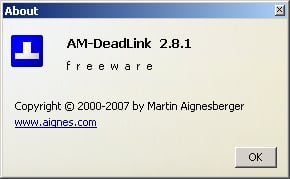
In the past several years, my browser bookmarks list has ballooned to more than 200 links. I wanted to purge the dead and duplicate links from my list, but manually opening each link seemed just too time consuming. Luckily, I found AM-DeadLink.
Despite its quirks, AM-DeadLink does a good job of detecting dead and duplicate links on your Internet browser bookmarks or favorites list. This handy freeware application works on Windows 95/98/Me/NT/2000/XP/2003 Server and supports Internet Explorer, Mozilla, Opera, and Firefox. You can even double check AM-DeadLink’s results with the application’s internal preview feature.
You can download AM-DeadLink from Martin Aignesberger’s Web site.
By Bill Detwiler
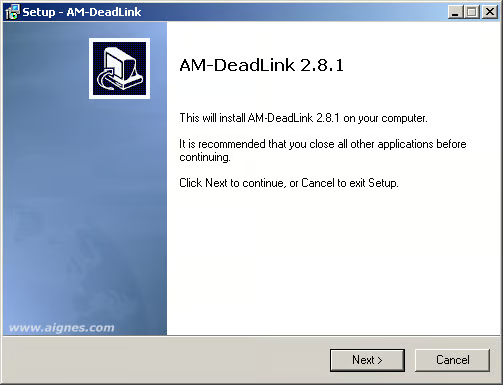
At 1.06 MB, AM-DeadLink’s installation file is a quick download.
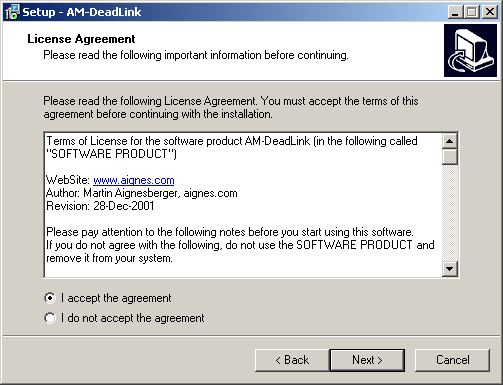
You know the drill. Accept the license agreement and click Next.
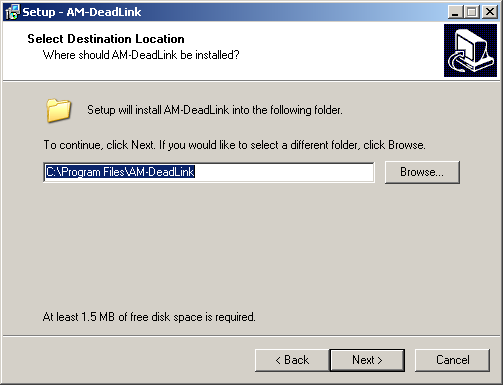
The default location is C:\\Program Files\\AM-DeadLink. If so inclined, you can specify a different location.
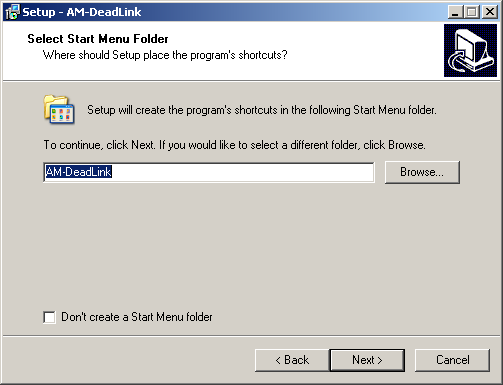
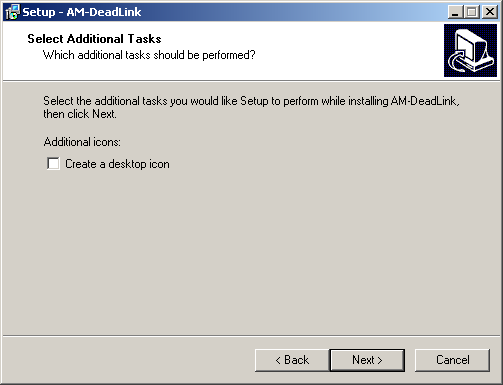
I rarely create program icons on my Windows Desktop.
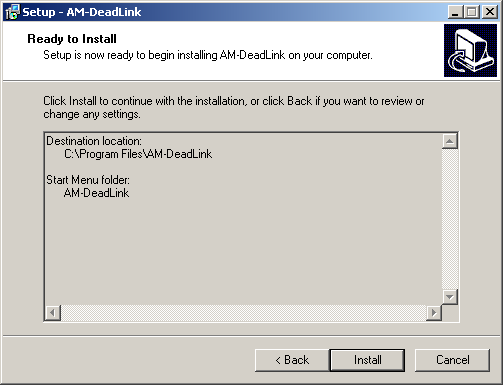
Click Finish to begin the installation.
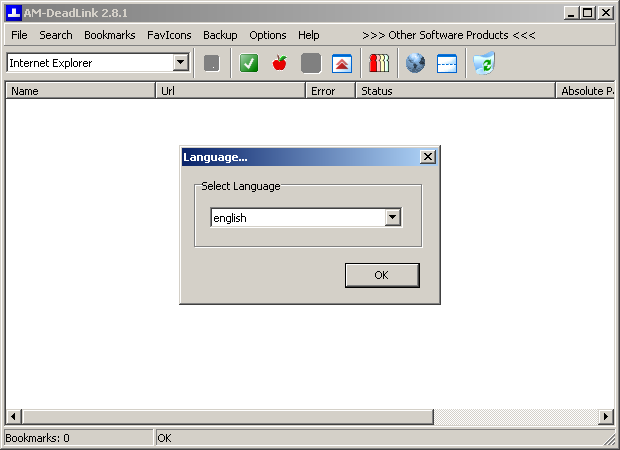
When run for the first time, AM-DeadLink will prompt you to choose a language. There are a host of languages to choose from, including Arabic, Basque, Chinese, Czech, Danish, Estonian, French, German, Greek, Hebrew, Hungarian, Latvian, Polish, Spanish, Turkish, and many others.
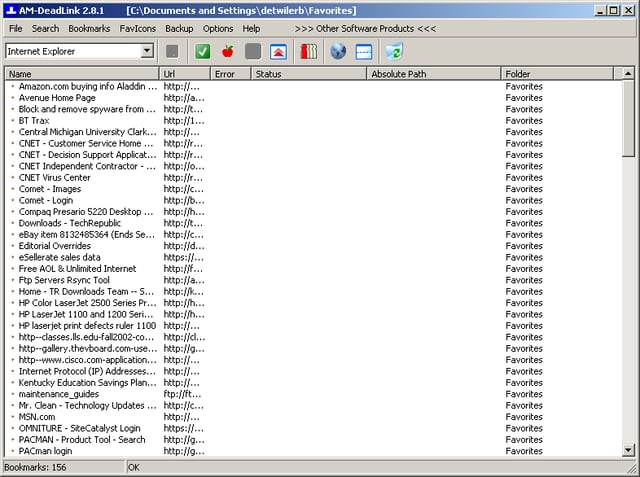
After selecting a language, AM-DeadLink immediately read my Internet Explore 7 Favorites file and displayed the links. AM-DeadLink’s main window lists links from the currently open bookmarks/favorites file.
As I use Firefox almost exclusively, my first task was to switch from the IE 7 Favorites file to my Firefox Bookmarks file.
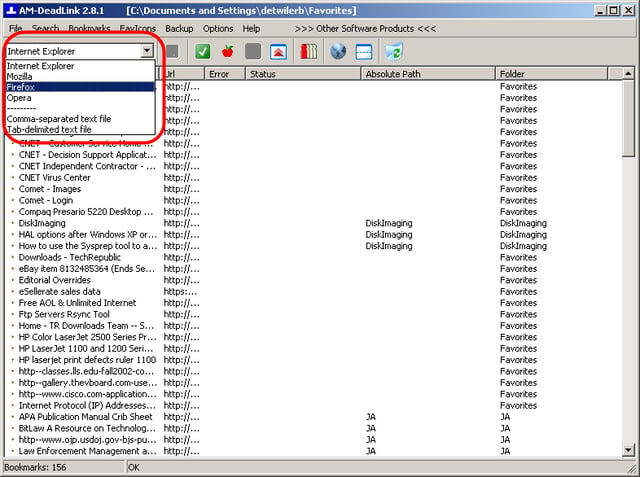
Using the drop-down box in the main window’s top, left-hand corner, you can select one of the four browsers AM-DeadLink supports–Internet Explorer, Mozilla, Firefox, and Opera.
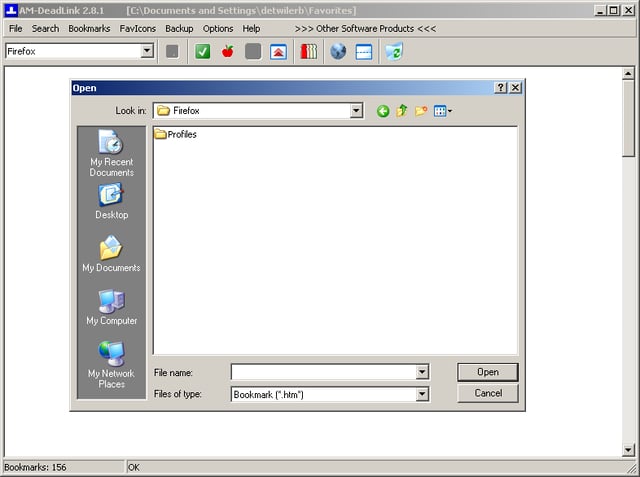
Once I selected Firefox from the drop-down list box, AM-DeadLink asked me to specify my bookmark file’s location. It took a little searching, but I eventually found the file.
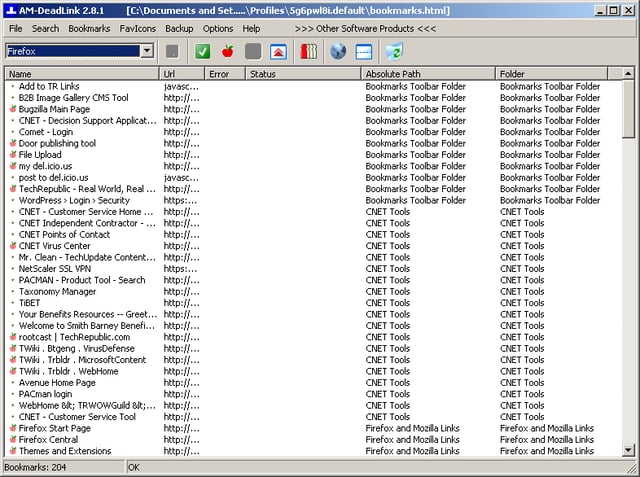
Wow! I didn’t know that I had 204 bookmarks.
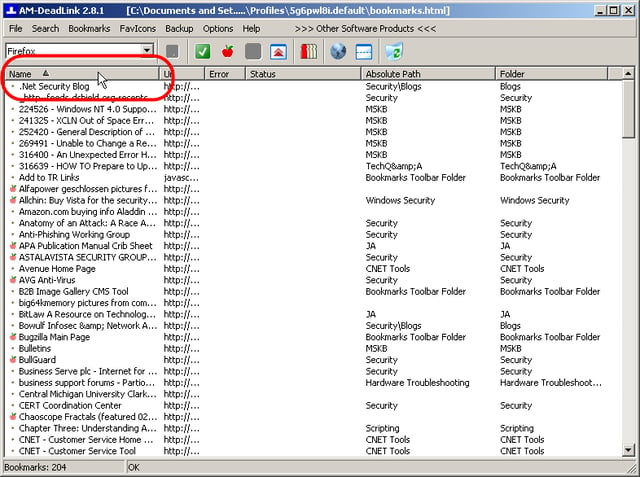
You can sort the bookmarks in ascending or descending order on any of the column fields–Name, URL, Error, Status, Absolute Path, and Folder. In this screenshot, I sorted the bookmarks by clicking the Name column heading.
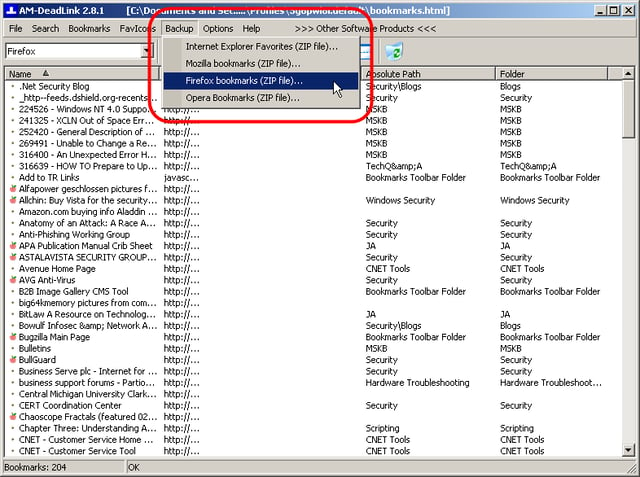
AM-DeadLink lets you make a backup of your bookmark/favorites file before making any changes.
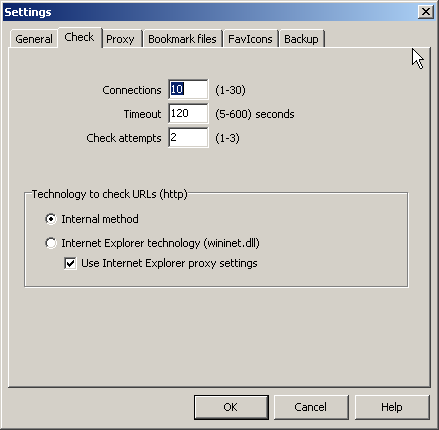
From the Check Settings tab, you can customize how AM-DeadLink checks each bookmark. The default settings, shown in this screenshot, worked well during my tests.
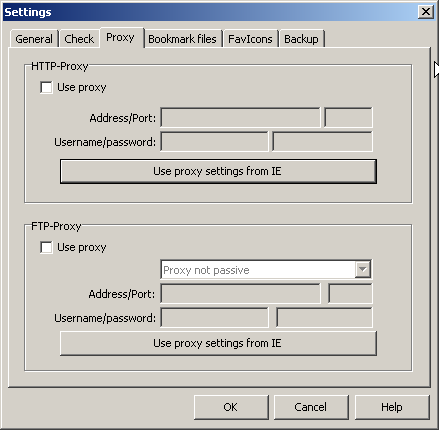
If you access the Internet through a proxy server, enter the settings here.
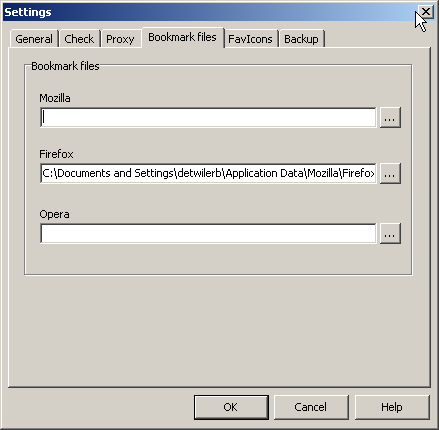
AM-DeadLink will automatically pull the current user’s IE favorites folder, but you must specify the location for Mozilla, Firefox, and Opera bookmark files.
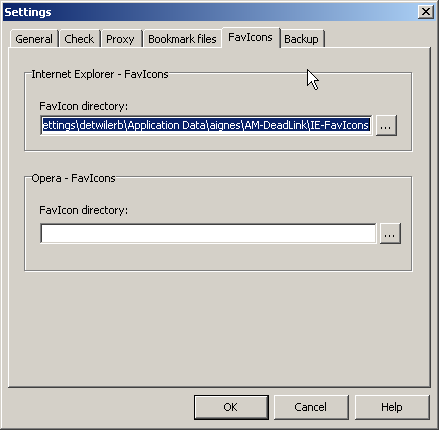
From the FavIcons Settings tab, you can specify the FavIcons directory location for Internet Explorer and Opera.
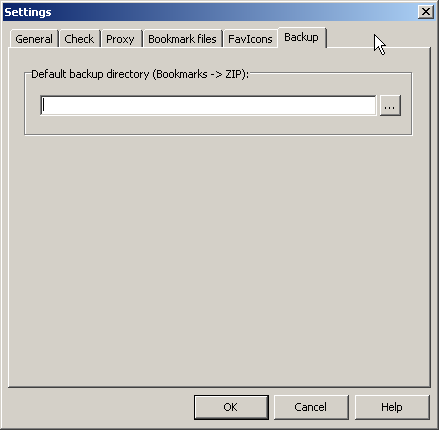
If left blank, AM-DeadLink will write the backup files to the same directory that stores the bookmarks/favorites file. If you would like AM-DeadLink to write the backup file to a different directory, you can specify that location on the Default backup directory Settings tab.
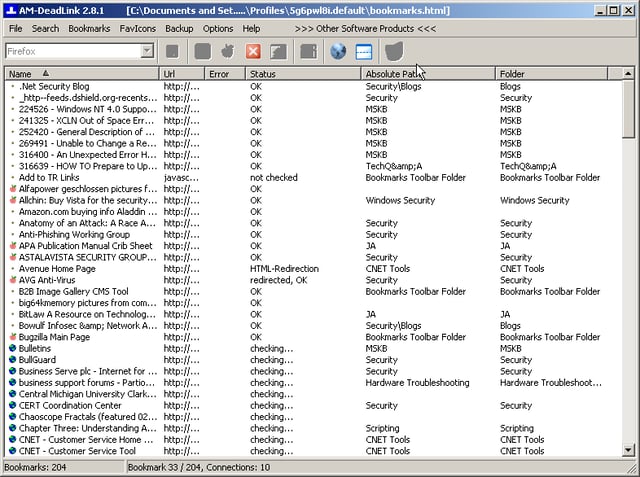
When you run a check, AM-DeadLink attempts to access each bookmarks. This screenshot shows a check running with the default 10 simultaneous connections.
The Status column shows the check result for each bookmark. You can track the progress of the check at the bottom of the AM-DeadLink window. In this screenshot, the check has churned through 33 of my 204 bookmarks.
I ran several checks and each took between 2 and 5 minutes. Most Web sites took no more than a second to check, but there were always one or two sites that seemed to have trouble. By default, AM-DeadLink will try to access problem bookmarks twice. You can increase the number to three if you want.
A sound plays to alert you that the check has finished.
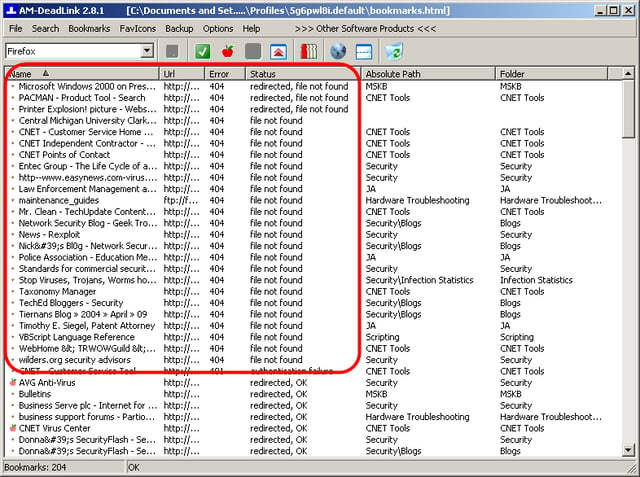
After running the check, I resorted the bookmarks, moving those with errors to the top of the list. AM-DeadLink shows you the error code and text status of each problem bookmark.
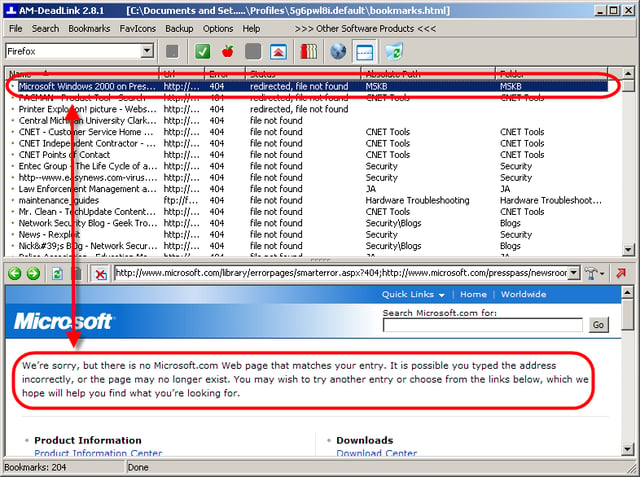
Using AM-Deadlink’s Open with browser feature, you can view each bookmark. In this screenshot, I am double-checking the first bookmark that AM-DeadLink reported with a 4040 error. This link is indeed bad.
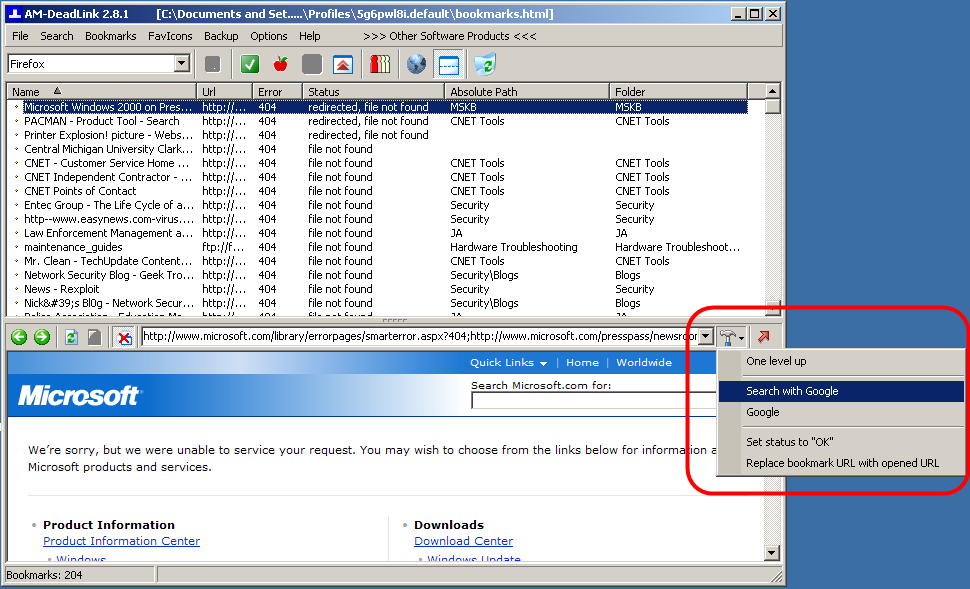
AM-DeadLink has a built-in Google search link that can help you replace a broken bookmark.
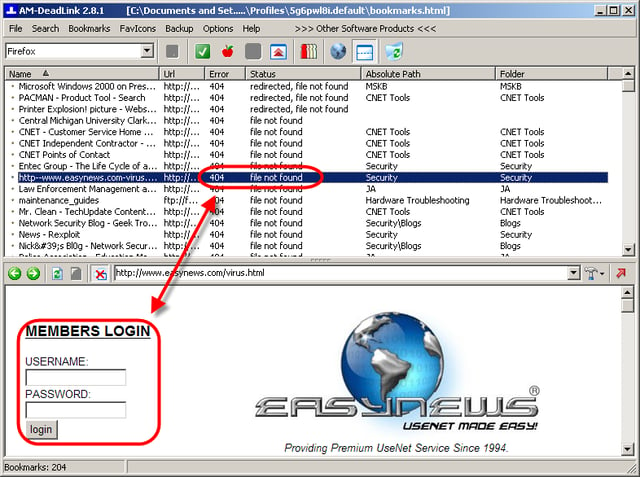
During my test, AM-DeadLink performed well, but wasn’t perfect. The application mislabeled some bookmarks, like this one, with 404 errors. When I opened the link with AM-DeadLink’s internal browser, I found the link was still active, but the site required authentication. AM-DeadLink should have recognized that this site required authentication and noted it accordingly. It did so for other sites that required authentication.
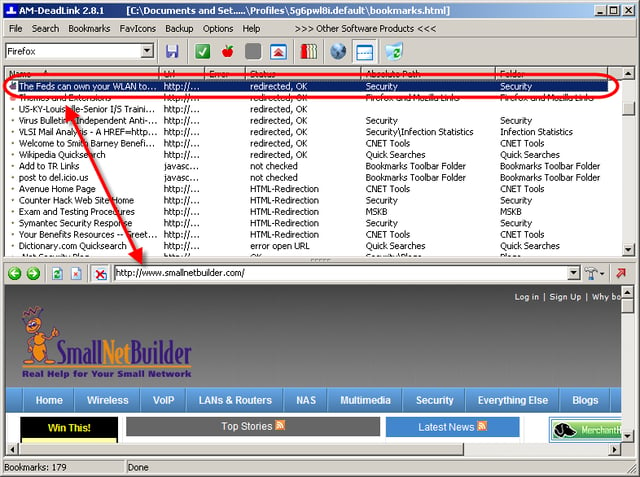
AM-DeadLink also labeled several sites as “redirected, OK” when they no longer pointed to the original bookmark. This bookmark pointed to a story on http://www.tomsnetworking.com, which now redirects to http://www.smallnetbuilder.com.
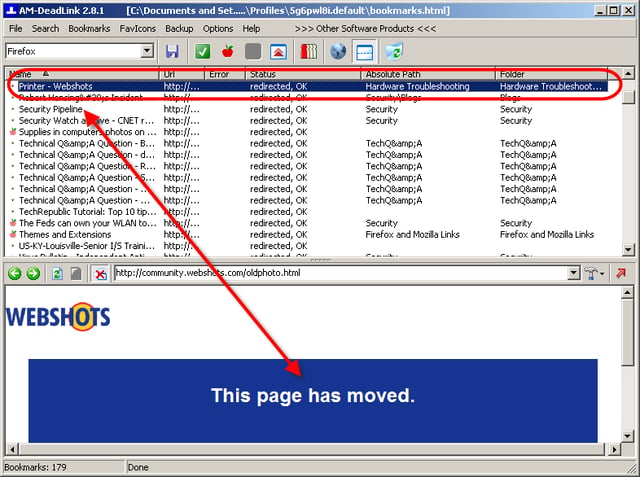
Here’s another example of a “redirected, OK” bookmark that no longer points to the original page.
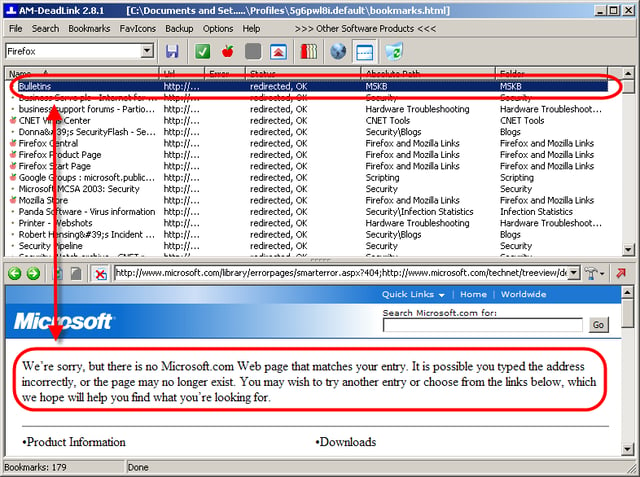
This Microsoft link was also redirected to a page other than the original.
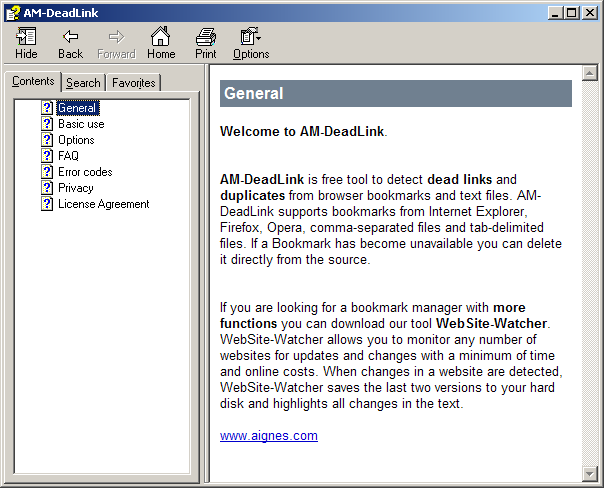
AM-DeadLink has a small help file that provides limited, but helpful information.
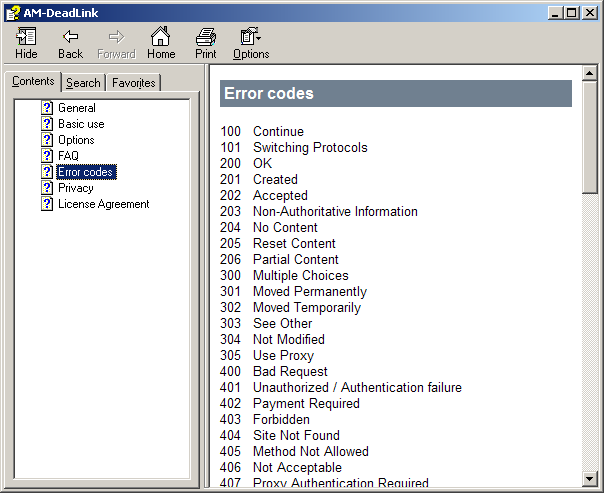
If you ever wondered what the different HTTP standard response code error messages were? Here you go.
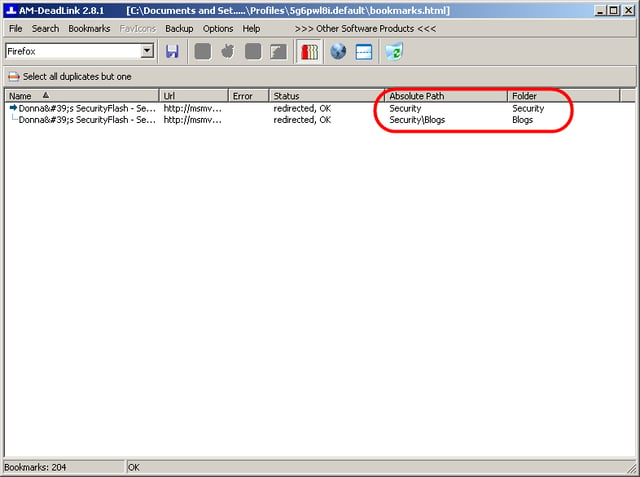
AM-DeadLink can also locate duplicate bookmarks. I had bookmarked this page twice in two separate folders.
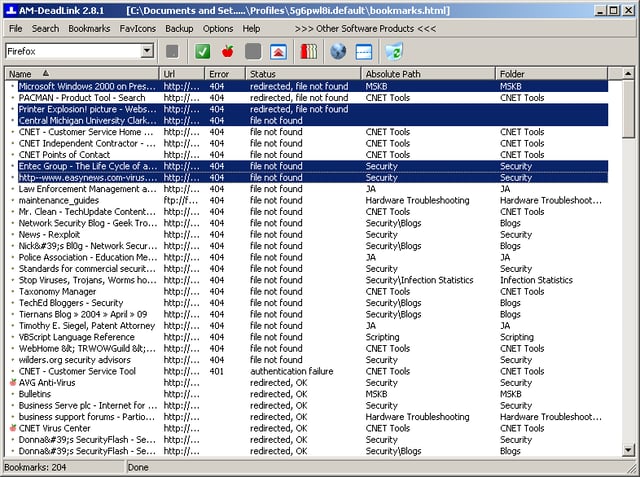
You can use Ctrl-click to select noncontiguous bookmarks.
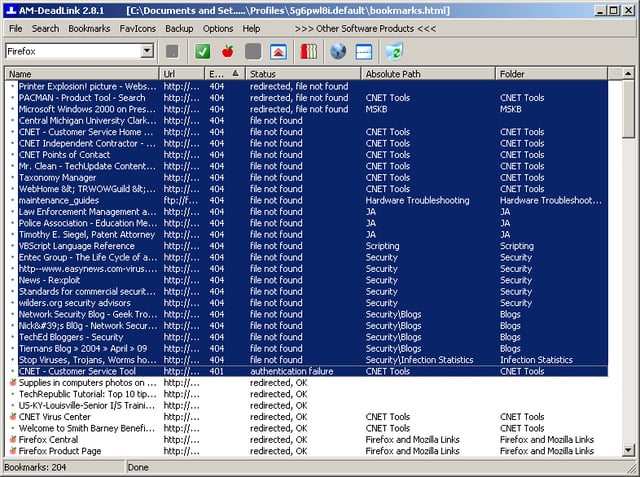
You can use Shift-click to select blocks of bookmarks.
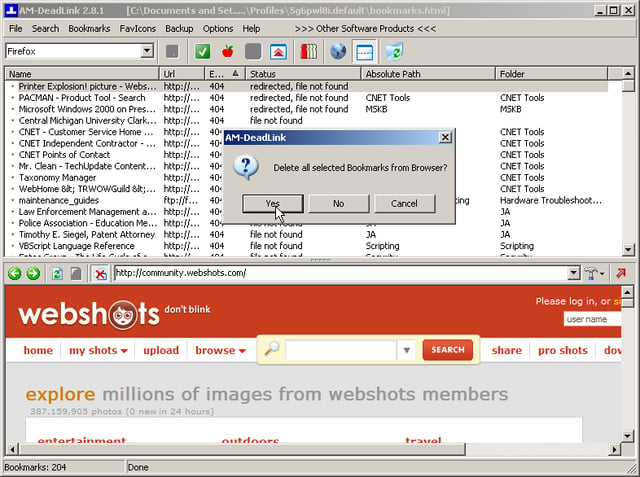
AM-DeadLink does a good job of detecting dead links. However, I strongly recommend you double-check the bookmarks you choose to delete.
Once your ready to delete the broken bookmarks, click the Delete icon from the toolbar. AM-DeadLink will prompt you to confirm you decision.
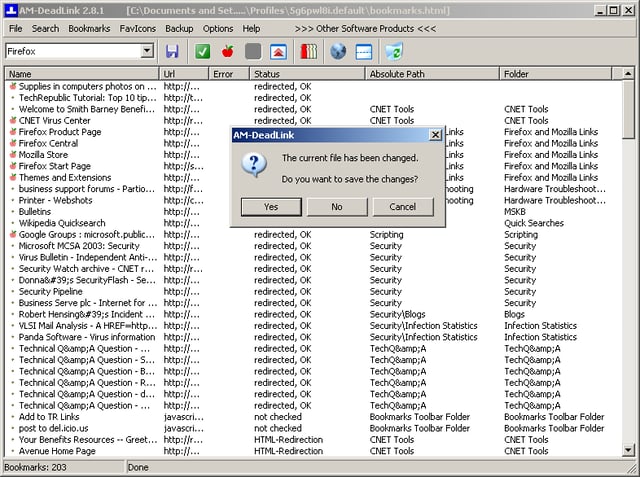
If you deleted any links, when you exit the application, AM-DeadLink will offer a reminder that you changed the bookmarks/favorites file and ask you to save the changes. If you click No, the deleted links will still exist within the bookmarks/favorites file.
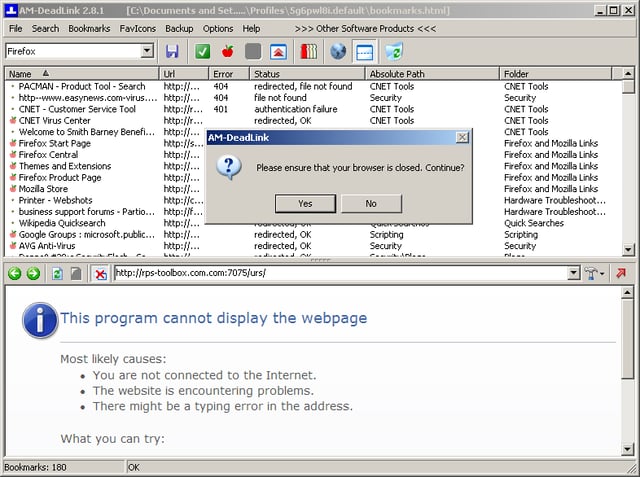
Even after confirming that you want to save the changes to the bookmarks/favorites file, you must ensure that your browser is closed before exiting AM-DeadLink and writing the changes. I tried leaving Firefox open when exiting and the deleted bookmarks were still there. I had to go back into AM-DeadLink, rerun the check, deleted the bookmarks again, and then exit the program–confirming my changes and closing the browser. The delete bookmarks were gone.
If you make a mistake and accidentally delete a link you want to keep, AM-DeadLink keeps a text log file of all deleted links. You can open that log file with your favorite text editor and bookmark the page again.
Take AM-DeadLink for a test drive!
You can download AM-DeadLink from Martin Aignesberger’s Web site.
Bill Detwiler is the Editor for Technical Content and Ecosystem at Celonis. He is the former Editor in Chief of TechRepublic and previous host of TechRepublic's Dynamic Developer podcast and Cracking Open, CNET and TechRepublic's popular online show. Previously, Bill was an IT manager in the social research and energy industries. He has bachelor's and master's degrees from the University of Louisville, where he has also lectured on computer crime and crime prevention.


