An introduction to the HP Cloud - TechRepublic

An introduction to the HP Cloud

  • hpcloud-a-01.png

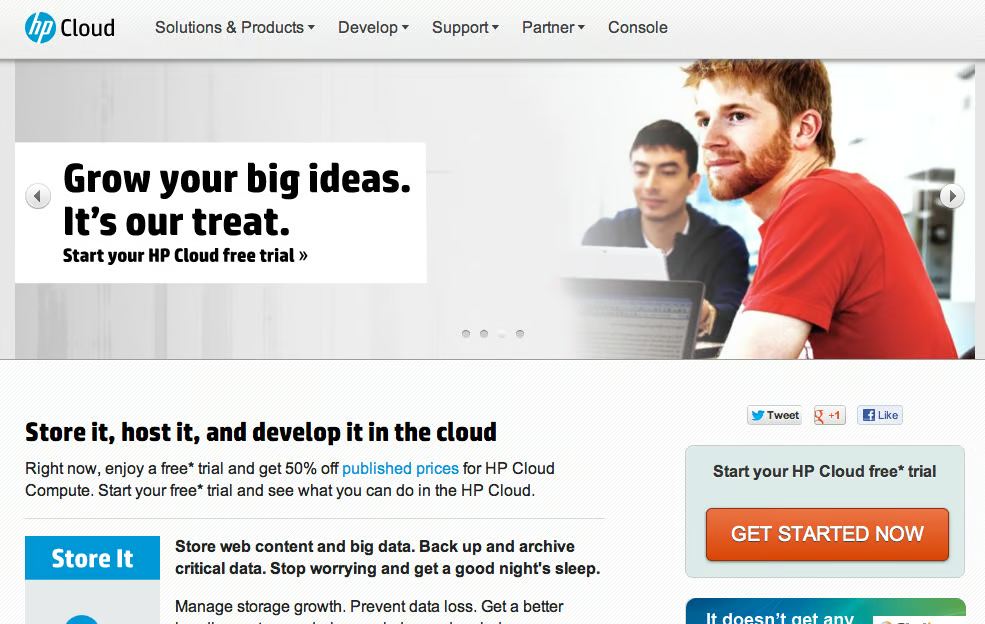
    HP Cloud home page

    \n\tNote: This gallery summarizes the steps in two associated blog posts: “How to set up an HP Cloud account” and “How to create and destroy an HP cloud server.” See the individual posts for more detailed steps and explanation.

    \n

    \n\tThe HP Cloud landing page is at https://www.hpcloud.com. This public cloud service is available for anyone to use. It’s new and, for the time being, it’s cheap.

    \n

    \n\tBefore creating a VM (Virtual Machine), you must set up an HP Cloud account. Press the big Get Started Now button.

    \n

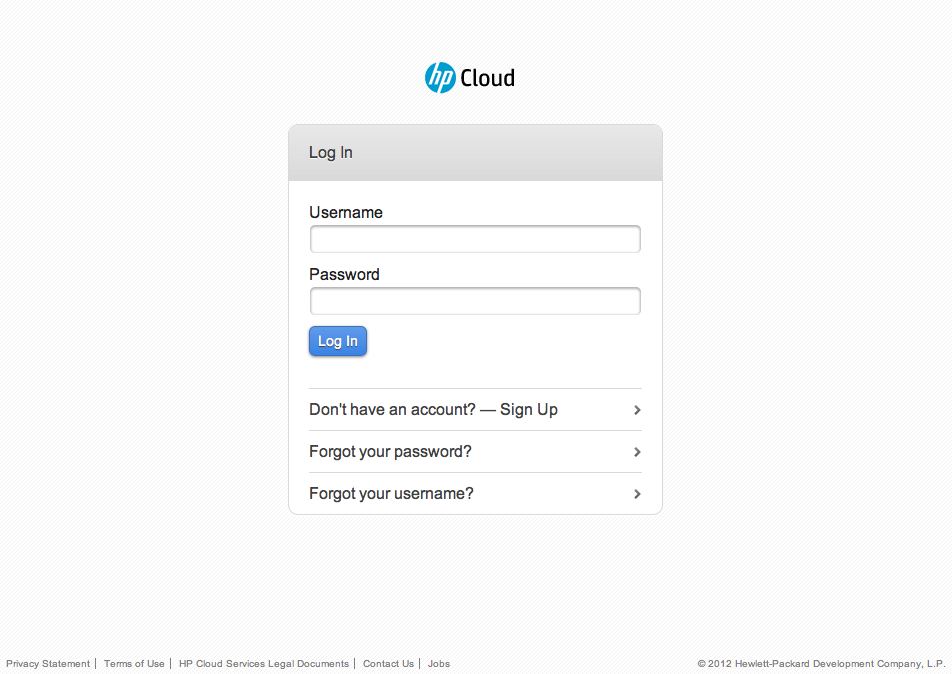
    \n\tClick the Console link top right to get to Login page.

  • Logging into the console

    \n\tYou must log in to get to the dashboard. The console at https://console.hpcloud.com/login is secured using TLS. In fact, the whole site is secure.

    \n

    \n\tTry editing the URL and changing https to the insecure http. You get bounced right back to https again.

  • Choose an availability zone

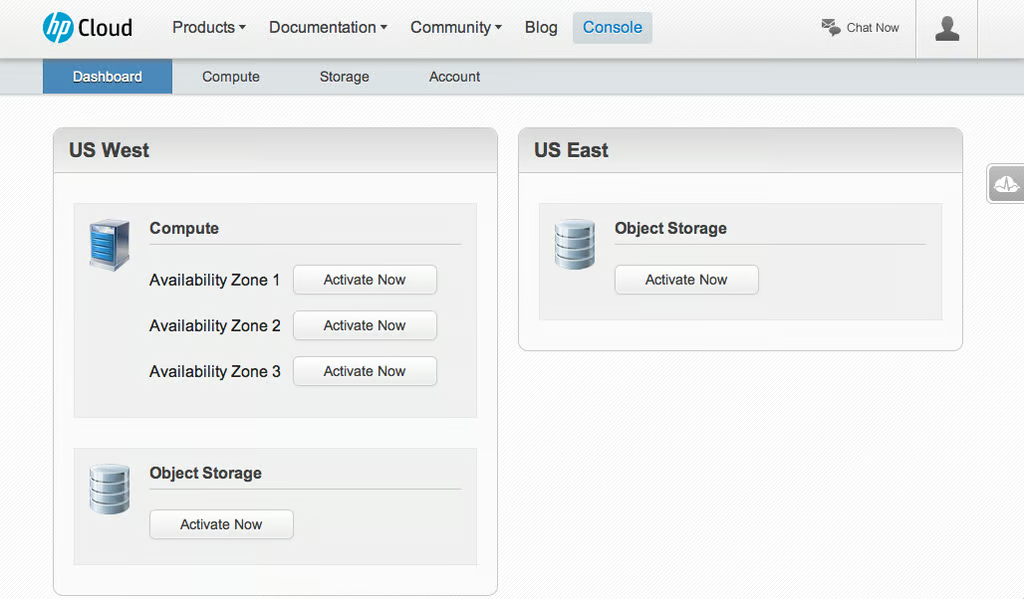
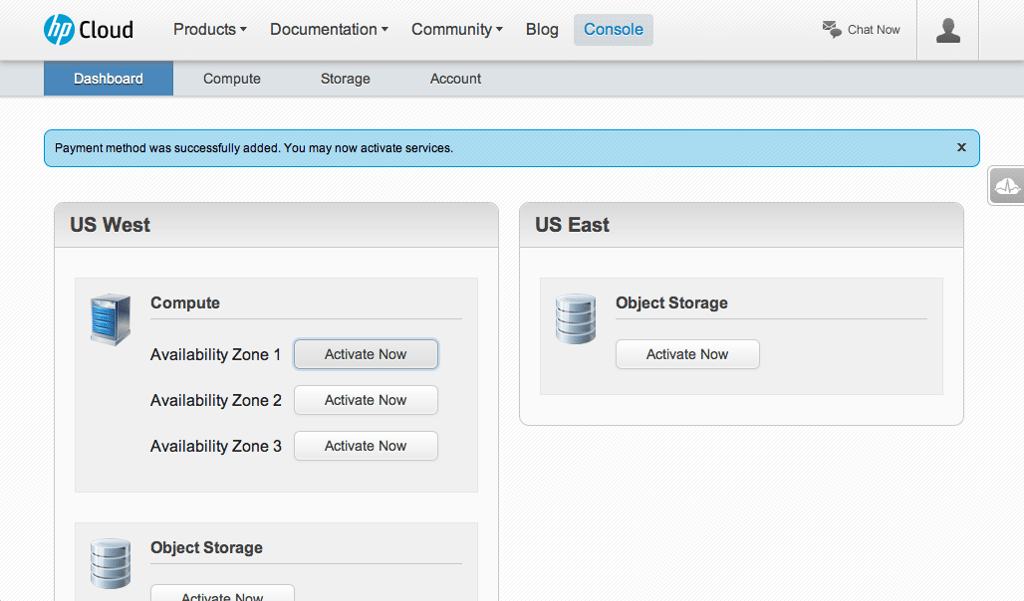
    \n\tThe Dashboard page shows three availability zones for HP Cloud computing, all listed as US West.

    \n

    \n\tClick an Activate Now button. You are redirected to an Account page.

  • Create a payment method

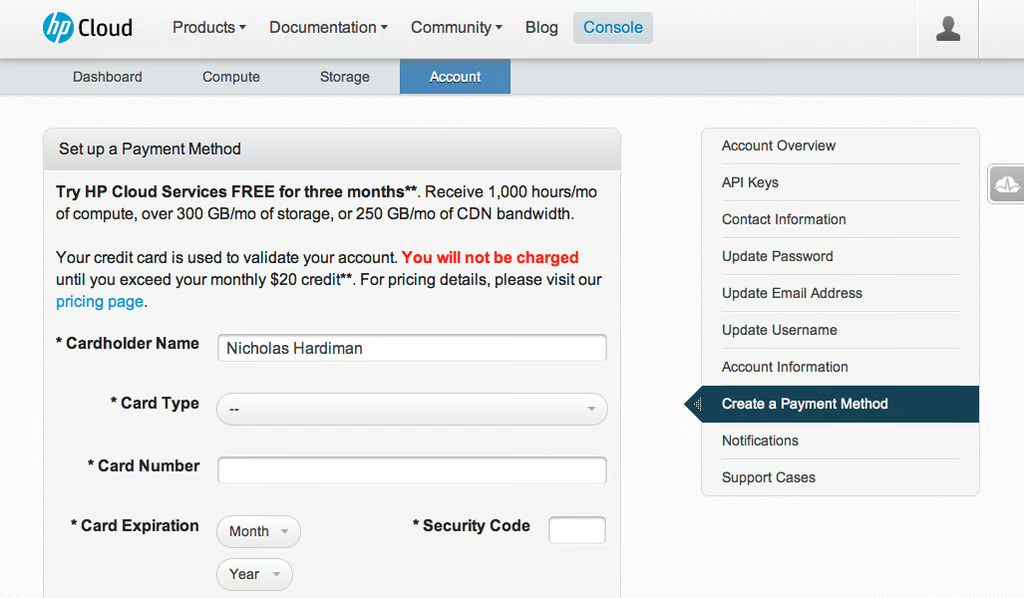
    \n\tCreate a payment method.

    \n

    \n\tYou can get to the console without handing over your credit card details, but you can’t use the services.

  • Activate

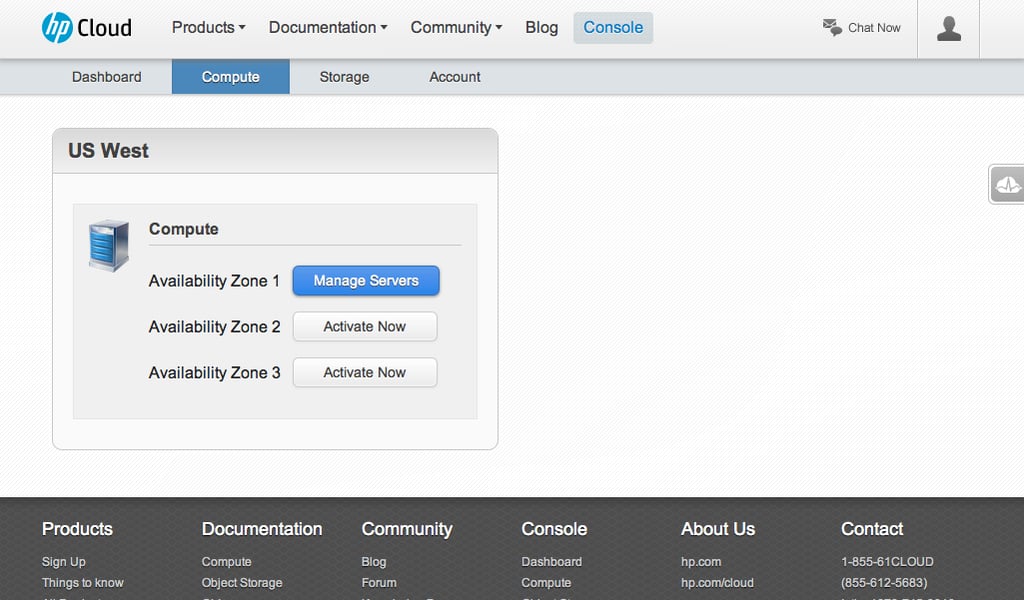
    \n\tOnce your details have been verified, you are good to go.

    \n

    \n\tClick an Activate Now button and the Compute page appears.

  • Availability zone

    \n\tIf you are only starting one machine, you only need one Availability Zone.

    \n

    \n\tMultiple availability zones are used to stop an outage bringing down a cluster of servers.

  • Available images

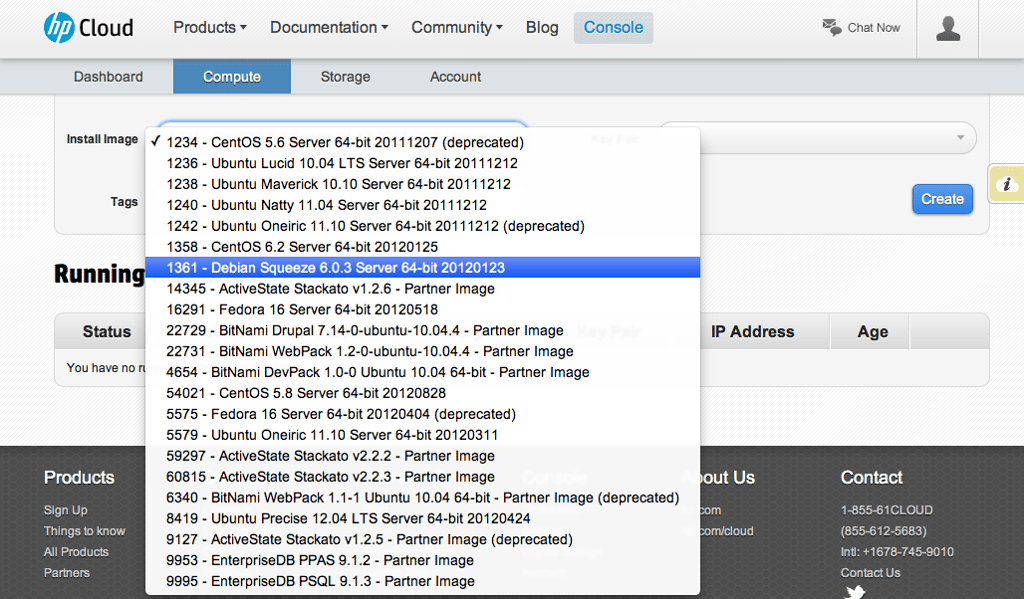
    \n\tHP Cloud provides many ready-rolled images. The operating systems include CentOS, Fedora and Ubuntu.

  • Creating keys

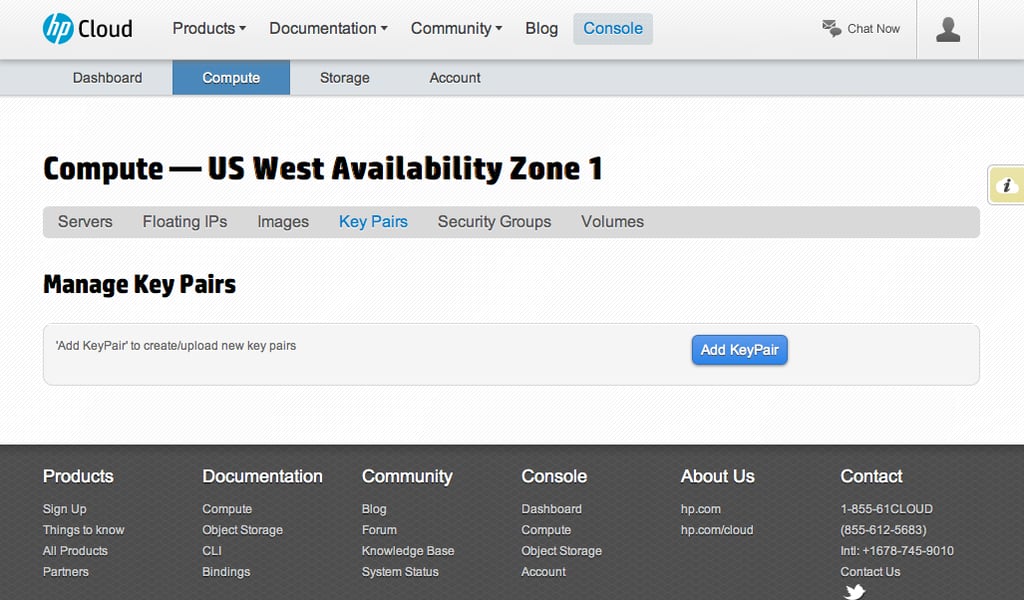
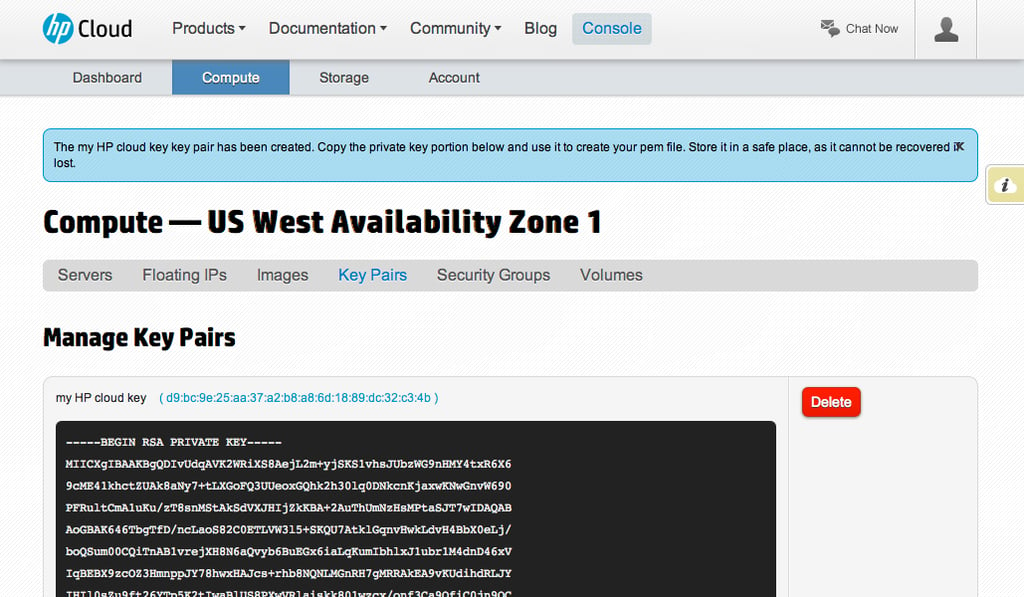
    \n\tUse the Key Pairs page to create a new public key and private key.

    \n

    \n\tHP, like AWS, uses uses public key cryptography to secure access to new VMs.

    \n

    \n\tThe HP Cloud instance builder adds your public key to each new machine.

  • Copy your private key

    \n\tWhen you click the Create Key button, the key’s fingerprint and private key appear.

    \n

    \n\t This is your only opportunity to copy the new private key. Keep this copy safe. If you lose it, you can’t get it back. If someone else copies it, they can pretend to be you.

  • Building your new machine

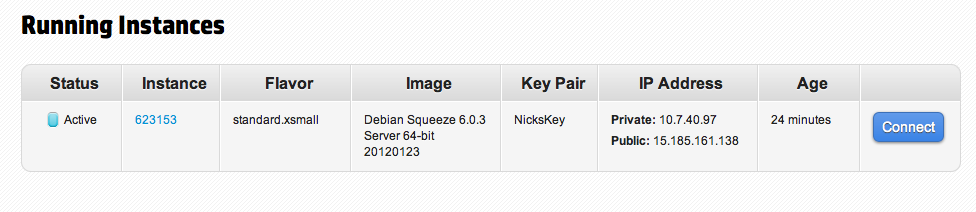
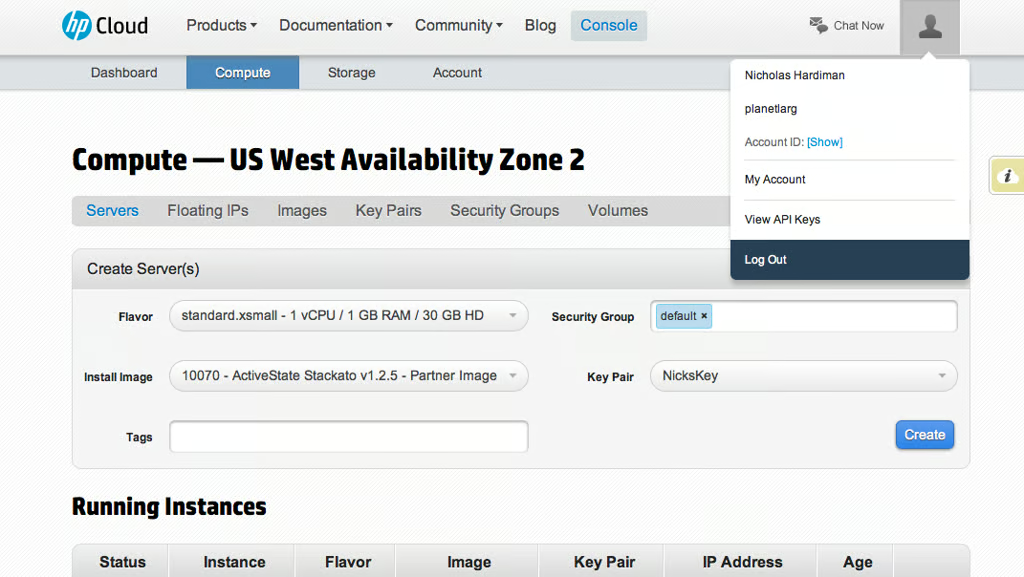
    \n\tCreate a new HP Cloud instance. The first row in your Running Instances table appears.

    \n

    \n\tAfter a minute or two, the Build(spawning) message in the status column changes to Active.

    \n

    \n\tYou can now use the new machine. Connecting to your new HP Cloud instance is similar to connecting to an AWS instance – use the private key and PuTTY.

  • Server Details

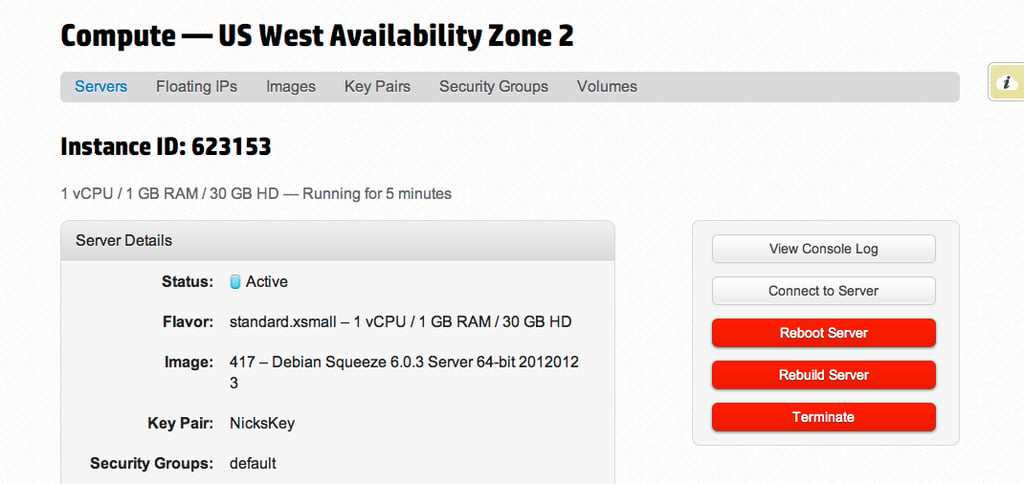
    \n\tEach instance in the Running Instances table has an identification number, such as 623153

    \n

    \n\tThis number is a link that takes you to the Server Details page.

  • Destroying an image

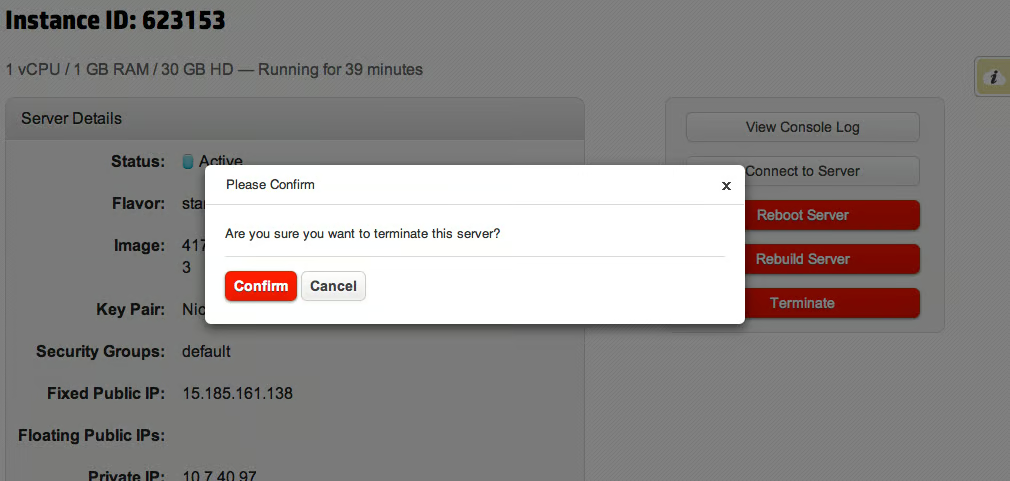
    \n\tWhen you are finished with your new instance, destroy it (you can easily make another).

    \n

    \n\tUse the Terminate button on the Server Details page.

  • Log out

    \n\tWhen you finish your HP Cloud session, clean up and log out.

    \n

    \n\tDon’t rely on your computer’s screen lock to keep others from playing on your console.

1 of 13
Nick Hardiman

Nick Hardiman builds and maintains the infrastructure required to run Internet services such as the web. Nick deals with the lower layers of the Internet - the machines, networks, operating systems and applications. Nick's job stops there and he hands over to the designers and developers who build the top layer that customers use.