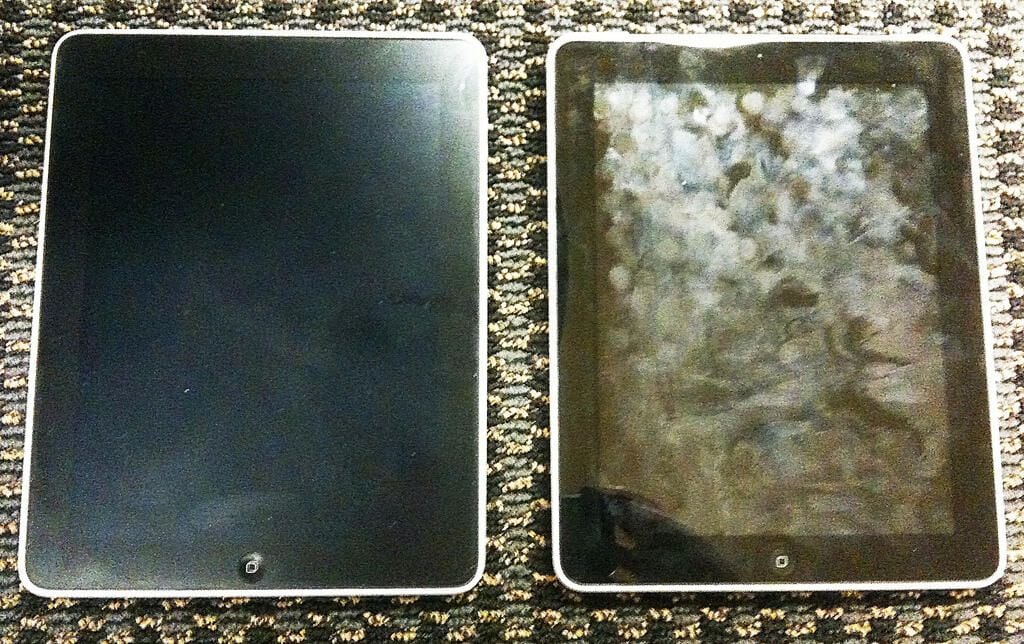
The Apple iPad has been lauded as a revolutionary new form factor for the PC. But, the product also has its share of worts. Here are photos that help document some of its biggest annoyances.
Also read the companion blog post: Apple iPad: The five biggest annoyances
This first photo shows how bad the iPad screen can get. The iPad on the right is a standard model during normal daily use. The one on the left has an antiglare screen film on it. Notice the lack of fingerprints and how much better the one on the left handles glare.?
Photo credit: Jason Hiner/TechRepublic
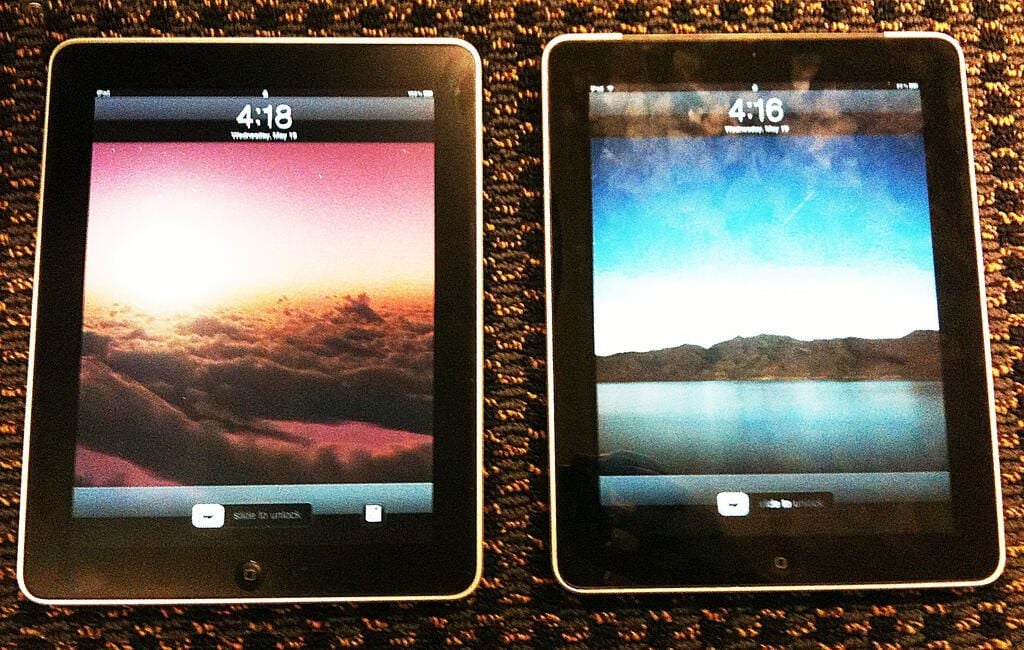
Here, with the iPad turned on, you can still see how the fingerprints affect the screen on the right, verses the iPad on the left with the screen film.
Photo credit: Jason Hiner/TechRepublic
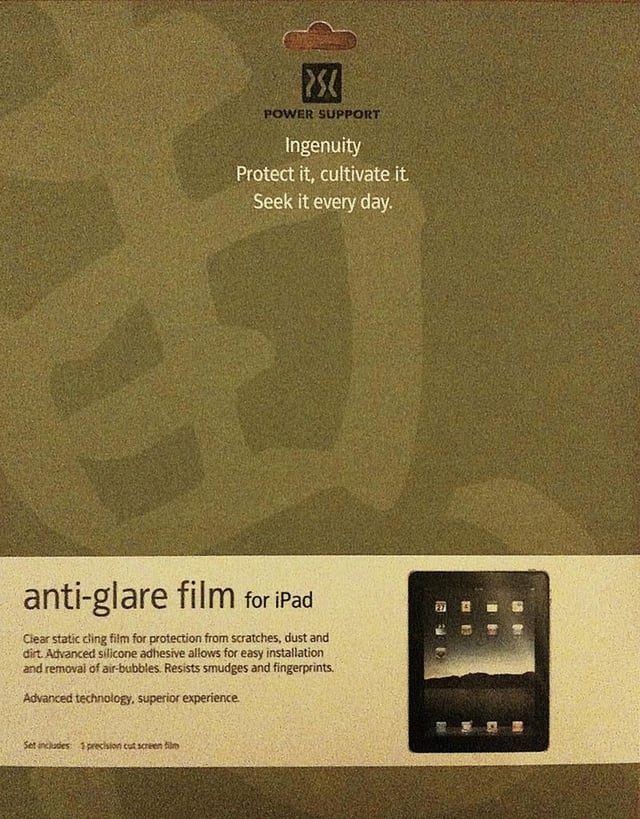
Here’s the packaging from the Power Support screen film for the iPad.
Photo credit: Jason Hiner/TechRepublic
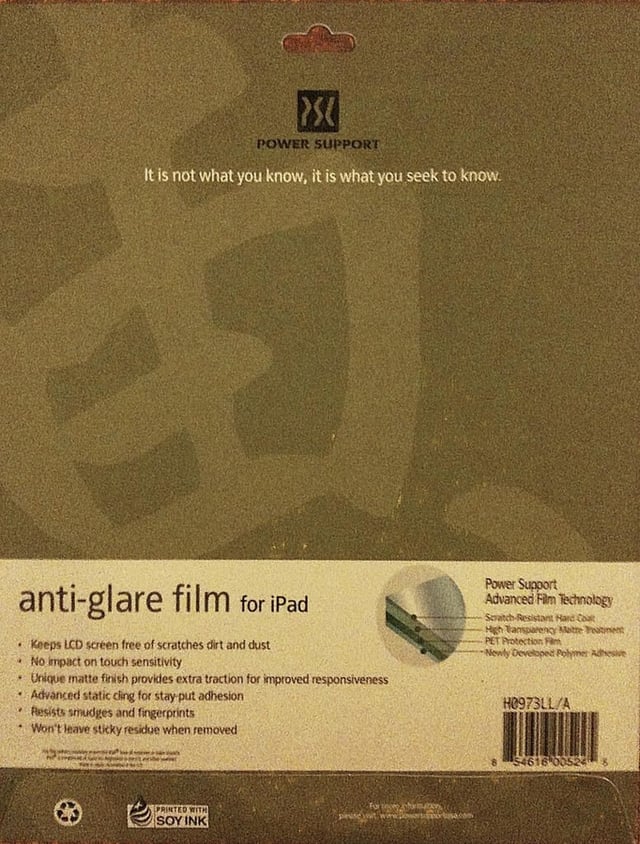
Here’s the back of the packaging for the Power Support screen film for the iPad.
Photo credit: Jason Hiner/TechRepublic
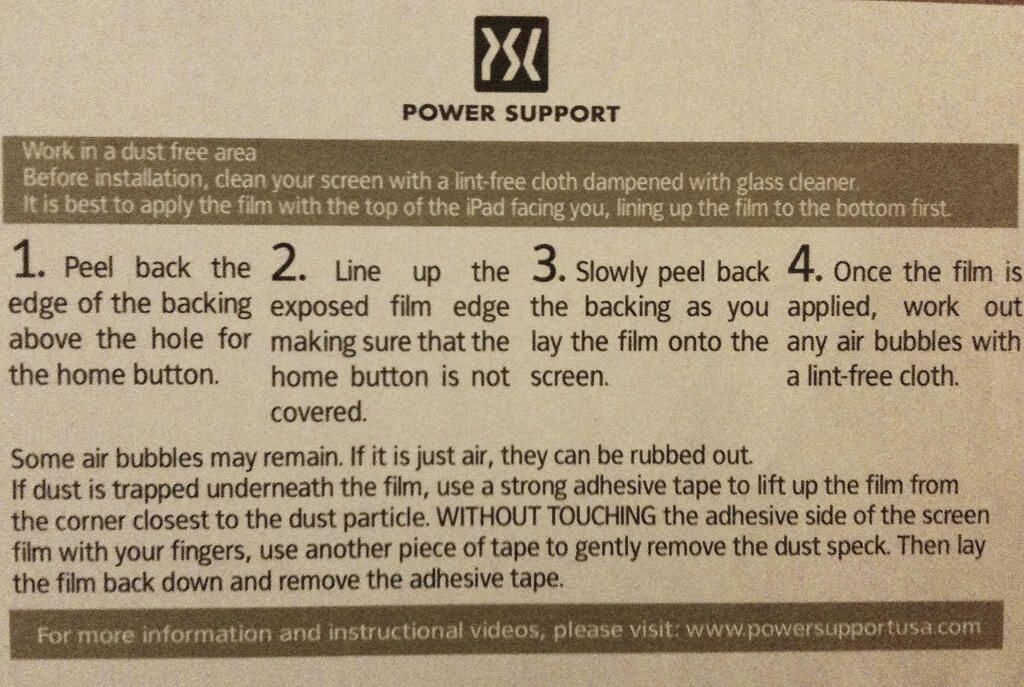
Photo credit: Jason Hiner/TechRepublic
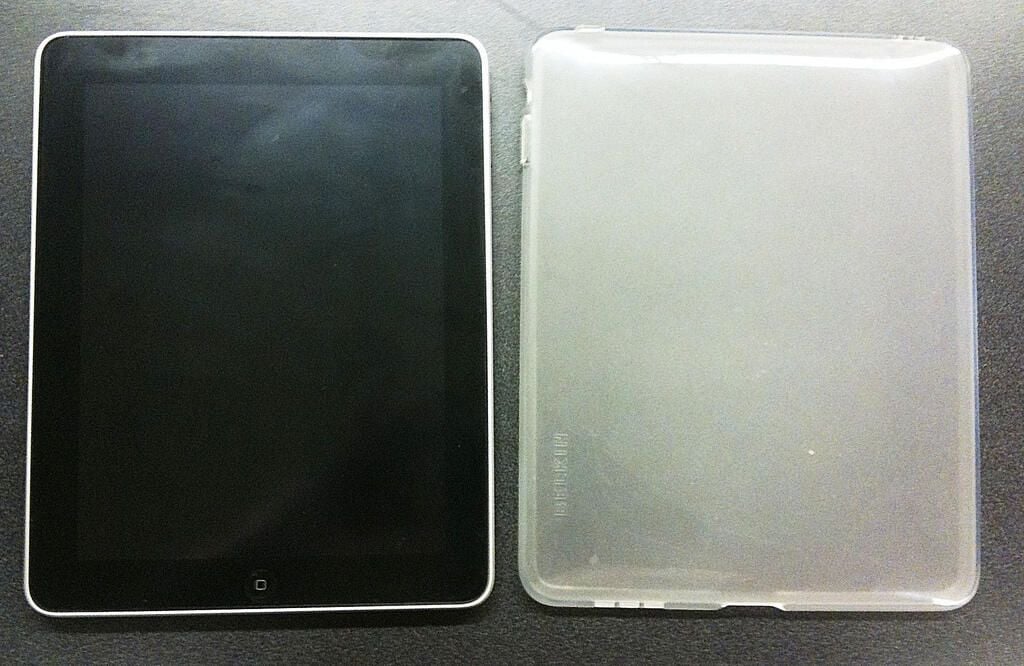
The iPad feels like it would not be sturdy enough to withstand a fall, and it’s also pretty slippery. Thus, it really needs a case. Here is the Belkin Grip Vue to the right of the iPad. Once it’s on, it provides lots of grip and it’s not very noticeable.
Photo credit: Jason Hiner/TechRepublic
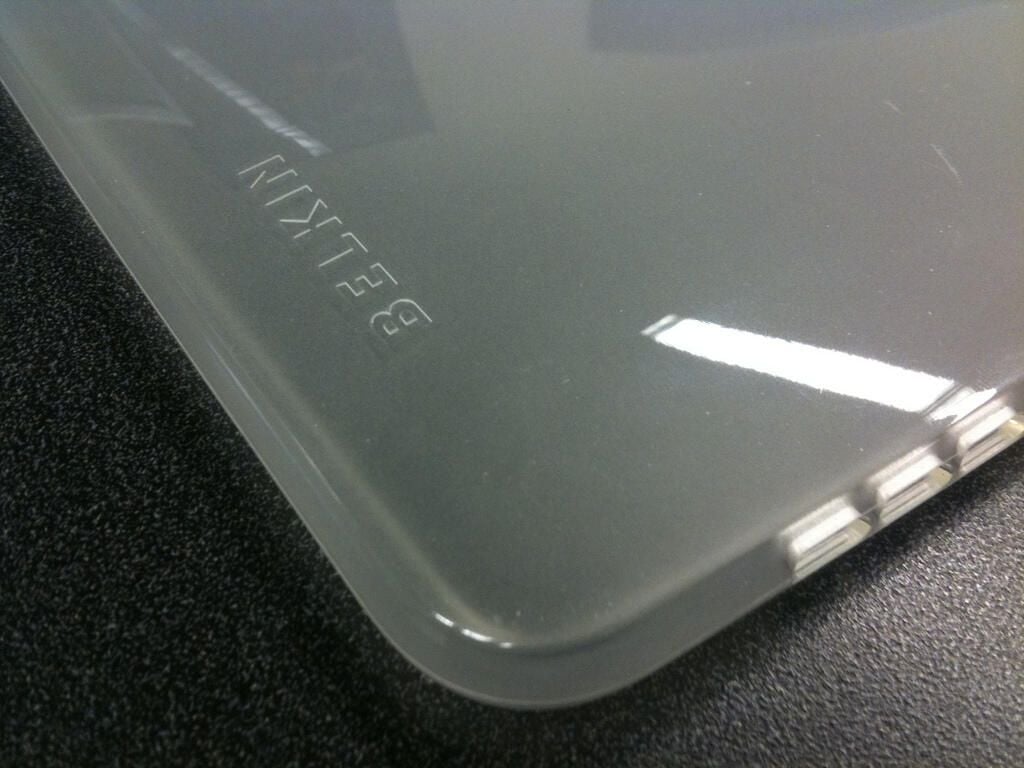
Here’s another, closer look at the Belkin Grip Vue (while it’s not covering an iPad).
Photo credit: Jason Hiner/TechRepublic
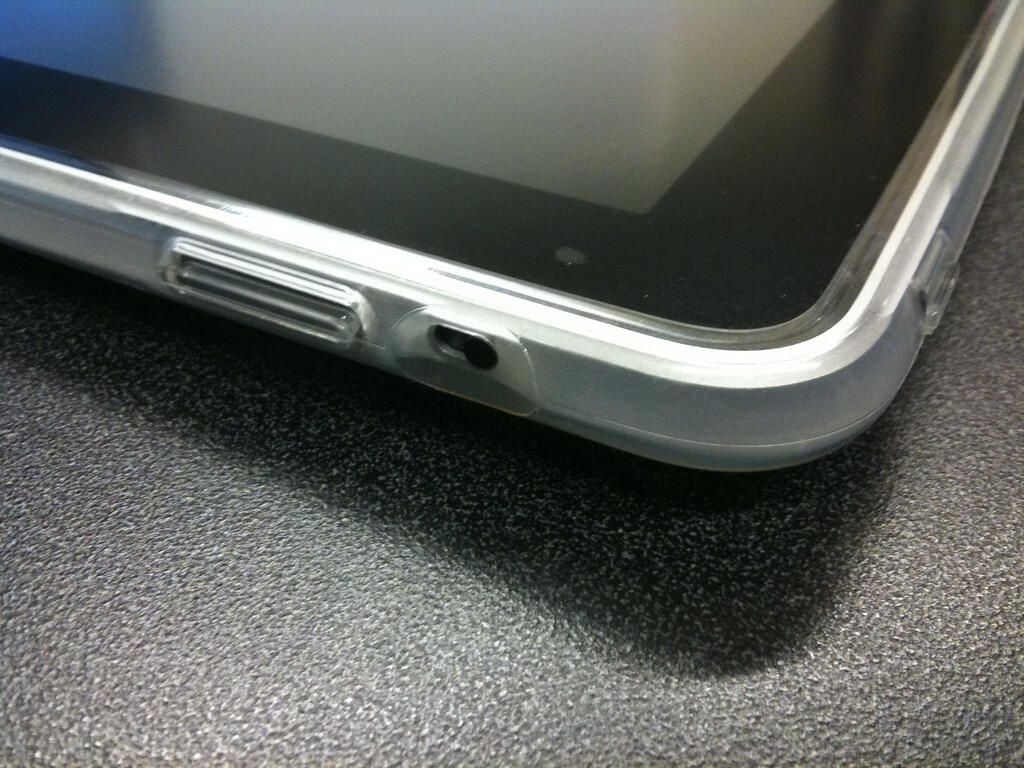
This is the corner of the iPad with the Belkin Grip Vue on it.
Photo credit: Jason Hiner/TechRepublic
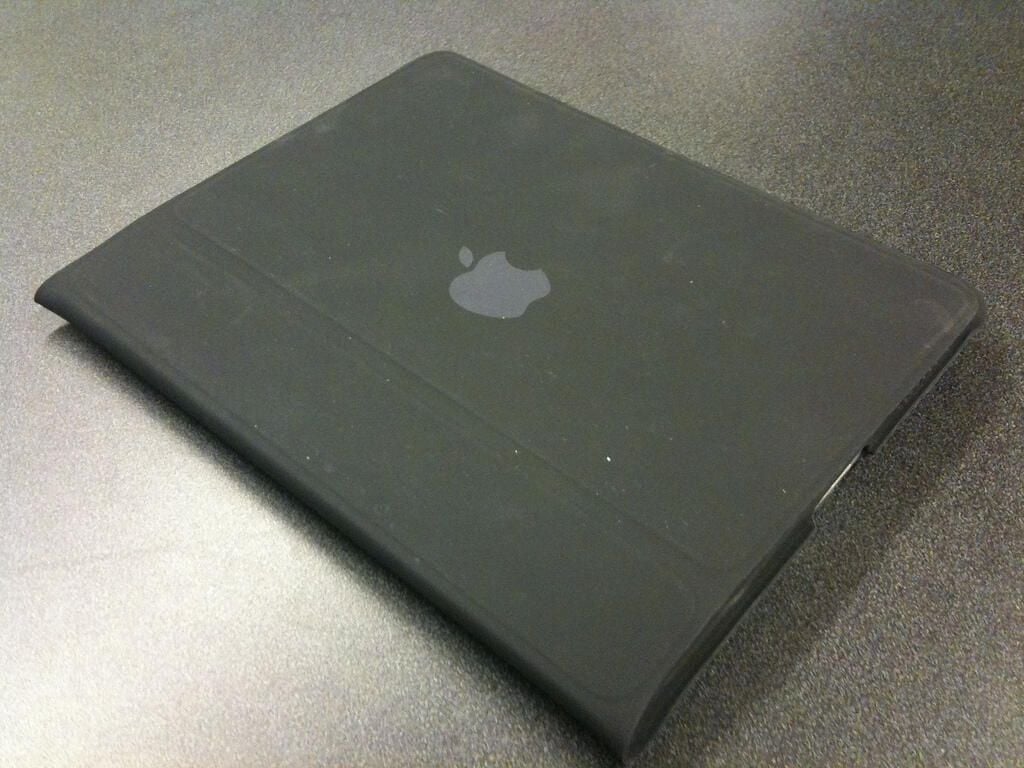
This case provides nice protection for the iPad and the built-in stand is very practical. However, it doesn’t look like it will hold up very well. Look how scuffed and worn it looks after just over a month of use (not even full-time use).
Photo credit: Jason Hiner/TechRepublic
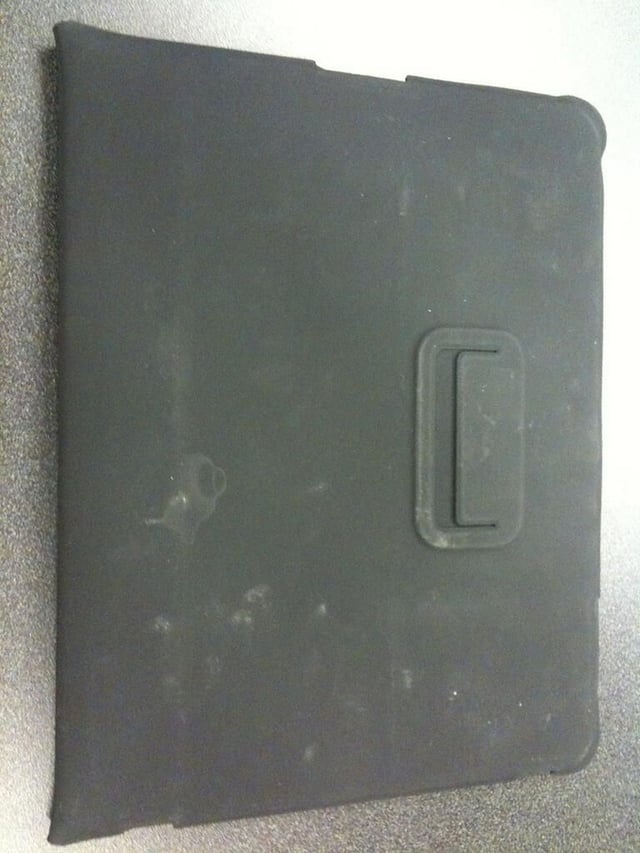
The back of the Apple iPad case looks even more worn and scuffed than the front (after just a month and a half of use).
Photo credit: Jason Hiner/TechRepublic
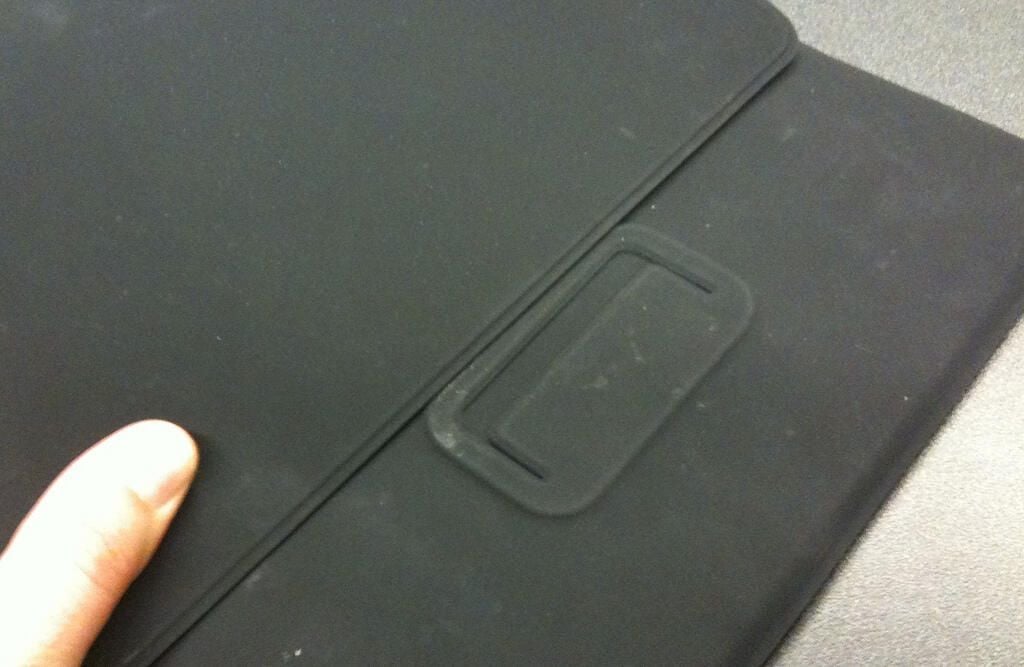
Here’s the back flap on the iPad, which lets you flip back the front flap and tuck it in so that you can prop it up.
Photo credit: Jason Hiner/TechRepublic
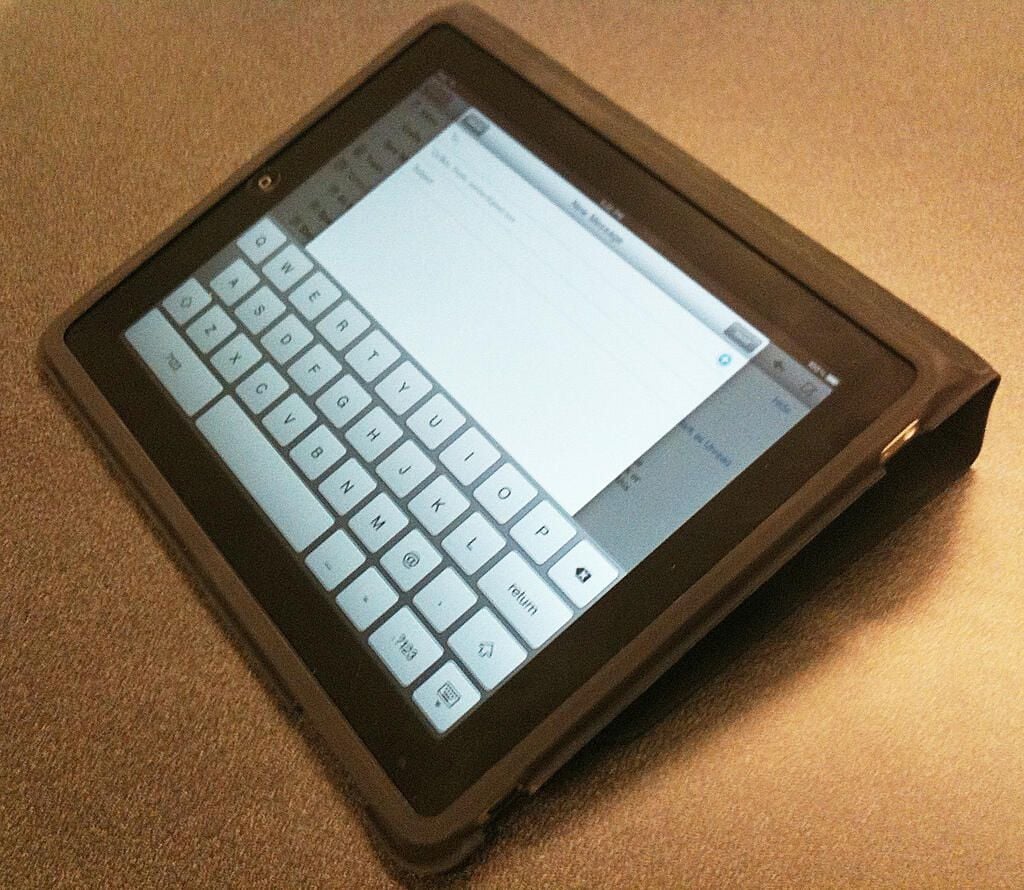
Typing in landscape mode on the iPad is fairly awkward. The Apple
Photo credit: Jason Hiner/TechRepublic
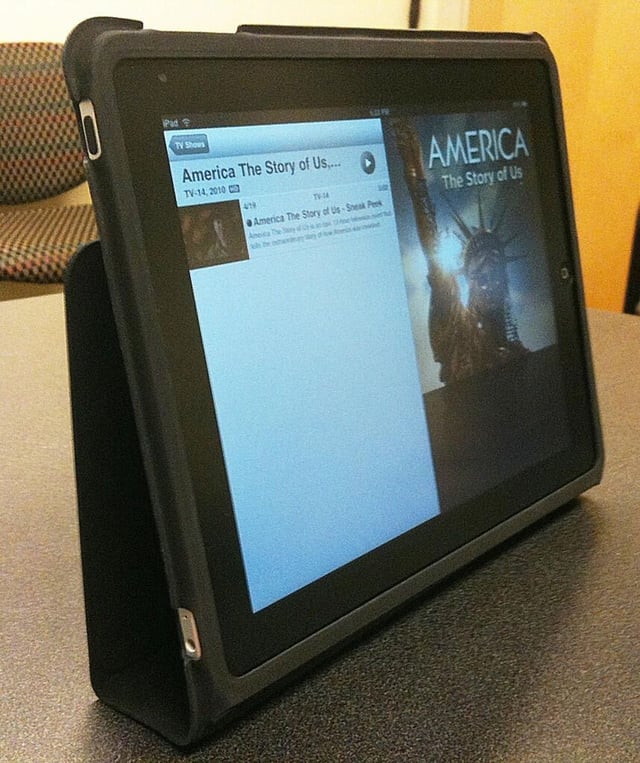
Photo credit: Jason Hiner/TechRepublic
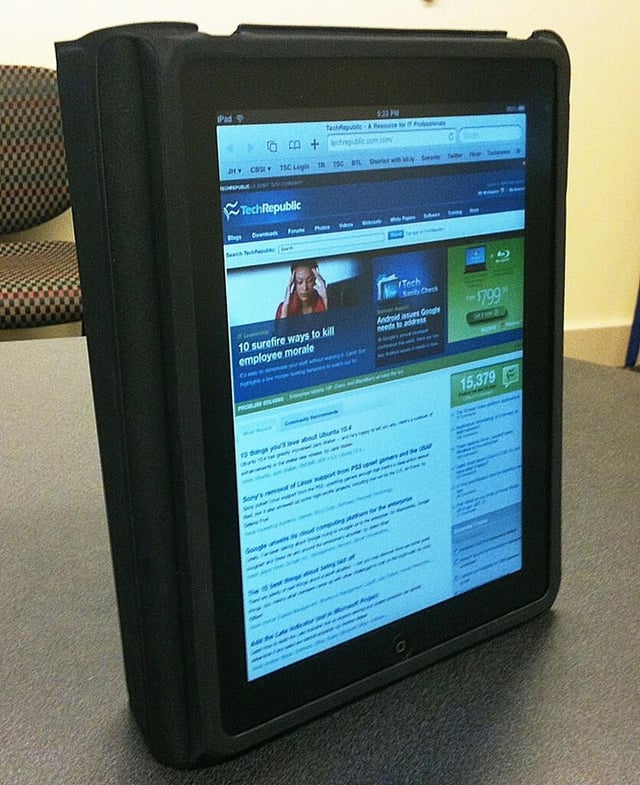
Photo credit: Jason Hiner/TechRepublic
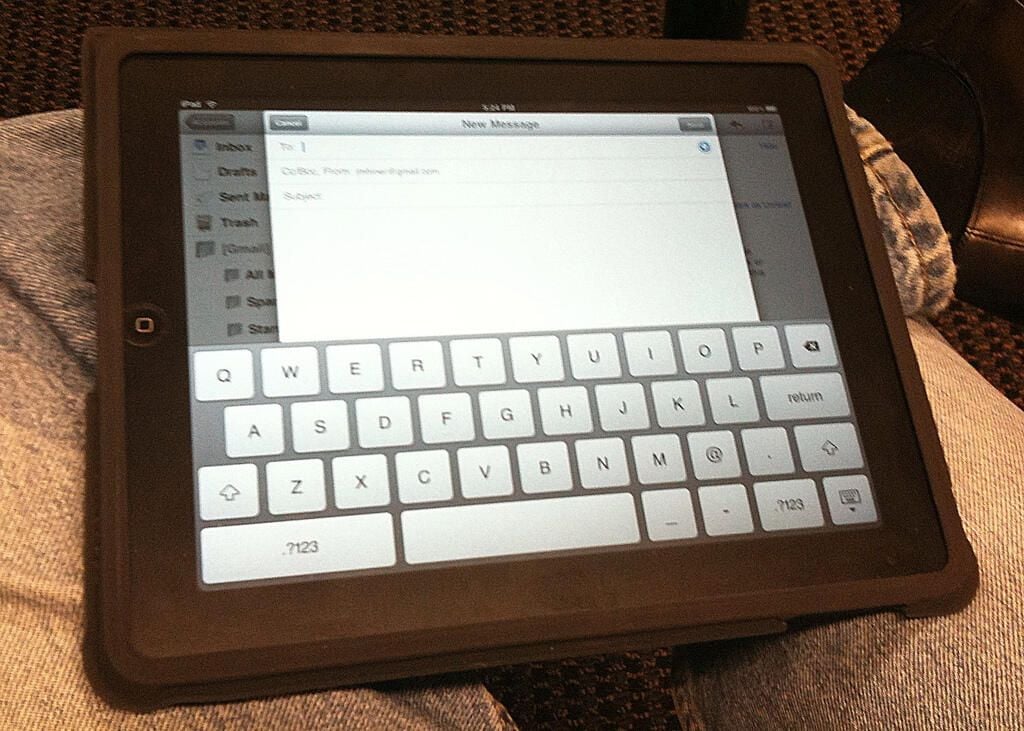
Trying to type on the iPad can be awkward. A lot of people try to use it in their laps.
Photo credit: Jason Hiner/TechRepublic
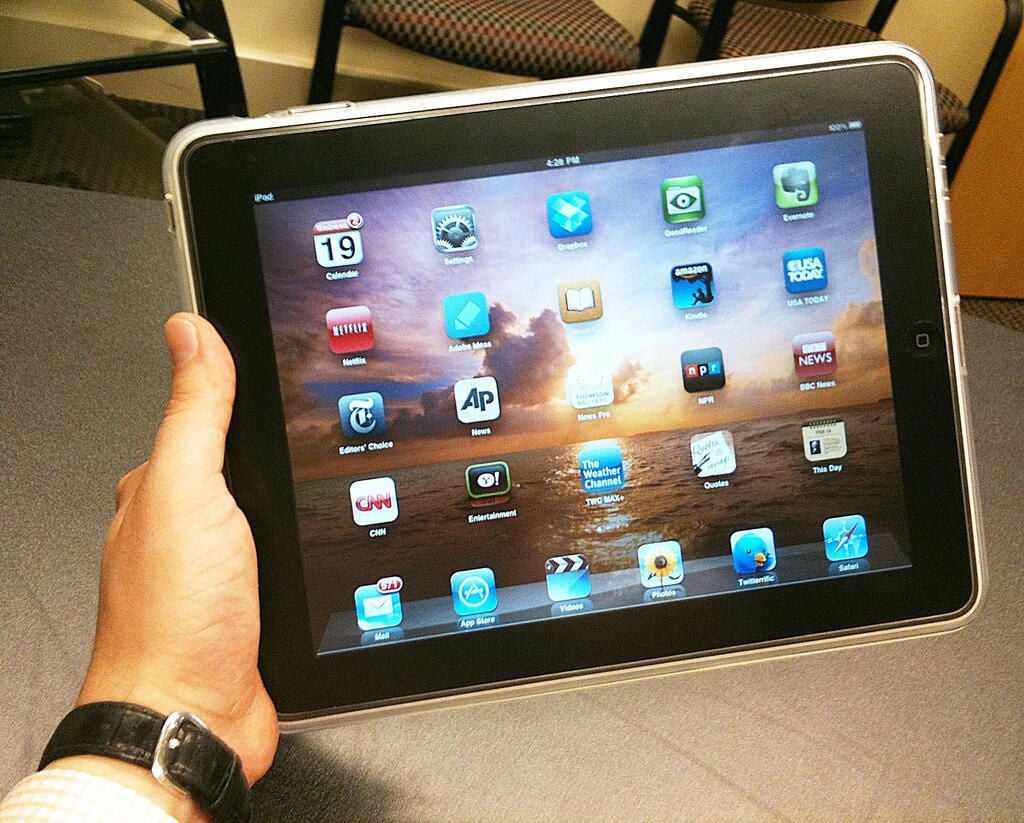
The iPad can be difficult to hold for longer than about 30 minutes, because it is heavy and a little bit awkward.
Photo credit: Jason Hiner/TechRepublic
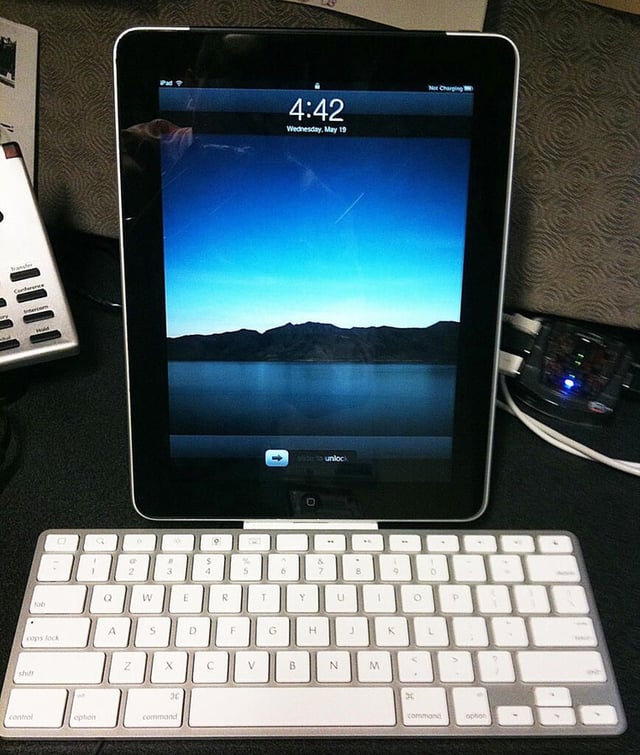
Docking the iPad in Apple’s Keyboard Dock and trying to use it at a desk to do serious work can be frustrating. A better solution is to get an iPad stand, place it in landscape mode, and use the Apple Bluetooth keyboard.
Photo credit: Jason Hiner/TechRepublic
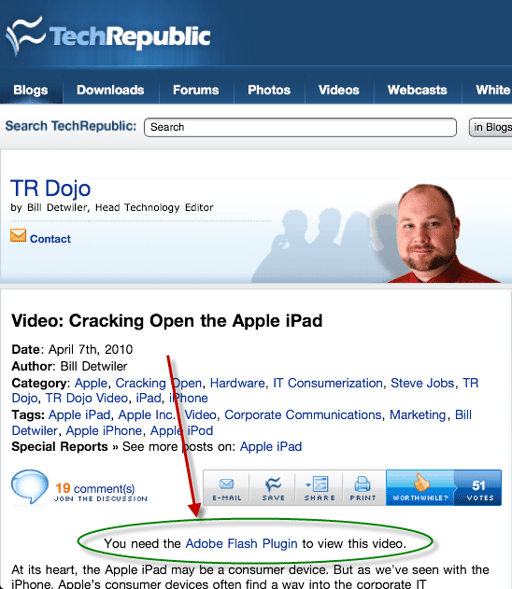
Not being able to access Flash-based videos and Web sites on the iPad is a big drawback.
Photo credit: Jason Hiner/TechRepublic
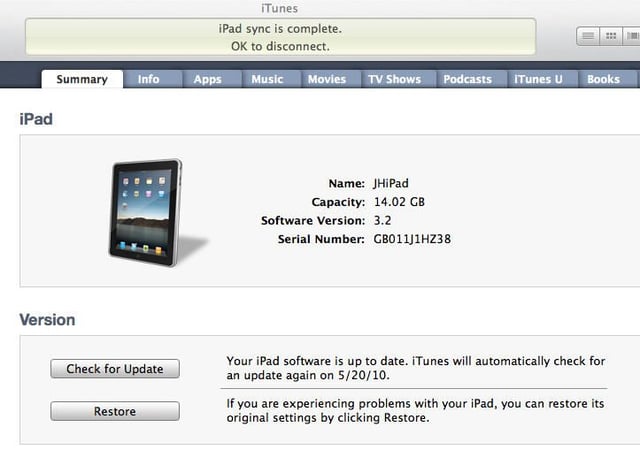
Like the iPhone, the iPad is joined at the hip with iTunes, and that’s not really a good thing
Photo credit: Jason Hiner/TechRepublic
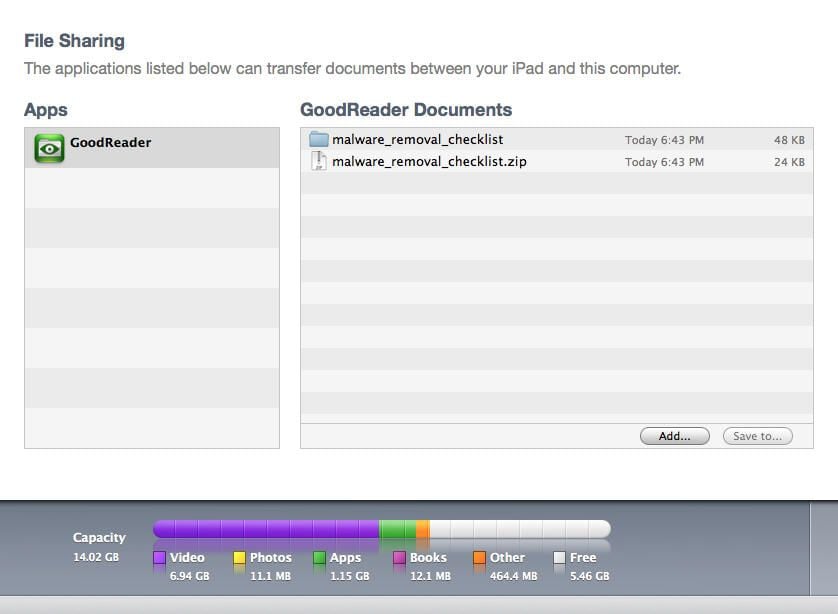
GoodReader lets you sync documents to your iPad through iTunes. This functionality really needs to be built into the OS.
Photo credit: Jason Hiner/TechRepublic

Photo credit: Jason Hiner/TechRepublic
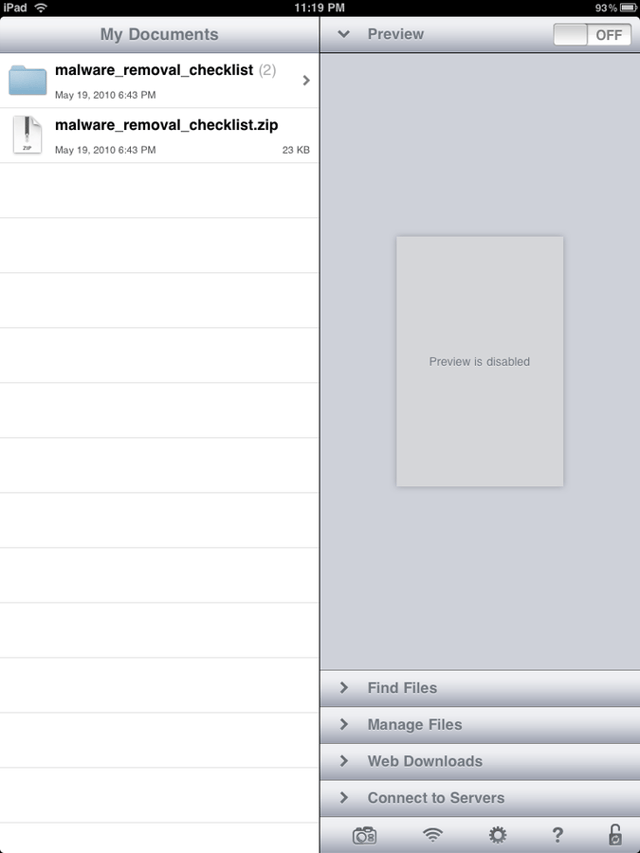
Here’s a look at the GoodReader screen in the iPad app.
Photo credit: Jason Hiner/TechRepublic

Jason Hiner is Editorial Director of CNET and former Editor in Chief of TechRepublic. He's co-author of the book, Follow the Geeks.


