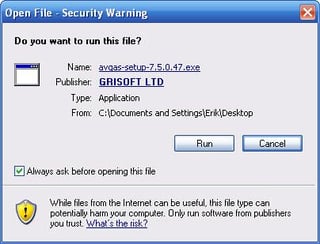
Freely available from the Grisoft Web site, avgas-setup-7.5.0.47.exe is the installation file used to install AVG’s new Anti-Spyware 7.5 program.
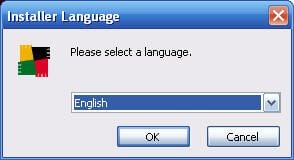
The first step, once you’ve triggered the AVG Anti-Spyware installation, is to select the language. English is the default.
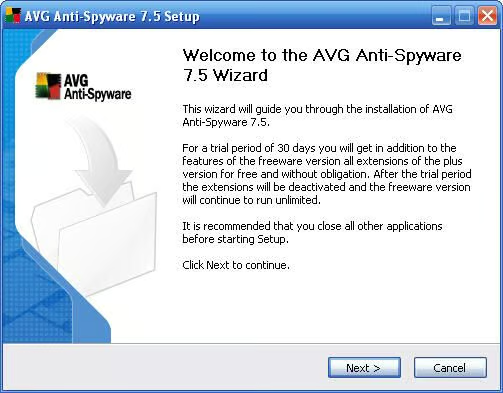
Grisoft leverages the AVG Anti-Spyware 7.5 Wizard to install the application.
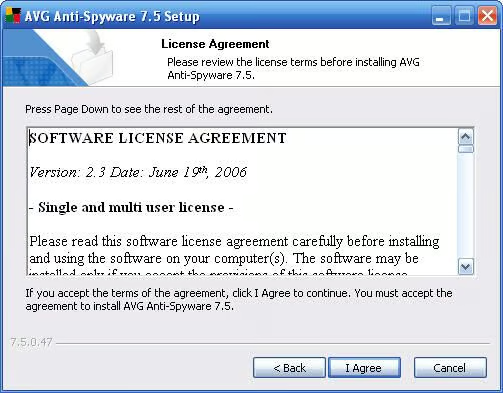
You must accept Grisoft’s Software License Agreement to proceed.
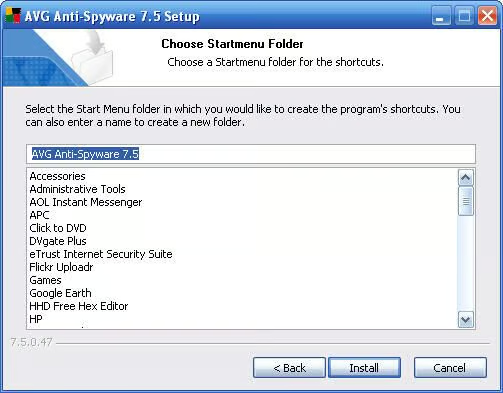
As is customary, AVG creates a start menu folder for Anti-Spyware 7.5.
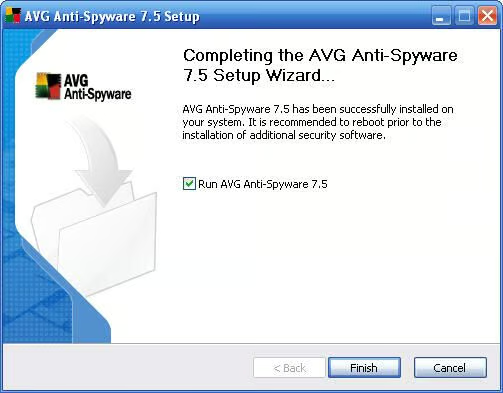
Once the installation is complete, the setup wizard displays this confirmation screen. To run AVG Anti-Spyware for the first time, leave the checkbox checked and click Finish.
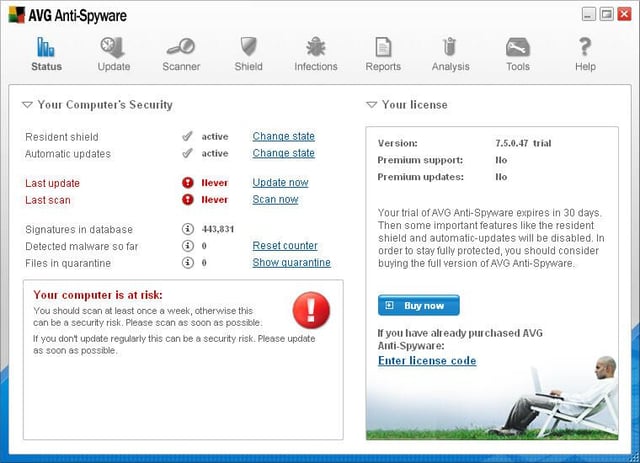
The Status menu is the main application page. From this main window administrators can trigger scans, view active status and review the number of signatures that have been downloaded, as well as the number of infections that have been detected to date.
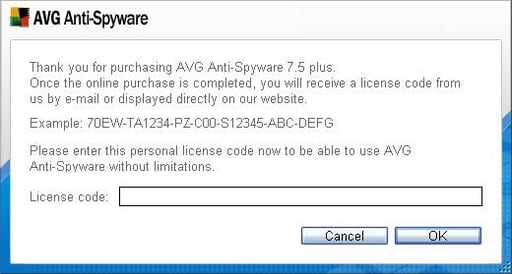
By default, most of AVG Anti-Spyware’s most important features only work for 30 days. You must purchase a license, and enter the license code, to continue utilizing the application.
Clicking Enter License Code from the Status page opens this dialog box. Once a valid license code is supplied, the user will receive premium support and premium updates.
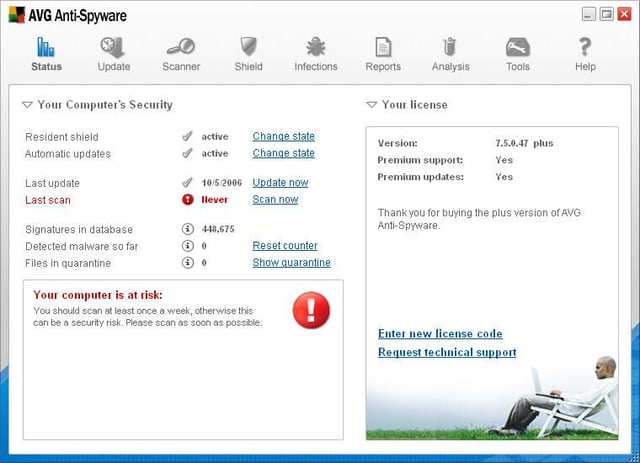
Once you’ve updated AVG Anti-Spyware with the new spyware signatures, the application updates its Status page. Here you can see updates have been performed but no system scan has yet been run.
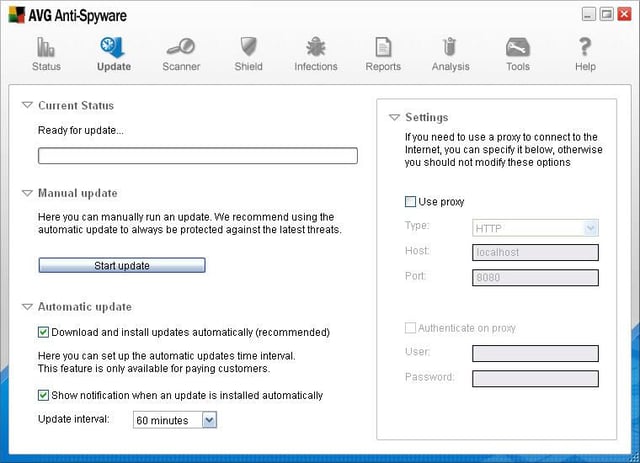
By default, AVG Anti-Spyware 7.5 is programmed to automatically download and install updates. You can force an update, or change the default settings, from the Update menu, shown here.
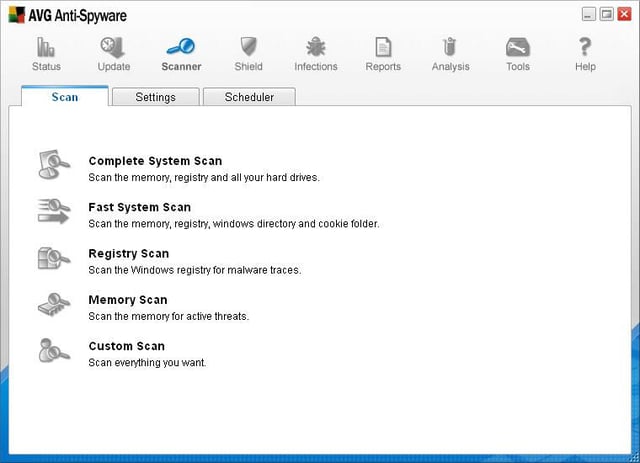
Clicking the Scanner icon leads to the Scanner page. Four default scan settings are immediately available: a complete system scan, a fast system scan (of the memory, registry, Windows directory and cookie folder only), a Windows registry-only scan and just a memory scan. Or, administrators can elect to perform a custom scan.
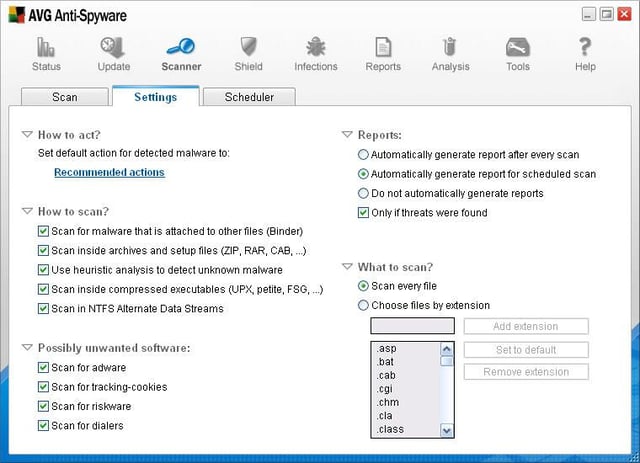
Among the custom scan settings that can be set are searches for adware, tracking cookies, riskware, dialer programs and more.
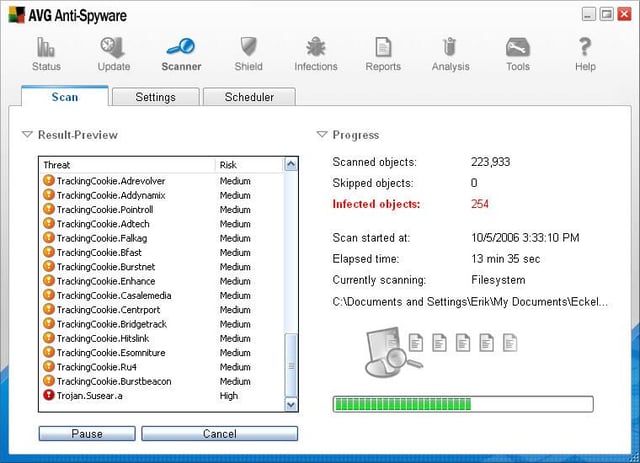
Here’s an AVG Anti-Spyware scan in progress. As the application scans a system, it tracks the number of scanned objects, the number of infected objects (which are listed in the Result-Preview window) and more.
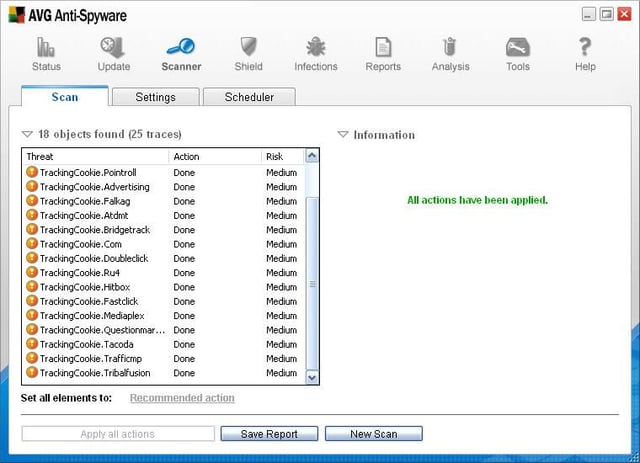
Once a scan is complete, and the Apply All Actions button has been selected, AVG Anti-Spyware provides this confirmation screen. In addition to confirming all actions were applied, the window lists the results of actions taken for each threat.
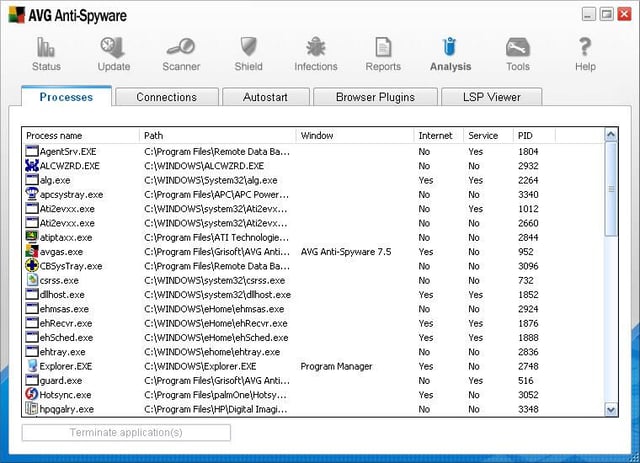
AVG Anti-Spyware includes an Analysis tool to help track and identify particularly problematic spyware. In addition to identifying a system’s active processes, the utility can track connections, items that load at startup, browser plug-ins and layered service providers.
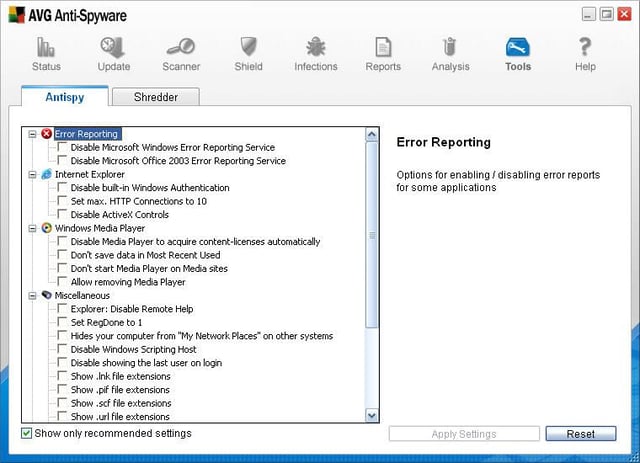
AVG Anti-Spyware includes an Antispy tool that can be used to disable Microsoft and Windows error reporting, Media Player features and other components. Simple checkboxes enable an administrator to turn such features on and off easily, thereby gaining more control of the information and activity a system reports to third-parties.
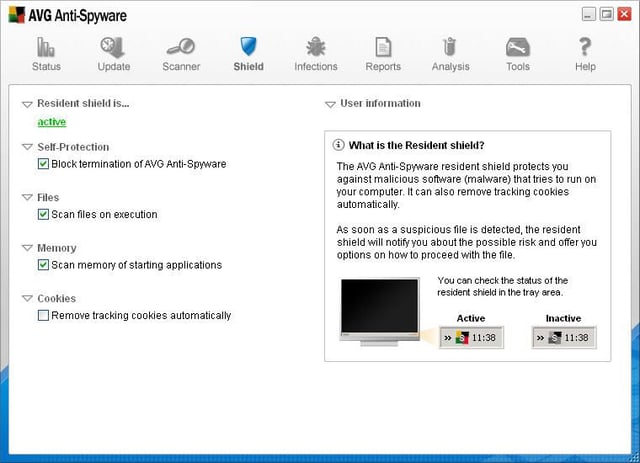
AVG’s active antispyware agent is called Resident Shield. Using the Shield icon found on the toolbar, administrators can access and change Resident Shield settings.
For example, in addition to turning on/off Resident Shield active protection, the page can be used to scan files on execution and search memory when applications start up.
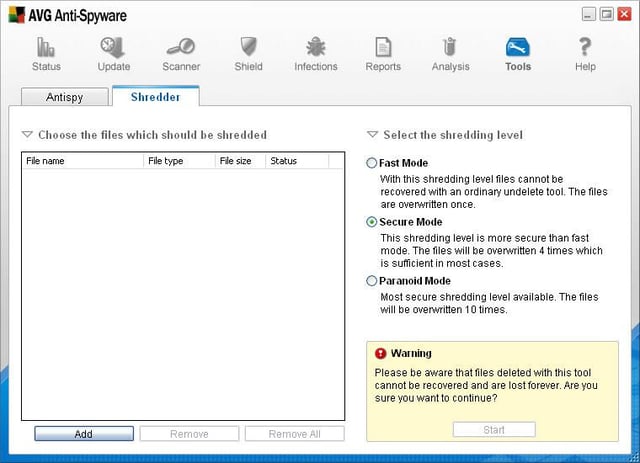
AVG also includes a Shredder utility, reached from the Tools menu, that can be used to securely delete files and information. Using the application’s Paranoid mode, files are overwritten 10 times to ensure the file’s data is unrecoverable.

Erik Eckel is a managing partner at Louisville Geek and president of Eckel Media Corp. He previously served as Executive Editor at TechRepublic. He received Microsoft Engineer accreditation from Sullivan University and earned his Bachelor's Degree in English from the University of Louisville. He's earned Network+, Windows NT 4.0 MCP+I and MCSE, and Windows 2000 Professional MCP accreditations.


