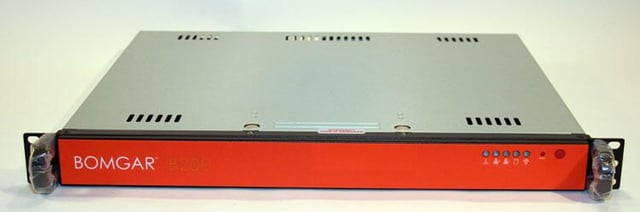
The Bomgar B200 is a 1U server rack-sized appliance that provides remote desktop access for small and medium enterprise organizations.\n
Check out the full Product Spotlight Review!\n
Images by Erik Eckel for \u00a9 TechRepublic
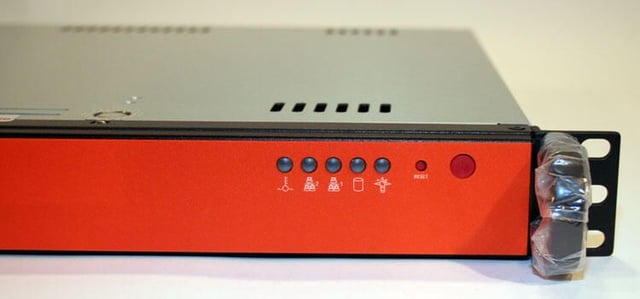
Bomgar configuration is simple and straightforward. As such, there are few buttons, switches and ports.\n\nHere you can see the only controls found on the unit’s front facing. LEDs are present to indicate such elements as NIC and hard disk activity and power status. The unit’s reset and power buttons are also found here.
Images by Erik Eckel for \u00a9 TechRepublic
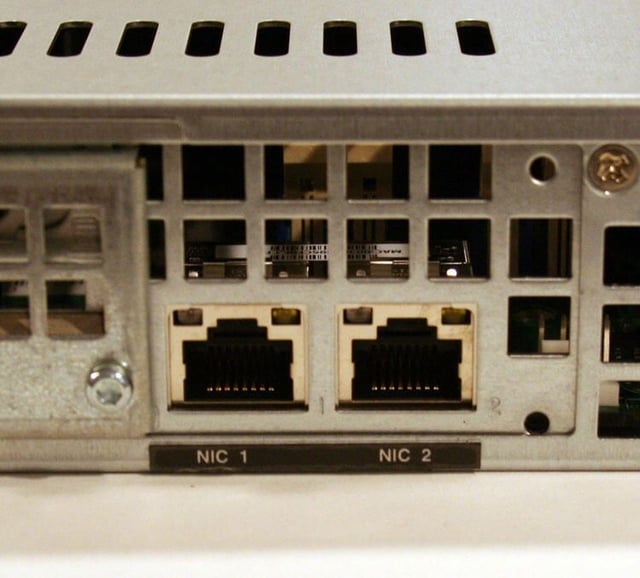
The Bomgar B200’s rear panel possesses only three ports. One is the standard power socket, while the other two are Ethernet NICs (as shown here).
Images by Erik Eckel for \u00a9 TechRepublic
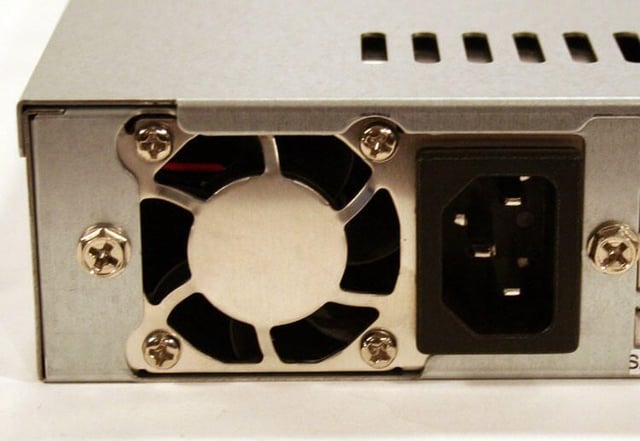
A cooling fan sits immediately adjacent to the Bomgar’s power socket.
Images by Erik Eckel for \u00a9 TechRepublic
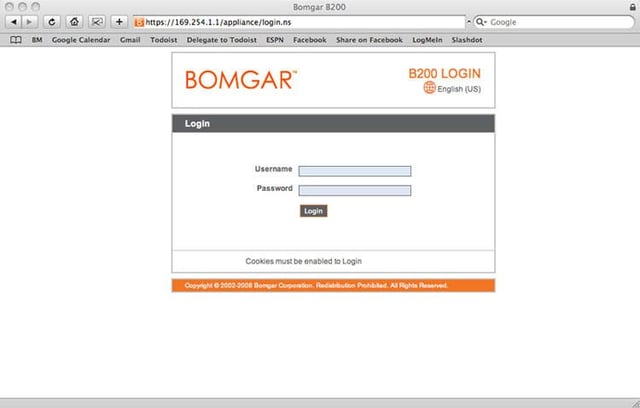
Bomgar uses a Web-based interface to administer the B200 remote support appliance.
Images by Erik Eckel for \u00a9 TechRepublic
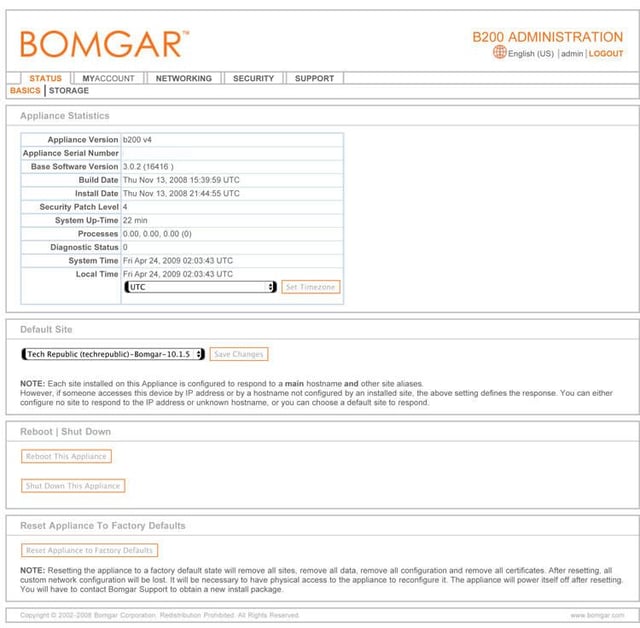
Using the Bomgar B200 Web-based console, administrators can configure the unit’s network settings, reboot or power down the appliance and more.
Images by Erik Eckel for \u00a9 TechRepublic
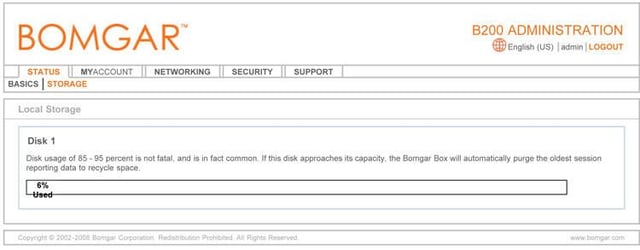
From the Storage option within the Status tab, the B200 tracks the amount of disk space being used.
Images by Erik Eckel for \u00a9 TechRepublic
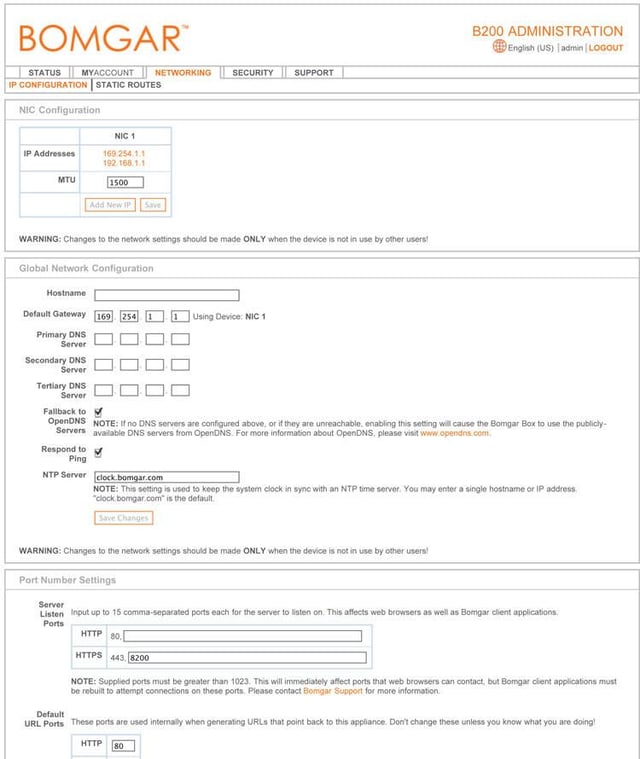
Network settings, including the unit’s NIC configurations, are customized using the IP Configuration button.
Images by Erik Eckel for \u00a9 TechRepublic
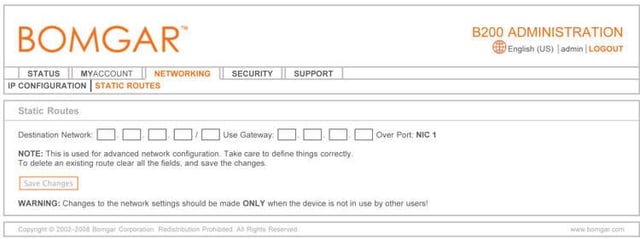
Administrators can configure static IP routes using the B200’s Static Routes button found on the networking tab.
Images by Erik Eckel for \u00a9 TechRepublic
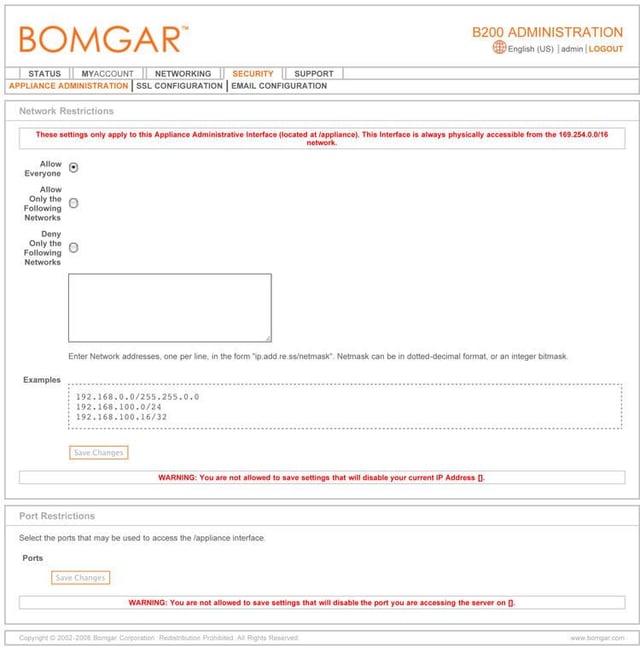
Network restrictions are set using the B200 Web console’s Security tab. Separate options exist for Appliance Administration, SSL Configuration and Email Configuration.
Images by Erik Eckel for \u00a9 TechRepublic
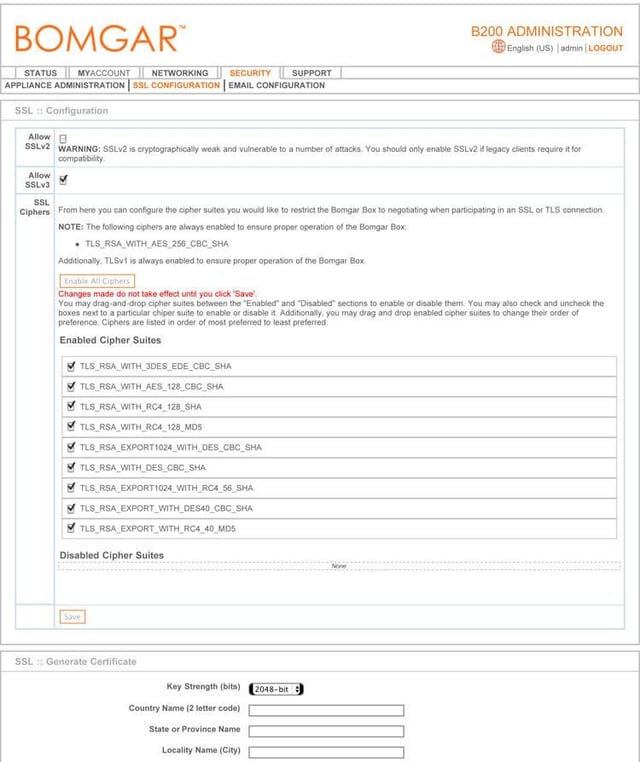
The Bomgar B200 supports SSL connections. These connections enable secure communications and are set using the SSL Configuration menu shown here.
Images by Erik Eckel for \u00a9 TechRepublic
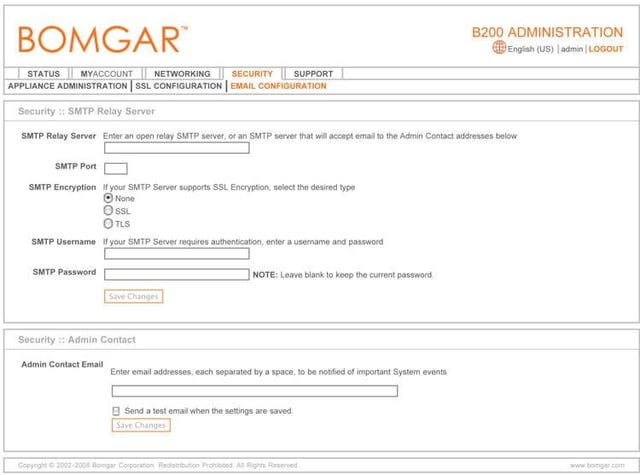
The Bomgar B200 can be set to forward email messages to administrators. These email messages can alert administrators of system events.\n\nEmail settings, including SMTP relay servers, ports and passwords, are configured using the Email Configuration button within the Security tab.
Images by Erik Eckel for \u00a9 TechRepublic
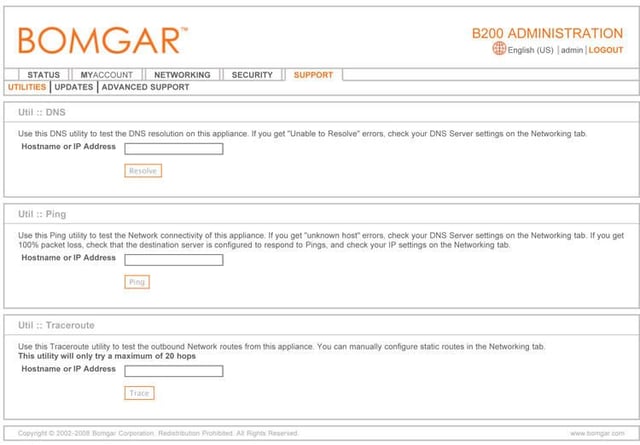
A variety of support options, including utilities, updates and advanced support features, are accessed from the Support tab, as shown here.
Images by Erik Eckel for \u00a9 TechRepublic
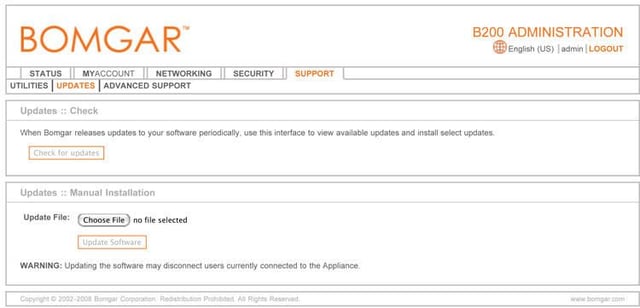
B200 updates can be accessed and installed from the Updates button (found within the Support tab).
Images by Erik Eckel for \u00a9 TechRepublic
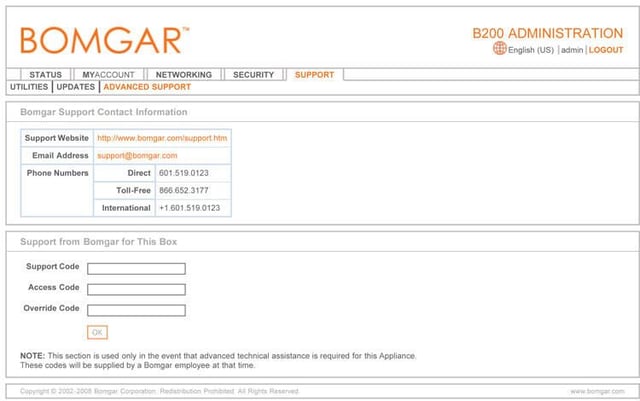
When required, administrators can find several technical supports options by clicking the Support tab and selecting Advanced Support. In addition to finding direct telephone numbers, the software lists a URL and e-mail address.\n\nDirect support is also available. When using direct support from Bomgar, support and access codes can be entered using the Advanced Support menu, as can be seen here.
Images by Erik Eckel for \u00a9 TechRepublic

Erik Eckel is a managing partner at Louisville Geek and president of Eckel Media Corp. He previously served as Executive Editor at TechRepublic. He received Microsoft Engineer accreditation from Sullivan University and earned his Bachelor's Degree in English from the University of Louisville. He's earned Network+, Windows NT 4.0 MCP+I and MCSE, and Windows 2000 Professional MCP accreditations.


