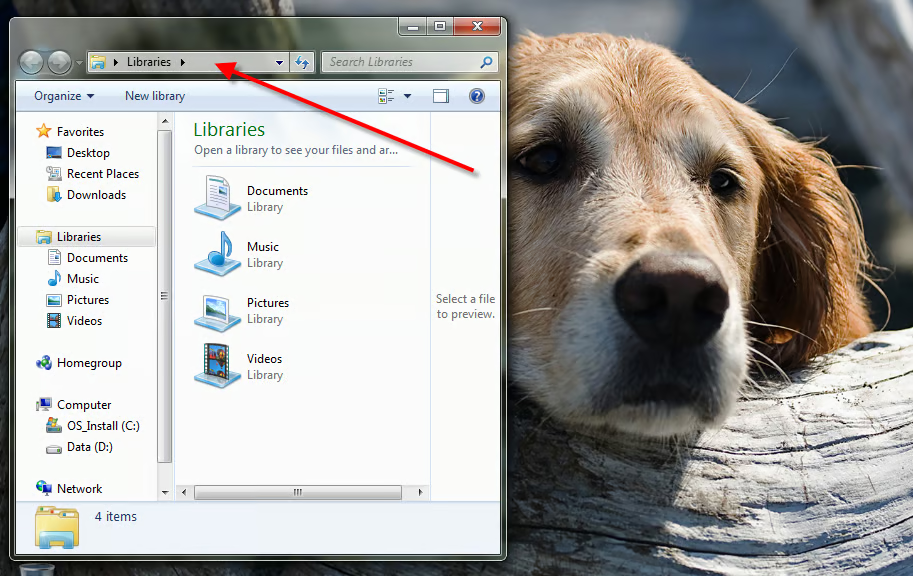
One of the most obvious differences between Microsoft Windows 7 and the previous versions of the operating system is the concept of libraries. In Windows 7, files are stored a library folder, which is essentially a folder that references other available folders. The idea is that you don’t have to worry about the actual physical folder that houses the file in question because it is referenced in your library – let the operating system worry about where it actually sits.
However, there are times when you actually want to get to a file in its actual physical location. To help facilitate this, many users find it useful to use Windows Explorer to follow the folder path to the file location is question. But, by default in Windows 7, the typical Windows Explorer shortcut starts in the Libraries folder and not in the system root directory. We can change that fairly simply.
This gallery is also available as a TechRepublic blog post and download. Image created by Mark Kaelin for TechRepublic.
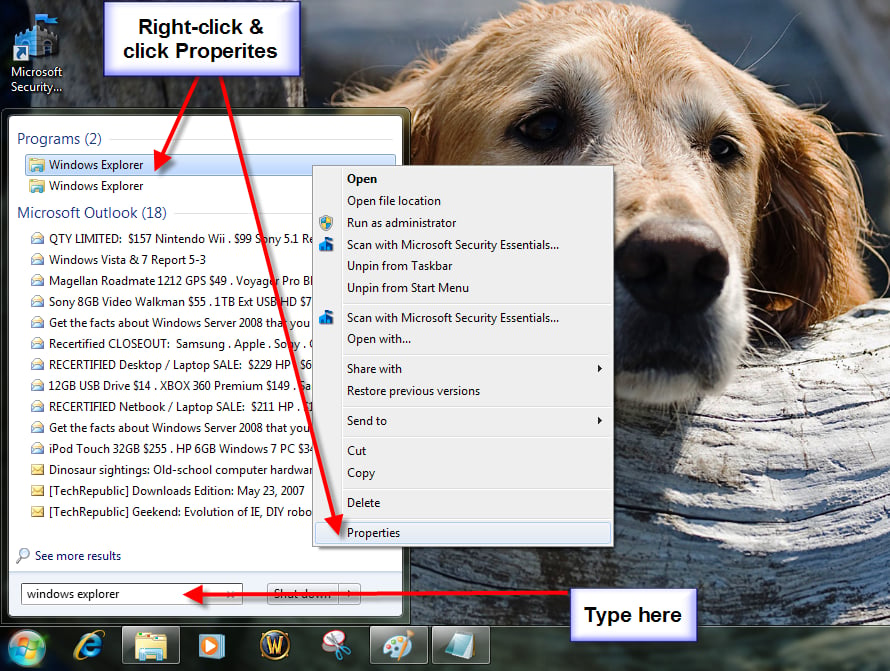
To change the Windows Explorer default directory you must access the Properties dialog box. You can get there a few ways. One obvious way is type “Windows Explorer” in the Start Menu Search box like shown.
This gallery is also available as a TechRepublic blog post and download. Image created by Mark Kaelin for TechRepublic.
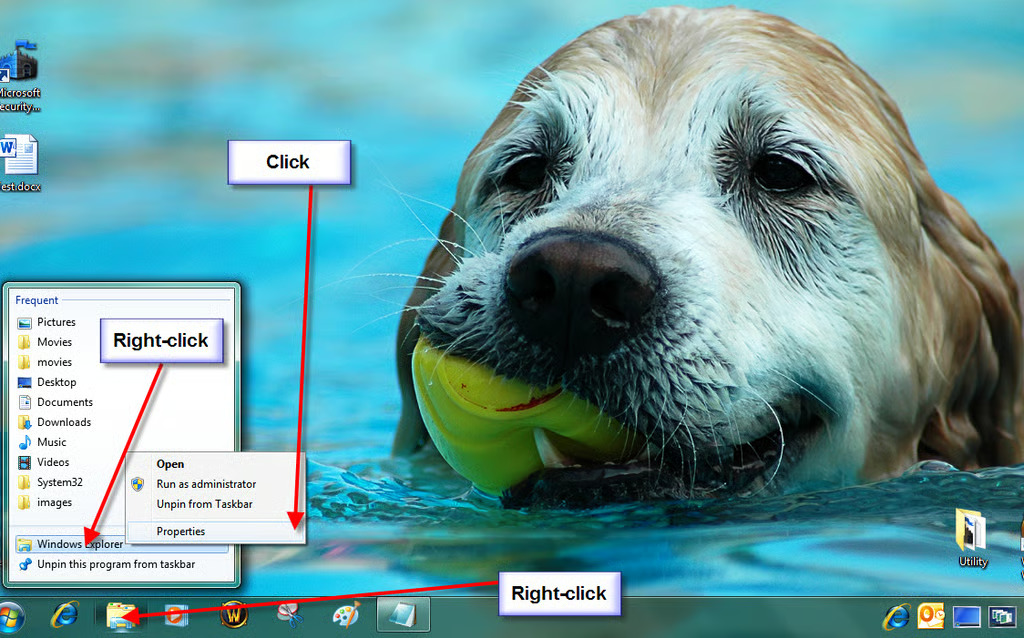
Or, if you are like me and have Windows Explorer pinned to the Taskbar, you can right-click the icon and then right-click the Windows Explorer menu item as shown.
This gallery is also available as a TechRepublic blog post and download. Image created by Mark Kaelin for TechRepublic.

You should now be looking at the Windows Explorer Properties dialog box. Notice the default target path (red arrow). That target path is what we are going to change.
This gallery is also available as a TechRepublic blog post and download. Image created by Mark Kaelin for TechRepublic.
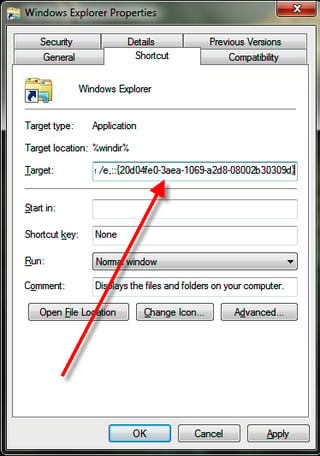
To change the launch folder default in Windows Explorer, modify the target path to be this command:
%SystemRoot%\\explorer.exe /e,::{20D04FE0-3AEA-1069-A2D8-08002B30309D}
Be sure to type it exactly or it will not work and then click OK.
This gallery is also available as a TechRepublic blog post and download. Image created by Mark Kaelin for TechRepublic.
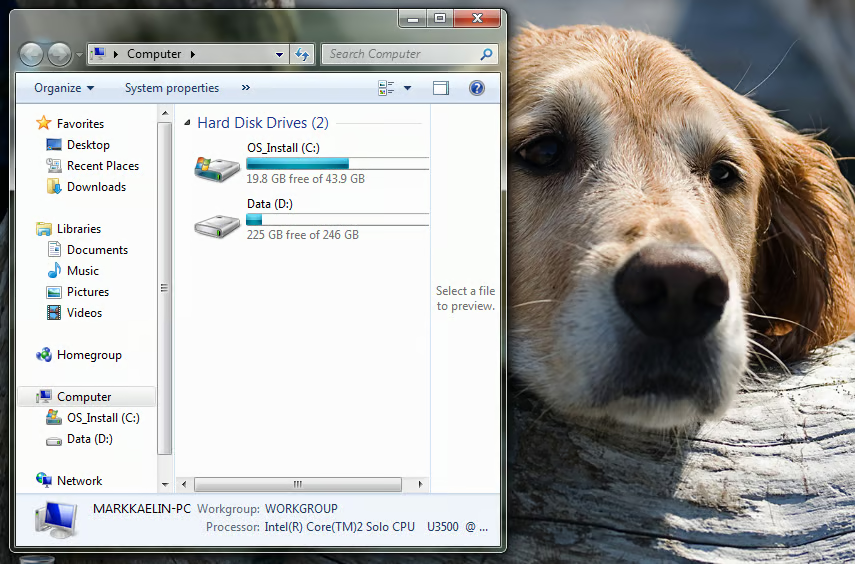
The next time you load Windows Explorer from that particular shortcut, it will launch in the system root directory as shown.
Keep in mind that this change only modifies that particular Windows Explorer shortcut. If you were so inclined you could copy the Windows Explorer shortcut several times and change the respective target folders to whatever you wished. What other folders would you put in that target box?
This gallery is also available as a TechRepublic blog post and download. Image created by Mark Kaelin for TechRepublic.

Mark W. Kaelin has been writing and editing stories about the information technology industry, software, hardware, gaming, finance, accounting, and technology geekdom for more than 30 years.


