![MS_OFFICE_2007_Start_Here_First[2].jpg](https://assets.techrepublic.com/uploads/2011/03/MS_OFFICE_2007_Start_Here_First[2].jpg?w=128)
\n\tIn a guest post, a TechRepublic member provided steps for uncovering a ton of Easter eggs by combining Microsoft Office 2007 with 2010. Here are the screenshots that walk you through the installation procedure. Be sure to read the post for the entire step-by-step process.
\n
\n\tAfter you’ve installed Microsoft Office 2007, you must install the Creative Commons Primary Interop Assemblies (PIA). In order for this to work, you must open Word, Excel, and PowerPoint 2007 in Trust Settings (Word must be opened first). Begin by clicking the Office button.
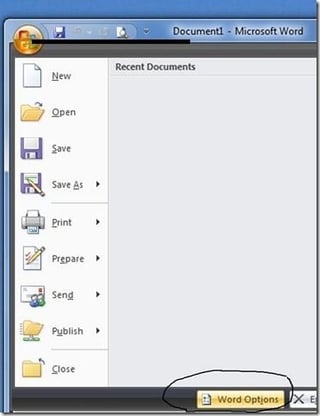
\n\tSelect Word Options.
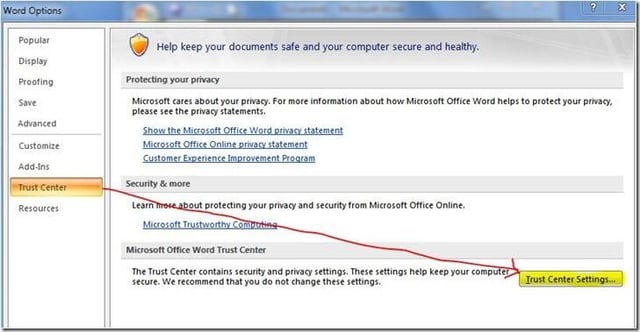
Select Trust Center and then Trust Center Settings.
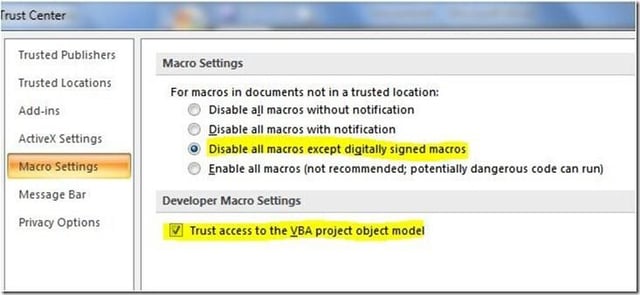
\n\tIn the Macro Settings section, make sure that \u201cDisable all macros except digitally signed macros\u201d and \u201cTrust access to the VBA project object model\u201d are selected.
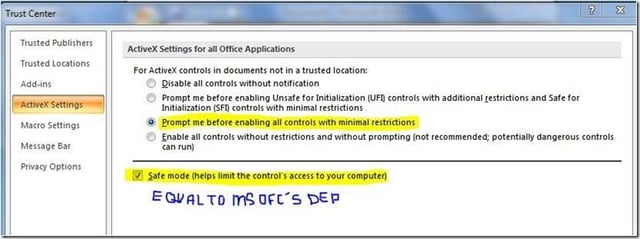
\n\tIn the ActiveX Settings section, make sure that \u201cPrompt me before enabling all controls with minimal restrictions\u201d and \u201cSafe mode (helps limit the control’s access to your computer)\u201d are selected [Note: The \u201cSafe mode\u201d is equivalent Office 2010’s Data Execution Prevention (DEP) mode, and it’s imperative that both are enabled, otherwise the goodies, eggs, and features won’t function properly between Office 2007 and 2010.]
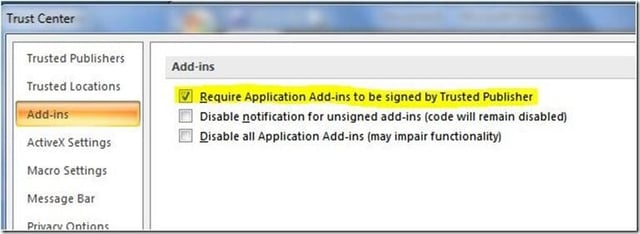
\n\tIn the Add-ins section, select \u201cRequire Application Add-ins to be signed by Trusted Publisher\u201d [Note: This step is not required, but it’s strongly recommended so that certificates are valid (not expired) and recognized from reputable sources.]
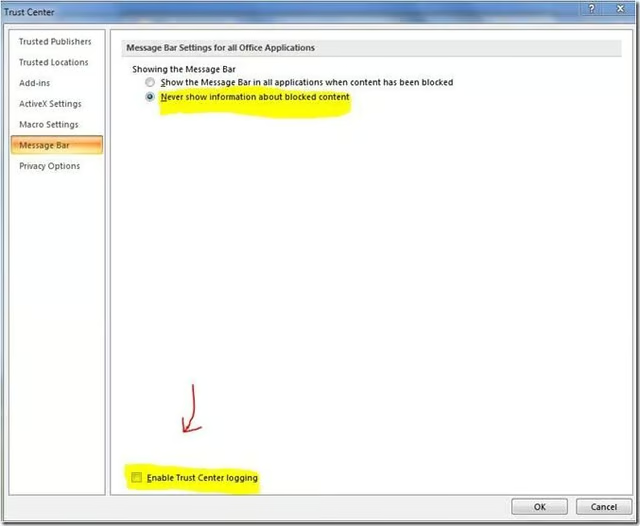
\n\tIn the Message Bar section, select \u201cNever show information about blocked content\u201d and make sure that \u201cEnable Trust Center logging\u201d at the bottom is NOT selected. Logging has to remain unchecked for Office 2007 and 2010 to work together.
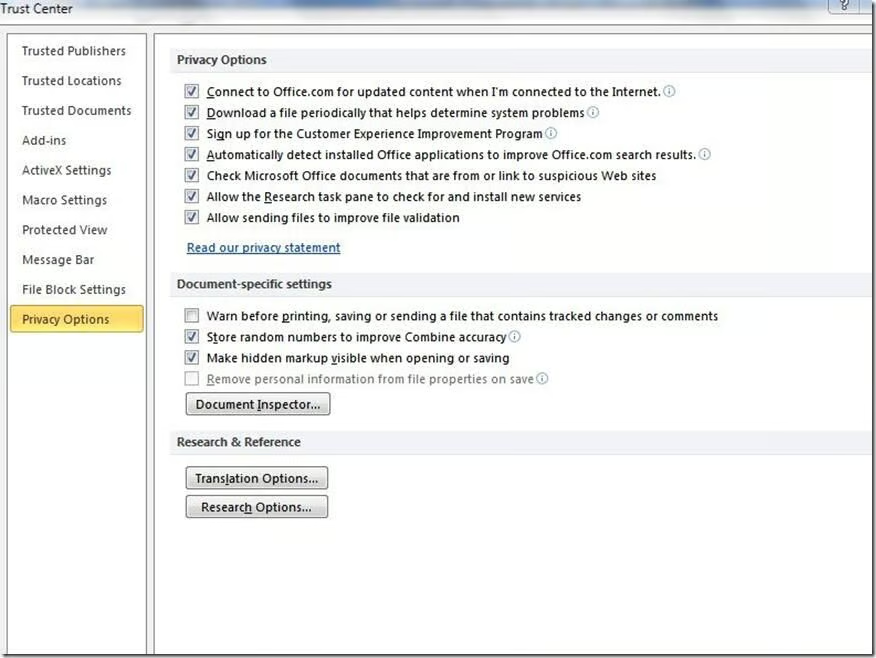
In the Privacy Options section, check everything under Privacy Options, plus \u201cStore random numbers to improve Combine accuracy\u201d and \u201cMake hidden markup visible when opening or saving\u201d under Document-specific settings. You can select the Translation Options and Research Options accordingly to your own preferences.
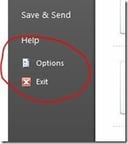
\n\tAfter you’ve installed Microsoft Office 2010 (using the instructions listed in the blog post), it’s time to install the “Creative Commons for 2010” PIA, which requires specific Trust Settings. Starting with Word, select Options.
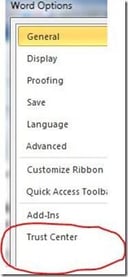
Select Trust Center.
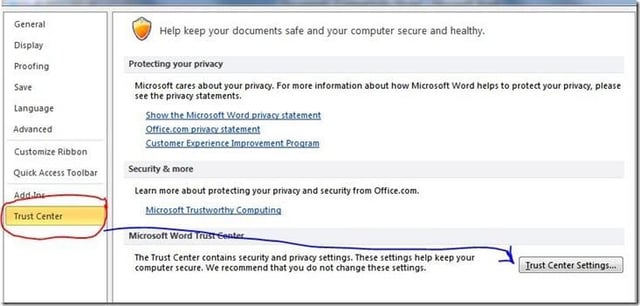
\n\tSelect Trust Center Settings.
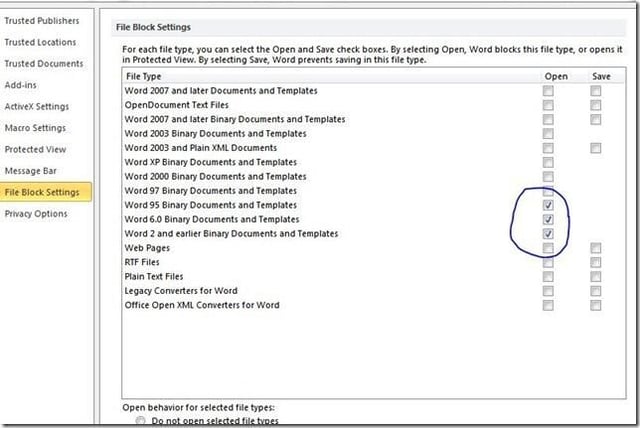
\n\tHere are the default File Block Settings.
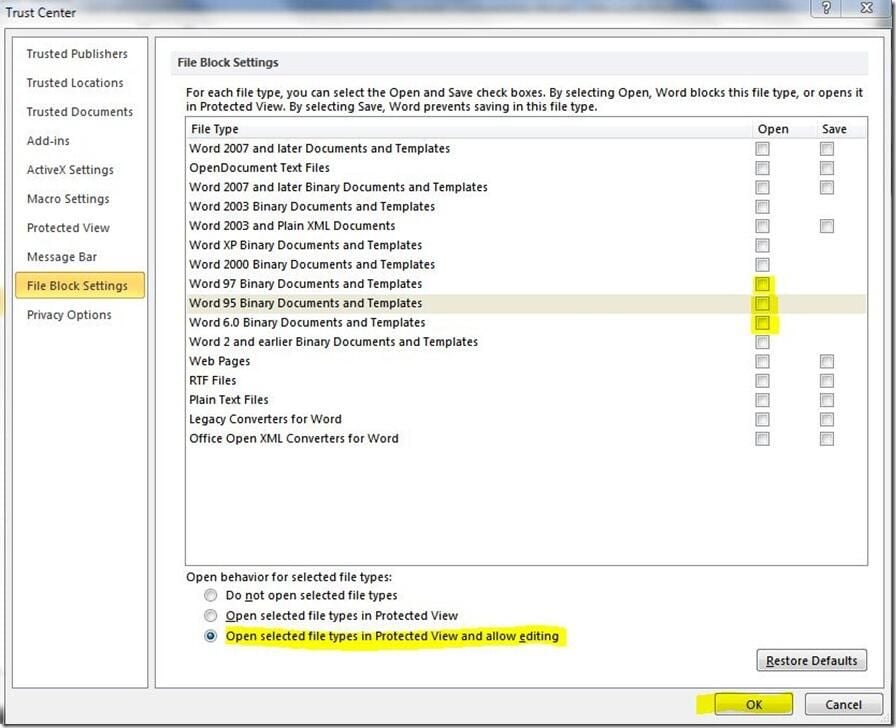
\n\tClear all of the boxes in File Block Settings except for the very last option \u201cOpen selected file types in Protected View and allow editing.\u201d Click Ok, and then go back to Options | Trust Center | Trust Center Settings.
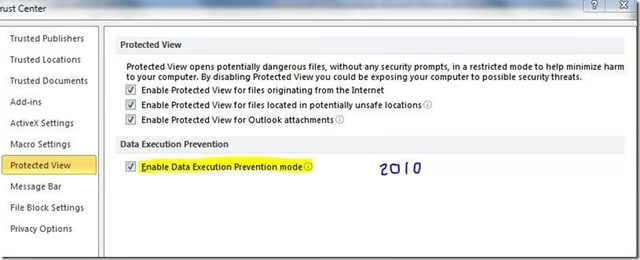
In the Protected View section, make sure that everything is selected.
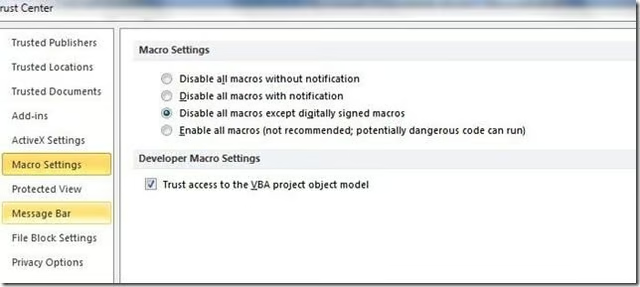
In Macro Settings, \u201cDisable all macros except digitally signed macros\u201d and \u201cTrust access to the VBA project object model\u201d must be selected in order for Office 2007 and 2010 to work together.
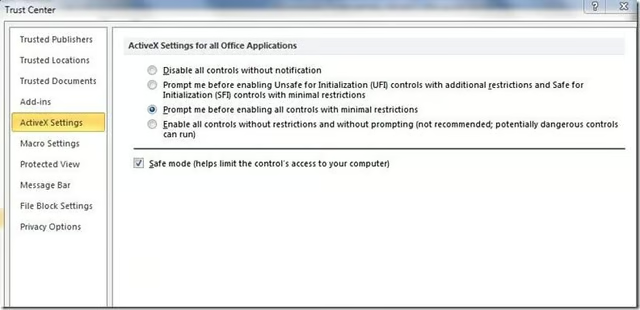
In ActiveX Settings, select \u201cPrompt me before enabling all controls with minimal restrictions\u201d and \u201cSafe mode (helps limit the control’s access to your computer.\u201d
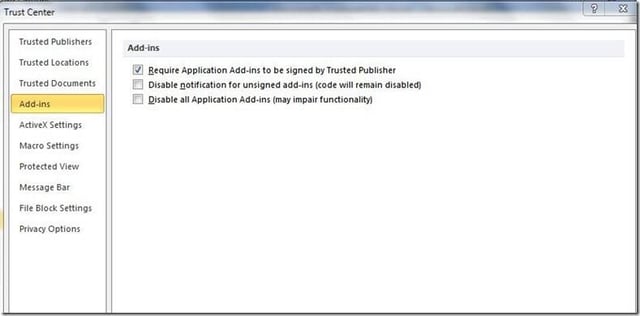
In the Add-ins sections, select \u201cRequire Application Add-ins to be signed by Trusted Publisher.\u201d
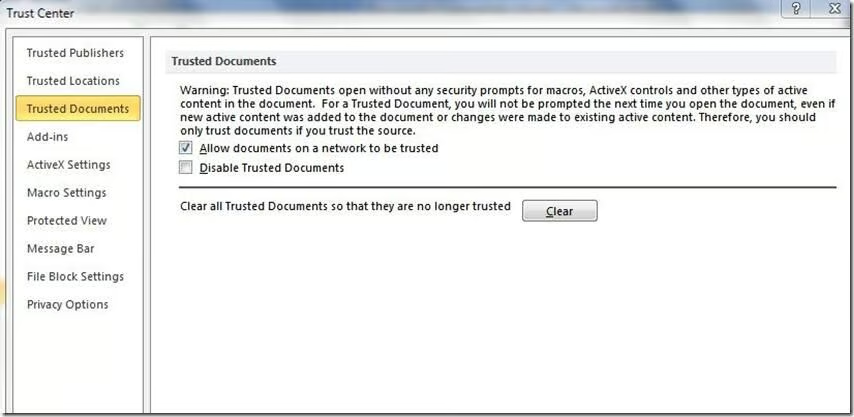
In Trusted Documents, select \u201cAllow documents on a network to be trusted.\u201d
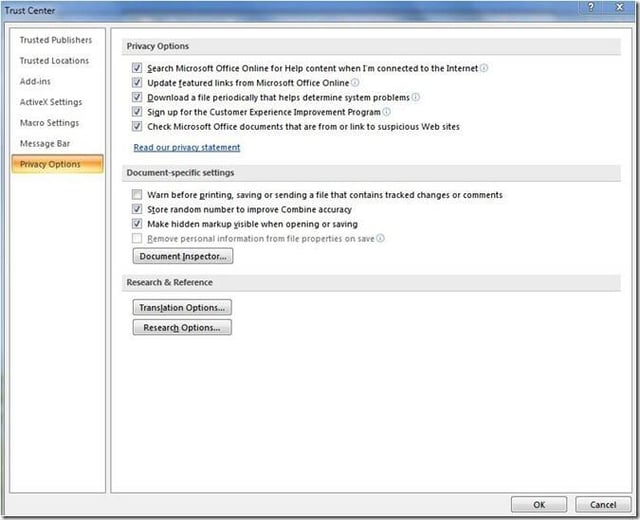
\n\tIn Privacy Options, make sure that everything is selected under the Privacy Options heading, plus \u201cStore random numbers to improve Combine accuracy\u201d and \u201cMake hidden markup visible when opening or saving\u201d is selected under Document-specific settings (Excel and PPT are slightly varied, but you will catch on easily).
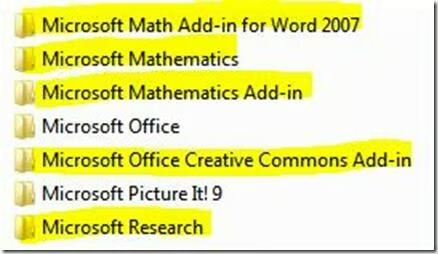
\n\tAdd-ins create some new Program files of their own, which can be confusing to a user. All the ones I highlighted in the accompaniment image are Add-ins, including the “Microsoft Creative Commons Add-in” (PIA for Office 2007) and “Microsoft Research” (Creative Commons PIA Add-in for 2010). So, why have three Microsoft Math Add-ins? The first Add-in for Word 2007 is actually the old original version, the Microsoft Mathematics and Mathematics Add-in is 3.0, and the newest one is 4.0.
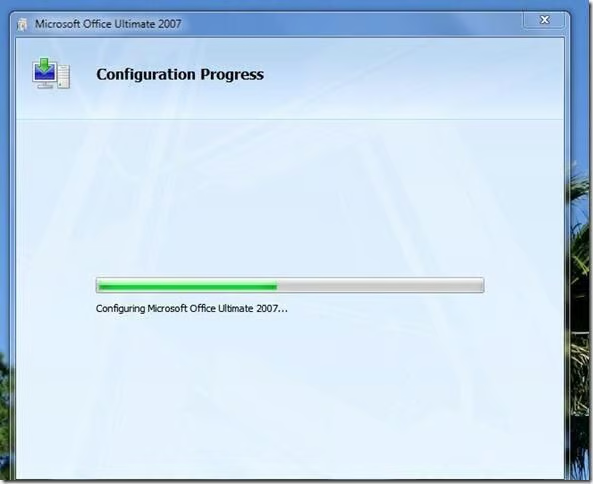
It takes time to install Creative Commons into Word, Excel, and PPT \u2013 especially in Office 2010, because it configures both 2007 and 2010 together.

My name is Sonja Thompson. I've worked for TechRepublic since October of 1999, starting with the enewsletter team, then with the Premium Products group (creating books and CDs), as well as programming some of the elements on the site. After leading the Tech News team on TR, I jumped at the opportunity to switch gears and try my hand at video editing, podcasts, and other forms of multimedia on the site. I'm currently the host of the Smartphones blog, plus I edit the TR Dojo video series. \ \ I graduated from the University of Louisville. Since then, I've also completed several technology related courses from SmartPlanet. My goal is to learn about the TR community, interact with members on the site, and hopefully encourage more people to participate - and more often.


