\n\tThis gallery is also available as a post in the TechRepublic Windows and Office Blog.
\n
\n\tWhile touch is a big component of Windows 8, I’ve been a big proponent of using a keyboard and a mouse in Windows 8 on a desktop system. (Just check out some of my keyboard and mouse articles.) Well, a few weeks ago after installing Windows 8 Pro on my system, I decided to break out my Microsoft Touch Mouse and see how it would function in my new Windows 8 installation and I have to tell you that I’m definitely loving the way this device brings together the best of both worlds. I still have my hand solidly on my mouse but am able to really take advantage of all sorts of touch-based gestures.
\n
\n\tAs you may know, I’ve had this touch mouse for a while and have dabbled with it in the various preview versions of Windows 8; however, I never really was satisfied with the way that it behaved. Maybe I was being stubborn, wanting to stay away from touch on a desktop system, or maybe I just really never gave it a chance to take hold. But now that Windows 8 has been released and the new Microsoft Mouse and Keyboard Center is available, I have definitely gained a new appreciation for using this mouse’s touch-based features in Windows 8.
\n
\n\tFor instance, using simple touch swipes across the top of my mouse I can instantly switch between active apps, access app commands, conjure up the Semantic Zoom feature, pull out the Charm bar, and even flip Back and Forward between pages in Internet Explorer. While it took a little getting used to, I now wholeheartedly recommend that anyone using Windows 8 on a desktop get and use a Microsoft touch mouse. (There’s more than one now, as you’ll see in a moment.)
\n
\n\tIn this article, I’ll briefly go over the installation procedure for the Microsoft Mouse and Keyboard Center and then show you how the tutorial works. The reason being is that I want to show you just how easy it is to learn and use the gestures provided by the touch mouse to navigate some of the touch-based features in Windows 8 and the screen shots of the Microsoft Mouse and Keyboard Center tutorial do an excellent job of illustrating the gestures.
\n
\n
\n
\n\tKeep in mind that while I am using the original Microsoft Touch Mouse, there are now a whole slew of other Microsoft touch mice, such as the Explorer Touch Mouse and the Wedge Touch Mouse. While the Microsoft Touch mice sell for anywhere from $50 to $80 on the Microsoft Store, I’ve seen them in the $18 to $50 range on Amazon. With Black Friday just around the corner, you might even be able to get your hands on a touch mouse (pun intended) for even cheaper.
\n
\n
\n\tDepending on which Microsoft touch mouse you use or if you purchase a new touch mouse with the software included, your experience may be slightly different. But, in my case, using the original touch mouse that I’ve had for over a year, this is what I encountered.
\n
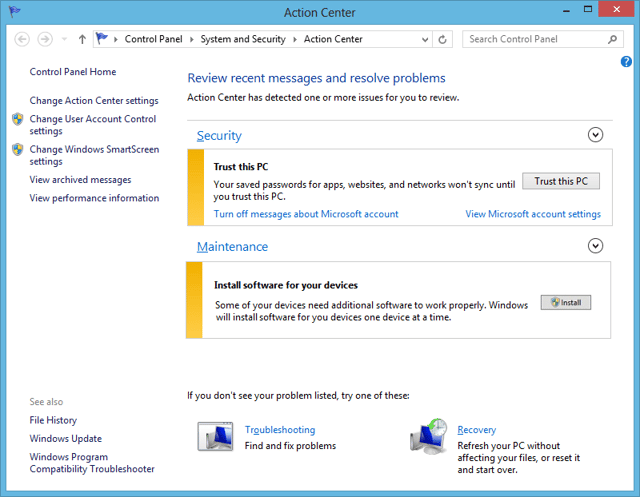
\n\tWhen I connected the Microsoft Touch Mouse USB transceiver to my Windows 8 system, the operating system installed the device drivers. I then saw an Action Center notification appear. Upon accessing the Action Center, I saw that in the Maintenance section I was being prompted to install software, as shown.
\n
\n\tCredit: Images by Greg Shultz for TechRepublic
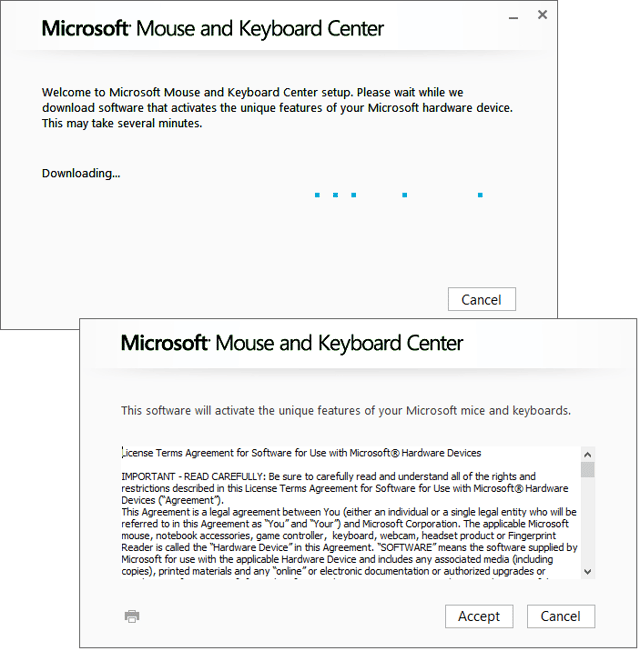
\n\tAs soon as I clicked the Install button, the Microsoft Mouse and Keyboard Center began to download, as shown. After a few minutes the download was complete and I was prompted to Accept the license.
\n
\n\tCredit: Images by Greg Shultz for TechRepublic
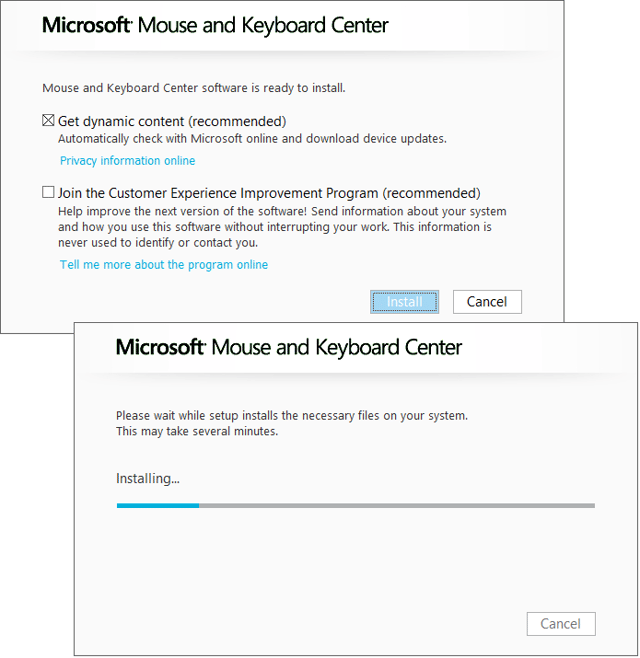
\n\tI also choose the Get dynamic content option in order to automatically receive updates. When I clicked the Install button, the installation began.
\n
\n\tCredit: Images by Greg Shultz for TechRepublic
\n
\n\tWhen the installation was complete, I momentarily glimpsed the Microsoft Mouse and Keyboard Center, which runs as an app, and then the tutorial immediately took over. Let’s take a closer look.
\n
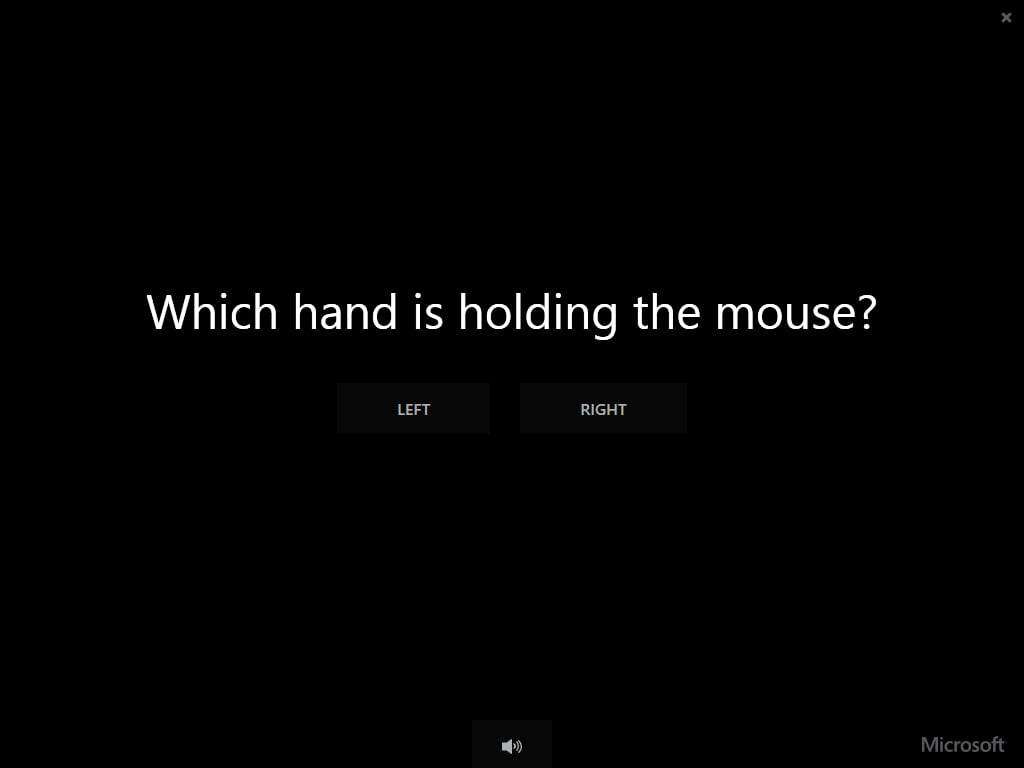
\n\tThe first screen will ask you to identify whether you are right-handed or left-handed.
\n
\n\tCredit: Images by Greg Shultz for TechRepublic
\n\tAs soon as you identify your handedness, you’ll see a brief animated introduction that identifies the gestures that you will learn about in the tutorial. There are thumb gestures, two finger gestures, and three finger gestures. The tutorial begins with the Three Finger Gestures.
\n
\n\tCredit: Images by Greg Shultz for TechRepublic
\n\tYou begin with the Semantic Zoom feature, as shown. As you may know, Windows 8’s touch interface allows you to zoom in and out of the Start Screen using a two-finger pinch-and-expand gesture on a touch screen. Microsoft calls this the Semantic Zoom feature.
\n
\n\tCredit: Images by Greg Shultz for TechRepublic
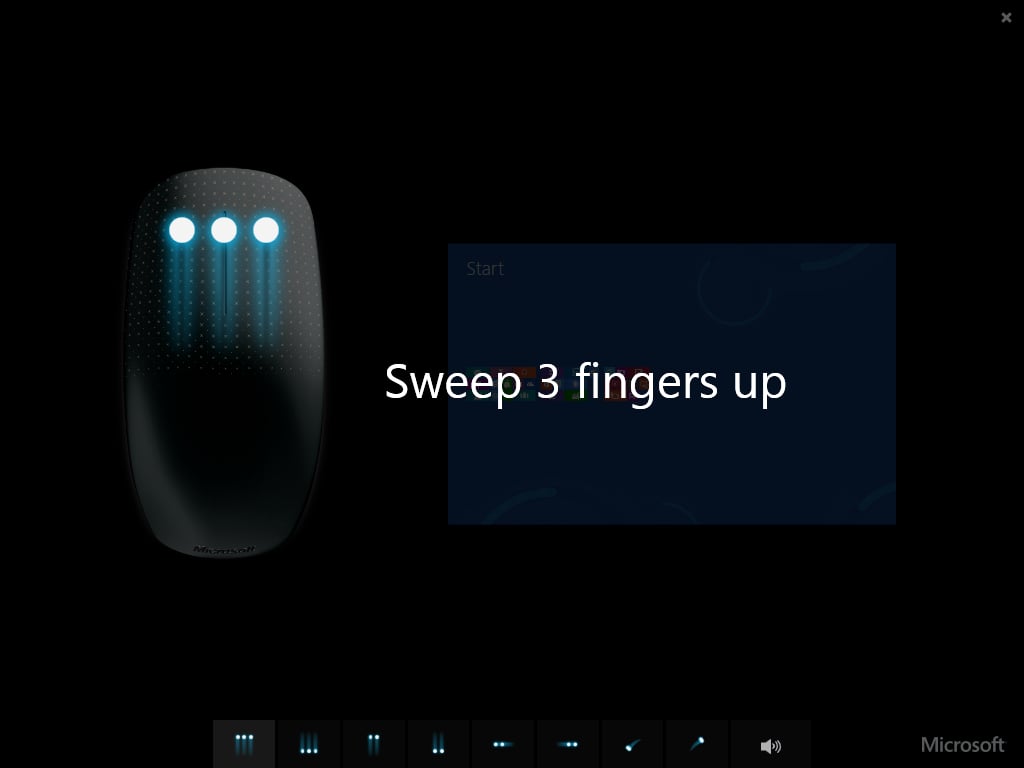
\n\tTo zoom in using a touch mouse, the tutorial instructs to place your first three fingers on top of the mouse and sweep them straight up.
\n
\n\tCredit: Images by Greg Shultz for TechRepublic
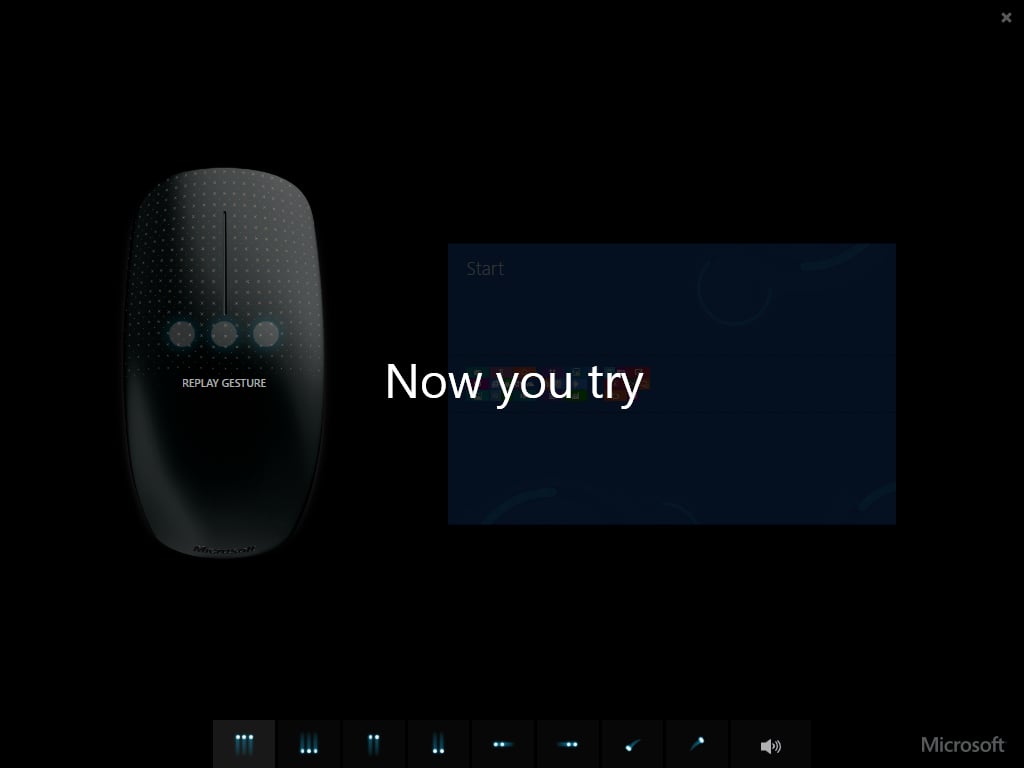
\n\tAs soon as the tutorial illustrates this gesture, you are prompted to try it, as shown. (This series of animated illustration followed by a prompt to try it yourself is repeated throughout the tutorial.)
\n
\n\tCredit: Images by Greg Shultz for TechRepublic
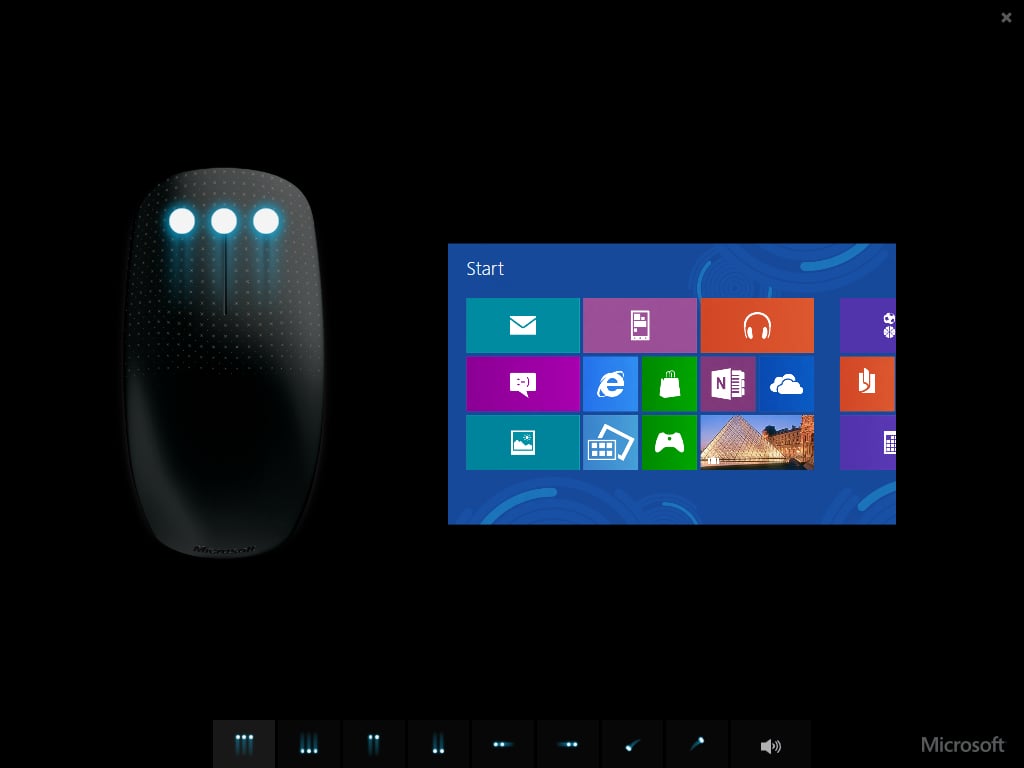
\n\tWhen you do, you’ll see a Start Screen simulation with all of the tiles in miniature form and as you sweep your three fingers straight up the tiles zoom in to regular size. The next step of the tutorial will then show you how to zoom out by sweeping three fingers straight down.
\n
\n\tCredit: Images by Greg Shultz for TechRepublic
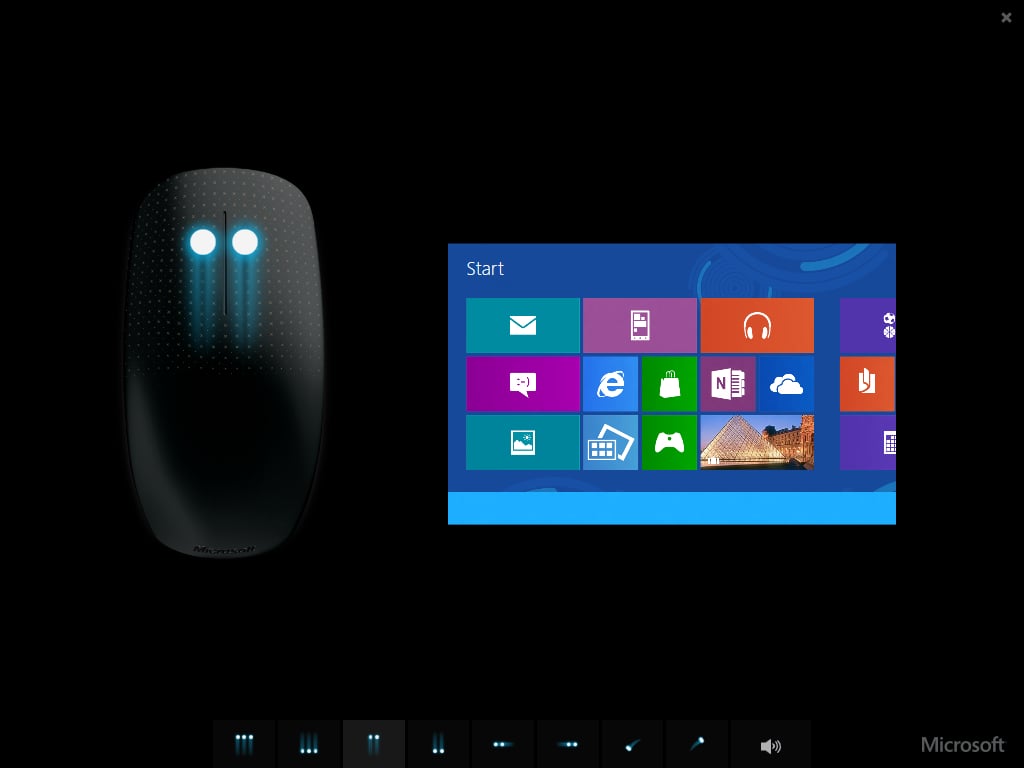
\n\tThen you move on to Two Finger Gestures. The first of which, sweeping two fingers straight up, brings up the app command bar from the bottom of the screen. This is illustrated by the Start Screen simulation shown. The next step of the tutorial shows you how to close the app command bar by sweeping two fingers straight down.
\n
\n\tCredit: Images by Greg Shultz for TechRepublic
\n\tKeep in mind that in the tutorial, the app command bar is empty. However, the app command bar is usually populated with several commands that allow you to control the app. The commands that appear on the app command bar will depend on the app you are running.
\n
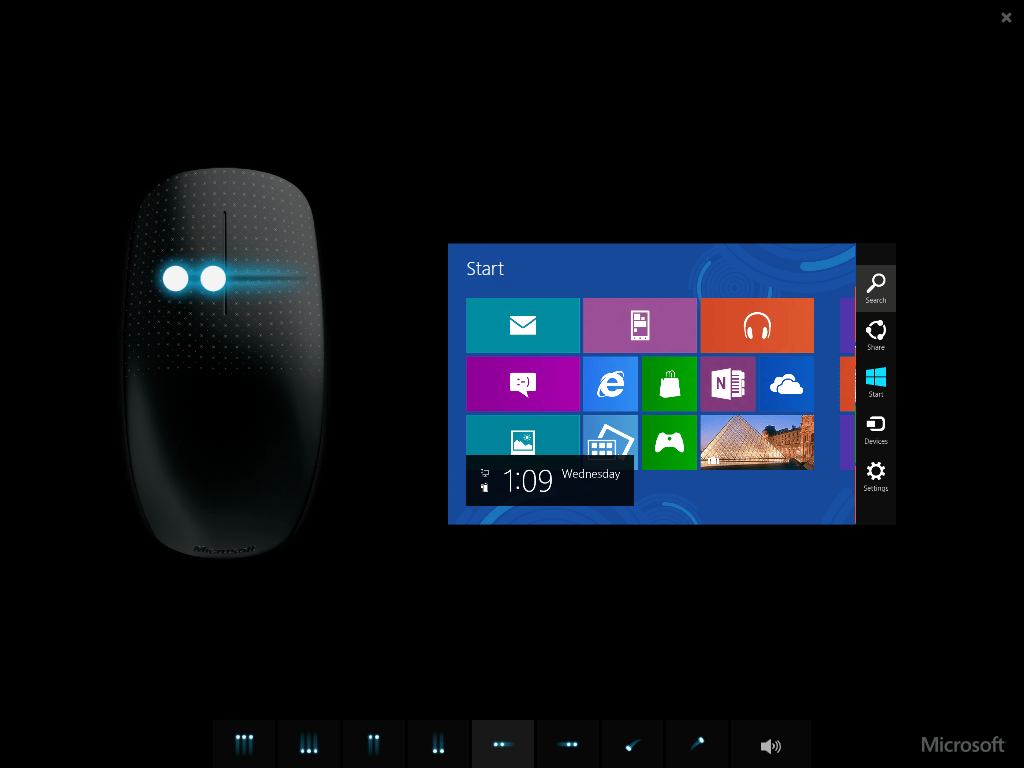
\n\tThe next two finger gesture in the tutorial is to access the Charms bar by sweeping two fingers to the left. This is illustrated by the Start Screen simulation.
\n
\n\tCredit: Images by Greg Shultz for TechRepublic
\n\tAs you can see, the Charms bar contains a set of five icons, or charms, that appear on the right edge of the screen titled: Search, Share, Start, Devices, and Settings. These charms provide you with access to a host of controls in Windows 8. For example, clicking Settings provides access to the Power charm, which allows you to Sleep, Restart, or Shut Down the computer.
\n
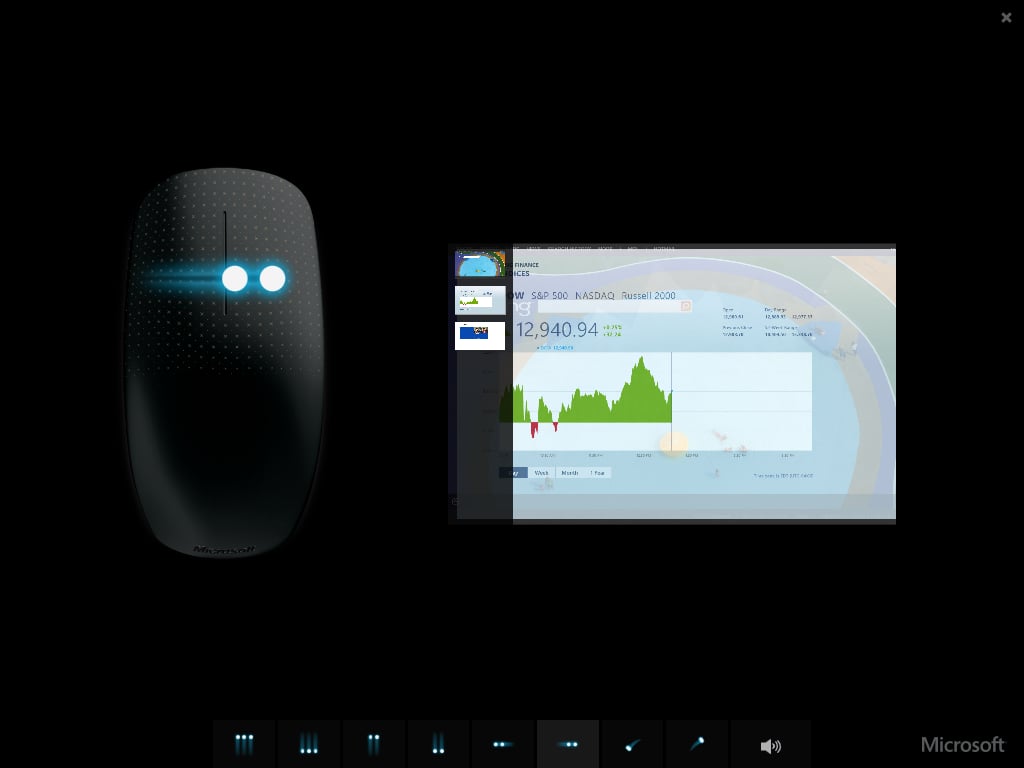
\n\tYou’ll then continue on to the next two finger gesture in the tutorial, switching between running applications by sweeping two fingers to the right. This is illustrated by the Start Screen simulation.
\n
\n\tCredit: Images by Greg Shultz for TechRepublic
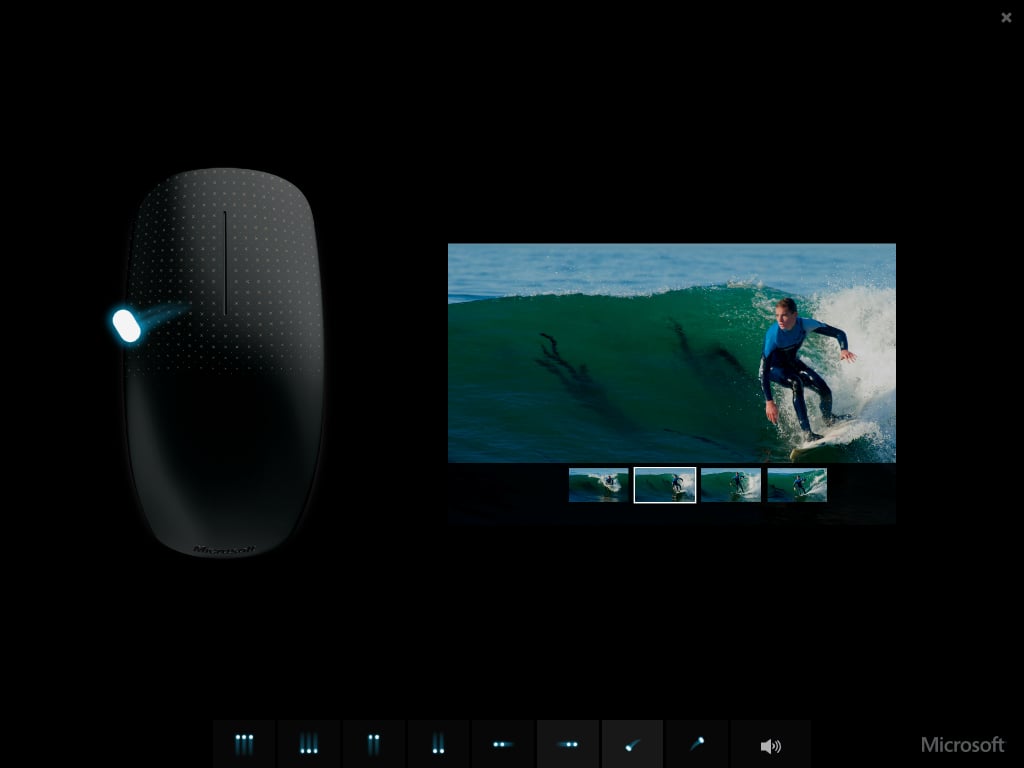
\n\tAs you can see, the tutorial shows a thumbnail view of running tasks that is very similar to the Live Taskbar Thumbnail feature in Windows 7, except that it is anchored to the left edge of the screen. You’ll see this thumbnail view if you use [Windows]+[Tab] to switch between tasks. However, when you use the two finger sweep to the right on a touch mouse, you won’t see the thumbnail view. Instead the apps will just flip across the screen. If you continue sweeping two fingers to the right, you will cycle through all the running apps
\n
\n\tFinally, you move on to Thumb Gestures, of which there are two. Sweeping your thumb to the left imitates clicking a Back button and sweeping your thumb to the right imitates clicking a Forward button. Going Back is illustrated.
\n
\n\tAs you can see, the tutorial uses the Photos app to illustrate the thumb gestures; however, the right and left thumb sweep will work in any application that has Back and Forward buttons. As I mentioned earlier, this works great in Internet Explorer. It also works great in File Explorer (aka Windows Explorer)!
\n
\n
\n\tOnce you finish the tutorial, you’ll have a very good foundation for implementing the thumb gestures, two finger gestures, and three finger gestures in Windows 8 and will just need to begin experimenting. You’ll soon get the hang of it and will then begin to wonder how you ever used Windows without gestures. I’ve found them to be extremely useful and have even found them liberating in a lot of applications – especially File Explorer.
\n
\n\tNow that I am a touch mouse convert, I definitely recommend that anyone using Windows 8 on a desktop get and use a Microsoft touch mouse!
\n
\n
\n\tAre you using a Microsoft touch mouse in Windows 8? If so, what has been your experience? After reading this article, do you want to use a touch mouse in Windows 8? As always, if you have comments or information to share about this topic, please take a moment to drop by the TechRepublic Community Forums and let us hear from you.
\n
\n
\n\t
\n\t
\n
\n
\n\tCredit: Images by Greg Shultz for TechRepublic

My first computer was a Kaypro 16 \"luggable\" running MS-DOS 2.11 which I obtained while studying computer science in 1986. After two years, I discovered that I had a knack for writing documentation and shifted my focus over to technical writing.


