This gallery is also available as a TechRepublic article.
The Cisco 851W router is a relatively low cost multipurpose device ($292 is the lowest price), which can support virtual wireless LANs separated by firewalls. Although the Cisco 871W can do more things, it is in the $500 to $700 range, depending on the software feature set you want–and that may be a little too expensive for a home router or small business.
Even the $500 version of the 871W doesn’t offer a whole lot more than the 851W, other than its external antenna connectors that allow you to connect larger antennas. Only when you get up to the $700 871W do you get additional feature sets, like BGP routing, VLAN support, and QoS traffic prioritization.
Last time, I explained how to configure the more expensive version of the 871W. Unfortunately, many of you couldn’t use it because you didn’t have the Advanced IP IOS feature set. This tutorial is made for you and for anyone who has or is planning to buy the cheaper 851W.
Advanced SOHO dual network architecture
I’m going to show you how to set up a Cisco 851W or 871W router with the standard “advanced security” IOS in an advanced SOHO (small office/home office) configuration that offers:
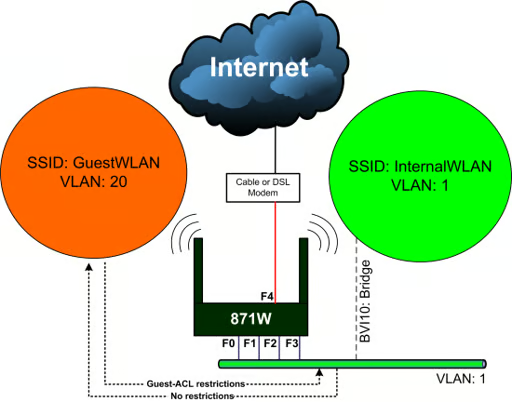
Above shows a logical diagram of the configuration. The orange represents the guest network and the green represents the internal network. The entire switch is configured for VLAN1 because the 851W and 871 Standard IOS (Standard is actually called the “advanced security” IOS) doesn’t support VLANs. Only the 871W running “Advanced IP” IOS can do VLANs. This means only the “InternalWLAN” wireless network can bridge to the switch using BVI (Bridge Virtual Interface) 1.
Port F4 is the WAN interface configured to dial PPPoE to an ADSL modem. The “GuestWLAN” wireless network colored orange will have full access to the Internet but no access to the internal network colored green. The internal network will have full access to the orange guest network and the Internet. The guest wireless LAN will have an SSID of GuestWLAN, and the internal wireless LAN will have an SSID of InternalWLAN. For now, the Cisco 851W and 871W is capable of broadcasting only one SSID, so GuestWLAN will be the only SSID being broadcast. Future firmwares will fix this shortcoming.
For anyone wondering whether SSID hiding is good for security, SSID hiding is a worthless security feature, along with MAC filtering and some of the other common myths.
Initial hardware setup
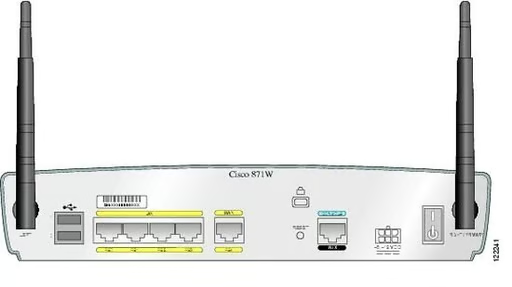
After you’ve removed the 851W or 871W from the box and plugged in the power adapter, plug the supplied console cable to a valid serial port on your computer. If you have a laptop that doesn’t have a serial port, you will need to get a USB-to-serial adapter. For ideal testing purposes, you’ll need a wireless LAN-capable laptop and a desktop computer. Plug the desktop computer in to F1 or FastEthernet port 1 (this is the second port from left in figure above, since F0 is the first). Most desktop computers have at least a COM1 port, so you can use that as the console configuration computer. You plug the RJ45 end of the console port in to the right-most RJ45 port labeled “console.” If all you have is the laptop, you can use that to test the wired and wireless functionality.
For more details on the hardware setup procedure, see the quick start guide from Cisco on the 850 and 870 series routers. (This is actually a fairly decent hardware guide from Cisco.)
Wiping the default configuration
The first thing I do with all the newer Cisco routers is wipe the default configuration on them. Old school routers didn’t have any username or passwords assigned to them, but these new devices are different. You have to first log in with username “cisco” and password “cisco”. The “c” in “cisco” may need to be capitalized on certain access points and routers, but most of the newer Cisco devices are like this. Once you’ve logged in, you’ll need to type the following commands:
Once the router is rebooted, you’ll see a “router>” prompt and no passwords will be required. Now, you’re starting with a clean slate. Unlike last time, when we had to create some VLANs, the standard “advanced security” IOS feature set on the 871W will not support this and the 851W won’t do it at all regardless of the IOS installed. You now need to enter global configuration mode by typing the old “config t” command.
CLI configuration template for Cisco 851W or 871W
I’ve always thought that the Cisco configuration guides were too difficult to use, with their inline comments and hints, so I’ve created my own configuration template system in Microsoft Excel. Thanks to our development blogger Justin James, who wrote a quick replacement button that automatically generates a ready-to-use configuration output, we have a truly useful new tool for documenting and creating new CLI configuration files.
For this particular tutorial, I’ve created three templates for the Cisco 851W or 871W standard “advanced IP” IOS, embedded with Justin’s new rapid replace functionality. The first template is for DSL PPPoE implementations. The second template is for DHCP or cable modem Internet connections. (Note that for cable modem implementations, you should reboot the cable modem. It tends to lock itself down to a certain MAC address, which will cause problems for your router unless you reboot.) The third template is for static IP WAN implementations.
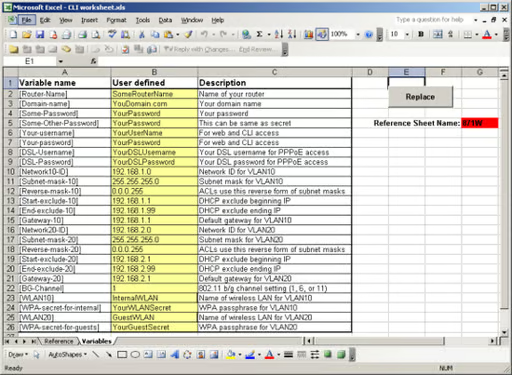
Once you’ve downloaded the template for this tutorial, it’s easy to generate your own Cisco 851W or 871W configuration. All you need to do is fill out the yellow section, shown in above, on the Variables sheet.
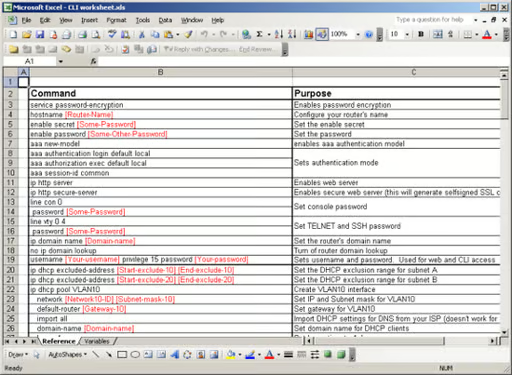
Above shows the Reference sheet in the configuration template with substitute variable names in red and enclosed in [brackets]. The Replace button will copy the contents of the Reference sheet to a new sheet named 871W (user configurable in cell G5) with an auto-incrementing number behind it for each new configuration you create.
Once the output is created, you can copy the Command column with your customized settings (starting below the “Command” label) and paste it into your console. Note that all the Excel formatting will be excluded from the paste command, which is exactly what we want. Also note that some commands take longer than others to insert because the router has to think. I would recommend you do a small section at a time and verify each of the commands executed properly without errors (some warnings notices are okay). The console is also known to drop certain statements at times if you paste too fast, so make sure the router takes every command. You’ll have to verify with the “show run” command. When you’re satisfied, be sure to issue the “write mem” command to commit all the changes permanently so that the settings will remain the next time you reboot the router.
Note that on the reference page, I’ve labeled all of the commands with their purpose. This is for reference, learning, and documentation. It would be wise to look through the entire reference page so you’ll understand what most of the lines are doing.
The final Excel file is perfect for initial setup and permanent documentation. Anyone with any knowledge of Cisco devices should readily understand what’s going on with this template. The table format, the highlighting, and all the text formatting help make Cisco CLI more readable and understandable.
You can also change the Reference sheet if you want to modify the template to suit your own purposes. For example, you may not want to force your guests to use WPA-PSK security instead of WEP, and you may even want to leave it wide open and offer a free hotspot.
Test your multi-VLAN multi-WLAN router
Your desktop PC connected to port F0 through F3 should all work. You should be able to acquire an address in the internal network. If you left my IP scheme default, that should be an IP address of 192.168.1.100. You should be able to ping 192.168.1.1 and 192.168.2.1, which are the IP addresses of the BVI1 interface and the dot0.20 sub-radio interface. Once the configuration is finished, you’ll need to log in with the username and password you configured. If even pinging doesn’t work, you’ll need to check the IP address configuration on your BVI or radio sub-interface.
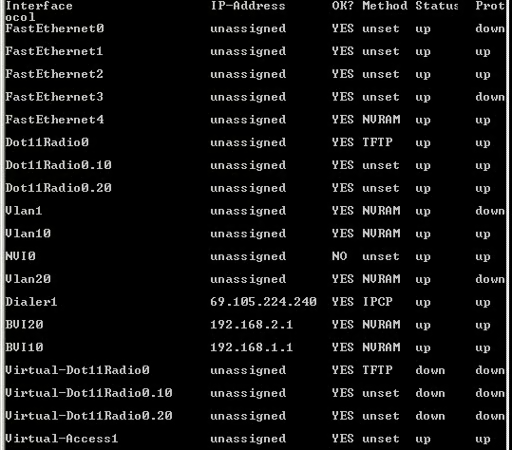
Since you can’t use telnet yet if you can’t even ping the router, you’ll need to use the console to troubleshoot. You can troubleshoot IP configuration with the “show ip int brief” command, which will show you a listing of all the interfaces in your Cisco router above.
You should also be able to ping something like http://www.techrepublic.com if you’ve entered a valid DNS server. If you can’t ping any Web site you know should work, try pinging your DNS server and see if that’s available. If that doesn’t work, you’ll need to troubleshoot and verify that your configuration is correct. A good thing to check is whether your Dialer1 interface has been assigned an IP address from your DSL provider yet. If this were a cable modem, it would simply be the FastEthernet4 interface configured in DHCP mode.
If you’re able to ping everything mentioned above, test your wireless laptop by connecting to both wireless LANs. The GuestWLAN will be the only SSID visible because it’s the only one broadcasting. From the guest network, you should try to ping 192.168.1.1 to make sure it fails to prove the Guest-ACL is working. Note that the Guest-ACL can be modified to have exceptions if, for example, you want your guests to be able to print. The guest network should be able to get to everything on the Internet.
Getting the InternalWLAN is a little trickier because you won’t see it by browsing. You’ll need to add the SSID profile manually and move it to the top of the list. Then, you’ll have to disconnect from the GuestWLAN and try to refresh the wireless network browser in Windows XP SP2 or whatever wireless client software you’re using. After awhile, it should be able to connect to the InternalWLAN. This is why I hate SSID hiding. It’s such a pain to use, and it doesn’t provide any security benefits.
If you still have problems, you can post your questions in the article discussion and send me a private TechRepublic message.


