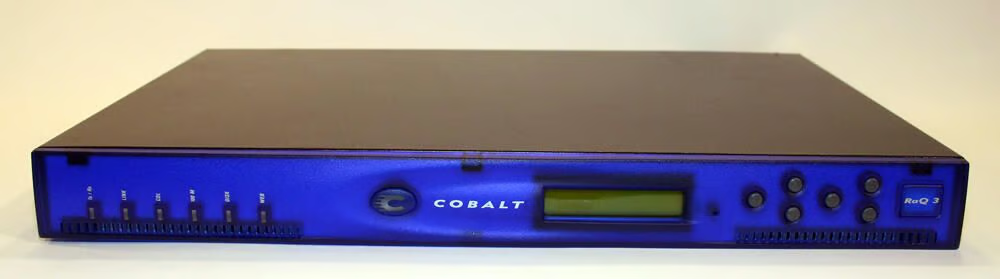
The Cobalt Networks RaQ 3i server appliance, as seen from the front.\n\nThis third-generation model included a full Internet application suite. Everything from Apache Web services to Sendmail, FTP, DNS and Front Page Server extensions were pre-configured on these modified Linux Red Hat-powered machines.
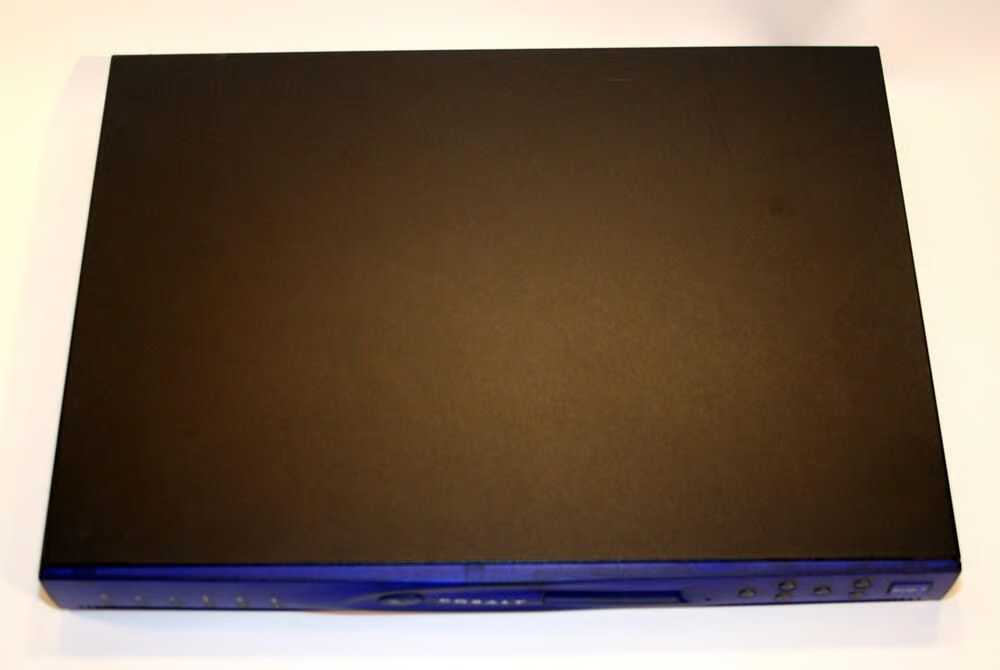
The Cobalt RaQ 3i server, as viewed from above.
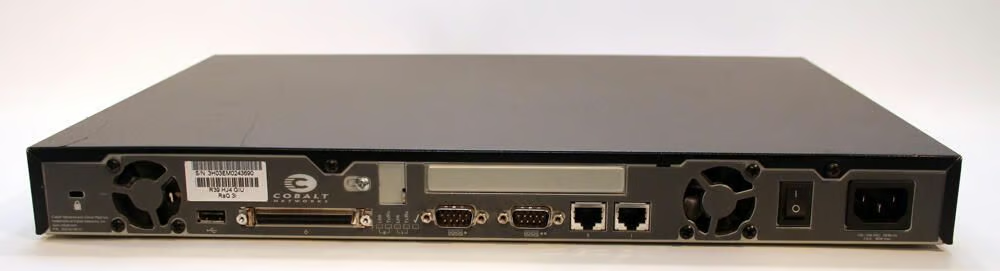
The Cobalt RaQ 3i 1U appliance, as seen from the rear.
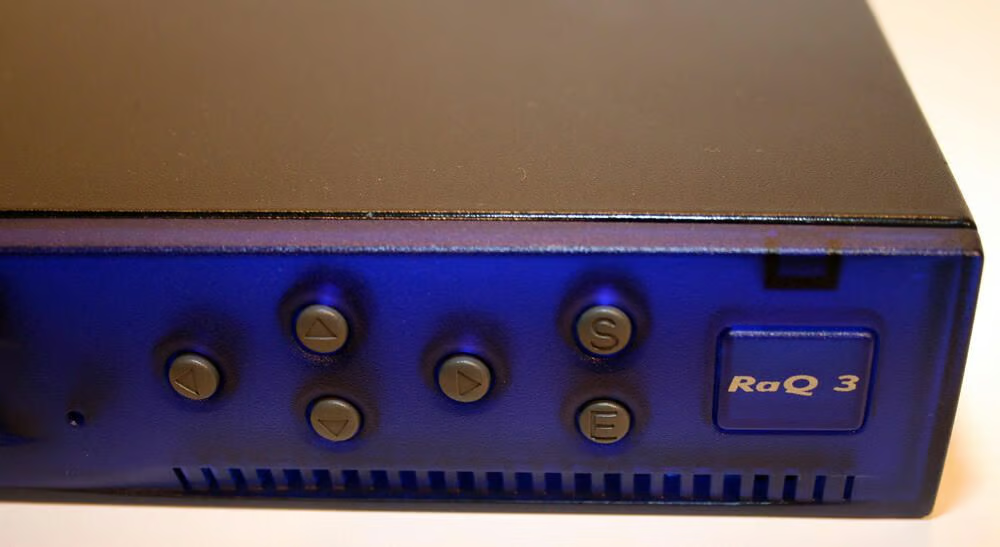
Here’s the Cobalt RaQ 3i’s control panel, which is located on the front right corner of the server appliance. The LCD arrow buttons enabled entering network configuration information, configuring a battery backup, rebooting the unit and powering down the server.
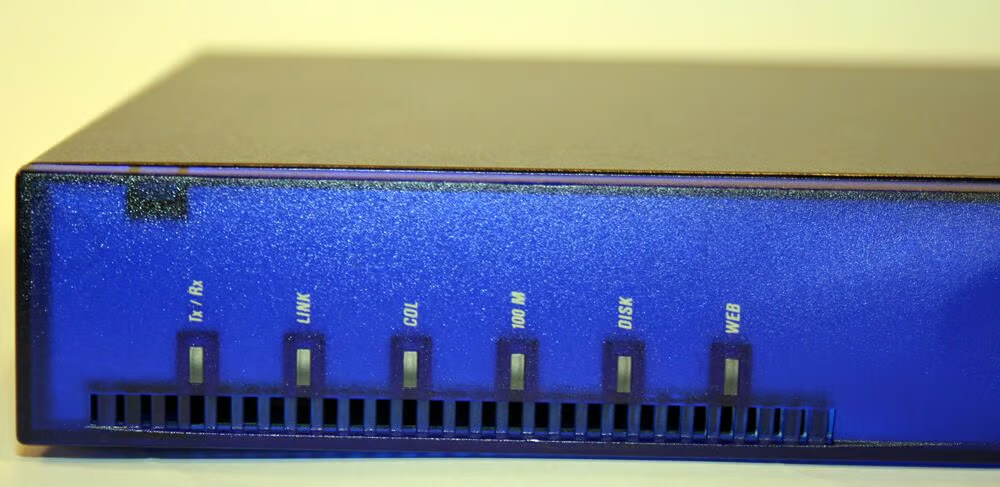
The RaQ 3i’s status indicators are positioned on the left edge of the server’s face plate.\n\nTx/Rx blinks to confirm network transmission and reception. The Link light indicates an active network interface connection. COL lights when network collisions occur on the system’s primary Ethernet interface. The 100 M LED, meanwhile, confirmed the network is running at 100 Base T speeds, while the Disk and Web indicators confirms hard disk and Web activity, respectively.
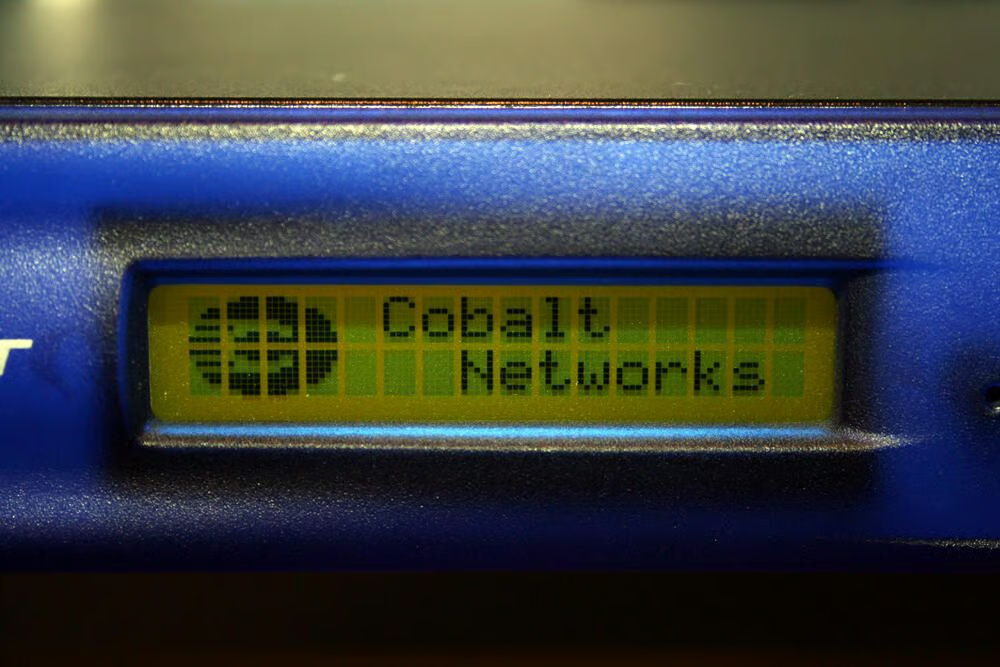
The RaQ 3i’s LCD screen displays server messages and values being entered using the server’s LCD arrow buttons.
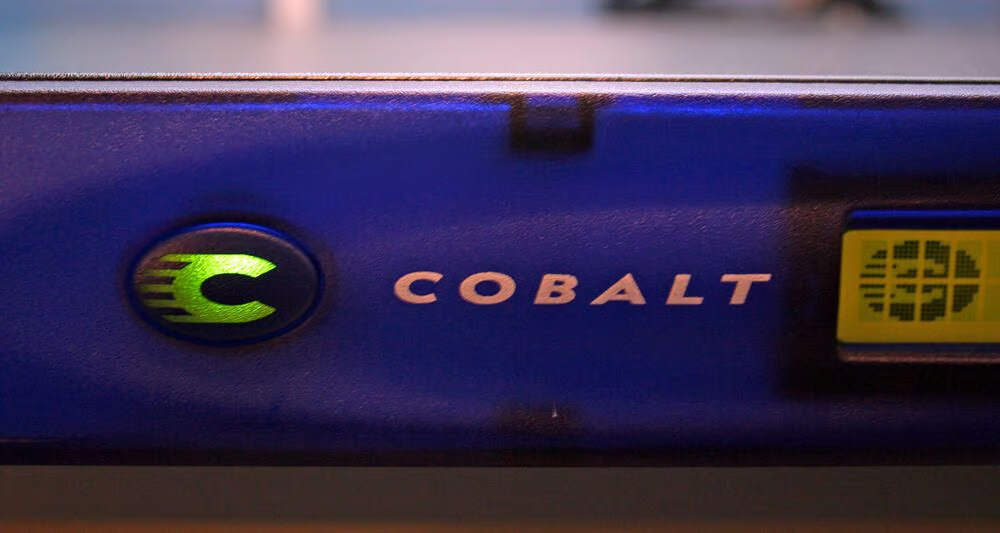
The Cobalt Logo Badge illuminates in an eye-catching green shade whenever the system is powered on.
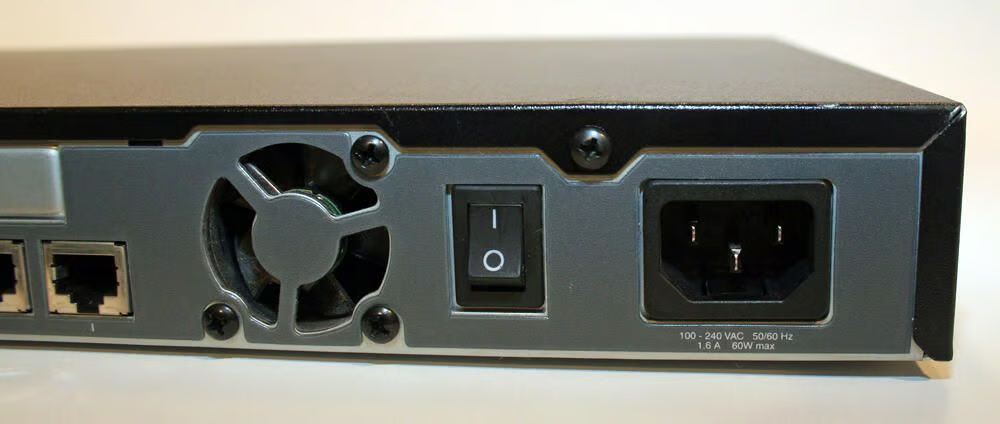
The server’s power plug port is located in the unit’s right rear corner. The adjacent master on/off power switch is shown here in the “on” position.\n\nTo the left of the power switch you can see one of the RaQ 3i’s two 35mm cooling fans. The cooling fans in the RaQ 3i were manufactured by Sunon and use 12-volt power.
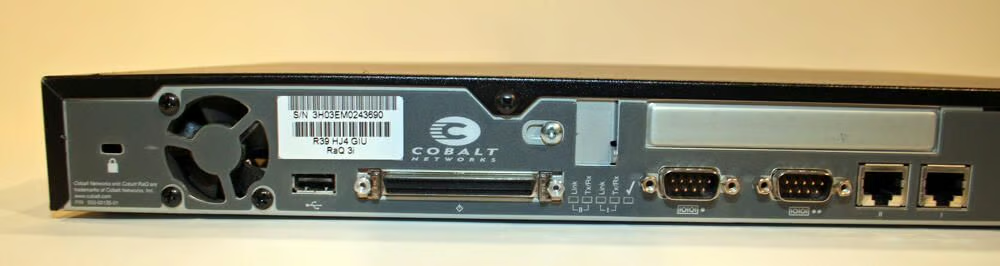
The RaQ 3i is identifiable due to its second Ethernet port (shown to the right in this photograph). The regular RaQ 3 possessed only a single Ethernet port.\n\nOther ports on the RaQ 3i are the two serial ports (visible to the left of the two Ethernet ports) and single SCSI connector (to the right of the unit’s single USB port, itself positioned to the right of the server’s second cooling fan).
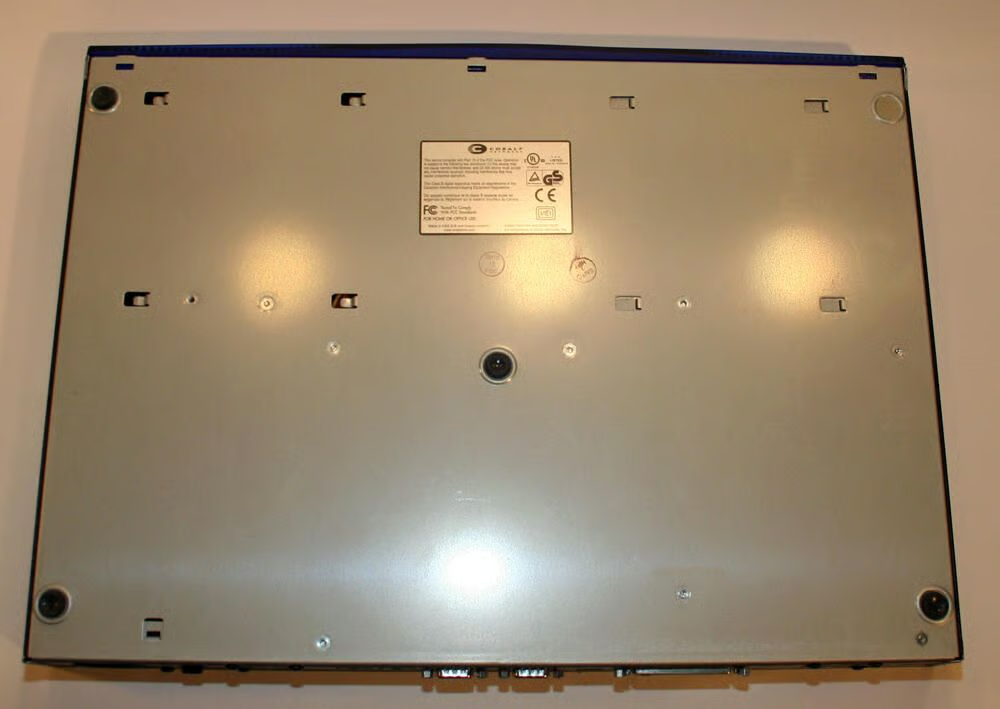
Here’s a look at the RaQ 3i’s bottom casing.
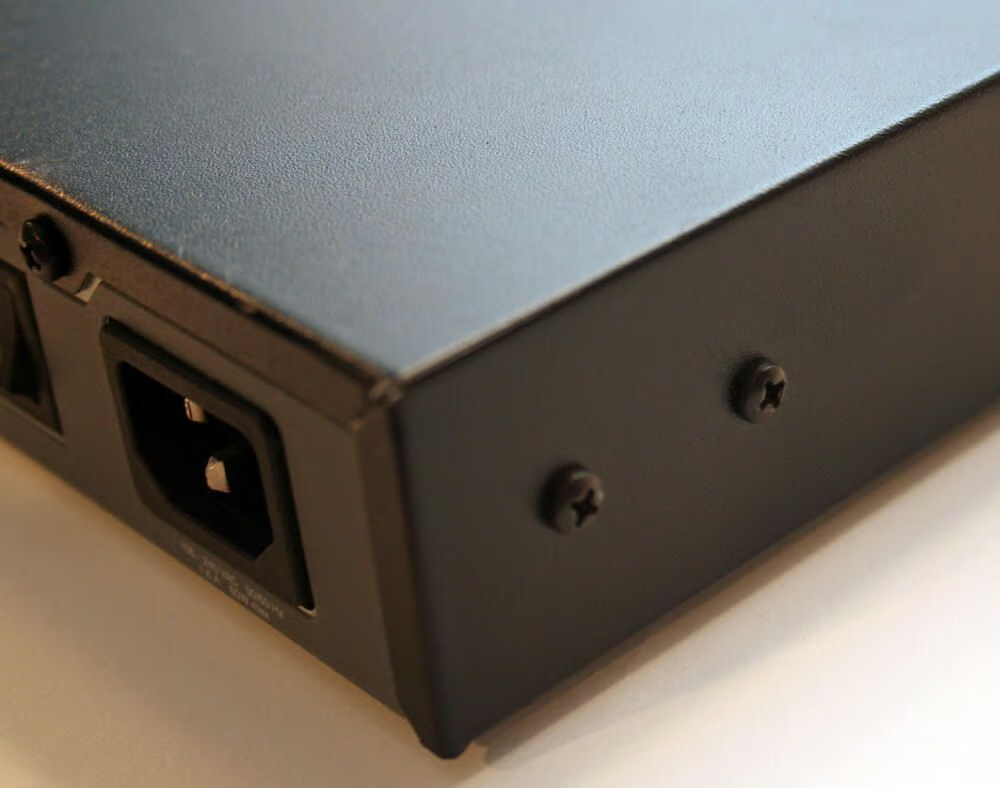
Before the RaQ 3i’s top metal casing can be opened, numerous Philips head screws must be removed from the shell, including these found on the left rear side of the server.
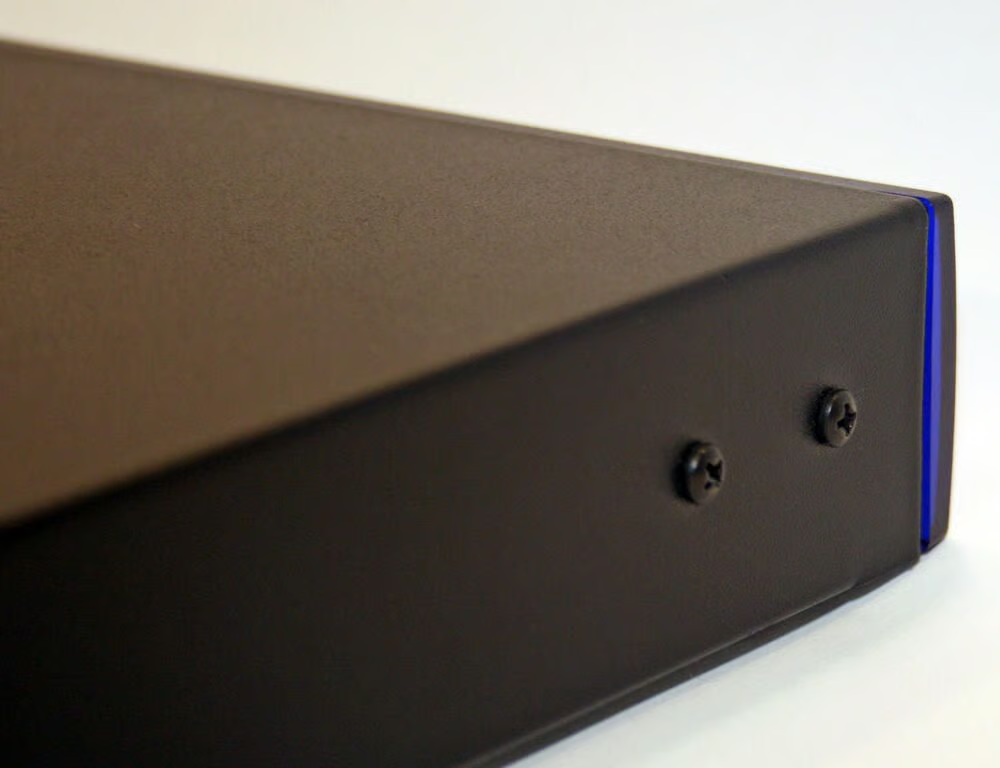
Philips head screws must also be removed from the front of each side panel.
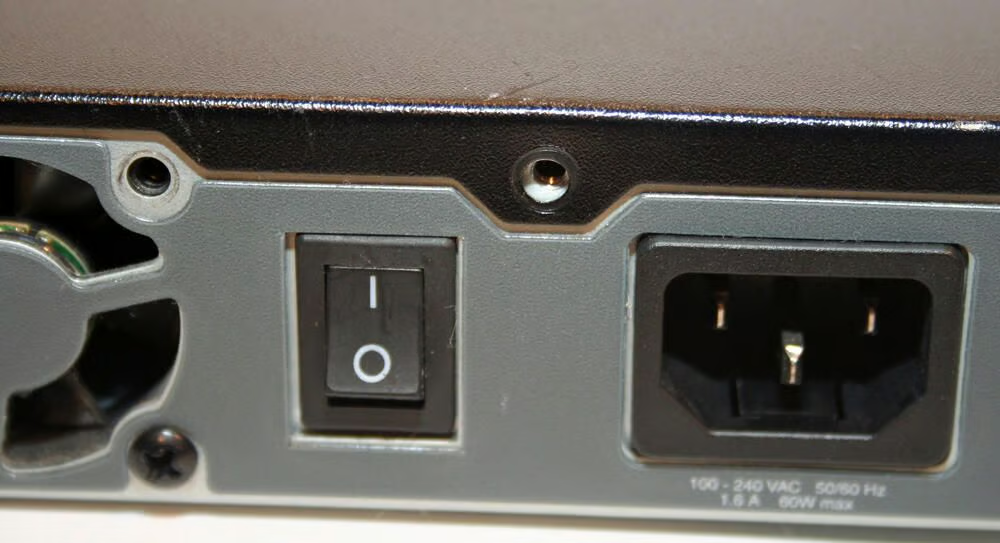
Screws must also be removed from the back of the RaQ 3i before the top shell can be opened.
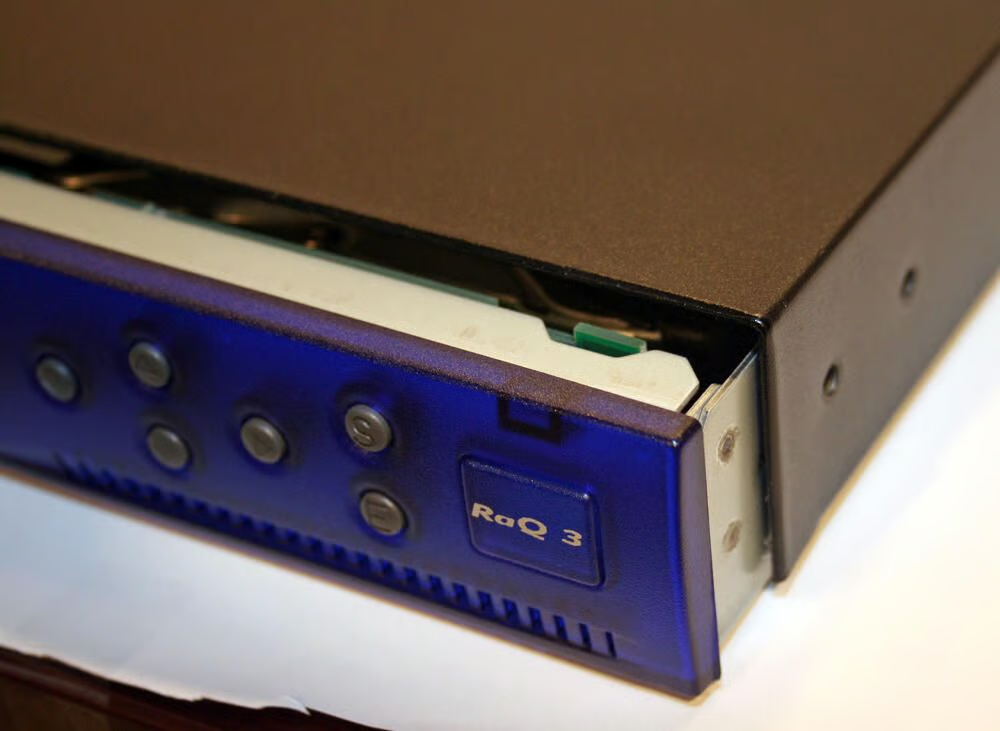
With all necessary screws removed (some 10 total), the RaQ 3i’s main body (containing the motherboard and power supply) can be separated from its top metal cover. In fact, the main board sits in its own tray, which slides out from beneath the metal top cover, as shown here.
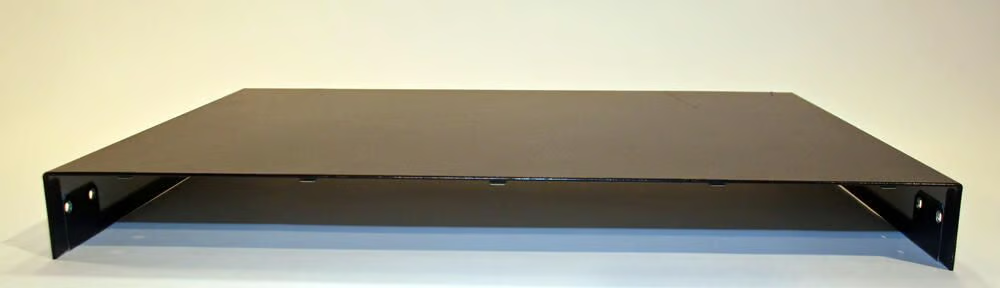
Here’s the top metal housing, once removed from the main server chassis.
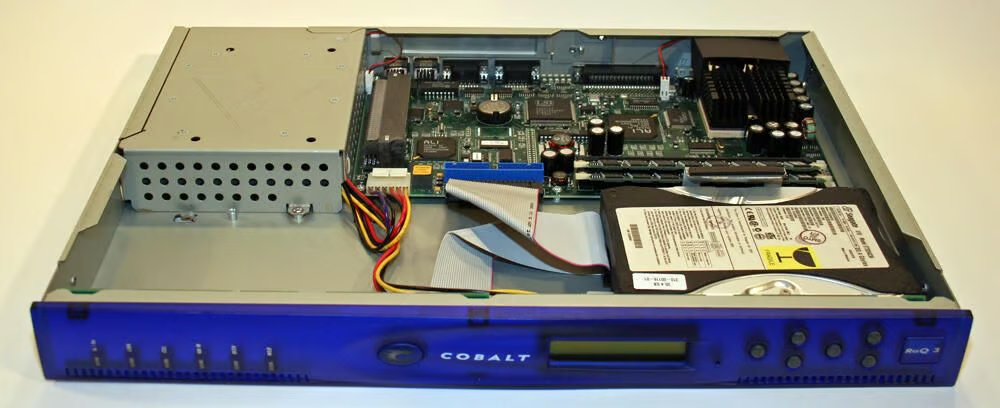
The RaQ 3i’s components are neatly stashed away inside its 1U case. The hard disk sits to the front right corner, while the mainboard the middle and right-rear corner. The power supply, meanwhile, occupies the left rear corner.
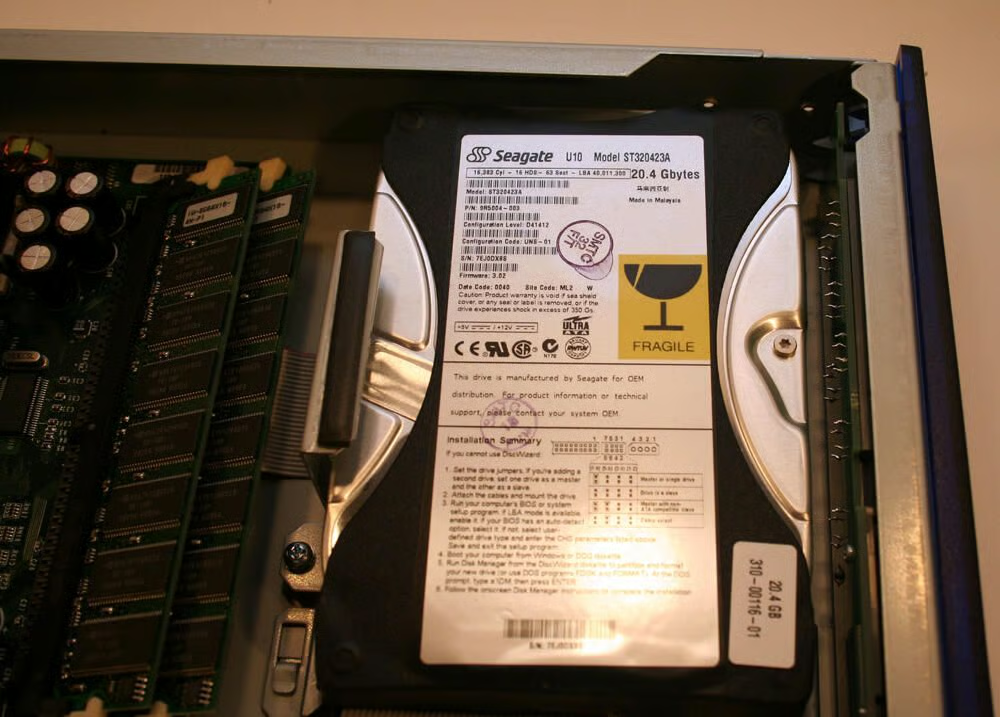
Cobalt Networks partnered with Seagate to build its RaQ servers. In addition to Seagate providing hard disks, as with this unit, Seagate also distributed some of its own versions of the server appliance using NasRaQ branding.
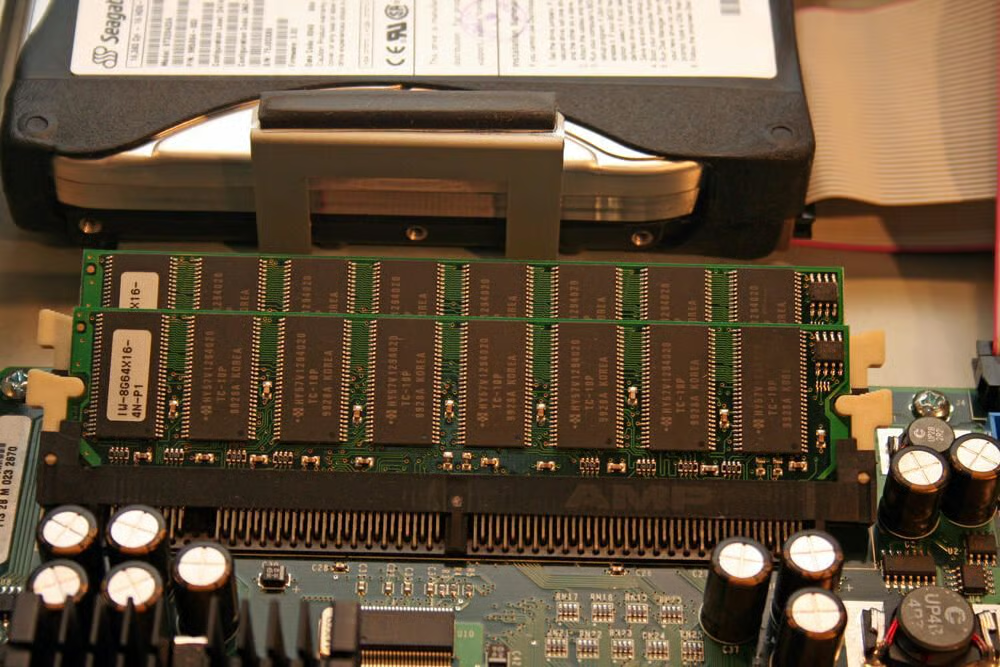
Here both of the RaQ’s two DIMM memory slots are occupied. Many RaQs shipped with 256MB of RAM, but 512MB obviously helps accelerate server performance.
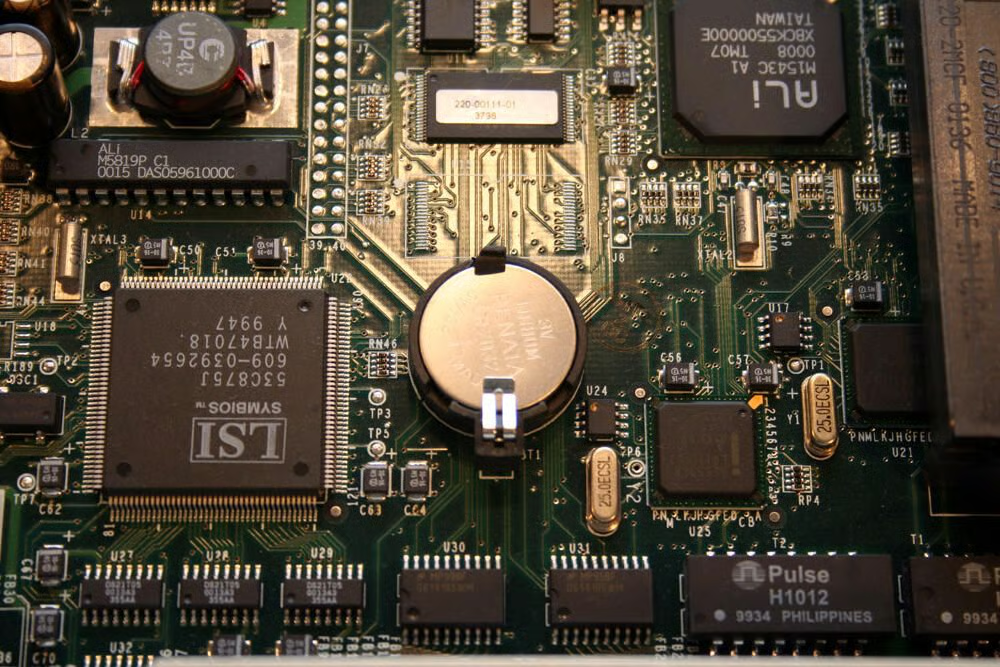
The RaQ 3i used this silver Lithium battery to power its real-time clock and CMOS RAM.
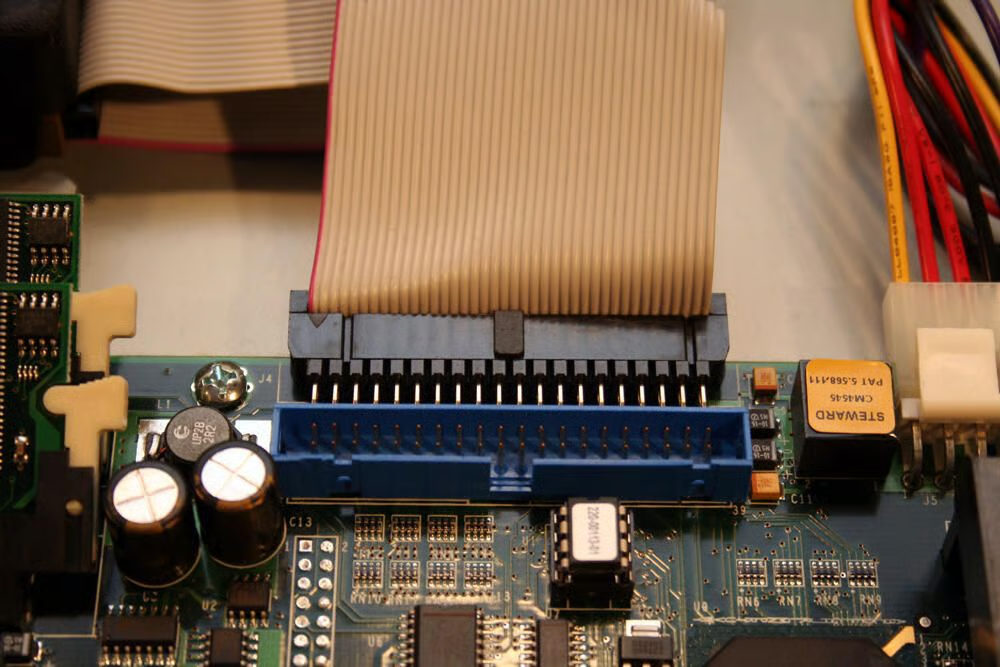
These IDE ports, located adjacent to the system memory bays on the main system board, are used to connect drives to the server.
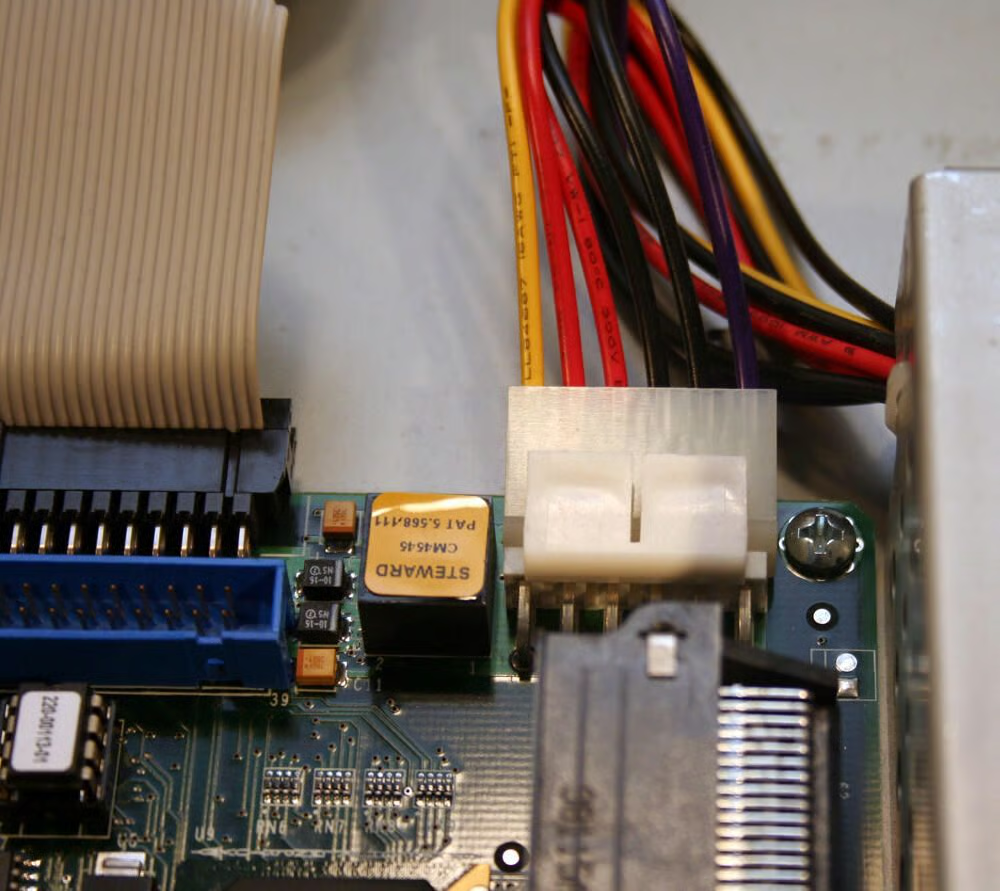
Here you can see the power connector that links the main board to electricity provided by the unit’s power supply.
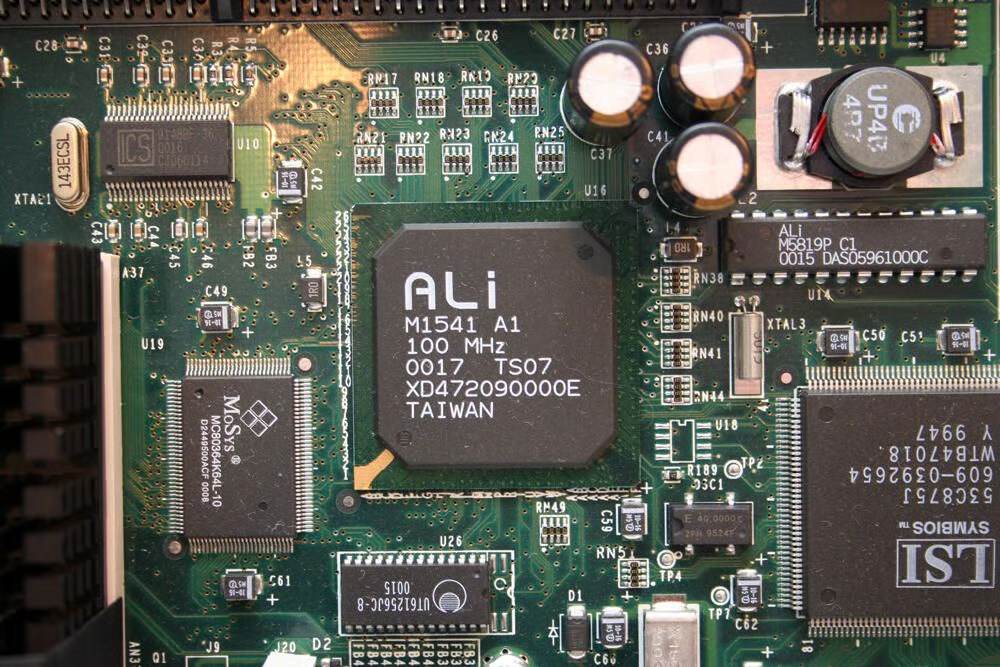
This Ali M1541 chipset, which ran at 100 MHz, helped power the AMD mainboard.
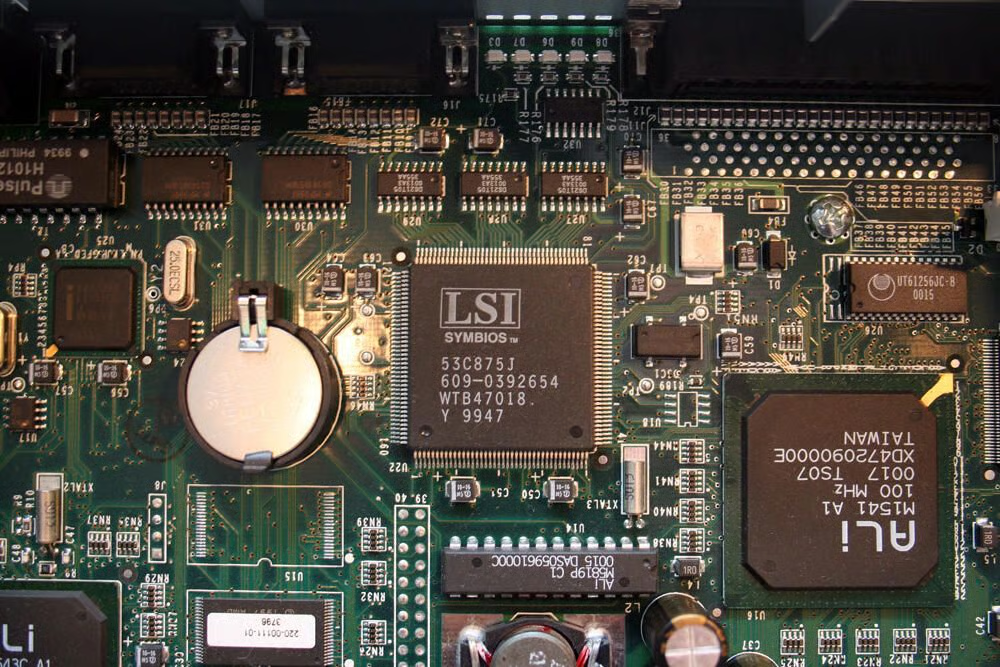
This LSI Symbios controller, model 53C875J, powered the server’s SCSI connection.
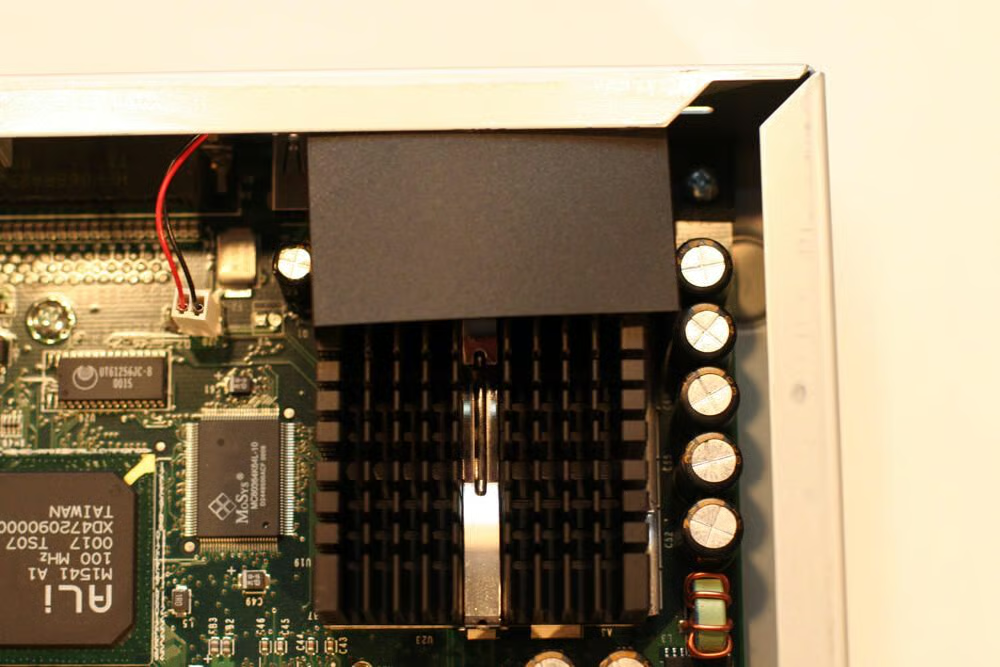
Here’s a close-up look at the server’s heatsink, which sits directly atop the unit’s AMD microprocessor.
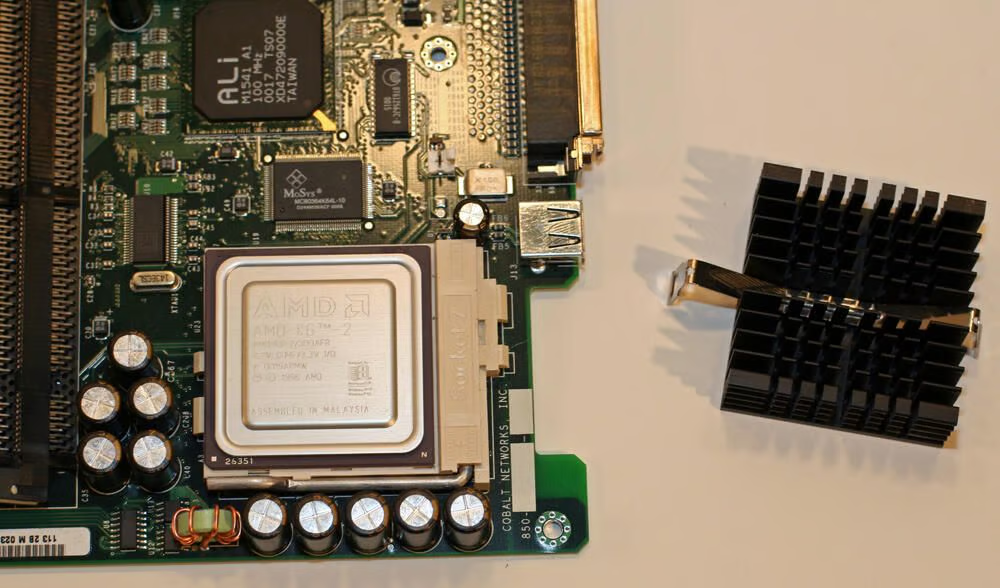
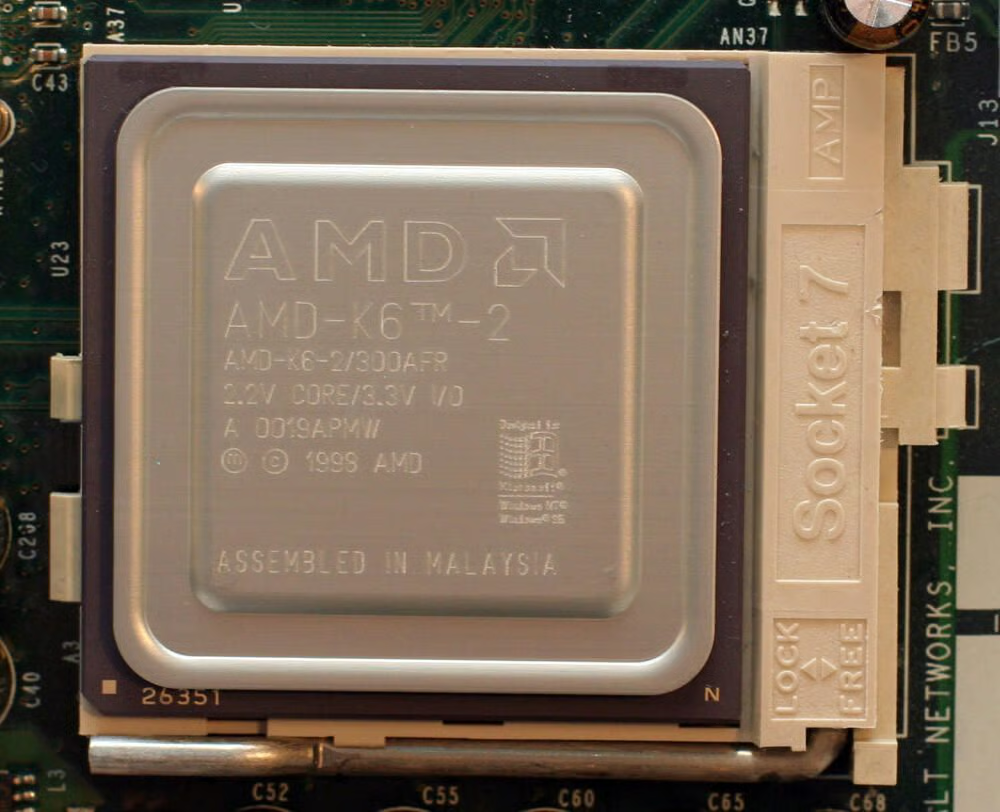
With the heatsink (pictured on the right) removed, the AMD K6 microprocessor is clearly visible.
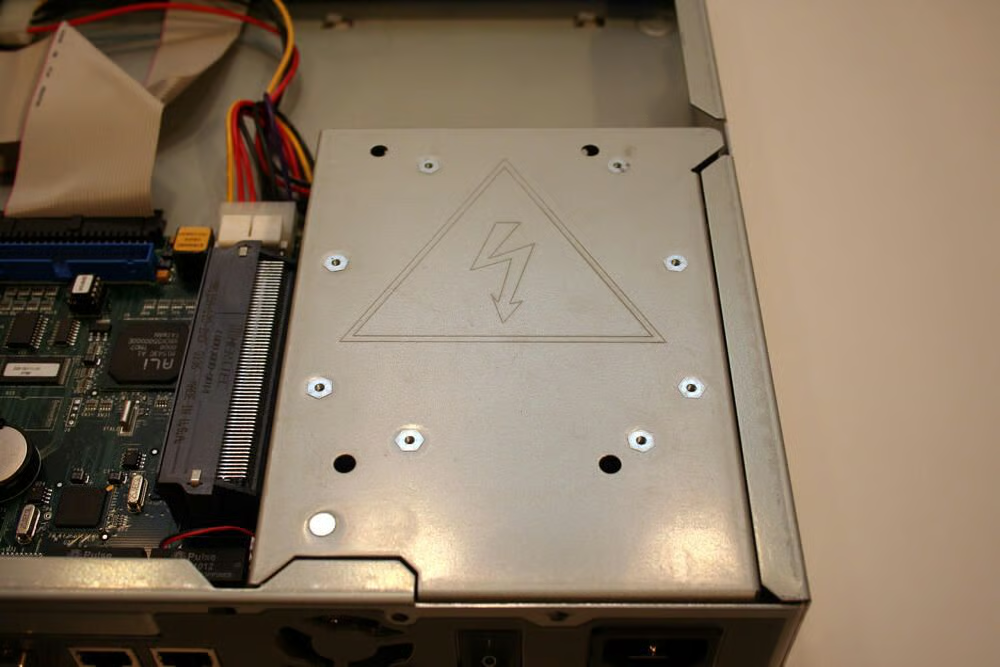
Within this compartment lies the server’s power supply unit.
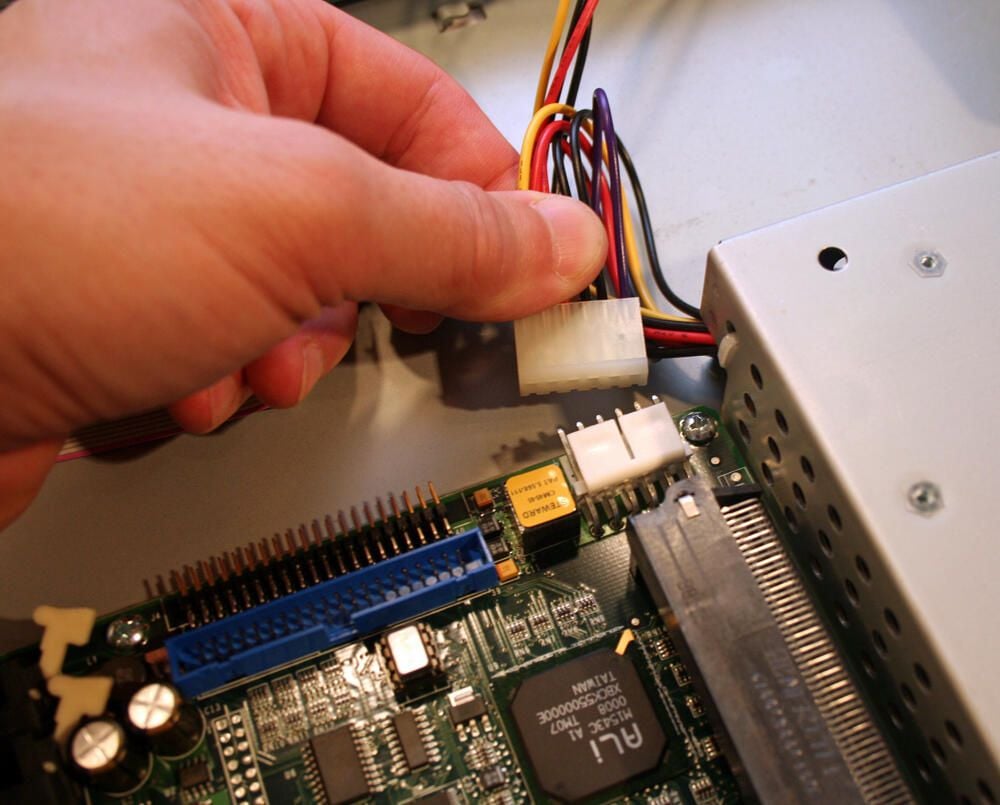
The power supply’s power connector must be disconnected from the main system board before the motherboard can be removed from the server chassis.
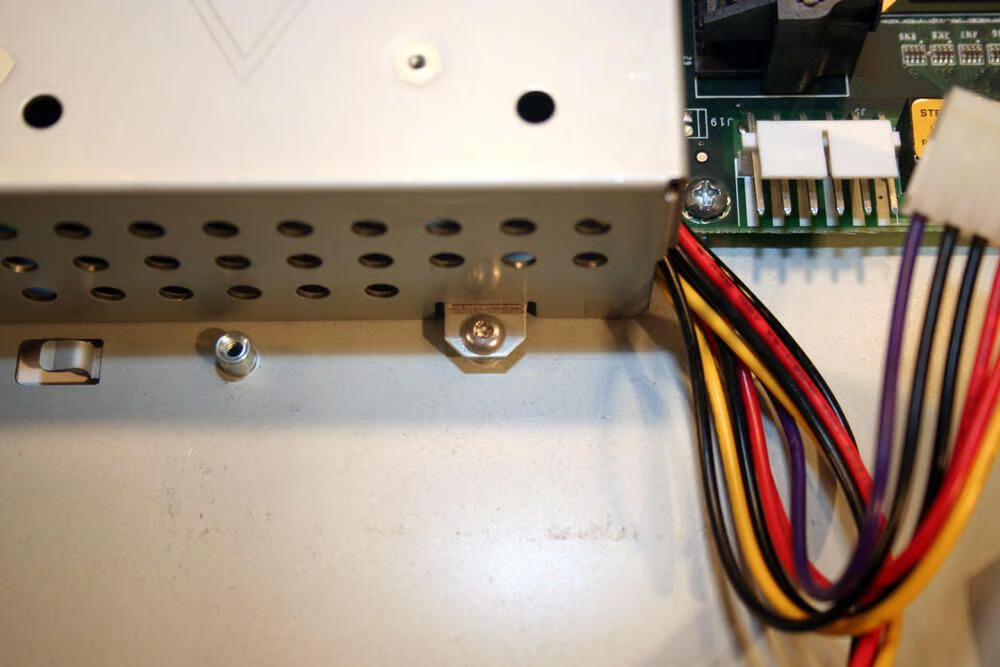
Before the power supply cover can be removed, this T-10 Torx screw must be unscrewed.
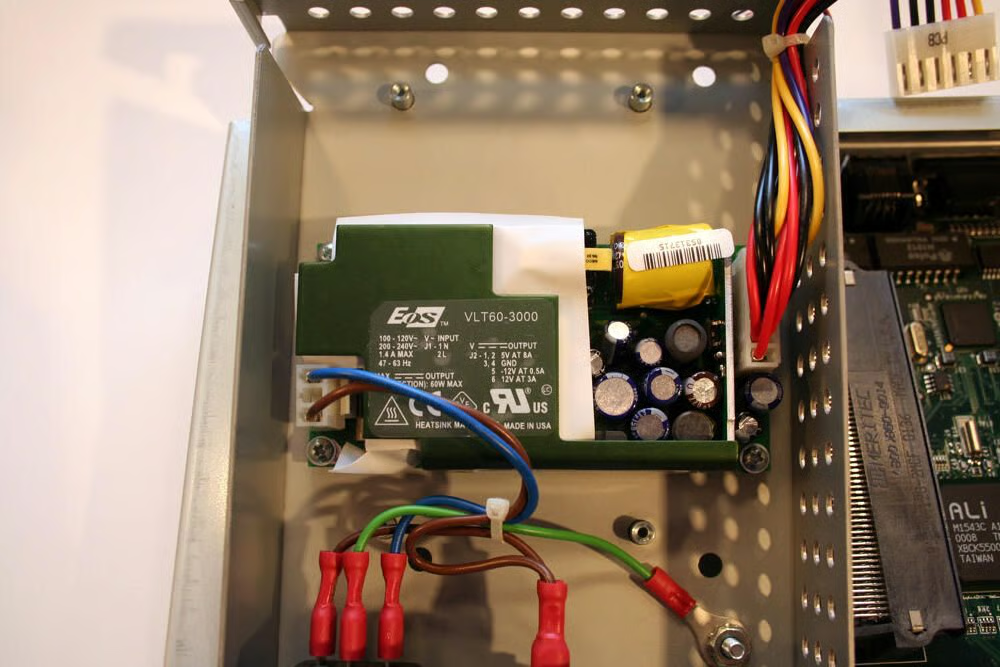
An EOS V-Series open-frame power supply powers this RaQ server. The 60-watt AC-DC power supply boasted a mean time between failures measure over 100,000 hours.
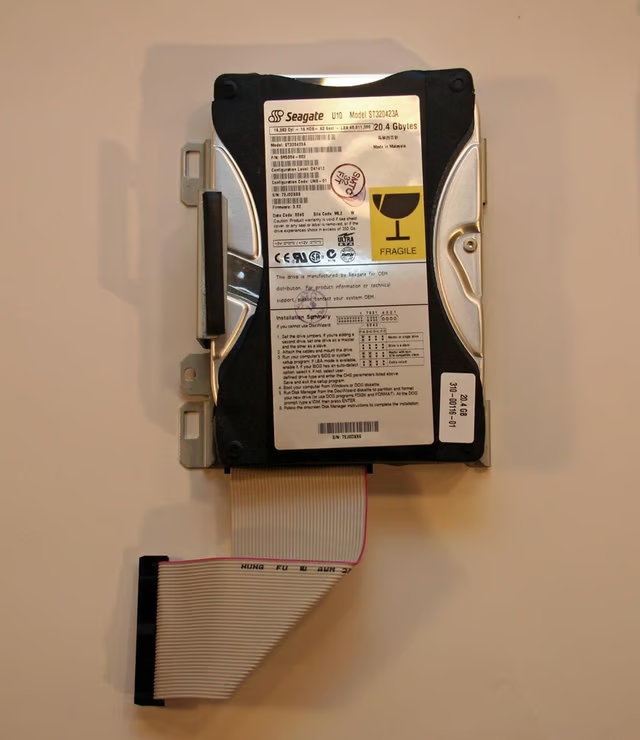
A custom hard disk cage holds the Seagate hard disk securely within the 1U server.
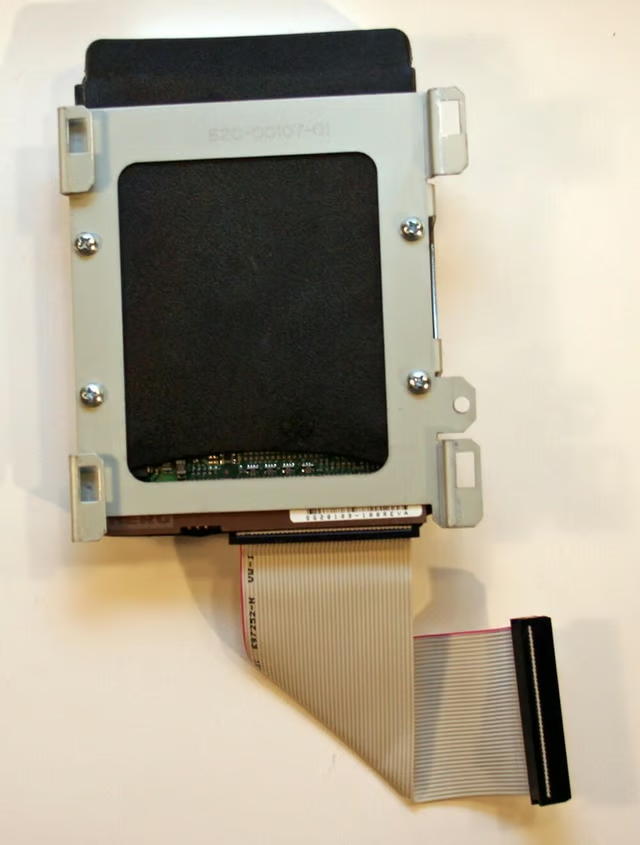
Four Philips head screws must be removed to separate the hard disk from the custom cage.
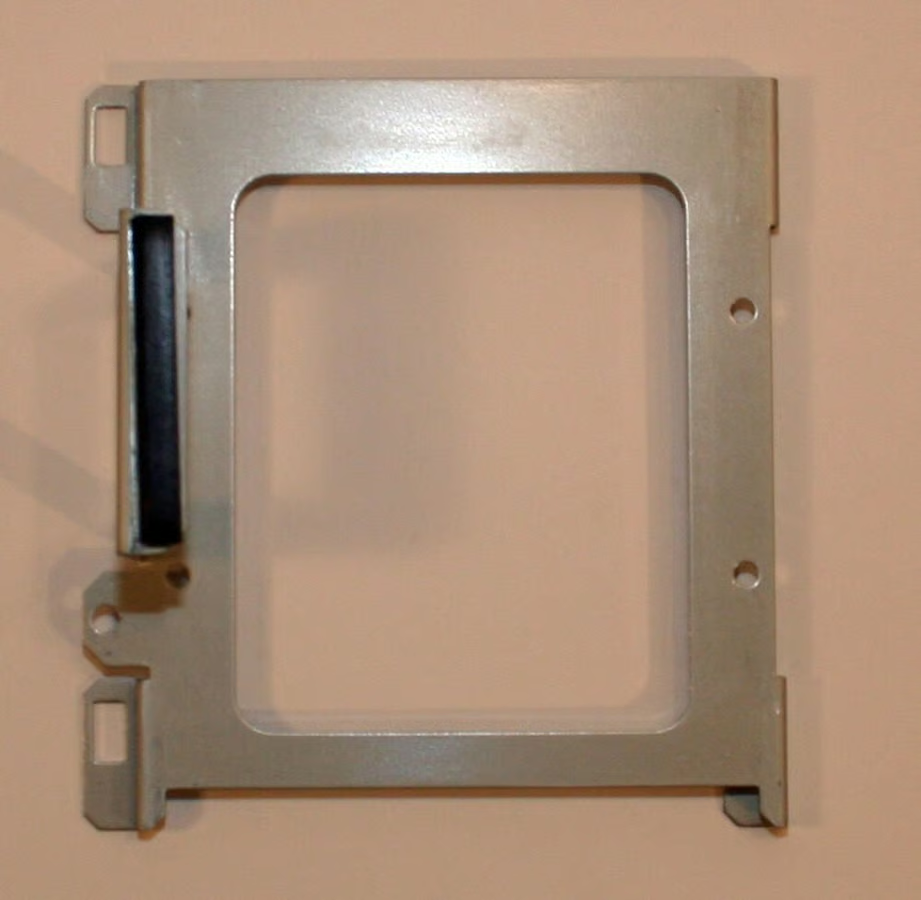
Here’s the hard disk drive cage, once separated from the server’s hard disk.
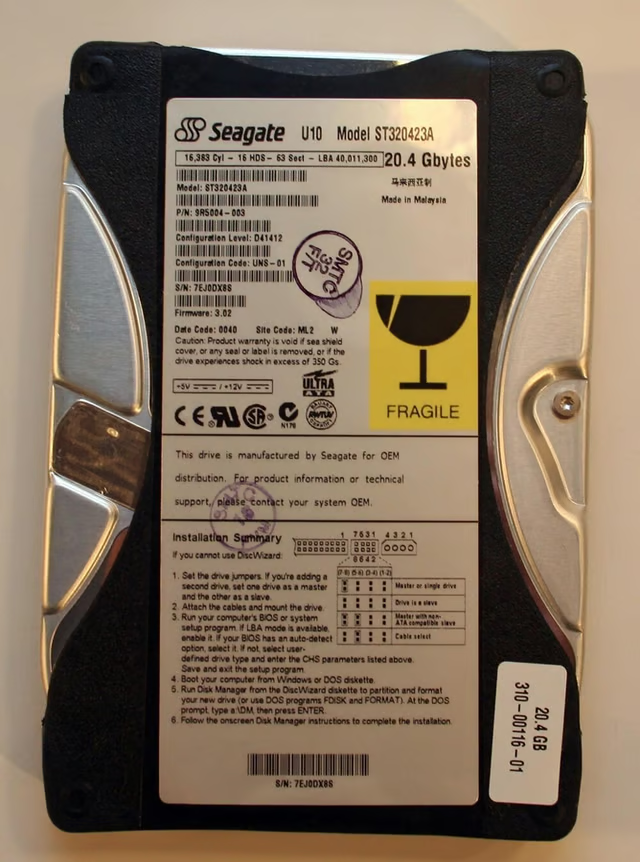
The RaQ 3i featured a 20.4GB hard disk manufactured in Malaysia.
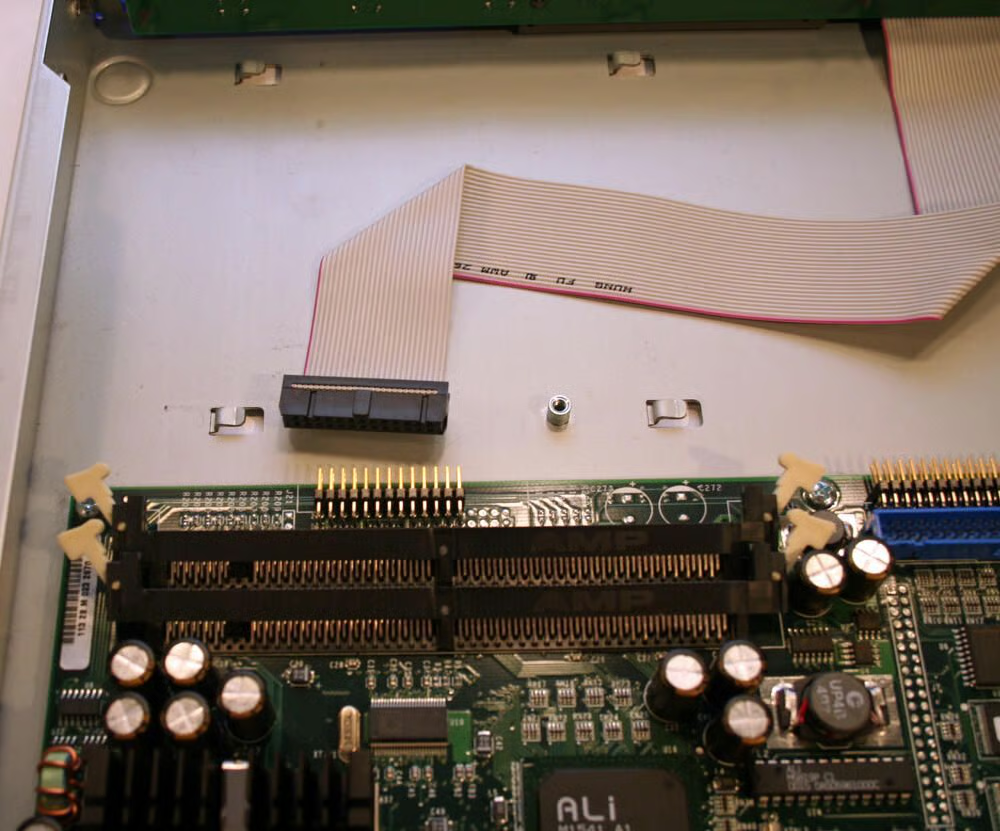
To remove the system’s motherboard, this data cable must be removed that connects the front panel display and controls.
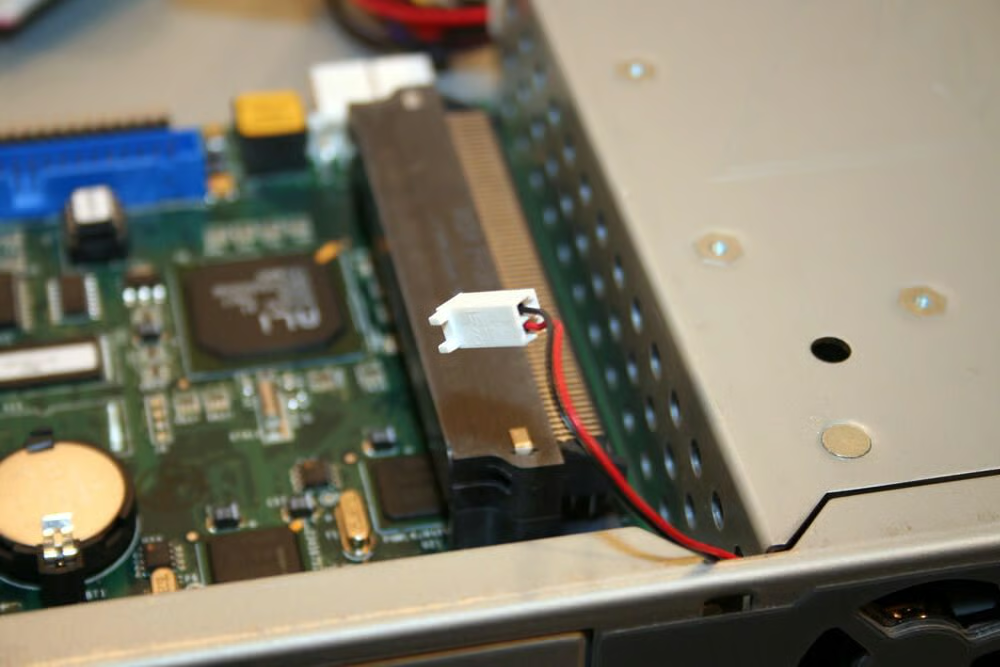
The unit’s two cooling fan power connectors must be disconnected, as well, before removing the motherboard from the server’s bottom chassis.
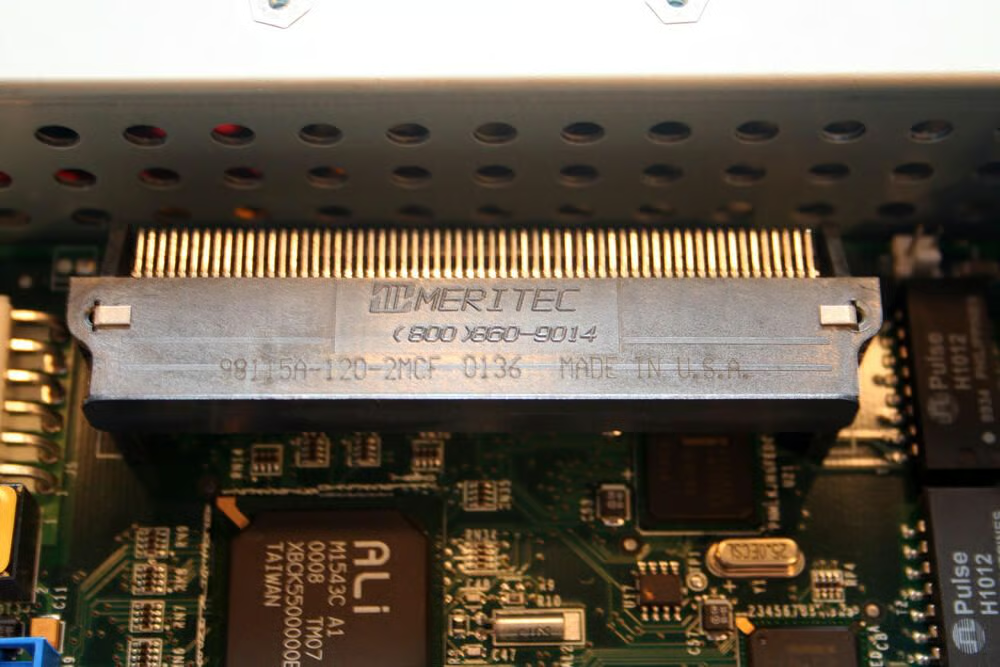
The RaQ 3i featured a single Meritec PCI Connector (model number 98115A-120-2MCF), which was not found on other Cobalt Networks RaQ 3 models.
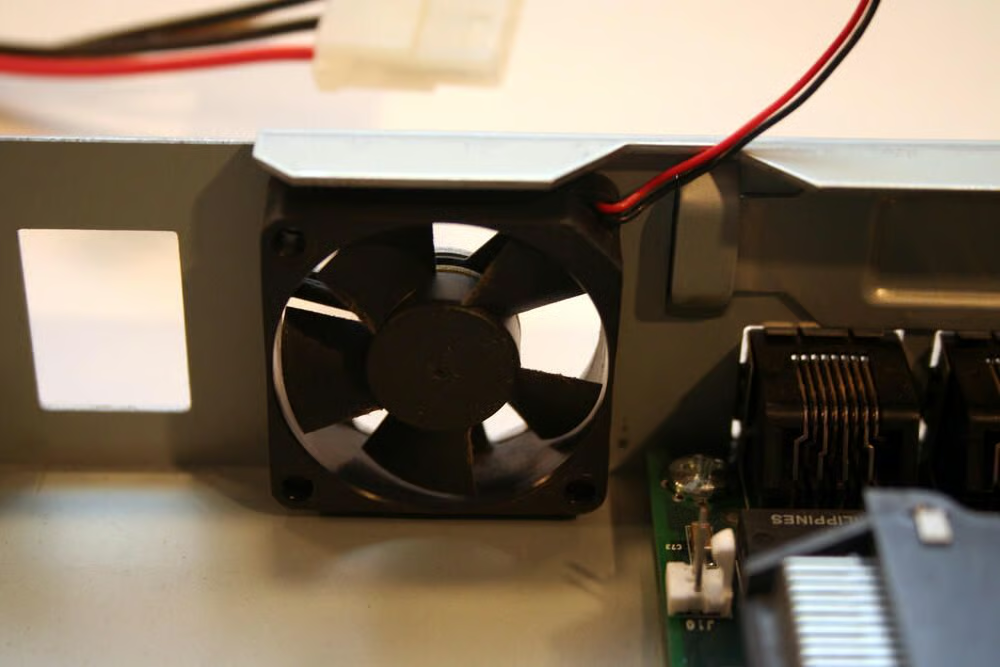
Here’s a close up view of one of the server’s two Sunon 35mm cooling fans.
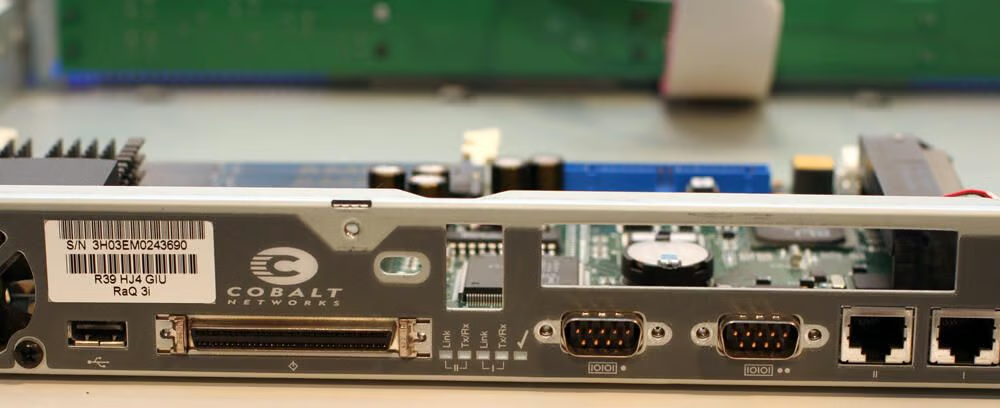
The bolts securing the serial and SCSI ports to the server’s chassis must be removed before the motherboard can be separated from the server’s bottom chassis.
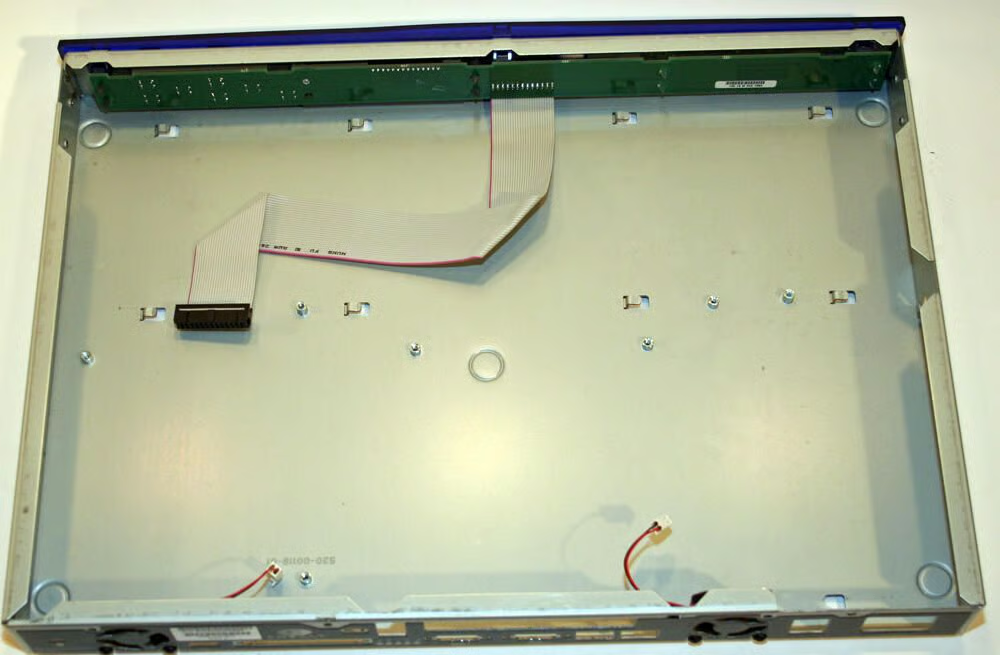
Here’s a look at the RaQ 3i’s bottom chassis with the motherboard and power supply removed. All that remains is the front control panel circuit board, its data cable, and the two 35mm cooling fans (and their respective power cables).
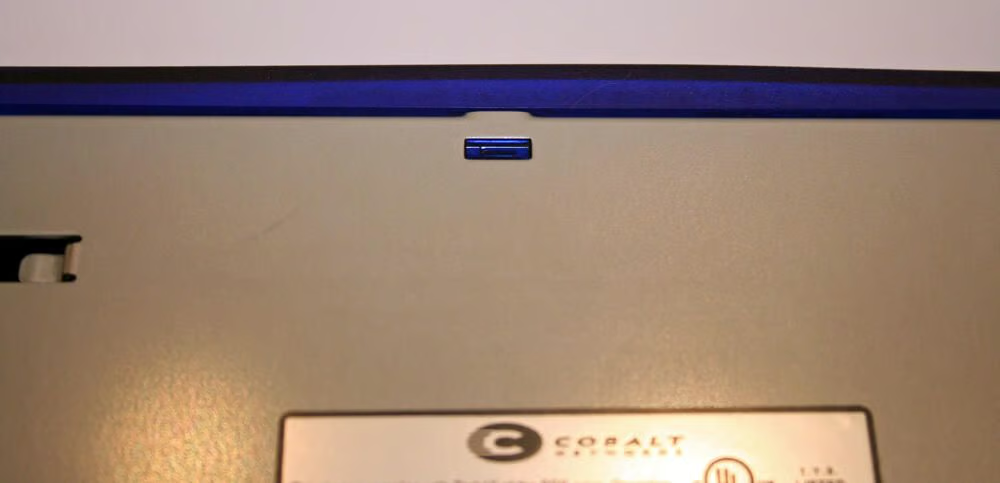
To remove the Cobalt’s front decorative panel, several blue plastic clips (one shown here at top center) must be depressed using a flat-head screwdriver.

The Cobalt front decorative panel looks like this (once it’s removed from the server chassis).
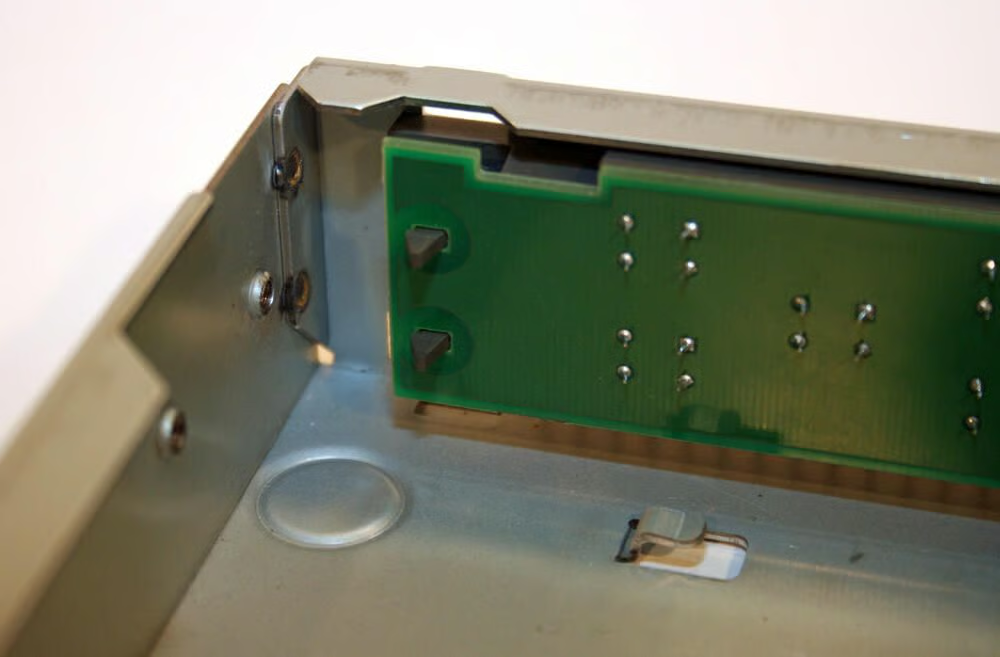
To remove the front panel circuit board, and its accompanying LCD display, several plastic clips must be pressed inward to enable disconnecting the circuit board.
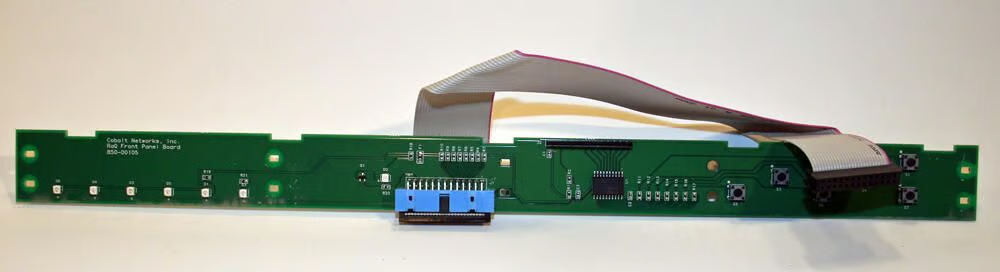
Here’s the Cobalt front panel circuit board, along with its connecting data cable, once removed from the server chassis’ front panel.
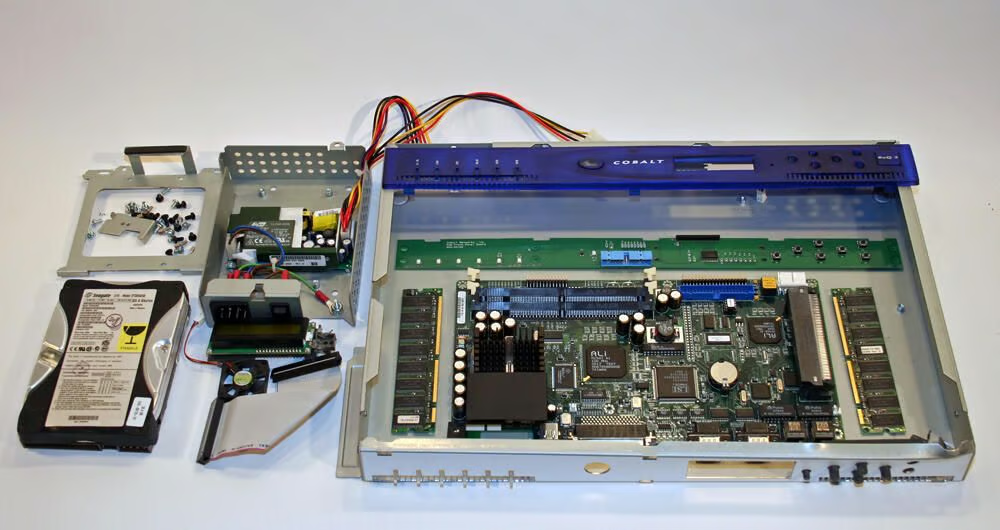
Here’s a look at most all of the components, including the server chassis, power supply, hard disk and accompanying cage, and other assorted components that compose the Cobalt Networks RaQ 3i server appliance.

Erik Eckel is a managing partner at Louisville Geek and president of Eckel Media Corp. He previously served as Executive Editor at TechRepublic. He received Microsoft Engineer accreditation from Sullivan University and earned his Bachelor's Degree in English from the University of Louisville. He's earned Network+, Windows NT 4.0 MCP+I and MCSE, and Windows 2000 Professional MCP accreditations.


