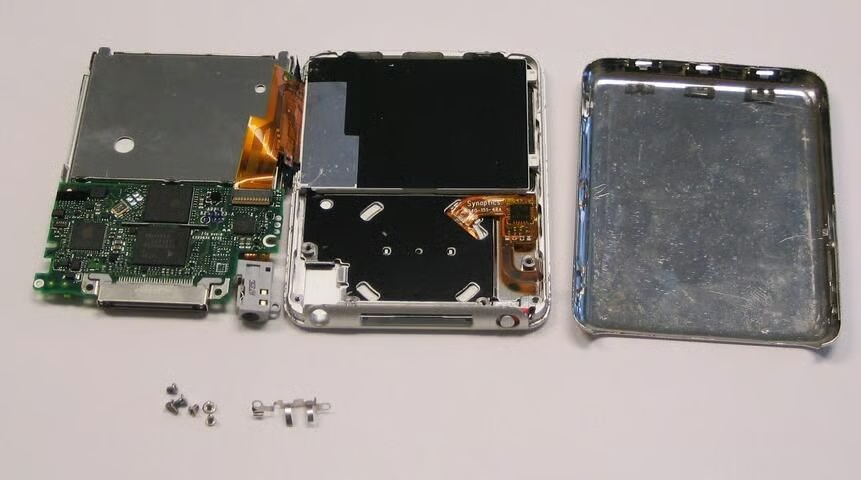
The iPod Nano is a great little music player from Apple Computer. Besides playing music, it can also display movies, television, and other video content on its two inch screen. TechRepublic cracked open the iPod Nano to see what makes this device so special.
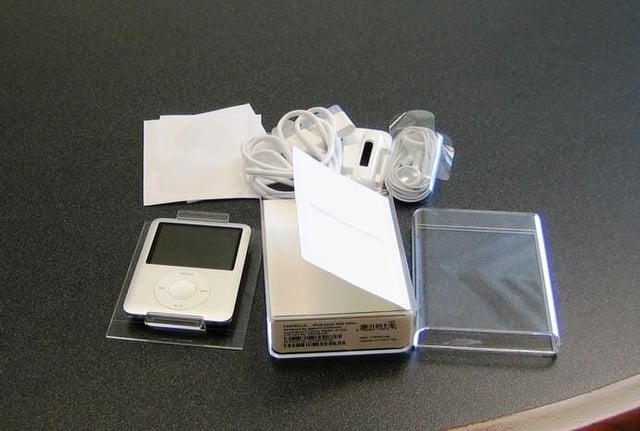
The iPod Nano ships with a set of ear bud headphones and a USB cable for transferring files and recharging the battery.
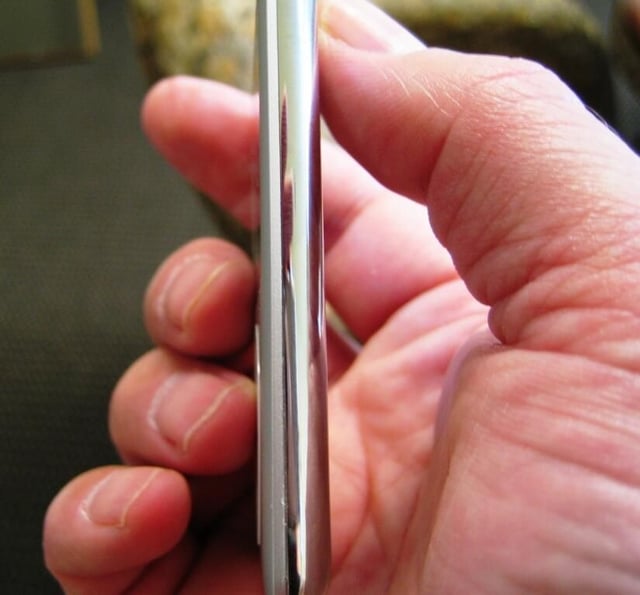
The iPod Nano is very thin and getting inside is going to require some physical encouragement.
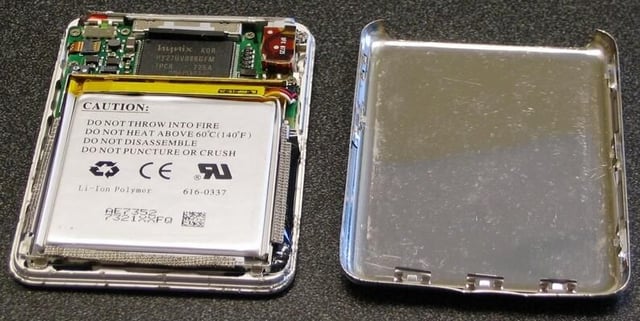
The first thing you see when you remove the back cover is the battery. Notice that you should not poke at it.
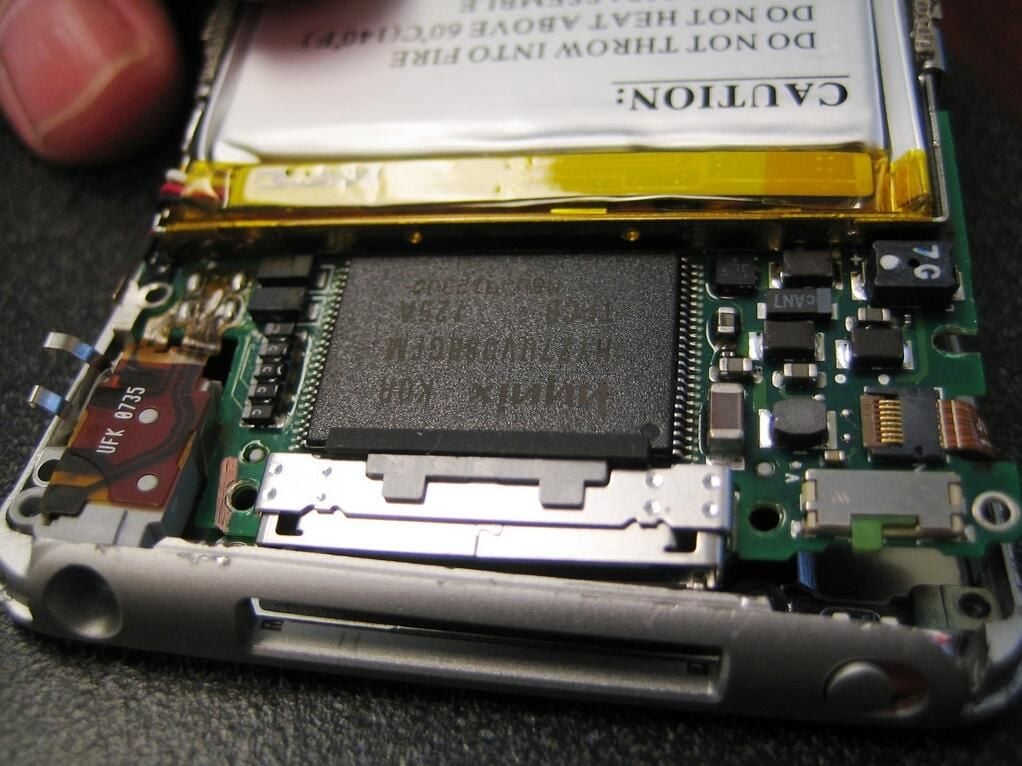
The second thing you notice is the flash memory chip — 4GB from Hynix in this case.
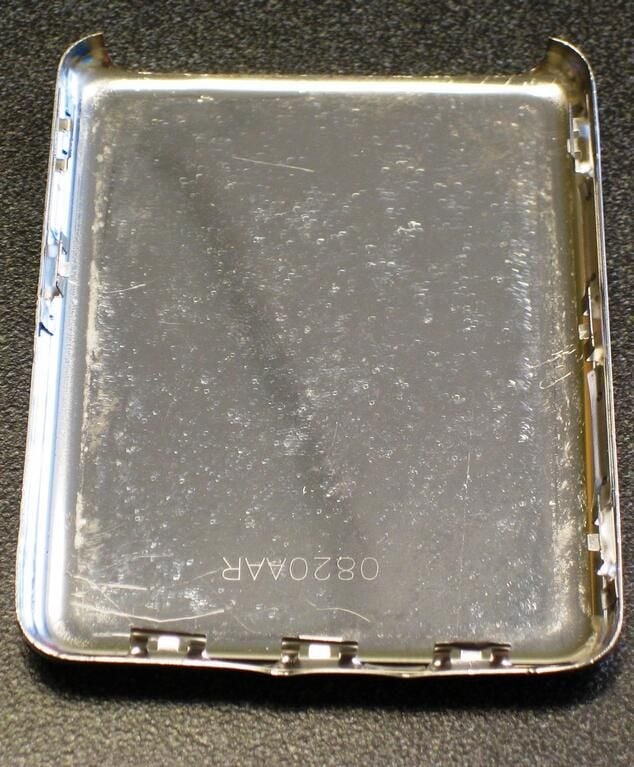
The back plate is just a piece of molded metal, but it was a bear to remove. Apple definitely does not want you to open your iPod.
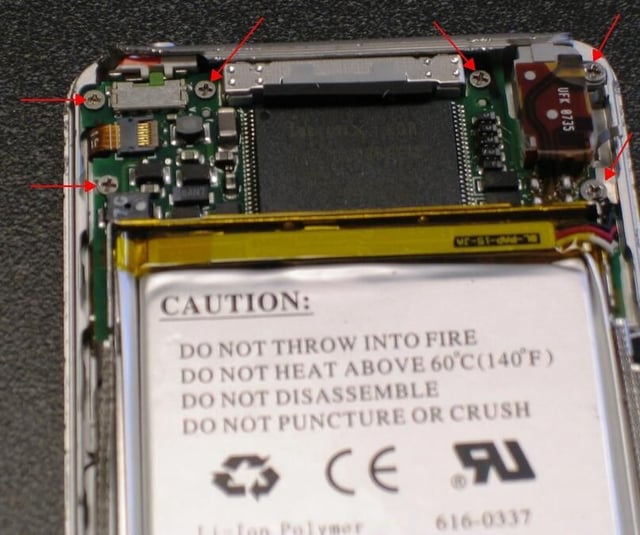
This 4GB Flash memory in the iPod was made by Hynix. I have seen pictures of the 8GB version of the iPod Nano and it has memory made by Samsung. Go with the best bid I suppose.
The next step is to remove the six screws marked by the arrows and see what lies beneath.
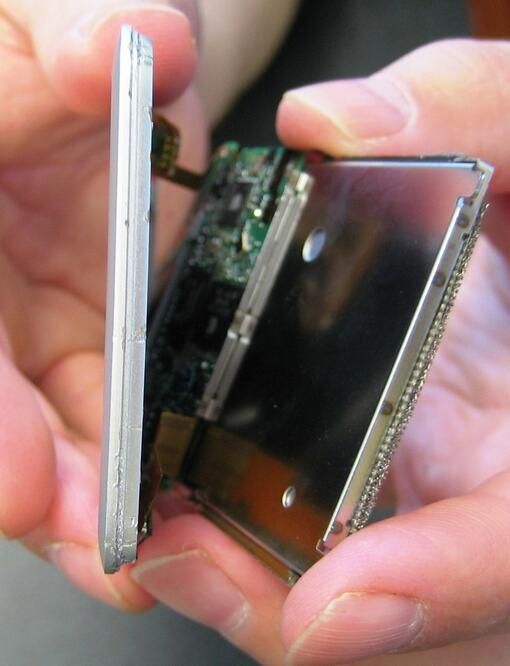
One way Apple is able to keep the iPod Nano so thin is by using ribbon connections for the video, audio, and button connections.
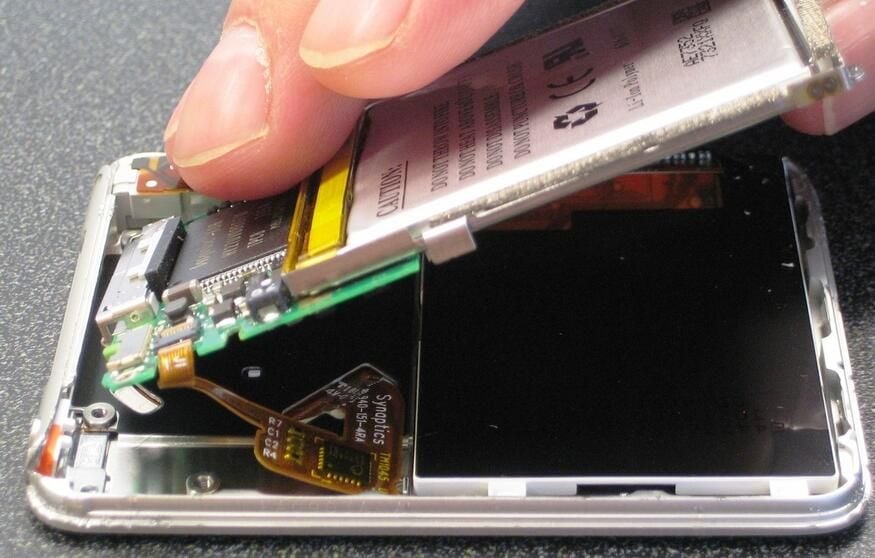
While it is nice that the ribbons allow for thinness, it certainly makes cracking open a much more delicate operation.
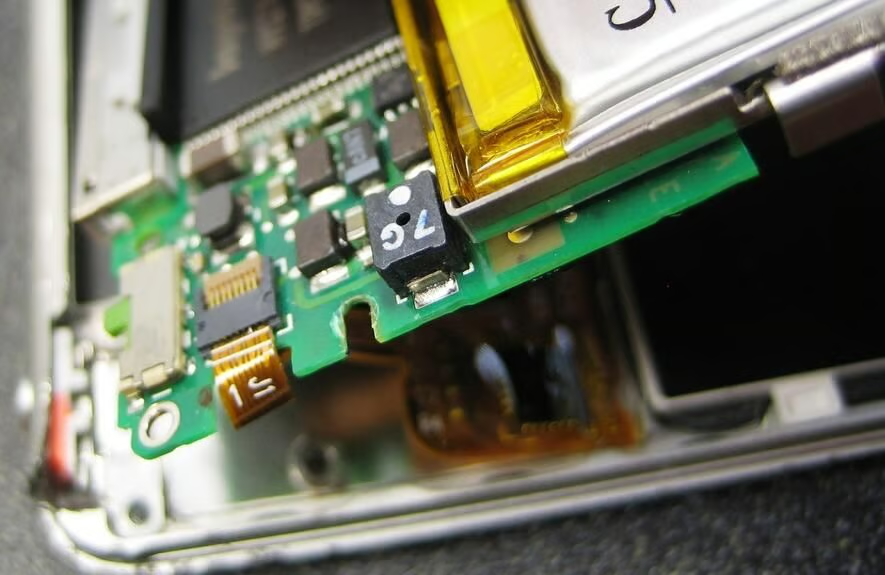
The connecting ribbon to the button interface is attached with one of these very tiny clamping gates — when we crack a device open we hate to see one of these.
The audio connecting ribbon does not have an clamping gate – fortunately for me, the housing for the plug comes out with the ribbon connected.
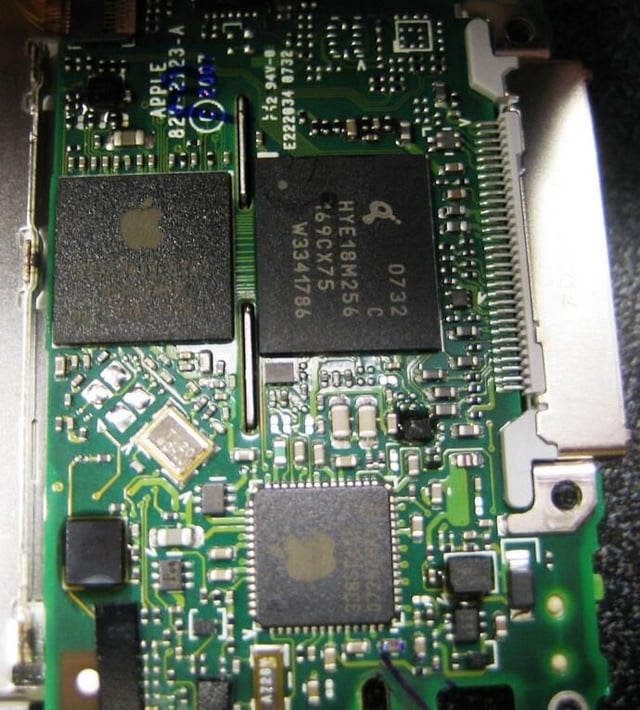
Taking our first look at the logic chips we can see two large chips with the Apple Computer logo. There is also one large chip with an unfamiliar logo.
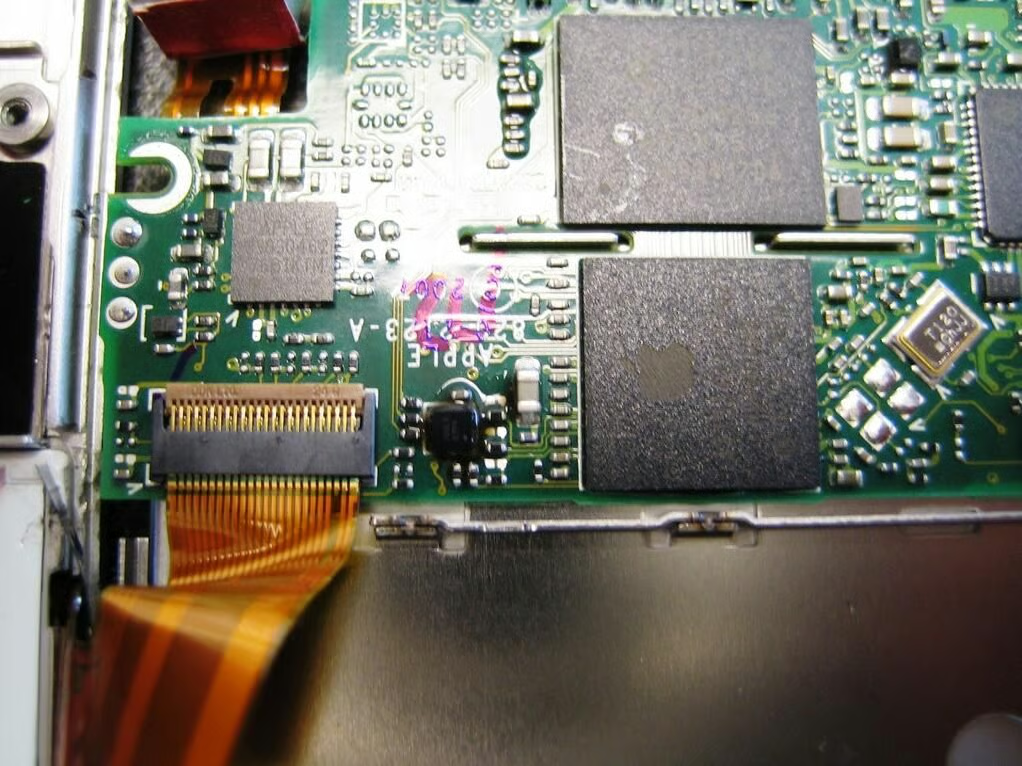
Now we can the video connection — another clamping gate.
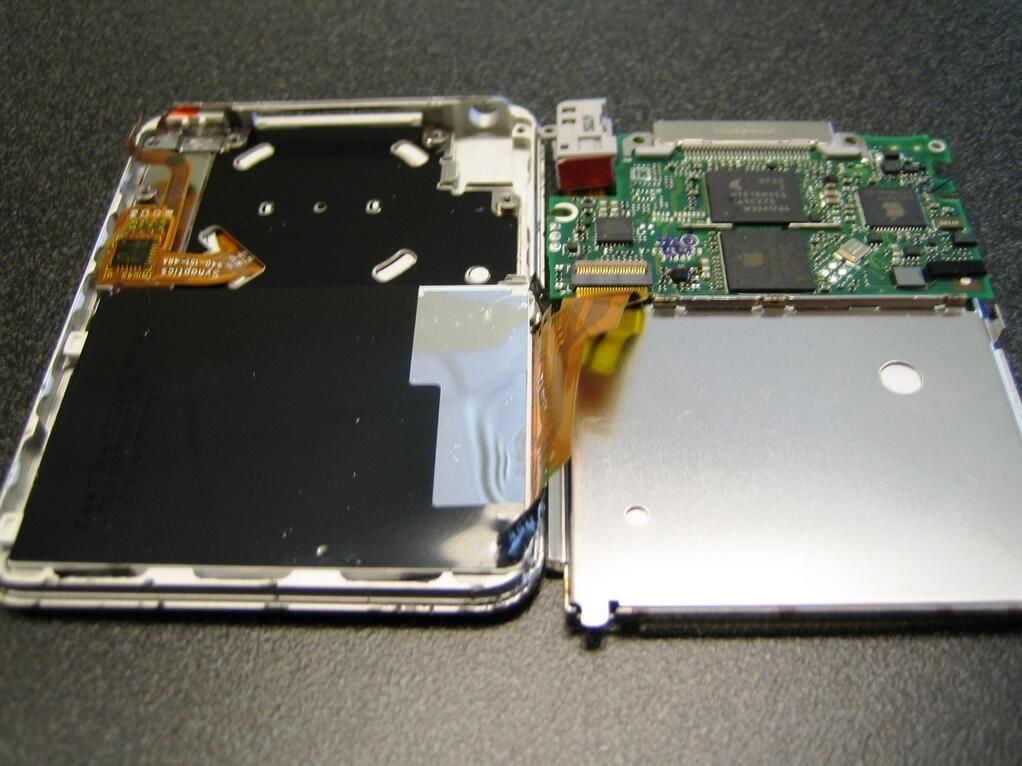
It is hard to believe that there is an LCD in there that can show videos.
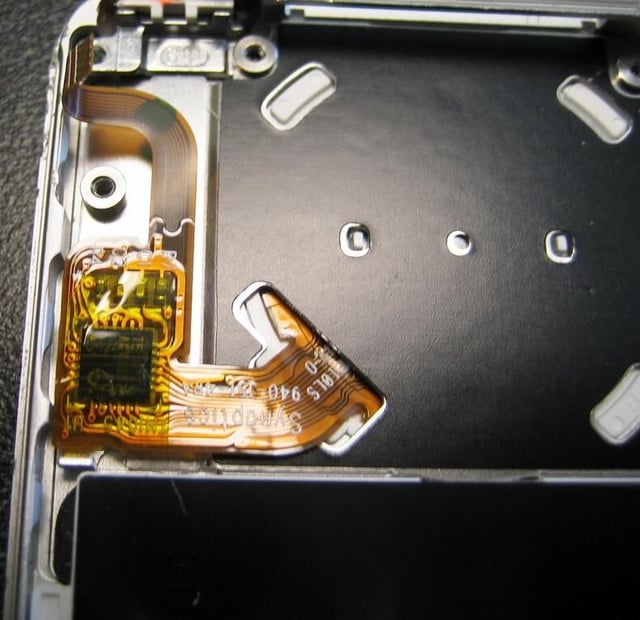
The backside of the famous Apple button and wheel interface is much less exciting from the underside.
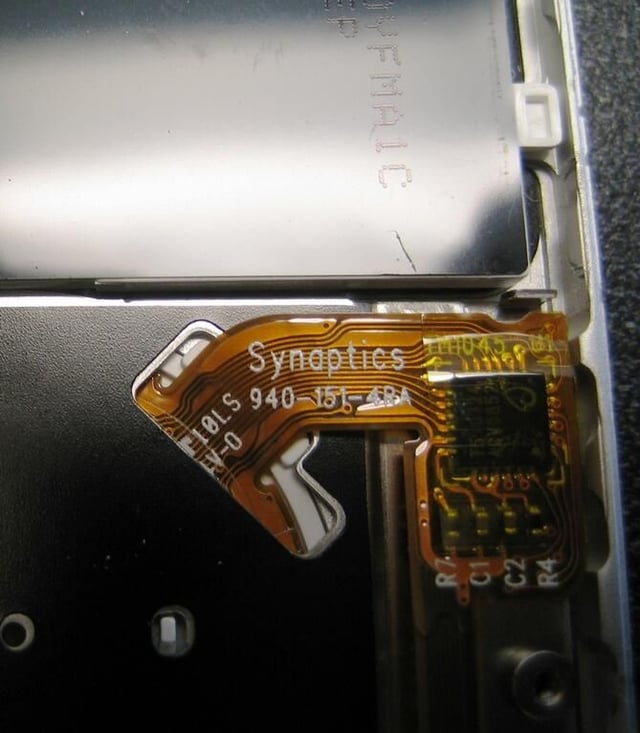
Now, there is a famous name when it comes to touch interfaces — Synaptics.
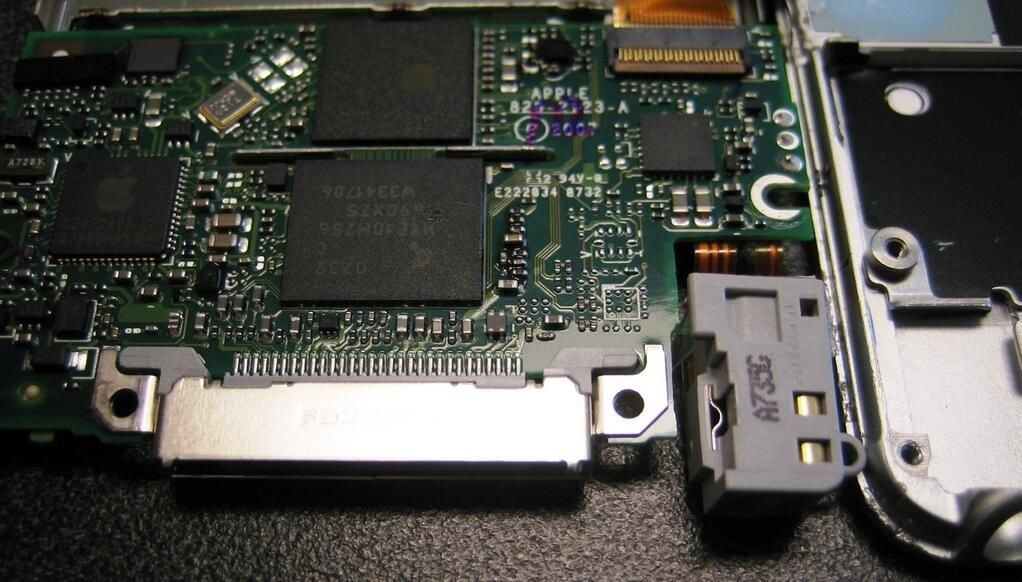
The USB connection transfers data and power. Oddly enough, there are no capacitors that I can see.
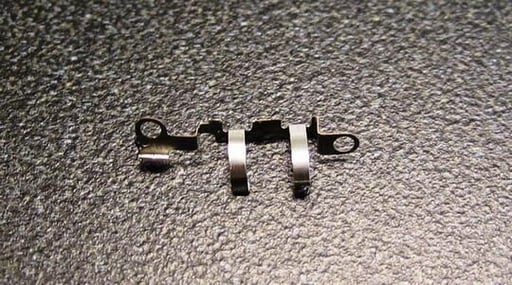
This piece of metal was attached near the audio plug. Out best guess is that it acts a ground for the device.
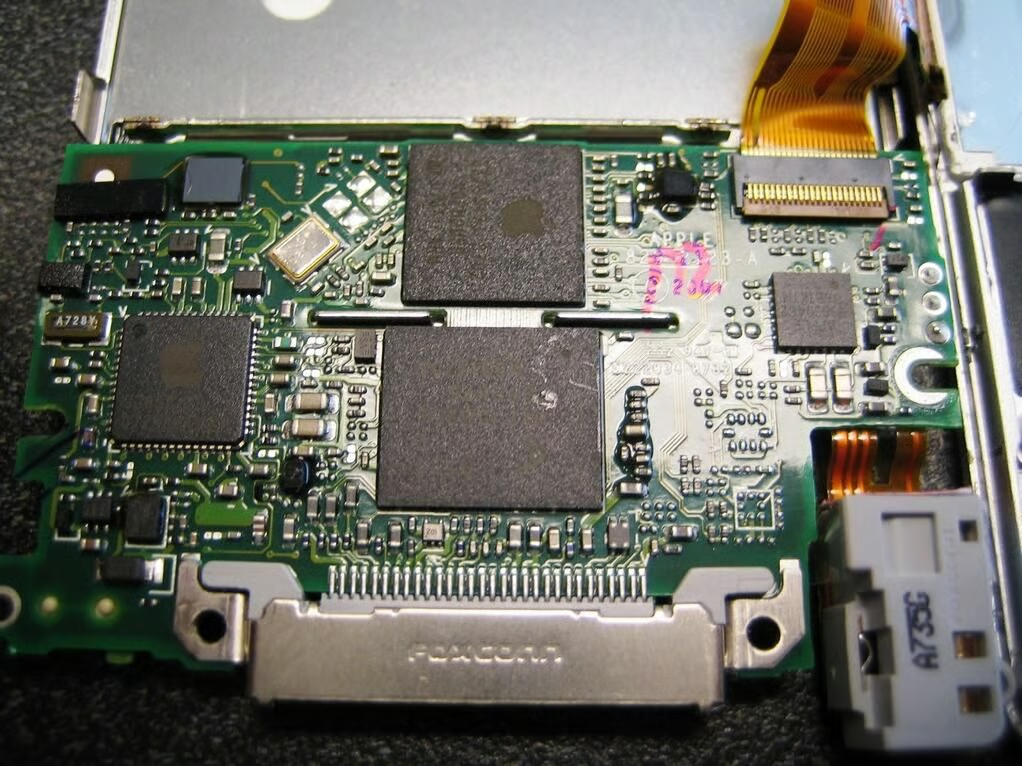
The chips don’t reveal their functions, but one chip must hold the software for the visual interface, one must control sound, and another must handle video production. Which is which is a little more difficult to figure out.
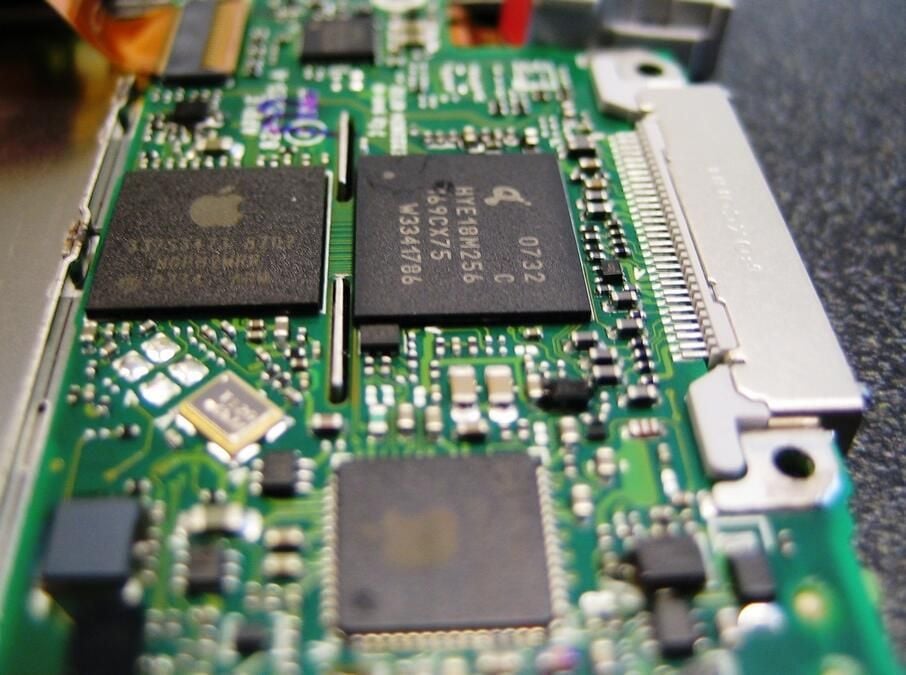
Getting a closer look.
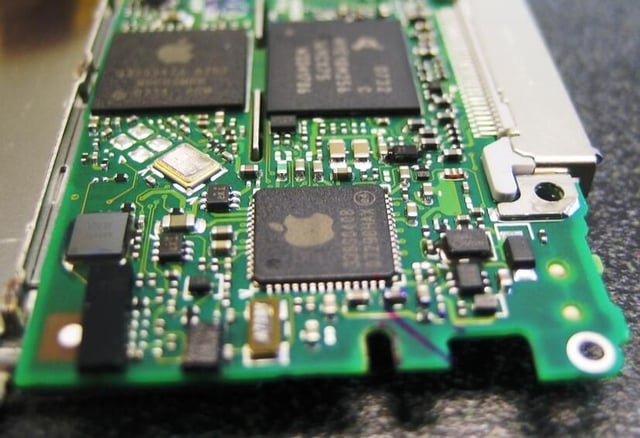
Still closer.
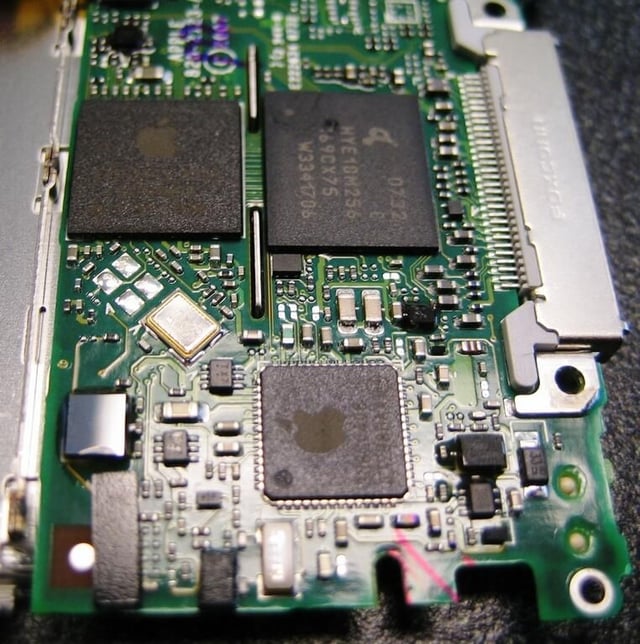
Figure out which chips does what?
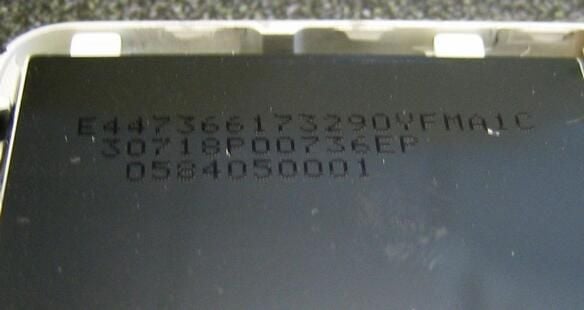
Several identification numbers are etched on the back of the LCD housing.
Our intention was to put our iPod Nano back together in working condition. Unfortunately, we ran into a problem. The closest we have come to bringing it back to life so far is the white screen of death.
We are going to keep trying to get the iPod working again, but I am discouraged. Damn my unsteady fingers.

Mark W. Kaelin has been writing and editing stories about the information technology industry, software, hardware, gaming, finance, accounting, and technology geekdom for more than 30 years.


