The iPhone blends a revolutionary touch-screen interface, media player, and smartphone into a slick package.
After waiting in line, spending $600, signing a two-year AT&T contract, and activating the iPhone, we decided that the next sensible action was to take the thing apart — in classic TechRepublic Cracking Open style. Get a look at the hardware inside the 8GB iPhone and see whether we got it back together in working condition.
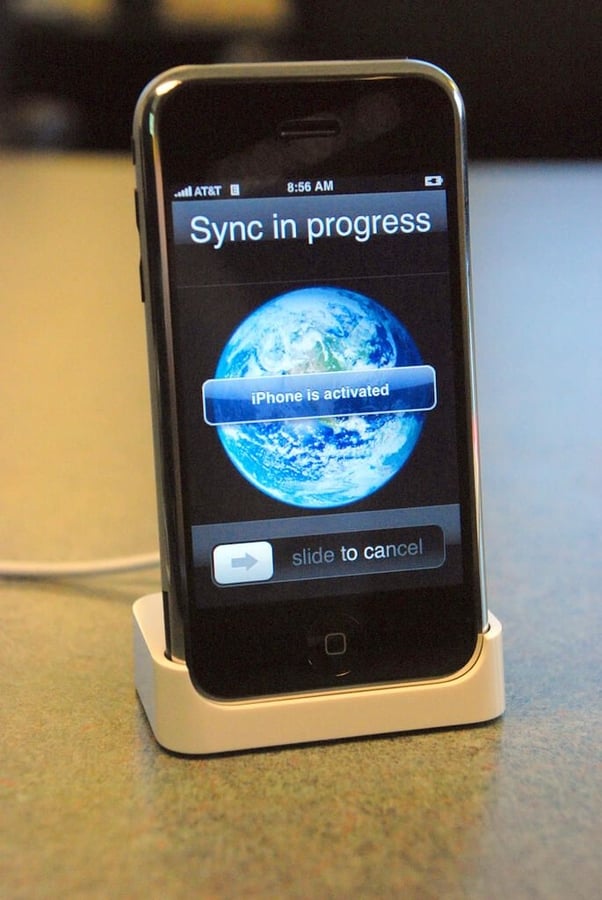
It took an entire weekend, but AT&T finally activated our iPhone on Monday morning.
According to Apple’s iPhone Technical Specifications page, the iPhone measures 4.5 inches high, 2.4 inches wide, and 0.46 inch deep.
It weighs 4.8 ounces.The iPhone has a 3.5-inch (diagonal) widescreen multi-touch display that offers a resolution of 480-by-320-pixels at 160 dpi.
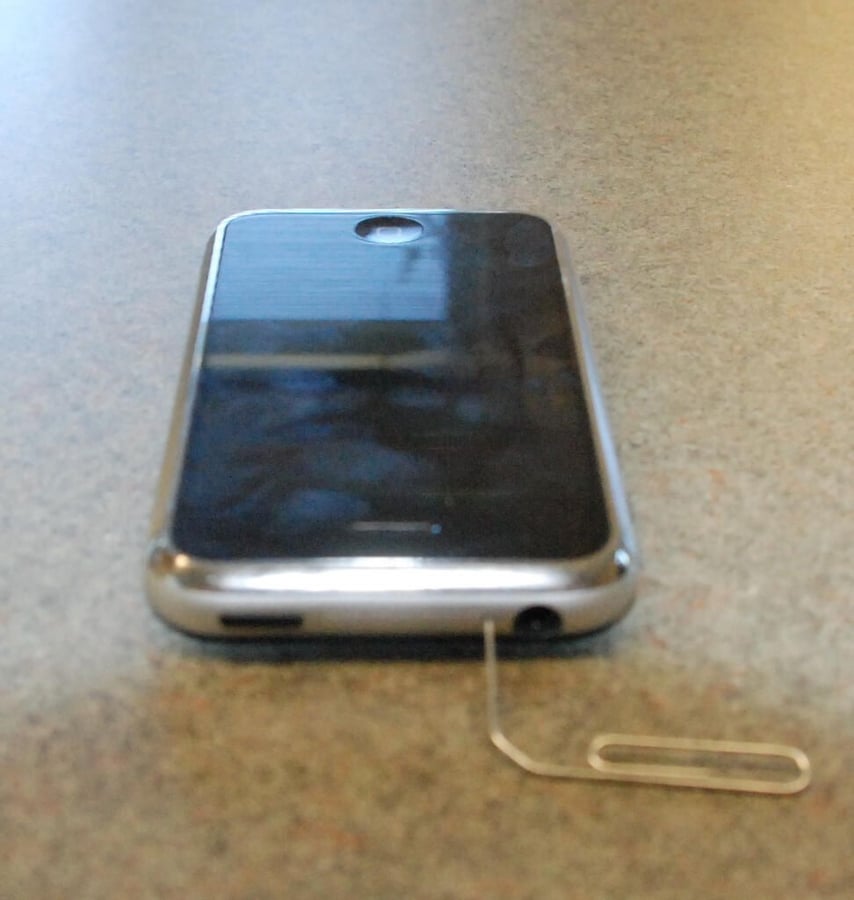
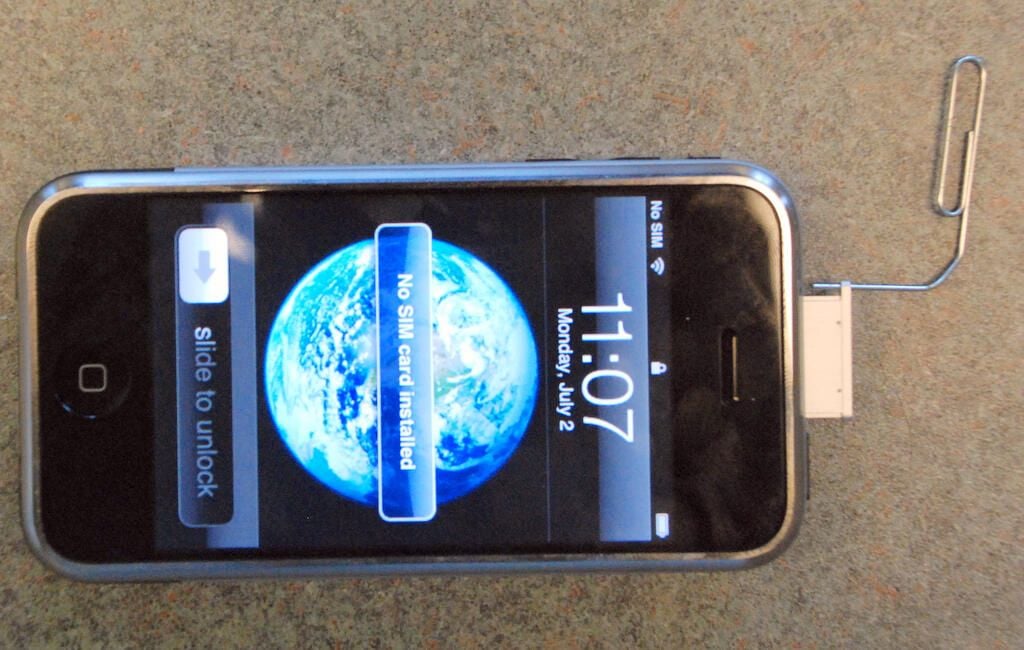
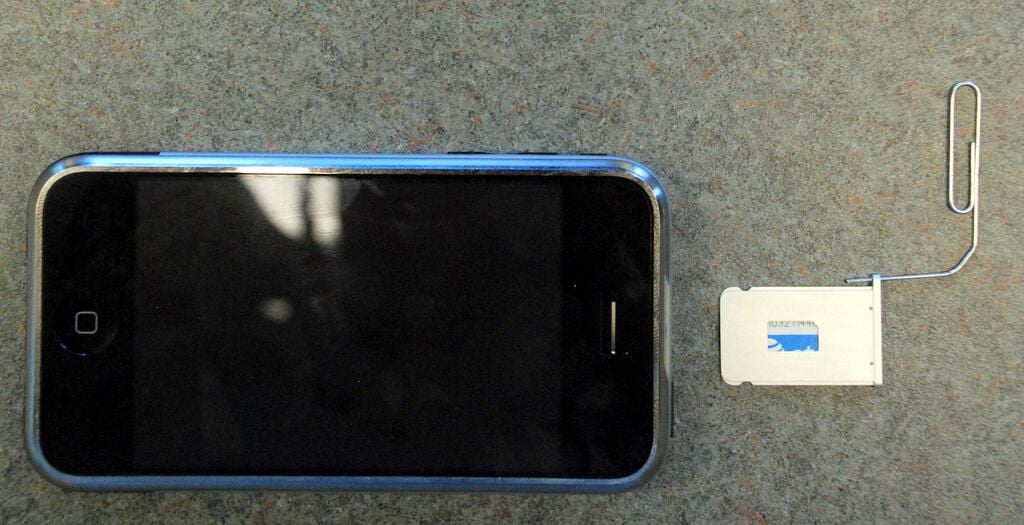
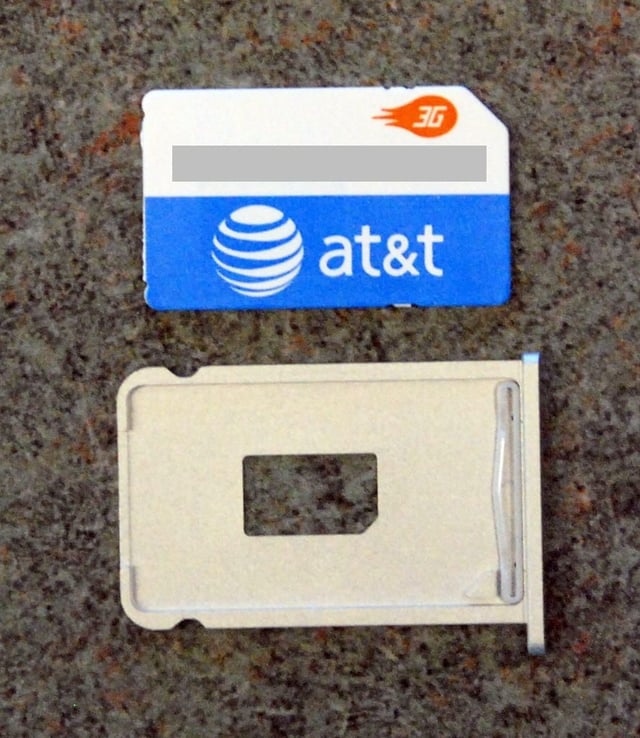
Unlike most other mobile phones, you can’t open the case to replace the battery or access the SIM card. The SIM card is held by a small holder in the top of the iPhone.
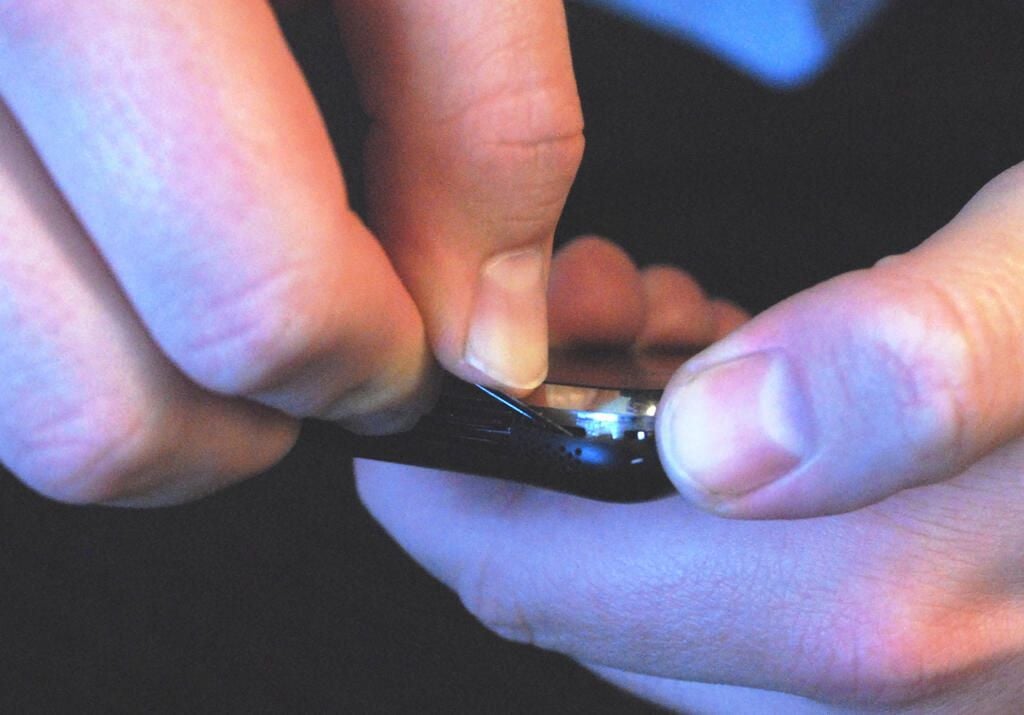
To remove the SIM card, insert a paperclip or other thin, round tool into the small hole on top of the iPhone.
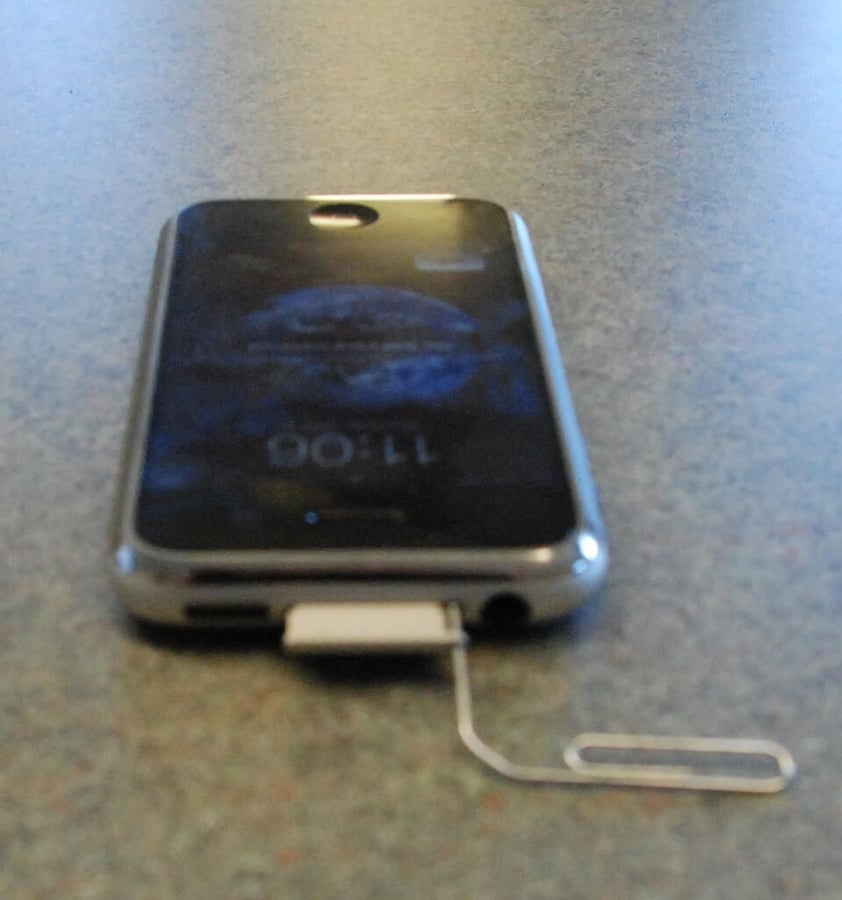
Push down to pop out the SIM card holder and card.
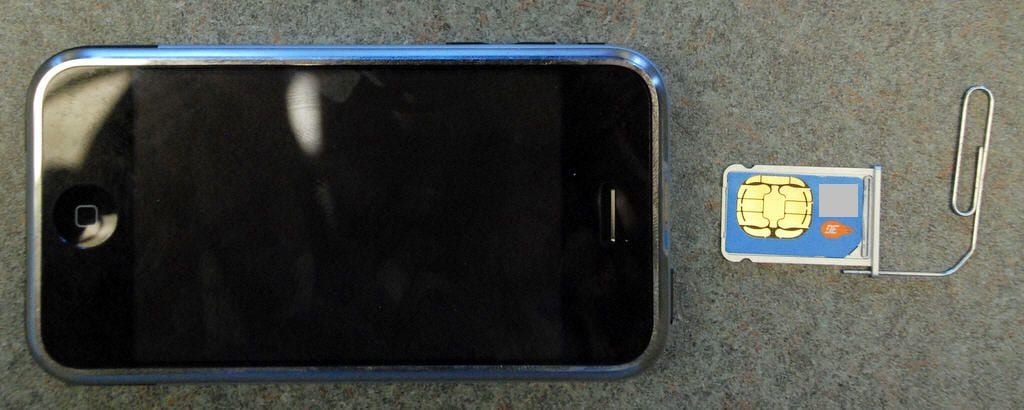
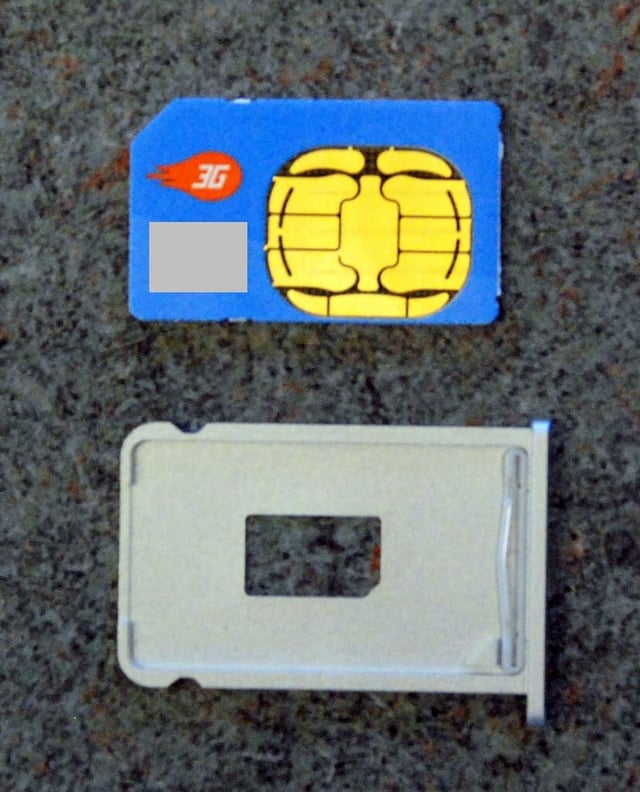
\tWait a minute. The iPhone doesn’t support 3G. Why does our iPhone have a 3G SIM card? Is this a sign of things to come?
Like Apple’s various iPods, the iPhone isn’t designed for a quick, easy disassembly. I’m sure the process would go more smoothly with specialized tools, but I expect it would still be a delicate, time-consuming job.
After examining the iPhone for several minutes, I selected the black, plastic antenna cover as the appropriate starting point.
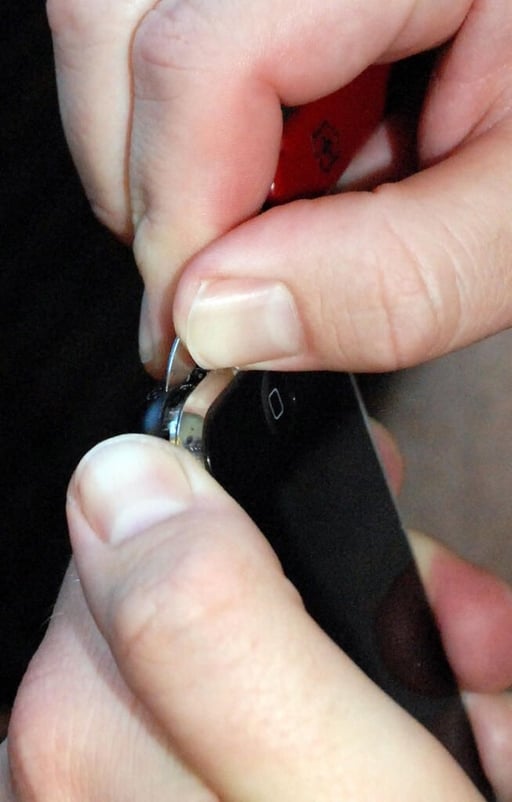
Using a very thin knife blade, I gently pried off the iPhone’s black antenna cover cover. I started with the area just above the dock connector and worked my around the cover.
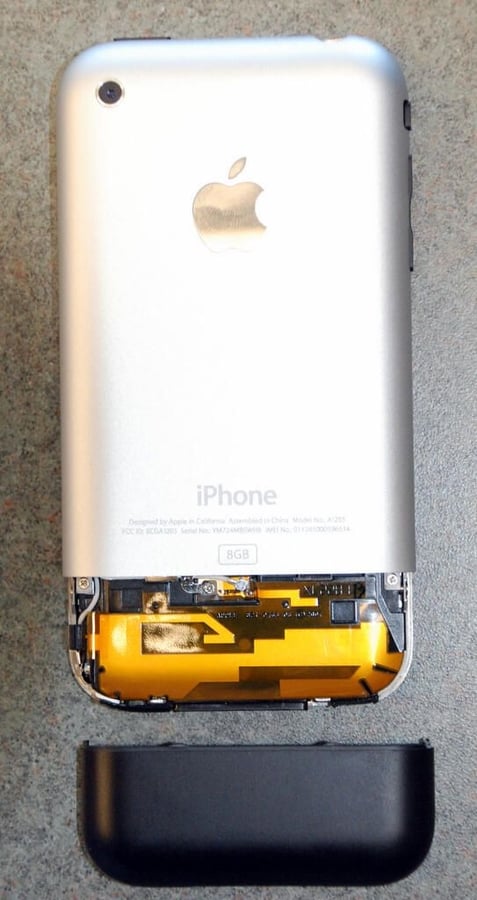
Not wanting to break the fragile plastic, I moved very slowly. After about 20 minutes, I was able to completely remove the cover.
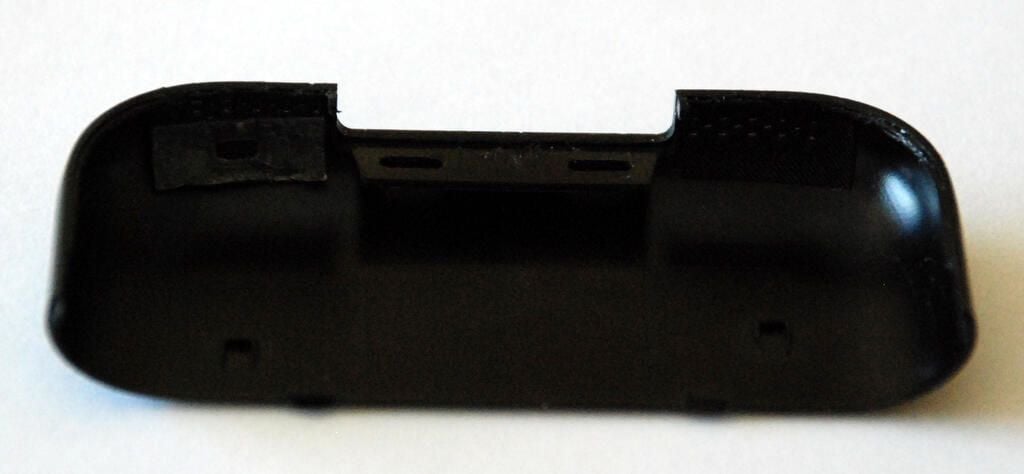
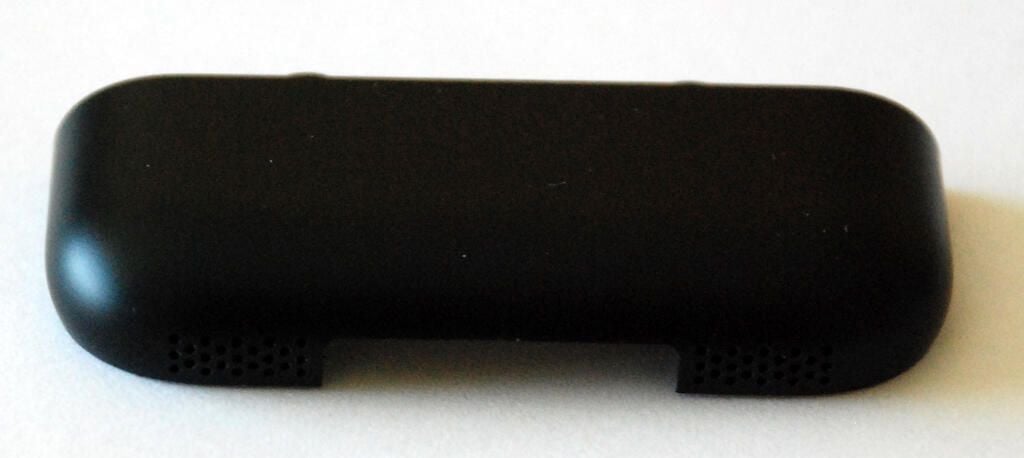
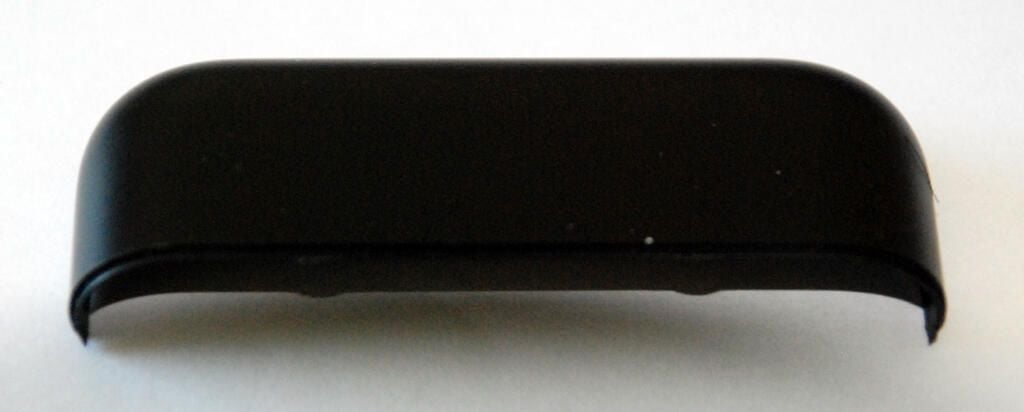
The cover is secured to the iPhone through several snaps built into the cover.
I thought removing the plastic antenna cover was difficult. It was child’s play compared to removing the iPhone’s back case panel.
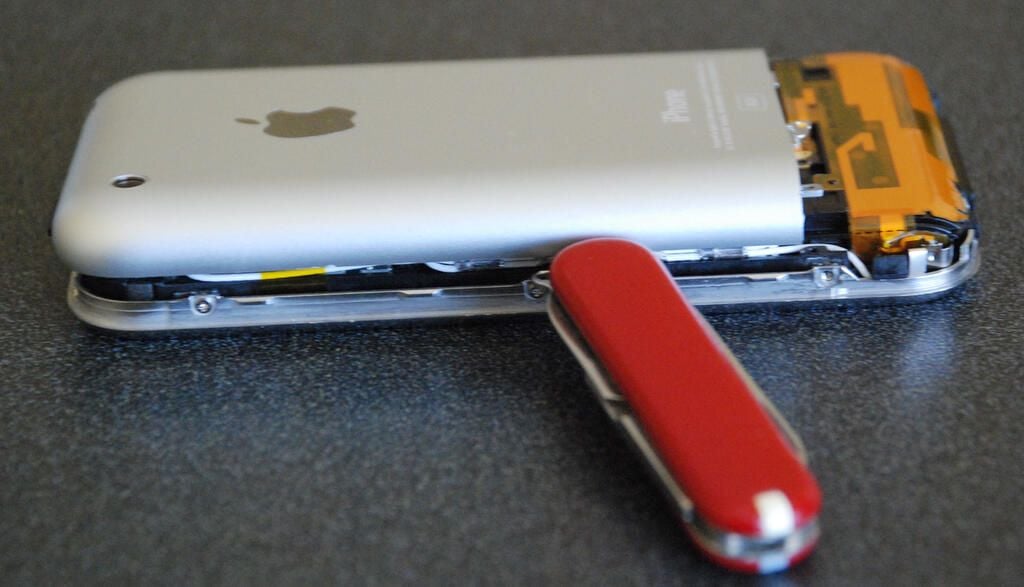
To remove the panel, I held the knife blade vertically and inserted it lengthwise between the back panel’s edge and the front panel. Very gently, and for about 30 minutes, I worked on the back panel. Finally, I was able to separate one side of the back panel from the front panel. I then continued working the knife around the panel until both sides where loose.
Note: This photo shows me using the knife to merely hold the back panel away from the front panel. I did not use the knife in this manner to pry open the panel as it might have damaged the iPhone’s internal components.
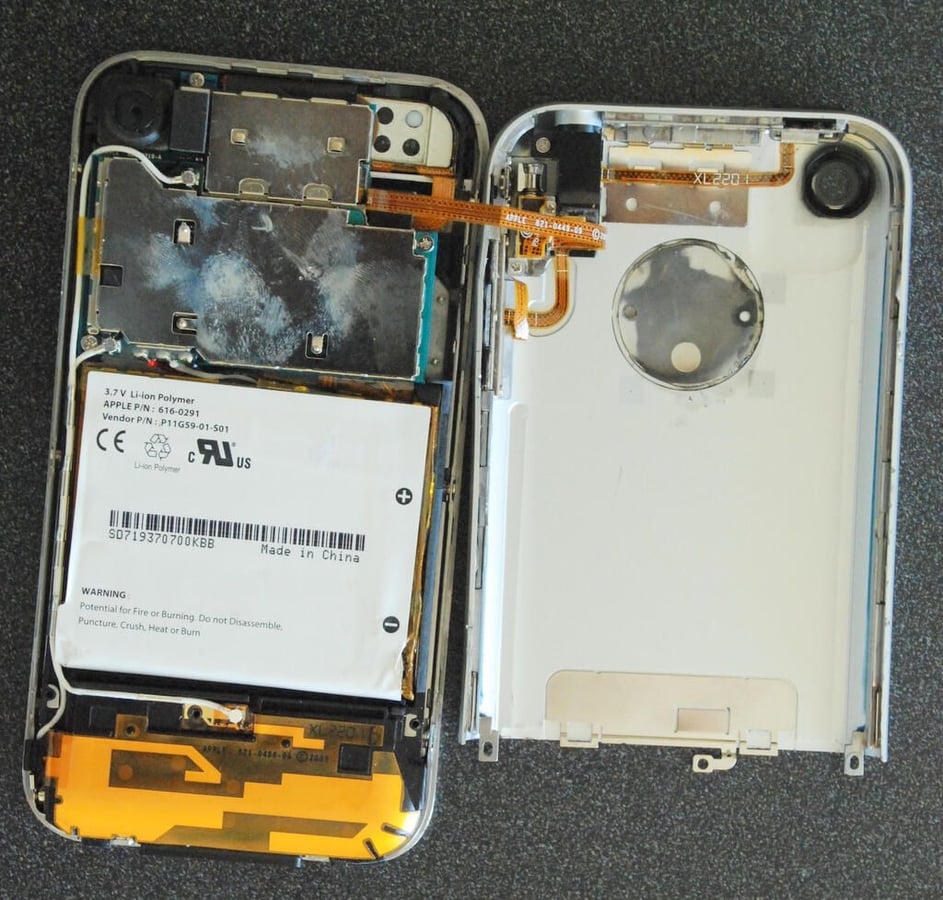
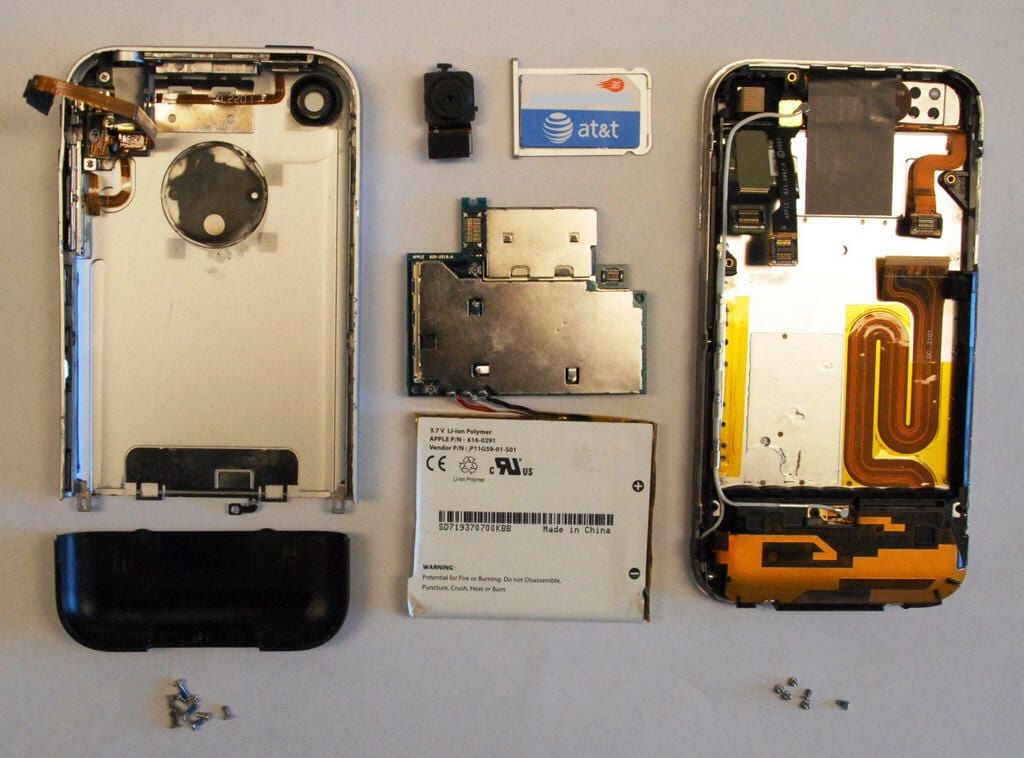
With the back panel removed, we get our first real look inside the iPhone. The large white block is the iPhone’s lithium ion battery. Directly above that sits the main PCBs, the SIM card slot, and camera. At this point, the back cover is still connected to the chassis via the ribbon for the Sleep/Wake button, volume buttons, vibrate switch, and headset jack. To completely remove the back case panel, gently separate the ribbon cable from the main PCB connector.
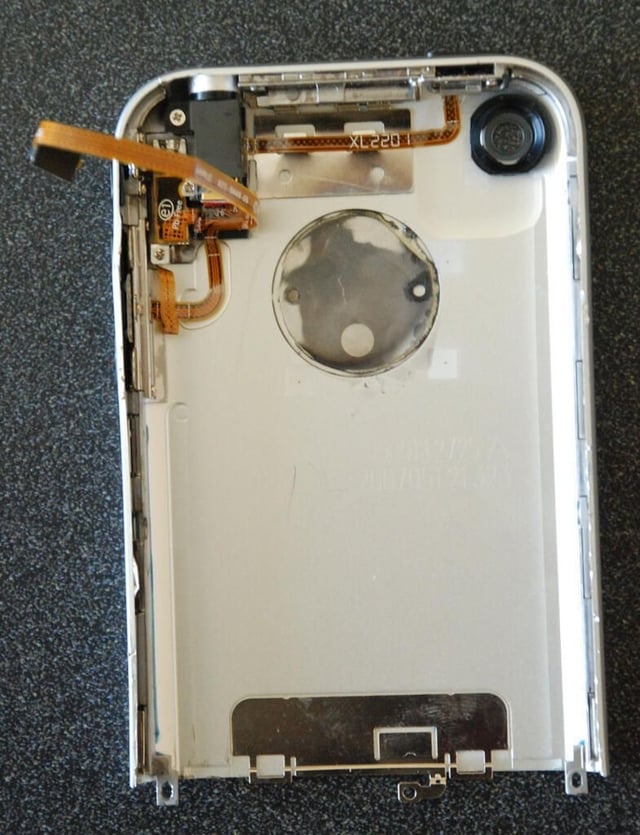
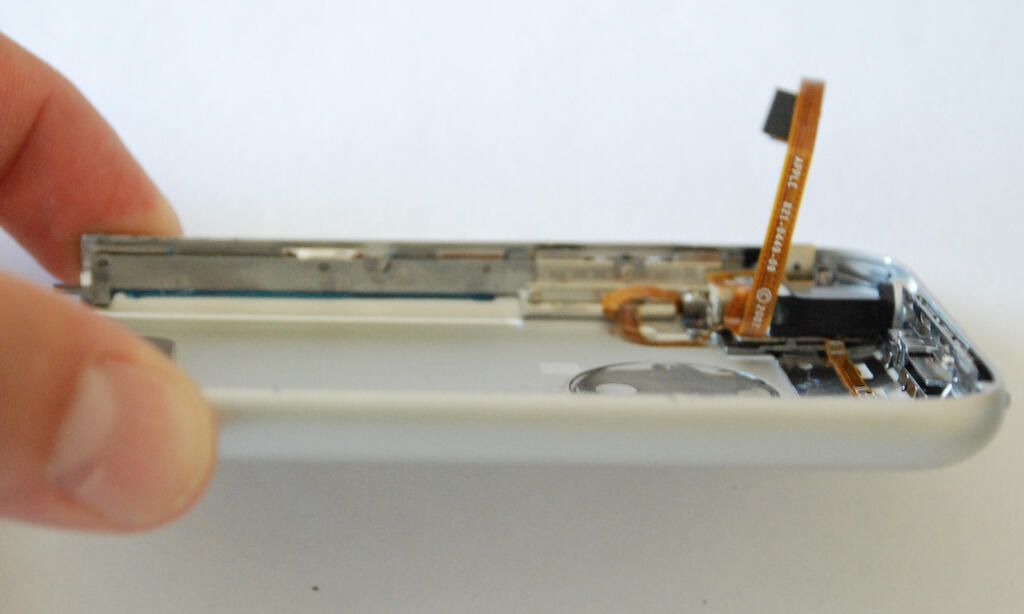
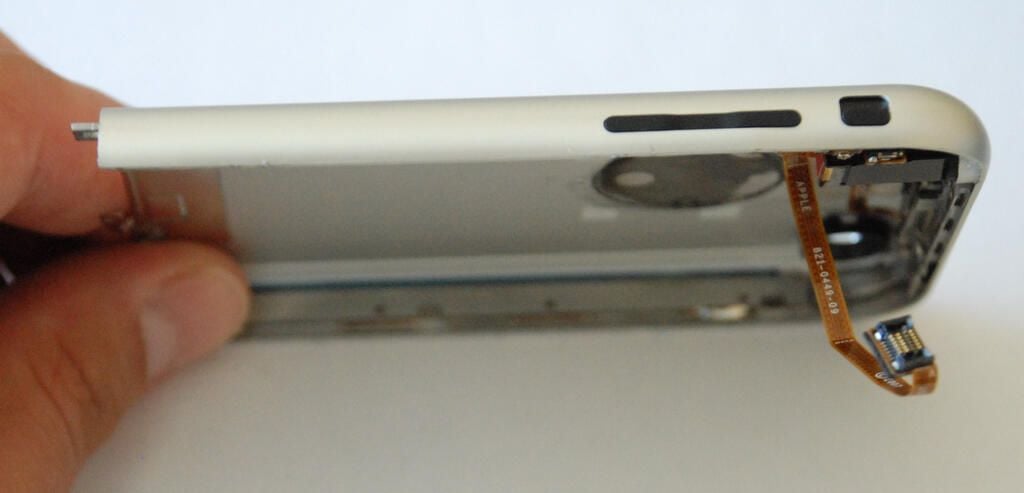
The iPhone’s Sleep/Wake button, volume buttons, vibrate switch, and headset jack are all attached to the case’s back panel. The panel also contains a small window for the camera and a grounding plate. The large silver circle is the underside of the panel’s Apple logo.
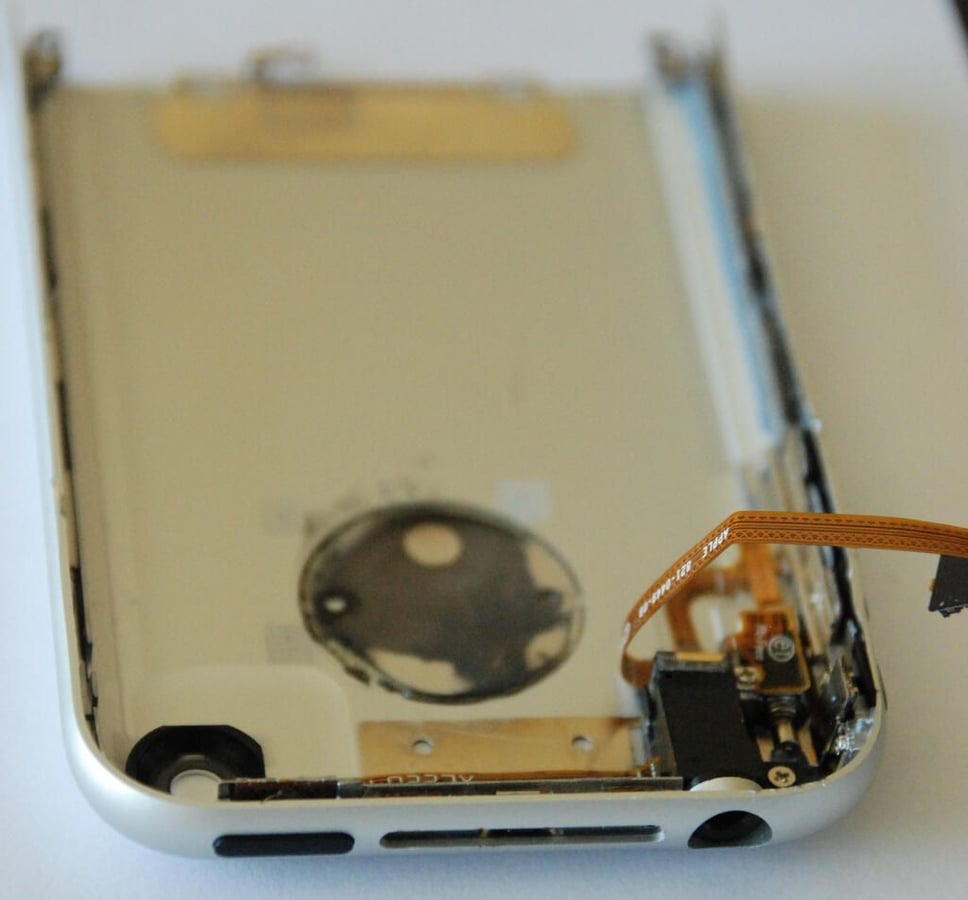
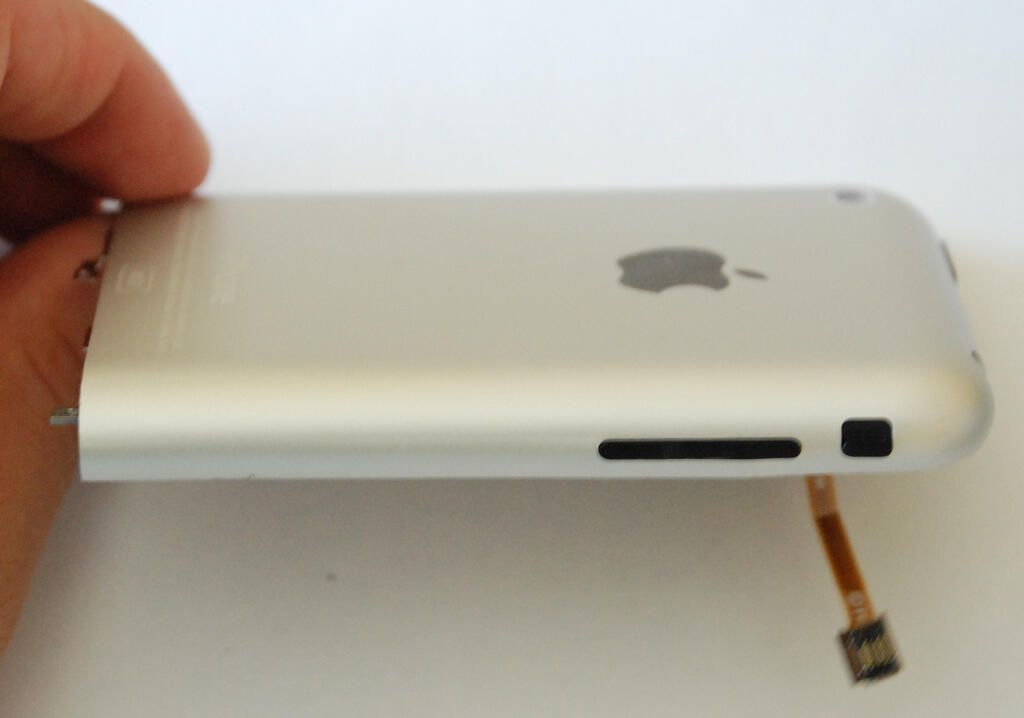
The iPhone’s Sleep/Wake button, SIM card slot, and headset jack are located on top of the case’s back panel.
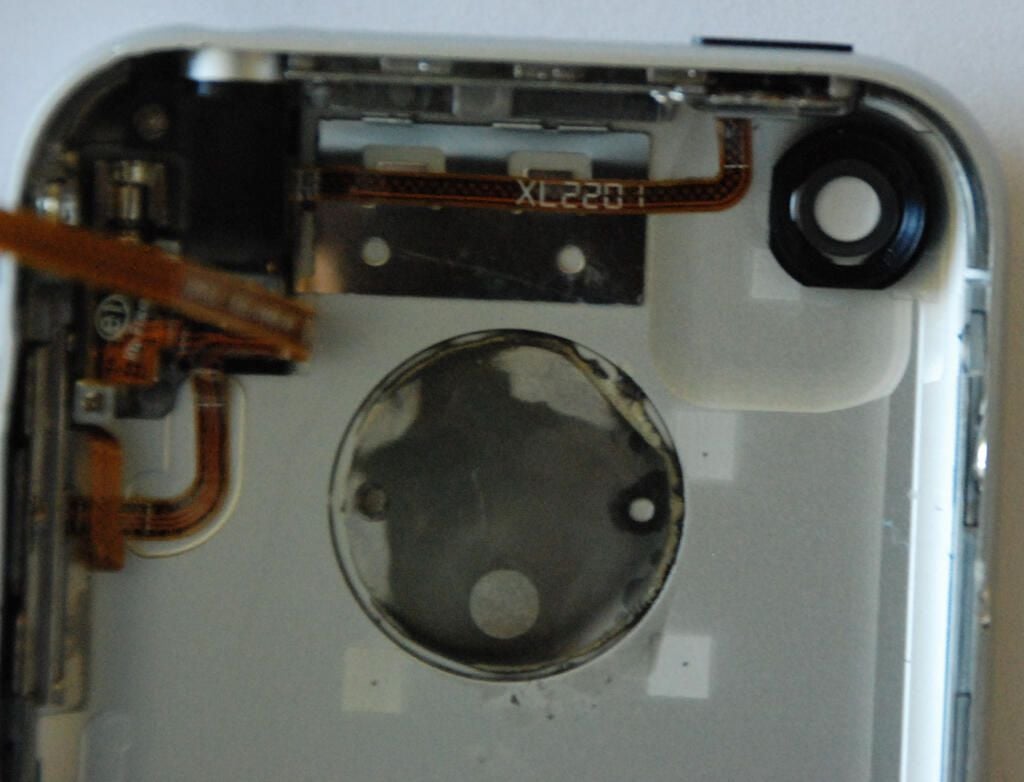
The small black circle in the top right-hand corner of the back panel is the camera window.
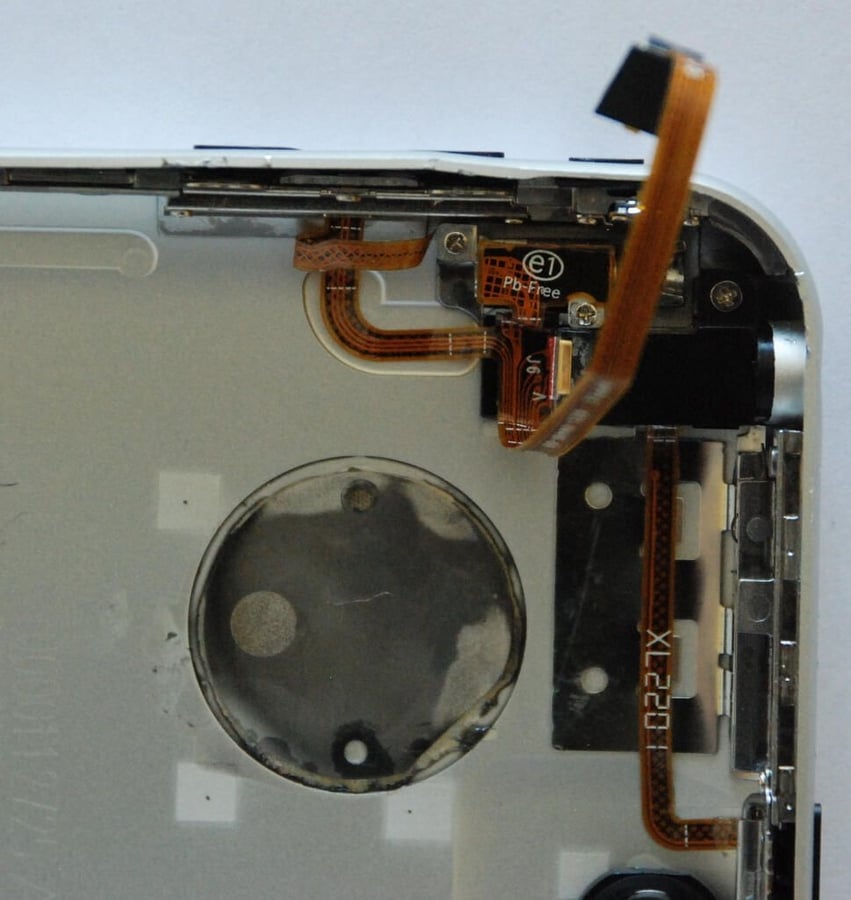
The Sleep/Wake button, SIM card slot, headset jack, volume buttons, and vibrate switch are all connected to the main PCBs via this single ribbon cable.
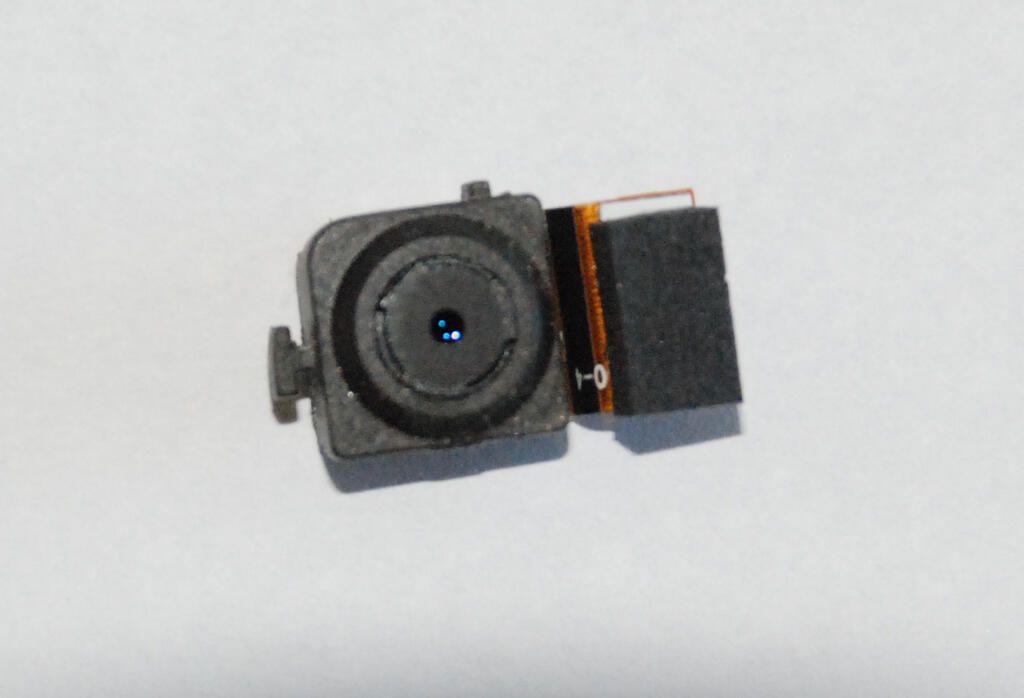
After completely removing the back case panel, I removed the iPhone’s 2-megapixel camera from the main PCBs. By gently prying up on the connector with the same thin knife blade I used to remove the antenna cover and back case panel, the camera came free.
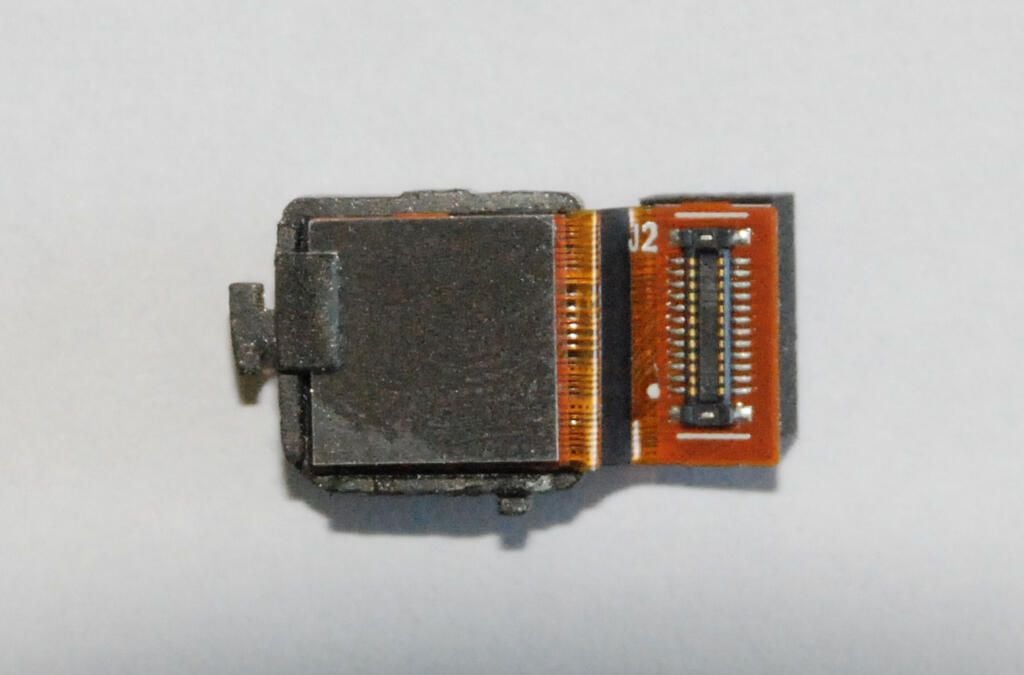
The camera is secured to the main PCBs via this connector.
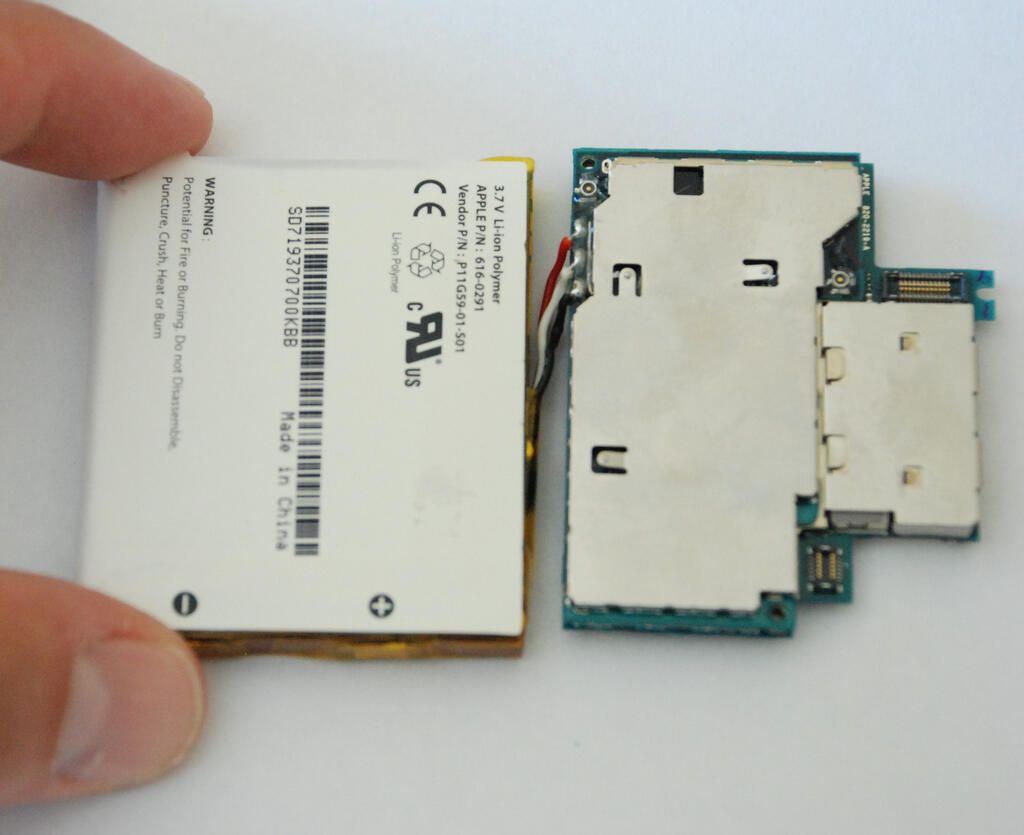
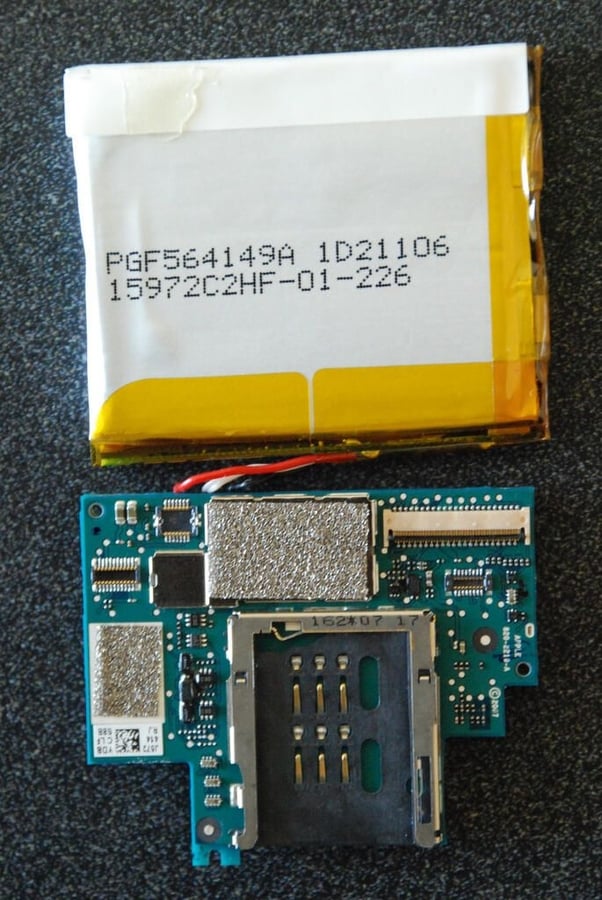
After removing the several small screws which secure it in place and disconnecting the two antenna wires, I gently removed the battery and main PCBs as one unit. The iPhone’s battery is soldered to the main PCBs and I decided against removing the solder. I wanted the unit to work when I put it back together.
If you need to replace the battery on an out-of-warranty phone, be prepared to send the unit back to Apple and pay $85.95. According to Apple’s Web site, the process takes three business days and you will lose all data on the phone.
Because of the time involved in actually replacing these batteries, I wouldn’t be surprised if Apple just sent each customer a refurbished phone instead of replacing the battery.
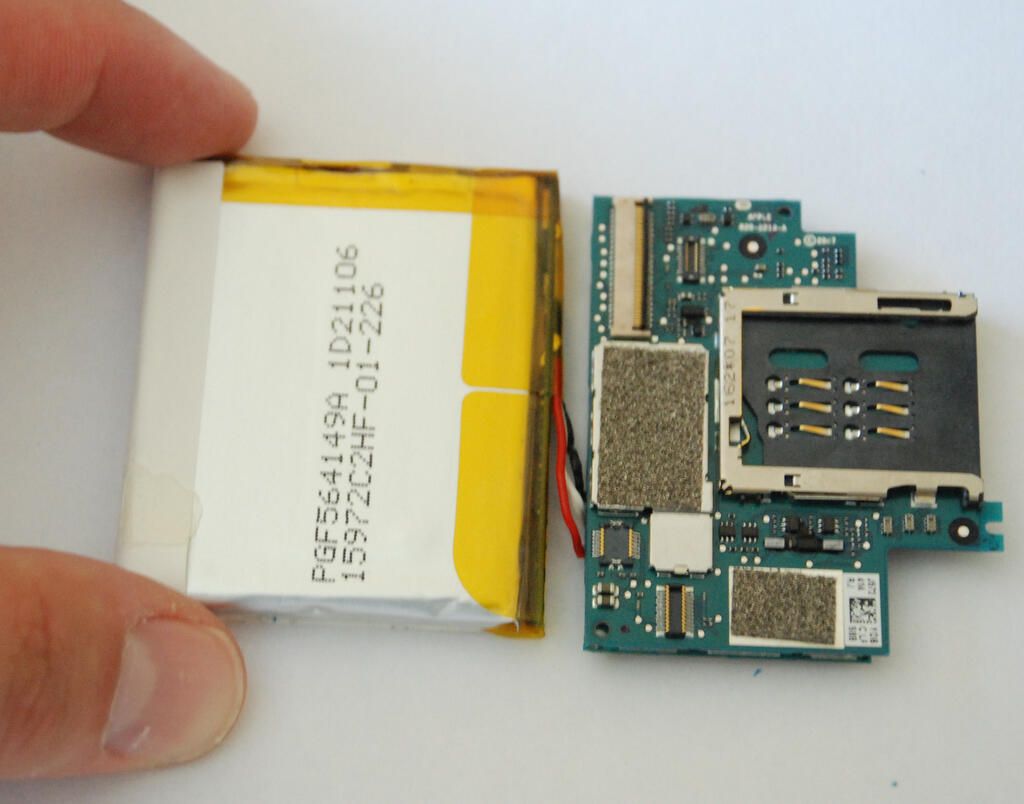
Flipping the iPhone’s main PCB’s over, you can see the SIM card connector, thin ribbon cable connector for the screen, and connectors for the the camera and other components.
You must be very gentle when lifting the clamp on the screen’s ribbon cable. The plastic piece is fragile and easily broken.
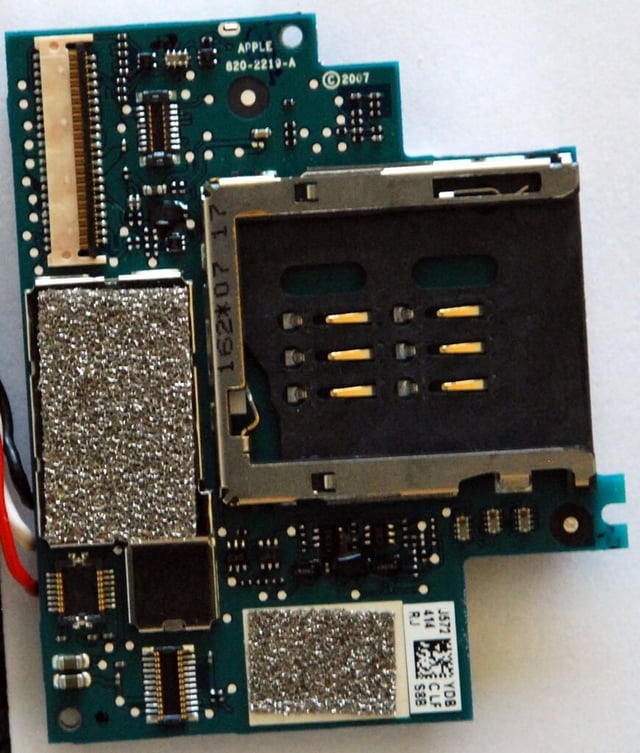
The iPhone has two PCBs sandwiched together. As I wanted to reassemble the phone in working order, I decided against separating them. According to various Internet reports, the iPhone uses an ARM1176JZF-based processor manufactured by Samsung (S3C6400) that operates at 667MHz. According to the ARM Web site, the ARM1176JZ(F)-S chip uses ARM TrustZone technology to improve security, ARM Jazelle technology for embedded Java execution, and ARM Intelligent Energy Manager (IEM) technology to reduce processor power consumption.
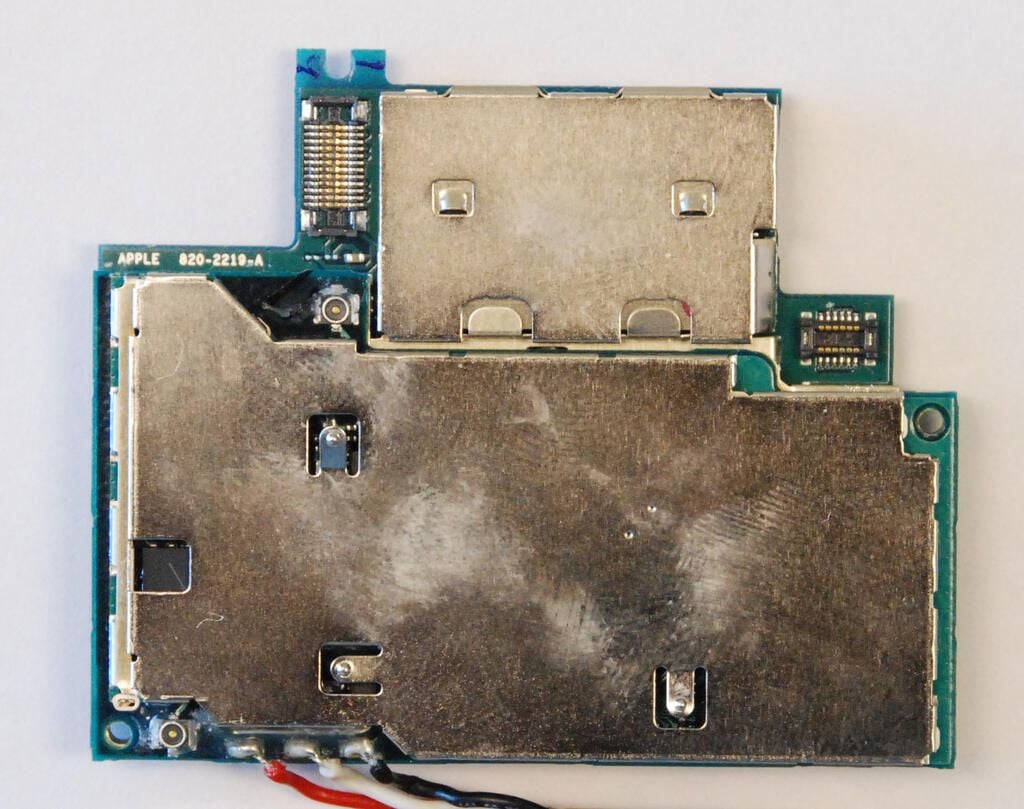
A metal shield covers almost all of this PCB. The small, round silver connectors are for the two antenna wires.
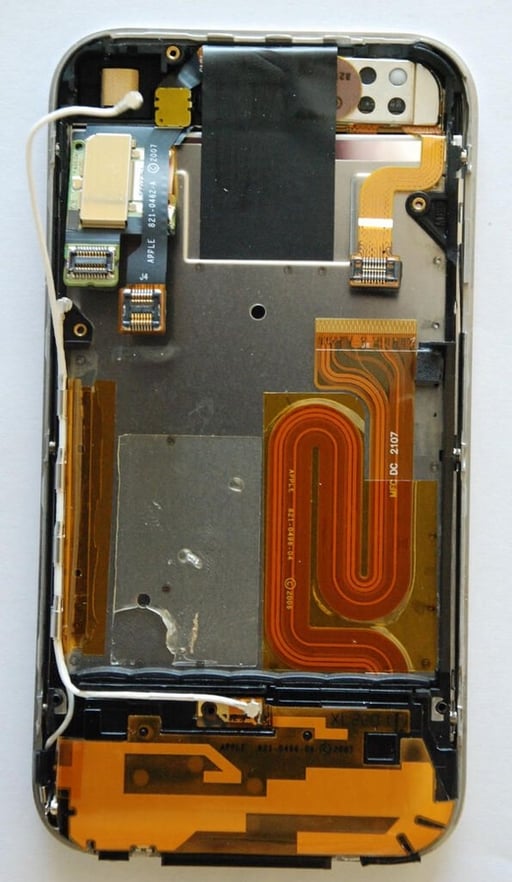
With the battery and PCB assembly removed, we can see the underside of the iPhone’s chassis. As we wanted to reassemble this iPhone in working order, I stopped my disassembly at this point.
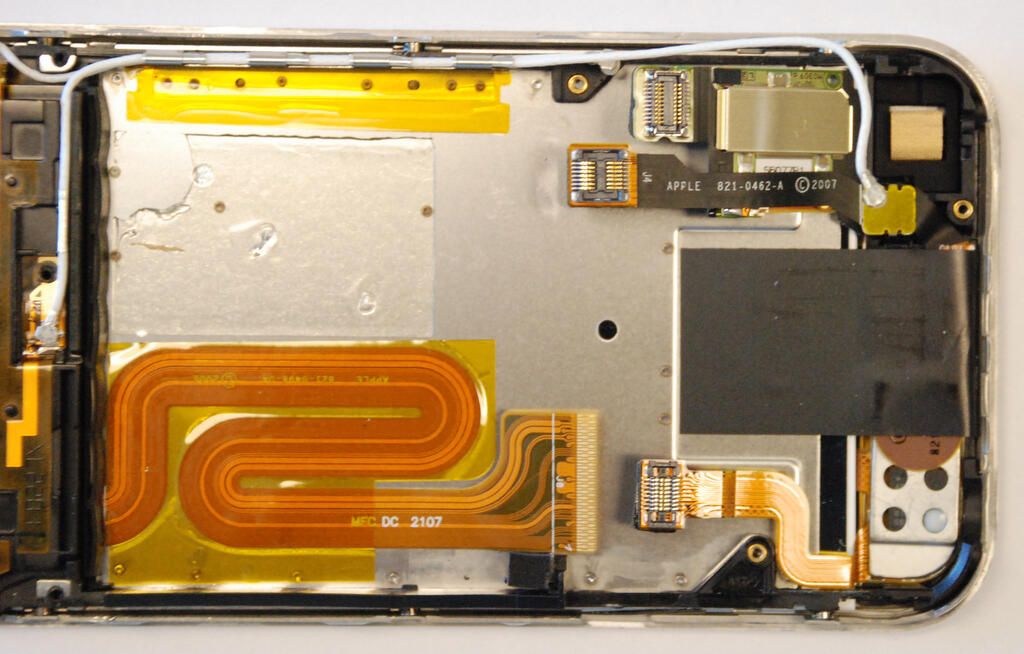
The iPhone’s lithium ion battery is secured to the chassis with a strip of adhesive.
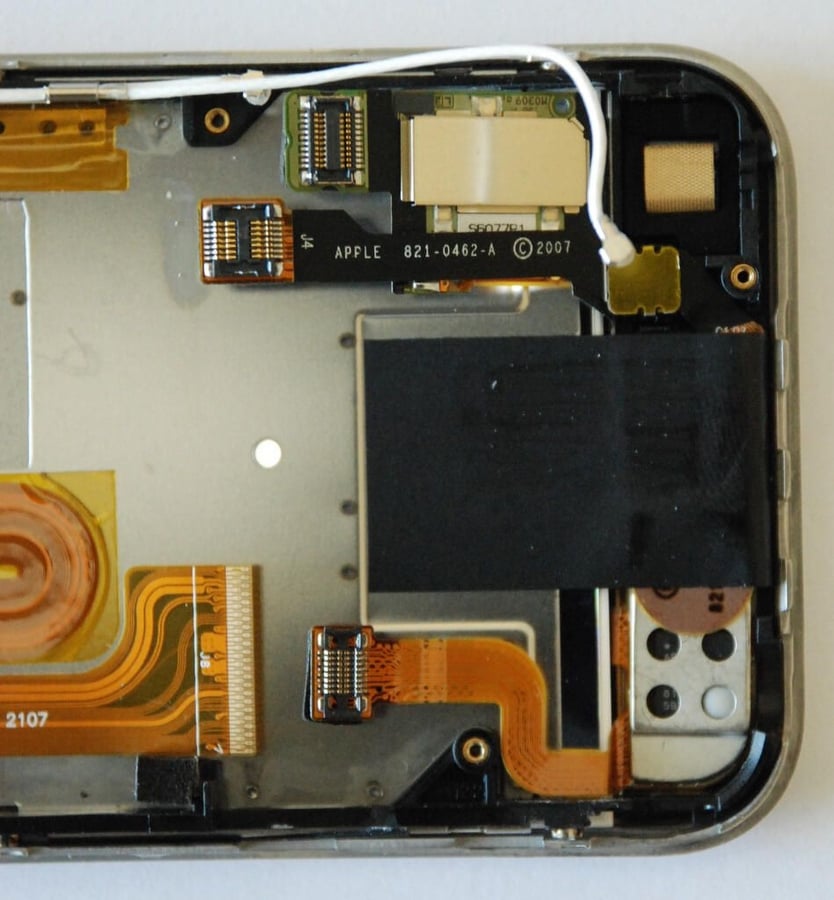
The iPhone chassis has six internal connectors that attach to the main PCBs–two antenna cables, one ribbon for the screen, and three other ribbon data cables.
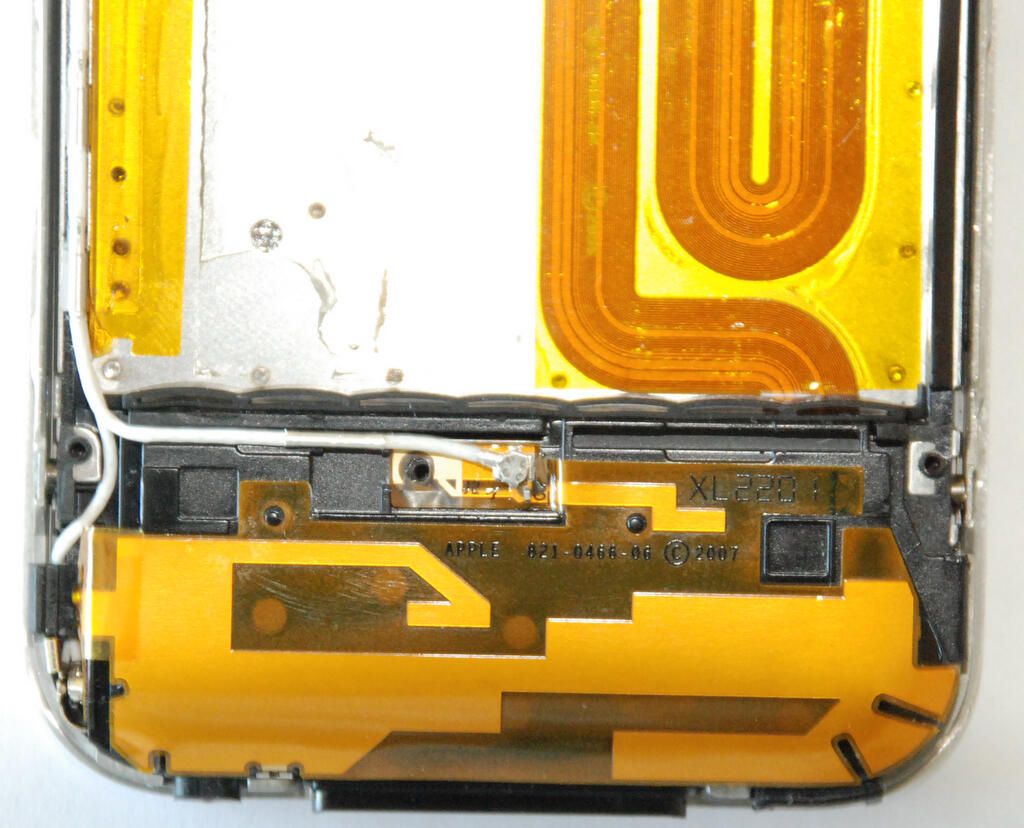
The iPhone’s internal antenna are located beneath the black plastic antenna cover we removed at the beginning of the disassembly process. The system battery is located under the black plastic cap to which the antenna is glued. I decided against removing the antenna to avoid breaking the delicate ribbon.
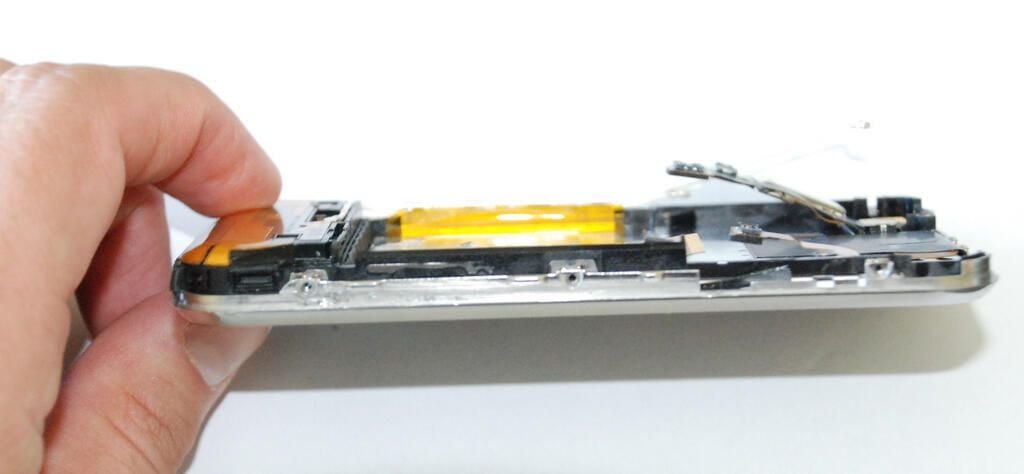
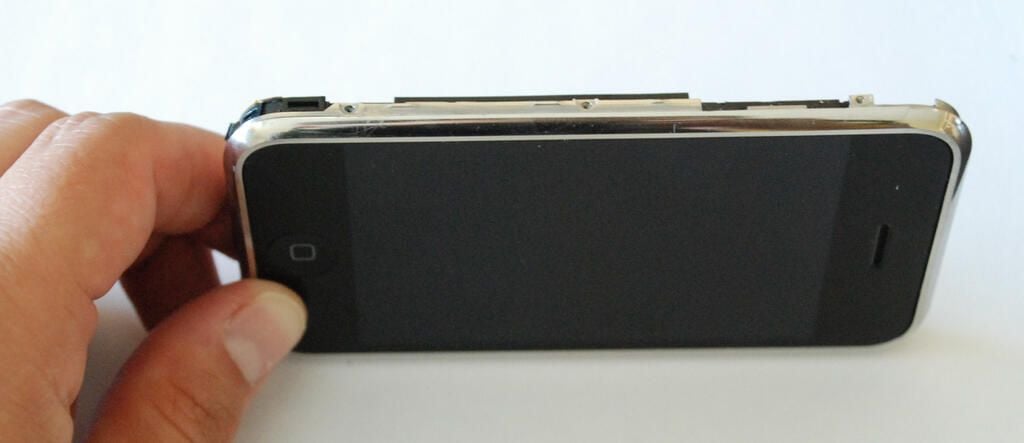
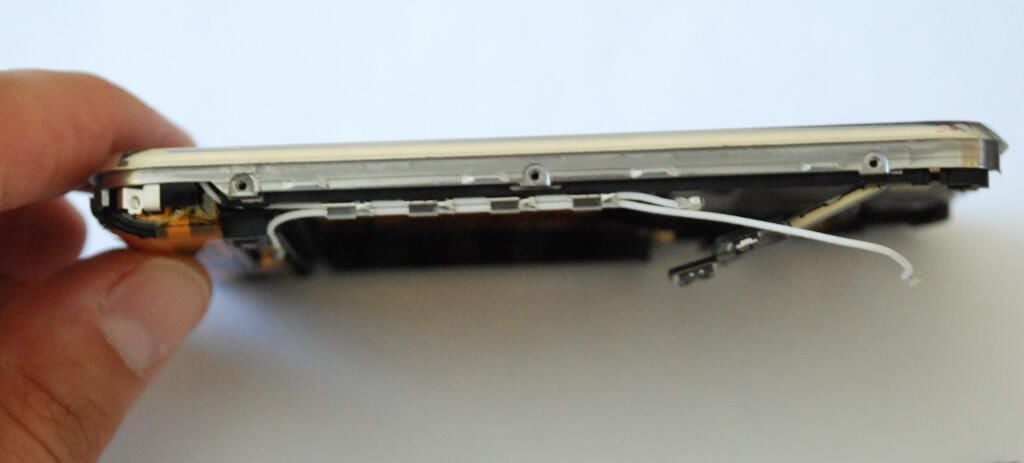
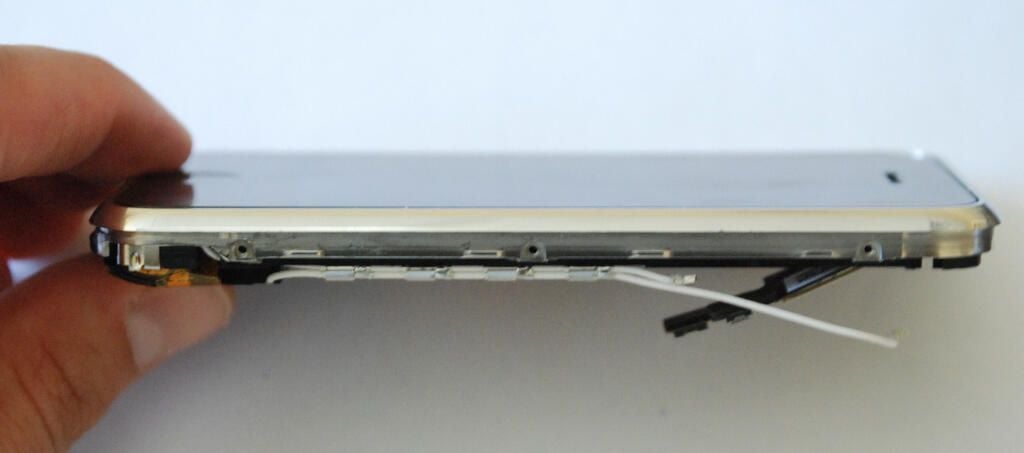
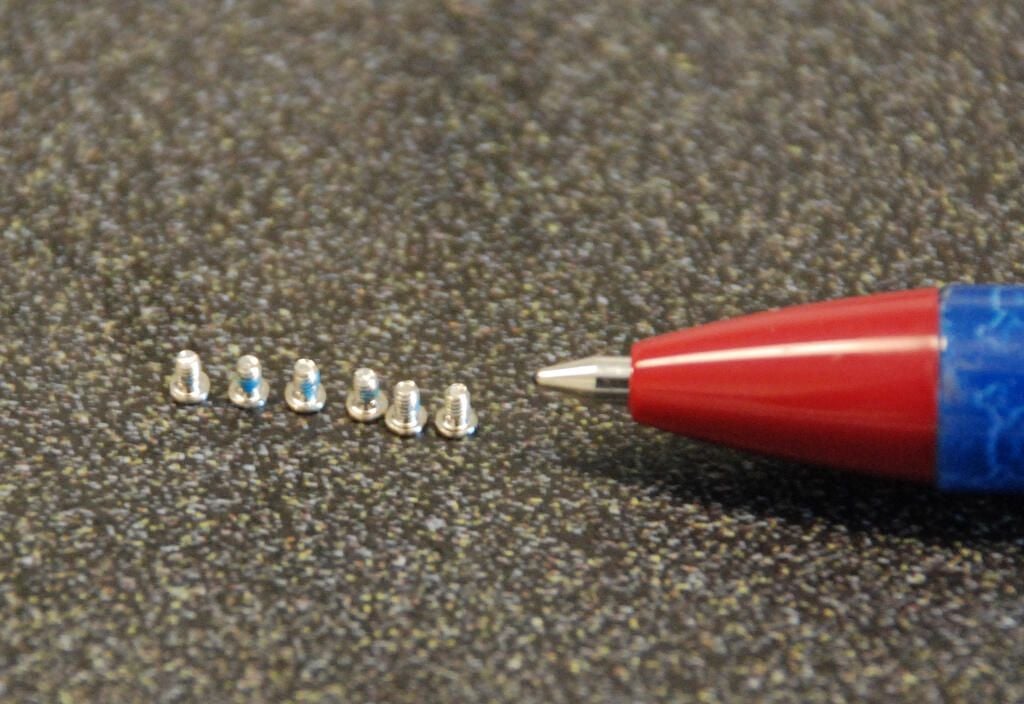
The Apple iPhone use 16 Phillips screws to secure the internal components. They vary in diameter and length, but all are extremely small.
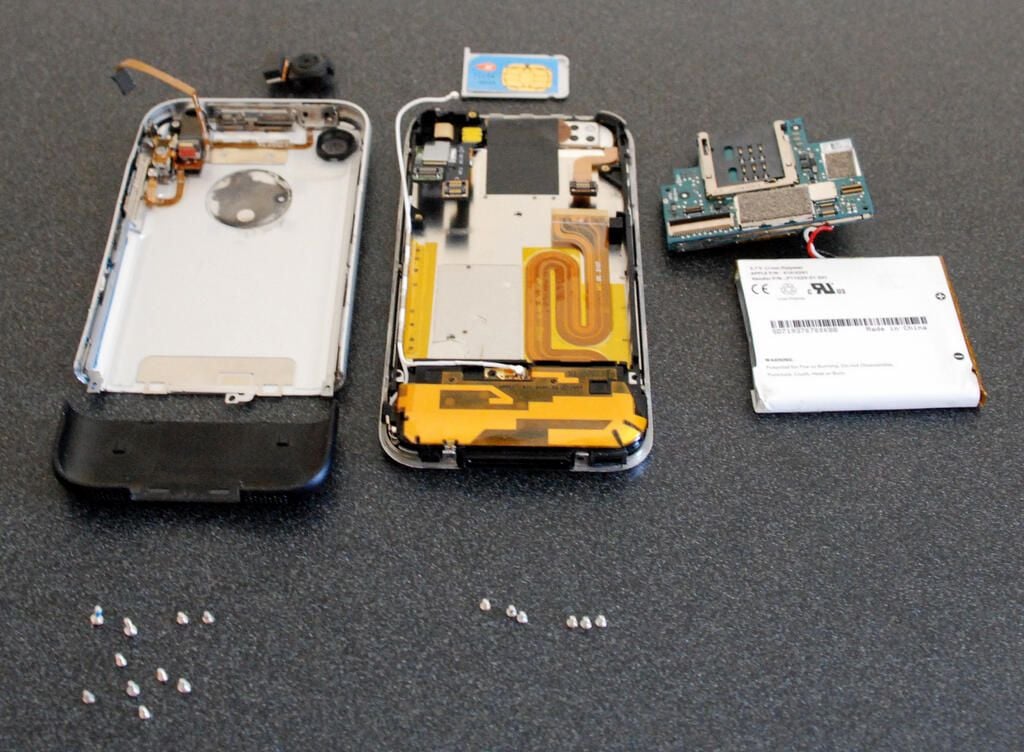
After three hours of poking, prodding, and even a little praying, I managed to disassemble the Apple iPhone. Although I really love cracking open interesting gadgets, this was not one of my favorite projects. The iPhone’s case is so difficult to open and the components are so delicate, that the process is more tiring than fun. Perhaps I should use a hammer next time?
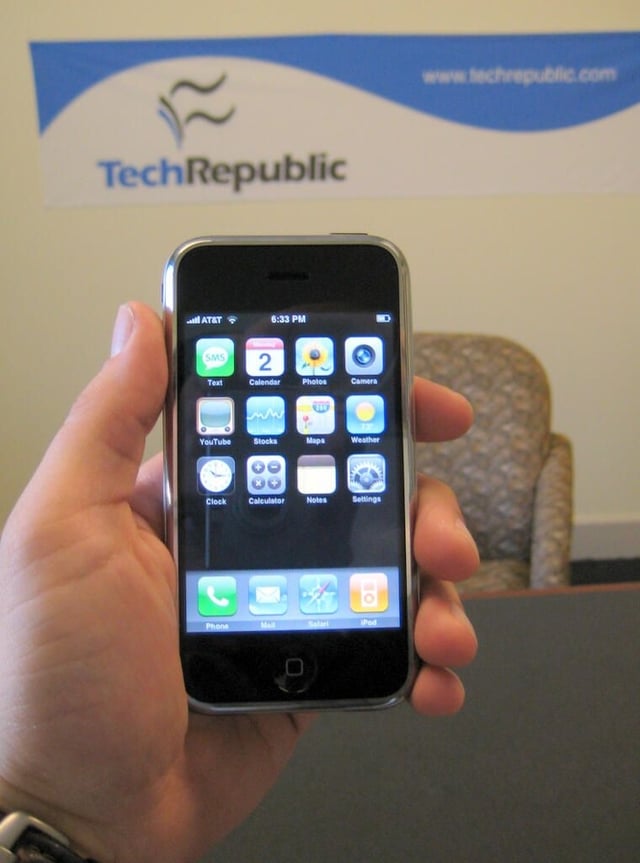
After taking our last photo, it took me another 20 minutes to reassemble and power on the unit. Unfortunately, the iPhone presented me with the dreaded Apple “white screen of death”–commonly seen on dead iPods.
As I have a perfect record of cracking open gadgets and putting them back together in working order, I wasn’t about to let the iPhone get the better of me. I had no confirmation, but I hoped that the error was caused by the main PCB having been separated from the battery. I tried various button combinations to “hard reset” the phone, but the problem persisted. I would press the Sleep/Wake button and the screen would power on but be completely white. I connected the iPhone to the USB power adapter and powered it one–white screen. I connected the iPhone to the laptop with iTunes. iTunes recognized the phone and could see the iPhone’s memory, but the white screen continued to stare me in the face. We tried to update the phone’s software through iTunes, but the process failed. I cycled the unit’s power at least three dozen times. I disconnected and reconnected the internal ribbon cables. Nothing I did worked.
In a last-ditch effort, I searched the Web for the iPhone hard reset procedure. The instructions I located told me to hold down the Home button (large button on the iPhone’s front cover) and the Sleep/Wake button for several seconds. The white screen should appear and then an Apple logo. I had tried this exact button combination several times, but I figured I would give it one last go.
I began holding the buttons. Immediately the dreaded white screen returned. I continued holding the buttons for another 5-10 seconds, and the white screen disappeared. This had happened before and I didn’t have much faith the white screen wouldn’t return. I held the buttons for another 5-10 seconds hoping the iPhone would return to the land of the living. And suddenly, the silver Apple logo appeared on the black screen. Within a few minutes our cracked-open iPhone was up and running again. w00t!
Bill Detwiler is the Editor for Technical Content and Ecosystem at Celonis. He is the former Editor in Chief of TechRepublic and previous host of TechRepublic's Dynamic Developer podcast and Cracking Open, CNET and TechRepublic's popular online show. Previously, Bill was an IT manager in the social research and energy industries. He has bachelor's and master's degrees from the University of Louisville, where he has also lectured on computer crime and crime prevention.


