By John Lee
If you’re a high-octane business exec (or if you just want people to think that you’re one) or if you’ve ever seen Office Space and thought — I don’t get it, you need a BlackBerry. These indispensable devices have let people stay connected to the Web, the office and their email accounts for years now, and their popularity shows no signs of waning.
BlackBerry’s latest model is the BlackBerry Curve 8310. Not only is it a cell phone and an email and text messaging workhorse, it also features a media player, Web browser, integrated GPS and a 2 megapixel camera in an amazingly small and trim package. I tried to get it to clean my bathroom, but to no avail – maybe next year’s model will accommodate me.
Let’s crack this bad boy open and see what’s inside.
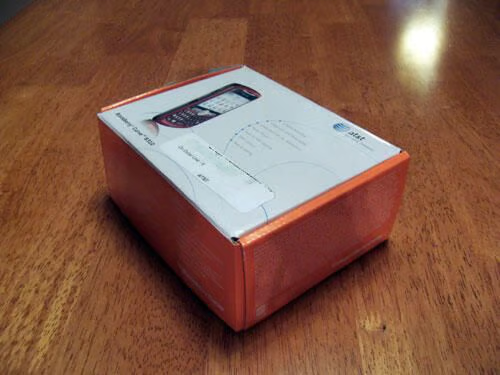
Our BlackBerry Curve was purchased from AT&T, who wisely decided to hold on to Cingular’s catchy bright orange packaging motif after they acquired them. The photo of the BlackBerry on the front shows that we opted for the most attractive of the four colors offered for the Curve: deep red. Tasty.
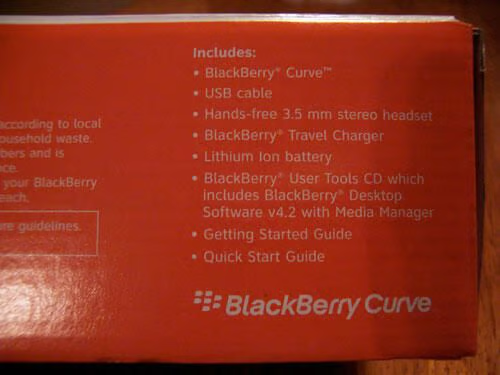
Here we find a list of exactly what we are getting. Looks like it will be everything we need to charge up the Curve and put it to work for us.
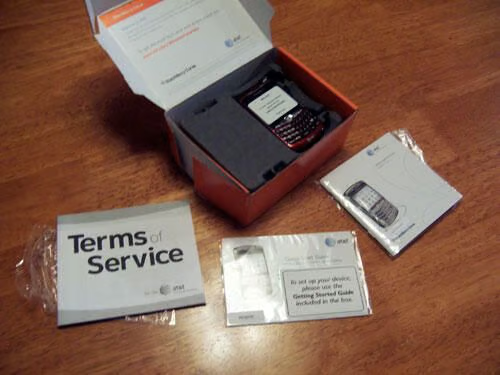
Underneath the Terms of Service, we find a quick start guide and a more thorough instruction manual, as well as the BlackBerry Curve itself.
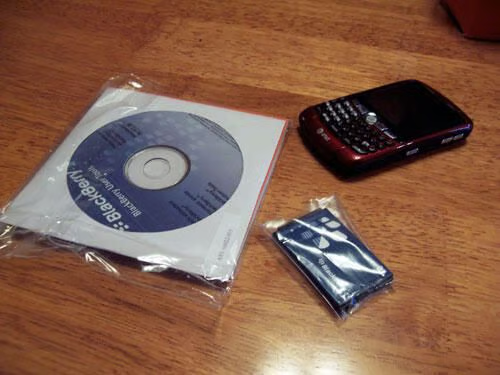
Also included in the package: a lithium-ion battery and a software installation CD that allows your PC to talk to the BlackBerry Curve and installs the needed BlackBerry Desktop Software v4.2.
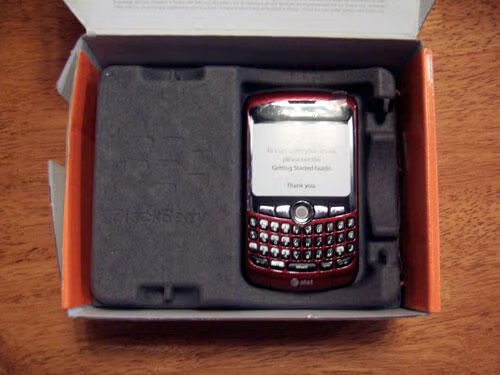
The BlackBerry Curve is secure in this cardboard partition that sits atop more accessories and essentials.
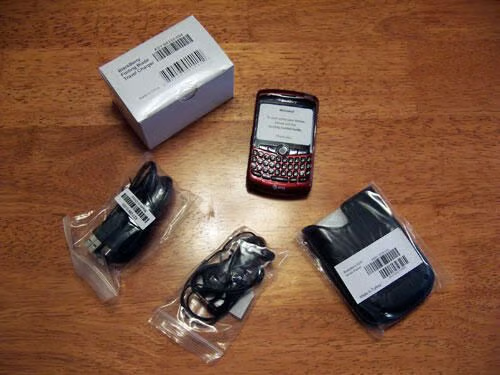
Underneath the Curve, we find a USB cable, Travel charger, stereo headset and a leather carrying case with a belt clip.
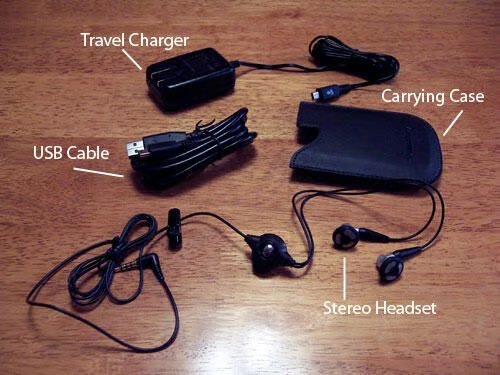
After unpacking the charger, USB cable, headset and carrying case, we’re struck by the quality of them all. The headset is especially nice, with a microphone, clip and remote button. The plastic on the charger is also of high quality that absolutely says “executive.”
The carrying case is a little lacking, though. It will do the job nicely, but BlackBerry fanatics will have no problem ditching it for a third-party case that has a little more panache.
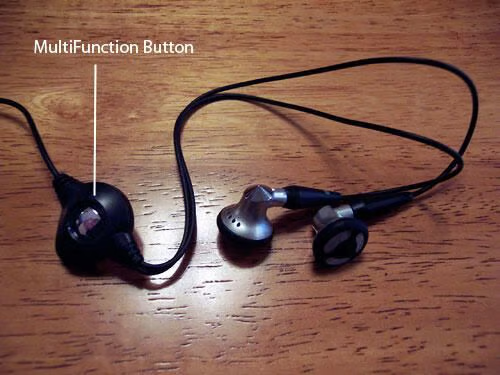
A close-up of the headset and its multi-function remote button. We can’t speak for the quality of the audio signal, but the design is great and the construction seems sturdy.
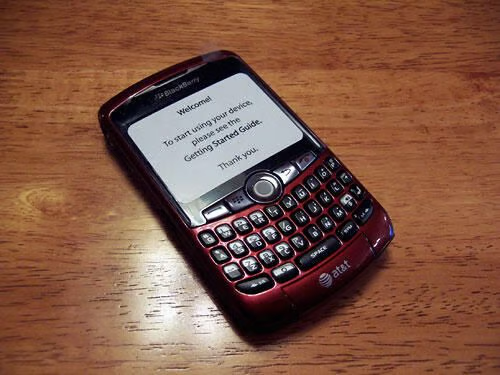
The Curve ships with an overlay that instructs the new owner to please read the Getting Started Guide (a.k.a “The Instructions”). Would it have read differently if BlackBerry knew we were just going to rip this thing open?
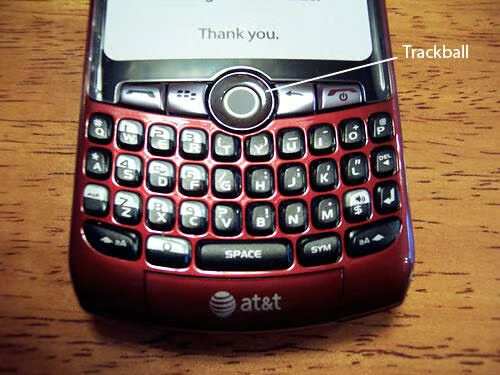
We don’t have time to power the Curve up and take it for a drive, but the promotional materials make it well-known that the navigational Trackball is translucent and lights up when the Curve is turned on; a nice touch.
The keyboard is identical to the keyboard on all other BlackBerry models. If it ain’t broke, don’t fix it.
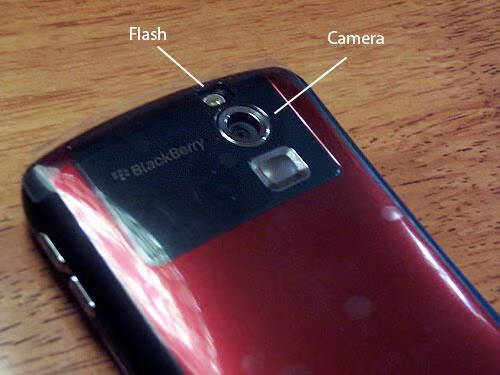
The backside of the Curve is a solid panel of the red casing, with only the 2-MP camera lens and flash at the top. Less is definitely more.
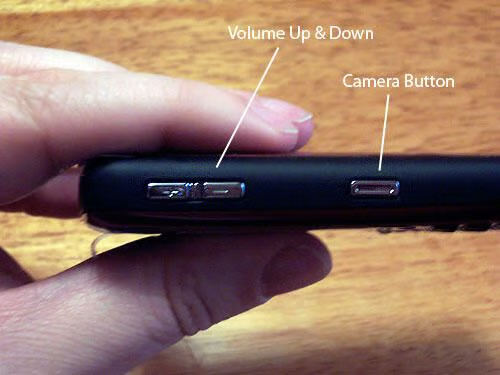
At just over 1/2″ thick, the Curve is just deep enough for most of the handheld tasks people will use it for. The sides of the casing feature a rubber-like texture, making for a comfortable grip.
The right side has buttons that control the volume of your calls, as well as a camera button, which is convenient for grabbing a fast picture without having to navigate a lot of onscreen menus.
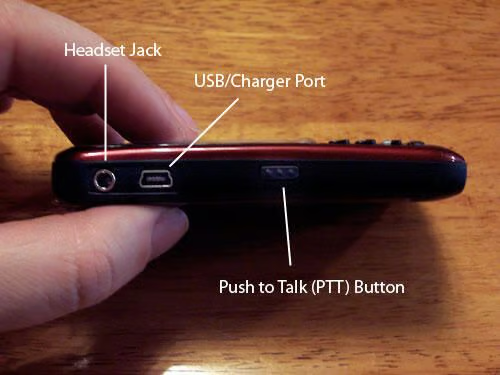
The left side of the Curve is where you plug in the Charger or the USB cable, as well as the headset. It also has a Push To Talk (PTT) button, always a nice feature on any mobile phone.
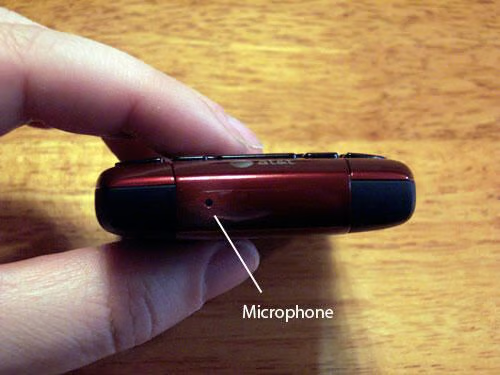
The bottom of the Curve expectedly features the microphone.
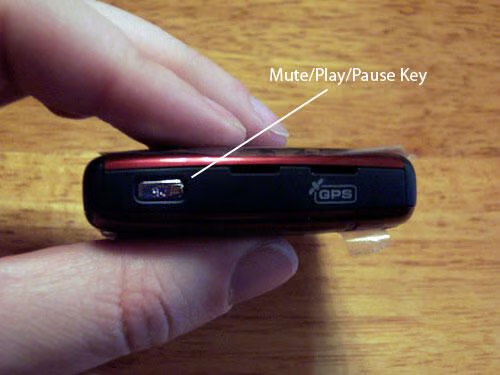
The top of the Curve has a Mute/Play/Pause key that comes in handy for when calls from the boss interrupt your listening to that audiobook about starting your own business.
There’s also a GPS logo in case you forget that the Curve has that feature as well.
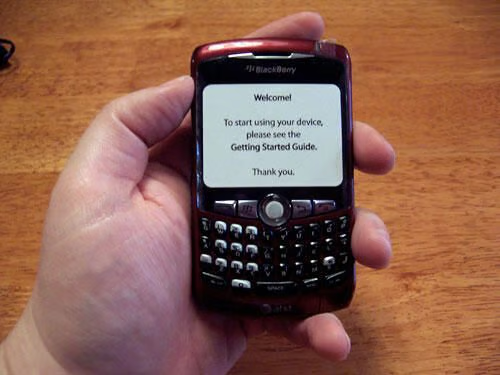
The size and feel of the Curve seems just right for a device that houses so many features.
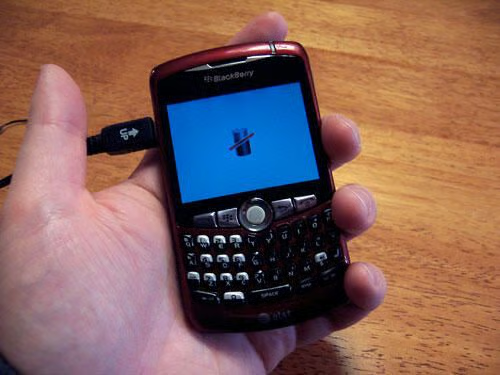
Plugging the charger into the Curve shows us that the LCD screen is operational, but there is no battery onboard.
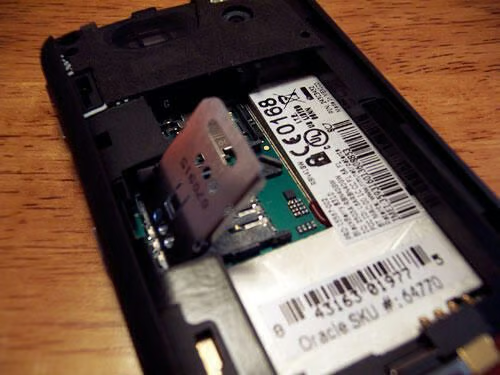
This slot holds the standard SIM card, but oddly, the user manual doesn’t mention it.
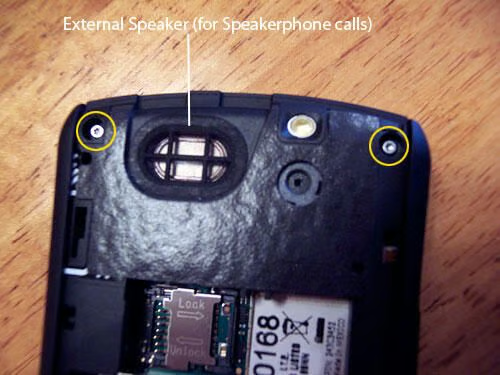
Removing these two tiny screws is where we’ll start. You can also see here the built-in external speaker.
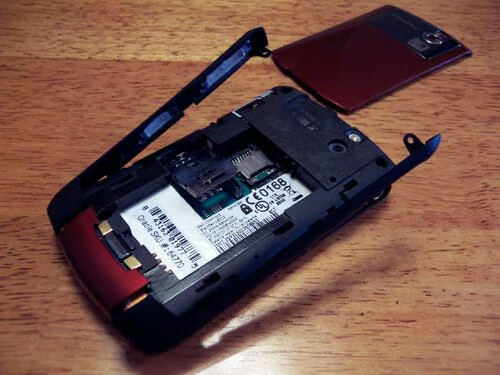
The two screws come out without much effort, but all that does is free up the right and left side grips. And they are still attached to the bottom of the casing. Hmm…
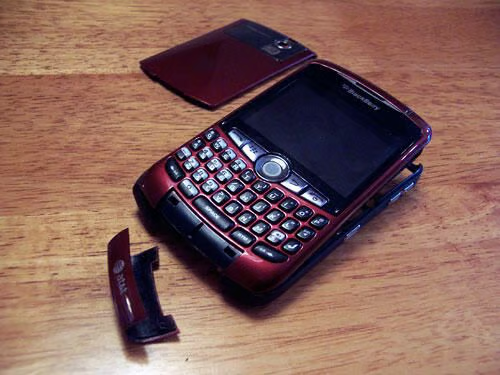
We have no problem removing the bottom microphone cover, so we hope that makes it easier to remove the faceplate from the side grips.
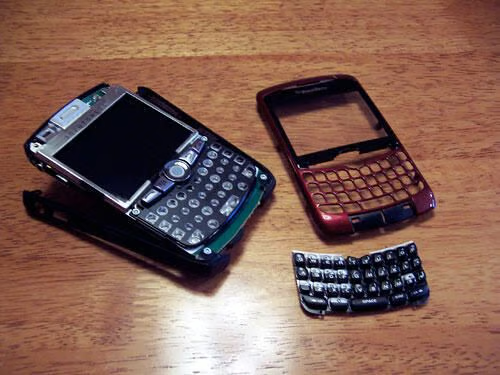
Once the microphone plate is off, the front case pops off easily and the rubber keyboard lifts off without any effort.
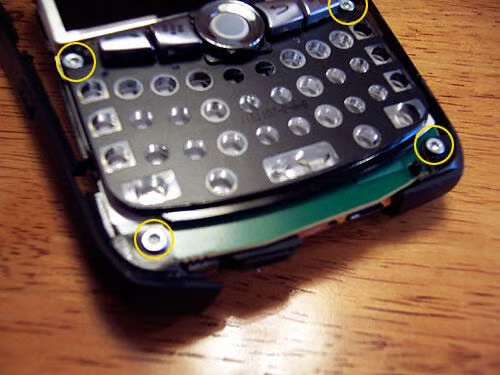
It is starting to look as if the Curve consists of just one primary circuit board. That’s a bit of a surprise to a non-hardware techie like me. These four screws are the next targets for extraction.
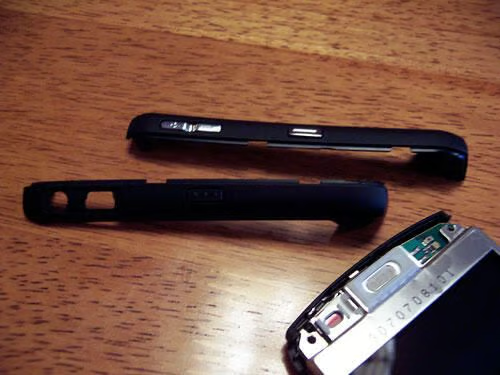
With the four internal screws out, the side grips come off easily.
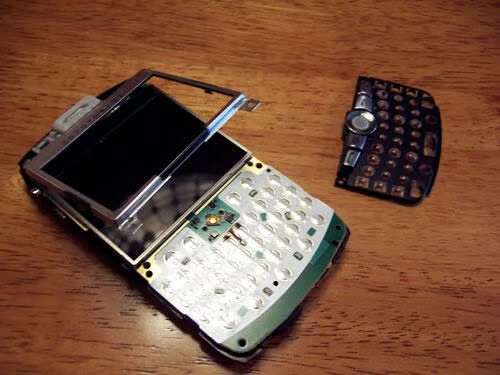
The top two internal screws also allow the framing for the LCD screen to lift away, though it still seems to be hinged at the top. The trackball and phone buttons, attached to the keyboard base also pull away.
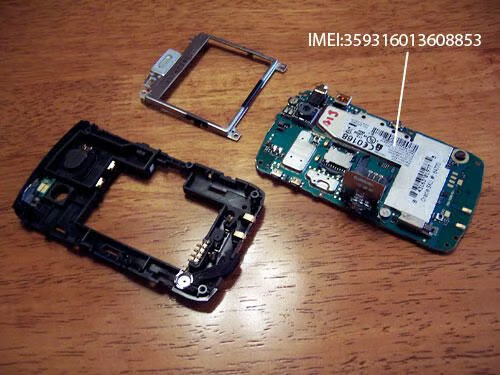
Here we see the Curve’s primary circuit board separated from the backside casing, which contains a few electronic components itself.
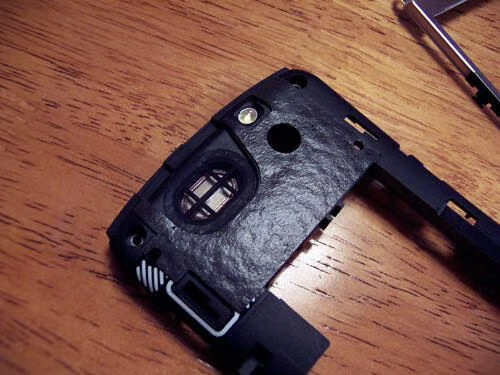
Close up view of the external back casing. We can see the hole for the camera lens, the flash, and the external speaker.
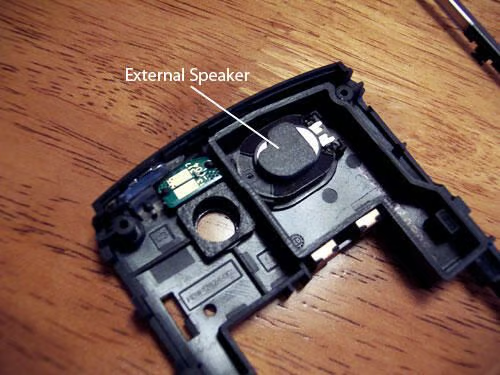
We didn’t get to test the Curve’s speakerphone capabilities, but the speaker certainly looks hefty.
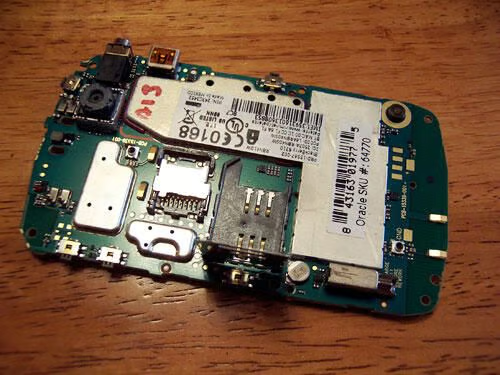
For all the features in the Curve, this small circuit board does a lot of heavy lifting.
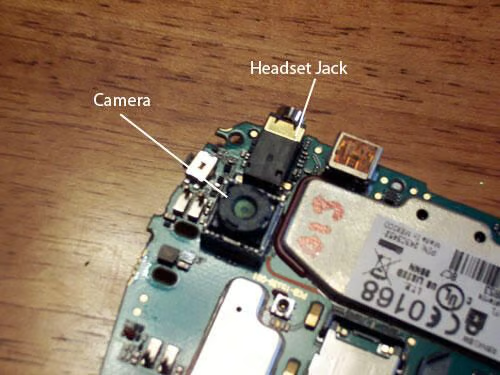
Here’s what the exposed camera lens and headphone jack look like.
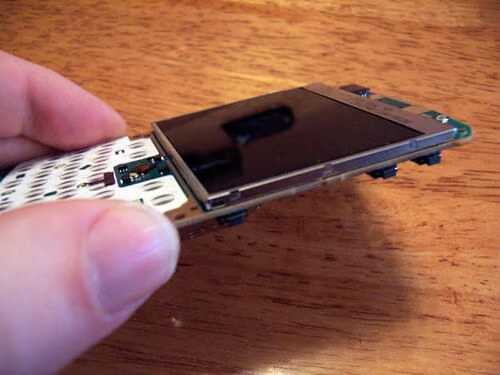
Here we can see how thin the LCD screen really is; about as thin as several sheets of paper stacked together.
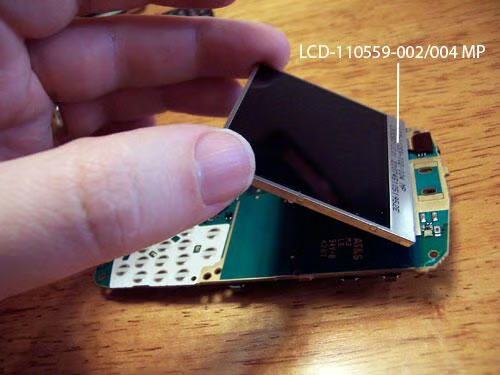
The LCD screen is held to the circuit board with a small amount of weak adhesive.
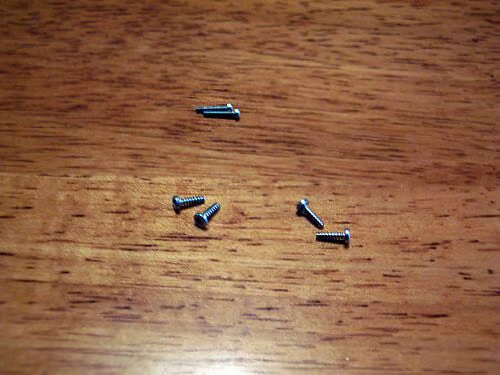
In all, the BlackBerry Curve is held together by nothing more than these six tiny screws. Scary and fascinating.
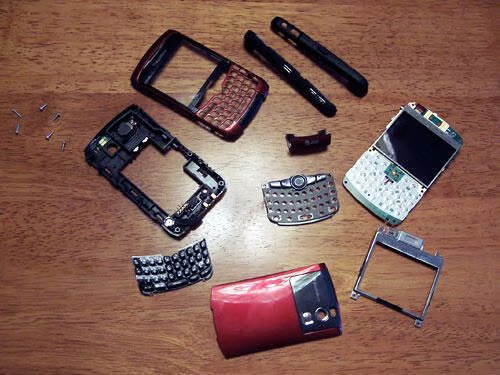
Here is the Curve disassembled in its entirety.
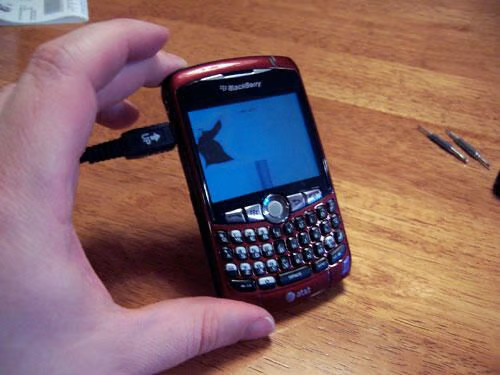
The Curve came back together okay, but it looks as if the LCD screen suffered a bit of major damage. I suppose that’s one way to break free of the corporate leash!
John Lee is a consultant specializing in design and illustration and a freelance technical writer. You can visit his Web site at johnleestudio.com.

John Lee is a consultant specializing in design and illustration and a freelance technical writer. You can visit his Web site at johnleestudio.com.


