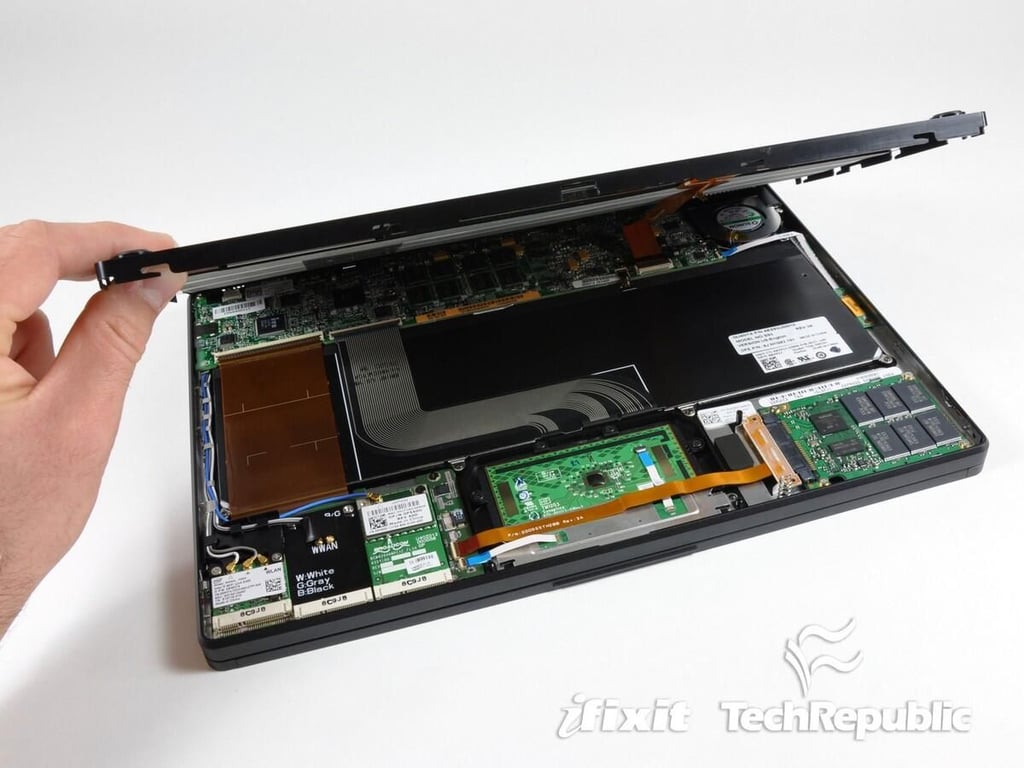
\n\tDell hopes to take a little air out of Apple’s sails with the Adamo. This upscale laptop packs a lot of tech into a stylish, ultrathin package. But, it’s going to cost you. Our $1,999 model includes a 1.2GHz Intel Core 2 Duo Processor, 2GB 800MHz DDR3 dual-channel memory, 128GB solid state drive, and 13.4-inch 16:9 WLED display.
\n
\n\t\n\n
\n
\n\tIn a special partnership with iFixit, TechRepublic brings you this gallery of the cracking open process. iFixit is a one-stop-shop for the parts, tools, and step-by-step guides needed to repair iPods, iPhones, Macs, and almost any Apple product. Follow along as iFixit engineers disassemble the Dell Adamo and expose the tech inside.
\n
\n\t
\n\tPhoto by iFixit for TechRepublic.
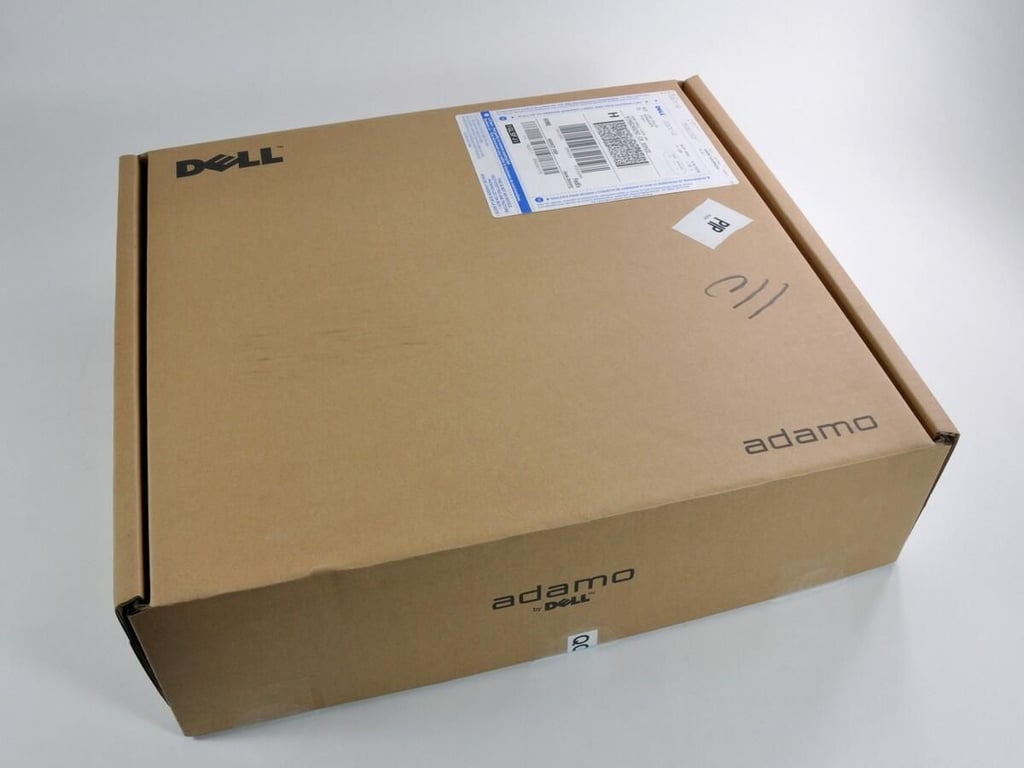
Photo and caption by iFixit for TechRepublic.
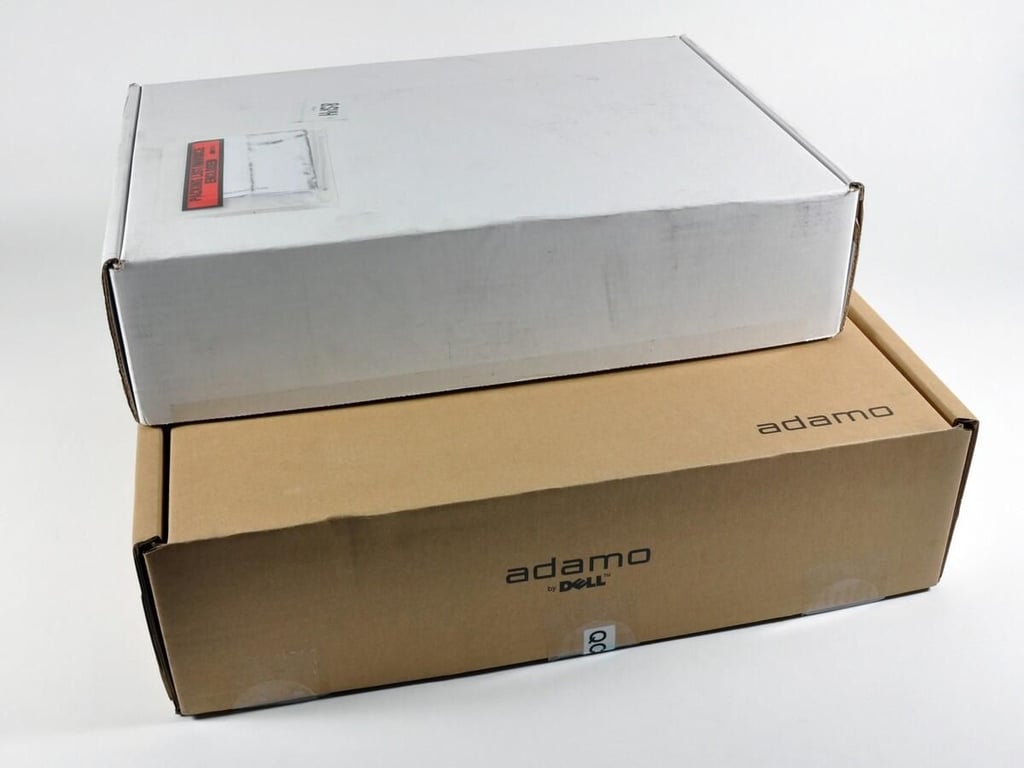
The shipping box is substantially larger than that of the MacBook Air (white box), but the two machines are nearly identical in size.
Photo and caption by iFixit for TechRepublic.
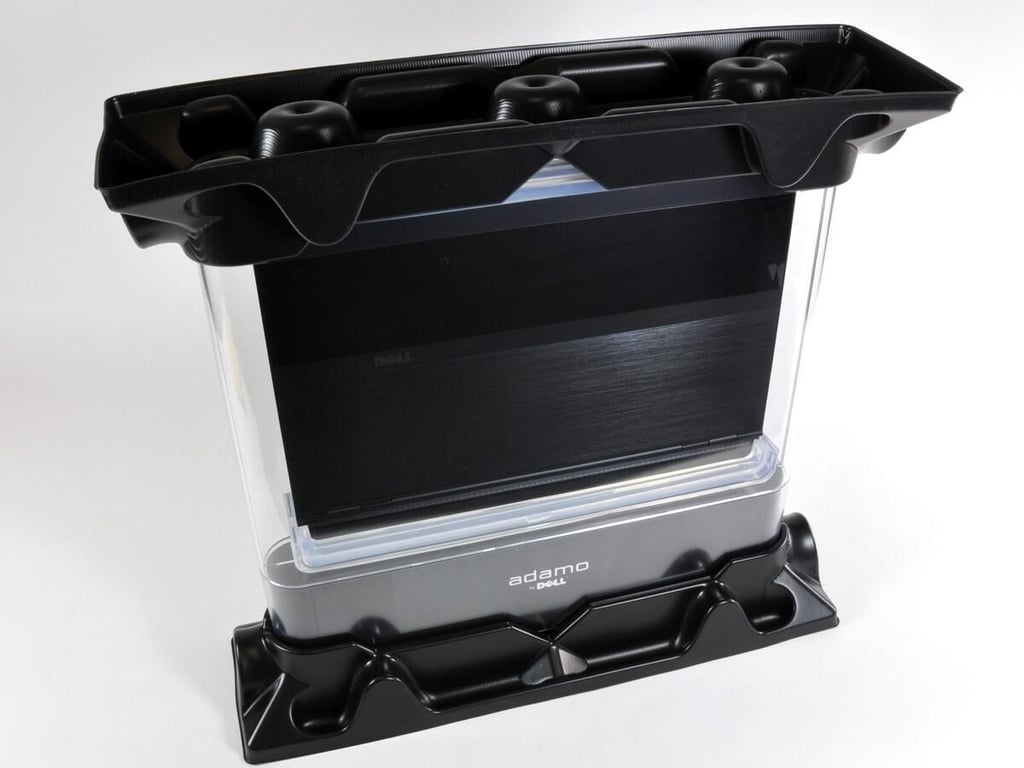
Ladies and gentlemen, Adamo has left the box. Now we know why the the box was so large: the Adamo is encased in a “time-capsule” plastic casing, which in turn is protected during shipping via black plastic shipping caps.
Photo and caption by iFixit for TechRepublic.
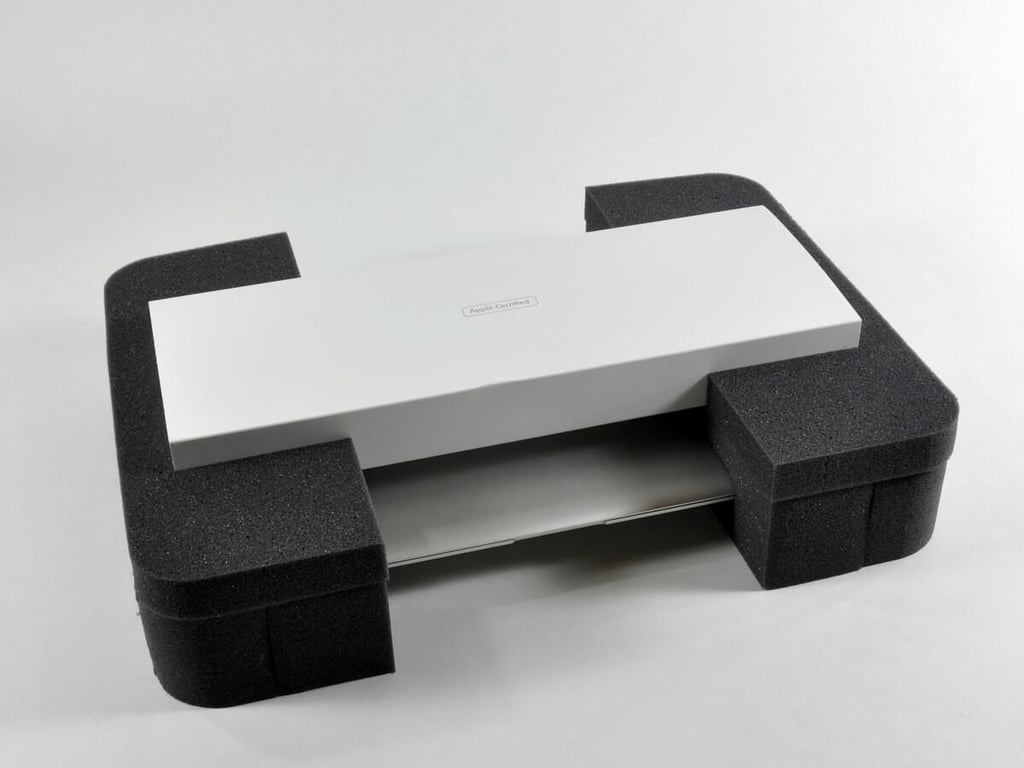
Apple’s MacBook Air packaging requires less effort to remove.
Photo and caption by iFixit for TechRepublic.
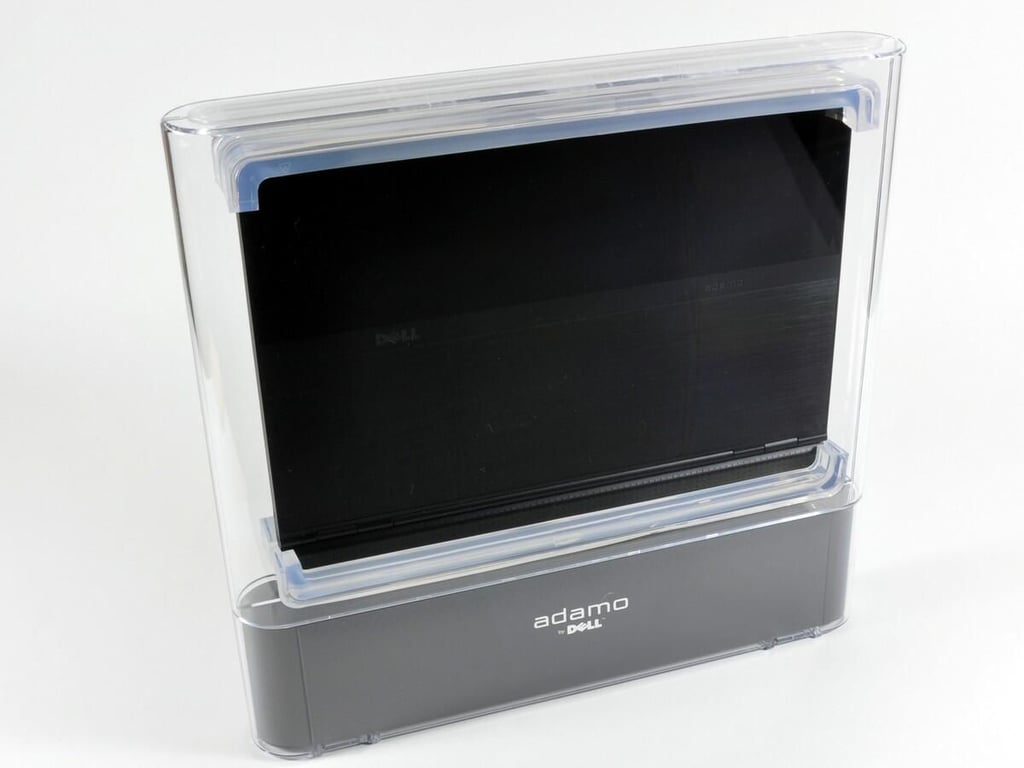
Photo and caption by iFixit for TechRepublic.
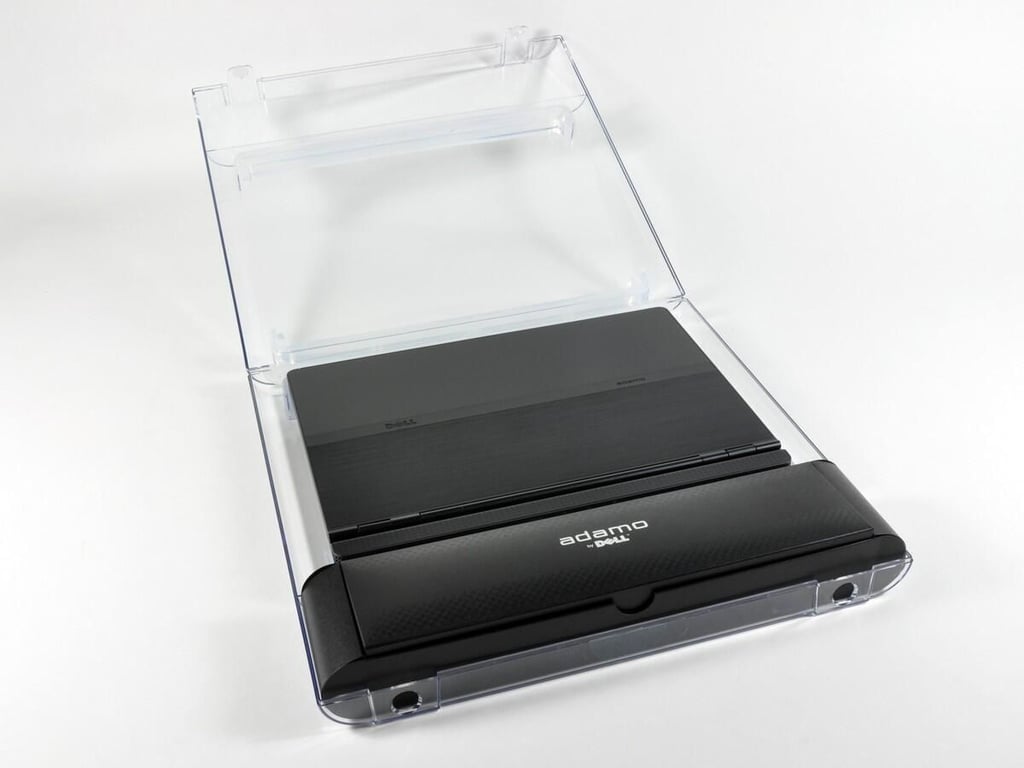
We were kind of expecting a high pressure hiss and a dense fog to roll out as the container automatically opened itself. Didn’t happen. There are two plastic tabs on the bottom of the case that had to be pushed quite firmly in order to release the Adamo from its clear sarcophagus. Lenin would be jealous.
Photo and caption by iFixit for TechRepublic.
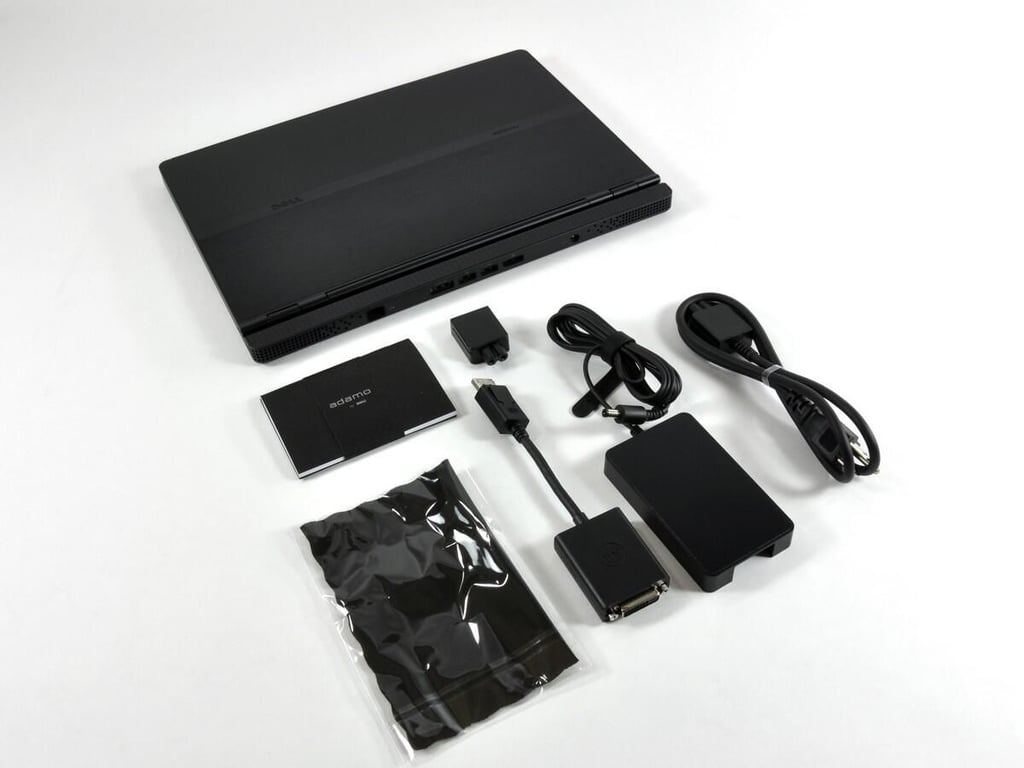
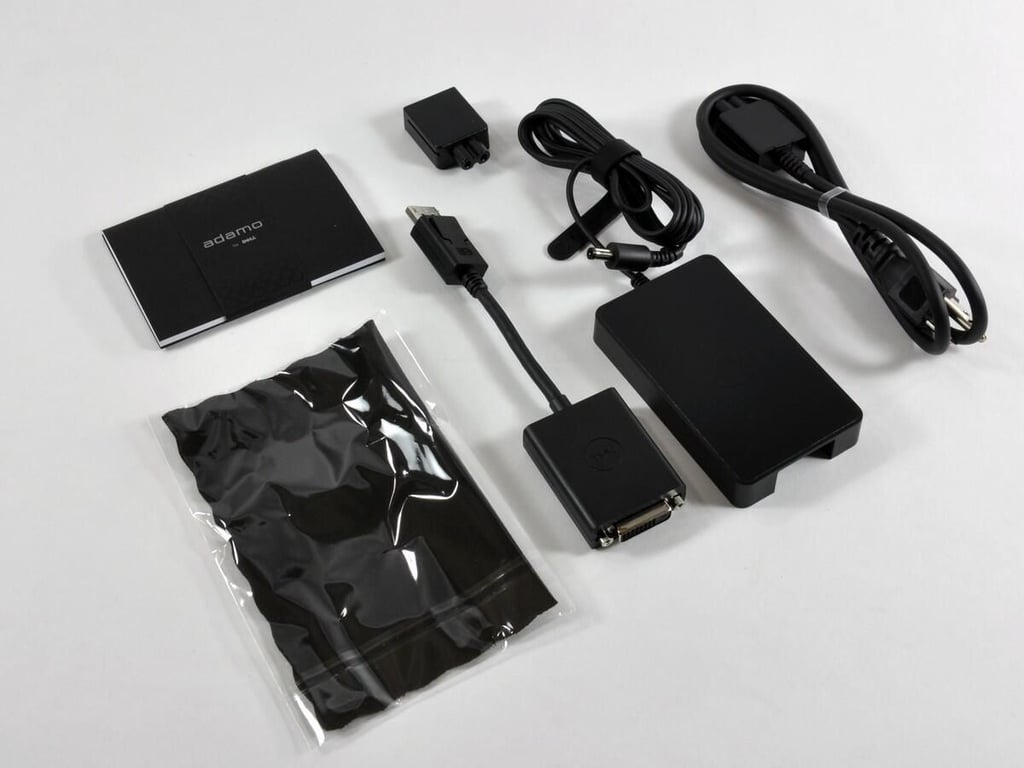
The Adamo and the accessories. All our accessories were black, matching nicely with our “onyx” Adamo. We assume (given the price tag) your accessories will be white if you purchase the “pearl” version.
Photo and caption by iFixit for TechRepublic.
The AC adapter is 45 watts, just like the MacBook Air’s. The power brick design is elegant, but the actual plug isn’t nearly as slick as the Air’s MagSafe connector.
Photo and caption by iFixit for TechRepublic.
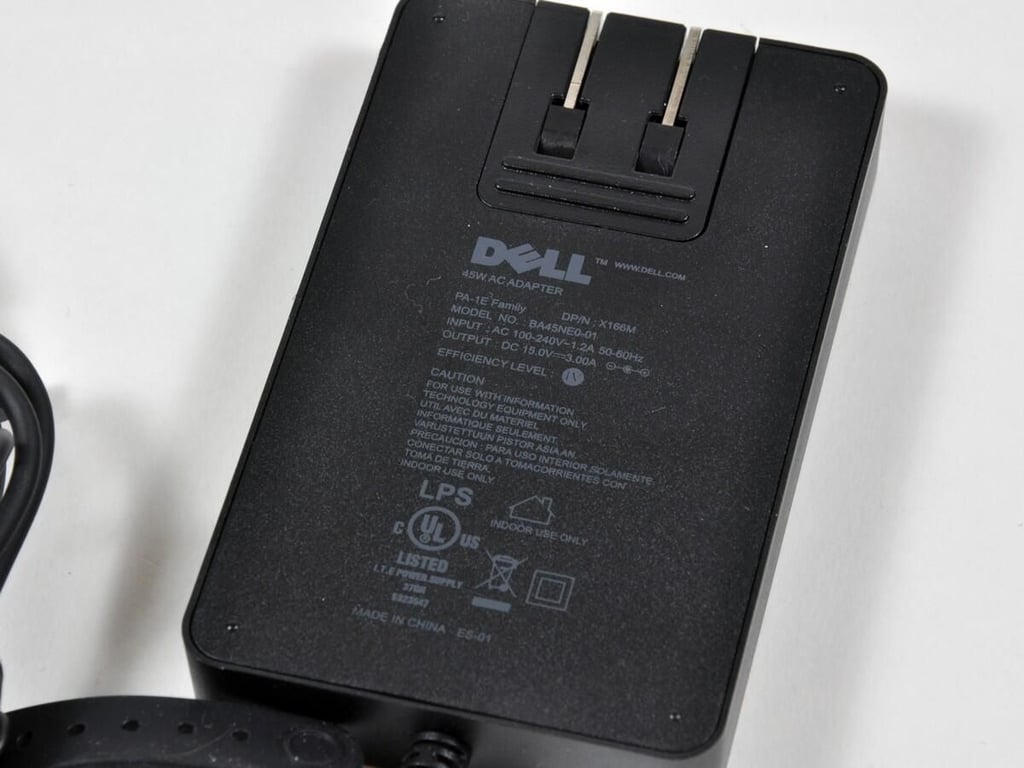
Photo by iFixit for TechRepublic.
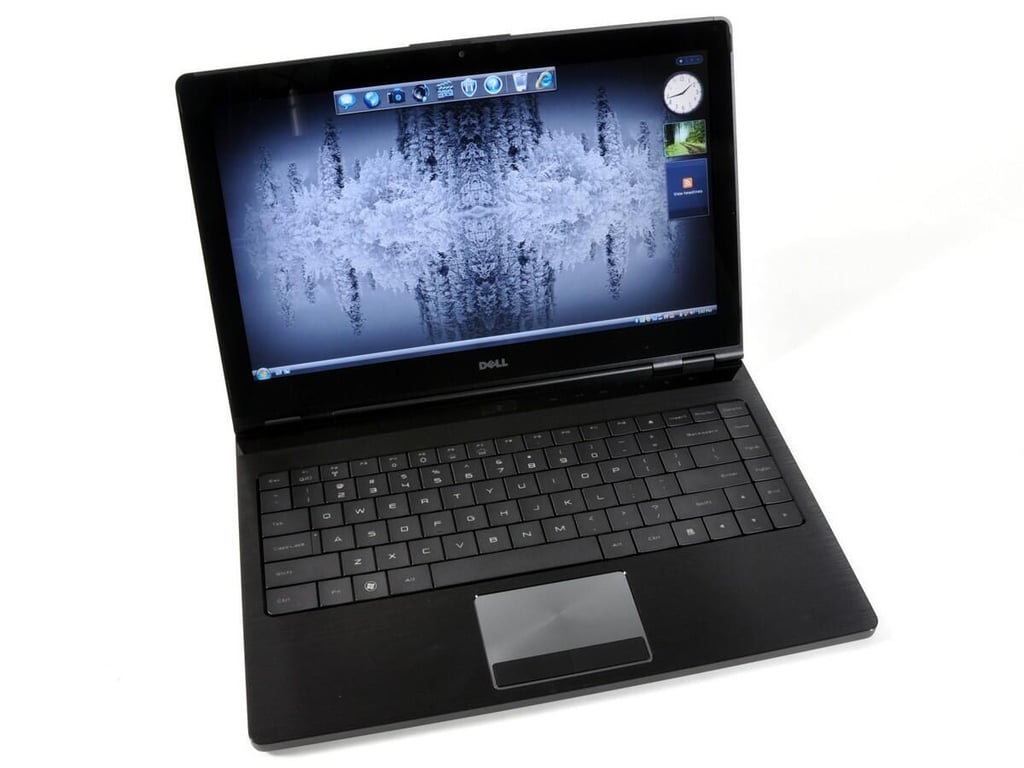
Photo by iFixit for TechRepublic.
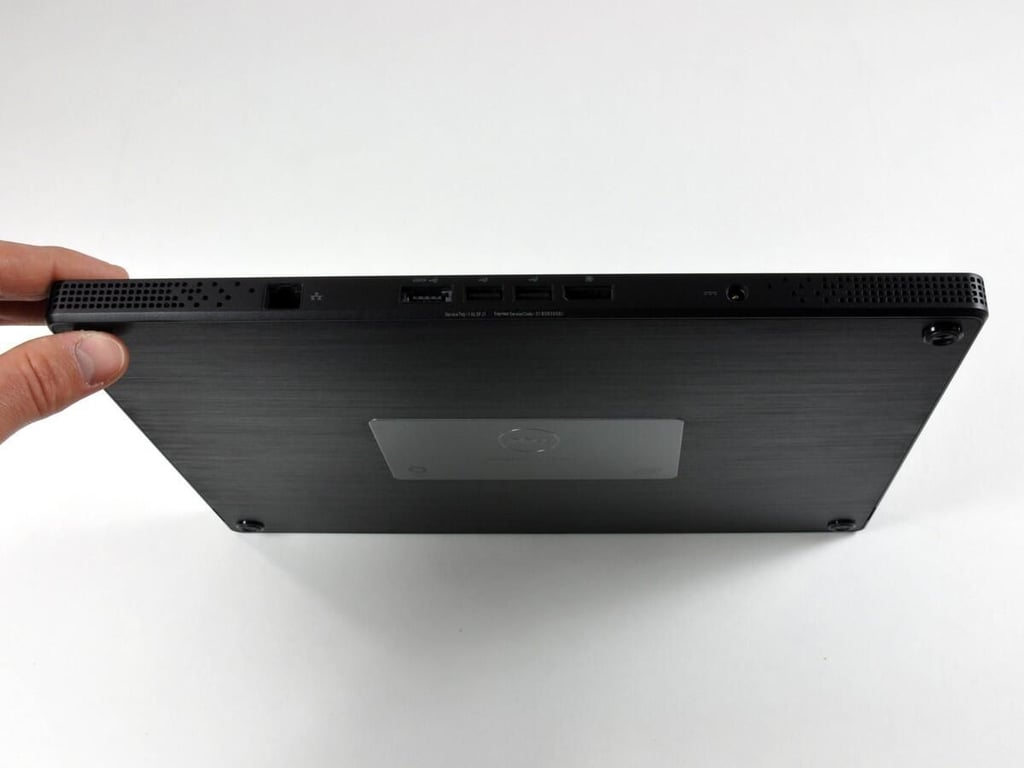
The rear ports of the Adamo, from left to right:
\n * RJ45 Ethernet
\n * eSATA USB
\n * 2x USB
\n * DisplayPort
\n * AC Adapter
Photo and caption by iFixit for TechRepublic.
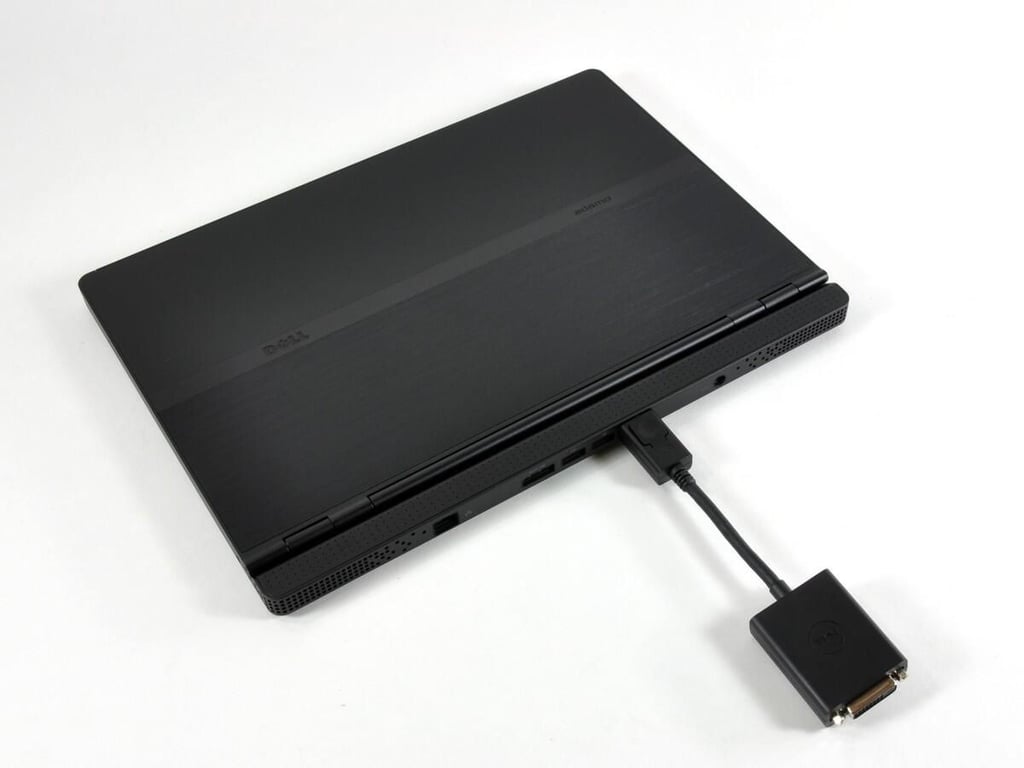
The right side of the Adamo houses a SIM card slot and an audio out/headphone jack.
You get a total of six ports with your Adamo, double that of the MacBook Air. It’s a shame that they couldn’t just put a DVI display port on the computer itself, and instead chose to include a bulky adapter.
Photo and caption by iFixit for TechRepublic.
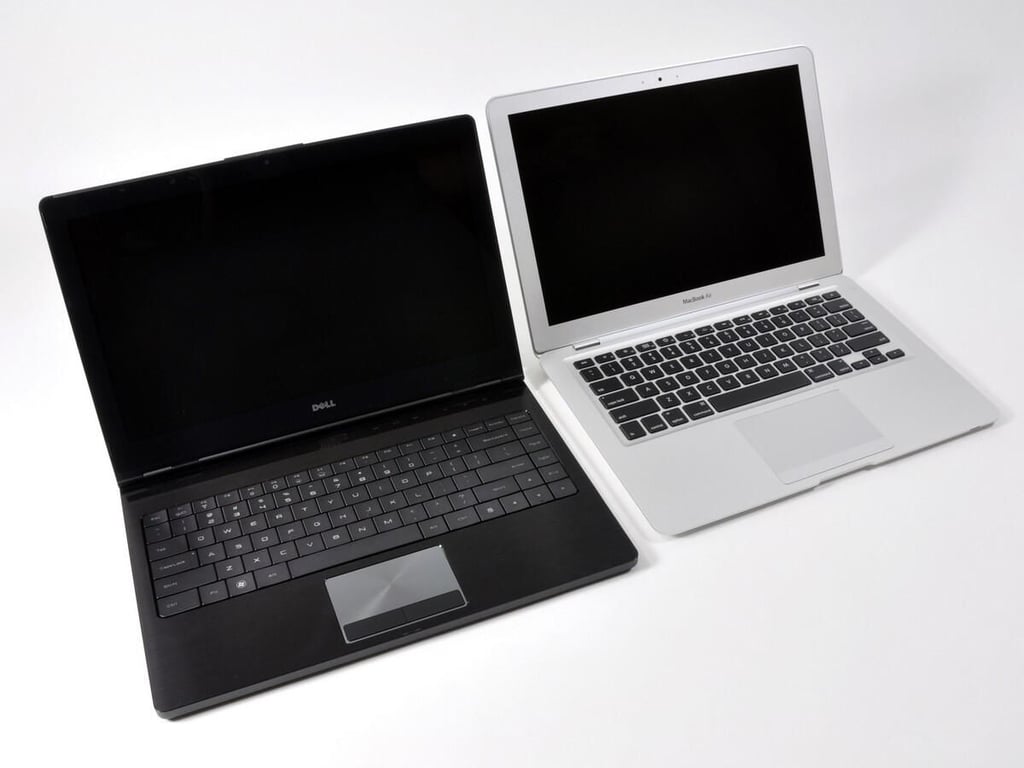
Adamo, meet Air. Now that you’re acquainted…
\nThe Adamo’s dimensions, as compared to the MacBook Air:
\n * Width: 0.23″ larger
\n * Depth: 0.56″ larger
\n * Height: 0.11″ thinner
Photo and caption by iFixit for TechRepublic.
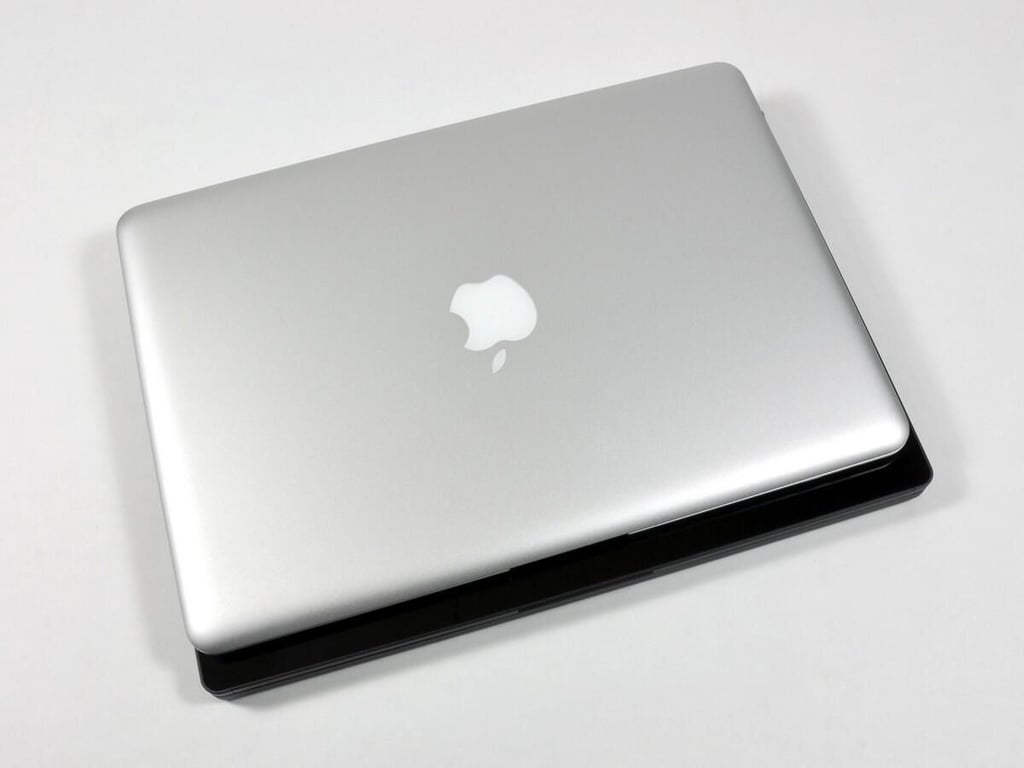
Photo and caption by iFixit for TechRepublic.
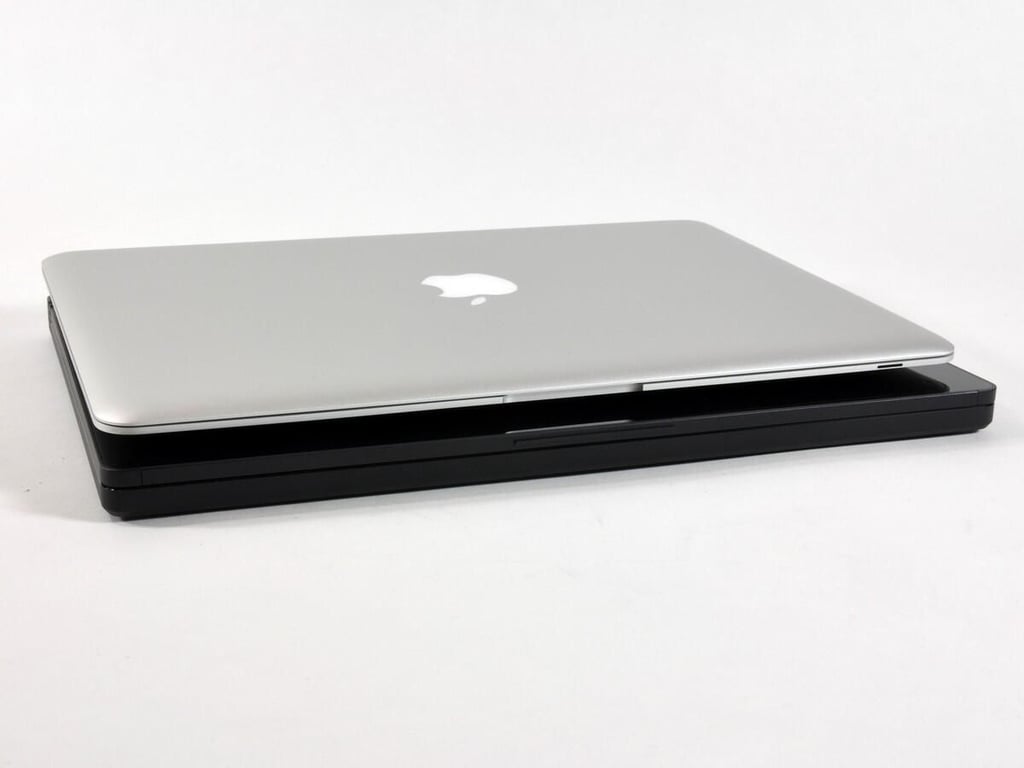
It’s interesting how the Air plays tricks with height. It certainly looks thinner than the Adamo.
Photo and caption by iFixit for TechRepublic.
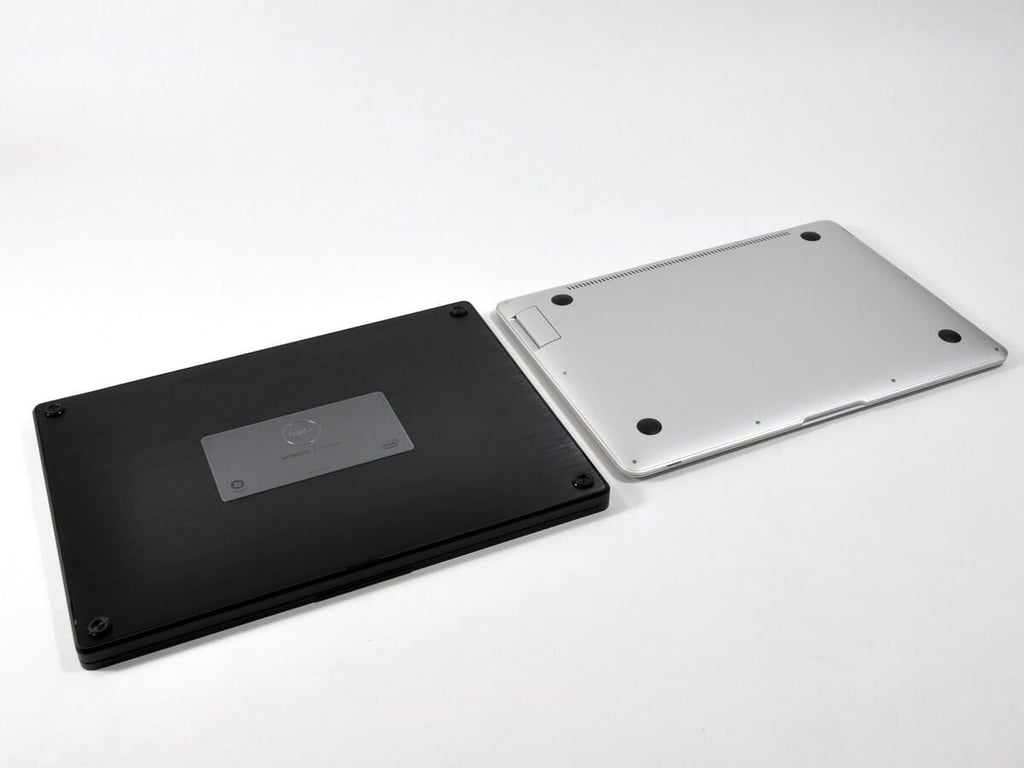
Both the Adamo and Air have very high torsional rigidity. This is largely due to their unibody constructions. It’s hard to say which is more rigid, but the Adamo is heavier so it feels more solid.
Photo and caption by iFixit for TechRepublic.
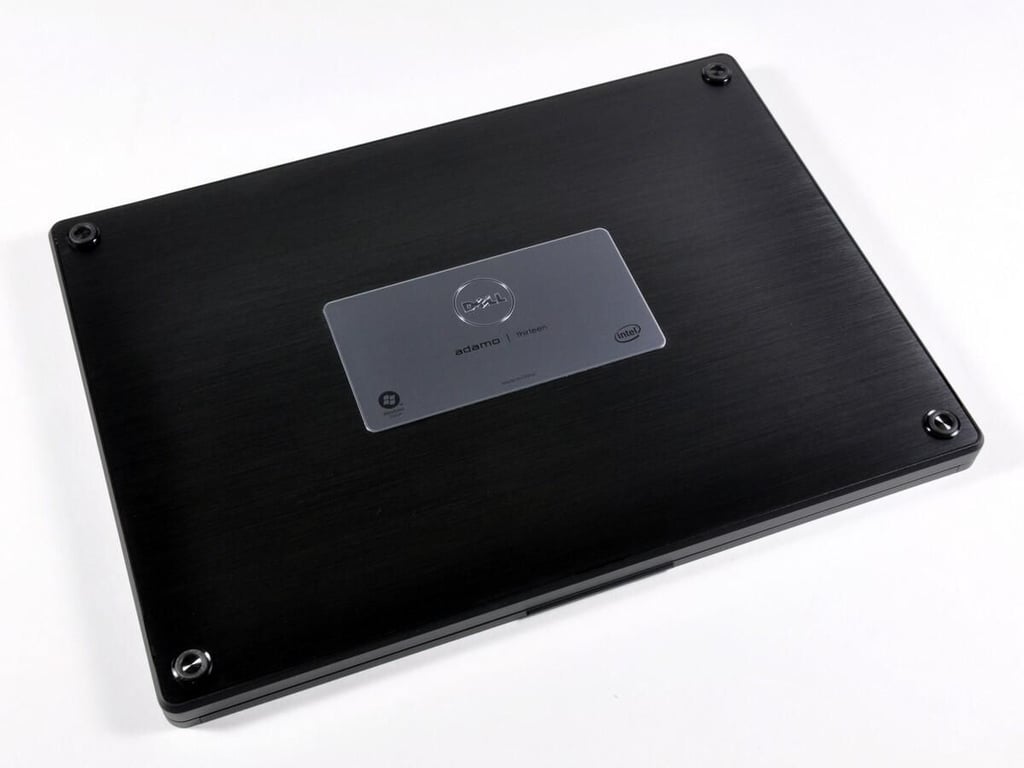
The Adamo’s elegance clearly beats the Air from this angle.
Photo and caption by iFixit for TechRepublic.
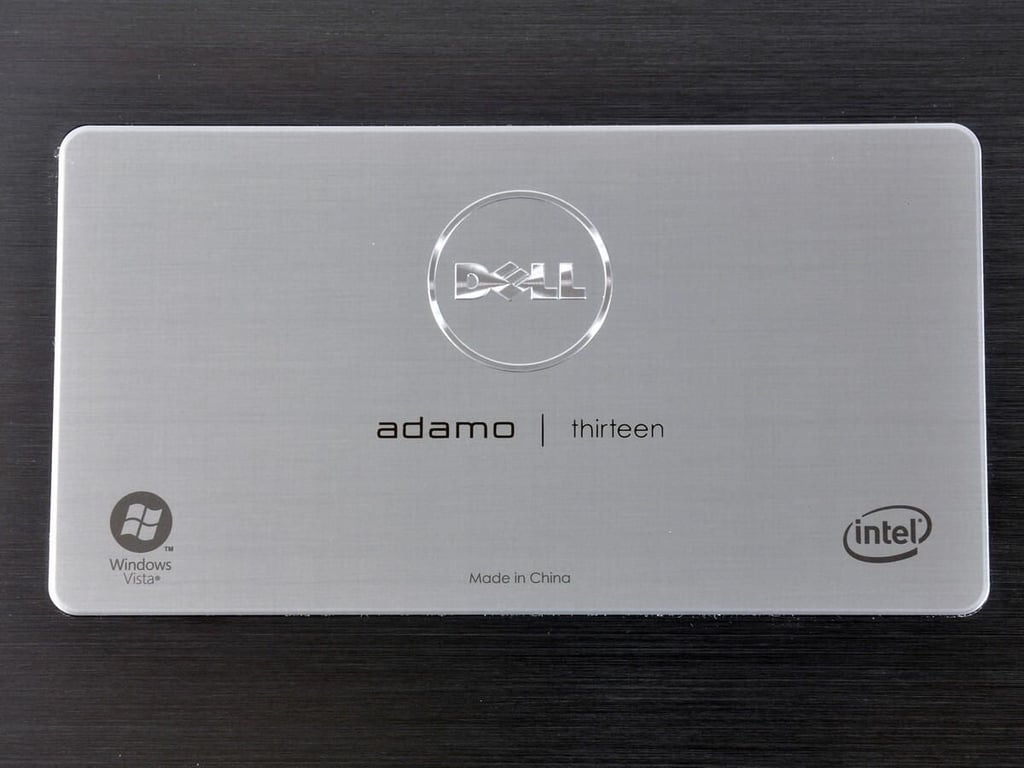
The Intel and Windows logos are not the typical stickers; they’re painted into the case.
Photo and caption by iFixit for TechRepublic.
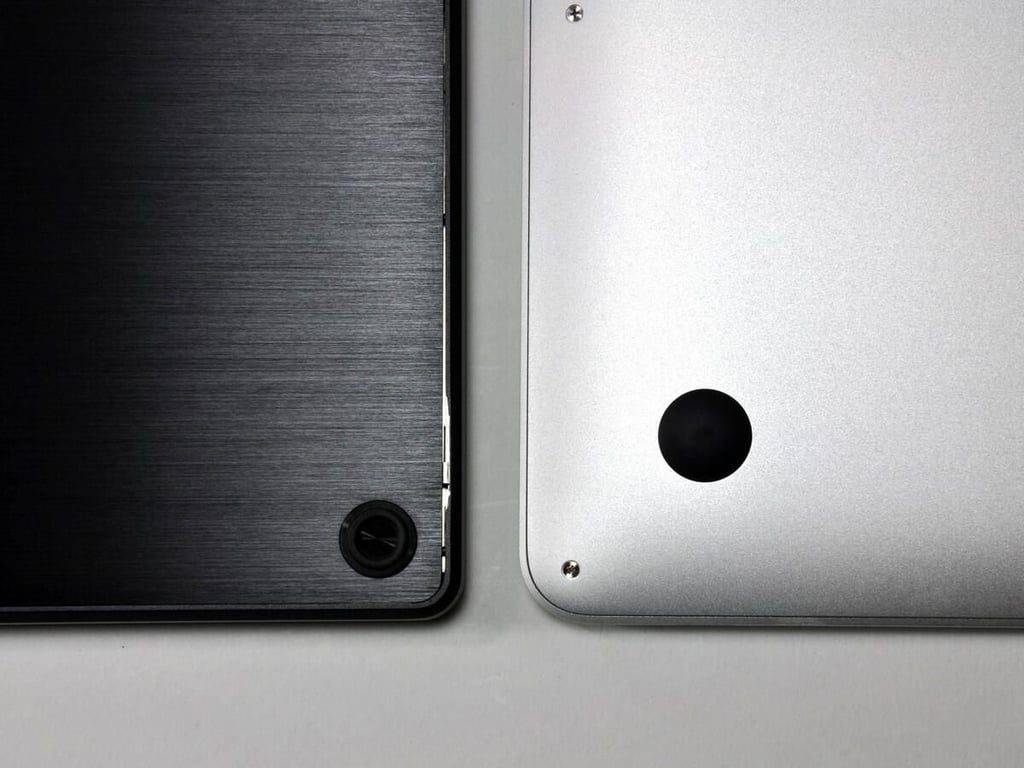
Unlike the Air, there are no visible screws on the bottom of the Adamo. However, the gaps between case bottom and frame are significantly larger than the Air’s.
\nGetting inside may require some ingenuity…
Photo and caption by iFixit for TechRepublic.
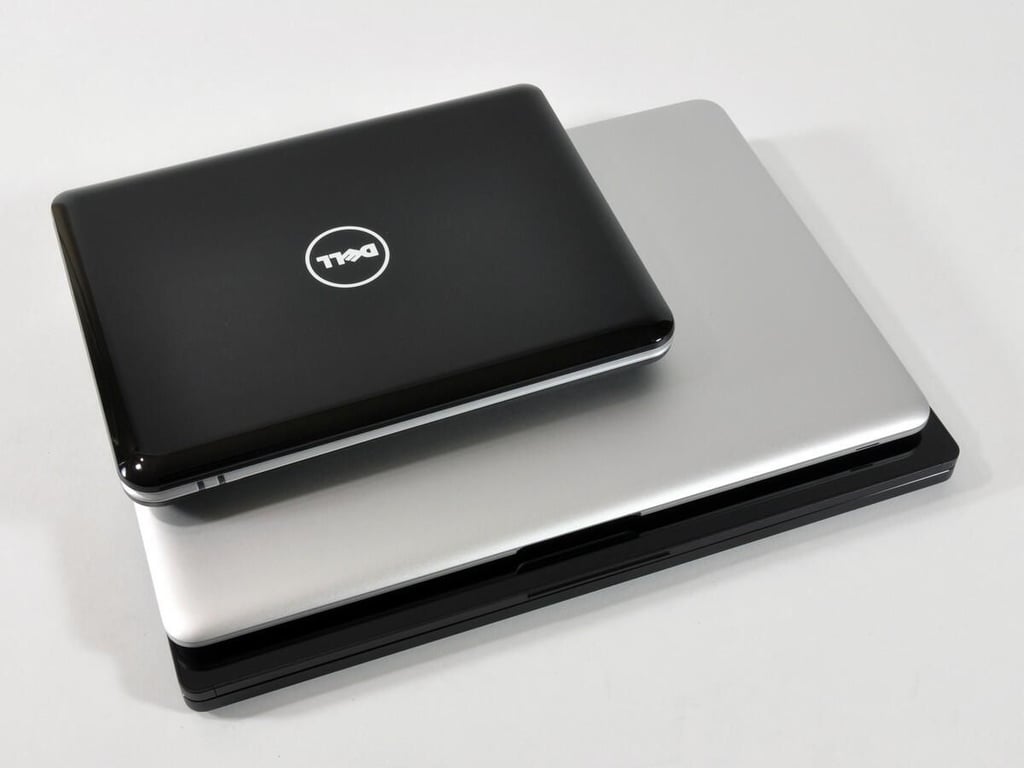
Photo by iFixit for TechRepublic.
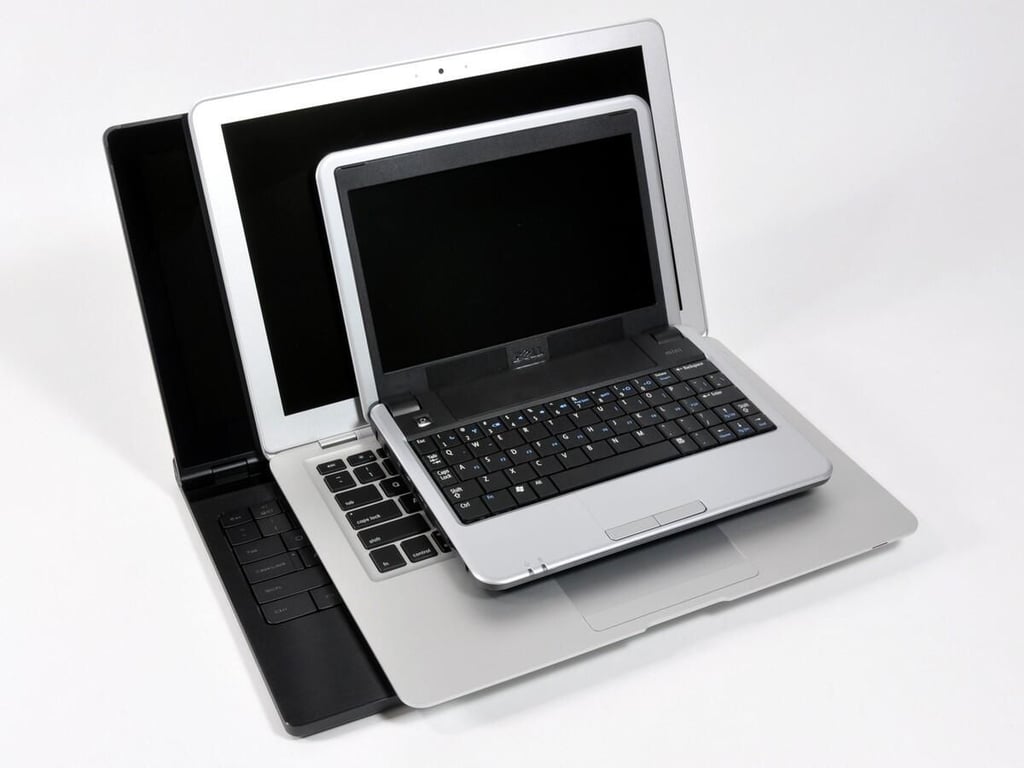
Photo by iFixit for TechRepublic.
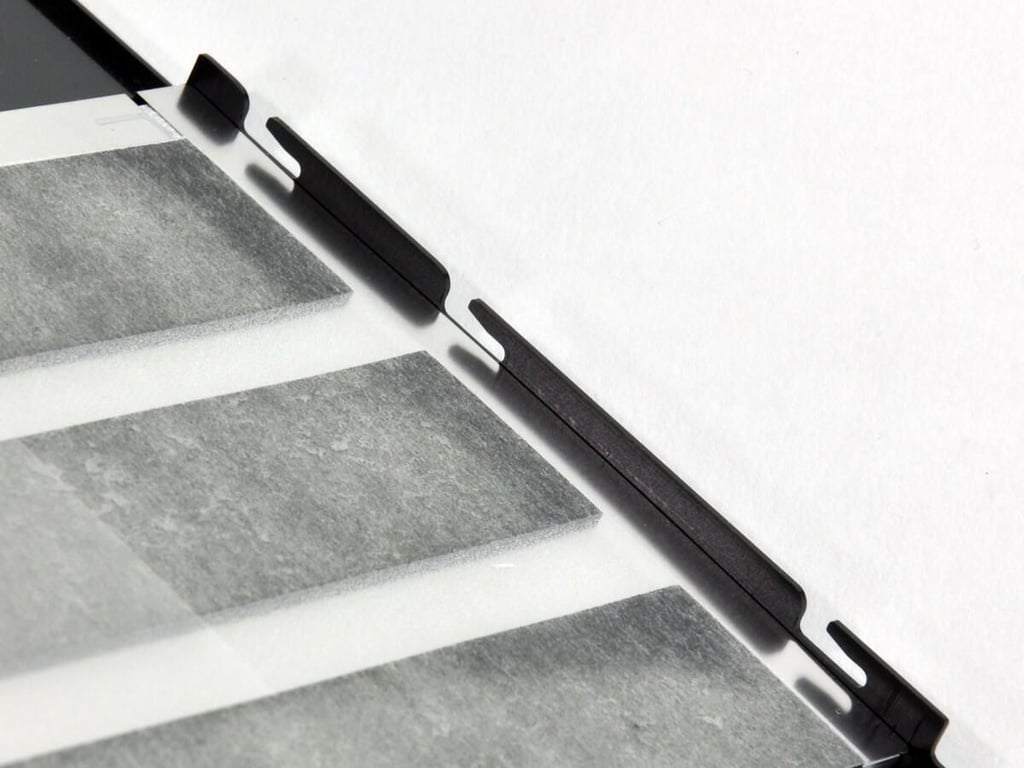
The Adamo uses a very slick locking system to hold the bottom panel in place.
The locking system utilizes three tracks of pins that span the inner left, right, and front edges of the computer. The pins lock into slots machined into the bottom panel, creating a very tight and secure connection.
Photo and caption by iFixit for TechRepublic.
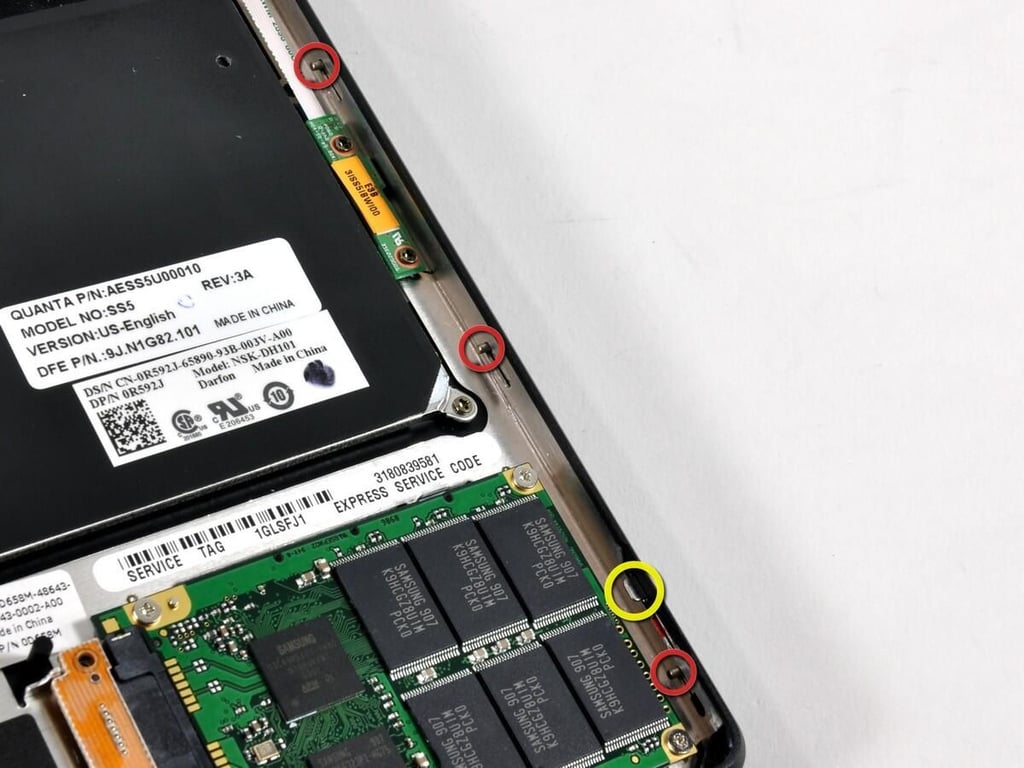
The bottom panel is removed by simply sliding the metal ear (shown in yellow) connected to each set of pins (shown in red) to the right using a thin metal spudger.
Photo and caption by iFixit for TechRepublic.
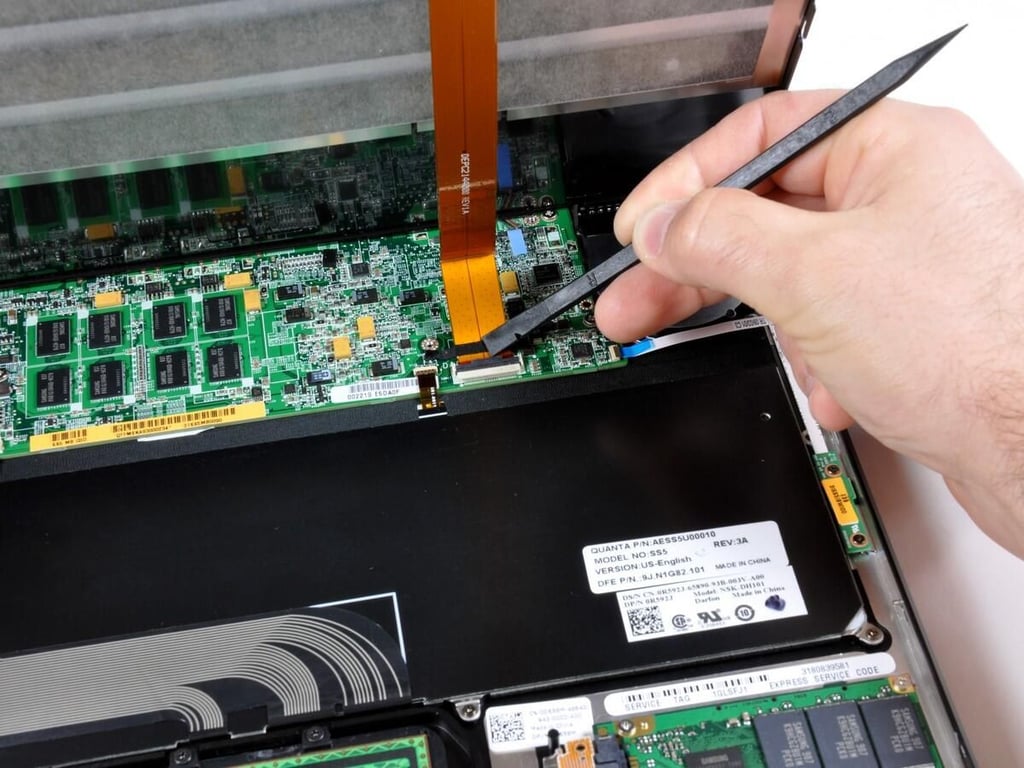
The battery connects to the motherboard with an orange ribbon cable. This cable should be disconnected before entirely removing the bottom panel.
Photo and caption by iFixit for TechRepublic.
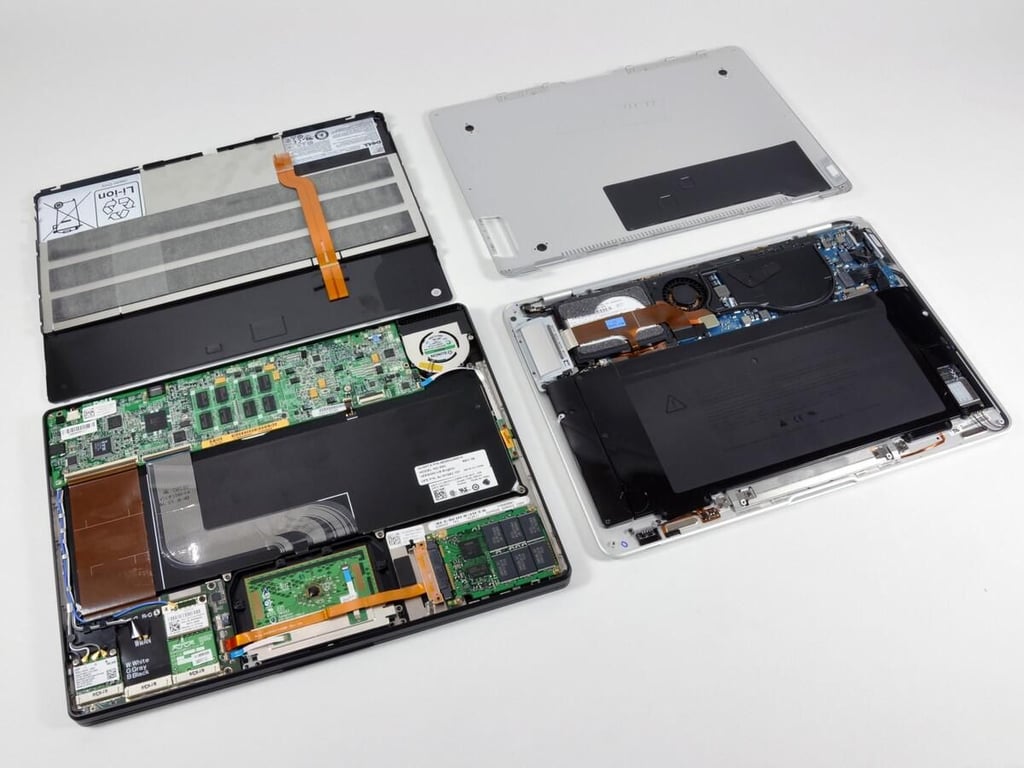
The Adamo and Air with bottom panels removed.
The MacBook Air we’re using in this guide is the original model (released over a year ago). Despite it’s age, the Air still packs a 1.6 GHz Core 2 Duo processor, 33-percent faster than our Adamo’s 1.2 GHz processor.
To its credit, the high-end Adamo does include 4 GB of built-in RAM, double that of the Air.
Dell labels a lot more parts than Apple. This definitely makes our job easier, even though it’s not quite as photogenic.
Photo and caption by iFixit for TechRepublic.
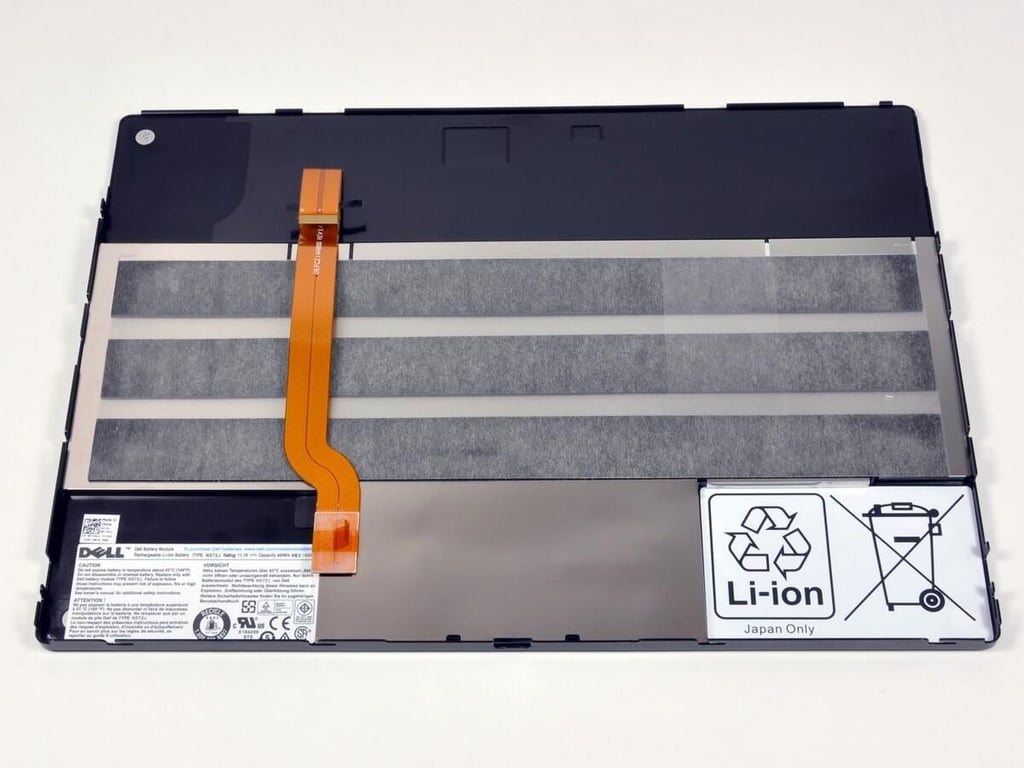
The bottom panel contains an integrated 6 cell Li-Polymer battery pack.
Photo and caption by iFixit for TechRepublic.
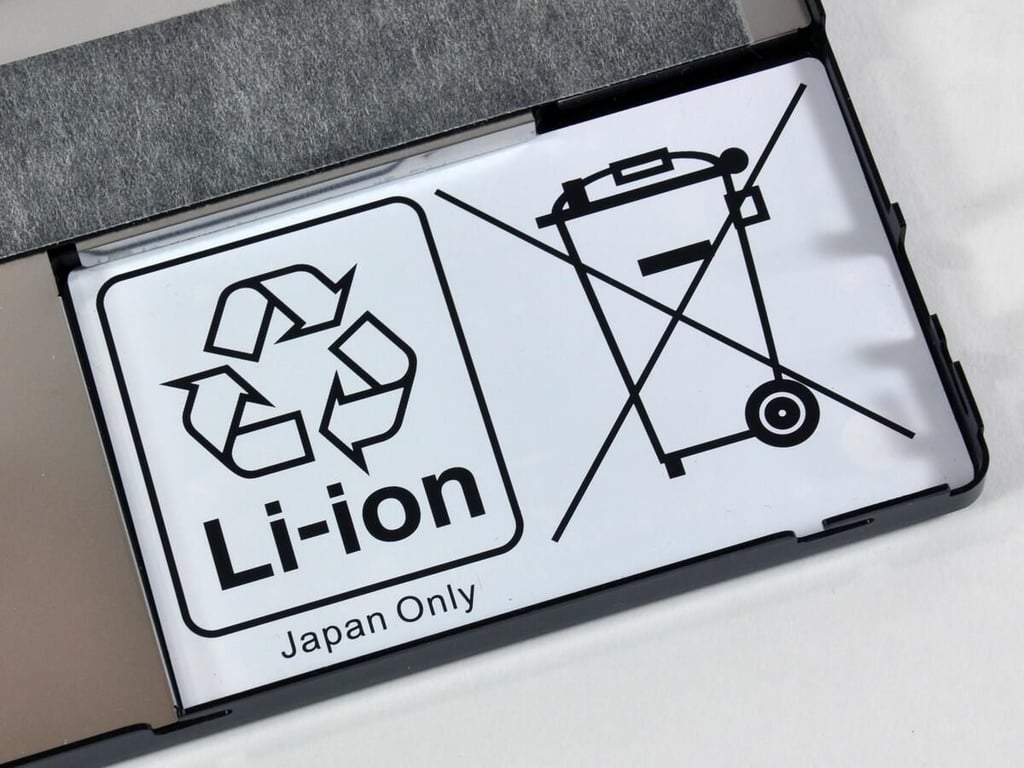
You can recycle the battery… in Japan.
Photo and caption by iFixit for TechRepublic.
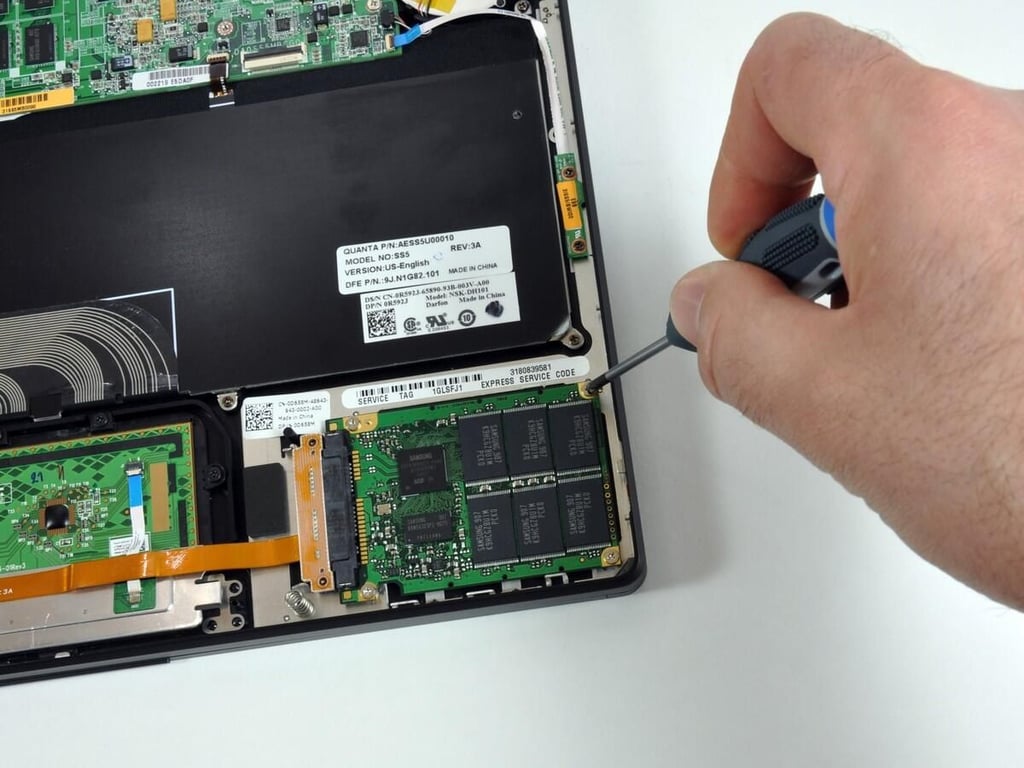
The drive is a Thin 128GB uSATA MLC. This particular drive utilizes 16 Samsung 64 gigabit multi-level cell (MLC) flash chips.
Photo and caption by iFixit for TechRepublic.
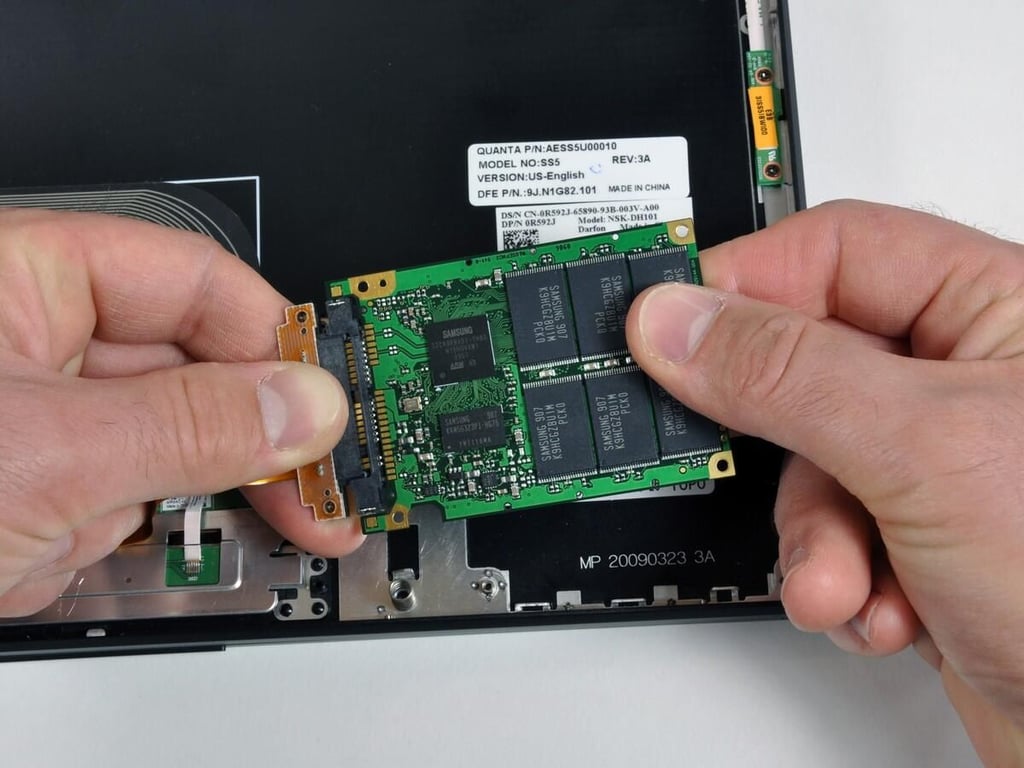
The drive is a Thin 128GB uSATA MLC. This particular drive utilizes 16 Samsung 64 gigabit multi-level cell (MLC) flash chips.
Photo and caption by iFixit for TechRepublic.
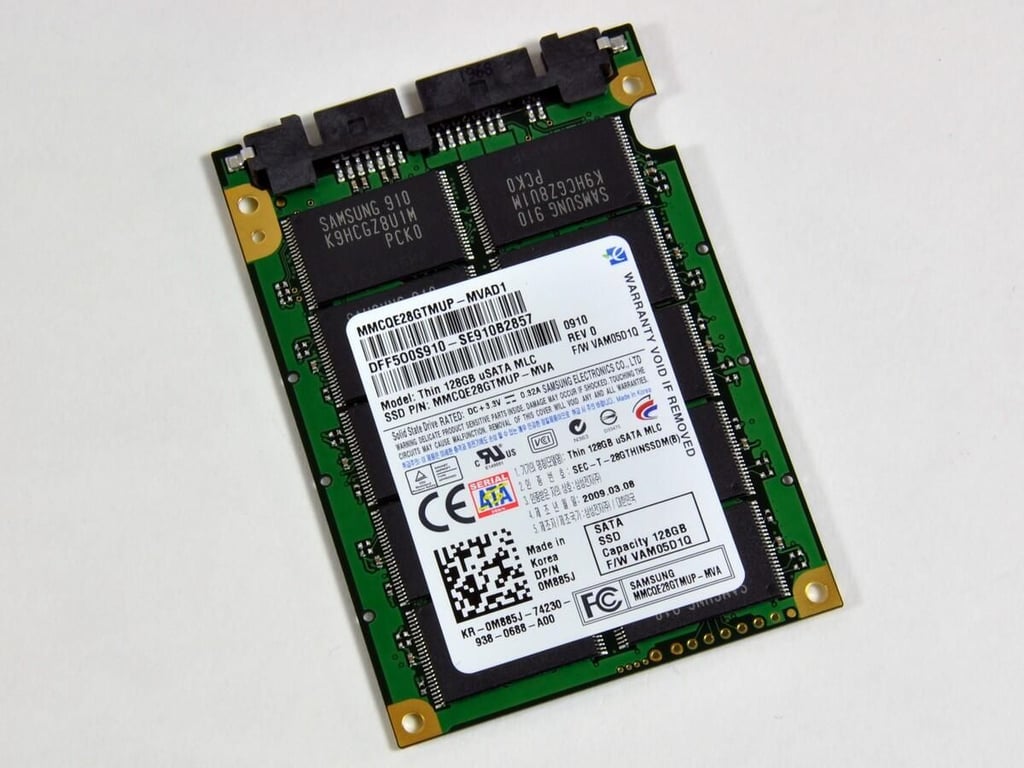
The drive transmits data through a normal SATA connector. Impressively, the specs listed on the drive indicate a maximum power consumption of only 1.05 watts and an operating shock of 1500G!
The solid state drive’s thickest point is the 4mm SATA connector. The rest of the drive is a scant 2.9 mm.
Photo and caption by iFixit for TechRepublic.
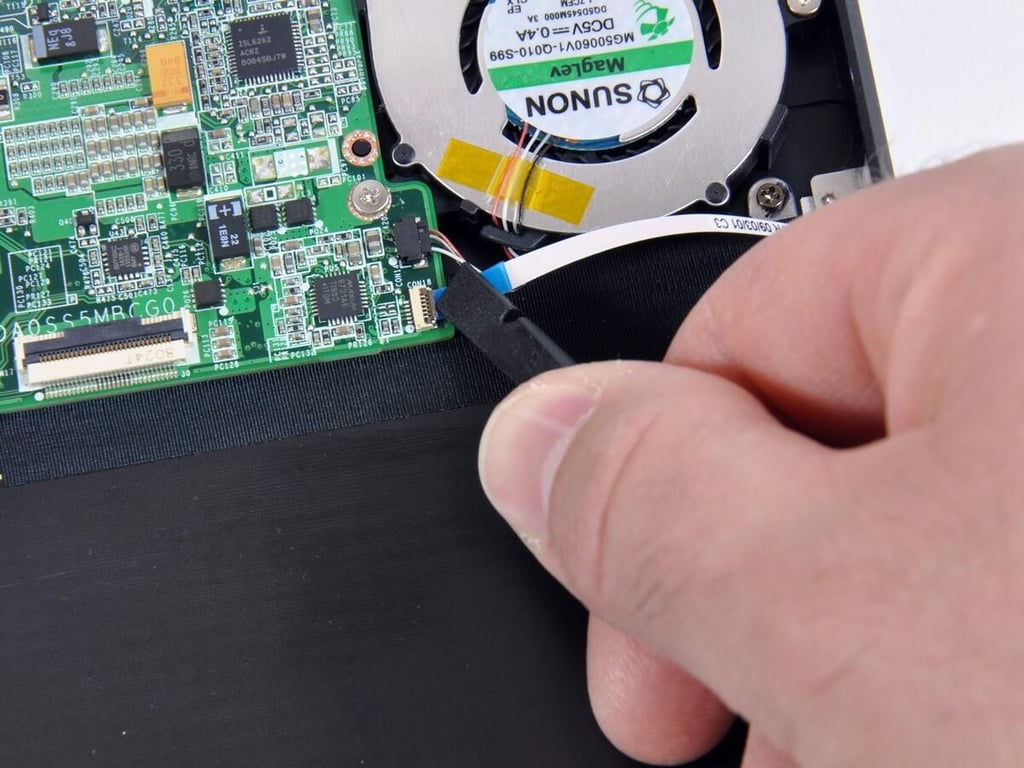
We believe this is an ambient light sensor to support the Adamo’s backlit keyboard. Dell has used light sensors in a few other recent notebooks.
Photo and caption by iFixit for TechRepublic.
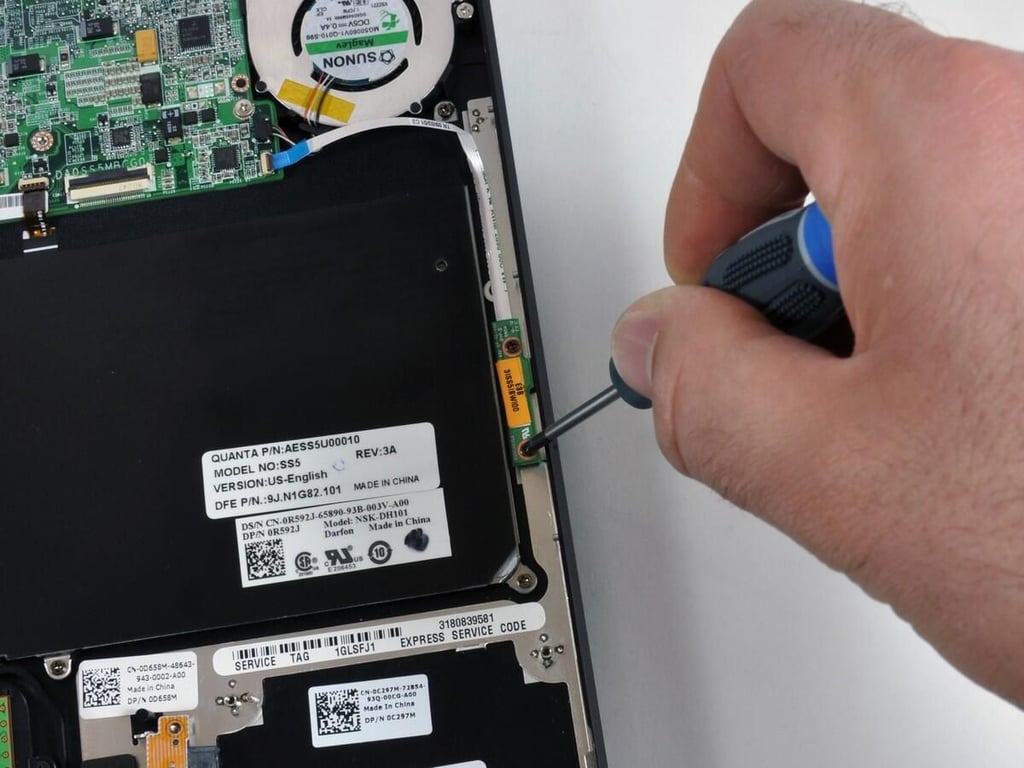
Photo and caption by iFixit for TechRepublic.
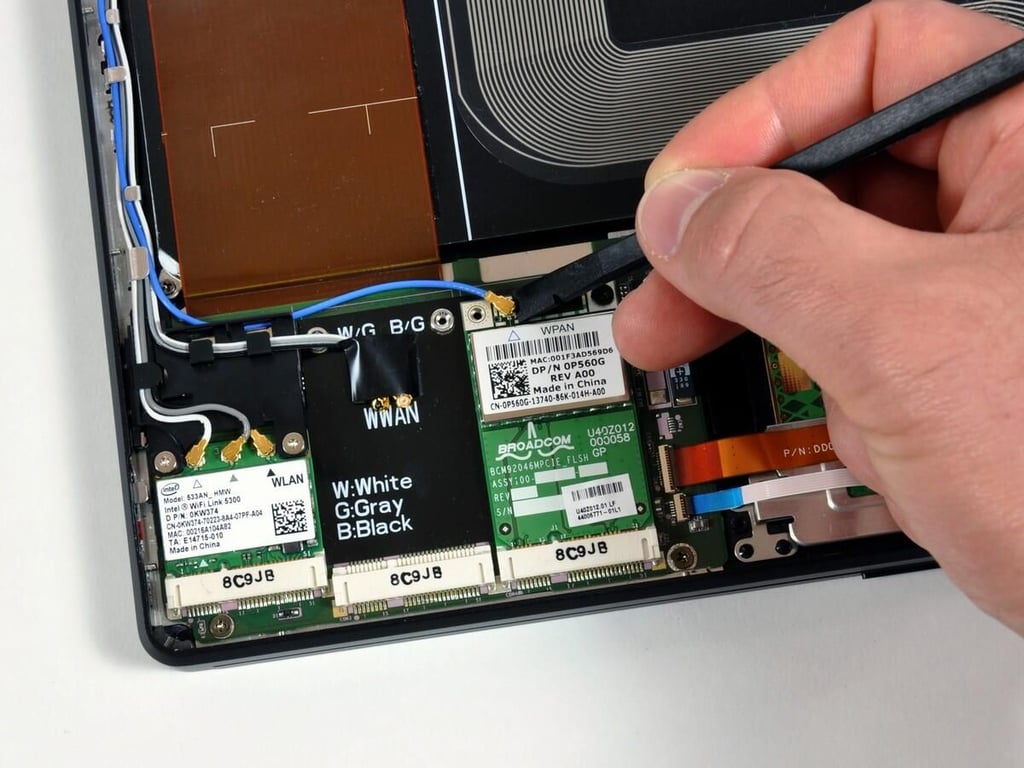
The Adamo has no shortage of wireless connectivity possibilities. This machine was the low-end model, so we only received two of the three wireless types.
Photo and caption by iFixit for TechRepublic.
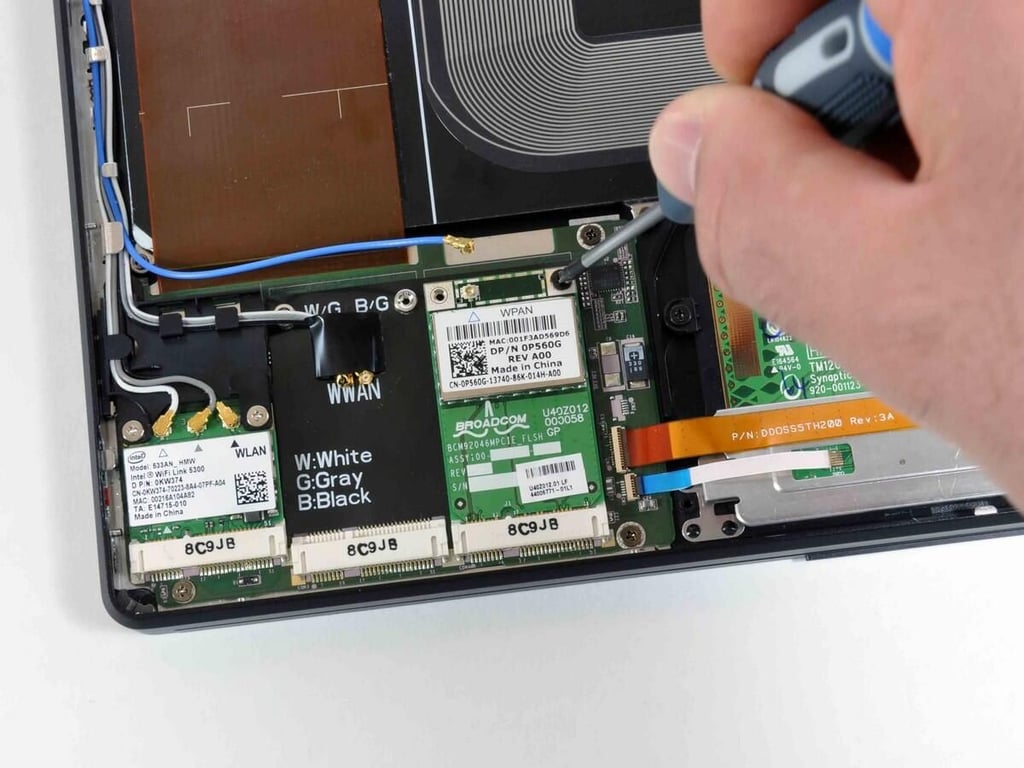
The missing spot in the middle is for a WWAN WiMax 5530 HSPA Mini Card for AT&T. Even though our machine came without the card, it could be easily added in the future. The antennas are routed to the slot and ready to go!
Photo and caption by iFixit for TechRepublic.
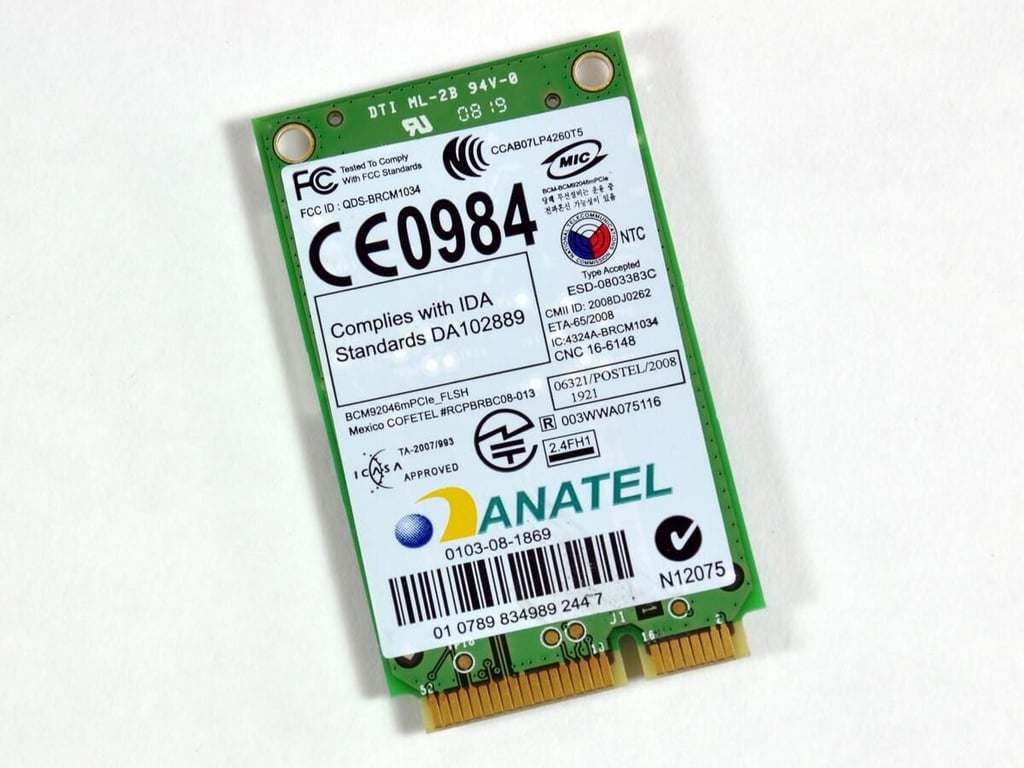
Surprisingly, the Bluetooth board is twice the size of the 802.11n card.
Photo and caption by iFixit for TechRepublic.
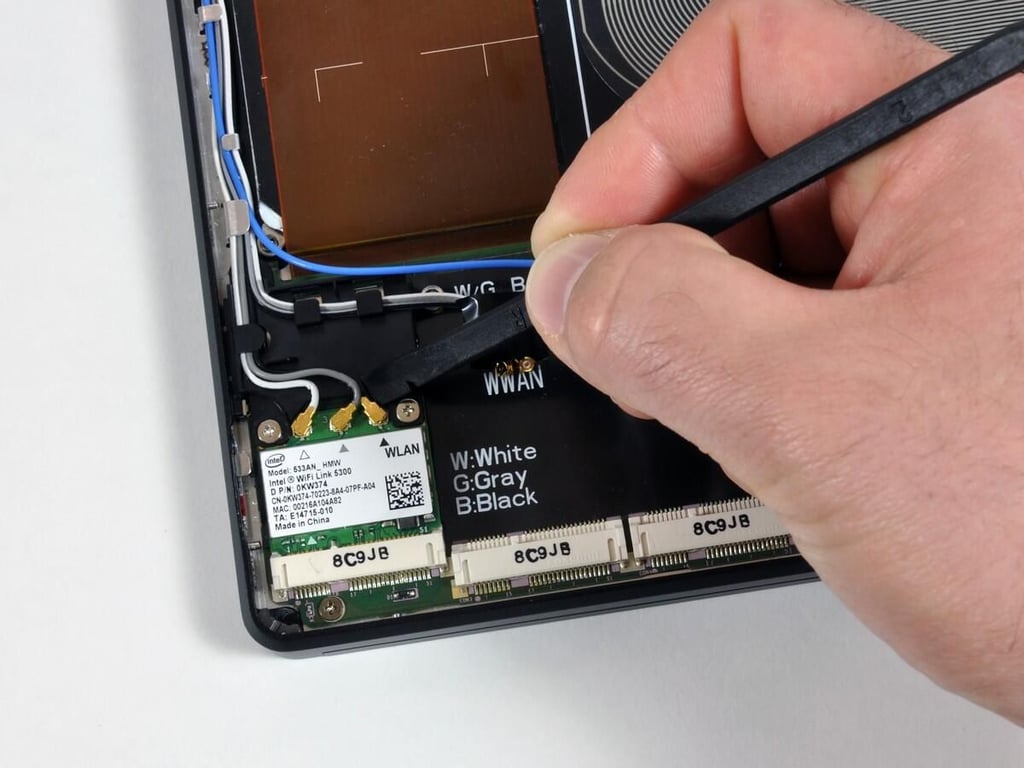
Using the spudger, disconnect the 802.11n card’s antenna cables.
Photo and caption by iFixit for TechRepublic.
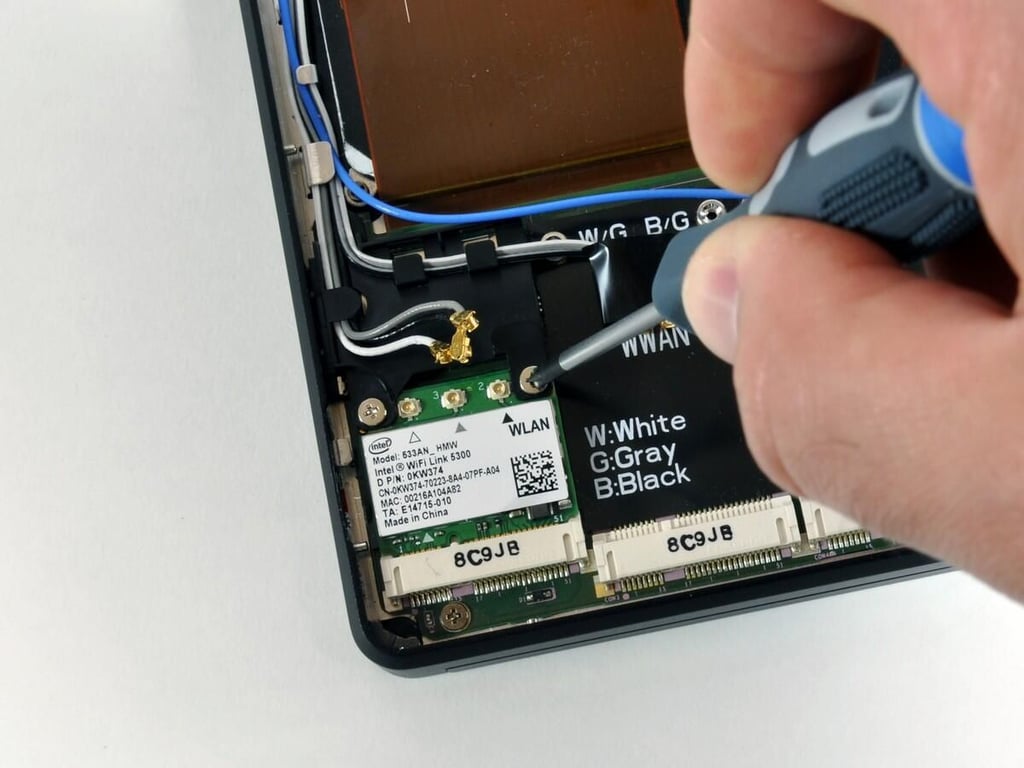
Next, remove the 802.11n card’s screws.Photo and caption by iFixit for TechRepublic.
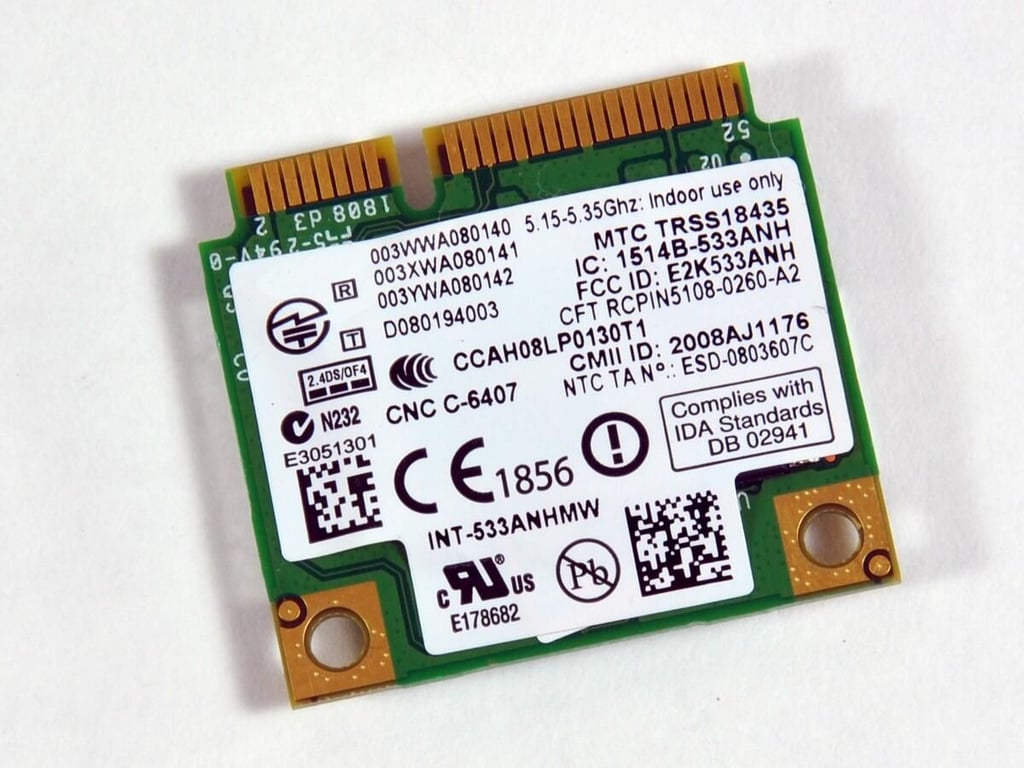
The printed user’s guide that came with our Adamo says the machine includes 803.11n Wireless LAN. We’re not sure if that’s a typo, or something new we don’t know about yet.
Photo and caption by iFixit for TechRepublic.
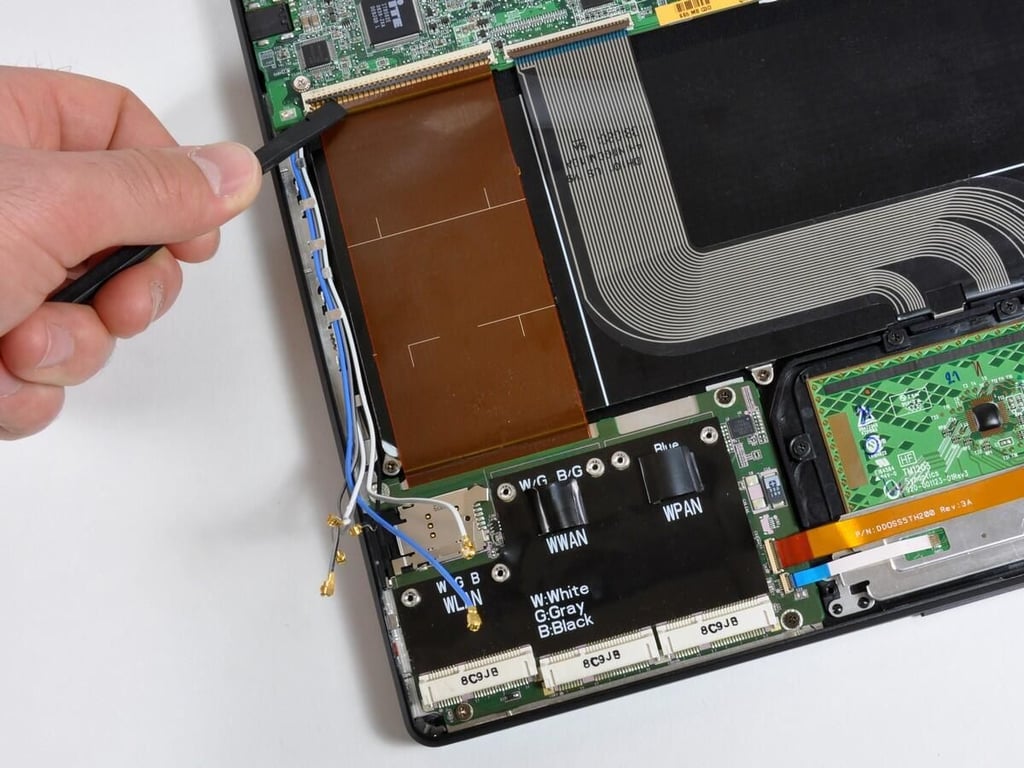
The wireless cards are attached to the motherboard via a single wide ribbon cable.
Photo and caption by iFixit for TechRepublic.
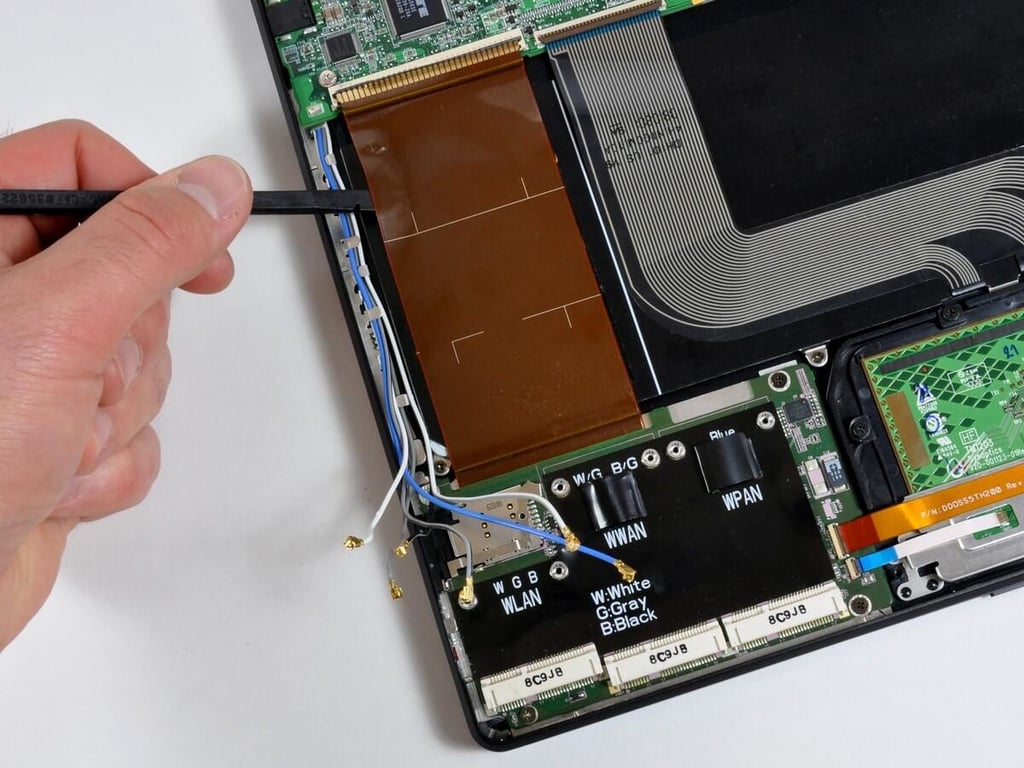
The ribbon cable is held securely in place with adhesive, and peeling it up requires some patience.
Photo and caption by iFixit for TechRepublic.
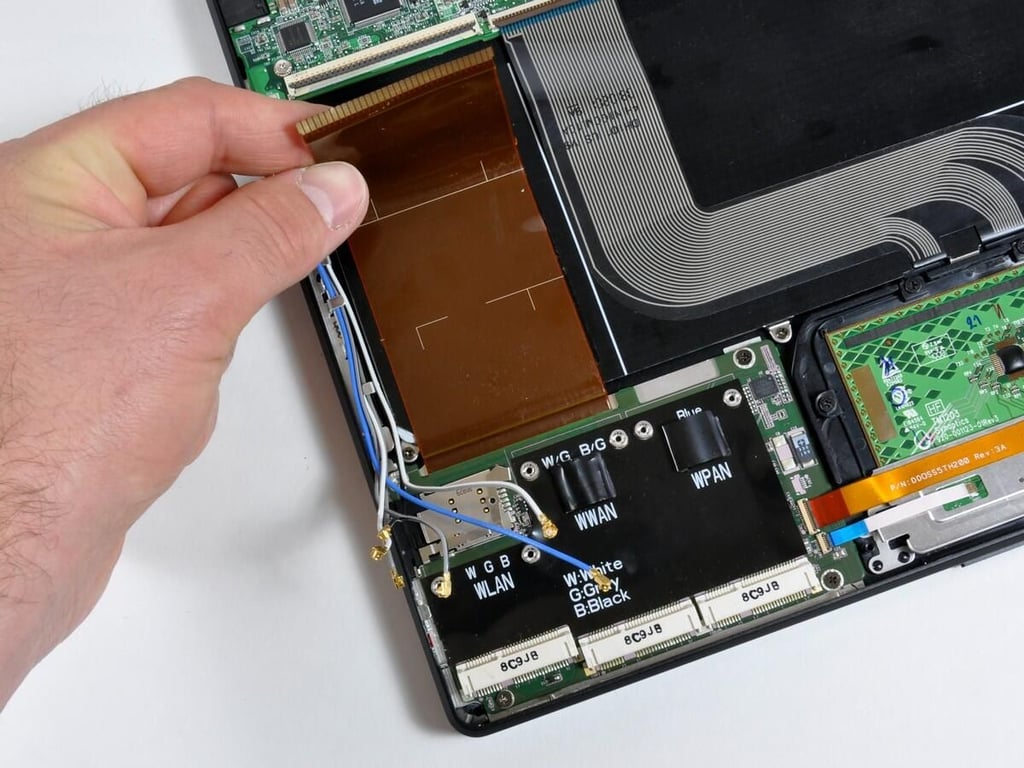
Photo and caption by iFixit for TechRepublic.
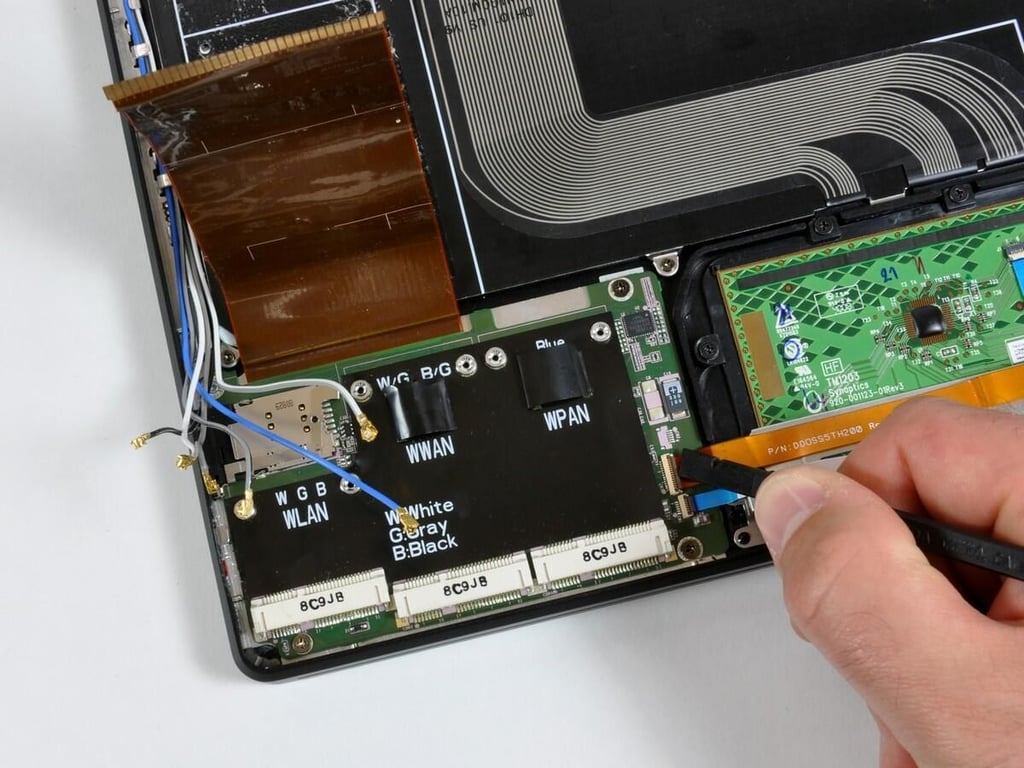
Interestingly enough, the hard drive ribbon cable routes data through the wireless data board before finally reaching the motherboard. You’ll need to disconnect these cables.
Photo and caption by iFixit for TechRepublic.
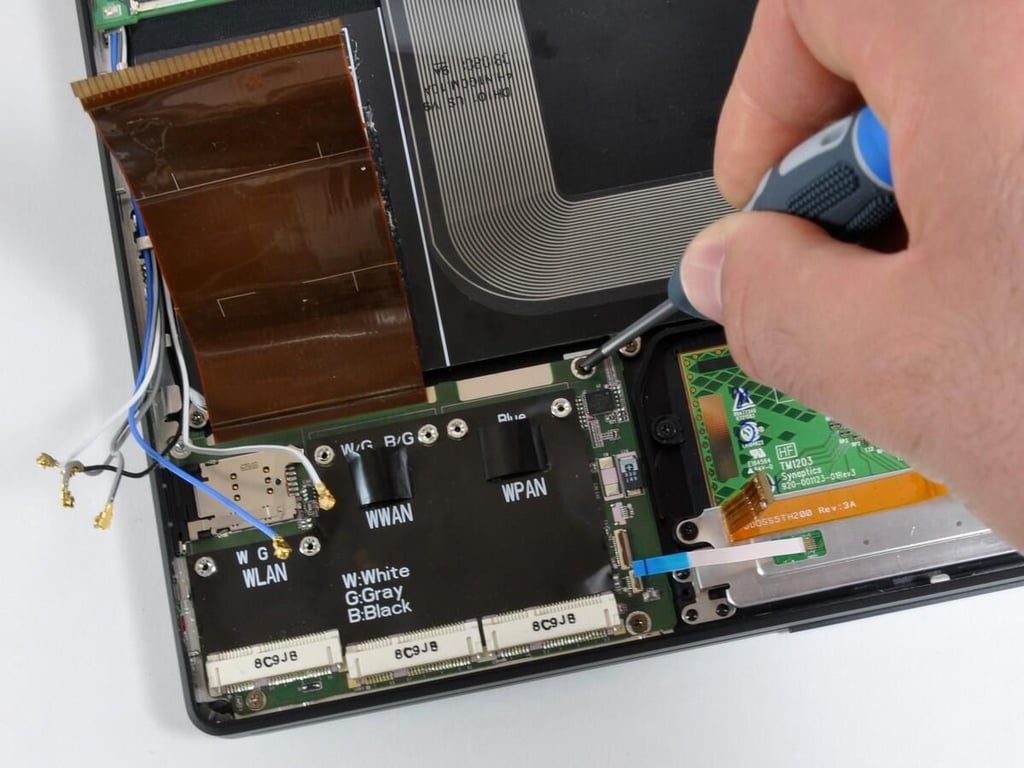
Remove the three screws that hold the wireless data board in place.
Photo and caption by iFixit for TechRepublic.
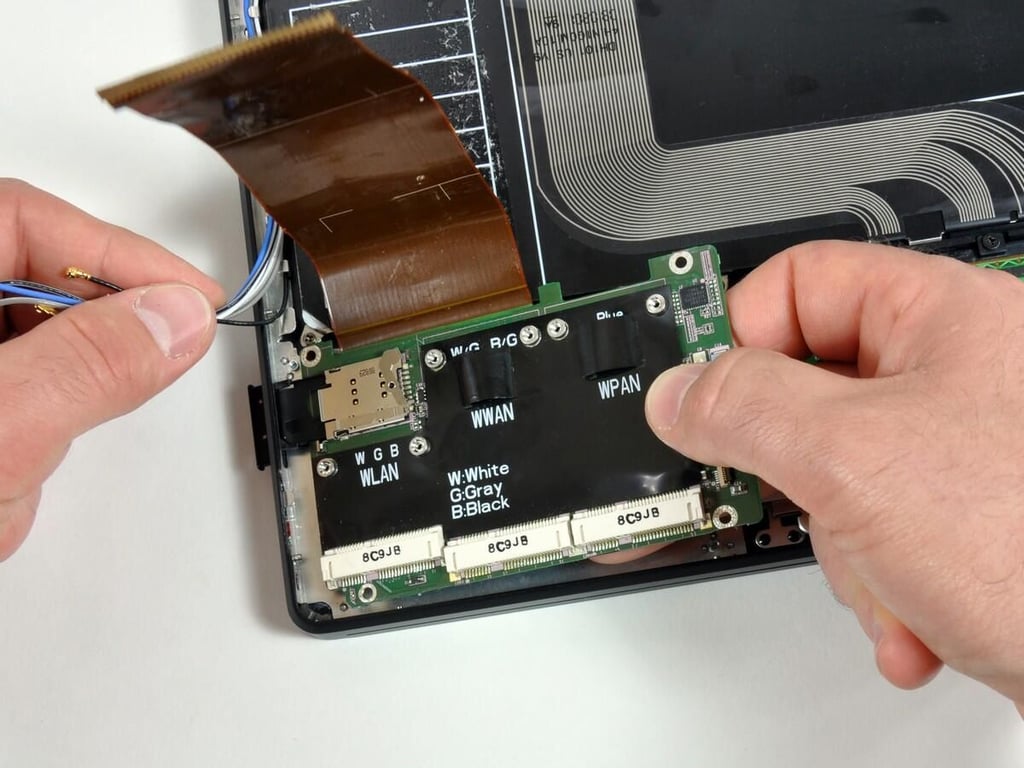
You can now lift the wireless data board away from the Adamo chassis.
Photo and caption by iFixit for TechRepublic.
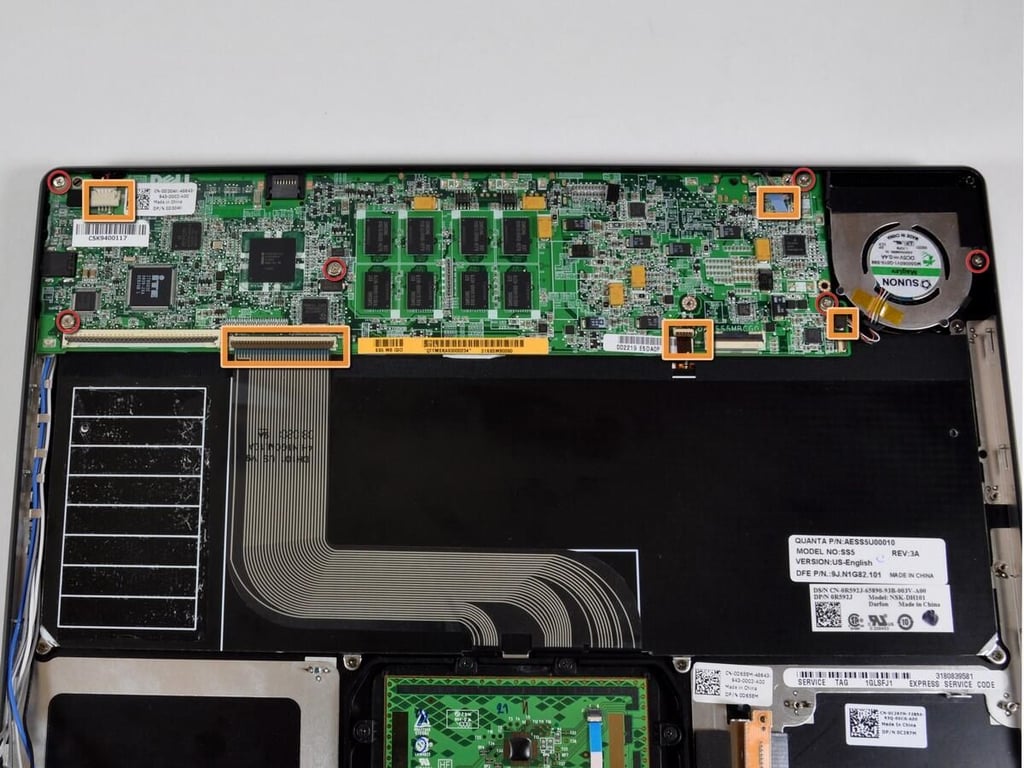
We disconnected several ribbon cables from the motherboard before proceeding.
Six Phillips screws hold the motherboard and its attached heat sink and fan in place.
Photo and caption by iFixit for TechRepublic.
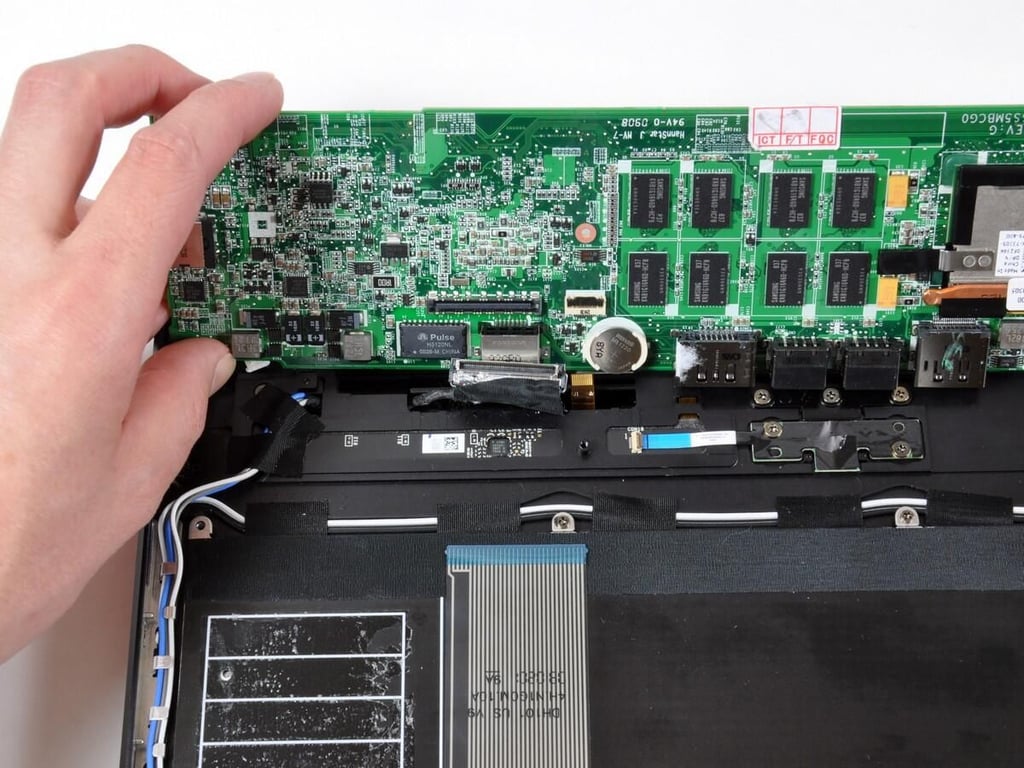
The display data cable connects to the bottom of the board, and must be disconnected before the motherboard is freed from the machine.
Photo and caption by iFixit for TechRepublic.
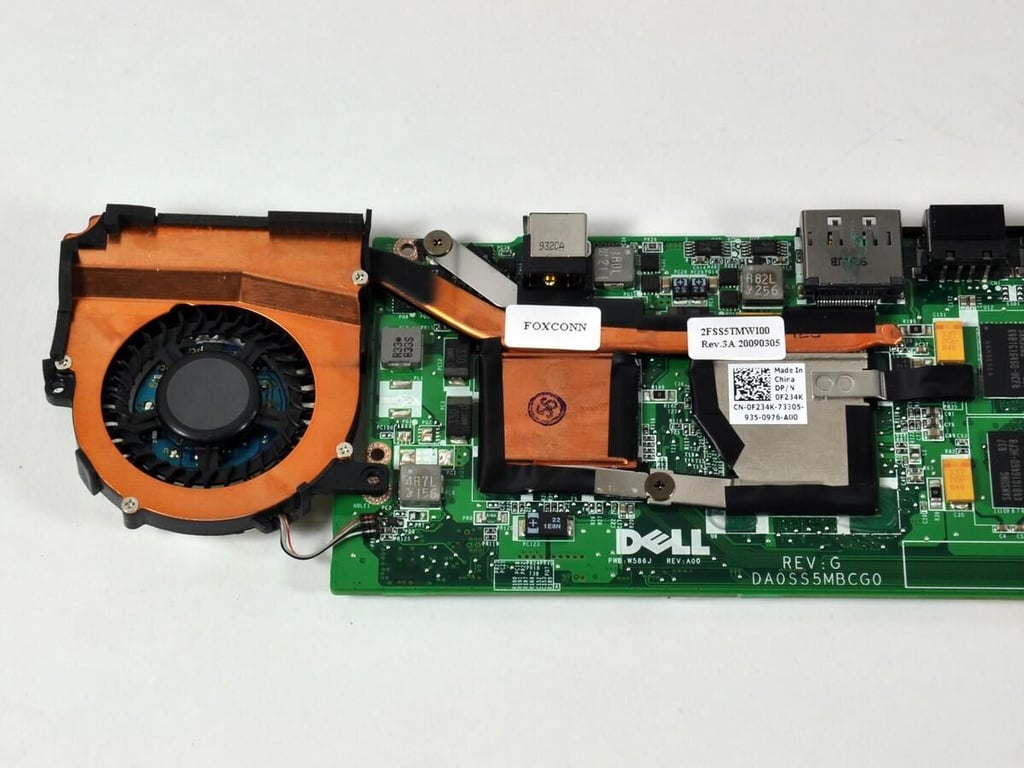
The heat sink is pretty tiny, but we assume a 1.2 GHz Core 2 Duo processor won’t get that hot.
Photo and caption by iFixit for TechRepublic.
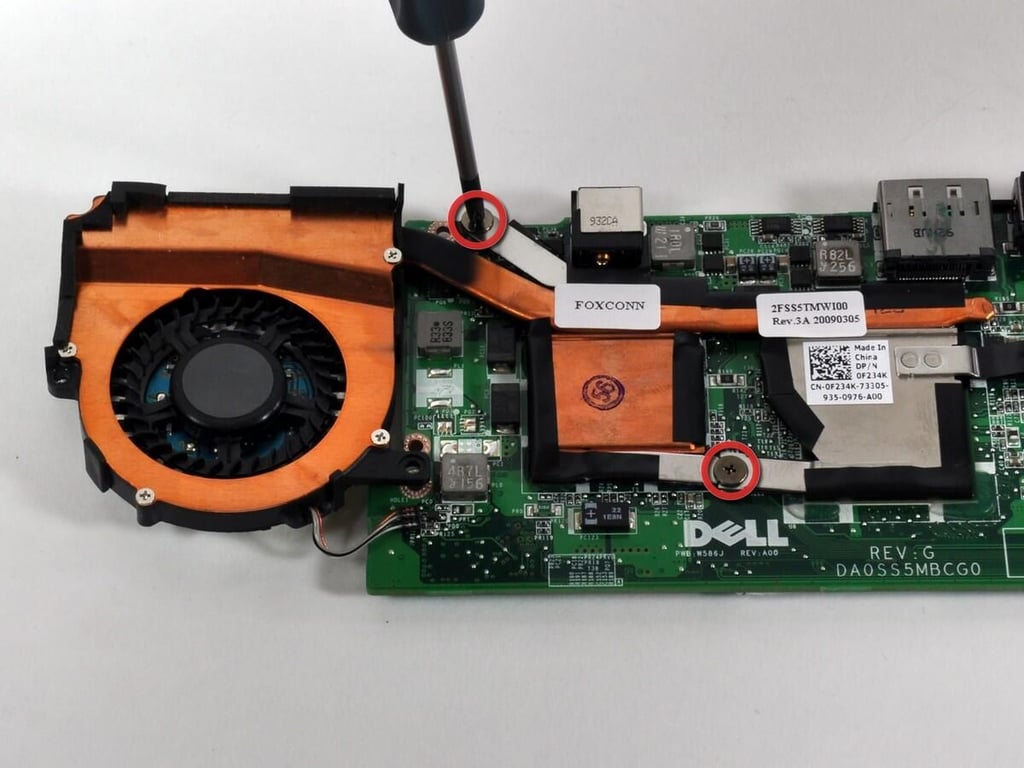
Photo and caption by iFixit for TechRepublic.
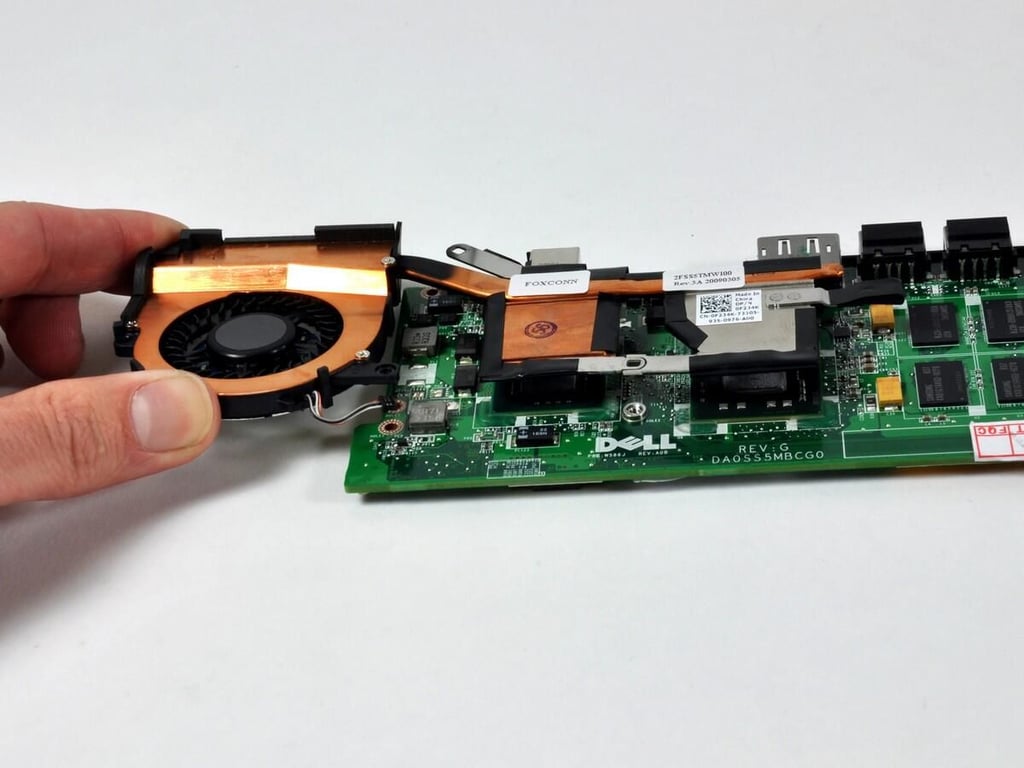
We didn’t see any thermal sensors in the machine, but one or more might be integrated into the motherboard.
Photo and caption by iFixit for TechRepublic.
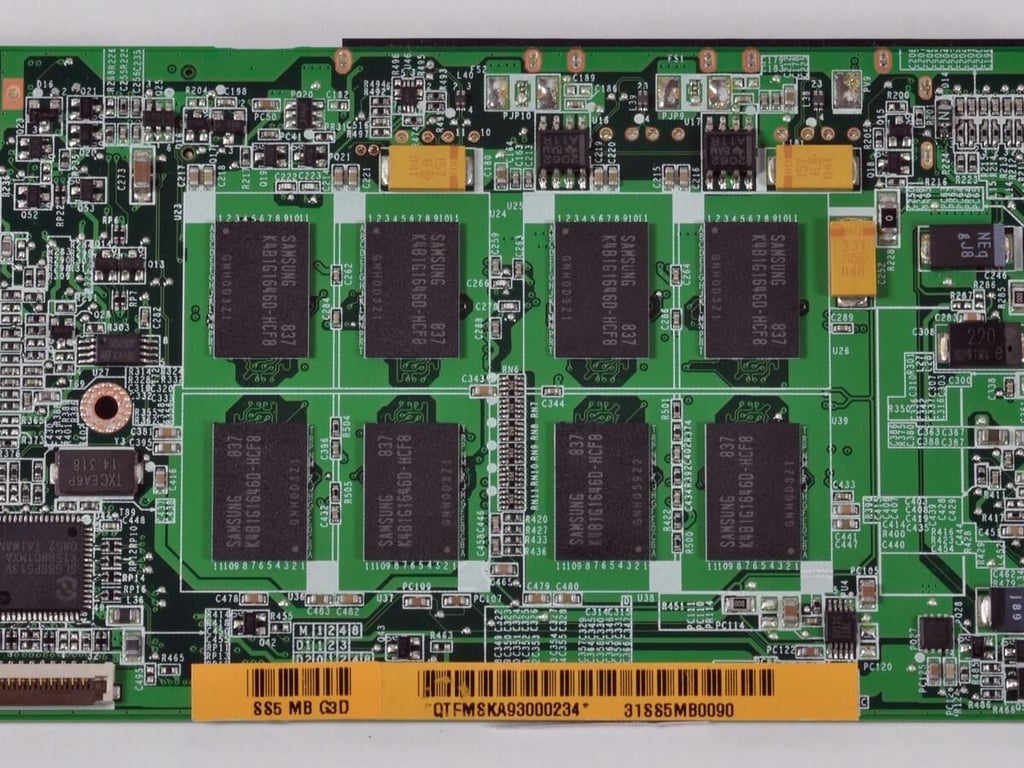
Don’t plan on buying the low-end machine and upgrading your RAM later – it’s not going to happen.
Photo and caption by iFixit for TechRepublic.
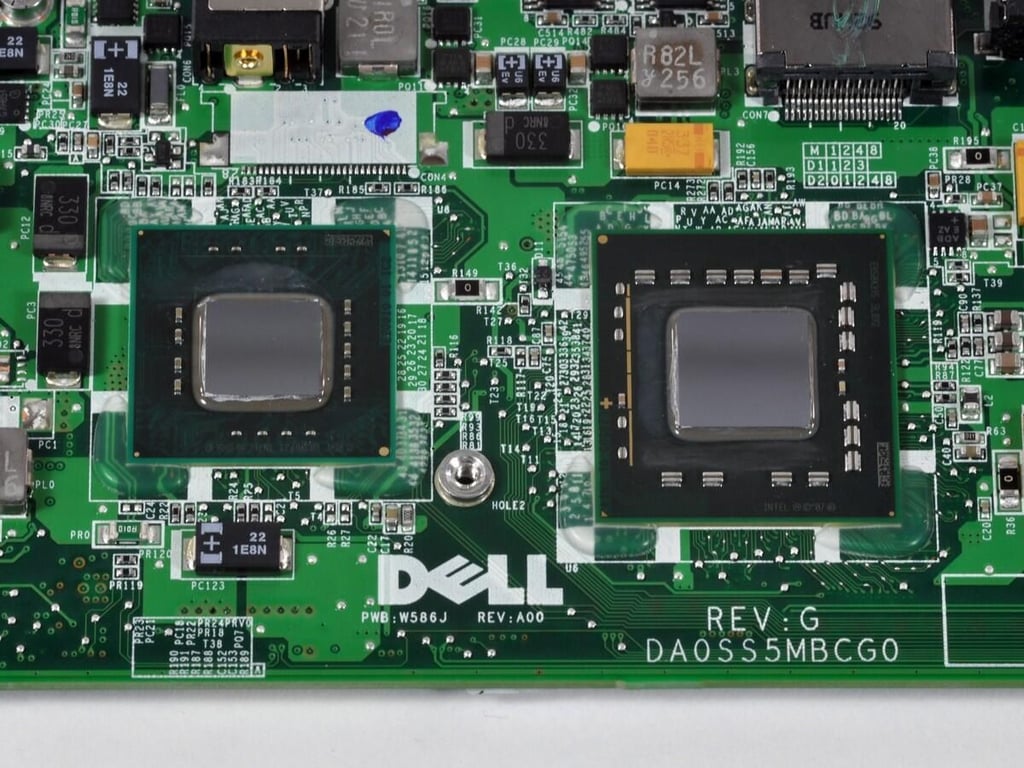
Unfortunately, all the ports are integrated into the motherboard. Repair will not be cheap. if something goes wrong.
Photo and caption by iFixit for TechRepublic.
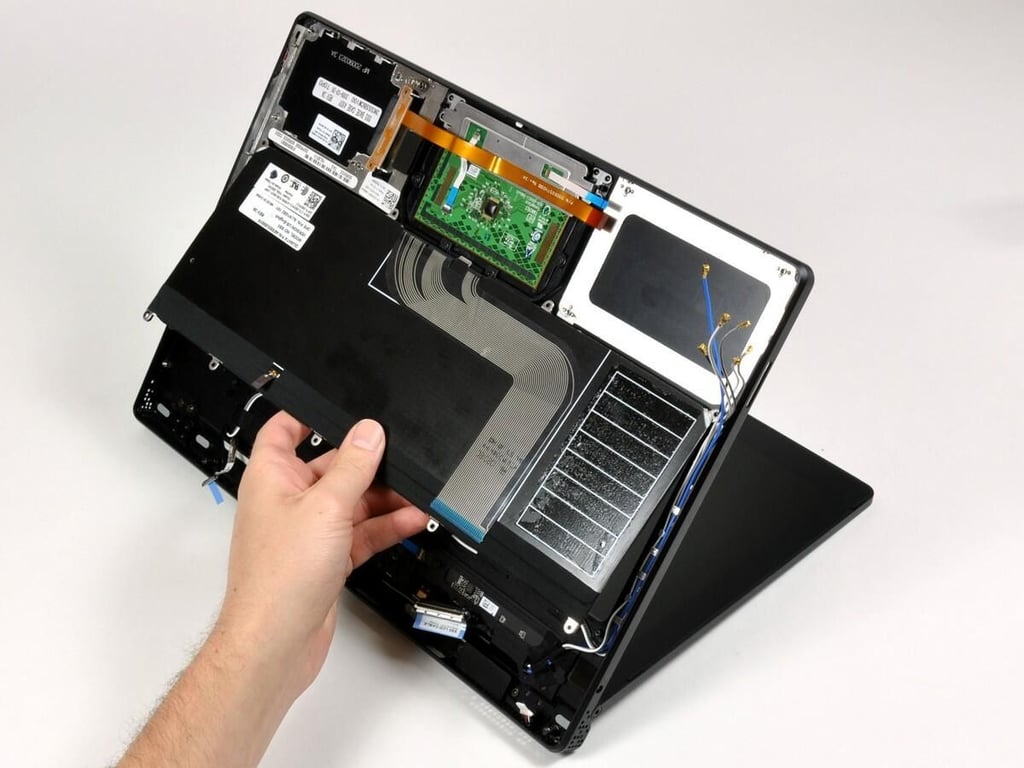
Photo and caption by iFixit for TechRepublic.
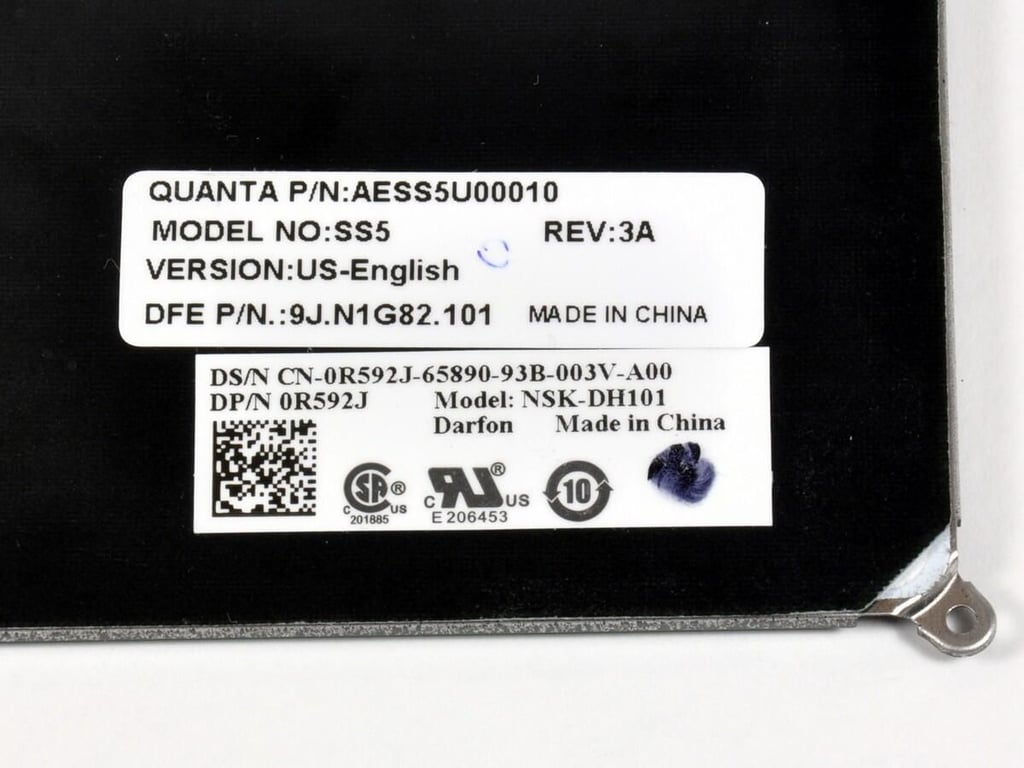
At least the keyboard (and probably the whole machine) is produced by Quanta Computers. They’re the world’s largest notebook manufacturer and make machines for both Apple and Dell.
Photo and caption by iFixit for TechRepublic.
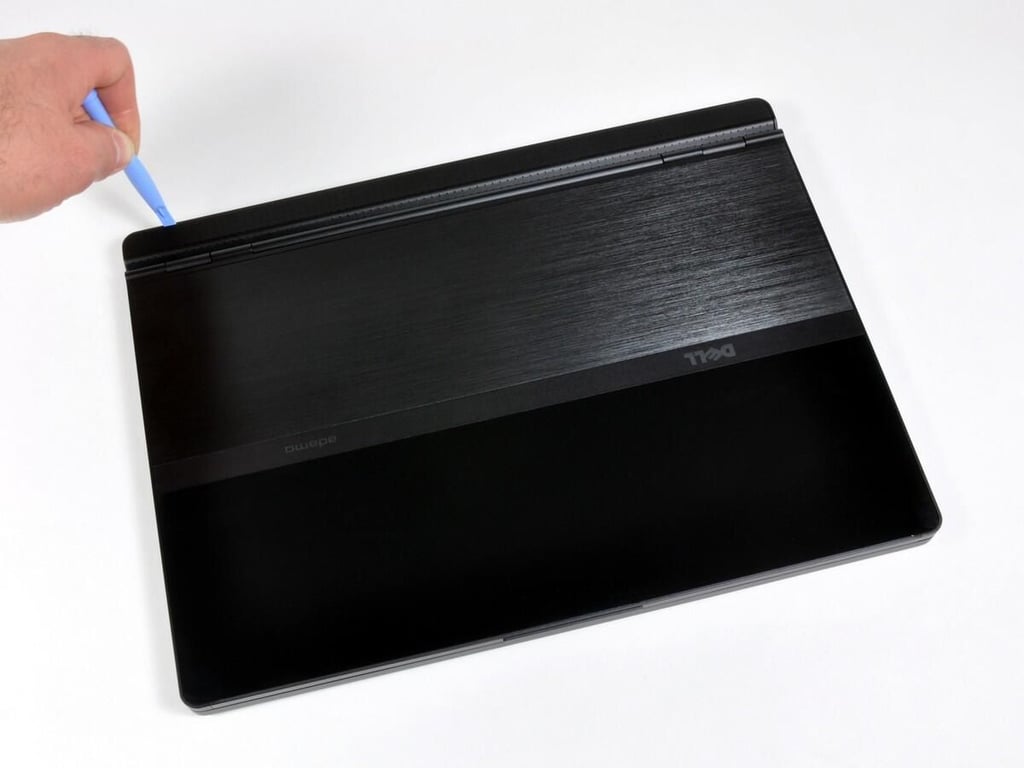
An iPod opening tool easily removes the magnetically-attached hinge cover.
Photo and caption by iFixit for TechRepublic.
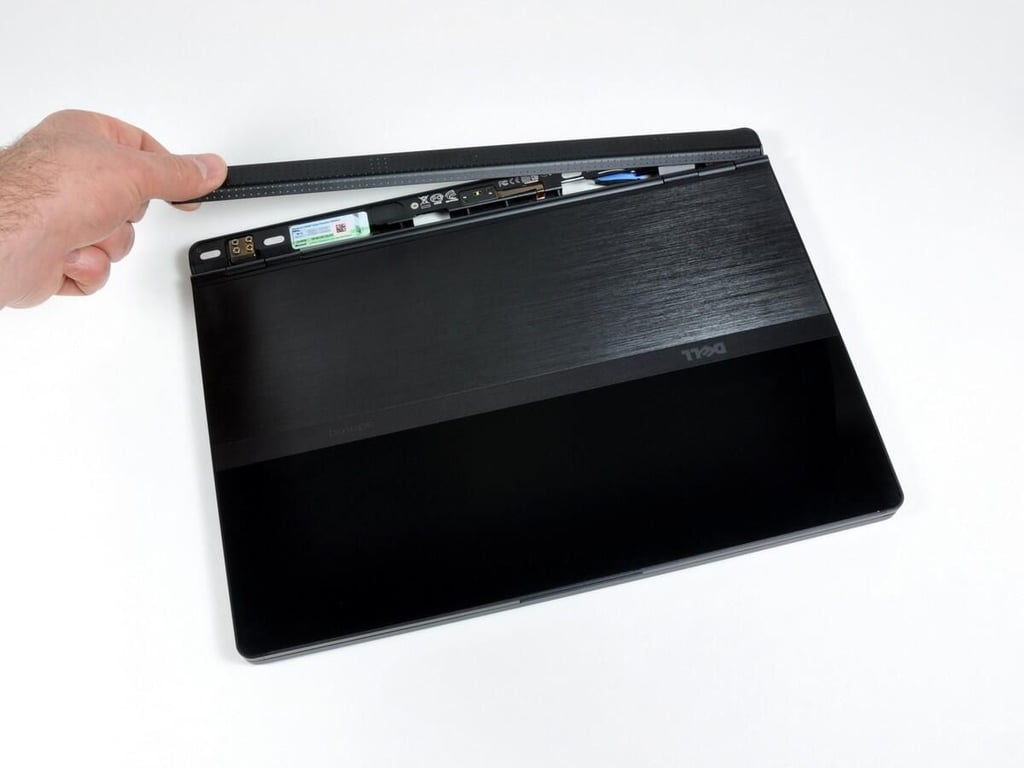
Dell hides your Windows product key under here. That’s certainly a smart move, since the sticker doesn’t exactly blend in with the Adamo’s black onyx finish.
Photo and caption by iFixit for TechRepublic.
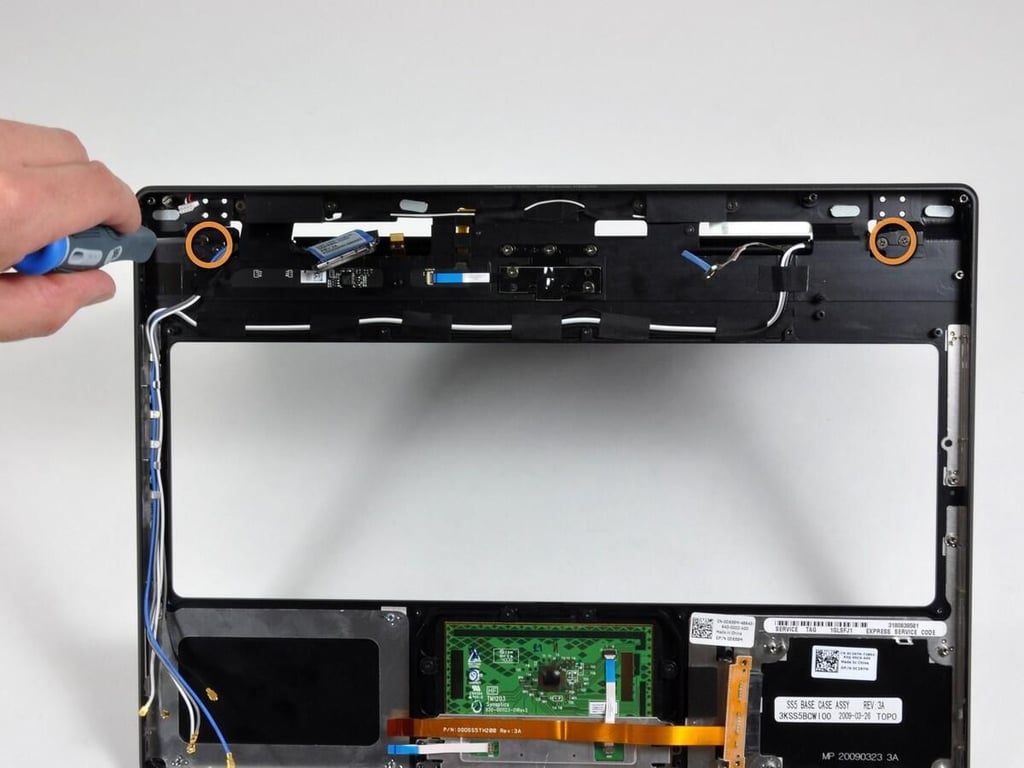
Four Phillips on the bottom, two on each side.
Photo and caption by iFixit for TechRepublic.
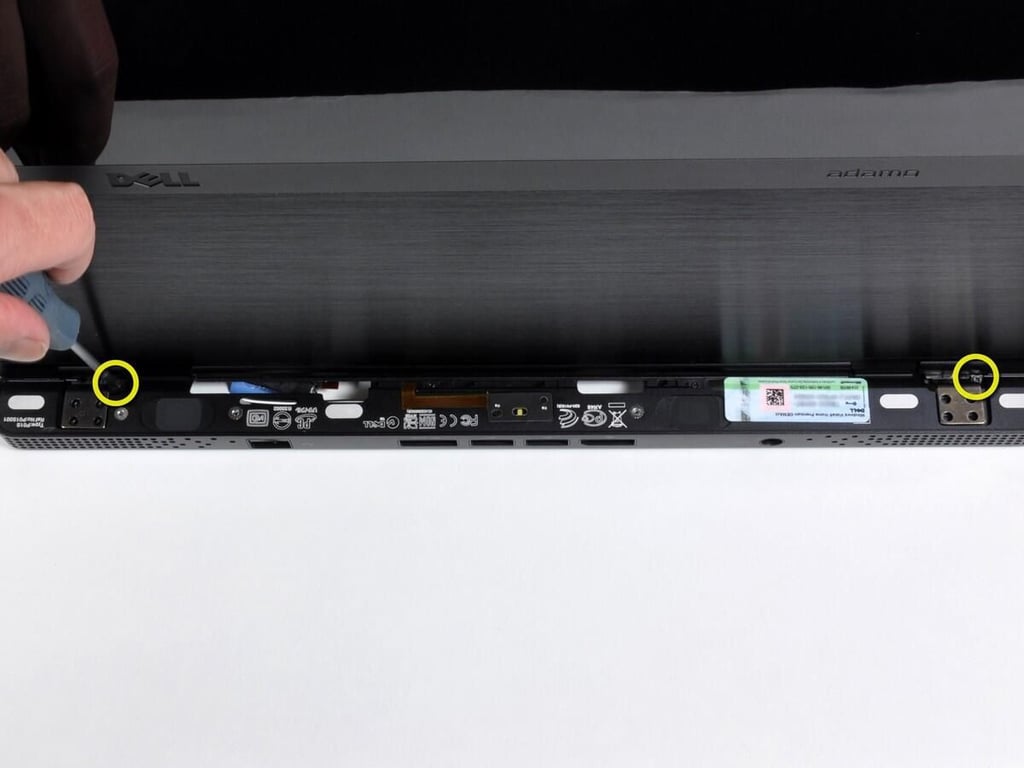
Two small Phillips on top, one on each side.
Photo and caption by iFixit for TechRepublic.
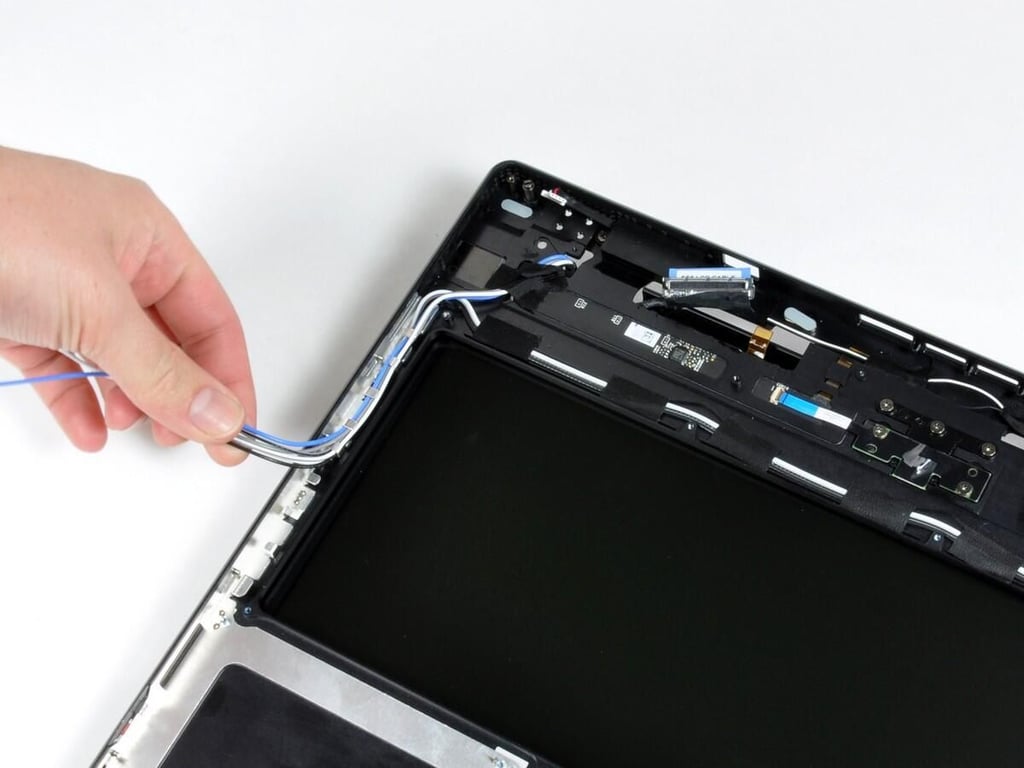
The display assembly is now unscrewed, but it’s not entirely free yet.
\nA bundle of antenna cables needs to be derouted from the top case.
It’ll be interesting the see Adamo’s wireless range and performance. It’s challenging to have good wireless reception with an all-metal computer.
Photo and caption by iFixit for TechRepublic.
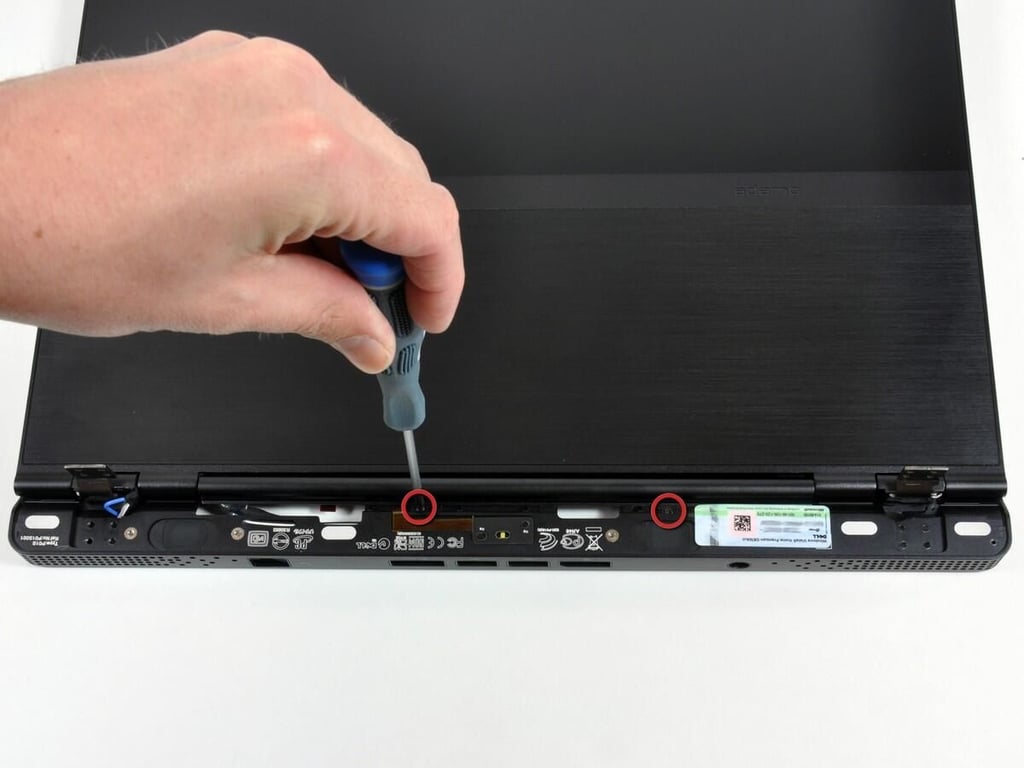
Two Phillips screws hold the clutch cover to the top case.
Photo and caption by iFixit for TechRepublic.
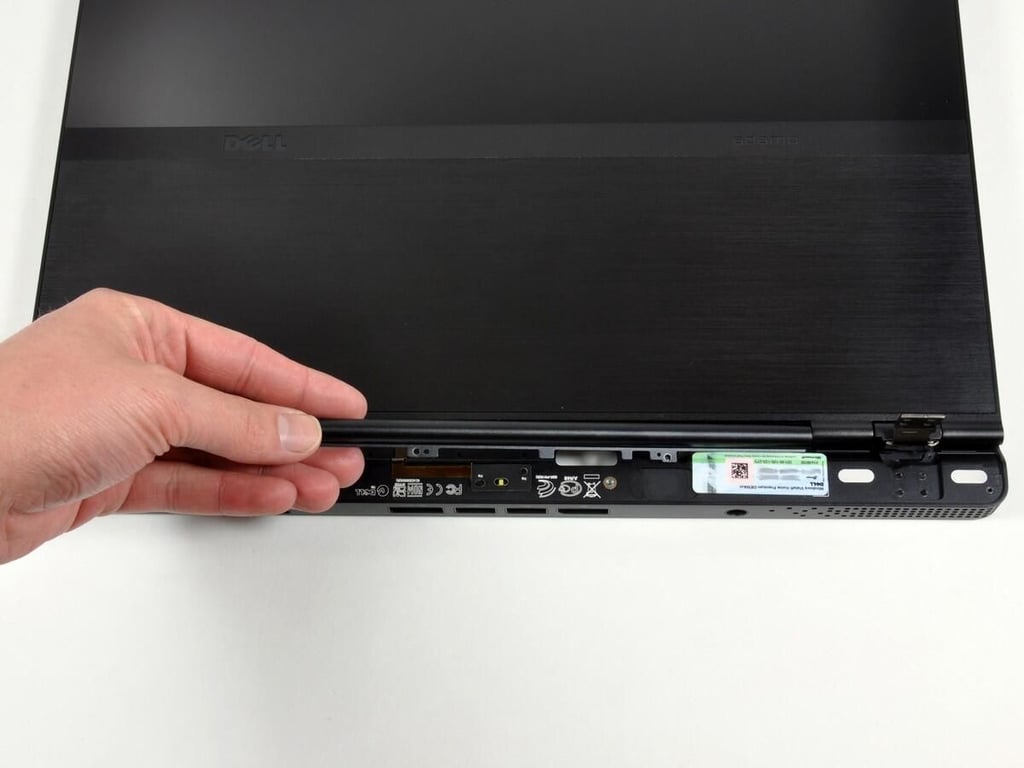
After removing the screws, the clutch cover simply lifts up.
\nThe clutch cover is incredibly light. Dell definitely shaved every gram they could off this part.
Photo and caption by iFixit for TechRepublic.
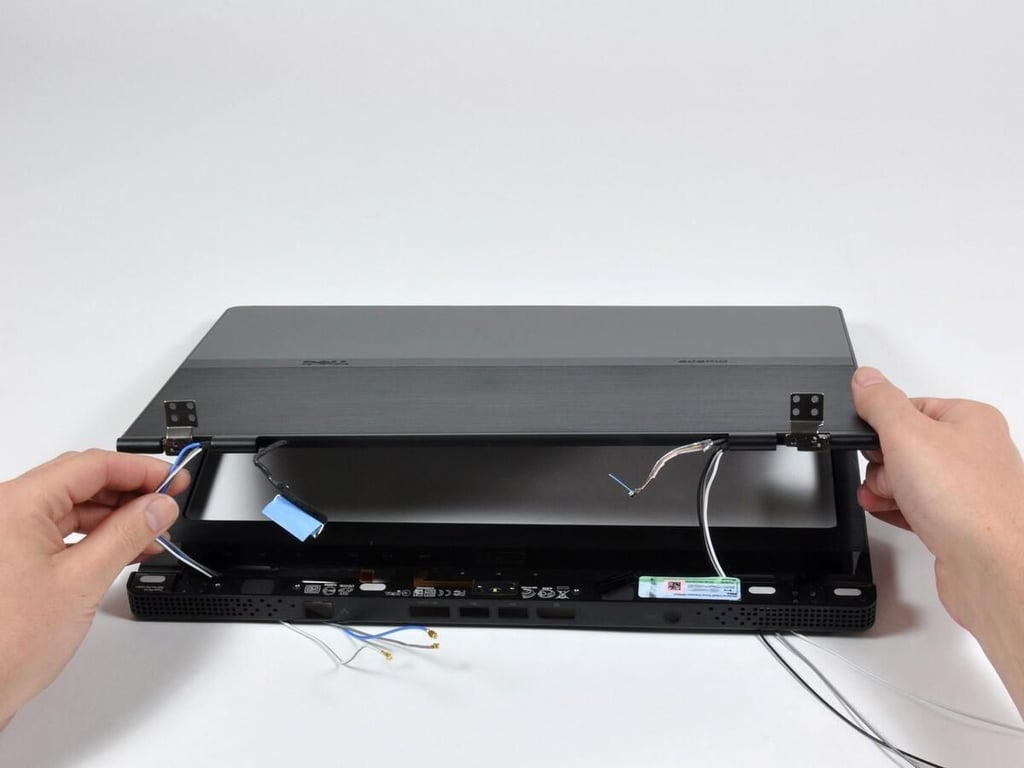
After lifting the clutch cover off, there’s plenty of room to thread the display cables through the top case and remove the display assembly.
\nThe display uses a LED backlight, so no inverter is necessary. As shown on this step, the display data cable is on the left, and the camera data cable is on the right.
Photo and caption by iFixit for TechRepublic.
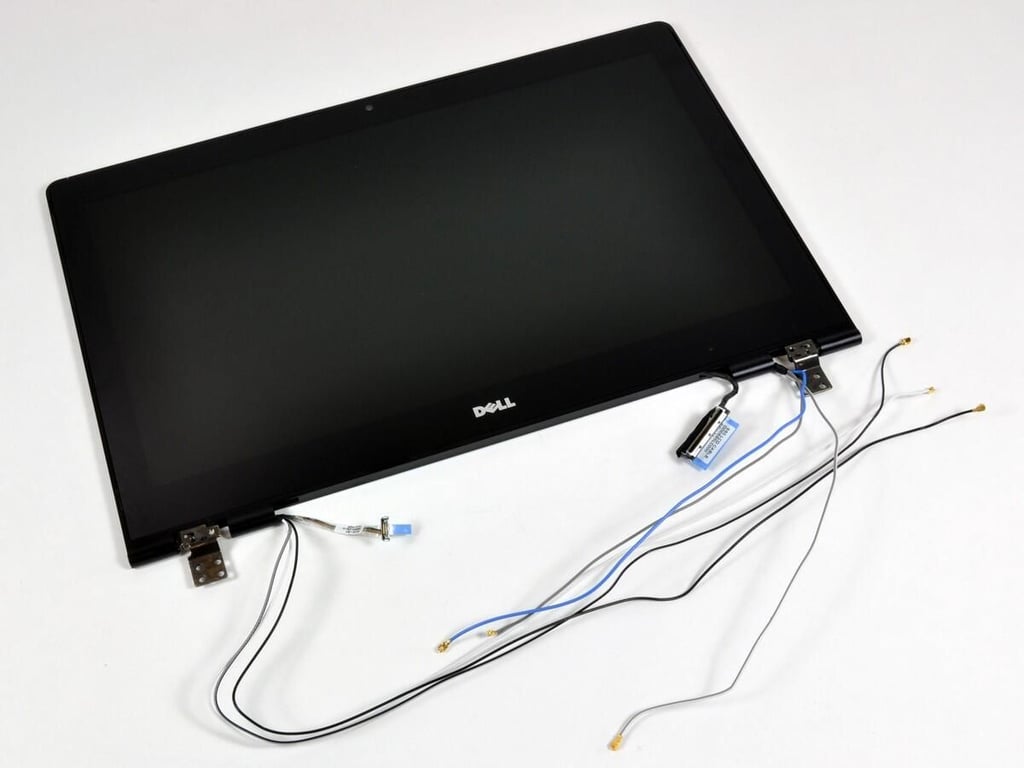
Free at last!
\nIt’s a beautiful display, except for the mass of antenna wires. It would definitely be a prettier picture if we got out the scissors.
\nThis display has a resolution of 1366×768. That’s slightly different than the 1280×800 resolution on the MacBook Air. You’ll get an extra 26,624 pixels if you choose the Adamo.
\nThe manual lists the display’s maximum power consumption as only 3.6 watts!
Photo and caption by iFixit for TechRepublic.
Photo and caption by iFixit for TechRepublic.
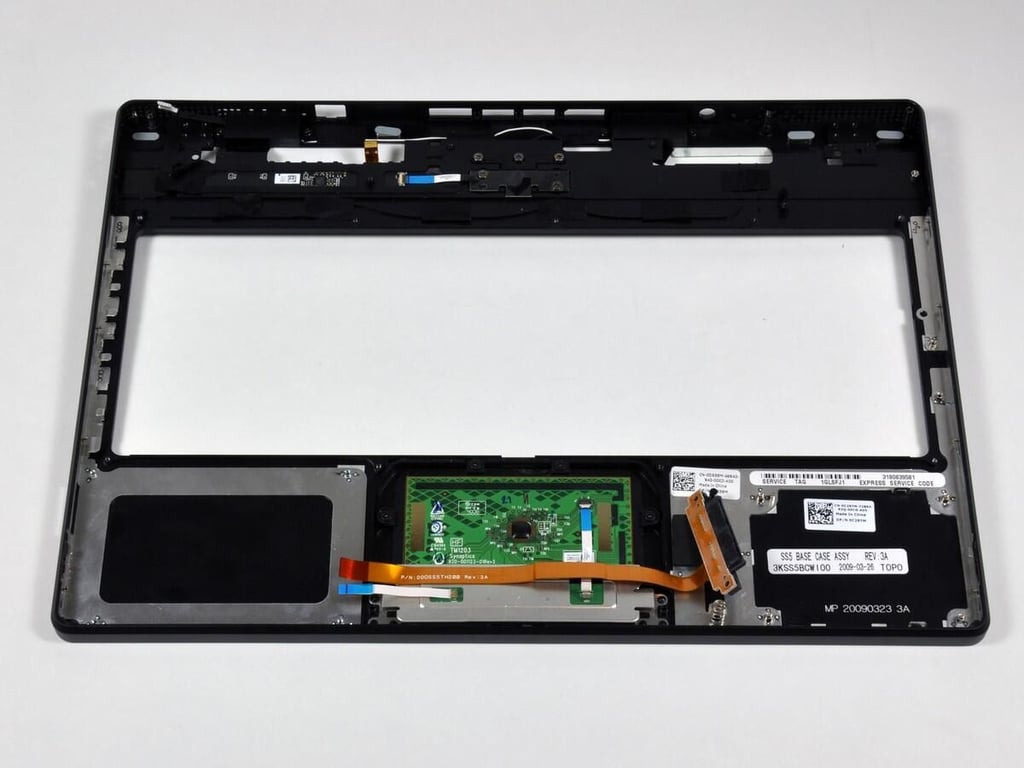
Photo and caption by iFixit for TechRepublic.
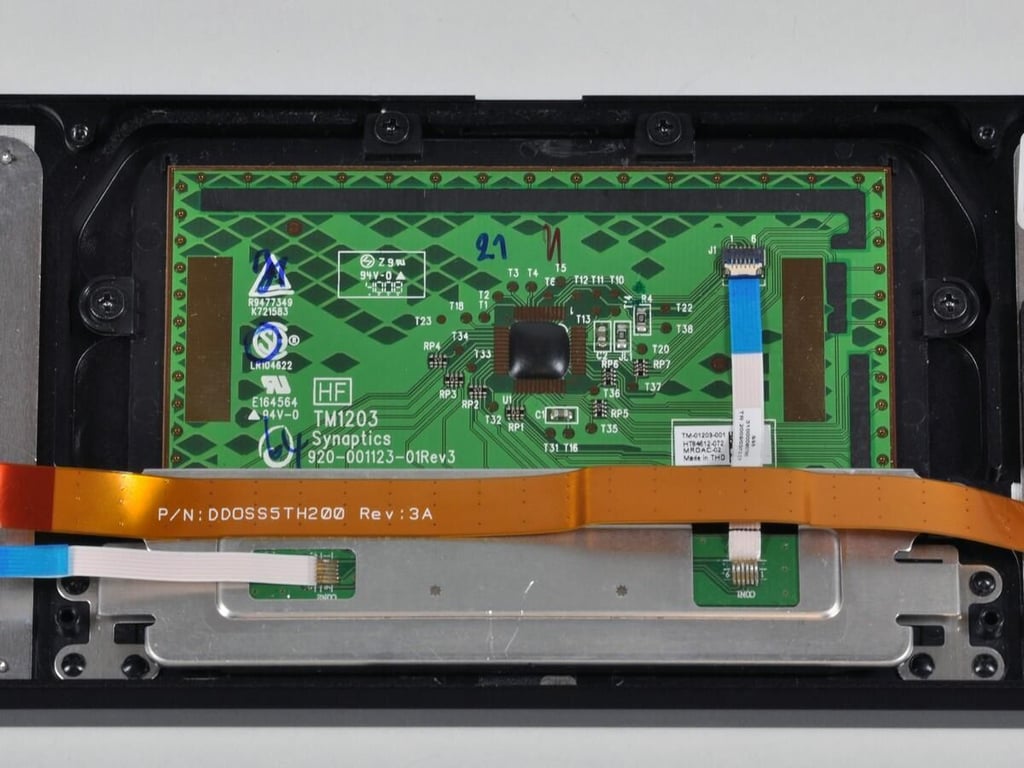
Photo and caption by iFixit for TechRepublic.
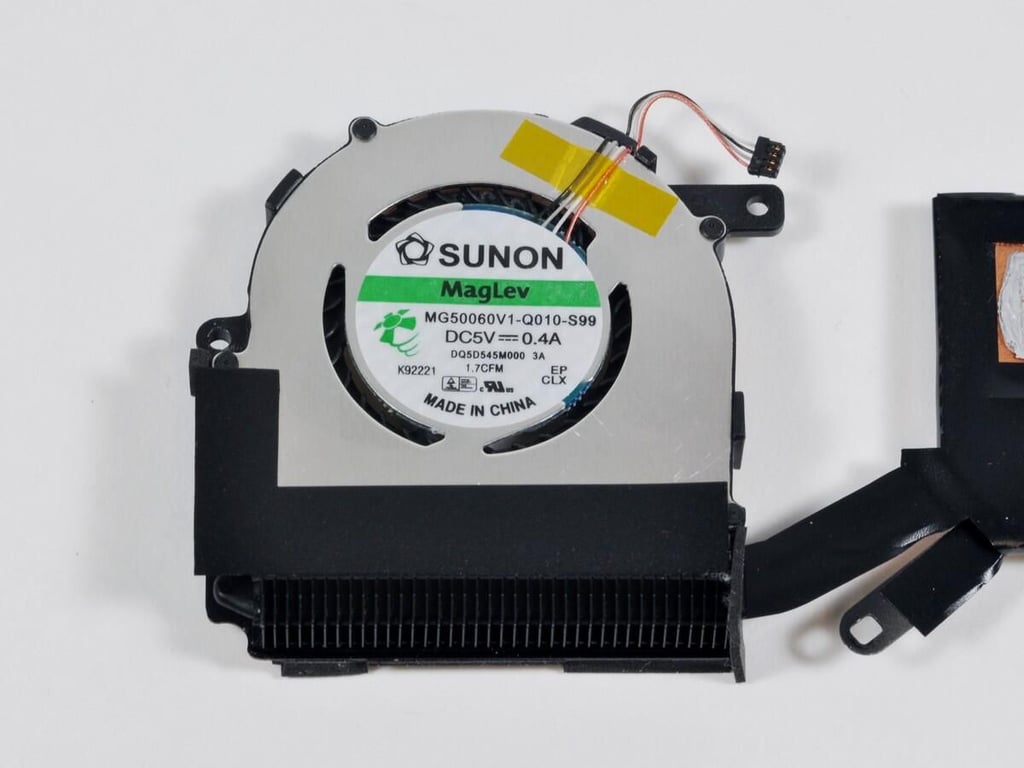
Photo and caption by iFixit for TechRepublic.
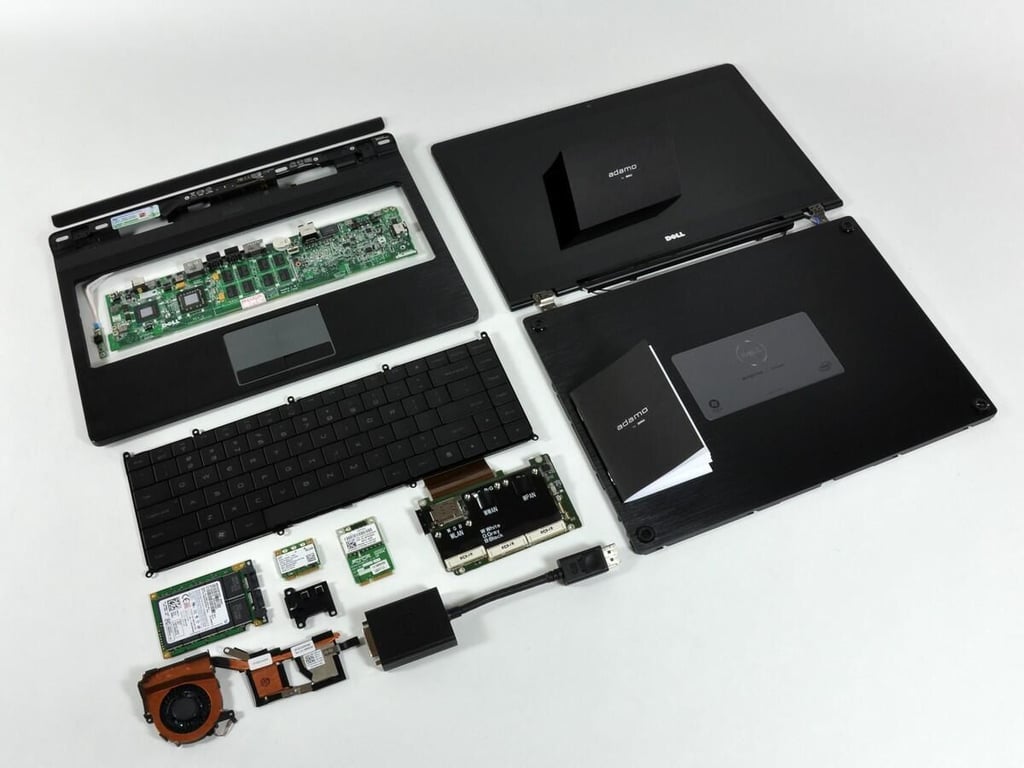
And here’s the whole Adamo enchilada…
Photo and caption by iFixit for TechRepublic.
Bill Detwiler is the Editor for Technical Content and Ecosystem at Celonis. He is the former Editor in Chief of TechRepublic and previous host of TechRepublic's Dynamic Developer podcast and Cracking Open, CNET and TechRepublic's popular online show. Previously, Bill was an IT manager in the social research and energy industries. He has bachelor's and master's degrees from the University of Louisville, where he has also lectured on computer crime and crime prevention.


